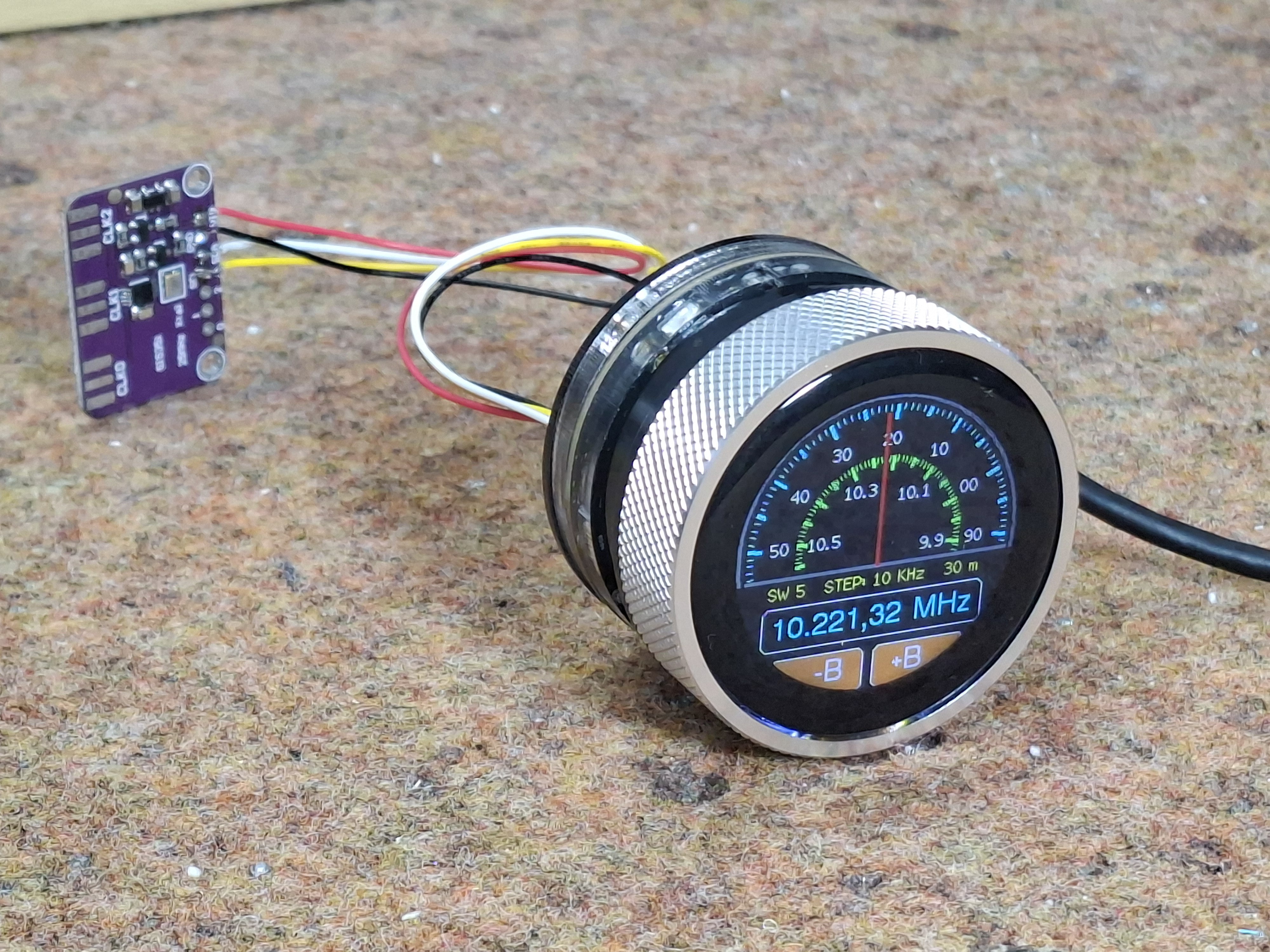
Not every project has to be complicated– reinventing the wheel has its place, but sometimes you find a module or two that does exactly what you want, and the project is more than halfway done. That the kind of project [mircemk]’s Simple Retro Style VFO is — it’s a variable frequency oscillator for HAM and other use, built with just a couple of modules.
Strictly speaking, this is all you need for the project.
The modules in question are the SI5351 Clock Generator module, which is a handy bit of kit with its own crystal reference and PLL to generate frequencies up to 150 MHz, and the Elecrow CrowPanel 1.28inch-HMI ESP32 Rotary Display. The ESP32 in the CrowPanel controls the SI5351 module via I2C; control is via the rest of the CrowPanel module. This Rotary Display is a circular touchscreen surrounded by a rotary display, so [mircmk] has all the inputs he needs to control the VFO.
To round out the parts count, he adds an appropriate connector, plus a power switch, red LED and a lithium battery. One could include a battery charger module as well, but [mircmk] didn’t have one on hand. Even if he had, that still keeps the parts count well inside the single digits. If you like video, we’ve embedded his about the project below; if not the write up on Hackaday.io is upto [mircmk]’s typical standard.
People have been using the SI5351 to make VFOs for years now, but the addition of the round display makes for a delightfully retro presentation.
We spend a lot of time staring at our screens, so it’s worth finding one that actually feels good to use. The right monitor can make your desk setup feel faster, brighter and easier on the eyes, whether you’re deep into spreadsheets, watching a show or chasing higher frame rates in your favorite game.
What the best monitor means, though, depends on what you do. Gamers might want smooth, fast refresh rates. Creators usually prioritize color accuracy. Office workers and students just need something clear, comfortable and reliable. Thankfully, monitors in 2025 cover all of those needs, with options that range from compact 24-inch displays to massive ultrawides built for serious multitasking.
We’ve tested a variety of monitors across price ranges and use cases to find the ones that stand out for everyday use. No matter your budget, setup or screen-size preference, these are the monitors that make your PC, and your time in front of it, a little better.
The cheapest monitors are still TN (twisted nematic), which are strictly for gamers or office use. VA (vertical alignment) monitors are also relatively cheap, while offering good brightness and a high contrast ratio. However, content creators will find that LCD, IPS displays (in-plane switching) deliver better color accuracy, pixel density, picture quality and wide viewing angles — making them a strong option for general computer monitor use.
If maximum brightness is important, a quantum dot LCD display is the way to go — those are typically found in larger displays. OLED panels are now available and offer the best blacks and color reproduction, but they lack the brightness of LED or quantum dot displays. Plus, they’re expensive. The latest type of OLED monitor, called QD-OLED from Samsung, is now common among gaming monitors. The most notable advantage is that it can get a lot brighter, with recent models hitting up to 1,000 nits+ of peak brightness.
MiniLEDs are now widely used in high-end displays. They’re similar to quantum dot tech, but as the name suggests, it uses smaller LED diodes that are just 0.2mm in diameter. As such, manufacturers can pack in up to three times more LEDs with more local dimming zones, delivering deeper blacks and better contrast. MiniLED displays also tend to offer excellent backlight control, making them a great choice for HDR content and video editing.
Screen size, resolution and display format
Where 24-inch displays used to be more or less standard (and can still be useful for basic computing), 27-, 32-, 34- and even 42-inch displays have become popular for entertainment, content creation and even gaming these days.
Nearly every monitor used to be 16:9, but it’s now possible to find 16:10 and other more exotic display shapes. On the gaming and entertainment side, we’re also seeing curved monitors and widescreen ultrawide monitors with aspect ratios like 21:9. If you do decide to buy an ultrawide display, however, keep in mind that a 30-inch 21:9 model is the same height as a 24-inch monitor, so you might end up with a smaller display than you expected.
A 4K monitor is nearly a must for content creators, and some folks are even going for 5K or all the way up to 8K. Keep in mind, though, that you’ll need a pretty powerful computer with a decent graphics card to drive all those sharp pixels. And 4K higher resolution should be paired with a screen size of 27 inches and up, or you won’t notice much difference between 1440p. At the same time, I wouldn’t get a model larger than 27 inches unless it’s 4K, as you’ll start to see pixelation if you’re working up close to the display. That’s when a lower resolution monitor shows its limits.
One new monitor category to consider is portable monitors designed to be carried and used with laptops. Those typically come in 1080p resolutions and sizes from 13-15 inches. They usually have a lightweight kickstand-type support that folds up to keep things compact and maximize portability and functionality.
HDR
HDR adds vibrancy to entertainment and gaming – but be careful before jumping in. Some monitors that claim HDR on their marketing materials don’t even conform to a base standard. To be sure that a display at least meets minimum HDR specs, you’ll want to choose one with a DisplayHDR rating with each tier representing maximum brightness in nits.
However, the lowest DisplayHDR 400 and 500 tiers may disappoint you with a lack of brightness, washed out blacks and mediocre color reproduction. If you can afford it, the best monitor to choose is a model with DisplayHDR 600, 1000 or True Black 400, True Black 500 and True Black 600.
Where televisions typically offer HDR10 and Dolby Vision or HDR10+, most PC monitors only support the HDR10 standard, other than a few (very expensive) models. That doesn’t matter much for content creation or gaming, but HDR streaming on Netflix, Amazon Prime Video and other services won’t look quite as punchy. In addition, the best gaming monitors are usually the ones supporting HDR600 (and up), rather than content creation monitors – with a few exceptions.
Refresh rate
High refresh rate is a key feature, particularly on gaming monitors. A bare minimum nowadays is 60Hz, and 80Hz and higher refresh rates are much easier on the eyes. However, most 4K displays top out at 60Hz with some rare exceptions and the HDMI 2.0 spec only supports 4K at 60Hz, so you’d need at least DisplayPort 1.4 (4K at 120Hz) or HDMI 2.1. The latter is now available on a number of monitors, particularly gaming displays. However, it’s only supported by the latest NVIDIA RTX 3000- and 4000-series, AMD RX 6000-series GPUs. Support for G-Sync and AMD FreeSync is also something to look for if you want to eliminate screen tearing and stuttering during fast-paced gameplay — especially when paired with a high refresh rate.
Inputs
There are essentially three types of modern display inputs: Thunderbolt, DisplayPort and HDMI. Most monitors built for PCs come with the latter two, while a select few (typically built for Macs) will use Thunderbolt. To add to the confusion, USB-C ports may be Thunderbolt 3, and by extension, DisplayPort compatible, so you may need a USB-C to Thunderbolt or DisplayPort cable adapter depending on your display.
Color bit depth
Serious content creators should consider a more costly 10-bit monitor that can display billions of colors. If budget is an issue, you can go for an 8-bit panel that can fake billions of colors via dithering (often spec’d as “8-bit + FRC”). For entertainment or business purposes, a regular 8-bit monitor that can display millions of colors will be fine.
Color gamut
The other aspect of color is the gamut. That expresses the range of colors that can be reproduced and not just the number of colors. Most good monitors these days can cover the sRGB and Rec.709 gamuts (designed for photos and video respectively). For more demanding work, though, you’ll want one that can reproduce more demanding modern gamuts like AdobeRGB, DCI-P3 and Rec.2020 gamuts, which encompass a wider range of colors. The latter two are often used for film projection and HDR, respectively.
Monitor FAQs
Is OLED better than mini-LED for monitors?
OLED is better than mini-LED in many areas but not all. Here are the advantages of OLED panels:
OLED monitors don't have any "blooming" or halos around bright parts of the image.
OLEDs have blacks with zero brightness, which is not achievable on mini-LED. That means they also have higher contrast ratios.
OLEDs consume less energy.
OLEDs have faster response times for gaming.
And here are the advantages of mini-LED monitors:
They are brighter (often much brighter), so it can be better for HDR content.
They don't suffer from burn-in like OLED can.
What size monitor is best for a home office?
This depends on the individual. For normal use, 27-32 inches is the sweet spot. If you're one who likes many windows open at a time (like a stock broker), then you might want to go up to 37 or even 42 inches.
Are curved monitors worth it for gaming?
If you need as much speed as possible, a curved monitor lets you rapidly look around the screen without changing focus or moving your head as much compared to a flat screen. It also provides more immersion. The drawback is that curved displays tend to be wider so they take up more desk space. They're also generally more expensive.
This article originally appeared on Engadget at https://www.engadget.com/computing/accessories/best-monitor-130006843.html?src=rss
The build is based on the work of [gadec-uk]—who developed a train information display some time ago. It’s based around an ESP32 D1 Mini, paired with a 256 x 64 OLED screen to display relevant train information. It accesses a National Rail API for train status information—known as the Darwin LDBWS (Live Departure Board Webservice). Configuration is via a web GUI hosted by the ESP32 itself.
[eastfamilyreddish] took the concept further by adapting this hardware into a more pleasing form. The ESP32 and OLED screen are built into a neat little hanging sign setup that apes one you might expect to see at a real railway station. You might expect that 3D printing was involved, but instead, this was achieved with lasercut parts and resin casting to create something with a beautiful finish. They even went so far as to include a wireless phone charging module in the base, making the device extra useful to really earn its place on the desktop.
The settlement lays to bed a drawn-out, three-year fight between Samsung’s display division and BOE, both of whom supply display panels used in Apple's iPhones.
I’m sitting in front of an old Sayno Plasma TV as I write this on my media PC. It’s not a productivity machine, by any means, but the screen has the resolution to do it so I started this document to prove a point. That point? Plasma TVs are awesome.
Always the Bridesmaid, Never the Bride
An Egyptian god might see pixels on an 8K panel, but we puny mortals won’t. Image “Horus Eye 2” by [Jeff Dahl]The full-colour plasma screens that were used as TVs in the 2000s are an awkward technological cul-de-sac. Everyone knows and loves CRTs for the obvious benefits they offer– bright colours, low latency, and scanlines to properly blur pixel art. Modern OLEDs have more resolution than the Eye of Horus, never mind your puny human orbs, and barely sip power compared to their forbearers. Plasma, though? Not old enough to be retro-cool, not new enough to be high-tech, plasma displays are sadly forgotten.
It’s funny, because I firmly believe that without plasma displays, CRTs would have never gone away. Perhaps for that I should hate them, but it’s for the very reasons that Plasma won out over HD-CRTs in the market place that I love them.
What You Get When You Get a Plasma TV
I didn’t used to love Plasma TVs. Until a few years ago, I thought of them like you probably do: clunky, heavy, power-hungry, first-gen flatscreens that were properly consigned to the dustbin of history. Then I bought a house.
The house came with a free TV– a big plasma display in the basement. It was left there for two reasons: it was worthless on the open market and it weighed a tonne. I could take it off the wall by myself, but I could feel the ghost of OSHA past frowning at me when I did. Hauling it up the stairs? Yeah, I’d need a buddy for that… and it was 2020. By the time I was organizing the basement, we’d just gone into lockdown, and buddies were hard to come by. So I put it back on the wall, plugged in my laptop, and turned it on.
I was gobsmacked. It looked exactly like a CRT– a giant, totally flat CRT in glorious 1080p. When I stepped to the side, it struck me again: like a CRT, the viewing angle is “yes”.
How it Works
None of this should have come as a surprise, because I know how a Plasma TV works. I’d just forgotten how good they are. See, a Plasma TV really was an attempt to get all that CRT goodness in a flat screen, and the engineers at Fujitsu, and later elsewhere, really pulled it off.
Like CRTs, you’ve got phosphors excited to produce points of light to create an image– and only when excited, so the blacks are as black as they get. The phosphors are chemically different from those in CRTs but they come in similar colours, so colours on old games and cartoons look right in a way they don’t even on my MacBook’s retina display.
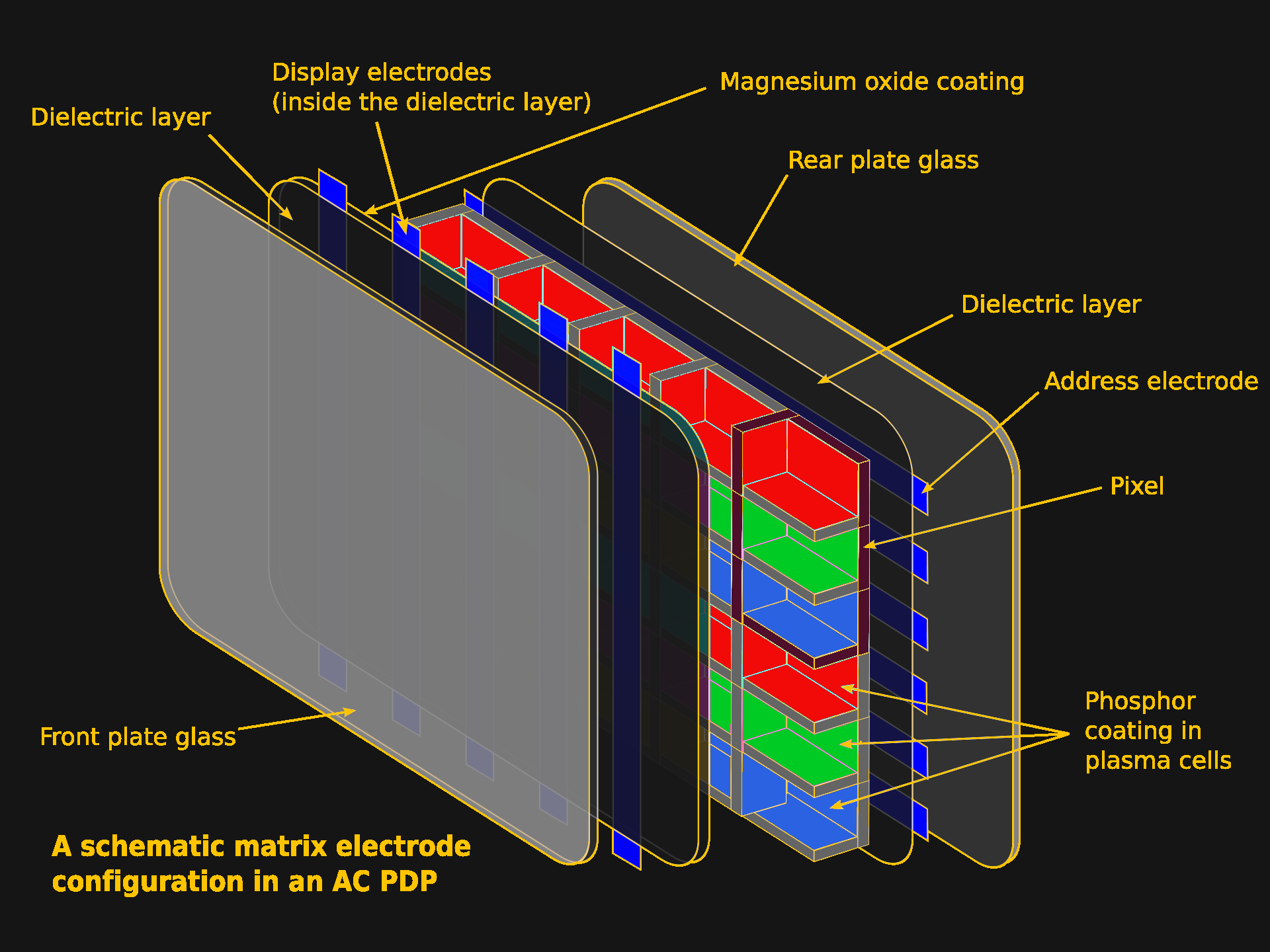
Unlike a CRT, there’s no electron beam scanning the screen, and no shadow mask. Instead, the screen is subdivided into individual pixels inside the flat vacuum panel. The pixels are individually addressed and zapped on and off by an electric current. Unlike a CRT or SED, the voltage here isn’t high enough to generate an electron beam to excite the phosphors; instead the gas discharge inside the display emits enough UV light to do the same job.
Each phosphor-filled pixel glows with its own glorious light thanks to the UV from gas discharge in the cell. Image based on “Plasma-Display-Composition.svg” by [Jari Laamanen].Still, if it feels like a CRT, and that’s because the subpixels are individual blobs of phosphors, excited from behind, and generating their own glorious light.
It’s Not the Same, Though
It’s not a CRT, of course. The biggest difference is that it’s a fixed-pixel display, with all that comes with that. This particular TV has all the ports on the back to make it great for retrogaming, but the NES, or what have you, signal still has to be digitally upscaled to match the resolution. Pixel art goes unblurred by scanlines unless I add it in via emulation, so despite the colour and contrast, it’s not quite the authentic experience.
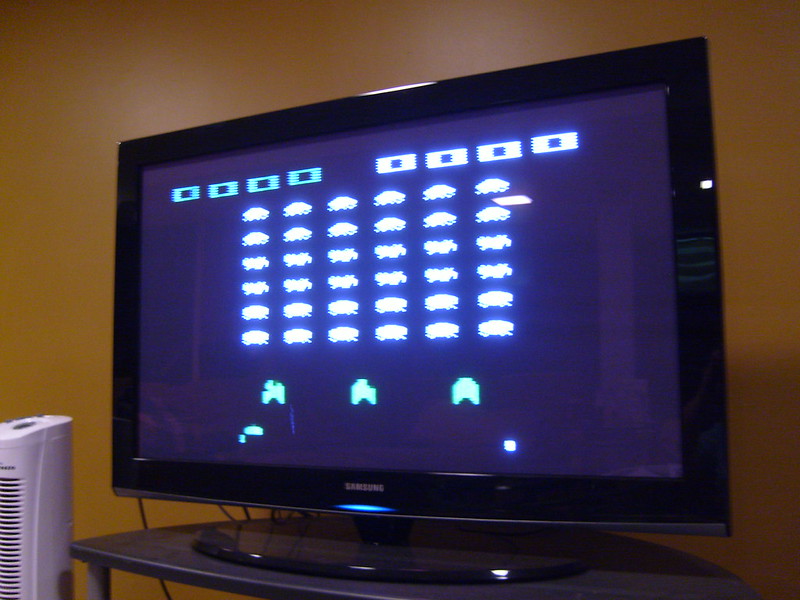
For some things, like the Atari 2600, the scanline blur really doesn’t matter. Image: “Atari 2600 on my 42 inch plasma TV” by [Jeffisageek] The built-in upscaling doesn’t introduce enough latency for a filthy casual like me to notice, but I’ll never be able to play Duck Hunt on the big screen unless I fake it with a Wii. Apparently some Plasma TVs are awesome for latency on the analog inputs, and others are not much better than an equivalent-era LCD. There’s a reason serious retro gamers pay serious money for big CRTs.
Those big CRTs don’t have to worry about burn in, either, something I have been very careful in the five years I’ve owned this second-hand plasma display to avoid. I can’t remember thinking much about burn-in with CRTs since we retired the amber-phosphor monitor plugged into the Hercules Graphics card on our family’s 286 PC.
The dreaded specter of burn-in is plasma’s Achilles heel – more than the weight and thickness, which were getting much better before LG pulled the plug as the last company to exit this space, or the Energy Star ratings, which weren’t going to catch up to LED-backlit LCDs, but had improved as well. The fear of burn-in made you skip the plasma, especially for console gaming.
This screen is haunted by the ghost of CNN’s old logo. Burning in game graphics was less common but more fun. Ironically, it’s an LCD. Image: “logo of CNN burnt on a screen” by [Nate]Early plasma displays could permanently damage the delicate phosphors in only a handful of hours. That damage burnt the unmoving parts of an image permanently into the phosphors in the form of “ghosting”, and unless you caught it early, it was generally not repairable. The ghosting issue got better over time, but the technology never escaped the stigma, and the problem never entirely went away. If that meant that after a marathon Call-of-Duty session the rest of the family had to stare at your HUD on every movie night, Dad wasn’t going to buy another plasma display.
By the end, the phosphors improved and various tricks like jiggling the image pixel-by-pixel were found to avoid burn-in, and it seems to have worked: there’s absolutely no ghosting on my model, and you can sometimes find late-model Plasma TVs for the low, low cost of “get this thing off my wall and up the stairs” that are equally un-haunted. I may grab another, even if I have to pay for it. It’s a lot easier to hide a spare flatscreen than an extra CRT, another advantage to the plasma TVs, and in no case do phosphors last forever.
In the mean time, I’m going to enjoy the contrast ratio, refresh rate, and the bonus space heater. I’m in Canada, and winter is coming, so it’s hard to get too overworked about waste heat when there’s frost on your windowpanes.

 Login
Login