If there is one thing we took from [azwankhairul345’s] environmental monitor project, it is this: sensors and computing power for such a project are a solved problem. What’s left is how to package it. The solution, in this case, was using recycled plastic containers, and it looks surprisingly effective.
A Raspberry Pi Pico W has the processing capability and connectivity for a project like this. A large power bank battery provides the power. Off-the-shelf sensors for magnetic field (to measure anemometer spins), air quality, temperature, and humidity are easy to acquire. The plastic tub that protects everything also has PVC pipe and plastic covers for the sensors. Those covers look suspiciously like the tops of drink bottles.
We noted that the battery bank inside the instrument doesn’t have a provision for recharging. That means the device will go about two days before needing some sort of maintenance. Depending on your needs, this could be workable, or you might have to come up with an alternative power supply.
This probably won’t perform as well as a Hoffman box-style container, and we’ve seen those crop up, too. There are a number of ways of sealing things against the elements.
Why Stitched Together Platforms Quietly Increase Breach Probability In today’s cybersecurity market, nearly every vendor claims to offer an integrated or unified platform. For buyers under pressure to reduce complexity, these promises are appealing. But beneath the marketing language lies a reality that many organizations only discover after a breach: integration does not equal unification.
ICE protests surveillance yet uses tech to track citizens' devices, possibly violating privacy laws and the Fourth Amendment, revealed through ICE's data tools.
New monitoring capability delivers unprecedented visibility into vendor identity exposures, moving enterprises and government agencies from static risk scoring to protecting against actual identity threats.
In this chapter, we’re going deeper into the ways defenders can spot you and the traps they set to catch you off guard. We’re talking about defensive mechanisms and key Windows Event IDs that can make your life harder if you’re not careful. Every hacker knows that understanding defenders’ tools and habits is half the battle.
No system is perfect, and no company has unlimited resources. Every growing organization needs analysts constantly tuning alerts and security triggers as new software and users are added to the network. It’s tedious and repetitive work. Too many alerts can exhaust even the sharpest defenders. Eye fatigue, late nights, and false positives all drain attention. That’s where you get a small window to make a move, or a chance to slip through unnoticed.
Assuming nobody is watching is a beginner’s mistake. We’ve seen many beginners lose access to entire networks simply because they underestimated defensive mechanisms. The more professional you become, the less reckless you are, and the sharper your actions become. Always evaluate your environment before acting.
Visibility
Defenders have a few main ways they can detect you, and knowing these is crucial if you want to survive:
Process Monitoring
Process monitoring allows defenders to keep an eye on what programs start, stop, or interact with each other. Every process, PowerShell included, leaves traces of its origin (parent) and its children. Analysts use this lineage to spot unusual activity.
For example, a PowerShell process launched by a Microsoft Word document might be suspicious. Security teams use Endpoint Detection and Response (EDR) tools to gather this data, and some providers, like Red Canary, correlate it with other events to find malicious patterns.
Command Monitoring
Command monitoring focuses on what commands are being run inside the process. For PowerShell, this means watching for specific cmdlets, parameters, or encoded commands. Alone, a command might look innocent, but in combination with process monitoring and network telemetry, it can be a strong indicator of compromise.
Network Monitoring
Attackers often use PowerShell to download tools or exfiltrate data over the network. Monitoring outgoing and incoming connections is a reliable way for defenders to catch malicious activity. A common example is an Invoke-Expression command that pulls content from an external server via HTTP.
What They’re Watching
Let’s break down the logs defenders rely on to catch PowerShell activity:
Windows Security Event ID 1101: AMSI
AMSI stands for Antimalware Scan Interface. Think of it as a security checkpoint inside Windows that watches scripts running in memory, including PowerShell, VBScript, and WMI.
AMSI doesn’t store logs in the standard Event Viewer. Instead, it works with Event Tracing for Windows (ETW), a lower-level logging system. If you bypass AMSI, you can execute code that normally would trigger antivirus scans, like dumping LSASS or running malware, without immediate detection.
But AMSI bypasses are risky. They’re often logged themselves, and Microsoft actively patches them. Publicly available bypasses are a trap for anyone trying to survive quietly.
Windows Security Event ID 4104: ScriptBlock Logging
ScriptBlock logging watches the actual code executed in PowerShell scripts. There are two levels:
Automatic (default): Logs script code that looks suspicious, based on Microsoft’s list of dangerous cmdlets and .NET APIs.
Global: Logs everything with no filters.
Event ID 4104 collects this information. You can bypass this by downgrading PowerShell to version 2, if it exists, but even that downgrade can be logged. Subtle obfuscation is necessary. Here is how you downgrade:
PS > powershell -version 2
Note, that ScriptBlock logging only works with PowerShell 5 and above.
Windows Security Event ID 400: PowerShell Command-Line Logging
Even older PowerShell versions have Event ID 400, which logs when a PowerShell process starts. It doesn’t show full commands, but the fact that a process started is noted.
Windows Security Event IDs 800 & 4103: Module Loading and Add-Type
Module logging (Event ID 800) tracks which PowerShell modules are loaded, including the source code for commands run via Add-Type. This is important because Add-Type is used to compile and run C# code.
In PowerShell 5+, Event ID 4103 also logs this context. If a defender sees unusual or rarely-used modules being loaded, it’s a red flag.
Sysmon Event IDs
Sysmon is a specialized Windows tool that gives defenders extra visibility. Usually defenders monitor tracks:
Event ID 1: Every new process creation.
Event ID 7: Module loads, specifically DLLs.
Event ID 10: Process Access, for instance accessing lsass.exe to dump credentials.
For PowerShell, Event ID 7 can flag loads of System.Management.Automation.dll or related modules, which is often a clear indicator of PowerShell use. Many other Sysmon IDs might be monitored, make sure you spend some time to learn about some of them.
Not all systems have Sysmon, but where it’s installed, defenders trust it. Essentially, it is like a high-tech security camera that is detailed, persistent, and hard to fool.
Endpoint Detection and Response (EDR) Tools
EDR tools combine all the telemetry above such as processes, commands, modules, network traffic to give defenders a full picture of activity. If you’re working on a system with EDR, every move is being watched in multiple ways.
What’s Likely to Get You Spotted
Attackers are predictable. If you run the same commands repeatedly, defenders notice. Red Canary publishes filters that show suspicious PowerShell activity. Not every system uses these filters, but they’re widely known.
Encoded Commands
Using -encodedcommand or Base64 can trigger alerts. Base64 itself isn’t suspicious, but repeated or unusual use is a warning sign.
Obfuscation & Escape Characters
Adding extra characters (^, +, $, %) can throw off detection, but too much is suspicious.
Suspicious Cmdlets
Some cmdlets are commonly abused. These include ones for downloading files, running scripts, or managing processes. Knowing which ones are flagged helps you avoid careless mistakes.
Suspicious Script Directories
Scripts running from odd locations, like Public folders, are more likely to be flagged. Stick to expected directories or in-memory execution.
Workarounds
Even when your movement is restricted, options exist.
1) Use native binaries. Legitimate Windows programs are less suspicious.
2) Less common commands. Avoid widely abused cmdlets to reduce detection.
3) Living-Off-the-Land. Using built-in tools creatively keeps you under the radar.
We’ll cover these in more depth in the next chapter, how commands meant for one thing can be adapted for another while remaining invisible.
Net Trick
The net command is powerful, but can be monitored. Use net1 to bypass some filters in really strict environments:
PS > net1 user
This lets you run the full suite of net commands quietly.
Logs
Deleting logs can sometimes be a good idea, but you should know that Event ID 1102 flags it immediately. Also, even less experienced defenders can trace lateral movement from log records. Traffic spikes or SMB scans are noticed quickly.
Methods to Evade Detection
Focus on minimizing your footprint and risk. High-risk, complex techniques are not part of this guide.
Avoid Writing Files
Files on disk can betray your tactics. If saving is necessary, use native-looking names, unusual folders, and adjust timestamps. Stick to in-memory execution where possible. Lesser-known commands like odbconf.exe and cmstp.exe are safer and often overlooked. Use them for execution.
PowerShell Version 2
Downgrading can bypass ScriptBlock logging. But you need to obfuscate things carefully. Subtlety is key here.
Change Forwarder Settings
Tweaking log collectors can buy time but is riskier. Always revert these changes after finishing. It’s always good to have a backup of the config files.
Credential Reuse & Blending In
Use known credentials rather than brute-forcing. Work during normal hours to blend in well and dump traffic to understand local activity. Using promiscuous mode can help you get richer network insights. Targeting common ports for file distribution is also a good idea and blends in well with normal traffic patterns.
Summary
In this part we learned more about the enemy and how defenders see your every move. We broke down the main ways attackers get caught, such as process monitoring, command monitoring and network monitoring. From there, we explored Windows Event IDs and logging mechanisms. We emphasized survival strategies that help you minimize footprint by using in-memory execution, sticking to lesser-known or native commands, using version 2 PowerShell or blending in with normal traffic. Practical tips like the net1 trick and log handling process give you an idea how to avoid raising alarms.
When you understand how defenders observe, log, and respond it lets you operate without tripping alerts. By knowing what’s watched and how, you can plan your moves more safely and survive longer. Our goal here was to show you the challenges you’ll face on Windows systems in restricted environments and give you a real sense that you’re never truly alone.
The AI Governance Tightrope: Enabling Innovation Without Compromising Security Cybersecurity leaders are facing a critical inflection point. The rapid emergence of artificial intelligence technologies presents both unprecedented opportunities and significant...
Varun Uppal, founder and CEO of Shinobi Security Over the weekend, airports across Europe were thrown into chaos after a cyber-attack on one of their technology suppliers rippled through airline...
The Invisible Threat: Reimagining Third-Party Risk Management Cybersecurity leaders are drowning in questionnaires while threat actors are swimming in data. The traditional approach to vendor risk management is broken, and...
LastPass Evolves Secure Access Experiences to Combat Shadow IT and AI Risks for CISOs Picture your organization humming along, with teams adopting new apps to boost efficiency. But beneath that...
The Network’s Hidden Battlefield: Rethinking Cybersecurity Defense Modern cyber threats are no longer knocking at the perimeter – they’re already inside. The traditional security paradigm has fundamentally shifted, and CISOs...
Zero Trust: The Unsung Hero of Cybersecurity Cybersecurity professionals are drowning in complexity. Acronyms fly like digital confetti, vendors promise silver bullets, and CISOs find themselves perpetually playing catch-up with...
Getting PCI DSS compliant is like preparing for a big exam. You cannot just walk into it blind, you first need to prepare, check your weak areas, next fix them, and then only face the audit. If you are here today for the roadmap, I assume you are preparing for an audit now or sometime in the future, and I hope this PCI DSS 4.0 Readiness Roadmap helps you as your preparation guide. So, let’s get started!
Step 1: List down everything in scope
The first mistake many companies make is they don’t know what is really in the PCI scope. So, start with an inventory.
This is one area where many organizations rely on pci dss compliance consultants to help them correctly identify what truly falls under cardholder data scope.
Applications: Your payment gateway (Stripe, Razorpay, PayPal, Adyen), POS software, billing apps like Zoho Billing, CRMs like Salesforce that store customer details, in-house payment apps.
Databases: MySQL, Oracle, SQL Server, MongoDB that store PAN or related card data.
Servers: Web servers (Apache, Nginx, IIS), application servers (Tomcat, Node.js), DB servers.
Write all this down in a spreadsheet. Mark which ones store, process, or transmit card data. This becomes your “scope map.”
Step 2: Do a gap check (compare with PCI DSS 4.0 requirements)
Now take the PCI DSS 4.0 standard and see what applies to you. Some basics:
Firewalls – Do you have them configured properly or are they still at default rules?
Passwords – Are your systems still using “welcome123” or weak defaults? PCI needs strong auth.
Encryption – Is card data encrypted at rest (DB, disk) and in transit (TLS 1.2+)? If not, you may fail your PCI DSS compliance audit.
Logging – Are you logging access to sensitive systems, and storing logs securely (like in Splunk, ELK, AWS CloudTrail)?
Access control – Who has access to DB with card data? Is it limited on a need-to-know basis?
Example: If you’re running an e-commerce store on Magento and it connects to MySQL, check if your DB is encrypted and whether DB access logs are kept.
Step 3: Fix the weak spots (prioritize risks)
If your POS terminals are outdated (like old Verifone models), replace or upgrade.
If your AWS S3 buckets storing logs are public, fix them immediately.
If employees are using personal laptops to process payments, enforce company-managed devices with endpoint security (like CrowdStrike, Microsoft Defender ATP).
If your database with card data is open to all developers, restrict it to just DB admins.
Real story: A retailer I advised had their POS terminals still running Windows XP. They were shocked when I said PCI won’t even allow XP as it’s unsupported.
Step 4: Train your people
PCI DSS is not just about tech. If your staff doesn’t know, they’ll break controls.
Train call center staff not to write card numbers on paper.
Train IT admins to never copy card DBs to their laptops for “testing.”
Train developers to follow secure coding (OWASP Top 10, no hard-coded keys). This not only helps with PCI but also complements SOC 2 compliance.
Example: A company using Zendesk for support had to train agents not to ask customers for card details over chat or email.
Step 5: Set up continuous monitoring
Auditors don’t just look for controls, they look for evidence.
Centralize your logs in SIEM (Splunk, QRadar, ELK, Azure Sentinel).
Set up alerts for failed logins, privilege escalations, or DB exports.
Do penetration testing on your payment apps (internal and external).
Example: If you are using AWS, enable CloudTrail + GuardDuty to continuously monitor activity.
Step 6: Do a mock audit (internal readiness check)
Before the official audit, test yourself.
Pick a PCI DSS requirement (like Requirement 8: Identify users and authenticate access). Check if you can prove strong passwords, MFA, and unique IDs.
Review if your network diagrams, data flow diagrams, and inventories are up to date.
Run a mock interview: ask your DB admin how they control access to the DB. If they can’t answer, it means you are not ready.
Example: I’ve seen companies that have everything in place but fail because their staff can’t explain what’s implemented.
Step 7: Engage your QSA (when you’re confident)
Finally, once you have covered all major gaps, bring in a QSA (like us at VISTA InfoSec). A QSA will validate and certify your compliance. But if you follow the above steps, the audit becomes smooth and you can avoid surprises.
We recently helped Vodafone Idea achieve PCI DSS 4.0 certification for their retail stores and payment channels. This was a large-scale environment, yet with the right PCI DSS 4.0 Readiness Roadmap (like the one above), compliance was achieved smoothly.
Remember, even the largest organizations can achieve PCI DSS 4.0 compliance if they start early, follow the roadmap step by step, and keep it practical.
Final Words for PCI DSS 4.0 Readiness Roadmap
Most businesses panic only when the audit date gets close. But PCI DSS doesn’t work that way. If you wait till then, it’s already too late.
So, start now. Even small steps today (like training your staff or fixing one gap) move you closer to compliance.
Having trouble choosing a QSA? VISTA InfoSec is here for you!
For more than 20 years, we at VISTA InfoSec have been helping businesses across fintech, telecom, cloud service providers, retail, and payment gateways achieve and maintain PCI DSS compliance. Our team of Qualified Security Assessors (QSAs) and technical experts works with companies of every size, whether it’s a start-up launching its first payment app or a large enterprise.
So, don’t wait! Book a free PCI DSS strategy call today to discuss your roadmap. You may also book a free one-time consultation with our qualified QSA.
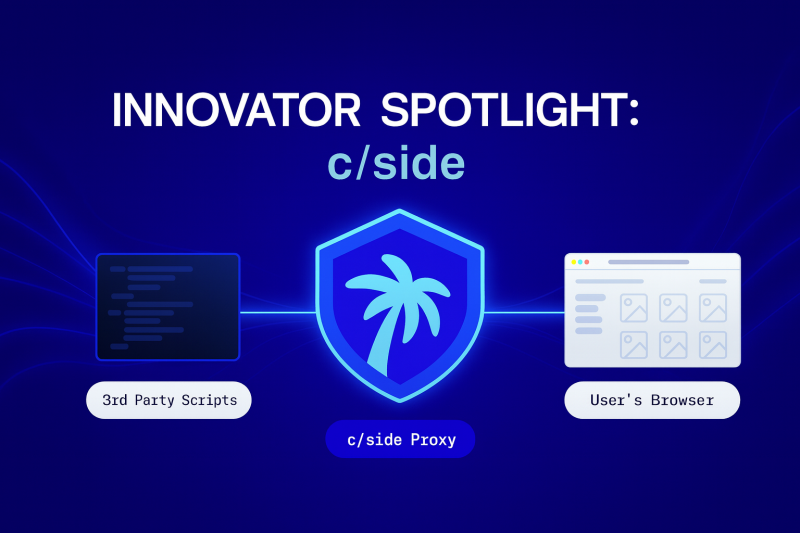
Securing the Browser’s Blind Spot By Victoria Hargrove, CDM Reporter What CSide Does Most security stacks fortify servers, databases, and internal apps. CSide (Client-side Development, Inc. aka c/side) targets the...
I will start the new year with a simple entry. Specifically, monitoring my own services. As time goes by and you have more and more websites or servers that like to stop working from time to time for various reasons, it is worth monitoring their status. Especially when they are sites or services that provide a cash flow. However, whatever the
With every webpage loaded, email sent, or video streamed, network traffic takes a complex journey across multiple infrastructure nodes. From the device to the destination, data packets travel across various gateways, networks, through routers, switches, and service providers along the way. Understanding the network traffic paths and segments along the journey reveals much about performance,…
How Managed Service Providers Can Provide More Insights to Clients With the reliance on cloud computing continuously surging, Managed Service Providers (MSPs) are required to deliver a wider range of support services. Efficiently managing Unified Communications as a Service (UCaaS) and Software as a Service (SaaS) has become increasingly difficult but more important. To meet…
In today’s fast-paced, digitally driven world, monitoring network performance has never been more critical. Whether you’re a small business, or a large enterprise, understanding the complexities of Voice over Internet Protocol (VoIP) and bandwidth is crucial for delivering an exceptional user experience. In this article, we’ll dive into the powerful CloudReady synthetics and Service Watch…
Verifying email performance is more than the basic understanding of message flow. Outbound mail in the form of Simple Mail Transfer Protocol (SMTP) and inbound mail through MAPI or Microsoft’s Graph API only parts of email systems to monitor, usually through pings or basic delivery confirmations. Often, once email is moved to Exchange Online, even…

 Login
Login