 Login
LoginUma Racing Codes (January 2026)
Uma Racing is a community-created racing game, inspired by the popular Uma Musume universe. Uma Racing...
The post Uma Racing Codes (January 2026) appeared first on Fossbytes.

Uma Racing is a community-created racing game, inspired by the popular Uma Musume universe. Uma Racing...
The post Uma Racing Codes (January 2026) appeared first on Fossbytes.
Most gamers obsess over raw aim and lineup nerd spots while totally sleeping on the free...
The post Valorant Passive Abilities Pros Abuse in High-Elo Matches appeared first on Fossbytes.
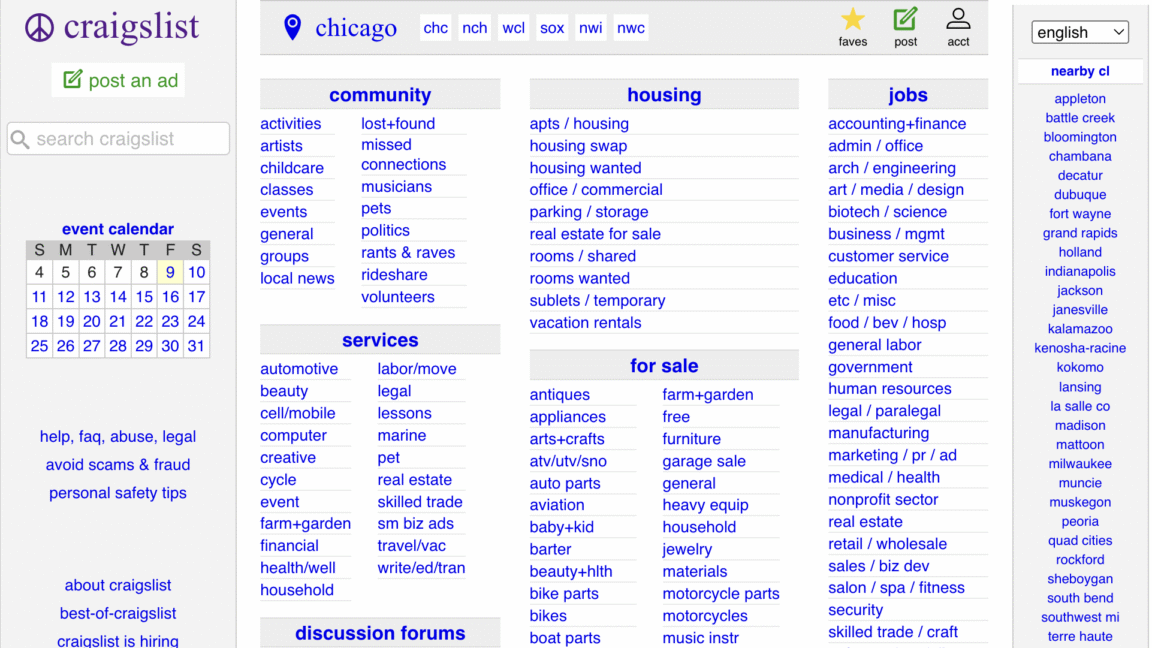
The writer and comedian Megan Koester got her first writing job, reviewing Internet pornography, from a Craigslist ad she responded to more than 15 years ago. Several years after that, she used the listings website to find the rent-controlled apartment where she still lives today. When she wanted to buy property, she scrolled through Craigslist and found a parcel of land in the Mojave Desert. She built a dwelling on it (never mind that she’d later discover it was unpermitted) and furnished it entirely with finds from Craigslist’s free section, right down to the laminate flooring, which had previously been used by a production company.
“There’s so many elements of my life that are suffused with Craigslist,” says Koester, 42, whose Instagram account is dedicated, at least in part, to cataloging screenshots of what she has dubbed “harrowing images” from the site’s free section; on the day we speak, she’s wearing a cashmere sweater that cost her nothing, besides the faith it took to respond to an ad with no pictures. “I’m ride or die.”
Koester is one of untold numbers of Craigslist aficionados, many of them in their thirties and forties, who not only still use the old-school classifieds site but also consider it an essential, if anachronistic, part of their everyday lives. It’s a place where anonymity is still possible, where money doesn’t have to be exchanged, and where strangers can make meaningful connections—for romantic pursuits, straightforward transactions, and even to cast unusual creative projects, including experimental TV shows like The Rehearsal on HBO and Amazon Freevee’s Jury Duty. Unlike flashier online marketplaces such as DePop and its parent company, Etsy, or Facebook Marketplace, Craigslist doesn’t use algorithms to track users’ moves and predict what they want to see next. It doesn’t offer public profiles, rating systems, or “likes” and “shares” to dole out like social currency; as a result, Craigslist effectively disincentivizes clout-chasing and virality-seeking—behaviors that are often rewarded on platforms like TikTok, Instagram, and X. It’s a utopian vision of a much earlier, far more earnest Internet.
© Ars Technica
For working professionals, today, a laptop is like a compact command center- it is where the...
The post Best Business Laptops of 2026: Top Rated & Expert Tested appeared first on Fossbytes.
Funky Friday is one of the most beloved rhythm games, where players compete against each other...
The post Roblox Funky Friday Codes (January 2026) appeared first on Fossbytes.
Celebrate the holiday season with Epic Games, which is giving away free games to its players...
The post All Epic Games Holiday Free Games 2025 appeared first on Fossbytes.
BGMI is one of the most popular battle royale games because of its exciting gameplay and...
The post BGMI Redeem Codes For Today: January 23 appeared first on Fossbytes.
Leafly's list of the top 100 US dispensaries, backed by data and costumer ratings. Find the best dispensaries in your state and beyond.
The post Leafly’s top 100 US dispensaries of 2025 appeared first on Leafly.
BGMI is one of the most popular battle royale games because of its exciting gameplay and...
The post BGMI Redeem Codes for December 9 appeared first on Fossbytes.
Hello, aspiring digital forensics investigators!
Welcome back to our guide on memory analysis!
In the first part, we covered the fundamentals, including processes, dumps, DLLs, handles, and services, using Volatility as our primary tool. We created this series to give you more clarity and help you build confidence in handling memory analysis cases. Digital forensics is a fascinating area of cybersecurity and earning a certification in it can open many doors for you. Once you grasp the key concepts, you’ll find it easier to navigate the field. Ultimately, it all comes down to mastering a core set of commands, along with persistence and curiosity. Governments, companies, law enforcement and federal agencies are all in need of skilled professionals As cyberattacks become more frequent and sophisticated, often with the help of AI, opportunities for digital forensics analysts will only continue to grow.
Now, in part two, we’re building on that to explore more areas that help uncover hidden threats. We’ll look at network info to see connections, registry keys for system changes, files in memory, and some scans like malfind and Yara rules to find malware. Plus, as promised, there are bonuses at the end for quick ways to pull out extra details
As a beginner analyst, you’d run network commands to check for sneaky connections, like if malware is phoning home to hackers. For example, imagine investigating a company’s network after a data breach, these tools could reveal a hidden link to a foreign server stealing customer info, helping you trace the attacker.
‘Netscan‘ scans for all network artifacts, including TCP/UDP. ‘Netstat‘ lists active connections and sockets. In Vol 2, XP/2003-specific ones like ‘connscan‘ and ‘connections‘ focus on TCP, ‘sockscan‘ and ‘sockets‘ on sockets, but they’re old and not present in Vol 3.
Volatility 2:
vol.py -f “/path/to/file” ‑‑profile <profile> netscan
vol.py -f “/path/to/file” ‑‑profile <profile> netstat
XP/2003 SPECIFIC:
vol.py -f “/path/to/file” ‑‑profile <profile> connscan
vol.py -f “/path/to/file” ‑‑profile <profile> connections
vol.py -f “/path/to/file” ‑‑profile <profile> sockscan
vol.py -f “/path/to/file” ‑‑profile <profile> sockets
Volatility 3:
vol.py -f “/path/to/file” windows.netscan
vol.py -f “/path/to/file” windows.netstat
bash$ > vol -f Windows7.vmem windows.netscan

This output shows network connections with protocols, addresses, and PIDs. Perfect for spotting unusual traffic.
bash$ > vol -f Windows7.vmem windows.netstat

Here, you’ll get a list of active sockets and states, like listening or established links.
Note, the XP/2003 specific plugins are deprecated and therefore not available in Volatility 3, although are still common in the poorly financed government sector.
You’d use hive list commands to find registry hives in memory, which store system settings malware often tweaks these for persistence. Say you’re checking a home computer after suspicious pop-ups. This could show changes to startup keys that launch bad software every boot.
‘hivescan‘ scans for hive structures. ‘hivelist‘ lists them with virtual and physical addresses.
Volatility 2:
vol.py -f “/path/to/file” ‑‑profile <profile> hivescan
vol.py -f “/path/to/file” ‑‑profile <profile> hivelist
Volatility 3:
vol.py -f “/path/to/file” windows.registry.hivescan
vol.py -f “/path/to/file” windows.registry.hivelist
bash$ > vol -f Windows7.vmem windows.registry.hivelist

This lists the registry hives with their paths and offsets for further digging.
bash$ > vol -f Windows7.vmem windows.registry.hivescan

The scan output highlights hive locations in memory.
Printkey is handy for viewing specific registry keys and values, like checking for malware-added entries. For instance, in a ransomware case, you might look at keys that control file associations to see if they’ve been hijacked.
Without a key, it shows defaults, while -K or –key targets a certain path.
Volatility 2:
vol.py -f “/path/to/file” ‑‑profile <profile> printkey
vol.py -f “/path/to/file” ‑‑profile <profile> printkey -K “Software\Microsoft\Windows\CurrentVersion”
Volatility 3:
vol.py -f “/path/to/file” windows.registry.printkey
vol.py -f “/path/to/file” windows.registry.printkey ‑‑key “Software\Microsoft\Windows\CurrentVersion”
bash$ > vol -f Windows7.vmem windows.registry.printkey

This gives a broad view of registry keys.
bash$ > vol -f Windows7.vmem windows.registry.printkey –key “Software\Microsoft\Windows\CurrentVersion”

Here, it focuses on the specified key, showing subkeys and values.
Filescan helps list files cached in memory, even deleted ones, great for finding malware files that were run but erased from disk. This can uncover temporary files from the infection.
Both versions scan for file objects in memory pools.
Volatility 2:
vol.py -f “/path/to/file” ‑‑profile <profile> filescan
Volatility 3:
vol.py -f “/path/to/file” windows.filescan
bash$ > vol -f Windows7.vmem windows.filescan

This output lists file paths, offsets, and access types.
You’d dump files to extract them from memory for closer checks, like pulling a suspicious script. In a corporate espionage probe, dumping a hidden document could reveal leaked secrets.
Without options, it dumps all. With offsets or PID, it targets specific ones. Vol 3 uses virtual or physical addresses.
Volatility 2:
vol.py -f “/path/to/file” ‑‑profile <profile> dumpfiles ‑‑dump-dir=“/path/to/dir”
vol.py -f “/path/to/file” ‑‑profile <profile> dumpfiles ‑‑dump-dir=“/path/to/dir” -Q <offset>
vol.py -f “/path/to/file” ‑‑profile <profile> dumpfiles ‑‑dump-dir=“/path/to/dir” -p <PID>
Volatility 3:
vol.py -f “/path/to/file” -o “/path/to/dir” windows.dumpfiles
vol.py -f “/path/to/file” -o “/path/to/dir” windows.dumpfiles ‑‑virtaddr <offset>
vol.py -f “/path/to/file” -o “/path/to/dir” windows.dumpfiles ‑‑physaddr <offset>
bash$ > vol -f Windows7.vmem windows.dumpfiles

This pulls all cached files Windows has in RAM.
Malfind scans for injected code in processes, flagging potential malware.
Vol 2 shows basics like hexdump. Vol 3 adds more details like protection and disassembly.
Volatility 2:
vol.py -f “/path/to/file” ‑‑profile <profile> malfind
Volatility 3:
vol.py -f “/path/to/file” windows.malfind
bash$ > vol -f Windows7.vmem windows.malfind

This highlights suspicious memory regions with details.
Yara scan uses rules to hunt for malware patterns across memory. It’s like a custom detector. For example, during a widespread attack like WannaCry, a Yara rule could quickly find infected processes.
Vol 2 uses file path. Vol 3 allows inline rules, file, or kernel-wide scan.
Volatility 2:
vol.py -f “/path/to/file” yarascan -y “/path/to/file.yar”
Volatility 3:
vol.py -f “/path/to/file” windows.vadyarascan ‑‑yara-rules <string>
vol.py -f “/path/to/file” windows.vadyarascan ‑‑yara-file “/path/to/file.yar”
vol.py -f “/path/to/file” yarascan.yarascan ‑‑yara-file “/path/to/file.yar”
bash$ > vol -f Windows7.vmem windows.vadyarascan –yara-file yara_fules/Wannacrypt.yar

As you can see we found the malware and all related processes to it with the help of the rule
Using the strings command, you can quickly uncover additional useful details, such as IP addresses, email addresses, and remnants from PowerShell or command prompt activities.
bash$ > strings Windows7.vmem | grep -oE "\b[A-Za-z0-9._%+-]+@[A-Za-z0-9.-]+\.[A-Za-z]{2,4}\b"

bash$ > strings Windows7.vmem | grep -oE "\b[A-Za-z0-9._%+-]+@[A-Za-z0-9.-]+\.[A-Za-z]{2,4}\b"

bash$ > strings Windows7.vmem | grep -E "(cmd|powershell|bash)[^\s]+"

By now you should feel comfortable with all the network analysis, file dumps, hives and registries we had to go through. As you practice, your confidence will grow fast. The commands covered here will help you solve most of the cases as they are fundamental. Also, don’t forget that Volatility has a lot more different plugins that you may want to explore. Feel free to come back to this guide anytime you want. Part 1 will remind you how to approach a memory dump, while Part 2 has the commands you need. In this part, we’ve expanded your Volatility toolkit with network scans to track connections, registry tools to check settings, file commands to extract cached items, and miscellaneous scans like malfind for injections and Yara for pattern matching. Together they give you a solid set of steps.
If you want to turn this into a career, our digital forensics courses are built to get you there. Many students use this training to prepare for industry certifications and job interviews. Our focus is on the practical skills that hiring teams look for.
Anyone who spends time on Roblox can see how diverse and creative the platform is. If...
The post 100 Roblox Username Ideas in 2025 appeared first on Fossbytes.
If you’re a fan of the Blue Lock anime series like me, then Roblox’s Meta Lock...
The post Roblox Meta Lock Codes (November 2025) appeared first on Fossbytes.
Inspired by the ever-popular anime series Pokémon, Catch a Monstor is a Roblox adventure game where,...
The post Catch a Monster Codes (November 2025) appeared first on Fossbytes.
Horror games are different. They combine action and storytelling with a sense of dread that instantly...
The post 99 Nights in the Forest Codes (November 2025) appeared first on Fossbytes.
Find the best Black Friday weed deals of 2025. We found the best sales on cannabis products so you can see the top discounts in one place.
The post The best Black Friday weed deals of 2025 appeared first on Leafly.
Choosing the right laptop for work is not that easy. You need something fast, something reliable,...
The post The 5 Best Business Laptops Built for Work In 2025 appeared first on Fossbytes.
Over the last year, ChatGPT has become one of the most utilized tools for writing, research,...
The post 5 ChatGPT Tips You Should Stop Using Right Now appeared first on Fossbytes.
