One of the disconcerting things about using a virtual private network (VPN) is that it can be hard to tell when it's doing its job. The best VPNs all work in the background to keep your IP address hidden and your communications with their servers encrypted. The better the VPN, the less you notice it, which can make a top-performing VPN feel (uncomfortably) like one that isn't working at all.
Luckily, you've got options for checking whether your VPN is working — other than just taking the app at its word. In this article, I'll cover the basics, then go through five different tests you can run to make sure you're actually using an encrypted VPN server. For each test, I'll explain what kind of problem it's looking for, how to run it and what to do in case it fails.
Make sure your VPN is turned on
Before you do anything else, though, it's not a bad idea to check your VPN app and make sure you remembered to connect. It's all too easy to open up the client app, choose a server, tweak some preferences and feel like your work is done. On top of that, we don't always remember to tell VPN beginners that simply opening the client isn't enough.
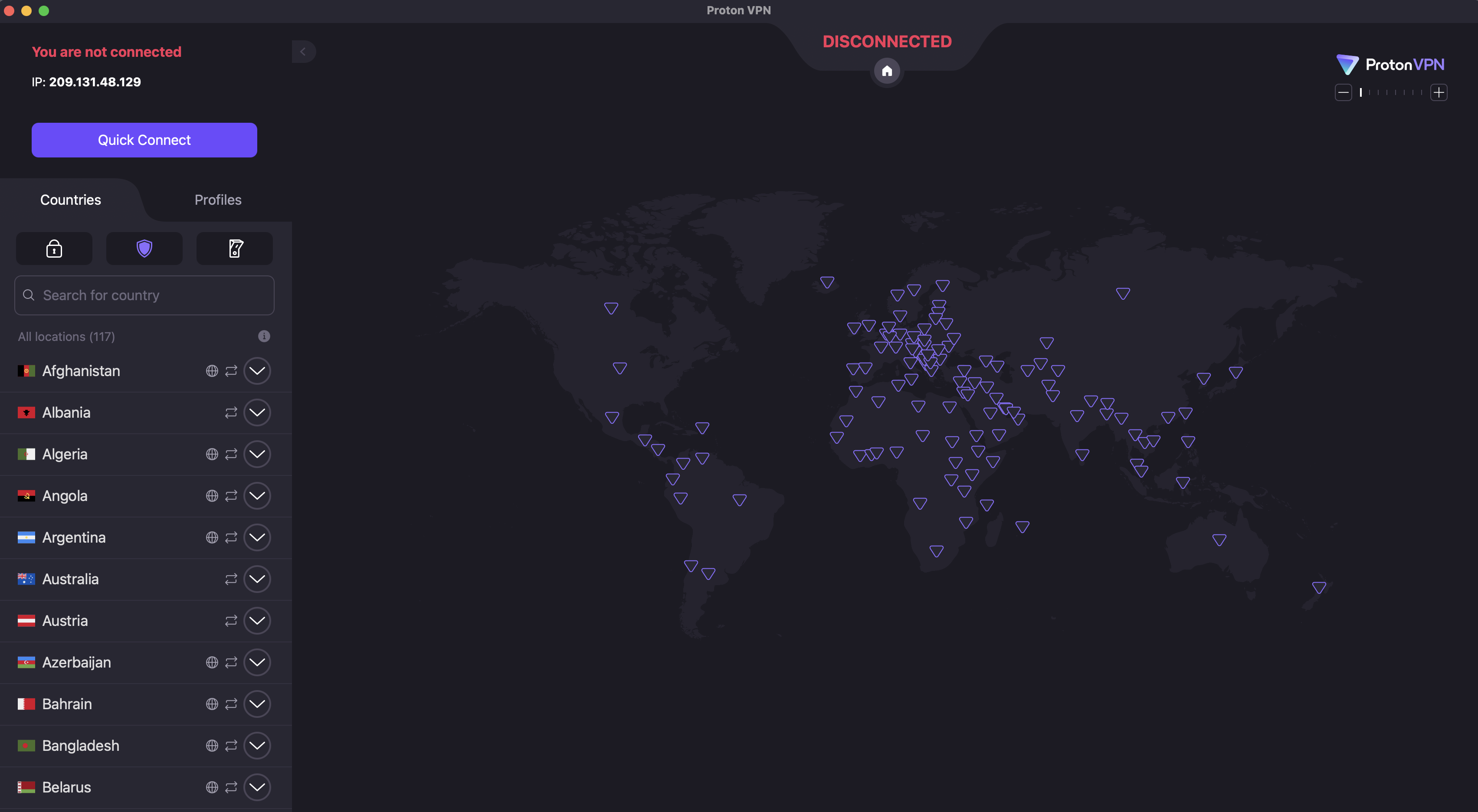
To check that your VPN is turned on, open the app on your desktop or mobile home screen. Each VPN designs its apps differently, but common signs include the color green, the word Connected and information on what server location you're connected to.
The main UI for Proton VPN, with the connection button visible at top-left and the server location menu below it.
Sam Chapman for Engadget
If you don't see anything like that, click the On button, which should be on the first page that appears when you log into the app. Most VPNs also connect whenever you click the name of a server location.
For those of you on iPhone or iPad, I've just written an explainer on how to turn a VPN off and on. For all the tests I'll discuss across the rest of this article, make sure you're connected to a VPN server before you run them. Also, make sure your internet connection is active — a VPN can only work when there's internet.
5 tests to check if your VPN works
Each of these tests investigates a different reason your VPN might not be working. We'll start by looking for connection problems that might not be obvious, check for DNS leaks, WebRTC leaks and IPv6 leaks, then finally make sure an apparently active VPN is managing to change your virtual location.
1. Has your IP address changed?
Websites and internet service providers (ISPs) use IP addresses to identify devices and their owners online. A VPN's most important job is to change your IP address to one matching its own server, which disassociates your identity from your online activities. Not doing this indicates a failure on a fundamental level: either the VPN says it's connected when it isn't, or its technology is active but somehow not sending you through the proper encrypted tunnel.
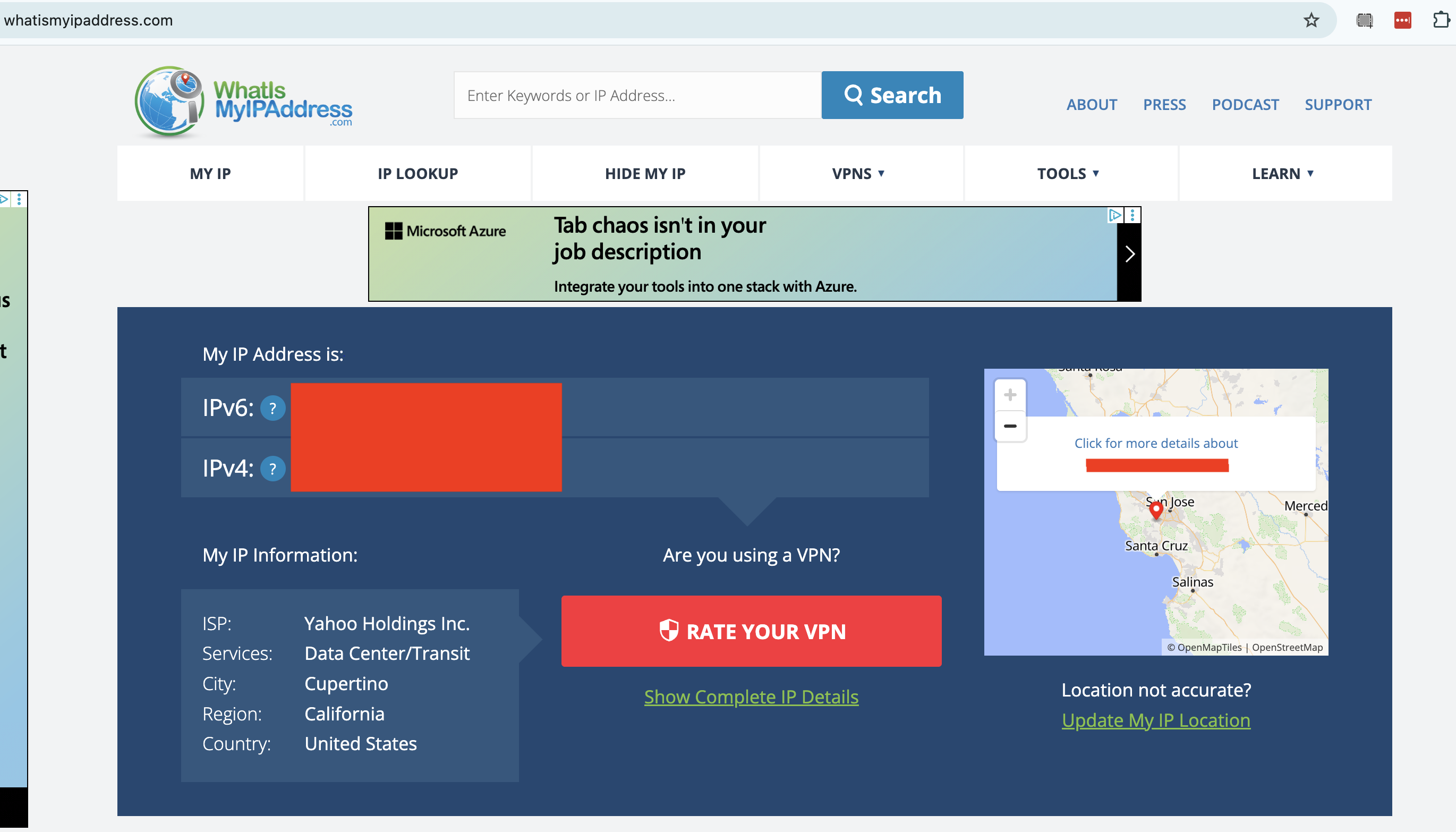
To check whether your VPN has changed your IP address, start by going to an IP address checker like whatismyipaddress.com or ipleak.net. This will show you the public IP address that everyone sees when you get online without a VPN, including the ISP that holds it and the geographic location it's associated with. Write that down or take a screenshot.
A censored report from WhatIsMyIPAddress.com.
Sam Chapman for Engadget
Next, connect to your VPN. Remember the location you connect to, and note down the new server IP address if the VPN tells you what it is. Go back to your IP tester tool and refresh the page. You should now see an IP address and location that match the one you connected to through the VPN, including a different ISP.
If your IP address is the same as before, your VPN isn't working. To fix this, try disconnecting from the server, waiting about 10 seconds, then connecting to the same location and trying the test again. This will show you whether the problem was with one individual server or an entire location.
If the problem persists, try a different server location, then a different VPN protocol. If it's still leaking, try restarting your VPN client, your device and your modem (in that order). This should fix the problem, but if it doesn't, move on to the remaining tests or get in touch with the VPN's tech support.
2. Are you leaking DNS requests?
A domain name system (DNS) server is an important step in getting a website to appear on your browser. DNS holds the information that connects URLs to the IP addresses of destination servers. If a VPN client lets your device contact a DNS server owned by your internet service provider without routing it through an encrypted tunnel first, the DNS request might reveal your real IP address to the ISP.
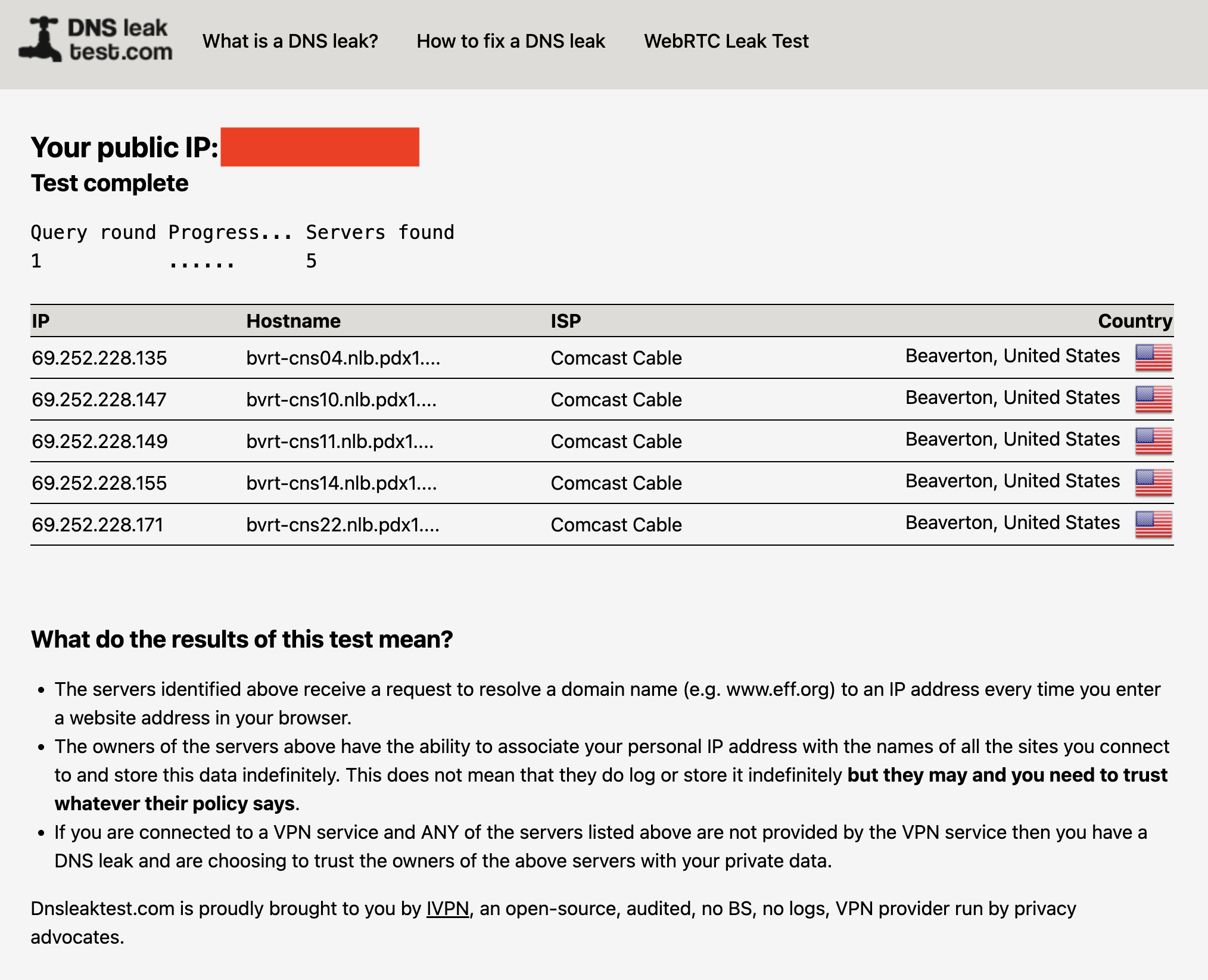
You can check for DNS leaks by connecting to your VPN, then going to dnsleaktest.com or another tool of your choice. The tester sends several innocuous DNS requests, then scans to see which servers resolve them. If you see your real ISP at all, you've got DNS leaks.
A DNS leak test run without a VPN. With one active, my real ISP (Comcast) should not appear on the list.
Sam Chapman for Engadget
The fix for DNS leaks is more intensive than the fixes in step #1. Check your VPN's control panel to activate any DNS leak protections and try again. IPv6 leaks can also appear as DNS leaks, so try disabling IPv6 in your browser (see #4 below for instructions). If you keep seeing leaks, you can also try clearing your computer's DNS cache.
Here's how to do that. On Windows, go to the Command Prompt (on Windows 10) or the WindowsTerminal (on Windows 11). Enter the phrase ipconfig/flushdns. On Mac, open Terminal from the Utilities folder, then paste in the phrase sudo dscacheutil -flushcache; sudo killall -HUP mDNSResponder and hit Enter. Test the VPN once more to see if it's still leaking.
3. Are you leaking information through WebRTC?
WebRTC, which stands for Web Real-Time Communication, is a technology that lets browsers exchange information directly with each other. This is useful for text and video chats, streaming and more, but it's also a potential security risk. WebRTC can serve as a backchannel that inadvertently sends your real IP address outside the VPN tunnel.
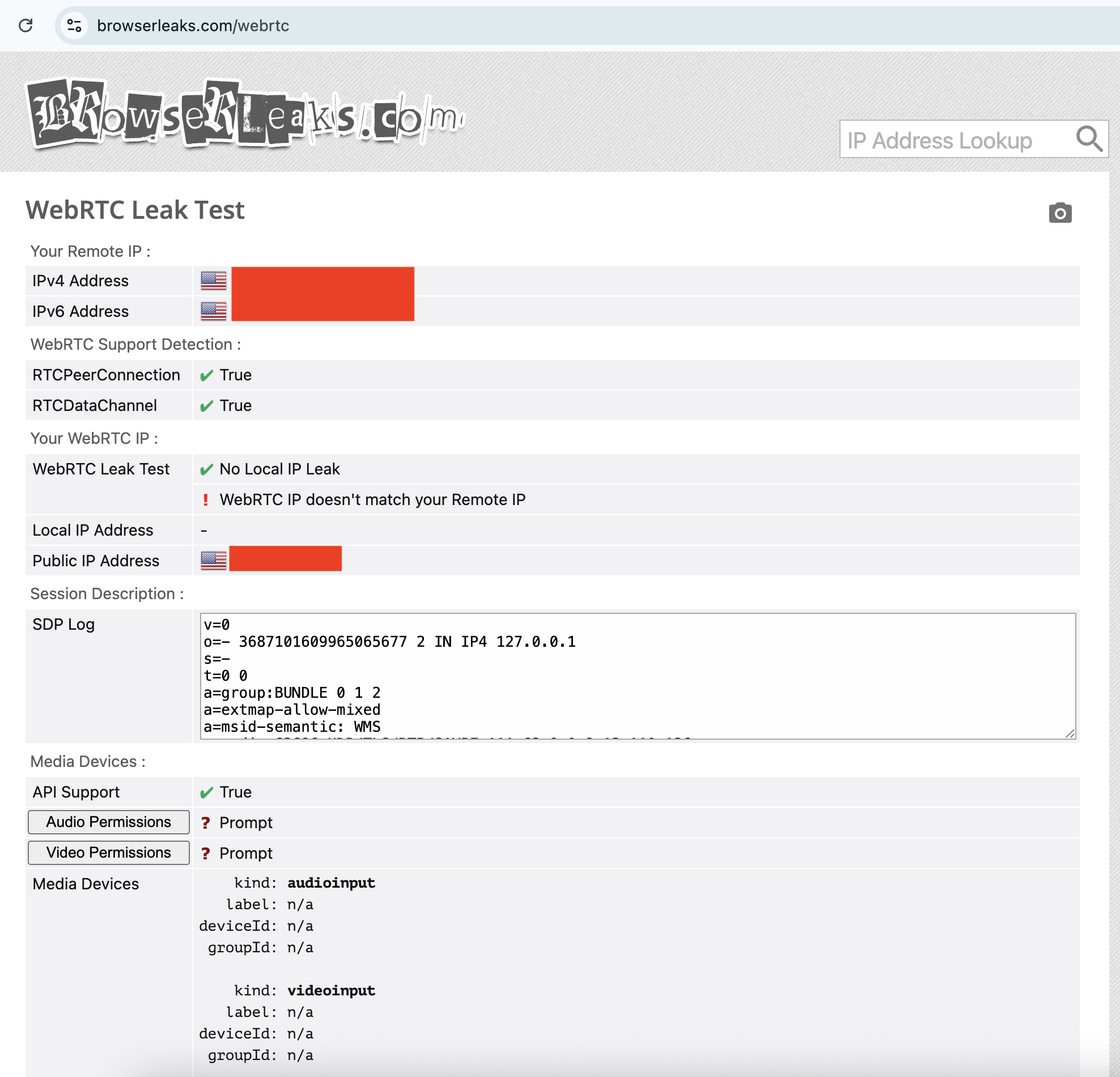
It's pretty easy to test for WebRTC leaks. I recommend the tool ipleak.net, which checks for them as a matter of course. You can also use browserleaks.com/webrtc to run a test that's particular to this kind of leak. These tools establish dummy connections through WebRTC, then test to see if the VPN still works when they're active. As usual, if you see your real IP address, there's a problem.
Your WebRTC IP not matching your Remote IP is a potential red flag.
Sam Chapman for Engadget
The fixes for a WebRTC leak are the usual ones: try different servers, locations and protocols, reset your VPN, device and modem, then try another VPN provider. However, if nothing is working, you can also disable WebRTC on your browser altogether. This means you won't be able to do any real-time chatting (that's Zoom, Google Meet, Teams and so on), so it's a last-resort solution.
To disable WebRTC on Firefox, type about:config in the URL bar, click the message to accept the risk, type media.peerconnection.enabled in the search bar, then double-click the word True to change it to False. To turn WebRTC back on, just double-click False again.
On Edge, you can disable WebRTC by entering edge://flags in the URL bar, scrolling down to the option "Anonymize local IPs exposed by WebRTC" and making sure the dropdown next to it is set to Enable. There's no built-in way to turn off WebRTC on Chrome, but you can install the WebRTC Control extension to switch it off and on yourself.
4. Is your IPv6 address leaking?
Next up, it's possible that your real location is leaking through your IPv6 address, not IPv4. To make a long explanation short, IPv6 is a new way of formatting IP addresses that leaves more options available for the future. Since we haven't yet hit the crisis point of IPv4 shortage, very few websites are restricted to IPv6 alone.
The problem is that most VPN apps were designed in the IPv4 era and aren't built to protect IPv6 traffic. There are some exceptions, including NordVPN, but most VPNs block IPv6 traffic completely rather than retrofit themselves to work with it. However, if a VPN of that sort isn't blocking IPv6 entirely, your IPv6 address and associated location can leak.
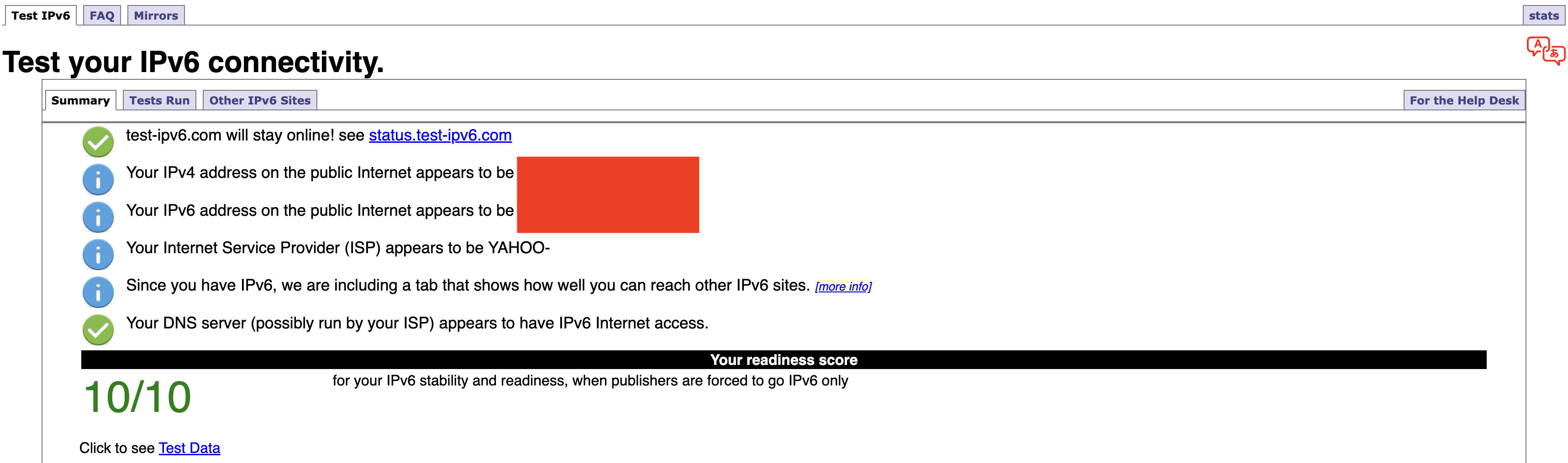
Any IP address checker can reveal an IPv6 leak, but you can find a specific test at test-ipv6.com. This site runs several exams that look for IPv6 readiness, but the most important line is the one that shows your current IPv6 address. This will probably say you don't have one, since most ISPs don't work through IPv6 yet — but if you do have one, it should match your active VPN's location, not your real one.
If your IPv4 address matches the VPN server but your IPv6 address does not, IPv6 is the likely cause of your leak.
Sam Chapman for Engadget
Should it turn out that you're leaking IPv6 requests, the easiest solution is to disable IPv6 on your computer. On Windows, you can do this through the network adapter options page of your control panel. Here's how to get there:
Windows 10: Start -> Settings -> Network & internet -> Status -> Change -> Advanced network settings -> Change adapter options.
Windows 11: Settings app -> Network & internet -> Advanced network settings -> Related settings -> More network adapter options.
On both OSes, finish the job by right-clicking the name of your internet connection, selecting Properties from the dropdown and unchecking the box next to Internet Protocol Version 6. Of course, you can always switch to another VPN that blocks IPv6 altogether, but you might find that to be a bigger hassle.
If you're on Mac, open System Settings, click the Network tab and then click the Details... button next to your network name. In the new window, click the TCP/IP tab on the left, find the entry labeled Configure IPv6 and set the dropdown to Link-Local Only.
5. Do streaming sites show different content?
A VPN can be working perfectly and still fail to unblock streaming sites. Netflix, HBO Max and the others block VPN traffic because VPNs can make them show material in regions where they don't hold the copyright. To avoid legal trouble, they set up their firewalls to block IP addresses known to belong to VPN servers.
If your VPN can't get into a streaming platform, it'll usually be obvious; the site will either display a proxy error message or simply refuse to load. However, in rare cases, the streaming site will load fine but show you the same shows you normally see. This indicates that you might be dealing with a VPN leak.
If that happens, follow the usual steps. Disconnect and reconnect to the same location to get a different server, then try different server locations. It's also possible that the streaming site is getting your real location from your browser cache, so if the problem persists, clear your cache and cookies and try again.
How to test a VPN kill switch
There's one more important step to make sure your VPN is working: test the kill switch. This common feature cuts off your internet connection if you lose touch with your VPN server. With your kill switch active, you shouldn't be at any risk of accidentally broadcasting your real IP address, location or online activity.
To test your kill switch, you'll need to simulate an abrupt loss of VPN connectivity. Open your VPN, make sure the kill switch is turned on, then connect to a server. Next, quit the VPN app without disconnecting. At this point, the kill switch should make it impossible for you to get online — if you can still browse the internet as normal, the switch might be faulty.
This article originally appeared on Engadget at https://www.engadget.com/cybersecurity/vpn/how-to-check-if-your-vpn-is-working-130000817.html?src=rss
I came out of my CyberGhost review with a positive opinion, feeling it had earned its spot in my best VPN roundup. However, even an expert review is subjective, and there's a chance CyberGhost will not work for you. If that’s the case, here's how to cancel your subscription.
How to stop your CyberGhost subscription renewing
Cancelling your CyberGhost subscription won't end it right away, unless you delete your account or get the refund (I'll explain how to do both of those later). Instead, the way to cancel CyberGhost is to stop your subscription from renewing at the end of each billing period. Once you've done that, you can keep using CyberGhost until your current period ends.
The following steps will cancel auto-renewal if you got CyberGhost through its website. If you bought it through an app store instead, see the next section.
At the top-right of the screen, click the box labeled My Account. Enter your username and password if you aren't logged in already.
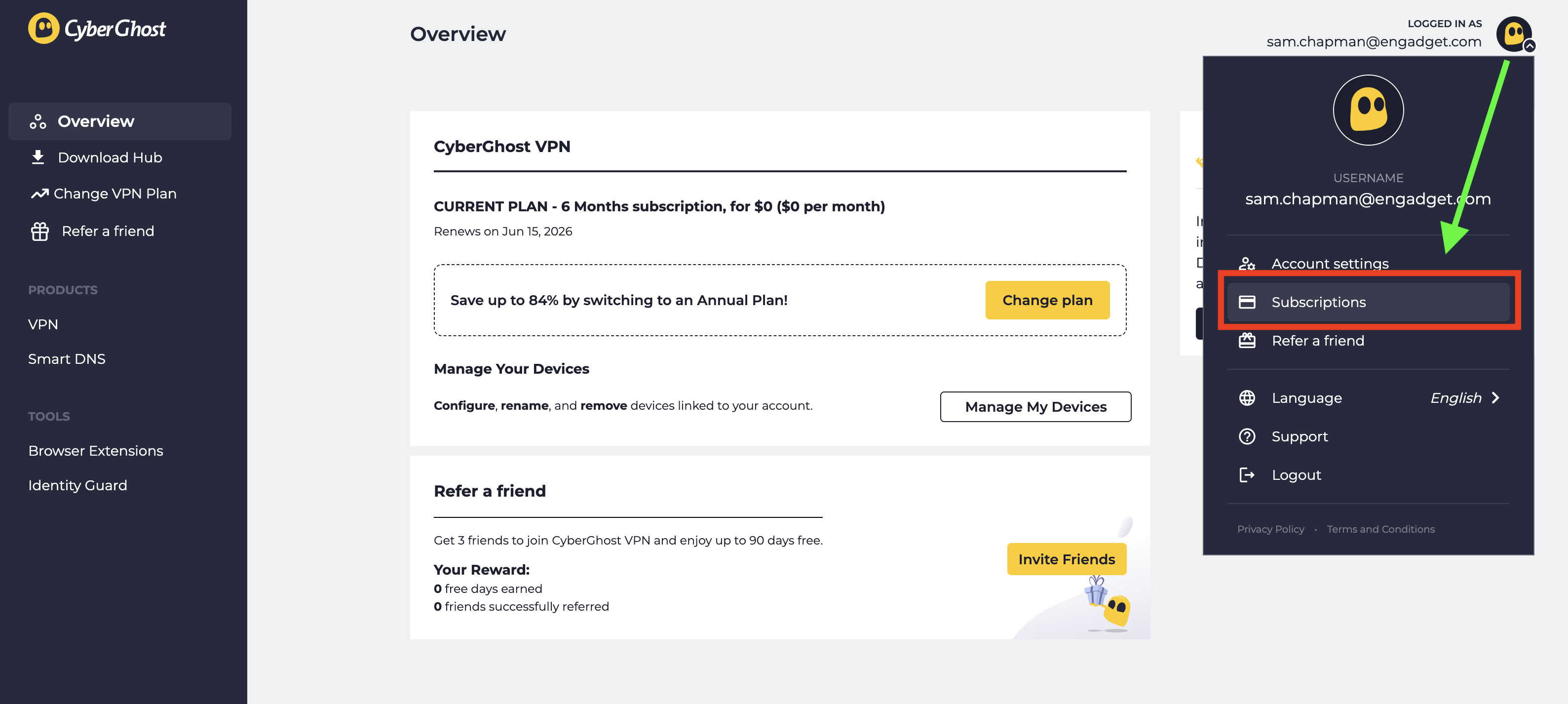
Look at the top-right corner of the new screen and click the CyberGhost logo next to your email address. From the drop-down menu, select Subscriptions.
Find the subscription you want to cancel and select Cancel Subscription.
When prompted, click Continue to Cancel.
Click the logo at top-right, then click Subscriptions to manage auto-renewal.
Sam Chapman for Engadget
This will turn off automatic billing for your account. The next time you would have been billed, your subscription will expire. You can resubscribe by purchasing another term. If you're within the refund period — 14 days for a monthly subscription and 45 days for all others — you can now request your money back.
How to cancel CyberGhost if you subscribed through an app store
When you subscribe to an app through the Apple App Store or Google Play Store, the store handles the billing; the app provider doesn't process the money itself. If you bought CyberGhost through an app store and want to cancel, you'll have to ask the app store in question, not CyberGhost. Here's how to do it.
If you subscribed through the Apple App Store, you'll need to cancel through your Apple ID. Here are the steps.
Open the Settings app on your home screen.
At the top of the Settings menu, you'll see your name. Tap it.
In your Apple Account menu, tap Subscriptions.
Scroll until you find your CyberGhost subscription, then tap on it.
Tap the words Cancel Subscription, then follow the prompts.
Here's what to do if you subscribed through the Google Play store. Similar to the Apple process, you'll go through the list of subscriptions on your profile.
Open the Google Play Store app.
Tap the circle in the top-right corner with the first letter of your name.
Find the Payments & Subscriptions menu and tap on it. On the next menu that appears, tap Subscriptions.
Scroll down until you find your CyberGhost subscription. Tap on it, then click Cancel Subscription.
Follow the prompts to complete cancellation.
How to delete your CyberGhost account
Before you set out to delete your CyberGhost account altogether, make sure you've cancelled auto-renew first by following the steps in the previous section. If you don't, you might still be charged for the subscription you're not using, and it's a huge hassle to end that without an account.
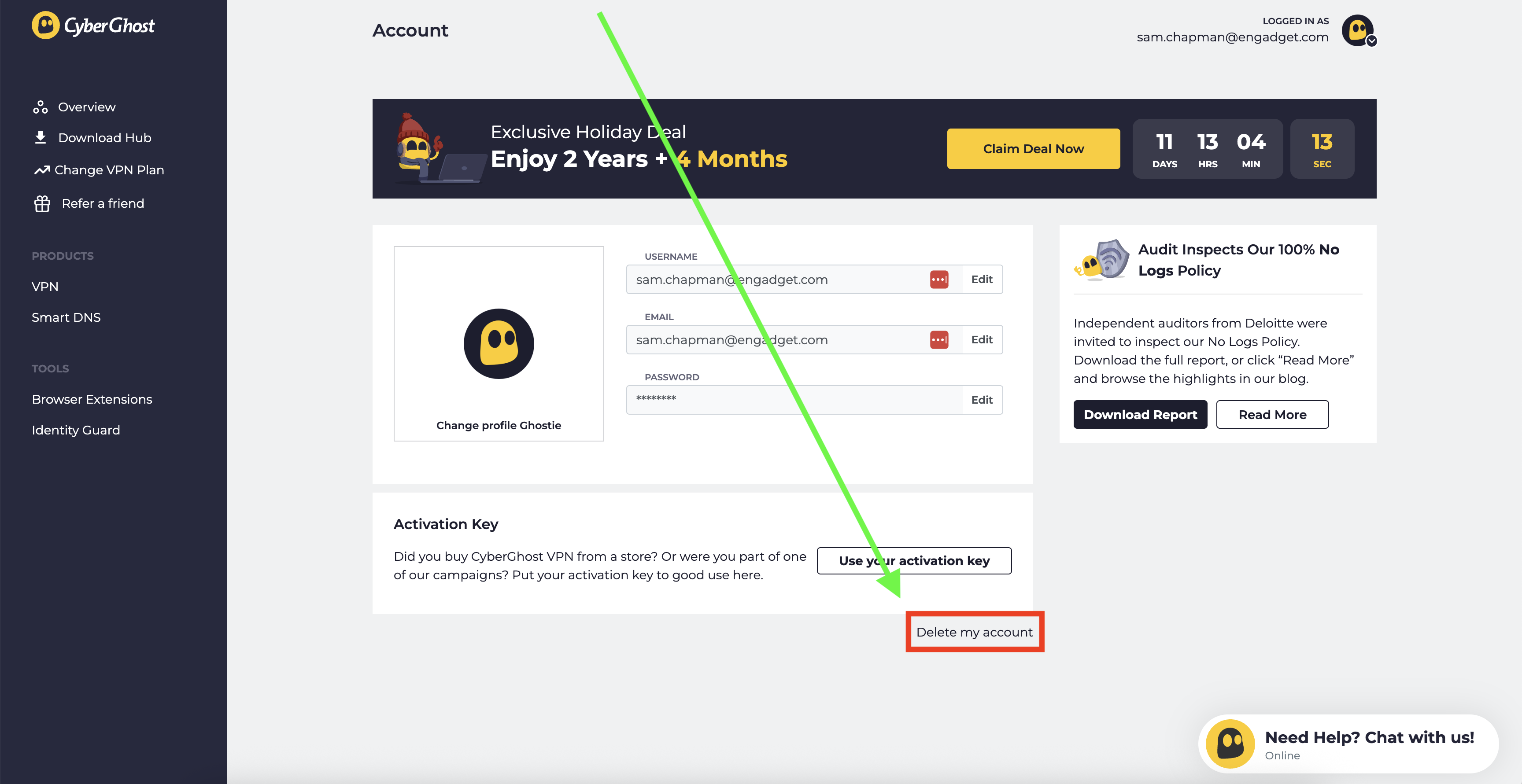
Once you've done that, log into your account on cyberghostvpn.com and click on your account profile at the top-right, just like when you canceled auto-renewal. Below the username/password window and the message about an activation key, you'll see the words Delete My Account in tiny letters.
How to find the button that deletes your CyberGhost account.
Sam Chapman for Engadget
Click on them. On the page that appears, select Delete My Account again. Follow any more prompts you're given to annihilate your username for good (note that you can't use it again afterwards).
How to get a refund from CyberGhost
To get a refund on your CyberGhost subscription, you have to be inside the window for the plan you chose. With a monthly plan, the refund period is 14 days. For all other plans, it's 45 days. If this time has elapsed, there's unfortunately no way to get your money back.
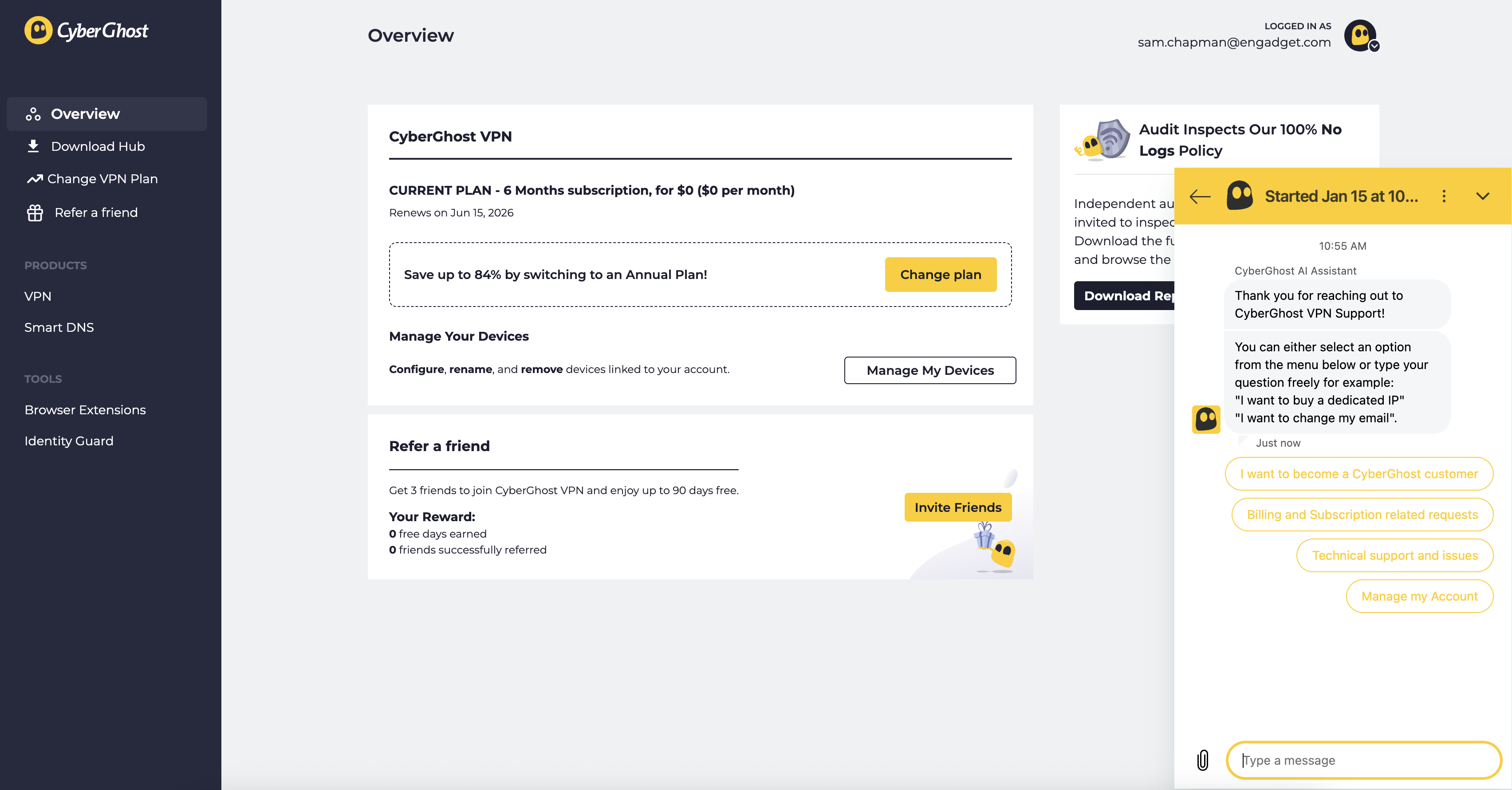
If you are within the refund period, you can get your money by sending a request through customer support. You can email support@cyberghost.ro, submit a ticket through this link or open a live chat conversation by clicking the Live Chat button at the bottom-right of any page on cyberghostvpn.com. No matter what method you choose, the conversation will go faster if you have your order number on-hand — check your inbox if you don't know it.
Start a live chat conversation by clicking the live chat button at the bottom-right of any screen on CyberGhost's website.
Sam Chapman for Engadget
If you went through an app store, you'll need to request your money back from that platform instead. Apple and Google Play handle their own monetary transactions, which means they also process refunds.
Best CyberGhost alternatives
After you've cancelled and/or deleted CyberGhost out of your life, you still need a VPN; the benefits of masking your IP address and changing your virtual location don't go anywhere. You can check out my best list (linked at the top) or best free VPN roundup for ideas, or check out the review for my favorite service, Proton VPN.
Proton VPN is my top choice because of its focus on user freedoms and attention to quality in everything it does. If you're willing to pay a bit more for extreme simplicity and total reliability, ExpressVPN is ideal for beginners. If you're a speed demon and just want to keep your downloads fast, go with Surfshark.
This article originally appeared on Engadget at https://www.engadget.com/cybersecurity/vpn/how-to-cancel-cyberghost-and-get-a-refund-130000311.html?src=rss
As frustrating as it is that governments and businesses are running roughshod over our online freedoms, at least we have plenty of good VPNs to choose from to keep us protected online. There are so many fast, intelligently designed, full-featured and affordable services on the market that the biggest problem is picking one. For any use case, you can bet at least two providers will be neck-and-neck for first place.
On the other hand, the VPN world is still the Wild West in some ways. It's easy enough to slap a cheap VPN together that the market is flooded with low-quality apps that put more money into advertising than infrastructure. They may look good, but it's all styrofoam under the hood.
I built this list of the best VPNs after intensive testing to help you reorient your focus on the providers that actually deserve your time and money. Which one truly fits your needs is dependent on who you are and what you do online, but if you pick any of my seven recommendations, you can't go too far wrong. If you're interested in a service you can use without paying, head over to my list of the best free VPNs — and if you're willing to pay but want to save money, I keep a list of the best VPN deals updated weekly.
For each VPN on this list, I've shared which platforms it works on, how much it cuts into your download speed, where it offers servers, what other features are included and how much the best available deal costs. At the end, I'll list some honorable and dishonorable mentions, then answer some of the most common questions I hear about VPNs.
Editor's note: This list is up-to-date as of January 2026. We intend to revisit this list every three months at a minimum, at which time our picks may be adjusted based on changes in pricing, features, testing results and other factors.
The VPNs in this section didn't crack our top list above, but we're summarizing them here so you can see their positives and negatives as of the time of our evaluation.
Windscribe is another well-known free VPN supported by paid subscriptions. In many ways, it takes the best from both Mullvad and Proton VPN, with the former's no-nonsense privacy and the latter's healthy free plan. Without paying, you can connect to 10 of Windscribe's server locations on an unlimited number of devices at once.
Unfortunately, Windscribe didn't copy the most important part of Proton VPN's free plan — the unlimited data. You're only allowed to use 10GB per month, which isn't enough for regular streaming. It's also committed to a cramped and headache-inducing user interface that stands out from the crowd in all the worst ways.
Private Internet Access (PIA VPN) has a deeply annoying name — I assume whoever invented it also likes to hop in their Toyota Forward Motion to grab a gallon of Sustaining Cow Extract from the grocery store — but it's a worthwhile VPN whose pricing provides incredible value. Its monthly and yearly plans are good enough, but its three-year plan is the clincher. Not only is it longer than average, but you can continue to renew at the three-year level, so you won't see an unpleasant price jump the first time you re-up.
PIA's apps have a dark UI reminiscent of Proton VPN, which is always a good thing. It also supports port forwarding, custom DNS and the use of a SOCKS5 or Shadowsocks proxy as a second step in the VPN connection. You can even set the maximum data packet size to help out a struggling connection, as I cover in my full PIA VPN review.
The downside is that your connection will struggle a lot. While well-designed, PIA's apps have a tendency to lag. In my most recent battery of tests, it dragged oddly on my internet in ways that weren't directly reflected in the speed tests. It's also not always capable of unblocking streaming services in other countries, and while its server network offers 152 IP address options in 84 countries, it's heavily bulked out by virtual locations.
TunnelBear has a decent interface, which its target audience of VPN beginners will find very easy to use. Its speeds are perfectly good too, and I appreciate the depth and breadth of its transparency reports. But it's far too limited overall, with few extra features, less than 50 server locations and a free plan that caps data at 2GB per month.
VyprVPN often flies under the radar, but it has some of the best apps in the business and a very good security record (there was a breach in 2023, but it didn't crack the VPN encryption itself). It's also got a verified privacy policy, a solid jurisdiction and runs every connection through an in-house DNS to prevent leaks.
Despite all that, it didn't make the top seven because its connection speeds aren't up to scratch — you'll likely notice a bigger slowdown than average. It also has a troubling history of wild, seemingly experimental swings in its pricing and simultaneous connection limits.
Norton VPN is part of the Norton 360 package that includes the well-known antivirus software and other security apps. It's a nice bonus if you use Norton already, but as a standalone VPN, it falls short. My tests repeatedly showed it dropping encryption and revealing my IP address whenever I switched servers, and not all of its locations managed to unblock Netflix.
This isn't to say Norton VPN is terrible. It has a fairly large server network, user-friendly apps and some cool features like an IP rotator. It also recently revamped its OpenVPN infrastructure to improve speeds on Windows. But you probably won't find those things sufficient to balance out significant speed drops on other platforms or poorly written FAQs. I especially advise against Norton VPN for Apple users, as its Mac and iPhone apps are much more limited than their Windows and Android counterparts.
What to look for in a VPN
Choosing a VPN can quickly get you mired in analysis paralysis. We're here to help, but since only you know your particular needs, you should know the major red and green flags so you can make the final call yourself. Every reputable VPN provider offers a free trial or refund guarantee you can use to run the tests below.
Compatibility: First, make sure your VPN works on all the platforms you plan to use it on. Most VPNs have apps for Windows, Mac, Android and iOS, but those apps aren't always created equal — check that the app for your chosen OS is user-friendly and has all the features you need.
Speed: Use a speed testing app to see how fast your internet is before and after connecting to the VPN (I use Ookla's speedtest.net). To check security, look up your IP address while connected to a VPN server and see if it's actually changed your virtual location. Be sure it's using expert-vetted protocols like OpenVPN, WireGuard and IKEv2. Try connecting to streaming services and seeing whether the VPN changes the available content.
Background: Do some outside research into the VPN's origins, especially its parent company, privacy policy and any past incidents. It's a dealbreaker if you can't figure out where the VPN is headquartered (which indicates a lax approach to transparency) or if it seems to have never passed a real third-party audit.
Server network: Look at the server network to make sure the VPN has locations near you and in any countries where you'll want an IP address — e.g. if you need a VPN to unblock Canadian Netflix, look for multiple server locations in Canada.
Customer Service: I also advise testing the customer support options by looking for the answer to a straightforward question. If phone support (versus email and chat) is important to you, make sure to prioritize that — and make sure it's available at convenient times in your timezone.
Pricing: Finally, check prices. See if the VPN is affordable and decide whether you're comfortable taking a long-term subscription for better savings. If you do get a multi-year plan, check what price it will renew at, since many of the cheapest subscriptions are only introductory deals.
VPN FAQs
To wrap up, let's answer some of the most common questions we get about VPNs. Feel free to get in touch if you have a query I don't cover here.
What is a VPN?
VPN stands for virtual private network. There are a few different types of VPNs, but for this list, we're talking about commercial services that let individual users access the internet with an assumed identity.
Whenever you get online, you're assigned an IP address — a digital nametag that tells websites where to send the information you request. For an IP address to work, it needs to be unique, which means it's possible to create a record of what an individual does online.
When you use a VPN, all the data you send to the internet goes through one of the VPN's servers before heading to its final destination. The VPN encrypts the connection between your computer and its server so the data won't trace back to you. Any website, ISP or third party that cares to look will only see the VPN's IP address, not yours. If you're interested in more detail, I've written a whole article on how a VPN works.
What are some things VPNs are used for?
The three main use cases for a commercial VPN are security, privacy and entertainment. Using a VPN conceals your real IP address from anyone who might want to use it for nefarious purposes like cyberstalking, DDoS attacks or deducing your real location. It also keeps your ISP from profiling you for ads based on where you live or what you do online.
One side effect of borrowing a VPN's IP address is that you can make it appear as though your connection is coming from another country. You can use this to access streaming content and platforms that are only available in certain regions due to copyright. Changing your location can even get you better prices when shopping online.
Location spoofing can also be used to get online in countries that censor internet access, like China and Russia, as well as certain US states or countries — like the UK — that are adding barriers like age-gating to previously unfettered online access. All you have to do is connect to a neighboring country (or locality) where the internet isn't blocked. If you plan to do this while traveling, make sure you have the VPN downloaded before you go, as some nations prevent you from even loading a VPN's homepage. Make sure you check with local laws regarding the legality of VPN use as well — just because your VPN traffic is encrypted doesn't mean that authorities can't detect that it's being used in a given location.
Are VPNs worth it?
Whether a VPN is worth the price depends on how much you value those three use cases above. It's no secret that your personal information is profitable for a lot of people, from illicit hackers to corporations to law enforcement. A VPN will not make you completely anonymous, nor is it a license to commit crimes (see the next question) but it will give you a lot more control over what you transmit to the world.
With entertainment, the value is even clearer. You can use a VPN to fight back against streaming balkanization by getting more shows and movies out of a single platform — for example, a lot of shows that have been kicked off American Netflix are still on Netflix in other countries.
What information does a VPN hide?
A VPN does not make it impossible for you to be unmasked or taken advantage of online. It prevents you from passively leaking information, keeps your IP address undiscoverable on public wi-fi networks and gets you around online censorship.
However, if you share personal information of your own volition, there's nothing the VPN can do. If you reveal your password in a social media post or click a link in a phishing email, that information bypasses the VPN. Likewise, if you do anything sensitive while logged into an account, the account holder will have that information even if you're using a VPN.
A VPN is a critical part of your online security, but it can't do the whole job by itself. Healthy passwords, malware scanners, private search engines and common sense all have roles to play. Never forget, too, that using a VPN means trusting the VPN provider with access to information that's concealed from everyone else — make sure you trust the privacy policy before signing up.
Are VPNs safe?
As far as we can determine, all the VPNs recommended in this story are safe to use. As with anything you subscribe to online, due diligence is important, but there's very little inherent risk; generally, the worst thing a bad VPN will do is fail to work, leaving you no worse off than before.
All that said, there are some VPNs (usually offered for free) that transmit malware, and others that pretend to be independent services while all secretly working off the same backend. Always make sure to look up any complaints or warnings about a service before you download it.
Can you get a VPN on your phone?
Absolutely — almost every VPN has apps for both desktop and mobile devices. A good VPN will redesign its app to be mobile-friendly without dropping too many features. Both iOS and Android natively support VPN connections, so you're free to choose whichever provider you like.
What about Google's One VPN?
Google One VPN was, as you might expect, a VPN provided by Google. It was launched in 2020 for Google One subscribers and discontinued in 2024 due to lack of use. If you really want a Google VPN, you can still get one if you have certain Pixel models or if you're a Google Fi subscriber.
That said, I don't recommend using a VPN from Google even if you do still have access to one. Google is one of the worst big tech companies at protecting user privacy. While its VPN might not leak, I wouldn't trust it to guard your sensitive information.
This article originally appeared on Engadget at https://www.engadget.com/cybersecurity/vpn/best-vpn-130004396.html?src=rss
CyberGhost is the middle child of the Kape Technologies VPN portfolio, but in quality, it's much closer to ExpressVPN than Private Internet Access. I mainly put it on my best VPN list because it's so cheap, but I wouldn't have done that if it didn't earn its place in other ways — affordable crap is still crap, after all.
My universal impression of CyberGhost is a VPN that's not perfect but is always genuinely working to make itself better. It makes decisions based on what will help its users, not to set itself apart in a crowded market. This makes it similar to a lot of other VPNs, but that's not a bad thing — especially at such a low price.
Other than its price, the best things about CyberGhost are its intuitive app design, its frictionless user experience and the super-low latencies that make it an ideal pick for gamers. Download speeds are great up close but middling far away. While I love how many servers it's got in Africa and South America, a few too many of them are virtual locations. I'll get into all this and more in the review; feel free to read straight through or use the contents table to find the area that interests you most.
Editor's note (1/16/26): We've overhauled our VPN coverage to provide more detailed, actionable buying advice. Going forward, we'll continue to update both our best VPN list and individual reviews (like this one) as circumstances change. Most recently, we added official scores to all of our VPN reviews.Check out how we test VPNs to learn more about the new standards we're using.
Findings at a glance
Category
Notes
Installation and UI
Windows app has more options and the most sensible organization
macOS app is very easy to use, but a bit lacking compared to Windows
Android and iOS both have simple main pages and slightly confusing preferences
No browser extensions (free proxy doesn't count)
Speed
Excellent latency tests, with ping times short enough to lead the VPN field
Great download and upload speeds on close-in servers
Distant servers lag somewhat on both upload and download, bringing down the worldwide average
Security
Uses WireGuard, IKEv2 and OpenVPN protocols, but they aren't all supported on all platforms
Blocks IPv6 and prevents WebRTC and DNS leaks
Disconnects when switching servers
Pricing
$12.99 per month
$41.94 for 6 months ($6.99 per month)
$56.94 for 28 months ($2.03 per month), renewing at the same price for 12 months ($4.79 per month)
Seven simultaneous connections
Bundles
Dedicated IP address for $2.50 per month
Privacy policy
Anonymizes all personal data
Can share data with other Kape subsidiaries, but only if they're based in areas with good privacy laws
RAM-only servers and full-disk encryption confirmed by audit
Has never given information to police
Virtual location change
Unblocked Netflix perfectly in five different regions using streaming-optimized servers and WireGuard
Server network
125 server locations in 100 countries
Good global distribution, with nine locations in South America and six in Africa
However, most servers in the southern hemisphere are virtual locations that may not give the best speeds
Features
Kill switch cannot be turned off except on Windows
Split tunneling by app on Android and by URL on Windows
Content blocker can only be turned on or off, no customization
Large network of torrent-optimized servers and streaming servers
Smart Rules automation is both user-friendly and deep
Customer support
Online help pages are well-written but poorly organized
Live chat responds quickly; there is a bot but it's easy to get past
Can also submit email tickets through an online portal
Background check
Founded in 2011 and based in Romania
Acquired by Kape Technologies in 2017
Installing, configuring and using CyberGhost
CyberGhost gets installation and UI largely right. There are no needless hurdles in the setup process. All its app designs put the important controls front and center and don't overload you with needless information. I've broken up my thoughts by platform, as CyberGhost is pretty different depending on where you use it.
Windows
CyberGhost downloads and installs amazingly fast on Windows 11. I didn't even have to grant any permissions. I just opened the .exe, clicked through a licensing agreement and logged into the desktop client. It took about two minutes end-to-end, including time I spent digging around in my password vault.
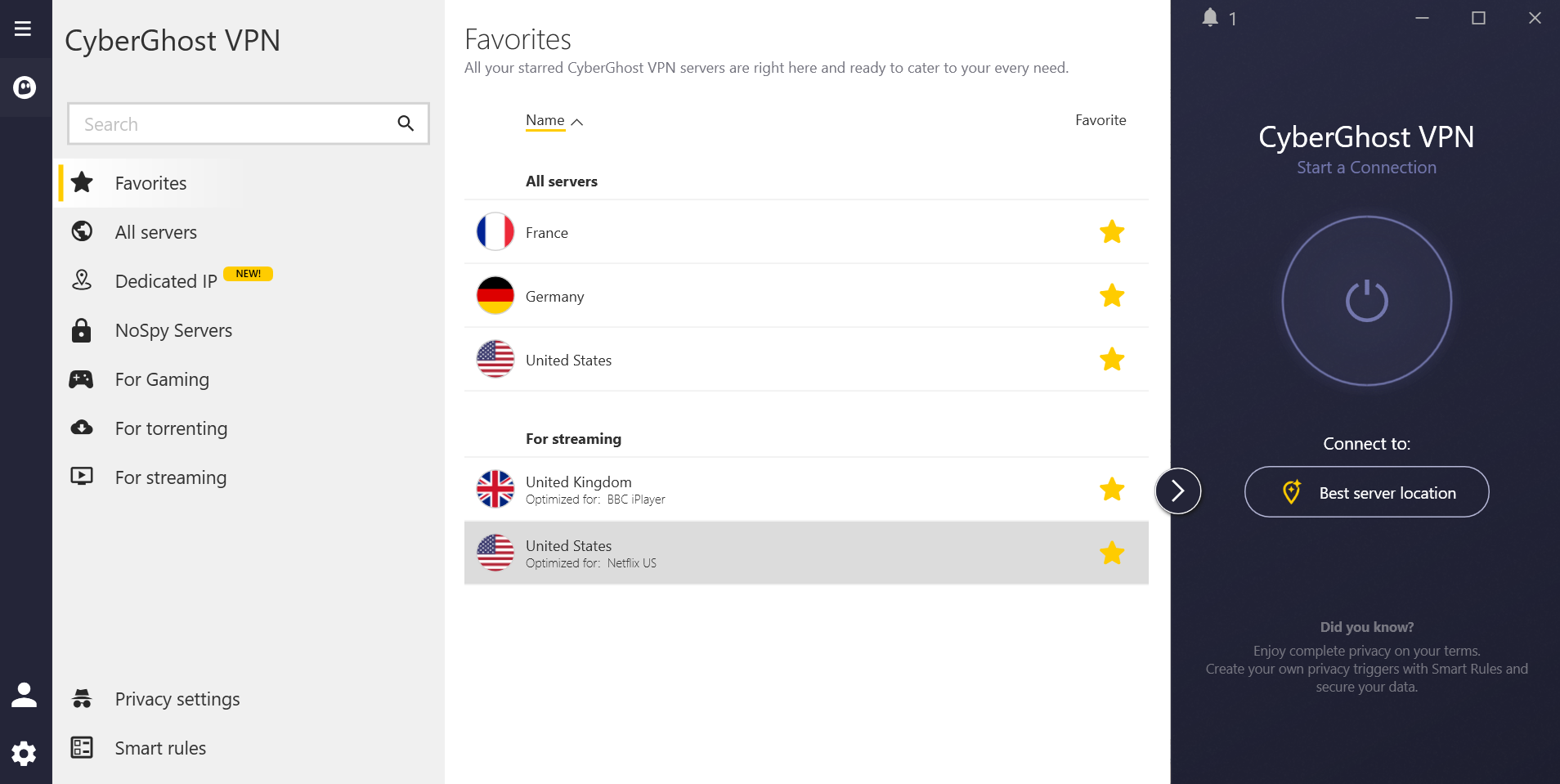
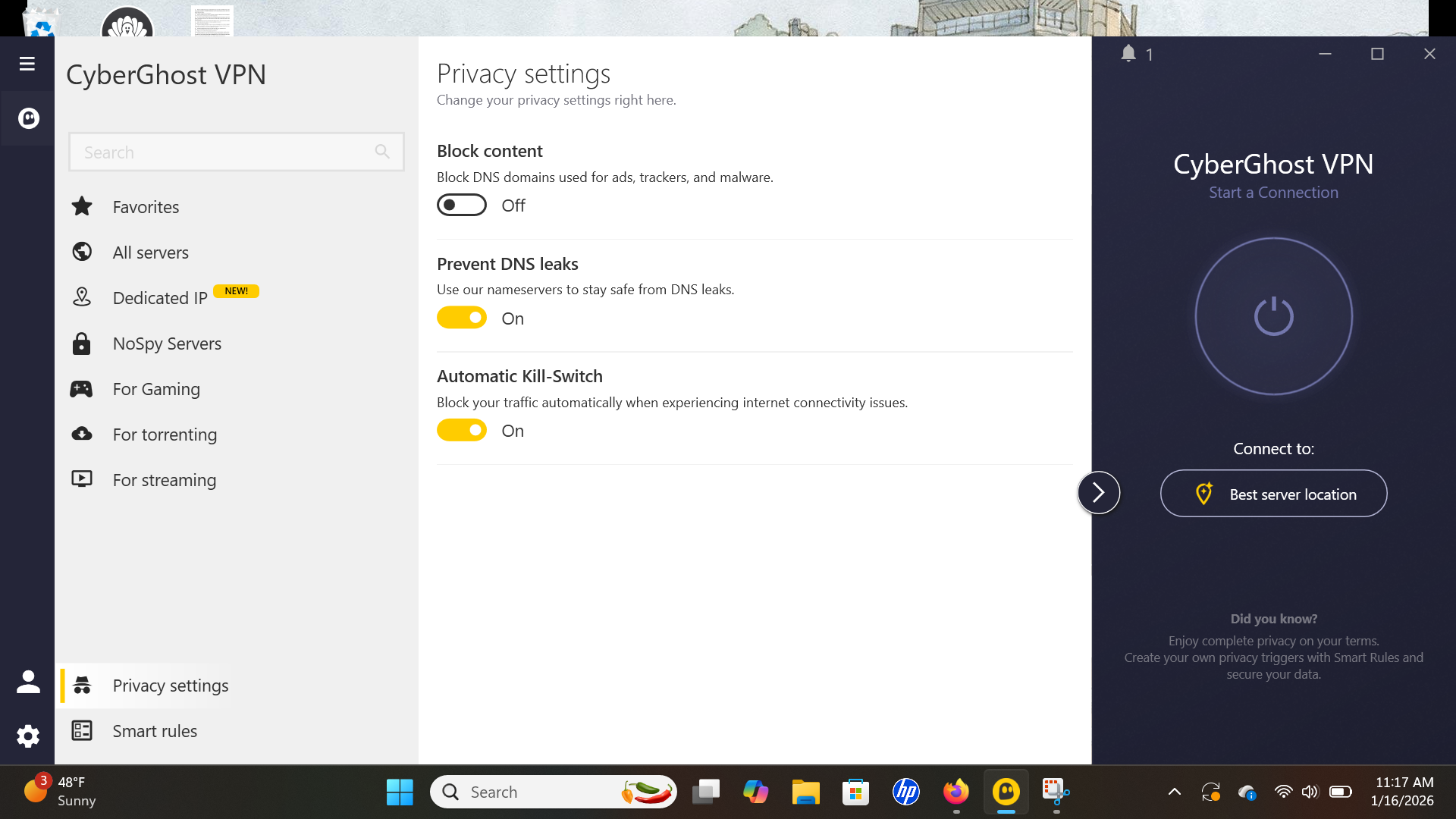
The CyberGhost VPN client for Windows 11.
Sam Chapman for Engadget
Once inside, you're greeted with a UI that looks an awful lot like Surfshark — and if it's not broken, don't fix it. Options for special servers are on the left, the server list is in the middle and the connection interface is on the right. The arrangement prioritizes the most important controls and keeps clutter to a minimum. The only thing I can find to complain about is that clicking on a country with multiple locations doesn't open the menu to choose between them; instead, you have to click on a hard-to-see arrow to the right of the name.
To access any of the special servers, click the appropriate tab in the left window, then choose from the list. Everything connects quickly. A gear icon at the bottom-left leads to all the special features and options, organized into three tabs: General (to do with the VPN app itself), CyberGhost VPN (to do with the VPN connection) and Account (to do with your subscription). The names could be better, but I can't argue with the clear and useful descriptions on each feature.
Mac
The download process on macOS Sequoia is as easy as it is on Windows 11. CyberGhost walks you through every step, installs its helper tools with minimal fuss and is ready to go out of the box. It's best to download directly from cyberghostvpn.com, since the App Store version is designed for iPads, not desktop computers.
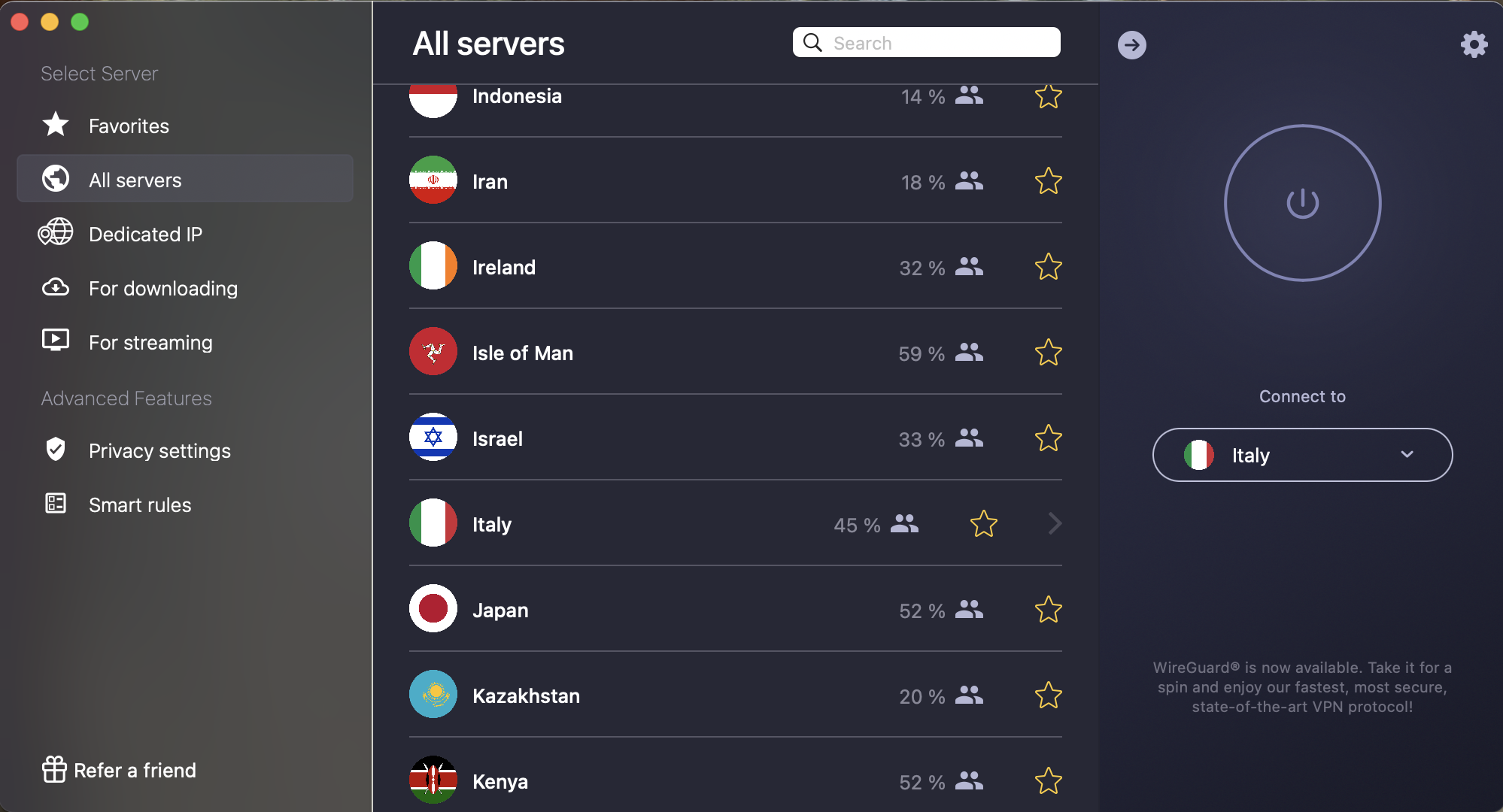
Right after launching, the Mac app is pinned to the taskbar. To open it as a separate window, click the arrow button at the top-left. While it's in the taskbar, the only things you can do are connect, disconnect and switch to one of your favorite locations. You can do all that from the standalone window, too, so there's not much reason to ever leave it pinned.
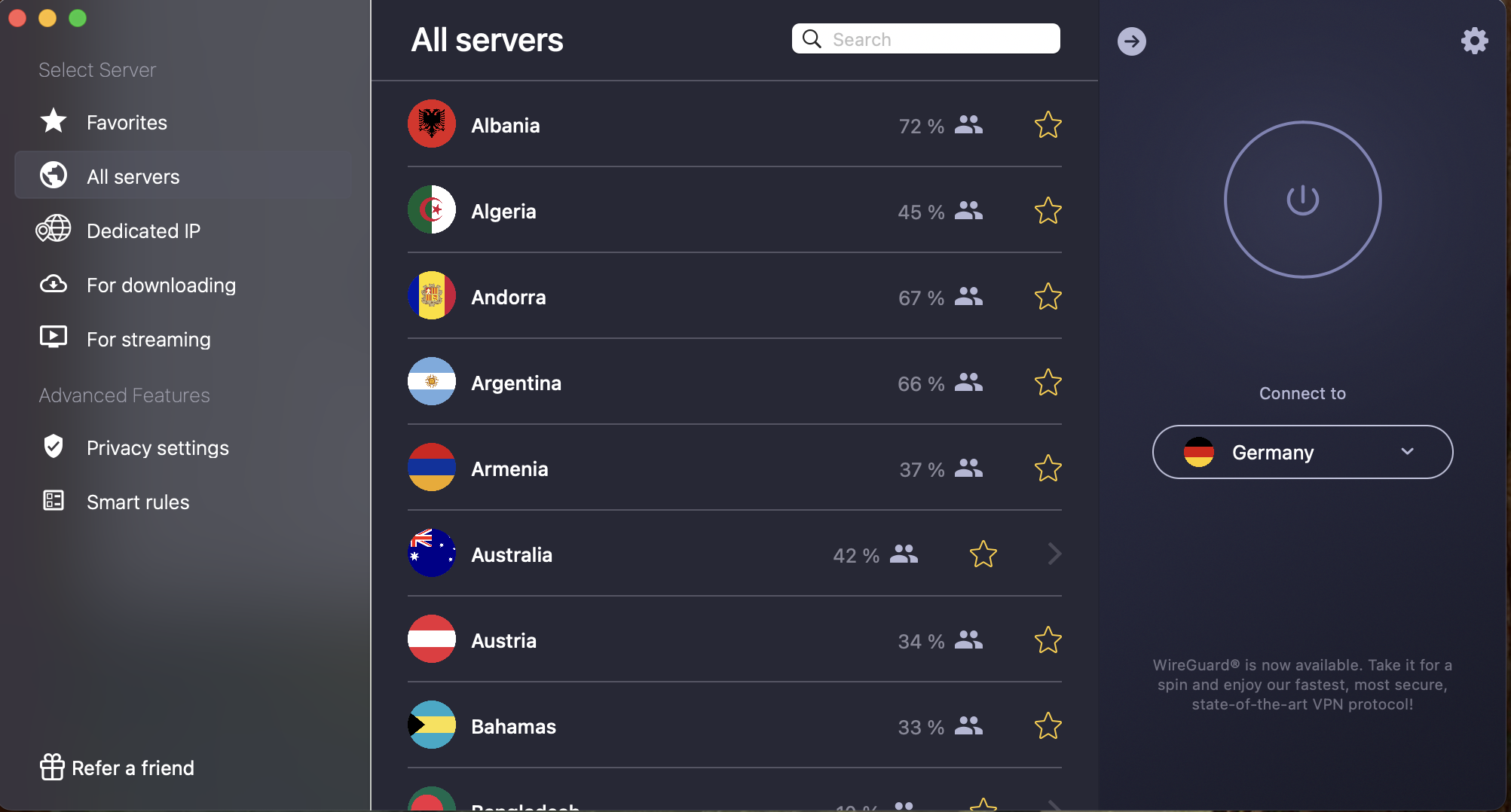
CyberGhost's VPN client for macOS Sequoia.
Sam Chapman for Engadget
The interface on Mac differs from the Windows client in other noticeable ways. For one thing, it's permanently in dark mode, whereas Windows users get to choose between light and dark. There are fewer categories of servers in the left-hand column, with only torrenting (called For Downloading) and streaming options available — you can still connect to NoSpy, but only by going to the Romania location on the main list.
Also, the control panel gear is in the exact opposite location, sitting at the top-right of the connection window. The organization of options is also completely different and generally not as useful, with all the actual controls crammed into a single General tab.
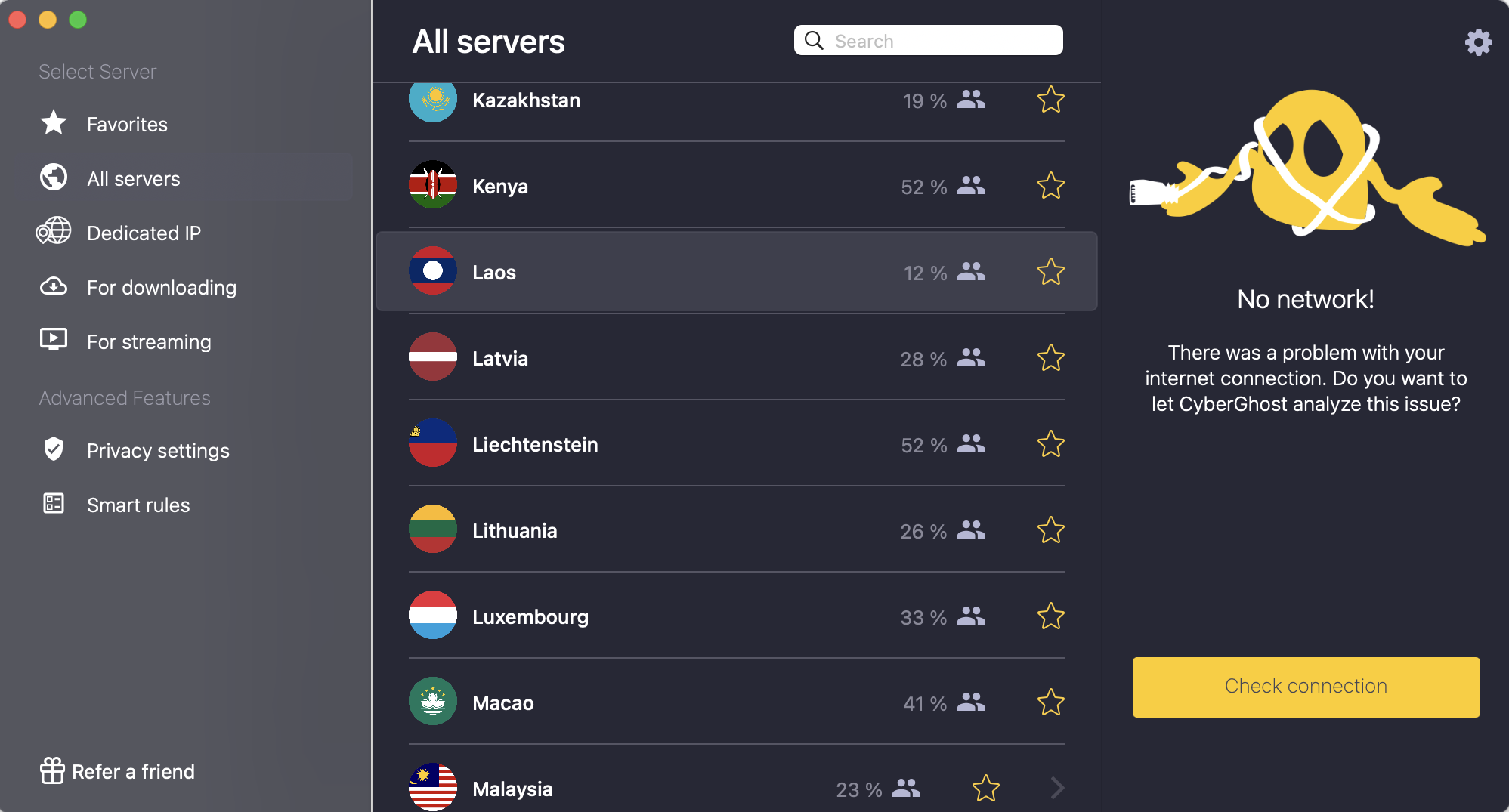
This happened to me once or twice when my internet connection had no problems.
Sam Chapman for Engadget
Compounding the sense that CyberGhost didn't give its Mac app as much attention as its Windows app, I kept getting the odd error pictured in the screenshot above. The client would tell me I had no internet connection (my internet was fine) and direct me to run a connection test. This would always turn up all green lights and let me connect without any incident. It rarely tripped me up for more than a moment, but it was still bizarre.
Android
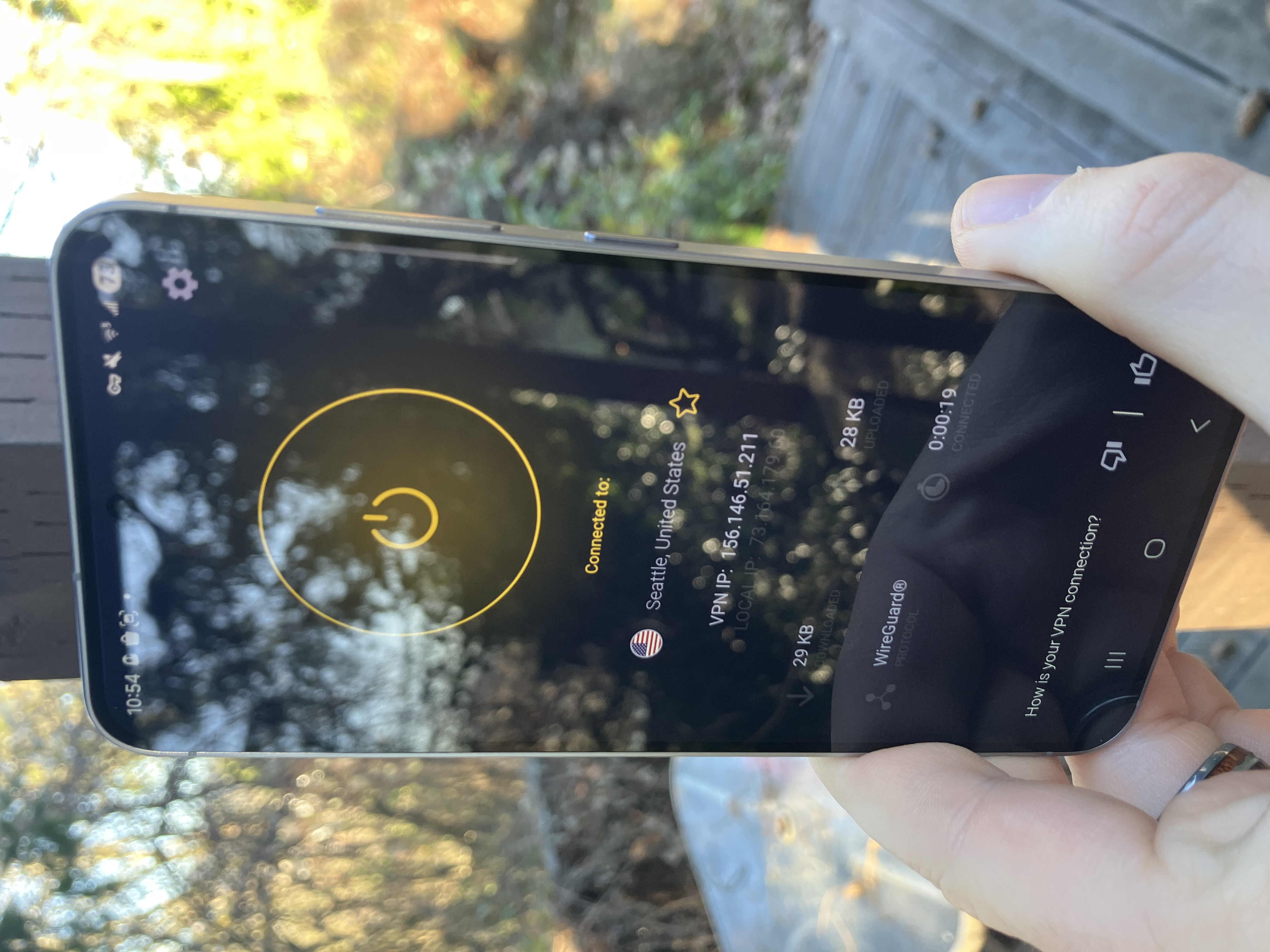
CyberGhost on Android is streamlined to the extreme, focusing on ease of use above all else. Connections happen quickly, and the server selection is narrowed down, with only the streaming locations getting their own tab. It's nice, but it does sometimes remind me of when I'd clean my room by shoving all the clutter under the bed.
CyberGhost connected on an Android phone.
Sam Chapman for Engadget
That's mainly because tapping the gear at the top-right opens up a preferences menu with a lot more going on than the main screen. Most of the options here aren't too complicated, but the shift is still jarring, especially since Android doesn't do as well as Windows at explaining what everything does. "Anonymous statistics" and "Share network data for troubleshooting" sound like the same thing to me, and we get nothing on the esoteric concept of Domain Fronting.
Still, I'm nitpicking a bit. CyberGhost's Android client does 95 percent of its job very well. Most of the settings aren't necessary anyway, so you can pick your favorite server and be on your way.
iOS
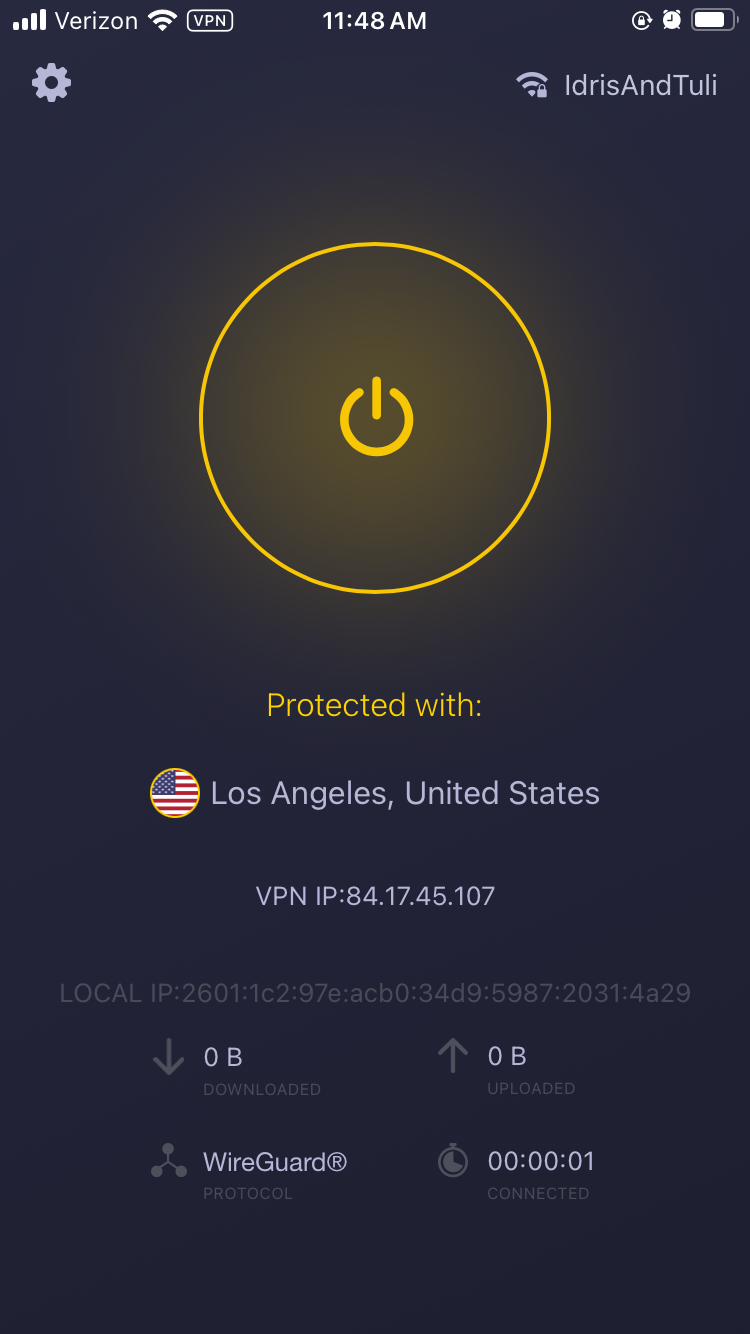
Much like its Android app, CyberGhost's iOS offering is sleek on the front end, a little cluttered in the back, but overall quite easy to use. Connections happen within seconds. The main page includes a useful option to tap on your current Wi-Fi network and immediately set Smart Rules for it. As with Android, only streaming-optimized servers and favorites are separated from the rest.
The main page of CyberGhost's iPhone app.
Sam Chapman for Engadget
The control panel also looks very similar to what you get on mobile. The apparent clutter comes from simple on-off toggles and more complex submenus being all jumbled up together, but you can use the VPN just fine without engaging with any of it. For the most part, CyberGhost on iOS does a lot to help you and nothing to get in your way.
Browser extensions
CyberGhost doesn't have a full-service browser extension. If you look for an extension link on the download hub, you won't find anything. What it does have is free proxy add-ons for Chrome and Firefox, which can be used to change your IP address to a new location.
However, proxies do not encrypt your traffic, leaving out one of the critical aspects of how a VPN works. The extension library pages for the CyberGhost proxies are vague about this, but they're no substitute for a full VPN. They're free and may be convenient for occasional streaming if they don't get caught, but they aren't secure.
CyberGhost speed test
I conducted all these tests on a wireless connection using the WireGuard protocol. For each, I selected either a physical server or a virtual location close to its physical source. Here's what each metric means in the table below:
Ping, measured in milliseconds (ms), is a measure of latency — how long it takes to send a signal from your device to its destination via the VPN server. Lower pings are better. Since signals can only move so quickly, latency tends to increase with distance.
Download speed, measured in megabits per second (Mbps), is what you probably think of as "internet speed" — how fast websites load and how much video you can stream without any pause to load.
Upload speed, also measured in Mbps, determines the rate at which data travels from your device to its destination. It's useful for posting content, saving files to the cloud, torrenting and two-way video calls.
Server location
Ping (ms)
Increase factor
Download speed (Mbps)
Percentage drop
Upload speed (Mbps)
Percentage drop
Portland, USA (unprotected)
16
—
58.70
—
5.80
—
Seattle, USA (fastest location)
22
1.4x
55.88
4.8
5.60
3.4
New York, USA
155
9.7x
45.43
22.6
5.43
6.4
Montevideo, Uruguay
111
6.9x
46.25
21.2
5.55
4.3
Lisbon, Portugal
328
20.5x
45.60
22.3
4.36
24.8
Johannesburg, South Africa
632
39.5x
34.12
41.9
3.68
36.6
Vientiane, Laos
350
21.9x
38.04
35.2
4.78
17.6
Average
266
16.6x
44.22
24.7
4.90
15.5
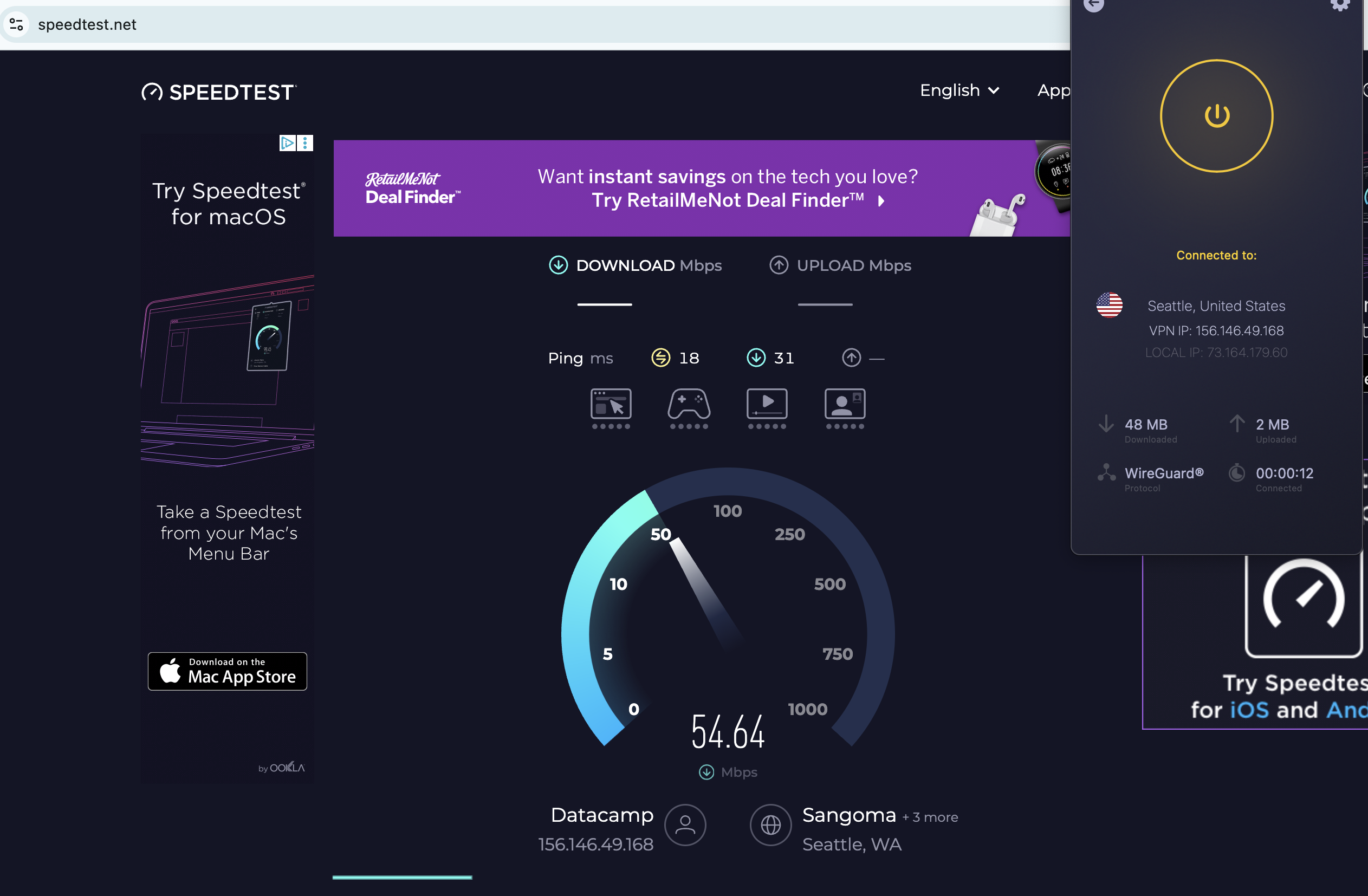
CyberGhost's speed test gave me mixed results — mostly good, but with some reasons for caution. To start on the positive side, latency results were excellent. No matter where I went in the world, the numbers only jumped above 400 milliseconds in one place, and that was the Johannesburg server that had problems across the board. CyberGhost's 266 average is significantly better than I got when testing Surfshark, currently the fastest VPN overall.
A speed test using the fastest location chosen by the CyberGhost app.
Sam Chapman for Engadget
Download and upload speeds looked good in my fastest location, Seattle. Using CyberGhost only slowed my browsing by 4.8 percent and dropped my upload rates by 3.4 percent, comparable to most of its leading competitors. At a distance, though, speeds started to falter. Things in New York remained reasonably fast, but with a lot of fluctuation between tests; unlike Seattle, numbers swung between the 30s and 50s.
As I virtually traveled the world, I saw more and more swings, plus sharp declines in South Africa (which is always the problem child of VPN servers, for some reason). To put this in perspective, CyberGhost never dragged that much on my browsing speed, and the internet remained usable no matter where I went. It's just slightly more sluggish than my favorite VPNs in every area — except latency, where it soars ahead.
CyberGhost security test
VPNs need to secure your internet activity against two things: intentional attacks and leaks due to negligence. A VPN should be watertight enough that it never lets your information slip by accident, while also defending your data against outside interference.
It's not hard to test whether a provider is meeting these two criteria. First, make sure it's using safe VPN protocols with modern encryption. Second, use an IP address checker to test for DNS, WebRTC and IPv6 leaks. Third, test encryption itself to ensure it's being applied equally to all data packets. Let's get started.
VPN protocols
CyberGhost supports three different VPN protocols, all of them up-to-date and secure. OpenVPN, available on Windows, Android, Linux and Fire TV, is my typical recommendation, balanced and secured through a multi-decade history of refinement. WireGuard, supported on every platform, is the new hotshot on the block, fast and stable but not quite as rigorously tested as OpenVPN. IKEv2, which works on macOS, iOS and Windows, connects more quickly than the others but isn't open-source.
I have some quibbles about how available these protocols are. OpenVPN should always be an option for everybody; leaving it off Apple devices doesn't make sense. I’ve asked CyberGhost about this and will update here when I get a reply. In the meantime, I can't complain about the protocols themselves, which use uncracked encryption ciphers and present no obvious weak points.
Leak test
I used ipleak.net to check CyberGhost for leaks. There are three likely causes for a VPN to accidentally reveal your real IP address: it failed to account for different IP types (IPv6 leak), a real-time connection went outside the encrypted tunnel (WebRTC leak) or it used a domain name server that an ISP could read (DNS leak).
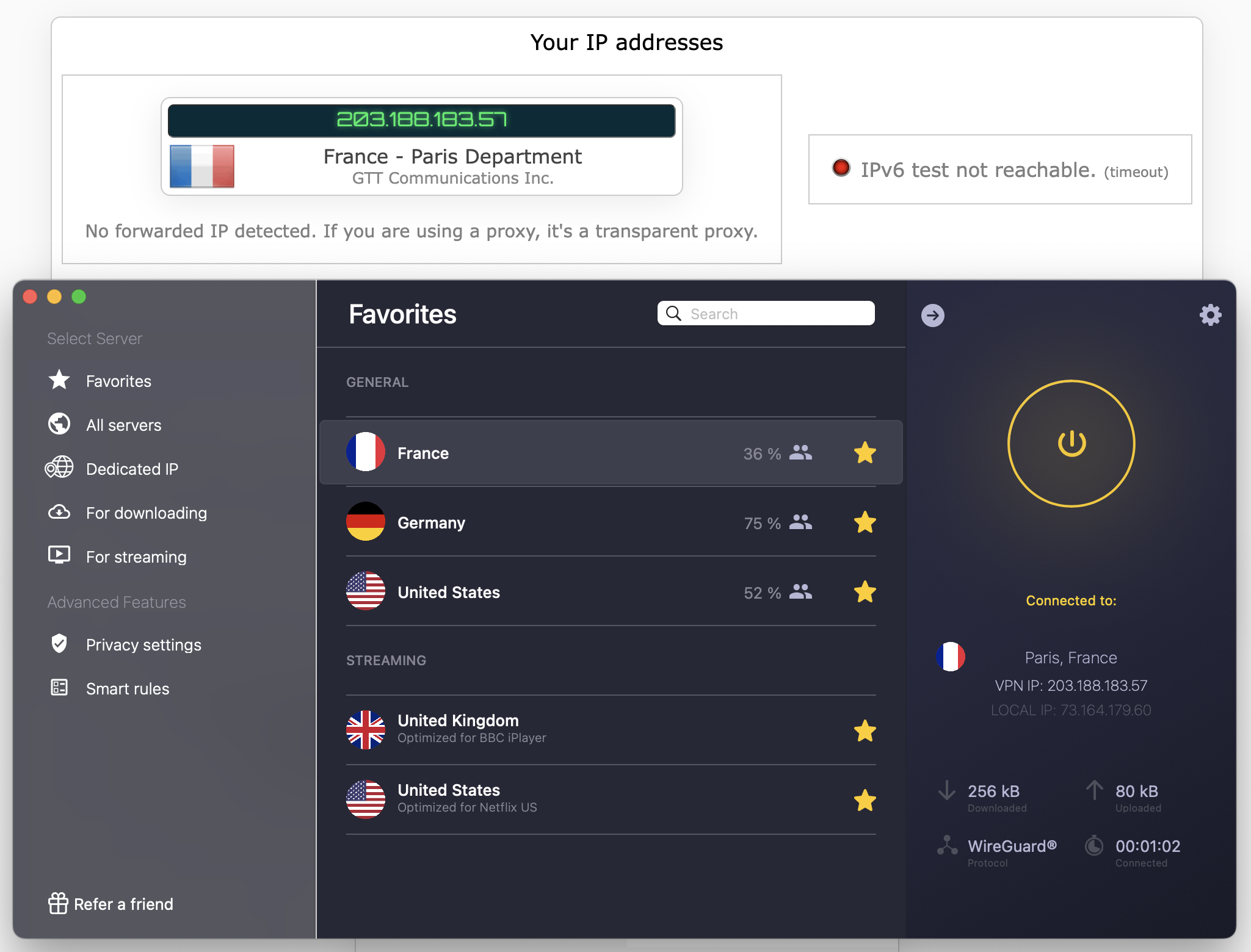
CyberGhost never leaked my real IP address.
Sam Chapman for Engadget
CyberGhost blocks all IPv6 traffic, so there's no chance of an IPv6 leak. I checked for WebRTC leaks and didn't find any. Likewise, every time I connected to a VPN server and refreshed the page, I saw that server's IP address, proving that CyberGhost isn't leaking.
There is one important exception here: whenever you select a different server on your CyberGhost client, it disconnects from that server before connecting to the next one. This means that your data is exposed during the transition. It's annoying, but as long as you remember not to do anything risky while changing locations, you'll be fine.
Encryption test
For my final test, I used WireShark to capture images of the data packets CyberGhost was routing from my device to its servers. Sure enough, the outer layer of each data stream was encrypted no matter which VPN protocol I used. Ultimately, all my probing showed that CyberGhost is secure against both negligence and interference.
How much does CyberGhost cost?
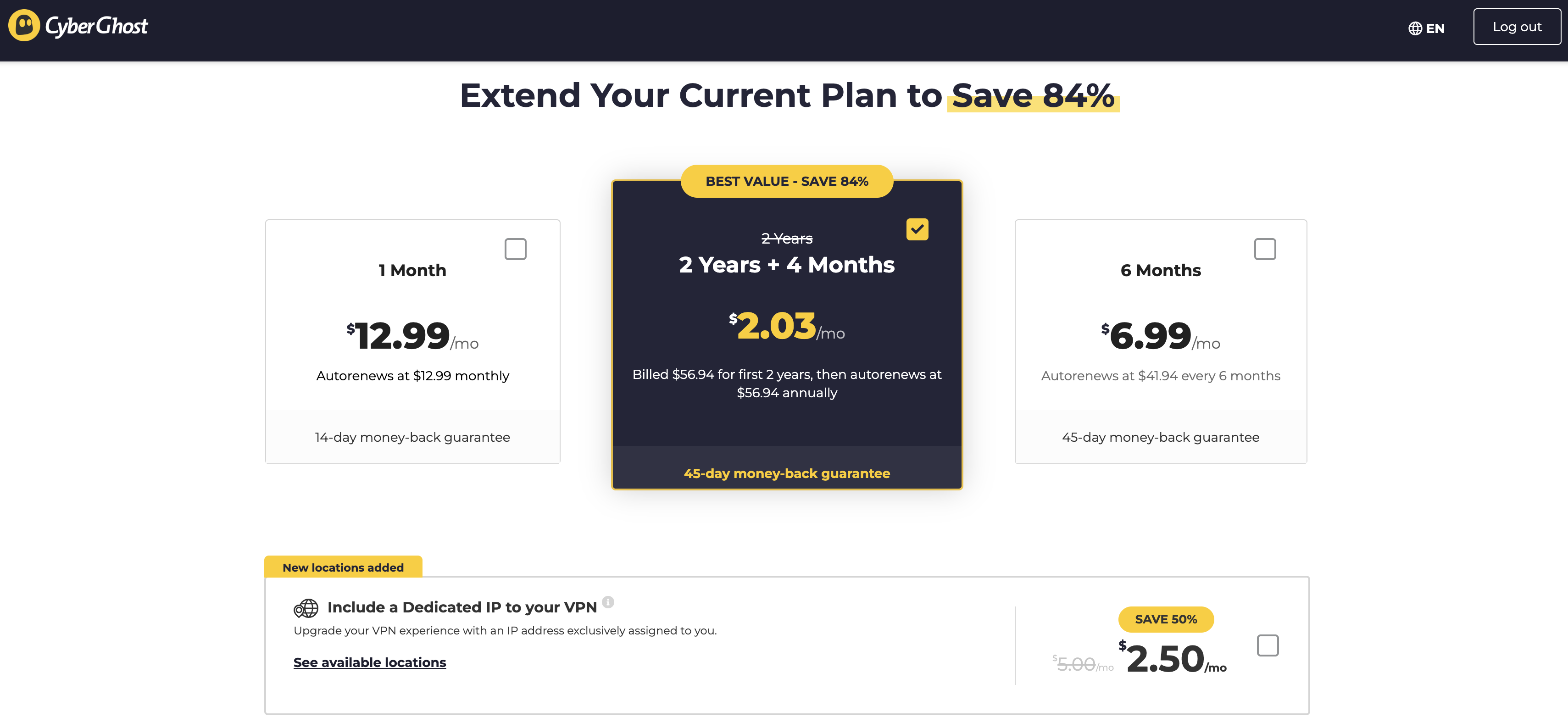
CyberGhost sells three different subscriptions, all of them with the same features. The only difference is how long the plan lasts. You can save money overall by signing up for six months or two years at a time, but it costs more upfront. Each plan can be used on seven devices simultaneously.
These prices are subject to change.
Sam Chapman for Engadget
One month of CyberGhost costs $12.99, and it renews automatically at the same price at the end of each billing month. Each monthly renewal comes with a 14-day, money-back guarantee. You can get six months for $41.94 total, which works out to $6.99 per month. At the end of six months, it auto-renews at the same price. The six-month plan comes with a 45-day refund guarantee.
Finally, there's the two-year plan, which comes with a lot of fine print. The first time you sign up, it costs $56.94, which gets you a total of 28 months (working out to $2.03 per month). However, after your 28 months are up, all subsequent renewals instead get you a 12-month plan — still for $56.94, but now working out to $4.79 per month. That's still relatively cheap, but not nearly as affordable as some VPNs with perpetual two-year plans.
CyberGhost side apps and bundles
CyberGhost doesn't have much in the way of additional subscription offers, but that's honestly refreshing. In an age when even the best providers also need to be antiviruses, insurance agents and probably vacuum cleaners, it's nice to see a VPN that's content with just being a VPN.
CyberGhost does have a broader "security suite," but it comes at no extra cost and is currently available on Windows only. More info on that in the "Extra features" section below.
Dedicated IP
You can pay an extra $2.50 per month to add a dedicated IP address to your CyberGhost plan. With a dedicated IP, you'll have a stable address whenever you get online through the VPN, which makes it a lot easier to connect to firewall-protected web services. It's also exclusive, so nobody else can get you in trouble by misusing the IP address.
Close-reading CyberGhost's privacy policy
CyberGhost is located in Romania, which makes it subject to the strict privacy laws of the European Union. It's not legally required to keep tabs on its users or install government backdoors. That's a great start, but to be certain about a company's approach to privacy, it's best to look at its own words.
A VPN makes your online activity anonymous to anyone else who tries to look at it, but the VPN itself still has the power to violate your privacy if it chooses. This leads some people to advise against using commercial VPN services at all, though I don't go that far. The best VPNs build in features that make it impossible for them to abuse their access to your web traffic, such as RAM-only servers and full-disk encryption.
When trying to determine if you can trust a VPN with your privacy, the first place to look is its official privacy policy. This document lays out everything the VPN does to handle your personally identifiable information (PII). If the provider violates its policy, they can be sued, so it's not in their interest to lie outright in the document.
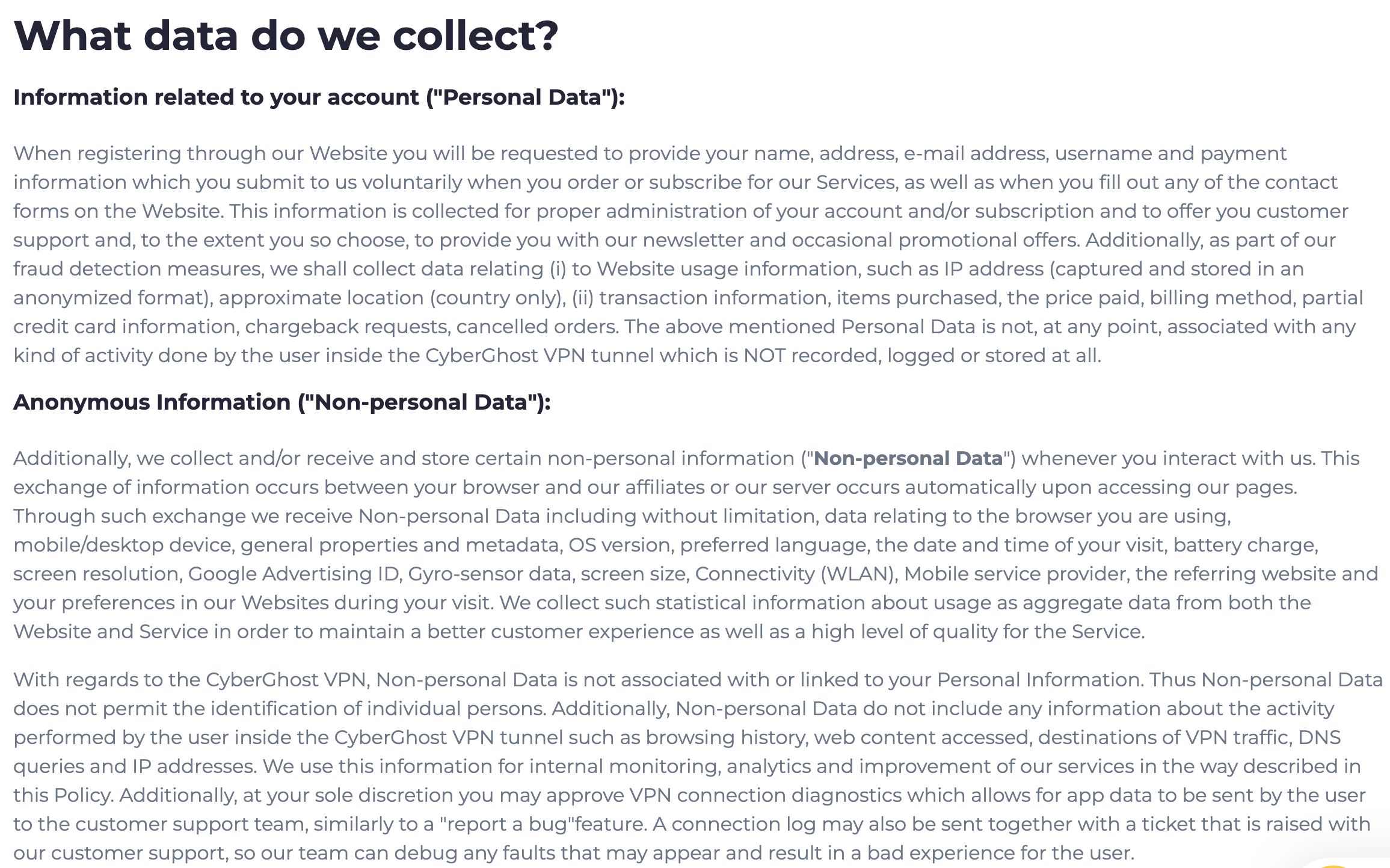
I went over CyberGhost's privacy policy with a fine-toothed comb — it can be found here if you'd like to follow along. It starts with the usual promise of "uncompromising protection": CyberGhost swears that "we are NOT storing connection logs, meaning that we DON'T have any logs tied to your IP address, connection timestamp or session duration" (all emphasis theirs).
That's the standard I'll be checking against: a total lack of any way for CyberGhost to read or share information on its own users. Let's see how it holds up.
These may just be words, but they have legal force, at least in civil court.
Sam Chapman for Engadget
The privacy policy wins early points by clarifying all the data it collects. You can see the whole quote in the screenshot above, but to summarize, any PII (like your email or IP address) will never be connected with anything you do online. Since absolute anonymity is impossible, this is the best we can hope for from a VPN.
Later on, the policy clarifies everything CyberGhost might do with personal data, none of which involves turning it over to authorities or selling it to advertisers. The most suspicious reasons given are "fraud detection/prevention" and "To enforce the terms of service," but these both relate to kicking users off CyberGhost itself, not tattling on them to the government.
The only potential problem comes in the section titled "Sharing Your Personal Data." Here, CyberGhost states that "we may communicate your personal data to a member of our group of companies," meaning all subsidiaries of Kape Technologies. I won't rehash the case against Kape in full — my ExpressVPN review covers it in detail.
Suffice to say the only real risk here is that CyberGhost might share PII with another Kape company located in a region with worse privacy laws than Romania or the EU. To me, this isn't a serious concern. First of all, Kape doesn't own any companies based in truly anti-privacy nations like China, India or Russia.
Moreover, the privacy policy states that CyberGhost won't share information with any entity not "located in the EU or another jurisdiction offering equivalent data protection standards." Every bit of data gets the same protections. This may mean PII enters a country in the Five/Nine/14 Eyes alliance, but the Eyes only matter if a VPN is already logging data it shouldn't have. It's not that abuse of intelligence-sharing agreements isn't a problem; it's just that the risk it poses starts with the VPN itself, not where it's located.
To sum up, I didn't see any red flags or loopholes in the CyberGhost privacy policy. Some clauses could be tightened up, and it always pays to be suspicious, but I'm confident that using this VPN doesn't risk your personal privacy.
Independent corroboration
CyberGhost has been audited twice by Deloitte Romania, once in 2022 and again in 2024. Following that pattern, I'll be looking out for another one this year. You need an account to read the full audit report, but it's only 10 pages and easy to summarize: the auditors found nothing in CyberGhost's systems that conflicted with its privacy policy.
The audit notes CyberGhost's server infrastructure as evidence. All servers are run on RAM with full-disk encryption, making any information they store completely ephemeral. Even if CyberGhost staff wanted to spy on you, they wouldn't see anything. The same goes for third-party hackers.
CyberGhost also posts a regular transparency report that lists how often law enforcement has asked it for information. As far as I could find, after hundreds of requests, there's never been a case where CyberGhost provided any information to cops.
Can CyberGhost change your virtual location?
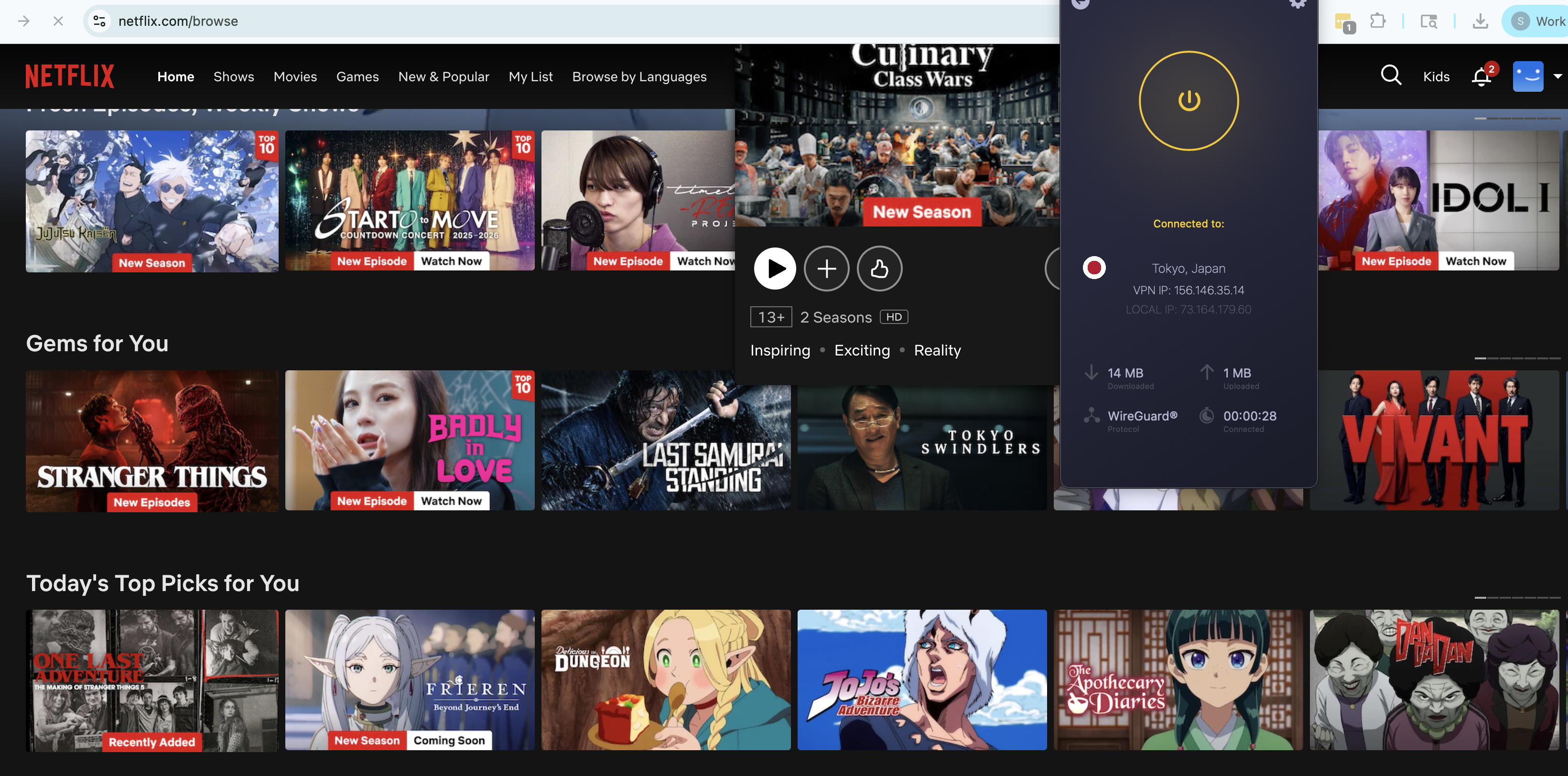
For this section, I used Netflix to test whether CyberGhost's virtual location changes are detectable by other websites. Ideally, every time I change location with CyberGhost, Netflix would accept it as real and show me the content library from that country. If either of those things doesn't happen within three tests, the VPN has a problem.
Since CyberGhost has servers built for streaming, I used those for each of the five locations. You can see my results below.
Server location
Unblocked Netflix?
Changed content?
United Kingdom
3/3
3/3
Japan
3/3
3/3
Germany
3/3
3/3
Australia
3/3
3/3
Brazil
3/3
3/3
This test was a smashing success for CyberGhost. Every time, it showed me the proper video library for the location I chose and never once got caught by Netflix's firewalls. It's the best result I've seen in this section since I tested Proton VPN, and that's high praise if you know me.
CyberGhost has 125 server locations in 100 countries. Of those locations, 75 are real and 50 are virtual, which makes the math easy: CyberGhost's VPN server network is 60 percent bare-metal and 40 percent virtual. That's good, since physical servers let you calculate how much performance will deteriorate over distance — virtual servers are just as safe, but speeds might fluctuate depending on where they really are.
Region
Countries with servers
Total server locations
Virtual server locations
North America
9
21
5
South America
9
9
9
Europe
45
56
13
Africa
6
6
3
Middle East
6
6
4
Asia
23
23
16
Oceania
2
4
0
Total
100
125
50
Looking at the distribution of servers, we get good news and bad news. The good news is that there really are 100 different countries and territories to choose from, encompassing nearly all the virtual globetrotting you're likely to need. There are also lots of servers in the southern hemisphere, which is often the last place VPNs grow into. There's a wealth of choices in South America, plus several options in Africa and Central Asia.
CyberGhost's selection of VPN servers.
Sam Chapman for Engadget
The bad news is that the distribution of real servers is skewed toward Europe and the United States. None of the nine South American servers are actually located in South America; worse, a large number of them are physically located in Miami. If you're using CyberGhost in Argentina, don't expect top speeds from the Buenos Aires server, since it's actually over 4,000 miles away. CyberGhost's support center does include a list of where the virtual servers are relayed through, but it's not up to date.
Extra features of CyberGhost
CyberGhost has a few features beyond the VPN itself, though not as many as you might think. Compared to a provider like NordVPN, which goes all in on extra features, CyberGhost's offerings look pretty lean. But that doesn't matter as much if the features work well. Let's see how they do.
Kill switch
CyberGhost takes an unusual approach to its kill switch. In case you aren't familiar with the term, a kill switch cuts off your internet connection if your link to the VPN ever drops, protecting your anonymity in case of unexpected incidents. Most VPNs let you toggle the kill switch on and off, but on CyberGhost, it's fully engaged 100 percent of the time — except on Windows, where you can turn it on and off as desired.
Turning on the kill switch is almost always a good idea, but it's still annoying that Cyberghost gives many of its users no way to turn it off. In rare cases, kill switches can get overzealous, preventing you from getting online even when conditions are safe. It's an odd choice to remove a potential troubleshooting step from the user's control.
Split tunneling
Split tunneling lets you name some apps or websites that will run unprotected even while the VPN is active. This can help with certain services that refuse to work if they detect a VPN, or alternatively, can protect only one sensitive app or site while the others enjoy faster unprotected speeds.
CyberGhost only has full split tunneling on Android. It also offers a slightly different feature called Exceptions on Windows. Android split tunneling works by app, while Exceptions works by URL. In both cases, you choose individual apps or websites to leave out of the VPN. It's limited, but works as advertised.
Optimized servers
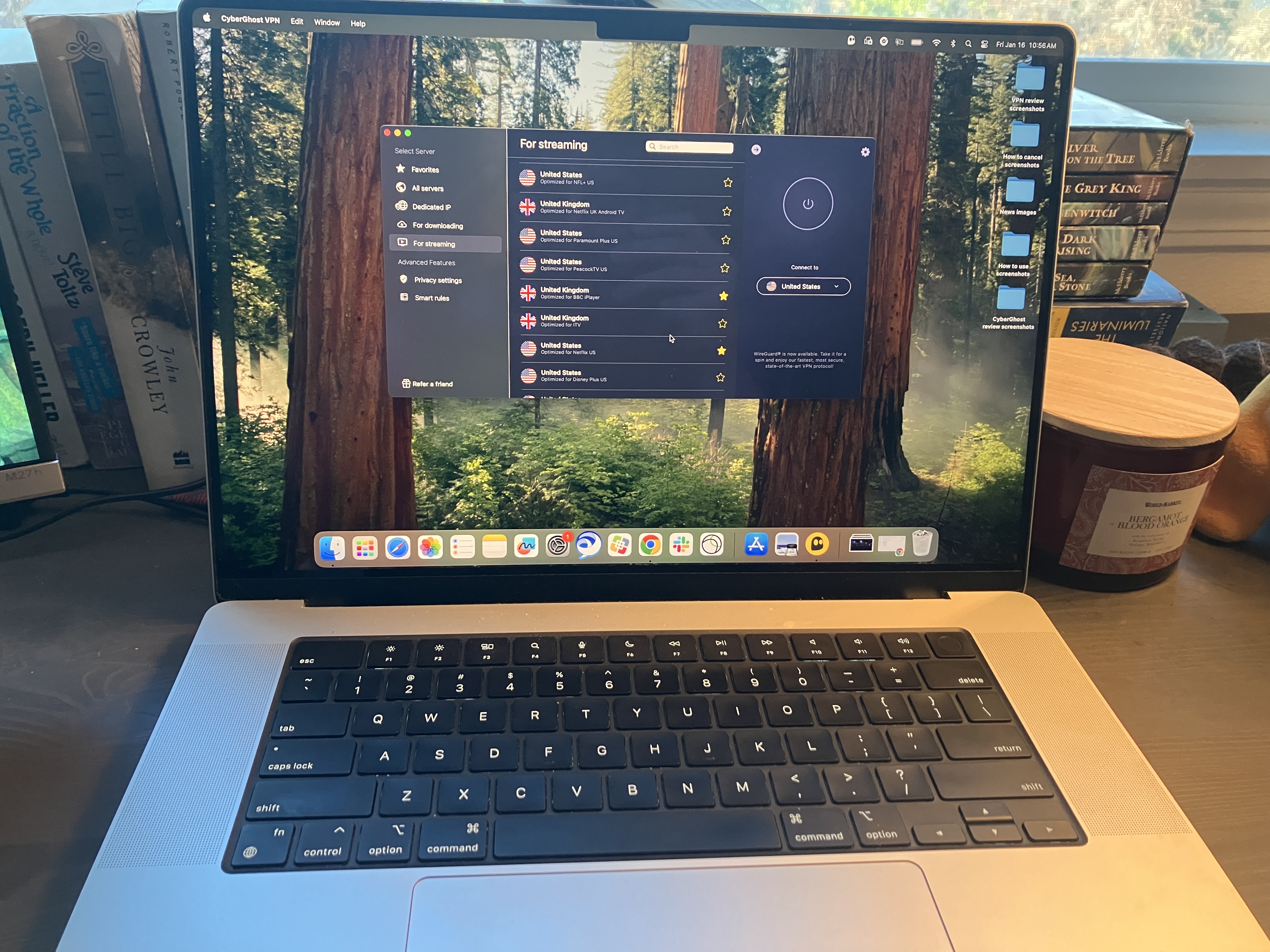
As I mentioned in the Netflix testing section, CyberGhost includes specialized servers designed for specific tasks. Other than the add-on dedicated IP servers, these come in four forms: "For gaming," "For torrenting," "For streaming" and "NoSpy." Gaming servers are apparently built to keep latency low, but I couldn't see much difference between them and the normal servers.
"For torrenting" is called "For downloading" on Mac, but it's all the same torrent-optimized servers. These are built to meet the download and upload speed requirements for effectively using P2P filesharing clients. CyberGhost has P2P servers in 86 countries, which makes it a good VPN for torrenting; only the lack of port forwarding keeps it from being truly great.
A few of CyberGhost's specialty servers on a MacBook.
Sam Chapman for Engadget
Each streaming server is built to unblock a specific streaming site in a particular country, occasionally for a single type of device. For example, United States streaming servers are aimed at Netflix, Hulu, Peacock, Disney Plus, Amazon Prime Video and more, many in their Android or Smart TV forms. UK servers work for Netflix UK, BBC iPlayer, ITV and more. In total, there are 106 streaming servers in 22 countries — not quite as extensive as the overall list, but it's important to remember that non-optimized servers still work fine for streaming.
Finally, the NoSpy options connect to a set of servers in Romania that CyberGhost claims to manage entirely in-house, with nobody able to access them except CyberGhost's own team. This is good, but it leaves me suspicious about who's running the rest of the servers. Are they all run by third parties except the NoSpy locations? That's relatively common, but it creates vulnerabilities if the VPN provider doesn't insist on high standards from collaborators.
Content blocker
CyberGhost's content blocker is underwhelming. All you can do is turn it on and off. There's no customization like you get with Windscribe's R.O.B.E.R.T. and no clear statement of where it's getting its list of domains to block. In practice, it does block in-page ads, but without specifics I couldn't test it in more detail.
There's no customization on CyberGhost's blocker -- just turn it on or off.
Sam Chapman for Engadget
Smart Rules
The Smart Rules automation suite is the crown jewel of CyberGhost's features and the most common reason I recommend it. Using Smart Rules, you can automate CyberGhost's behavior to a degree inconceivable on most other VPNs.
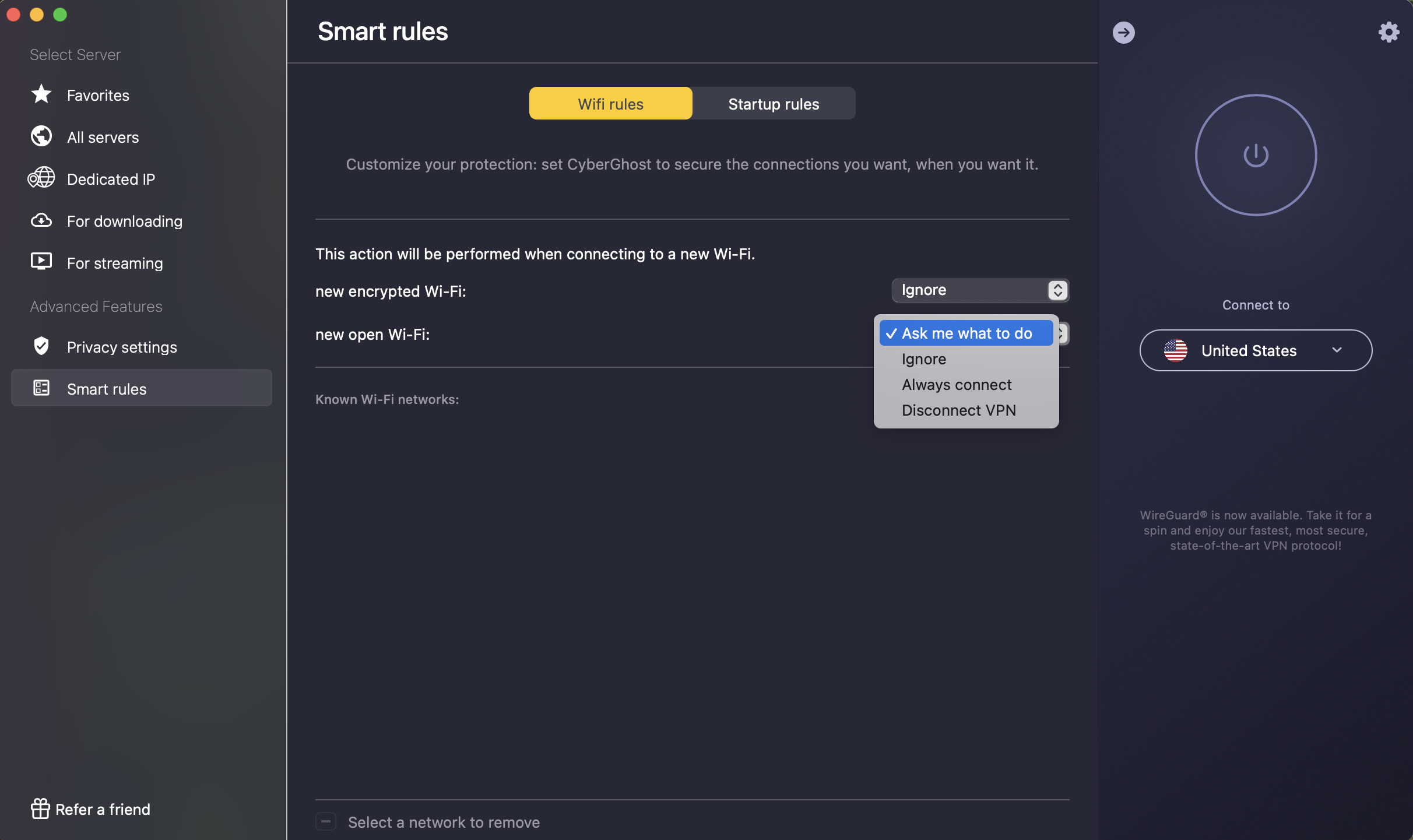
You can program CyberGhost to take different actions on each of your usual networks.
Sam Chapman for Engadget
Smart Rules come in two forms: actions performed automatically when CyberGhost launches or connects and actions that respond to new Wi-Fi networks. In the former category, you can set CyberGhost to connect when you open the app, determine which location it connects to and even set an app to automatically open after it connects.
Wi-Fi rules depend on whether the network CyberGhost detects is secured or not. For each type of network, you can set the VPN to connect, disconnect, ask you what to do or ignore it entirely. Once it recognizes a Wi-Fi network, you can set specific rules for that network. It's at once very easy to use and capable of surprising depth.
CyberGhost customer support options
CyberGhost primarily offers customer assistance through its online portal, which can be reached at support.cyberghostvpn.com or by going through the app. If you choose the options "CyberGhost VPN help" or "FAQ" in the app settings, you'll be taken to the support pages in a browser. I recommend going through the URL, since that takes you to the highest-level page.
The support center feels distressingly like an afterthought. Written guides are divided into four sections: Guides, Troubleshooting, FAQs and Announcements. The latter has only one article and the former three are roughly interchangeable — if I'm having trouble connecting to a server, is that an FAQ, a Guide or Troubleshooting? Looking for any particular subject here is a needle-in-a-haystack search.
Fortunately, there is a search bar, but this presents its own problems. A simple search for "connection issues macos" turned up 72 results, including one called "Troubleshooting connectivity on macOS" and another titled "Troubleshooting VPN connection on mac." These two articles are in different sections, but mostly contain the same information, except that the former has an extra walkthrough on renewing your DHCP lease.
It's a shame, because the articles themselves are mostly clear and helpful, with lots of well-chosen screenshots. Someone clearly worked hard on the content, but the overall organization left me thinking the knowledgebase was thrown together years ago and hasn't been checked since.
Live support experience
If you have trouble finding what you need in the written guides, you can get personal support in two ways. One option is to submit an email request through a Zendesk portal. This gives you all the time you need to frame your question and add supporting materials, at the cost of waiting longer for a reply.
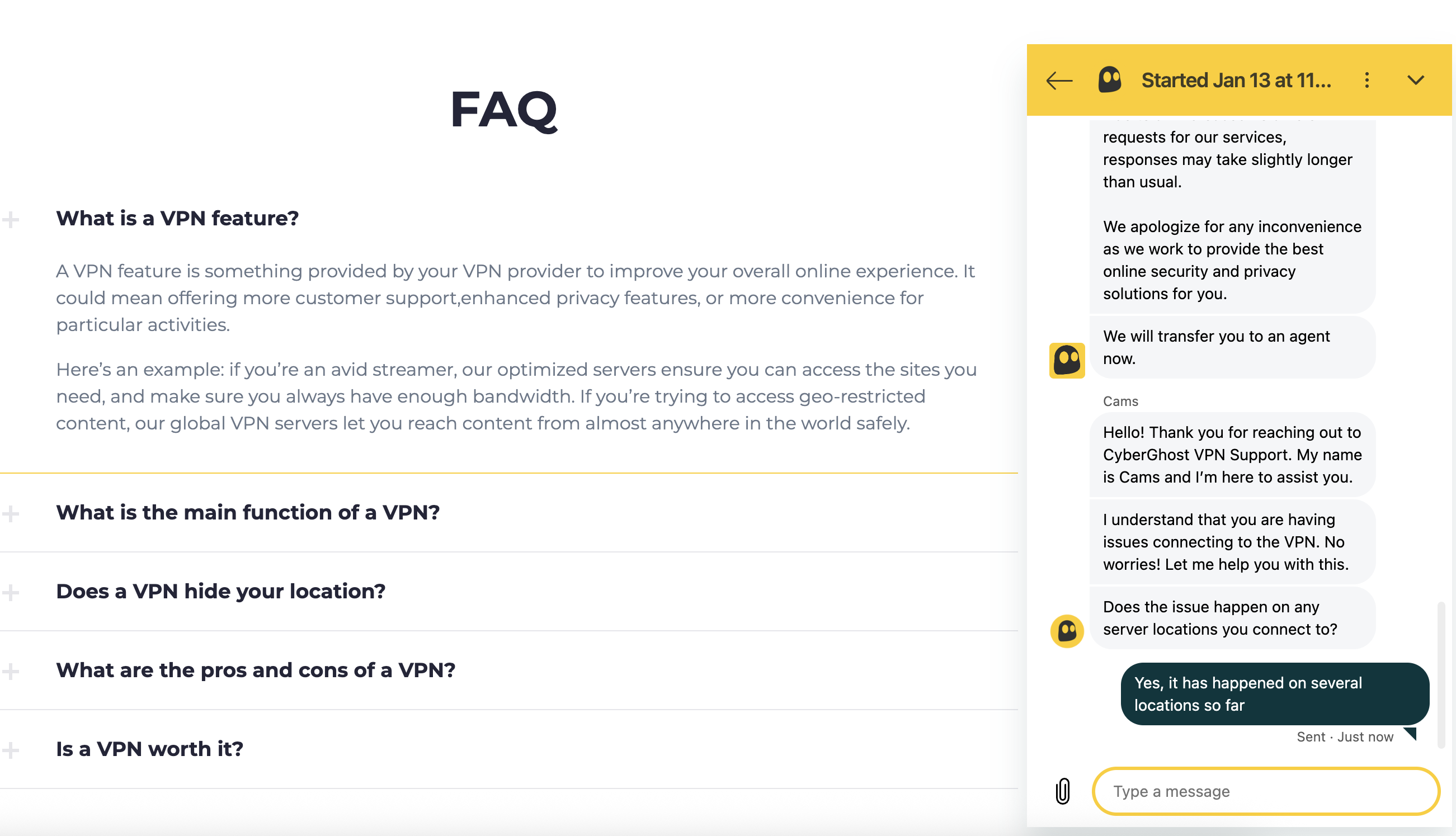
Your other option is to access live chat, which you can do from anywhere on cyberghost.com by clicking the chat button in the bottom-left corner of the screen. Live chat starts with a "CyberGhost AI Assistant" (what we used to call a chatbot in the good old days) which runs you through several diagnostic questions. To its great credit, the bot does not try to link you to articles in the knowledgebase, understanding — as too many providers don't — that nobody tries live chat unless the FAQ isn't working for them.
It didn't take me too long to get in touch with what was apparently a live expert.
Sam Chapman for Engadget
I decided to bother CyberGhost about the connection issue I wrote about in the Mac UI section. Within seconds, the chatbot offered me a button that would transfer me directly to a live agent. I only had to wait about 4 minutes before the agent got in touch. After that, each response took about a minute and explained everything carefully and efficiently. It was as helpful as the written knowledgebase wasn't.
CyberGhost background check
CyberGhost was founded in 2011 in Bucharest, Romania, where it's still headquartered today. It claims to have around 38 million subscribers and a staff of 70. It appears to be most popular in France and Germany.
The only thing that makes me at all uncertain about CyberGhost is that I can't find much information about its history — it doesn't even have a Wikipedia page in English. By far the most likely explanation is that CyberGhost is exactly what it seems to be: a reliable, drama-free VPN provider that doesn't court controversy. Still, I'm naturally paranoid, so I'd understand if this lacuna sends you running back to a better-documented VPN.
There is precisely one date in CyberGhost's history that everyone lists: 2017, when it was purchased by Kape Technologies. As a VPN reviewer, I have to think about Kape a lot. My opinion is that the fear around it doesn't measure up to reality. For example, back when it was known as Crossrider, Kape was not a "malware distributor"; it sold an ad-injection plugin that turned out to be a useful malware vector.
Perhaps Crossrider could have worked harder to stop its platform from being misused, but that doesn't make it a security threat today. Similarly, being owned by a businessman from Israel does not mean that Kape or CyberGhost are secretly controlled by Mossad.
I'm not here to defend Kape — I'm just pointing out that a lot of the fear isn't backed up by evidence. To my mind, Kape's consolidation of the VPN industry (it also owns ExpressVPN and Private Internet Access, plus two websites that review VPNs) is bad enough without having to look for additional conspiracies. It's up to you to decide whether or not CyberGhost's parent company presents a hard line you won't cross.
Final verdict
At the end of my journey with CyberGhost, I may not be blown away, but I'm definitely pleased. After my poor experience with PIA, I was afraid the only budget VPN I could wholeheartedly recommend was a two-year subscription to Surfshark. CyberGhost is a meat-and-potatoes VPN — it's not pushing any envelopes, but it's cheap and it does the job.
All that said, I recommend it more to casual users than to people who really need secrecy. There are just enough reddish flags that I wouldn't necessarily trust it with life-and-death information: the (possible) use of third-party managers for all servers outside Romania, the freedom to share information with any Kape subsidiary, the loss of encryption when switching servers. It'll keep you anonymous and let you stream foreign TV for cheap, but you should still choose Proton VPN if you need serious privacy.
This article originally appeared on Engadget at https://www.engadget.com/cybersecurity/vpn/cyberghost-vpn-review-despite-its-flaws-the-value-is-hard-to-beat-200000250.html?src=rss
Look, virtual private networks are great — I wouldn't have made a list of the best VPNs if I didn't recommend using them. But being able to control your own technology is also important. A VPN can provide protection and peace of mind when used properly, but you may not want it active on your phone all the time.
For example: Are your Google search results suddenly in German? That’s one example of what can happen if you leave your virtual location set to Berlin or Vienna. Or maybe a VPN you installed for work or to watch a single tennis match is persistently trying to keep itself active.
The point is, deactivating a VPN on an iPhone can sometimes be unusually tricky, because there’s more than one off switch. Fortunately, it's not hard. There are several easy ways to disconnect from an iOS VPN or delete it entirely. If you catch it turning itself back on, I'll show you how to stop that too.
Three ways to turn off your iPhone VPN
I'm using a fluid definition of "turn off" here. Some of the steps below simply disconnect the VPN, while others remove it from your phone altogether. I'll make it clear in each section what the outcome will be.
How to disconnect in the VPN app
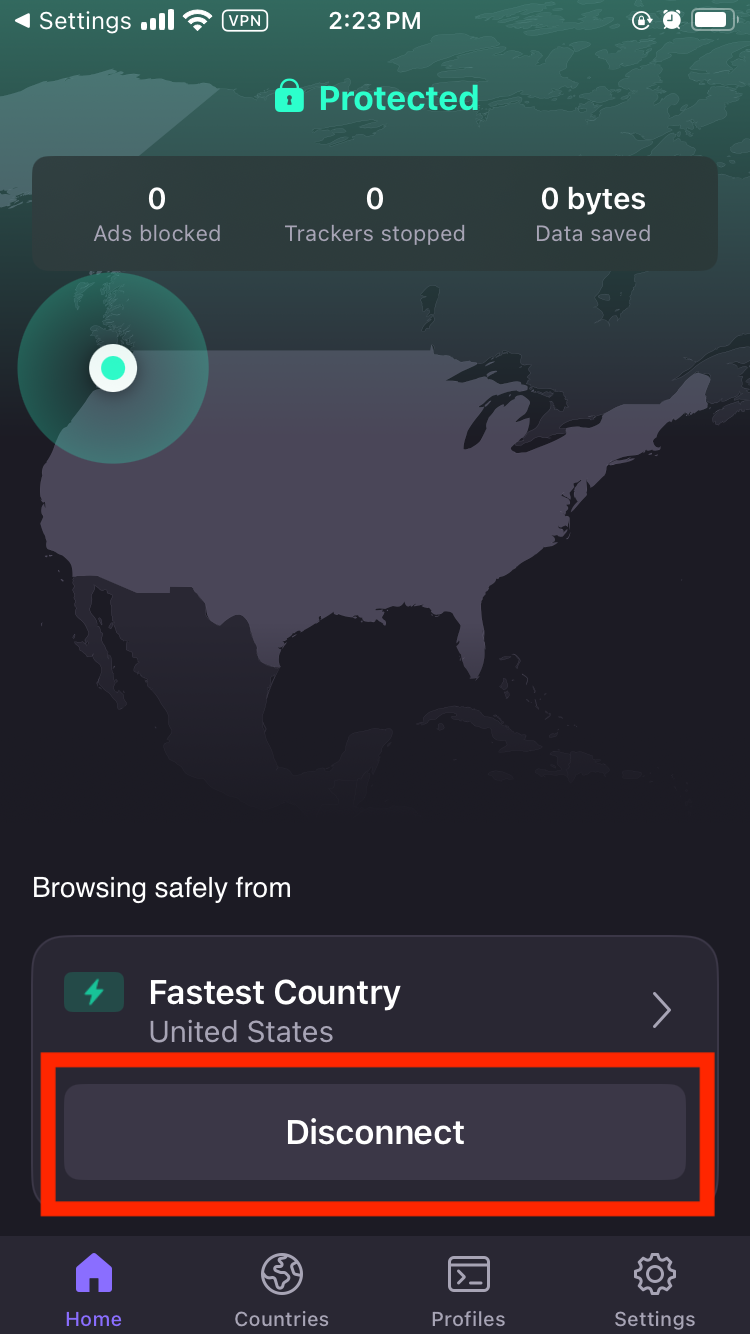
This is the easiest way to turn off a VPN on your iPhone. First, find the VPN app that’s active, which should be on your home screen somewhere. Each app has a different interface for connecting and disconnecting, but the disconnect button should be fairly obvious — it may say the word "disconnect" or show a green power icon. In any case, it should be right on the home screen, without requiring any digging through menus.
Example of where to find the disconnect option on a VPN's home screen.
Sam Chapman for Engadget
Tap the disconnect button and wait for the VPN to clearly state that it's disconnected. Check to make sure the rectangle with "VPN" inside has disappeared from the top of your iPhone screen. The VPN is now disconnected.
How to turn off the VPN in Settings
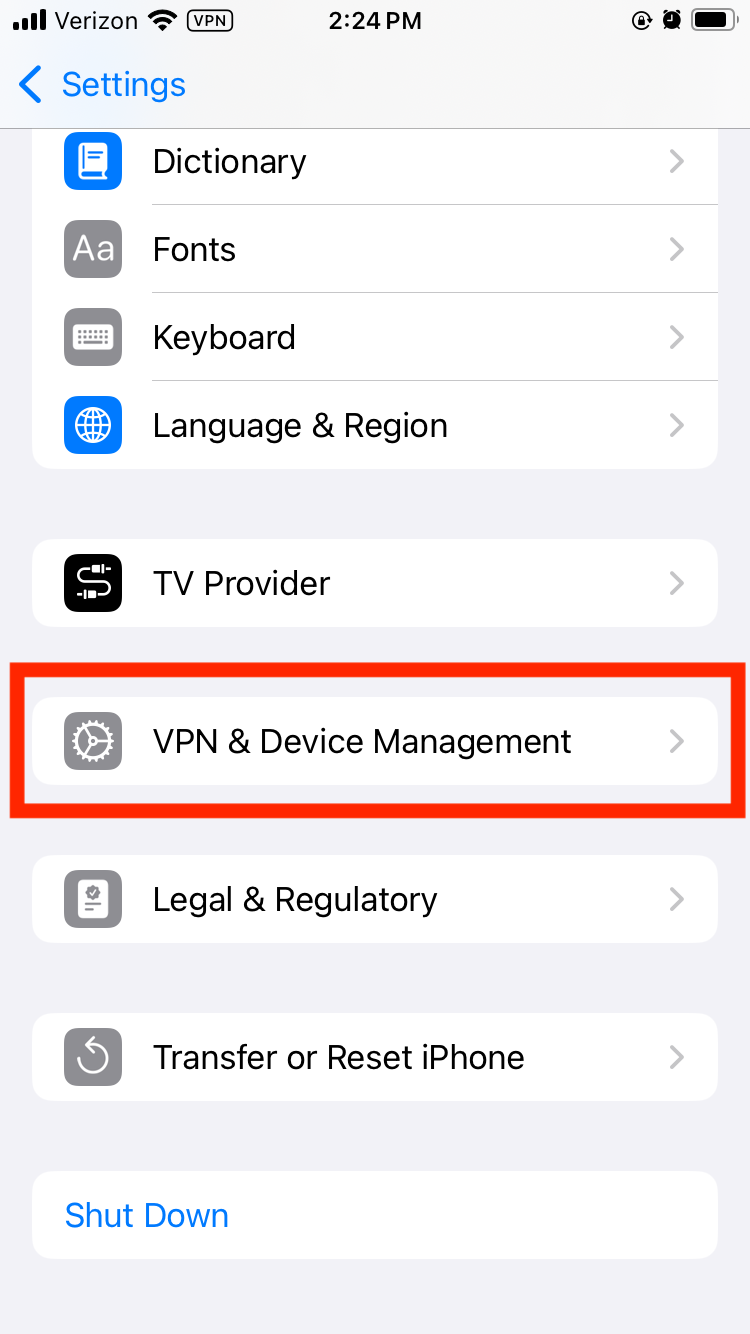
If you aren't sure which VPN app is active, or if its interface doesn't make it clear how to turn it off, you can shut it down from the Settings menu instead. Find the app on your home screen that looks like several interlocking gray gears and tap it.
Next, scroll down and tap the VPN option. If it's not present (which it won’t be on older iOS versions), tap the General option next to another picture of a gray gear. Scroll down again and tap VPN & Device Management by yet another gray gear. Finally, tap the VPN option at the top of the screen to reach the VPN management page.
Location of the VPN settings on iOS.
Sam Chapman for Engadget
If you have a VPN active, you should see an option at the top of the page labeled VPN Status. Toggle it from Connected to Not Connected. The VPN icon should disappear from the top of your screen, indicating that it's turned off.
How to delete the VPN app altogether
If you don't want the VPN on your phone at all, you can turn it off permanently by deleting both the app and the configuration. This is a lot harder to undo, so only do it if you're certain.
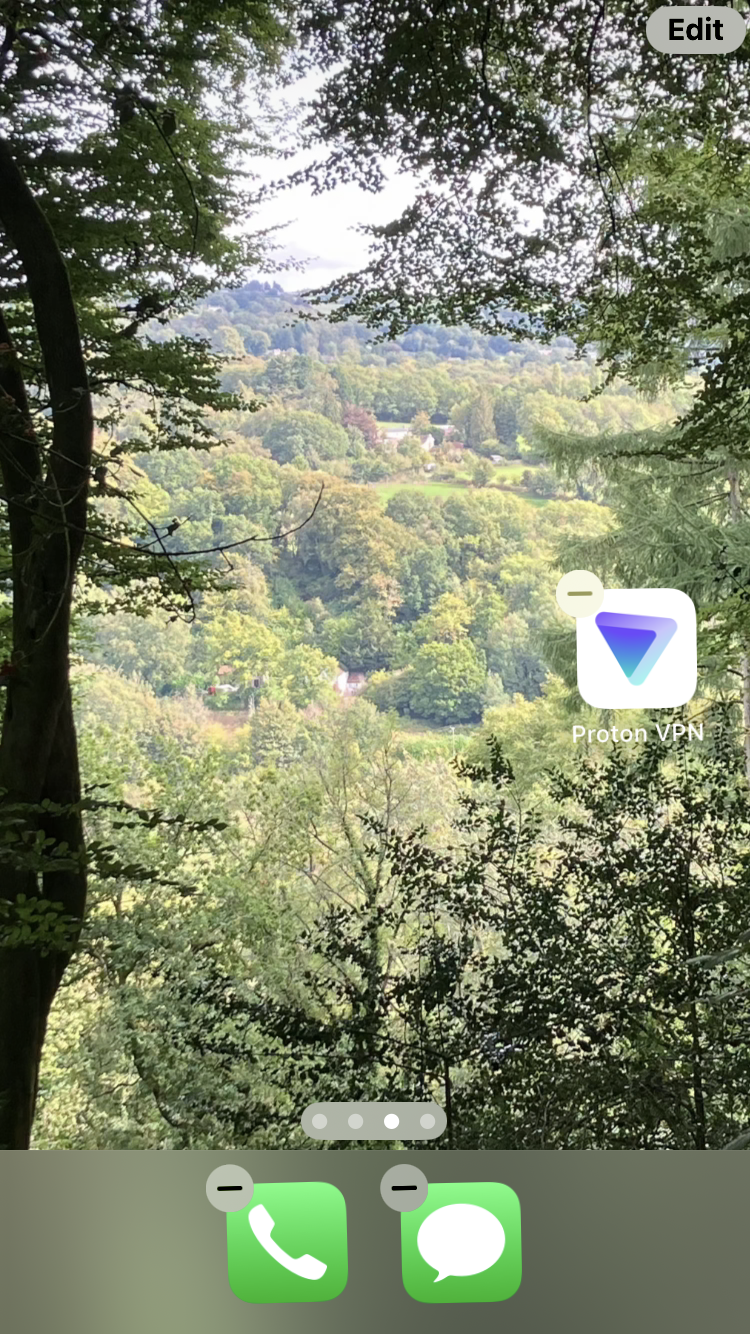
Start by deleting the app the same way you'd get rid of any other app. Tap the icon and hold until a pop-up menu appears. Select the Remove App option in red text, then click Remove App again when prompted.
Deleting a VPN on the iOS home screen.
Sam Chapman for Engadget
Deleting the app should also delete the configuration, but you can verify this for yourself. Follow the process from the previous section to find the VPN settings page. If there's still a VPN profile in those settings, tap the circled letter "i" next to its name, then tap Delete VPN at the bottom of the screen. The VPN is now gone from your iPhone unless you re-download it from the App Store.
Troubleshooting: When an iPhone VPN turns itself back on
Sometimes, even though you've followed all the steps, that pesky VPN rectangle is back on your screen the next time you unlock your phone. If your iOS VPN keeps turning itself back on, a few things might be happening, most of them thankfully fixable.
If you did not delete the VPN, it may be turning itself back on because its settings are telling it to. Go into its preferences menu and check for a setting called "auto-connect" or something similar. Settings like these have the VPN connect by itself to protect users who forget to activate it manually. Toggle all auto-connect options off and the problem should stop.
It's also possible that settings on the iOS side are making the VPN reconnect. Go to the VPN settings page (you'll find instructions for getting there in the previous section) and find the name of the active VPN profile. Tap the "i" next to it. On the next page, turn off "connect on demand" to stop the automatic reconnections.
If you did delete the VPN, but it's still reinstalling itself and turning back on, make sure that you deleted both the app and the connection profile. Reboot your iPhone to make sure all the settings stick. If the problem persists after all this, you've either got malware disguised as a VPN or you're using a school or work phone where the VPN can't be uninstalled.
If you aren't on a phone provided by a school or office, meaning you probably have malware, download an antivirus app and run a complete scan of your iPhone. This should remove any persistent files that keep reinstalling the virus. If, after all this, the VPN is still turning itself back on, I recommend burning your phone in a salt circle with a bundle of sage.
When should you turn off your iPhone VPN?
I encourage everyone to use a VPN every time they connect to the internet, but there are some situations where going through a VPN server is less convenient (this is the whole reason split tunneling exists). Here are a few cases in which temporarily turning off your VPN might be a good idea.
The VPN isn't working. If your browsing speed is sluggish or the VPN keeps dropping the connection, your VPN server might be having problems. Disconnecting and reconnecting, even in the same location, should switch you to a different server that may work better.
The VPN is causing unintended browsing errors. If you’re using mapping software or just trying to do a location-based search, having your VPN active can cause more problems than it solves.
Your internet connection is unstable.A VPN adds an extra step to the process of getting online. If your phone is already struggling, the VPN might be an unnecessary complication.
You're on a site that blocks all VPNs. Sites that work based on your location, including all streaming sites, may blanket-block VPNs so nothing messes with their location services. Good VPNs can get around these blocks, but even the best sometimes fail. In these cases, briefly turning off the VPN may be a good idea.
Your battery is low. VPNs can put a strain on your phone's battery life. This varies with the quality of your VPN, but you may sometimes need to shut it off if your battery is in the red.
How to turn off iCloud Private Relay
iCloud Private Relay is not a VPN, but it's often confused for one. If you found this page because you want to turn it off, you're in luck — the steps are just as simple as turning off a VPN. Start by opening Settings, then tap your name. Scroll down and tap iCloud.
Private Relay will only be active if you're an iCloud+ subscriber. If you are, tap Private Relay, then choose whether to turn it off temporarily or indefinitely.
This article originally appeared on Engadget at https://www.engadget.com/cybersecurity/vpn/how-to-turn-off-a-vpn-on-iphone-180000533.html?src=rss
In a chaotic world, one thing you can count on is your own common-sense steps toward better cybersecurity. Most of the holiday deals are over by now, but plenty of services are still offering excellent prices. With access to a virtual private network (VPN), you can stream TV shows and events from all over the world, protect your information from hackers and thwart online trackers.
We strongly recommend using a VPN, but you might get stuck with a substandard app if you jump on the very first deal you see. You might also mistakenly end up paying more than you want to, as even otherwise respectable VPNs sometimes frame their prices in misleading ways, with advertised deals not always as available as they seem to be.
Even so, there are some great bargains on the table. Many of the best VPNs — including our top pick, Proton VPN — are still running deals that save you anywhere from 70 to 87 percent on annual subscriptions. Most of these discounts only apply if you sign up for a year or more, but if you divide the cost by the months of subscription, it's much cheaper over time.
Best VPN deals
ExpressVPN Basic — $78.18 for a two-year subscription with four months free (78 percent off): This is one of the best VPNs, especially for new users, who will find its apps and website headache-free on all platforms. In tests for my ExpressVPN review, it dropped my download speeds by less than 7 percent and successfully changed my virtual location 14 out of 15 times. In short, it's an all-around excellent service that only suffers from being a little overpriced — which is why I'm so excited whenever I find it offering a decent deal. This discount, which gets you 28 months of ExpressVPN service, represents a 78 percent savings. Be aware, though, that it'll renew at the $99.95 per year price.
NordVPN Basic — $81.36 for a two-year subscription (70 percent off): NordVPN gets the most important parts of a VPN right. It's fast, it doesn't leak any of your data and it's great at changing your virtual location. I noted in my NordVPN review that it always connects quickly and includes a support page that makes it easy to get live help. NordVPN includes a lot of cool features, like servers that instantly connect you to Tor. This deal gives you 70 percent off the two-year plan.
NordVPN Plus — $93.36 for a two-year subscription (74 percent off): NordVPN has also taken 70 percent off its Plus subscription. For only a little more, you get a powerful ad and tracker blocker that can also catch malware downloads, plus access to the NordPass password manager. A Plus plan also adds a data breach scanner that checks the dark web for your sensitive information.
Surfshark Starter — $53.73 for a two-year subscription with three months free (87 percent off): This is the "basic" level of Surfshark, but it includes the entire VPN; everything on Surfshark One is an extra perk. With this subscription, you'll get some of the most envelope-pushing features in the VPN world right now. Surfshark can rotate your IP constantly to help you evade detection — it even lets you choose your own entry and exit nodes for a double-hop connection. That all comes with a near-invisible impact on download speeds. With this year-round deal, you can save 87 percent on 27 months of Surfshark.
Surfshark One — $67.23 for a two-year subscription with three months free (87 percent off): A VPN is great, but it's not enough to protect your data all on its own. Surfshark One adds several apps that boost your security beyond just VPN service, including Surfshark Antivirus (scans devices and downloads for malware) and Surfshark Alert (alerts you whenever your sensitive information shows up in a data breach), plus Surfshark Search and Alternative ID from the tier below. This extra-low deal gives you 88 percent off all those features. If you bump up to Surfshark One+, you'll also get data removal through Incogni, but the price jumps enough that it's not quite worthwhile in my eyes.
CyberGhost — $56.94 for a two-year subscription with four months free (84 percent off): CyberGhost has some of the best automation you'll see on any VPN. With its Smart Rules system, you can determine how its apps respond to different types of Wi-Fi networks, with exceptions for specific networks you know by name. Typically, you can set it to auto-connect, disconnect or send you a message asking what to do. CyberGhost's other best feature is its streaming servers — I've found both better video quality and more consistent unblocking when I use them on streaming sites. Currently, you can get 28 months of CyberGhost for 79 percent off the usual price, but it'll renew at $56.94 per year.
hide.me — $69.95 for a two-year subscription with four months free (75 percent off): Hide.me is an excellent free VPN — in fact, it's my favorite on the market, even with EventVPN and the free version of Proton VPN as competition. If you do want to upgrade to its paid plan, though, the two-year subscription offers great savings. Hide.me works well as a no-frills beginner VPN, with apps and a server network it should frankly be charging more for.
Private Internet Access — $79 for a three-year subscription with four months free (83 percent off): With this deal, you can get 40 months of Private Internet Access (PIA) for a little bit under $2 per month — an 83 percent discount on its monthly price. You can also get a shorter one-year subscription for $40 ($3.33 per month). Despite being so cheap, PIA has plenty of features, coming with its own DNS servers, a built-in ad blocker and automation powers to rival CyberGhost. However, internet speeds can fluctuate while you're connected.
What makes a good VPN deal
Practically every VPN heavily discounts its long-term subscriptions year-round, with even sharper discounts around occasions like the holidays. The only noteworthy exception is Mullvad, the Costco hot dog of VPNs (that's a compliment, to be clear). When there's constantly a huge discount going on, it can be hard to tell when you're actually getting a good deal. The best way to squeeze out more savings is to look for seasonal deals, student discounts or exclusive sales like Proton VPN's coupon for Engadget readers.
One trick VPNs often use is to add extra months onto an introductory deal, pushing the average monthly price even lower. When it comes time to renew, you usually can't get these extra months again. You often can't even renew for the same basic period of time — for example, you may only be able to renew a two-year subscription for one year. If you're planning to hold onto a VPN indefinitely, check the fine print to see how much it will cost per month after the first renewal, and ensure that fits into your budget.
This article originally appeared on Engadget at https://www.engadget.com/deals/the-best-vpn-deals-up-to-88-percent-off-protonvpn-surfshark-expressvpn-nordvpn-and-more-120056445.html?src=rss

 Login
Login