❌

Reading view

There are new articles available, click to refresh the page.

How to use Workout Buddy with Apple Watch and iOS 26

By: Rob Webb

Apple’s iOS 26 and watchOS 26 introduced a new fitness companion called Workout Buddy. This feature uses Apple Intelligence to provide spoken feedback during workouts and give motivation based on your activity history. Workout Buddy analyzes your pace, heart rate, distance and other metrics to deliver real-time encouragement and performance insights directly through connected Bluetooth headphones. It works in conjunction with the Workout app on Apple Watch and is partially controlled through the Fitness app on iPhone. This guide walks you through everything needed to set up and use Workout Buddy effectively during workouts.

What Workout Buddy does

It’s important to note that Workout Buddy is not a full coaching program. Instead, it adds to your workout with spoken cues that reflect how your session is going. Workout Buddy can remind you of your weekly activity totals, alert you to personal bests or performance milestones and provide an overview when you’re finished. It is designed to feel like a supportive training partner rather than a strict coach.

The feature operates in English by default and uses a text-to-speech model trained on voices from Apple Fitness+ trainers. It is available for a subset of workout types, including running, walking, cycling, high-intensity interval training (HIIT) and strength training. It requires on-device Apple Intelligence, which means you’ll need to keep one of the latest iPhones running updated software nearby during workouts.Β 

Supported models include iPhone 15 Pro, iPhone 15 Pro Max and any iPhone 16 model. You’ll also need an Apple Watch running watchOS 26.Β Β 

Requirements before you begin

Before Workout Buddy appears in your Fitness app or Workout app you must ensure a few things are in place. First, your Apple Watch must be running watchOS 26 or later and paired to an iPhone with iOS 26 installed. Second, your iPhone must be capable of on-device Apple Intelligence, meaning you must own one of the supported iPhone models we mentioned above and have Apple Intelligence enabled in the phone’s settings.

You’ll also need Bluetooth headphones paired with either your iPhone or your Apple Watch. Workout Buddy’s audio feedback cannot play through the watch speaker so headphones are essential. Lastly, your device language must be set to English, at least initially. If any of these things are missing, the option to enable Workout Buddy may not appear.

How to turn on Workout Buddy from iPhone

While much of the interaction with Workout Buddy happens on Apple Watch during workouts, you can enable it and choose voice options from the Fitness app on iPhone.

Open the Fitness app on your iPhone and tap the Workout tab at the bottom. Scroll through the list of workout types until you find one you plan to use with Workout Buddy. Tap the waveform bubble icon associated with that workout. This will bring up settings where you can turn on Workout Buddy. Flip the toggle to enable it and choose a voice from the available options. Once you have selected a voice, close that screen and your choice is saved. When you start this workout type on Apple Watch, Workout Buddy will activate.

Enabling Workout Buddy for a workout type on iPhone means you do not need to toggle it on separately on Apple Watch each time for that specific workout. However, you may still adjust it from the watch interface for more granular control.

How to turn on Workout Buddy on Apple Watch

To use Workout Buddy during a session, open the Workout app on your Apple Watch. Turn the Digital Crown to scroll through and select the workout you want to do, such as Outdoor Run, Outdoor Walk, Outdoor Cycle, HIIT or Strength Training. If you want to see all available workouts, tap the Add button at the bottom.

Once the workout type is selected, look for the Alerts button on screen. Tap Alerts then scroll until you see Workout Buddy. Tap Workout Buddy and flip the switch to on. You will then be asked to choose a voice if one is not already selected on your iPhone. After selecting the voice, return to the previous screen and tap Start. Workout Buddy will begin working as soon as the workout does.

Using Workout Buddy during a workout

Once you start an exercise on your Watch or iPhone, Workout Buddy will speak to you through your connected headphones. The feedback is designed to be encouraging and relevant to your pace, performance or milestones. It may mention your current progress toward activity goals, pace, splits, personal bests or other highlights from your fitness data. At the end of your session Workout Buddy will offer a summary of key metrics like duration distance and calorie burn.

While a workout is active, you can temporarily mute the audio if you need silence. On Apple Watch during the session, swipe right to reveal controls then tap Mute. This pauses Workout Buddy’s spoken commentary without disabling the feature entirely.

Customizing and managing Workout Buddy settings

Workout Buddy is enabled on a per-workout-type basis. If you prefer voice feedback for running but silence for strength training, you can enable it for one and leave it off for the other. The Fitness app on iPhone allows you to set a default voice preference for each workout type. On Apple Watch you can quickly toggle the feature on or off before starting a session.

If Workout Buddy does not appear as an option for a particular workout type, you may need to check compatibility. Apple’s documentation indicates that only certain types* are supported initially and that the option will not appear for unsupported workouts.

*Apple Watch SE (2nd generation), Apple Watch SE 3, Apple Watch Series 6, Apple Watch Series 7, Apple Watch Series 8, Apple Watch Series 9, Apple Watch Series 10, Apple Watch Series 11, Apple Watch Ultra, Apple Watch Ultra 2, Apple Watch Ultra 3

Troubleshooting common issues

If Workout Buddy fails to activate make sure your devices meet the requirements outlined above. Confirm that your iPhone with Apple Intelligence is nearby and that Bluetooth headphones are connected. If audio feedback is missing, ensure headphones are paired correctly and that the language is set to English. Some users have reported that if the headphones are paired only to the Watch rather than the iPhone, it can interfere with feedback. Switching to the iPhone often resolves that issue.

For workout types where Workout Buddy previously worked but suddenly does not appear, you may try toggling the feature off and on again in the Fitness app or rebooting both devices. In rare cases removing and re-adding the workout type on Apple Watch can refresh the settings.

This article originally appeared on Engadget at https://www.engadget.com/wearables/how-to-use-workout-buddy-with-apple-watch-and-ios-26-130000922.html?src=rss

Β©

How to pair AirPods with any device

By: Rob Webb

AirPods work most smoothly with Apple hardware, but they also connect reliably to Android phones, Windows laptops and other Bluetooth devices. The pairing process depends on the platform in use although the basics remain the same. Once the AirPods are placed in pairing mode, most devices detect them quickly and handle the remaining steps in the background. The guide below explains how to pair AirPods with Apple products, how the process differs on newer iPhones that support H2 features and how to connect them to non-Apple devices.

How to pair AirPods with Apple devices

Apple builds AirPods to pair almost instantly with devices in its own ecosystem. Opening the charging case near an unlocked iPhone or iPad usually brings up an on-screen prompt. Tapping Connect links the earbuds to the device and to every other Apple product signed into the same iCloud account. After that, switching between devices is automatic. Audio output follows the active device as long as each product is using updated software and is signed in with the same Apple ID.

If the pairing prompt does not appear, there are a few simple checks that help things move along. Opening the Control Center and selecting the audio output menu confirms whether the AirPods already appear as an available device. If they are listed there, choosing them establishes the connection. If they do not appear, opening the Settings app and checking Bluetooth usually reveals whether the AirPods are in range or already recognized. Opening the case while viewing the Bluetooth menu often triggers the pairing card once more.

The process is similar across Apple Watch and Mac. When the AirPods are already linked to an iPhone, they tend to show up automatically on a paired Apple Watch. On Mac, opening System Settings and viewing the Bluetooth section reveals the same device list seen on an iPhone. Selecting the AirPods from that list completes the connection and also syncs the pairing status back to every other Apple device using the same account.

Enhanced pairing with newer iPhones

Some newer iPhones support features enabled by the H2 chip used in newer AirPods models. With compatible AirPods, models such as iPhone 15 Pro, iPhone 15 Pro Max and the iPhone 16 lineup tend to deliver a faster and more responsive setup experience. When an AirPods case is opened near one of these phones, the device quickly detects the earbuds and displays the pairing card with little delay. This also tends to speed up transitions between devices and improves reliability when switching audio sources.

If the fast pairing prompt does not appear on a newer iPhone, reopening the case while the phone is unlocked is usually enough to reinitiate the process. It also helps to confirm that Bluetooth is turned on. Placing the AirPods back in the case for a few seconds and trying again will often reset the pairing state if the earbuds were connected elsewhere.

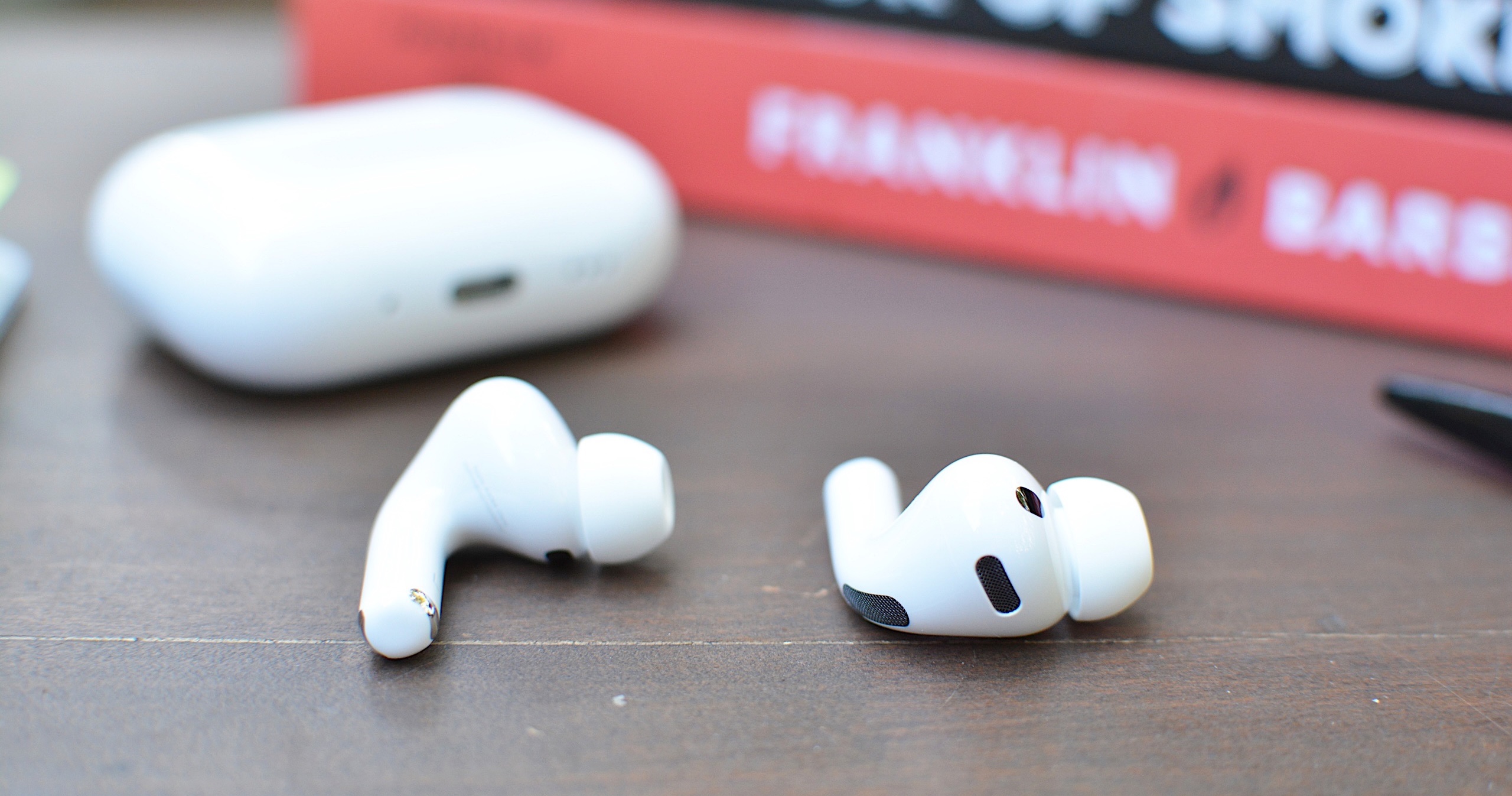
AirPods Pro 3
AirPods Pro 3
Engadget

How to put AirPods into pairing mode

Every AirPods model supports a manual pairing mode. This is essential when linking the earbuds to devices outside the Apple ecosystem, or when the automatic prompt fails to appear on an iPhone or Mac. On older AirPods models, pairing mode is activated by opening the lid and pressing and holding the setup button on the back of the case until the LED light flashes white. Newer models, including AirPods 4 and AirPods Pro 3, use a touch-based method instead. With the lid open, tapping the area near the LED light places the earbuds into pairing mode. Leaving the lid open keeps the AirPods discoverable for nearby devices. Closing the case ends the process and requires it to be repeated if the device fails to detect them.

Pairing mode does not remove any previous connections. It simply makes the AirPods available to new devices, which is helpful when switching between ecosystems. However, connecting to a new device usually takes priority. If the AirPods are already linked to something else that is nearby, turning off Bluetooth on the previously connected device prevents interference and helps the new device detect them more easily.

How to pair AirPods with Android devices

Although AirPods are designed for Apple hardware, they function like any other Bluetooth earbuds on Android. Opening the case and placing the AirPods in pairing mode allows Android phones to detect them through the standard Bluetooth menu. The earbuds appear in the list of available devices and selecting them initiates the connection. Once paired, AirPods work for calls and media playback. Some features, such as automatic ear detection and battery status indicators, may require a third-party app on Android and are not supported at a system level. Features such as spatial audio and device switching remain exclusive to Apple’s ecosystem but day-to-day performance is consistent on Android.

If the AirPods fail to appear, refreshing the Bluetooth device list on the Android phone usually helps. Making sure the earbuds are still in pairing mode is essential since the white LED indicator stops flashing after a short period. Reopening the case and holding the button again, or tapping on the front for newer models, restores discoverability.

How to pair AirPods with Windows laptops

Windows 11 handles AirPods as a regular audio device. Opening the Bluetooth and Devices menu in System Settings displays a list of nearby accessories. With the AirPods in pairing mode, the laptop should detect them and display them as an audio device. Selecting them completes the process and adds the earbuds to the device’s known accessories. Windows generally reconnects to AirPods automatically on future sessions as long as Bluetooth remains enabled.

If the earbuds do not appear in the list, toggling Bluetooth off and back on helps the system refresh the device scan. Checking whether the AirPods are already linked to a different device is another useful step. Windows sometimes struggles to take over a connection when the earbuds remain in range of a previously paired phone so disabling Bluetooth on the other device often resolves the issue.

Troubleshooting common pairing issues

Most pairing problems come down to the AirPods not being in discoverable mode or being connected to another device nearby. Resetting the earbuds solves many problems. On AirPods models with a setup button, placing the AirPods in the case, leaving the lid open and holding the button until the LED turns amber then white restores the factory pairing state. On newer models without a physical button, place the AirPods in the case, close the lid for about 30 seconds, then open it and quickly tap the front of the case three times. The status light should then flash amber and then white, to indicate that the reset is complete. This clears previous connections and makes the AirPods behave as if they are new out of the box.Β 

Low battery levels can also interrupt pairing. Ensuring both the earbuds and the case have enough charge prevents unexpected disconnections during setup. Interference from other wireless accessories affects pairing on crowded networks. Moving to a quieter spot or turning off surrounding Bluetooth devices helps the AirPods stand out when scanning.

AirPods are built to pair quickly with Apple devices but they also integrate smoothly with other platforms. Keeping the earbuds in pairing mode and confirming that Bluetooth is enabled on the device in use ensures a smooth setup every time. Once connected, the AirPods tend to remember the device and reconnect whenever they are nearby which keeps day-to-day use simple regardless of the platform.


This article originally appeared on Engadget at https://www.engadget.com/audio/headphones/how-to-pair-airpods-with-any-device-140000234.html?src=rss

Β©

❌