Reading view

There are new articles available, click to refresh the page.

Didn’t Request an Instagram Password Reset? Here’s What to Do

If you recently received an unexpected email from Instagram asking you to reset your password, you are not alone. Over the past several days, thousands of users reported receiving legitimate password reset emails they did not request. 

The sudden wave of messages led to widespread confusion and concern about whether Instagram had suffered a data breach. Instagram and its parent company Meta deny that a breach occurred, stating instead that they fixed an issue that allowed an external party to trigger password reset emails for some users. 

While the exact source of the activity remains disputed, the situation highlights a broader and more important issue. Password reset emails, even when legitimate, are often the first signal users get that their information may be exposed, reused, or being targeted by attackers. 

Here is what we know so far and what this incident reveals about how password compromises really happen. 

Was Instagram Hacked? 

Instagram says no. 

In statements reported by the BBC and BleepingComputer, Meta said it resolved a problem that allowed an external party to request password reset emails on behalf of users. The company maintains there was no breach of its systems and that accounts remain secure. 

At the same time, cybersecurity researchers and firms, including Malwarebytes, have warned about a dataset circulating on hacking forums that allegedly contains information linked to more than 17 million Instagram accounts. According to reporting, that data may include usernames, email addresses, phone numbers, locations, and account IDs, but not passwords. 

Some researchers believe the dataset may be a compilation of older scraped data rather than evidence of a new breach. Others say the timing of the password reset emails and the appearance of the data raises unresolved questions. 

What matters for users is this: regardless of whether this was a new breach, old scraped data, or a technical abuse of password reset systems, attackers routinely use exposed personal information to launch phishing, account takeover attempts, and social engineering attacks. 

What Counts as a Data Breach and What Does Not 

A true data breach occurs when attackers gain unauthorized access to internal systems and steal protected data such as passwords, financial information, or private communications. 

In many cases, personal data is also exposed through: 

  • API scraping of publicly accessible information 
  • Older leaks that are resold or repackaged 
  • Credential stuffing using passwords stolen from unrelated sites 
  • Abuse of account recovery or password reset features 

That distinction matters because even when passwords are not leaked, exposed personal data can still be weaponized. Names, emails, phone numbers, and locations are often enough for scammers to craft convincing phishing messages that appear legitimate. 

Why You Might Receive a Password Reset Email You Did Not Request 

There are several common reasons this happens, and none of them require your Instagram password to be stolen. 

  • Someone may be testing whether your email address is linked to an account. 
  • Attackers may be attempting credential stuffing using passwords from past breaches. 
  • Your information may appear in older datasets that are being reused or resold. 
  • A platform bug or abuse of recovery systems may trigger reset emails at scale. 

Scammers often use these moments to send fake follow-up emails that look nearly identical to legitimate ones. That is why security experts consistently recommend going directly to the app or official website rather than clicking links in unexpected messages. 

What to Do If You Received an Instagram Password Reset Email 

If you did not request the reset:  

  1. Do not click links in the email. 
  2. Open the Instagram app or visit the official site directly to review security settings.  
  3. Check recent login activity and remove any unfamiliar sessions. 
  4. Enable two-factor authentication (2FA) if it is not already turned on. 

If you decide to change your password, make sure the new one is unique and not used anywhere else. 

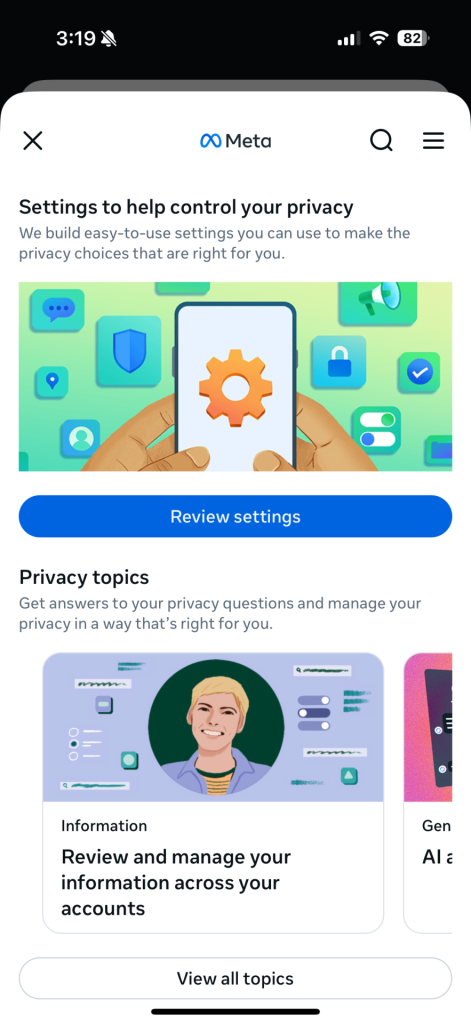
Meta/IG Accounts Center Screenshot

Click “Review Settings” to enable 2FA in your Account Center

How to enable multi-factor authentication for Instagram 

  1. Click More in the bottom left, then click Settings. 
  2. Click See more in Accounts Center, then click Password and Security. 
  3. Click Two-factor (2FA) authentication, then select an account. 
  4. Choose the security method you want to add and follow the on-screen instructions. 

When you set up two-factor authentication on Instagram, you’ll be asked to choose one of three security methods: an authentication app, text message, or WhatsApp. 

And here’s a link to the company’s full walkthrough: https://help.instagram.com/566810106808145 

How to Manage Passwords the Right Way 

Remembering dozens of unique, strong passwords is not realistic for most people. That is why password managers exist. 

A password manager can: 

  • Generate strong, unique passwords for every account 
  • Store them securely so you do not need to remember them 
  • Alert you if your credentials appear in known breaches 
  • Reduce the risk of account takeover from reused passwords 

Using a password manager removes the pressure to reuse passwords and helps close one of the most common doors attackers walk through.  

McAfee’s password manager helps you secure your accounts by generating complex passwords, storing them and auto-filling your info for faster logins across devices. It’s secure and, best of all, you only have to remember a single password. 

FAQ: Instagram Password Reset Emails and Account Safety 

Was my Instagram password stolen?
There is no evidence that passwords were leaked in this incident. 
Should I reset my password anyway?
If you are unsure or reuse passwords elsewhere, resetting it directly in the app is a smart precaution. 
Are the emails real or phishing?
Some emails were legitimate, but scammers often mimic them. Always go directly to the app or website. 
Why is password reuse dangerous?
Because a breach on one site can expose all accounts that share the same password. 


The post Didn’t Request an Instagram Password Reset? Here’s What to Do appeared first on McAfee Blog.

What Is Quishing? How QR Code Scams Work and How to Avoid Them

qr code illustration

You thought you were scanning a menu. 

Or paying for parking. Or checking a package notice taped to your door. A quick scan, a familiar logo, a page that loads instantly on your phone. 

Nothing about it felt risky. 

That’s exactly why QR code scams are spreading so quickly. 

QR codes have become part of everyday life. They’re on restaurant tables, public signs, emails, mailers, and payment screens. We’re taught to treat them as shortcuts—faster than typing a URL, easier than downloading an app, safer than clicking a link. 

Scammers know that. 

Instead of asking you to click something suspicious, they ask you to scan something ordinary. Once you do, you can be routed to fake login pages, payment requests, or malicious sites designed to steal your information before you realize anything is wrong. 

This tactic has a name: quishing.

And as QR codes continue to replace links in the real world, understanding how quishing works is essential to staying safe online. 

What Is Quishing? 

Quishing is a form of phishing that uses QR codes instead of clickable links to trick people into visiting malicious websites or giving up sensitive information. 

The term combines QR and phishing, and it reflects a simple but dangerous shift in scam tactics: instead of asking you to click, scammers ask you to scan. 

Once scanned, a fake QR code can lead to: 

  • Credential-harvesting login pages 
  • Payment requests or fake invoices 
  • Malware downloads 
  • Fake customer support portals 
  • Subscription traps 

Because QR codes don’t show a visible URL before you scan, they remove one of the most important scam warning signs people rely on. 

Common QR Code Scams to Watch Out For

While quishing attacks vary, most fall into a few predictable patterns.

1. Fake parking and payment QR codes

Scammers place stickers over legitimate parking meter QR codes. When scanned, victims are taken to fake payment pages that steal card details.

Red flag: A QR code that asks for full payment details without redirecting to a known parking or city service.


2. Restaurant menu swaps

Fraudsters replace real menu QR codes with fake ones that redirect to phishing pages or malicious downloads.

Red flag: A menu page that asks you to “sign in,” download an app, or confirm personal details.


3. Delivery and package alerts

Flyers or door tags claim you missed a delivery and instruct you to scan a QR code to reschedule.

Red flag: Vague delivery details and pressure to act quickly.


4. Fake account security warnings

QR codes claim your bank, streaming service, or email account needs verification.

Red flag: Any QR code that demands immediate action for “security reasons.”


5. Subscription traps and fake offers

Some QR codes promise discounts, refunds, or rewards but quietly enroll users in recurring charges.

Red flag: Fine print that’s hard to find, or missing entirely.


What Makes Quishing Especially Dangerous

QR scams succeed not because people are careless, but because they exploit trust and routine.

Unlike traditional phishing emails, quishing:

  • Happens offline and online at the same time
  • Often appears in trusted physical locations
  • Feels faster and more “legit”
  • Bypasses visual link inspection

Once a victim lands on a fake site, the damage can escalate quickly, from stolen credentials to drained accounts to identity theft.


How to Spot a Fake QR Code Before You Scan

You don’t need to avoid QR codes entirely, but you do need to slow down.

Check the physical context

Is the QR code taped on, scratched, or layered over another code? That’s a common tactic.

Look for branding inconsistencies

Misspellings, generic logos, or mismatched colors are red flags.

Preview the link

Most phone cameras now show the URL before opening it. Take a second to read it.

Be skeptical of urgency

Any QR code that pressures you to act immediately deserves extra scrutiny.


How to Protect Yourself From QR Scams

Step 1: Treat QR codes like links

A QR code is a shortcut to a website. Apply the same caution you would to any link.

Step 2: Avoid entering sensitive information

Legitimate services rarely ask for passwords, payment info, or personal details via QR codes.

Step 3: Use mobile security tools

Security software can help detect malicious sites and block risky downloads before damage is done.

Step 4: When in doubt, go direct

Instead of scanning, manually visit the official website or app you trust.


What to Do If You Scanned a Suspicious QR Code

If you think you interacted with a malicious QR code:

  • Stop engaging with the site immediately
  • Do not enter additional information
  • Monitor your financial accounts for unusual activity
  • Change passwords if credentials were entered
  • Run a security scan on your device, check out our free trial
  • Report the incident to the business or location involved

Early action can limit long-term fallout.


Frequently Asked Questions

What is quishing in simple terms?
Quishing is phishing that uses QR codes to trick people into visiting fake or malicious websites.

Are QR codes inherently unsafe?
No, but they can be exploited. The risk comes from where they lead, not the code itself.

Can scanning a QR code install malware?
In some cases, yes, especially if it prompts a download or redirects to a malicious site.

Are QR scams increasing?
Yes. As QR codes become more common, scammers are increasingly using them to bypass traditional defenses.

The post What Is Quishing? How QR Code Scams Work and How to Avoid Them appeared first on McAfee Blog.

How to Spot a Fake GLP-1 Weight-Loss Drug Before You Buy

weight loss drugs

“I thought I was getting a trusted weight-loss medication, but instead, I ended up sick and scammed. I never imagined something like this could happen to me.” 

Fiona, like many others, turned to Ozempic as a way to lose weight. With high demand making it difficult to find and prices soaring, she turned to an online pharmacy she found on social media. After placing an order, she received the medication and began taking it, only to experience severe side effects, including migraines, dizziness, and nausea.

“When my symptoms got worse, I knew something was wrong,” she told McAfee. Concerned, she sought professional advice. “doctor friend showed me what real Ozempic packaging looks like—and it was nothing like what I had received.” 

“I was putting something in my body that I thought was safe. Instead, I was taking an unknown substance that made me seriously ill,” she told McAfee. “That’s terrifying.” 

When she reached out to the pharmacy for a refund, they cut off all communication. Nearly a year later, Fiona still avoids online shopping altogether and hopes her experience will warn others to research online pharmacies carefully before making a purchase. 

“As soon as I questioned the pharmacy about the product, they vanished. No refund, no explanation. Just silence. That’s when I knew I had been completely scammed.” 

Unfortunately, Fiona’s story is one of many as surging interest in GLP-1 medications spurs scammers into action. 

If you’ve searched for GLP-1 medications online, you’ve probably noticed how crowded and confusing it’s become. Between ads, telehealth offers, and social media posts promising easy access, it can be hard to tell what’s real. 

That confusion isn’t accidental. McAfee’s researchers previously reported a wave of fake pharmacy sites and scam messages designed to catch people in exactly that moment of uncertainty.  

What are GLP-1 medications? 

GLP-1 (glucagon-like peptide-1) medications are prescription drugs that help regulate blood sugar and appetite. Doctors have used them to treat Type 2 diabetes for nearly two decades, and some have also been approved to support weight management. 

Because these medications affect insulin levels and digestion, they require medical supervision and a valid prescription. There is currently no legitimate over-the-counter version that works the same way. 

Why GLP-1 scams are exploding 

GLP-1 drugs have moved from a specialized medical treatment to a mainstream topic almost overnight, with a recent poll finding that 1 in 8 U.S. adults say they are currently taking a GLP-1 for weight loss.  

Whenever high demand, high prices, and limited supply collide online, scammers move in 

McAfee’s threat researchers have previously found that phishing attempts and fake websites tied to GLP-1 drugs increased by more than 180% during periods when interest in these medications surged. Hundreds of risky domains and hundreds of thousands of scam messages have been linked to searches for weight-loss drugs. 

At the same time, consumer watchdogs such as the Better Business Bureau (BBB) report a spike in complaints from people who clicked on fake ads, visited fraudulent pharmacies, or received scam texts promising instant access to GLP-1 prescriptions. 

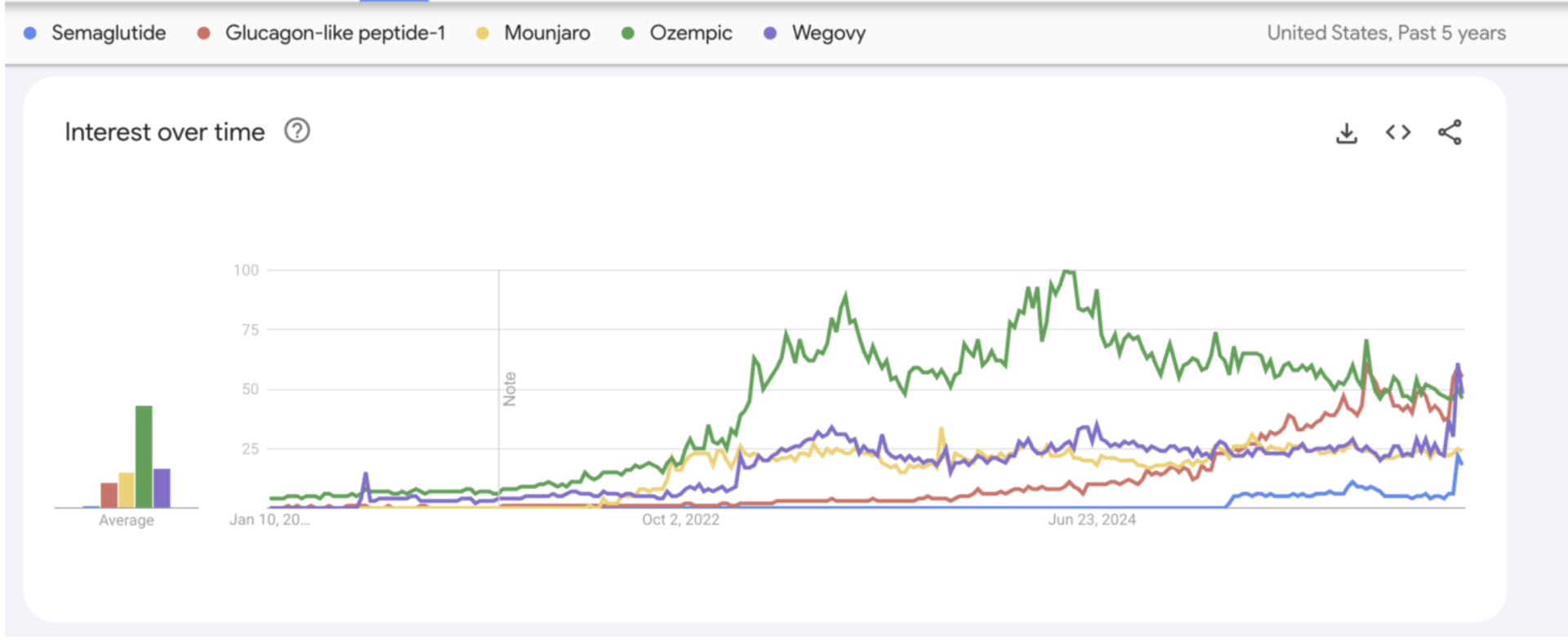
Google Trends data showing the growth in searches around weight-loss drugs.

Common GLP-1 scams to watch out for

1. AI-generated celebrity and doctor endorsements

Scammers are using artificial intelligence to create realistic-looking videos and images of public figures and medical professionals promoting weight-loss products. One recent incident saw a fake, AI Oprah selling scam weight loss drugs  

These ads often appear in social media feeds and look legitimate, but the endorsements are fabricated.  

The goal is to build trust quickly with a familiar face and then push people toward a purchase page. From there, you’re left with a fake product, or no product at all, and your information exposed. 

Red flag: Any ad claiming a celebrity or doctor is selling GLP-1 drugs through a link or social media page. 

2. Fake prescription texts and emails

Some scams arrive as urgent messages saying you are “approved” or “eligible” for GLP-1 treatment. These messages typically include a link to a fake medical website that collects personal, insurance, or payment information. 

Red flag: Real prescriptions are not issued through unsolicited texts, emails, or DMs. 

3. Fake online pharmacies

Fraudulent websites advertise GLP-1 medications at discounted prices. After payment, victims may receive nothing, diluted products, or face repeated unauthorized charges. 

Consumer reports describe sites that look professional but provide only chat-box support and ignore cancellation requests. 

Red flag: Pharmacies that don’t require a prescription or don’t list a physical U.S. address and phone number. 

4. Subscription traps

Some scam offers quietly enroll buyers in recurring billing. Be wary of a “company” trying to offer a minimal “membership” or free “trial” with plans locking you into larger, more expensive future subscription plan without your clear consent. 

Red flag: Vague billing terms or hidden subscription language.

5. Missing or fake shipments

Some scam sites provide tracking numbers that never update, claim packages were lost, or ask for more shipping fees … while continuing to charge customers. 

Red flag: No real customer service and no way to cancel or dispute orders. 

What makes these scams especially dangerous 

Unlike many online scams, GLP-1 fraud carries real health risks. 

Some victims report receiving substances that do not match what was advertised, including mislabeled or unverified injectables. 

Because GLP-1 medications affect blood sugar and metabolism, taking the wrong substance or dosage can be dangerous. 

In addition to the medical risks, illegitimate storefronts pose a real threat to your private information. During your purchase, you may be tricked into sharing our address, contact info, payment details, and insurance information.  

How to safely pursue GLP-1 treatment 

If you’re considering GLP-1 medications for health or weight management, these steps can help reduce risk: 

Step 1: Start with a licensed healthcare provider 

Only a doctor or licensed medical professional can determine if GLP-1 treatment is appropriate for you. 

Step 2: Use verified pharmacies 

If you use telehealth or online pharmacies, confirm they are properly licensed and require a prescription. 

Step 3: Research before you pay 

Look up unfamiliar pharmacies through trusted consumer-protection resources before entering payment or insurance information. If you’re in doubt, it’s better not to share any personal info. 

Step 4: Be skeptical of miracle claims 

There is no over-the-counter or legal “natural GLP-1,” patch, salt trick, or supplement that produces the same effect as prescription medication. 

What to do if you think you were targeted: 

If you clicked a link, entered information, or made a purchase: 

  1. Stop communicating with the seller 
  2. Monitor your bank and credit accounts for unusual activity 
  3. If you notice suspicious charges, contact your bank directly
  4. Change any passwords you shared 
  5. Run a security scan on your device (here’s our free trial) 
  6. Report the incident to consumer-protection agencies 

Reporting helps stop the same scams from spreading to others. This is where you can get more information from the FDA and report scams.

How to Spot a Fake GLP-1 Weight-Loss Drug If You’ve Already Bought One 

If you’ve already ordered a GLP-1 weight-loss drug and something feels off, trust that instinct. Counterfeit GLP-1 products are increasingly convincing at first glance, but many show clear warning signs once you look closely. 

Here’s what to check: 

Packaging and Label Red Flags 

Poor print quality or spelling errors
Examine the carton, label, and insert carefully. Misspelled words, inconsistent fonts, blurry printing, or incorrect manufacturer details are common signs of counterfeit medication. 

Packaging that looks tampered with or unfamiliar
Authentic GLP-1 medications come in sealed, tamper-resistant packaging. If the box appears opened, resealed, relabeled, or noticeably different from what you’ve received from a legitimate pharmacy before, stop using it and contact a pharmacist. 

Incorrect or missing language
Medications sold legally in the U.S. should include labeling and instructions in English. Missing inserts or foreign-language packaging can be a red flag. 

Unusual product form
Be especially cautious of GLP-1 products sold as powders in vials that require mixing. These formulations are not authorized and have been linked to serious health risks. 

Check Lot and Serial Numbers 

Most legitimate GLP-1 medications include lot numbers or serial information that can be verified. 

If your product includes these details, compare them against information published by the manufacturer or alerts from regulators. If the numbers don’t match, or are missing entirely, that’s a warning sign. 

What to Do If You’re Unsure 

If anything about your medication doesn’t match what you expect: 

  • Stop using the product 
  • Contact a licensed pharmacist or healthcare provider 
  • Avoid purchasing refills from the same source 

When it comes to injectable medications, uncertainty isn’t something to push through. If you can’t confidently verify what you have, it’s safer to assume it may not be real. 

Final Thoughts 

Wanting to get healthier in the new year is a good thing. Falling for fake prescriptions, AI-generated endorsements, or fraudulent pharmacies is not. 

McAfee is here to help keep your devices, identity, and finances safe while you focus on your goals in 2026. 

Frequently Asked Questions 

For clarity, and because these questions come up often, here’s the straightforward explanation: 

Are GLP-1 drugs available without a prescription?
No. Legitimate GLP-1 medications require a prescription and medical oversight. 
Are social media GLP-1 ads real?
It depends. While there are certainly real ads out there, many are fake. AI-generated celebrity and doctor endorsements are commonly used in scams. So be wary and verify who is behind a post. 
Are GLP-1 patches, gummies, or “salt tricks” legitimate?
No over-the-counter product works the same way as prescription GLP-1 medication. 
Why do scammers use crypto or payment apps?
These payment methods are harder to reverse, which makes them attractive for fraud. 


The post How to Spot a Fake GLP-1 Weight-Loss Drug Before You Buy appeared first on McAfee Blog.

New Year Reset: A Quick Guide to Improving Your Digital Hygiene in 2026

Scams didn’t slow down in 2025—and all signs point to the problem getting worse in 2026.

While the final numbers aren’t in yet, reported losses are already on track to break records. Through just the first half of 2025, the Federal Trade Commission (FTC) cited nearly $6.5 billion in scam-related losses, putting the year on pace to surpass 2024’s total. And it’s not just isolated incidents: 73% of Americans say they’ve experienced at least one scam or online attack.

As scams become more convincing, often powered by AI and designed to blend into everyday digital life, basic “spot the red flag” advice isn’t enough anymore. Protecting yourself now means tightening up your digital hygiene: how you manage passwords, personal data, online accounts, and the everyday tools you rely on to stay safe.

The good news is that modern protection has evolved just as quickly as the threats. Many of the most effective safeguards can be set up quickly and then work in the background over time.

Below, we’ll walk through practical steps you can take to improve your digital hygiene for 2026, using protections included with McAfee+ to help reduce your exposure to scams, data misuse, and identity theft.

1) Replace every weak password, starting with your email. 

Think about your passwords and everything they give you access to … your finances, online shopping accounts, banking, and of course every important thing in your email account. 

Now are any of those passwords weak, re-used, or highly similar? Don’t worry if the answer to that is “yes.” You can switch them over to strong, unique passwords across all your accounts. Using a password manager like ours helps you create strong, unique while also storing them securely. Quickly. 

Q&A   Q: Should I use a password manager? 

A: Yes. It’s the easiest way to create strong, unique passwords for all your online accounts, which protects you from data breaches and hacks.  


So, what makes up a “strong and unique” password? 

It contains a mix of 16 uppercase and lowercase letters, numbers, and symbols while never reusing that password elsewhere. That makes the password incredibly tough to crack and protects your other accounts if that password gets caught up in a breach (it won’t work on any other account). 

Yes, creating strong and unique passwords for your dozens and dozens of accounts can be … demanding. But that’s where a password manager comes in. It does that work for you. 

2) Delete those old accounts and protect yourself from data breaches. 

Speaking of all the accounts you have, how many of them do you really need? And how many of them have you forgotten about altogether? It’s time to track them down and close them up. Why? Data breaches of various sizes hack into an estimated 3.5 million accounts on average each day, so the odds of an old account of yours getting compromised are better than you might think. But where do you even start? 


Q&A 

 Q: Should I delete my old accounts? 

A: Yes. When you delete old accounts, you reduce your digital footprint and lower the risk of exposure to data breaches, both of which help protect your personal info.  


Our Online Account Cleanup can track down those old accounts for you. It scans for accounts you no longer use and helps you delete the ones you choose, along with your personal info. In our McAfee+ Advanced and McAfee+ Ultimate plans, you get full-service Online Account Cleanup, which sends the data deletion requests for you. 

3) Keep spammers and scammers at bay by removing personal info from the internet. 

Data brokers sell all kinds of info that power all kinds of spam and scams. It’s one way spammers and scammers get contact info like emails and phone numbers, and it’s yet another way they get detailed info to target their ads and their attacks. 

For example, beyond your full name, home address, phone numbers, email addresses, and date of birth, many also have info about your family members, employment, and past purchases. Data brokers might gather and sell other info like religious and political leanings, health conditions, and employment history. Simply put, this detailed profile makes it easier for spammers and scammers to target you. 


Q&A 


 Q: Can people find my detailed personal info online?  

Yes, and some of the easiest places to find it are on data broker sites. They collect and analyze up to hundreds of bits of personal info, often without your knowledge or consent. Further, they’ll sell it to any buyer, including scammers. 


Where do they harvest this info? From public records, shopper loyalty programs, and even from app data—all kinds of sources. And that underscores the problem, some data brokers keep exhaustive amounts of data about people, all in one place.  

And they’ll sell it to anyone who pays for it. You can help reduce those scam texts and calls by removing your info from those sites. A service like our Personal Data Cleanup can do that work for you. It scans some of the riskiest data broker sites, shows you which ones are selling your personal info, and helps you remove it. 

4) Protect privacy with a VPN (it’s not just for travel anymore). 

One of the first things that comes to mind about VPNs is travel, a great way you can stay secure while using public Wi-Fi in airports and cafes. It works at home as well, giving you an extra layer of security when you bank, shop, or do anything that involves sensitive info. Yet it offers another big benefit. It helps make you more private, because it’s not just hackers who want to snoop on you online. 


Q&A Block 


 Q: What is a VPN? 

 A: A VPN, or Virtual Private Network, hides your IP address and encrypts your internet connection in a secure “tunnel” that shields your online activity from snoops, advertisers, and your Internet Service Provider (ISP). 


For example, some ISPs collect your browsing data. In the United States and many other countries, ISPs can legally monitor and record info about the websites you visit and the apps you use. They can use it for advertising and analytics purposes, and, in some cases, they may share it with third parties. 

When you use a VPN, it encrypts all the data leaving your device and routes it through a secure server. As a result, your ISP can only see that you are connected to a VPN server, and it can’t track which websites you visit or the data you send and receive. Without a doubt, going online with a VPN makes you safer and keeps you more private.  

5) As AI scams become the norm, get a scam detector working for you. 

We saw big spikes in several types of scams over the year, and naturally a spike in reported losses followed. One reason for the jump is that AI tools have made it even easier for scammers to create convincing texts, emails, and deepfake videos designed to rip people off.   


Q&A 

 Q: How bad are scams today? 

 A: According to a 2025 Pew Research Center survey, 73% of U.S. adults said they’ve experienced at least one online scam or attack, with 32% reporting an incident within the past year.iv  


They’re getting tougher to spot too. In the earlier days of AI-created content, you could often spot the telltale signs of a fake. That’s not always the case anymore, and scams are looking more and more sophisticated as AI tools evolve. 

But you have tools of your own. Our Scam Detector protects you across text, email, and video by spotting scams and detecting deepfake videos (like the one of a deepfaked Taylor Swift promoting a bogus cookware offer). You also have our Web Protection which detects links to scam sites and other sketchy corners of the internet while you browse. Both will alert you if a link might take you to a sketchy site. It’ll also block those sites if you accidentally tap or click on a bad link. 

6) And just in case, get the reassurance of identity theft protection. 

So, let’s say the unfortunate happens to you. You get scammed. Maybe it’s a few bucks, maybe it’s more. You’re faced with a couple issues. One, that money could be gone for good depending on how you paid the scammer. Two, also depending on the payment method, the scammer might have your financial info.   


Q&A Block 


 Q: What is the cost of identity theft? 

A: Based on reports to the FTC, the median loss was about $500 in 2024, with more than 10% of victims claiming they lost $10,000 or more. However, it levels an emotional cost as well. The time and stress involved in resolving identity theft can be significant. 


This is where something like our ID Theft & Restoration Coverage comes in. It gives you up to $2 million in identity theft coverage and identity restoration support if it’s determined you’re a victim of identity theft.​ Further, it puts a licensed recovery pro on the case to restore your credit and your identity, which takes that time-consuming burden off your shoulders. 

The post New Year Reset: A Quick Guide to Improving Your Digital Hygiene in 2026 appeared first on McAfee Blog.

15 Vital Tips To Better Password Security

By: McAfee
better password security

Even as passkeys and biometric sign-ins become more common, nearly every service still relies on a password somewhere in the process—email, banking, social media, health portals, streaming, work accounts, and device logins.

Most people, however, don’t realize the many ways we make our accounts vulnerable due to weak passwords, enabling hackers to easily crack them. In truth, password security isn’t complicated once you understand what attackers do and what habits stop them.

In this guide, we will look into the common mistakes we make in creating passwords and offer tips on how you can improve your password security. With a few practical changes, you can make your accounts dramatically harder to compromise.

Password security basics

Modern password strength comes down to three truths. First, length matters more than complexity. Every extra character multiplies the number of guesses an attacker must make. Second, unpredictability matters because attack tools prioritize the most expected human choices first. Third, usability matters because rules that are painful to follow lead to workarounds like reuse, tiny variations, or storing written passwords in unsafe ways. Strong password security is a system you can sustain, not a heroic one-time effort.

Protection that strong passwords provide

Strong passwords serve as digital barriers that are more difficult for attackers to compromise. Mathematically, password strength works in your favor when you choose well. A password containing 12 characters with a mix of uppercase letters, lowercase letters, numbers, and symbols creates over 95 trillion possible combinations. Even with advanced computing power, testing all these combinations requires substantial time and resources that most attackers prefer to invest in easier targets.

This protection multiplies when you use a unique password for each account. Instead of one compromised password providing access to multiple services, attackers must overcome several independent security challenges, dramatically reducing your overall risk profile.

Benefits of good password habits

Developing strong password security habits offers benefits beyond protecting your accounts. These habits contribute to your overall digital security posture and create positive momentum for other security improvements, such as:

  • Reduced attack success: Strong, unique passwords make you a less attractive target for cybercriminals who prefer easier opportunities.
  • Faster recovery: When security incidents do occur, good password practices limit the scope of damage and accelerate recovery.
  • Peace of mind: Knowing your accounts are well-protected reduces anxiety about potential security threats.
  • Professional credibility: Good security habits demonstrate responsibility and competence in professional settings.
  • Family protection: Your security practices often protect family members who share devices or accounts.

The impact of weak passwords

On the other hand, weak passwords are not just a mild inconvenience. They enable account takeovers and identity theft, and can become the master key to your other accounts. Here’s a closer look at the consequences:

Your digital identity becomes someone else’s

Account takeover happens when cybercriminals gain unauthorized access to your online accounts using compromised credentials. They could impersonate you across your entire digital presence, from email to social media. For instance, they can send malicious messages to your contacts, make unauthorized purchases, and change your account recovery information to lock you out permanently.

The effects of an account takeover can persist for years. You may discover that attackers used your accounts to create new accounts in your name, resulting in damaged relationships and credit scores, contaminated medical records, employment difficulties, and legal complications with law enforcement.

The immediate and hidden costs of financial loss

Financial losses from password-related breaches aren’t limited to money stolen from your accounts. Additional costs often include:

  • Bank penalty fees from overdrawn accounts
  • Needing to hire credit monitoring services to prevent future fraud
  • Legal fees for professional help resolving complex cases
  • Lost income from time spent dealing with fraud resolution
  • Higher insurance premiums due to damaged credit

The stress and time required to resolve these issues also affect your overall well-being and productivity.

Your personal life becomes public

Your passwords also guard your personal communications, private photos, confidential documents, and intimate details about your life. When these barriers fail, you could find your personal photos and messages shared without consent, confidential business information in competitors’ hands. The psychological, emotional, and professional impact of violated trust can persist long after the immediate crisis passes.

15 tips for better password security: Small steps, big impact

You can dramatically improve your password security with relatively small changes. No need to invest in expensive or highly technical tools to substantially improve your security. Here are some simple tips for better password security:

1) Long passwords are better than short, “complex” passwords

If you take away only one insight from this article, let it be this: password length is your biggest advantage. A long password creates a search effort that brute force tools will take a long time to finish. Instead of trying to remember short strings packed with symbols, use passphrases made of several unrelated words. Something like “candle-river-planet-tiger-47” is both easy to recall and extremely hard to crack. For most accounts, 12–16 characters is a solid minimum; for critical accounts, longer is even better.

2) Never reuse passwords

Password reuse is the reason credential stuffing works. When one site is breached, attackers immediately test those leaked credentials on other services. If you reuse those credentials, you have effectively given the keys to your kingdom. Unique passwords can block that entry. Even if a shopping site leaks your password, your email and banking stay protected because their passwords are different.

3) Don’t use your personal information

Attackers always try the obvious human choices first: names, birthdays, pets, favorite teams, cities, schools, and anything else that could be pulled from social media or public records. Even combinations that feel “creative,” such as a pet name plus a year, tend to be predictable to cracking tools. Your password should be unrelated to your life.

4) Avoid patterns and common substitutions

In the past, security experts encouraged people to replace letters with symbols such as turning “password” into “P@ssw0rd” and calling it secure. That advice no longer holds today, as attack tools catch these patterns instantly. The same goes for keyboard walks (qwerty, asdfgh), obvious sequences (123456), and small variations like “MyPassword1” and “MyPassword2.” If your password pattern makes sense to a human, a modern cracking tool will decipher it in seconds.

5) Use a randomness method you trust

Humans think they’re random, but they aren’t. We pick symbols and words that look good together, follow habits, and reuse mental templates. Two reliable ways to break that habit are using Diceware—an online dice-rolling tool that selects words from a list—and password generators, which create randomness better than your human brain. In addition, the variety of characters in your password impacts its strength. Using only lowercase letters gives you 26 possible characters per position, while combining uppercase, lowercase, numbers, and symbols expands this to over 90 possibilities.

6) Match password strength to account importance

Not every account needs the same level of complexity, but every account needs to be better than weak. For email, banking, and work systems, use longer passphrases or manager-generated passwords of 20 characters or more. For daily convenience accounts such as shopping or social media, a slightly shorter but still unique passphrase is fine. For low-stakes logins you rarely use, still keep at least a 12-character unique password. This keeps your accounts secure without being mentally exhausting.

7) Turn on multi-factor authentication where possible

Multi-factor authentication (MFA) adds a second checkpoint in your security, stopping most account takeovers even if your password leaks. Authenticator apps are stronger than SMS codes, which can be intercepted in SIM-swap attacks. Hardware or physical security keys are even stronger. Start with your email and financial accounts, then expand to everything that offers MFA.

8) Learn to spot phishing scams to prevent stolen passwords

A perfect password is useless if you type it into the wrong place. Phishing attacks work by imitating legitimate login pages or sending urgent messages that push you to click. Build the habit of checking URLs in unsolicited emails or texts, being wary of pressure tactics, and taking a moment to question the message. When in doubt, open a fresh tab and navigate to the service directly.

9) Avoid signing in on shared devices

You may not know it, but shared computers may carry keyloggers, unsafe browser extensions, or saved sessions from other users. If you have no choice but to sign in using a shared device, don’t allow the browser to save your log-in details, log out fully afterward, and change the password later from your own device.

10) Be careful with public Wi-Fi

On public networks in places like such as cafes or airports, cybercriminals could be prowling for their next victim. Attackers sometimes create fake hotspots with familiar names to trick people into connecting. Even on real public Wi-Fi, traffic can be intercepted. The safest choice is to avoid logging into sensitive accounts on public networks. If you must use public Wi-Fi, protect yourself by using a reputable virtual private network and verify the site uses HTTPS.

11) Ensure your devices, apps, and security tools are updated

Many password thefts happen as a result of compromised devices and software. Outdated operating systems and browsers can contain security vulnerabilities known to hackers, leading to malware invasion, session hijacking, or credential harvesting. The best recourse is to set up automatic updates for your OS, browser, and antivirus tool to remove a huge chunk of risk with no additional effort from you.

12) Use a reputable password manager

Password managers solve two hard problems at once: creating strong unique passwords and remembering them. They store credentials in an encrypted vault protected by a master password, generate high-entropy passwords automatically, and often autofill only on legitimate sites (which also helps against phishing). In practice, password managers are what make “unique passwords everywhere” feasible.

13) Protect your password manager like it’s your digital vault

Among all others, your master password that opens your password manager is the one credential you must memorize. Make it long, passphrase-style, and make sure you have never reused it anywhere else. Then add MFA to the manager itself. This makes it extremely difficult for someone to get into your vault even if they somehow learn your master password.

14) Audit and update passwords when there’s a reason

The old “change every 90 days no matter what” guideline could backfire, leading to password-creation fatigue and encouraging people to make only tiny predictable tweaks. A smarter approach is to update only when something changes in your risk: a breach, a suspicious login alert, or a health warning from your password manager. For critical accounts, doing a yearly review is a reasonable rhythm.

15) Reduce your attack surface by cleaning up old accounts

Unused accounts are easy to forget and easy to compromise. Delete services you don’t use anymore, and review which third-party apps are connected to your Google, Apple, Microsoft, or social logins. Each unnecessary connection is another doorway you don’t need open.

Practical implementation strategies for passphrases

As mentioned in the tips above, passphrases have become the better, more secure alternative to traditional passwords. A passphrase is essentially a long password made up of multiple words, forming a phrase or sentence that’s meaningful to you but not easily guessed by others.

Attackers use sophisticated programs that can guess billions of predictable password combinations per second using common passwords, dictionary words, and patterns. But when you string together four random words, you create over 1.7 trillion possible combinations, even though the vocabulary base contains only 2,000 common words.

Your brain, meanwhile, is great at remembering stories and images. When you think “Coffee Bicycle Mountain 47,” you might imagine riding your bike up a mountain with your morning coffee, stopping at mile marker 47. That mental image sticks with you in ways that “K7#mQ9$x” never could.

The approach blending unpredictability and the human ability to remember stories offers the ideal combination of security and usability.

To help you create more effective passphrases, here are a few principles you can follow:

  • Use unrelated words: Choose words that don’t naturally go together. “Sunset beach volleyball Thursday” is more predictable than “elephant tumbler stapler running” because the first phrase contains related concepts.
  • Add personal meaning: While the words shouldn’t be personally identifiable, you can create a mental story or image that helps you remember them. This personal connection makes the passphrase memorable without making it guessable.
  • Avoid quotes and common phrases: Don’t use song lyrics, movie quotes, or famous sayings. These appear in dictionaries and can be vulnerable to specialized attacks.
  • The sentence method: Create a memorable sentence and use the first letter of each word, plus some numbers or punctuation. “I graduated from college in 2010 with a 3.8 GPA!” becomes “IgfCi2010wa3.8GPA!” This method naturally creates long, unique passwords.
  • The story method: Create a memorable short story using random elements and turn it into a passphrase. “The purple elephant drove a motorcycle to the library on Tuesday” becomes “PurpleElephantMotorcycleLibraryTuesday” or can be used as-is with spaces.
  • The combination method: Combine a strong base passphrase with site-specific elements. For example, if your base is “CoffeeShopRainbowUnicorn,” you might add “Amazon” for your Amazon account: “CoffeeShopRainbowUnicornAmazon.”
  • Use mixed case: For maximum security, the mixed-case approach capitalizes on random letters within words: “coFfee biCycLe mouNtain 47.” This dramatically increases entropy while remaining typeable.
  • Add symbols: When used sparingly, this technique adds complexity. You can separate the words or substitute some letters with random symbols. But make sure you will remember them.
  • Use words from other languages: Multi-language passphrases offer a layer of security, assuming you’re comfortable with multiple languages. “Coffee Bicicleta Mountain Vier” combines English, Spanish, and German words, creating combinations that appear in no standard dictionary.
  • Personalize it: For the security-conscious, consider adding random elements that hold personal meaning, as long as this information isn’t publicly available. It could be the coordinates of a special place or a funny inside story within your family.

Password managers: Your password vault

Password managers are encrypted digital vaults that store all your login credentials behind a single master password. They are your personal security assistant that never forgets, never sleeps, and constantly works to keep your accounts protected with unique, complex passwords.

Modern password managers create passwords that are truly random, combining uppercase and lowercase letters, numbers, and special characters in patterns that are virtually impossible for cybercriminals to guess or crack through brute force attacks. These passwords typically range from 12 to 64 characters long, exceeding what most people could realistically remember or type consistently.

Encryption scrambles your passwords

The encrypted format scrambles your passwords using advanced cryptographic algorithms before being saved. This means that even if someone gained access to your password manager’s servers, your actual passwords would appear as meaningless strings of random characters without the encryption key. Only you possess this key through your master password.

The auto-fill functionality also offers convenience, recognizing the login page of your account and instantly filling in your username and password with a single click or keystroke. This seamless process happens across operating systems, browsers, and devices—your computer, smartphone, and tablet—keeping your credentials synchronized and accessible wherever you need them.

Choose a reputable password manager

Selecting the right password manager requires careful consideration of several factors that directly impact your security and user experience.

The reputation and track record of the company offering the password manager should be your first consideration. Look for companies that have been operating in the security space for several years and have a transparent approach to security practices.

Reputable companies regularly undergo independent security audits by third-party cybersecurity firms to examine the password manager’s code, encryption methods, and overall security architecture. Companies that publish these audit results demonstrate transparency and commitment to security.

Also consider password managers that use AES-256 encryption, currently the gold standard for data protection used by government agencies and financial institutions worldwide. Additionally, ensure the password manager employs zero-knowledge architecture, meaning the company cannot access your passwords even if they wanted to.

Intuitive user interface, reliable auto-fill functionality, responsive customer support, and ease of use should be checked as well. A password manager that is confusing to navigate or constantly malfunctions will likely be abandoned, defeating the purpose of improved password security.

Choose a solution that offers other features aside from the basic password storage. Modern password managers often include secure note storage for sensitive information such as Social Security numbers, passport details, password sharing capabilities for family accounts, and dark web monitoring that alerts you if your credentials appear in data breaches.

Final thoughts

Strong password security doesn’t have to be complicated. Small changes you make today can dramatically improve your digital security. By creating unique, lengthy passwords or passphrases for each account and enabling multi-factor authentication on your most important services, you’re taking control of your online safety.

Consider adopting a reputable password manager to simplify the process while maximizing your protection. It’s one of the smartest investments you can make for your digital security.

The post 15 Vital Tips To Better Password Security appeared first on McAfee Blog.

15 Critical Tips to Stay Safe on Social Media

By: McAfee
woman checking her social media on mobile

Social media platforms connect you to thousands of people worldwide. But while these platforms offer incredible opportunities for bonding, learning, and entertainment, they also present personal security challenges. Navigating them safely requires being aware of risks and proactively protecting your accounts.

The three most common risks you’ll encounter are privacy exposure, account takeover, and scams. Privacy exposure occurs when your personal information becomes visible to unintended audiences, potentially leading to identity theft, stalking, or professional damage. You have control over your social media security. By implementing safe social media practices, you can dramatically reduce your risk exposure.

This guide rounds up 15 practical, everyday tips to help you secure your accounts and use them more safely. It covers smart posting habits, safer clicking and app-permission choices, stronger privacy settings, and core security basics like using updated browsers, reliable protection tools, and identity-theft safeguards—so you can enjoy social media without making yourself an easy target.

Before we dive in, we want to remind you first that our strongest recommendation amid anything and everything unsolicited, unusual, or suspicious on social media is this: verify, verify, verify through separate communication channels such as phone, email, and official websites.

15 top tips to stay safer on social media

1. Realize that you can become a victim at any time.

Not a day goes by when we don’t hear about a new hack. With 450,000 new pieces of malware released to the internet every day, security never sleeps. For your increased awareness, here’s a short list of the most common social media scams:

  • Giveaway and lottery scams: Fake contests promising expensive prizes like iPhones, gift cards, or cash in exchange for personal information or payment of “processing fees” before you can claim your prize.
  • Impersonation scams: Criminals create fake profiles mimicking friends, family members, celebrities, or trusted organizations to build false relationships and extract money or information from you. One warning sign is that the direct message, link, or post will originate from accounts with limited posting history or generic profile photos.
  • Romance scams: Fraudsters develop fake romantic relationships on social platforms over time, eventually requesting money for emergencies, travel, or other fabricated situations. Never send money to someone you’ve only met online and use reverse image searches to verify profile photos aren’t stolen.
  • Fake job offers: Scammers will post attractive employment opportunities, promising unrealistic salaries for minimal work. During your “onboarding,” the fake HR person will require upfront payments for equipment, training, or background checks, or use job interviews to harvest personal information such as Social Security numbers.
  • Cryptocurrency and investment scams: Fraudulent investment schemes promise guaranteed returns through cryptocurrency trading, forex, or other financial opportunities, often using fake testimonials and urgent time pressure. The fraudsters will promise guaranteed high returns, pressure you to invest quickly, and ask you to recruit friends and family into the “opportunity.”
  • Charity and disaster relief scams: Fake charitable organizations exploit current events, natural disasters, or humanitarian crises to solicit donations that never reach legitimate causes. They will pressure you for immediate donations, offer vague descriptions about how funds will be used, and request cash, gift cards, or cryptocurrency payments.
  • Shopping and marketplace spoofing: Phony online stores or marketplace sellers advertise products at suspiciously low prices, then collect payment but will never deliver the goods. If they do, it will likely be counterfeit. Be on guard for prices that are way below market value, poorly presented websites or badly written advertisements, pressure tactics, and limited payment options.

2. Think before you post.

Social media is quite engaging, with all the funny status updates, photos, and comments. However, all these bits of information can reveal more about you than you intended to disclose. The examples below might be extreme, but they are real-world scenarios that continue to happen to real people daily on social media:

  • Social engineering attacks: When you post details about your daily routine, workplace, or family members, scammers can use this information to build trust and manipulate you into revealing more sensitive information. Limit sharing specific details about your schedule and locations.
  • Employment and reputation damage: Potential employers increasingly review social media profiles during hiring processes, and controversial opinions, inappropriate content, or unprofessional behavior can eliminate your chances of being hired for job opportunities or damage your professional reputation. Similarly, personal relationships may be strained when private information is shared publicly or when posts reveal information that others expected to remain confidential.
  • Financial scams and fraud: Sharing details about expensive purchases, vacations, or financial situations makes you a target for scammers who craft personalized fraud attempts. Apply safe social media practices by avoiding posts about money, luxury items, or financial struggles that could attract unwanted attention from fraudsters.

3. Nothing good comes from filling out a “25 Most Amazing Things About You” survey.

Oversharing on social media creates significant risks that extend beyond embarrassment or regret. Identity thieves actively monitor social platforms for personal information they can use to answer security questions, predict passwords, or impersonate you in social engineering attacks.

Avoid publicly answering questionnaires with details like your middle name, as this is the type of information financial institutions—and identity thieves—may use to verify your identity.

  • Password reset clues: Sharing your birth date, hometown, or pet’s name gives cybercriminals the answers to common security questions used in password resets. Do your best to keep personal details private and use unique, unguessable answers for security questions that only you would know.
  • Identity theft: Oversharing personal information such as your full name, address, phone number, and family details gives identity thieves the building blocks to impersonate you or open accounts in your name. In addition, these details frequently serve as backup authentication methods for your email or bank accounts. You wouldn’t want identity thieves to know them, then. Protect your accounts by tightening privacy settings and limiting the information in your profile and posts.
  • Doxxing: This publication of your private information without consent is another malicious consequence of oversharing. Your seemingly harmless social media posts can be combined with other public records to reveal your home address, workplace information, and family details, which can then be used to harass, intimidate, or endanger you and your loved ones as part of a scam or revenge scheme.
  • Data collection: The scope of data collection and its potential for misuse continues to evolve. Anything you share on social media becomes data for hundreds of third-party companies for advertising and analytics purposes that you may not realize. This widespread distribution of your personal information increases the odds that your data will be involved in a breach or used in nefarious ways.

4. Think twice about applications that request permission to access your data.

Third-party apps with excessive permissions can access your personal data, post to social media at any time on your behalf, or serve as entry points for attackers, regardless of whether you’re using the application. To limit app access and reduce your attack surface significantly, review all apps and services connected to your social media accounts. Revoke permissions to applications you no longer use or don’t remember authorizing.

5. Don’t click on short links that don’t clearly show the link location.

Shortened links can be exploited in social media phishing attacks as they hide the final destination URL, making it difficult for you to determine where it actually leads. These tactics mimic legitimate communications from trusted sources and come in the form of direct messages, comments, sponsored posts, and fake verification alerts, all in an effort to steal your personal information, login credentials, or financial details. Often, these attacks appear as urgent messages claiming your account will be suspended or fake prize notifications.

When you identify phishing attempts, immediately report and block the suspicious accounts using the platform’s built-in reporting features. This will protect not only you but other users on the platform.

If the link is posted by a product seller or service provider, it is a good idea to:

  1. Verify the link independently: Don’t click suspicious links or download files from unknown sources. Instead, navigate to official websites directly by typing the URL yourself or using trusted search engines.
  2. Verify the profile before engaging: Look for verified checkmarks, consistent posting history spanning several months or years, and mutual connections. As scammers often use stolen photos, check if the photo appears elsewhere online by doing a reverse image search.
  3. Use only trusted payment methods: Stick to secure payment platforms with buyer protection such as PayPal, credit cards, or official app payment systems. Never send money through wire transfers, gift cards, cryptocurrency, or peer-to-peer payment apps to strangers, as these transactions are irreversible and untraceable.
  4. Research sellers and causes thoroughly: Before making any purchase or donation, search for the business name online, check reviews on multiple sites, and verify charity registration numbers through official databases. Look up the organization’s official website and ensure that the business has verifiable contact information, a physical address, and good reviews.
  5. Keep conversations on the platform: Legitimate sellers and organizations rarely need to move discussions to private messaging apps, email, or phone calls immediately. When scammers push you off-platform, they’re avoiding security measures and community reporting systems.

6. Beware of posts with subjects along the lines of, “LOL! Look at the video I found of you!”

You might think the video or link relates directly to you. But when you click it, you get a message saying that you need to upgrade your video player in order to see the clip. When you attempt to download the “upgrade,” the malicious page will instead install malware that tracks and steals your data. As mentioned, don’t click suspicious links or download files from unknown sources before verifying independently. Visit the official websites by directly typing the URL yourself or using trusted search engines.

This also brings us to the related topic of being tagged on other people’s content. If you don’t want certain content to be associated with you, adjust the settings that enable you to review posts and photos before they appear on your profile. This allows you to maintain control over your digital presence and prevents embarrassing or inappropriate content associations.

7. Be suspicious of anything that sounds unusual or feels odd.

If one of your friends posts, “We’re stuck in Cambodia and need money,” keep your radar up as it’s most likely a scam. It is possible that a scammer has taken over your friend’s account, and is using it to impersonate them, spread malicious content, or extract sensitive information from their contacts, including you. Don’t engage with this post or the fraudster, otherwise the next account takeover could be yours.

In this kind of scam, some critical areas of your life are affected:

  • Financially, successful attacks can result in unauthorized purchases, drained bank accounts, or damaged credit scores through identity theft.
  • Your reputation faces threats from impersonation, where attackers post harmful content under your name, or from oversharing personal information that employers, colleagues, or family members might frown upon.
  • In terms of misusing your identity, criminals could further exploit your social media profile by collecting data from your posts to conduct other fraudulent activities, from opening accounts in your name to bypassing security questions on other services.

When you encounter suspicious activity, always use official support pages rather than responding to questionable messages. Major social media platforms provide dedicated help centers and verified contact methods.

  • Configure message and comment filtering: Set up keyword filters to automatically block suspicious messages and enable message request filtering from unknown users. This helps you verify suspicious messages on social media before they reach your main inbox.
  • Watch for urgency and pressure tactics: Scammers create false urgency through “limited time offers” or “emergency situations” to prevent you from thinking clearly. Legitimate opportunities and genuine emergencies allow time for verification.

8. Understand your privacy settings.

Select the most secure options and check periodically for changes that can open up your profile to the public. Depending on your preference and the privacy level you are comfortable with, you can choose from these options:

  • Public profiles make your content searchable and accessible to anyone, including potential employers, strangers, and data collectors. This setting maximizes your visibility and networking potential but also increases your exposure to unwanted contact and data harvesting.
  • Friends-only profiles limit your content to approved connections, balancing your social interaction and privacy protection. This setting, however, doesn’t prevent your approved friends from reposting your content or protect you from data collection.
  • Private profiles provide the highest level of content protection, requiring approval for anyone to see your posts. While this setting offers maximum control over your audience, it can limit legitimate networking opportunities and may not protect you from all forms of data collection.

We suggest that you review your privacy settings every three months, as platforms frequently update their policies and default settings. While you are at it, take the opportunity to audit your friend lists and remove inactive or suspicious accounts.

9. Reconsider broadcasting your location.

Posting real-time locations or check-ins can alert potential stalkers to your whereabouts and routine patterns, while geo-tagged photos can reveal where you live, study, work, shop, or work out. Location sharing creates patterns that criminals can exploit for security threats such as stalking, harassment, and other physical crimes.

To avoid informing scammers of your whereabouts, turn off location tagging in your social media apps and avoid posting about your routine. You might also consider disabling “last seen” or “active now” indicators that show when you’re online. This prevents others from monitoring your social media activity patterns and reduces unwanted contact attempts, significantly improving your personal and family safety while maintaining your ability to share experiences.

10. Use an updated browser, social media app, and devices.

Older browsers tend to have more security flaws and often don’t recognize newer scam patterns, while updated versions are crucial for security by patching vulnerabilities. Updates add or improve privacy controls such as tracking prevention, cookie partitioning, third-party cookie blocking, stronger HTTPS enforcement, transparent permission prompts. They also support newer HTML/CSS/JavaScript features, video and audio codecs, payment and login standards, and accessibility features.

In terms of performance, new browser versions offer faster performance, better memory management, and more efficient rendering, so you get fewer freezes, less fan noise, and longer battery life and better extension compatibility.

11. Choose unique logins and passwords for each of the websites you use.

Consider using password managers, which can create and store secure passwords for you. Never reuse passwords across platforms. This practice ensures that if one account is compromised, your other accounts remain secure. Password managers also help you monitor for breached credentials and update passwords regularly.

In addition, implement multi-factor authentication (MFA)on every social media account using authenticator apps. This single step can protect social media accounts from 99% of automated attacks. MFA enforcement should be non-negotiable for both personal and business accounts, as it adds critical security that makes account takeovers exponentially more difficult.

12. Check the domain to be sure that you’re logging into a legitimate website.

Scammers build fake login pages that look identical to real ones. The only obvious difference is usually the domain. They want you to type your username/password into their site, so they can steal it. So if you’re visiting a Facebook page, make sure you look for the https://www.facebook.com address.

The rule is to read the domain from right to left because the real domain is usually the last two meaningful segments before the slash. For instance, https://security.facebook.com—read from right to left—is legitimate because the main domain is facebook.com, and “security” is just a subdomain.

Watch out for scam patterns such as:

  • Look-alike domains such as faceboook.com (extra “o”), facebook-login.com, fb-support.com.
  • Subdomain tricks that hide the real domain such as https://facebook.com.login-security-check.ru.

13. Be cautious of anything that requires an additional login.

Within the social media platform, scammers often insert a “second” sign-in step to capture your credentials. A common trick is sending you to a page that looks like a normal email, business, or bank website but then suddenly asks you to log in again “to continue,” “to verify your identity,” or “because your session expired.” That extra login prompt is frequently a fake overlay or a malicious look-alike page designed to steal passwords.

Clicking a shared document link, viewing a receipt, or checking a delivery status usually shouldn’t require you to re-enter your email and password—especially if you’re already signed in elsewhere. Another example is a fake security notification claiming your account has been compromised, directing you to another page or website that requires a new login. Attackers usually rely on urgency, panic, and habit; you might be so used to logging in all the time, that you could do it automatically without noticing the context is wrong.

A safer habit is to stop and reset the flow. If something unexpectedly asks for another login, don’t use the embedded prompt. Instead, open a new tab, type the site’s official address yourself, check account status, and log in there if needed. If the request was legitimate, it will still work once you’re signed in through the official site; if it was a trap, you’ve just avoided handing over your credentials.

14. Make sure your security suite is up to date.

Your suite should include an antivirus, anti-spyware, anti-spam, a firewall, and a website safety advisor. Keeping your security suite up to date is essential as threats evolve daily, and outdated protection can miss new malware, phishing kits, ransomware variants, and scam techniques. Updates also patch security weaknesses in the software itself, improve detection technologies, and add protections for newer attack methods.

The McAfee Social Privacy Manager extends “security updates” beyond your device and into your social media footprint by scanning your privacy settings across supported platforms, flagging exposures, and recommending safer configurations. Because social platforms frequently change their settings and defaults, Social Privacy Manager also needs to stay updated to recognize and apply the right privacy protections.

15. Invest in identity theft protection.

Regardless of how careful you may be or any security systems you put in place, there is always a chance that you can be compromised in some way. It’s nice to have identity theft protection watching your back.

McAfee+ combines every day device security with identity monitoring in one suite. Depending on the plan, McAfee+ can watch for your personal info on the dark web and breach databases, monitor financial and credit activity, and send real-time alerts for anomalies. The Advanced and Ultimate plans add wider support such as credit monitoring and tracking for bank or investment accounts, as well as tools that reduce your exposure such as Personal Data Cleanup that removes your info from data broker sites. It doesn’t just warn you after a breach; it helps shrink the chances your data gets misused in the first place.

Final thoughts

Social media brings incredible opportunities, but privacy exposure, scams, and account takeovers remain real challenges that can impact your finances, reputation, and personal security. The tips outlined above give you practical ways to recognize the risks and protect your social media accounts. By raising your level of awareness and applying safe social media practices, you are building a stronger defense against evolving threats.

Make security a family affair by sharing these safe social media practices with everyone in your household—especially children and teens who use social media—so they can enjoy a safer experience.

The post 15 Critical Tips to Stay Safe on Social Media appeared first on McAfee Blog.

How to Delete Your Browser History

Deleting your browsing history has its benefits. Firstly, it can improve the performance of your device. Secondly, it can help make you more private online to a point. In fact, clearing your history periodically is just one of several steps you can take to enhance your privacy. It won’t erase you from the internet, but it does reduce the data stored on your devices and in your accounts.

To help you understand the benefits of deleting your browser history, we’ll walk you through what your browsing history includes, how to clear it in popular browsers, the pros and cons of using incognito mode, as well as additional tips for enhancing your privacy and optimizing your device’s performance.

Clearing your browsing and search history matters

The two ways your browser uses to build your history are remembering the websites you visit and saving the topics that you search for. Together, they paint a comprehensive picture of your digital life. 

Over time, the cached browsing data, such as files, cookies, and stored history consume valuable storage space and slow down your computer, especially on older devices or those with limited storage capacity.

Although your browsing or search history may seem harmless, the bigger concern about this stored information goes deeper than device performance. They create detailed profiles of your interests, habits, and personal information that can impact your privacy in ways you might not expect.

Your search history directly feeds into the hidden processes that customize your online experience, allowing companies to build detailed profiles about the interests, relationships, health concerns, and financial situations that you research. What’s more, tracking technologies in the search engine follow you across websites, collecting more data about you.

Similarly, your browser saves your preferences and the sites you visit to load pages faster. That’s a convenience for you, but browsers also share this data with data brokers, advertising networks, and analytics companies, who use it to customize the ads displayed on your browser.

Additionally, data brokers frequently purchase and resell browsing and search data to create consumer profiles for marketing, insurance, and even employment purposes. Your search for health information might influence insurance rates, while your browsing patterns could affect loan approvals or job opportunities. Additionally, this aggregated data makes you vulnerable during security breaches, potentially exposing sensitive personal information to malicious actors.

Benefits of regularly clearing your browser history 

When you regularly delete your browsing and search history, you gain several immediate advantages, such as greater control over your digital footprint and online reputation by limiting data collection and profiling. You will also enjoy the improved performance of your device as a result of freeing up storage space, and you will receive fewer targeted advertisements, as algorithms have less data to work with. Most importantly, you reduce your risk of data exposure in the event of a security breach or device theft.

Taking control of your browsing and search history puts you back in charge of your digital privacy. 

Delete your internet history in the browser

There’s no fixed or recommended time for deleting your browsing history, cache, and cookies. It’s all relative to your system’s storage space and personal preferences. To get started, refer to this step-by-step guide when you believe it’s time to clear your browser.

Google Chrome

To delete your browser history on Google Chrome:

  • Open the Chrome browser on your laptop or computer.
  • Select the three vertical dots in the upper right corner.
  • Find an option that says “Clear browsing data.”
  • Select your preferred time range near the top of the screen. To delete all data since you first used your browser, select “All time.” If you want to delete history from the past hour, select “Last hour.”
  • Next, check the boxes saying “Cookies and other site data” and “Cache images and files,” and select “Clear data.”

Some of your settings may be deleted when you clear your browser history. For example, you might have to re-sign into your accounts. But that is a small price to pay for keeping your privacy. If you want to delete cookies and cache for a specific site, you can check out Google’s Chrome support page.

Microsoft Edge

Clearing your Microsoft Edge browsing data is similar to the process in Chrome. On your device, turn off sync before clearing the data, as the selected data will be deleted across all your synced devices if sync is turned on.

  • Open the Microsoft Edge browser on your device.
  • Select the three horizontal dots in the upper right corner.
  • Find the option that says “Delete browsing data.”
  • You will be prompted to select the time range from a dropdown list, ranging from “Last hour” to “All time.”
  • You’ll see an option to select which types of browsing data to clear. Select the data you want to delete, such as browsing or download history, cookies, and cached images and files. You may keep the saved passwords and autofill data unchecked.
  • Select the “Clear now” option.

Mozilla Firefox

To delete your browsing, search, and download history on Mozilla Firefox, follow these basic steps:

  • Select “Menu” and select “History.”
  • Select the “Clear recent history” option.
  • In “Time range to clear,” select “Everything” from the drop-down menu.
  • Select “Cache” and other items to delete in the options list.
  • Ensure the files you want to keep aren’t selected.
  • Select “OK.”

Safari

Here are simple steps to clear browser cache and cookies on Safari on the Apple macOS, but an iPad or iPhone might have slightly different steps.

  • Go to the Safari app on your Mac.
  • Choose Safari > Settings, then click Privacy.
  • Click Manage Website Data.
  • Select one or more websites, then click Remove or Remove All.

That’s all! You’ve now deleted your browser history on Safari.

Opera

To clear the cache and browser history in Opera:

  • On your Opera browser, go to Settings (Alt+P).
  • Select Privacy & Security on the left, then click “Delete browsing data.”
  • Select a time range and the data you wish to clear, and click “Delete data.”

Delete your history at the account level, across all devices

After clearing your browser and search history, you may also want to consider deleting your account-level history. While browser-level history encompasses the searches and websites stored locally on your device, your account-level history refers to the searches that are logged and stored when you’re signed into that account. 

Related to this, when you’re signed into accounts such as Google, Microsoft, or other services on several devices at once, your search and browsing activity is automatically synchronized across all the devices you are signed into. Deleting the search and browsing history on your phone won’t remove it from your laptop. To clear history on all your devices where you are signed in, you will need to delete it at the account level, where the syncing happens. In doing so, you are addressing the source of data collection that follows you across all your devices and online activities. This action provides genuine privacy protection, rather than just cleaning up individual browsers.

Here’s how to delete your search history so it disappears from every device where you’re signed in:

  1. Access your account activity center on Google or your Microsoft Privacy Dashboard. Other services have similar activity management pages.
  2. Look for “Web & App Activity” or “Search History” sections on the respective accounts. Choose to delete by time range (last hour, day, week) or select “All time” to delete search history from your account completely. The automatic synchronizing typically takes a few minutes to propagate across your devices.
  3. Verify on another device. To check another device where you’re signed in, type previous search terms to see if autocomplete suggestions appear. Also, check that your search history pages show no recent activity. You may need to refresh your browser or restart your search app.

Manage multiple accounts and profiles

Many people use multiple accounts or browser profiles for work, personal use, or family sharing. Each requires separate attention:

  • Make sure to clear your history for each account. Log into each Google, Microsoft, Yahoo, or other account you use and clear the search history separately. The deletion of one account doesn’t affect another.
  • Check browser profiles individually. If you use multiple browsers or browser profiles, each may be signed into different accounts. Clear the history for each profile separately.
  • Don’t forget your guest or incognito usage. While private browsing doesn’t save history locally, you might still be signed into accounts that track your activity.

Other accounts you need to wipe clean

Now you know that your browsers and search engines aren’t the only accounts you need to scrub, here is a short list of other online services that you will need to check and clear:

Bing

  1. Sign in to your Microsoft account and navigate to the Privacy dashboard to access all your account-level privacy settings across Microsoft services. This central hub controls how Microsoft collects and uses your data across all its services.
  2. Locate search history settings. In the Privacy dashboard, find the “Search history” section under your activity data to view all the search queries you’ve made while signed into your Microsoft account on Bing.
  3. Choose your deletion method.
  • Delete individual searches: Click the “X” next to each query you want to remove from your search history.
  • Clear all search history: Select “Clear all search history” to delete search history completely and start fresh
  • Delete by date range: Choose a specific time period to clear history from just that timeframe
  • Confirm your deletion. Microsoft will ask you to confirm your choice before permanently removing your search history. Remember, this action cannot be undone, so make sure you’re comfortable with losing this data.
  • Disable future personalization (optional). To prevent Bing from saving future searches, turn off the “Search history” collection in your privacy settings. 
  • To see the synchronized changes in your search history across all devices and all Microsoft accounts, including Windows PCs, Xbox, and mobile devices, you will need to refresh Bing. The caveat to deleting your Bing search history is that it prevents the engine from personalizing your search results and ads. You will notice fewer relevant suggestions and more generic search experiences until you build up new search patterns.

    Yahoo!

    1. Sign in to your Yahoo.com using your Yahoo email address and password, and navigate to your search history settings. Click on your profile icon or name and select “Account Info” from the dropdown menu. On the left sidebar, go to Privacy or Privacy Dashboard > Manage your data and activity.
    2. Find and select “Search History” or “Web Search History” to display all the search queries you’ve made while signed into your Yahoo account on different devices and browsers.
    3. To remove a specific search, click the “X” or “Delete” button next to the individual query. You can also use the search bar in your history to find specific terms you want to delete.
    4. To delete your entire Yahoo search history, choose the “Clear All” or “Delete All” option at the top of your search history page. 
    5. To review ad personalization settings in your privacy dashboard, navigate to “Ad Interest Manager” or “Advertising Preferences.” You can turn off personalized advertising or modify your ad interests.

    After the deletions, you may need to sign out and back in to see the changes reflected across all your devices. You can verify the deletion by rechecking your search history or noticing changes in your personalized search suggestions. However, it doesn’t affect data that Yahoo may have already collected and shared with advertising partners.

    Brave

    1. Open the Brave browser on your computer.
    2. Click on the menu icon (three horizontal lines) in the upper-right corner of the browser window.
    3. Select “History” from the dropdown menu, then choose “Clear browsing data” to see options for different time ranges from the dropdown menu.
    4. Check the boxes for the data you want to delete: Browsing history, cookies and other site data, and cached images and files
    5. Click on the “Advanced” tab to access more clearing options, including saved passwords, autofill data, and site settings.
    6. Click “Clear data” to delete your selected browsing information.

    Keep in mind that Brave’s built-in privacy settings, including Brave Shields, already block many trackers and ads by default. You can adjust these settings by clicking on the Brave Shields icon (lion logo) in the address bar. Brave offers a private browsing mode that doesn’t save your history automatically.

    Other Google accounts

    Google offers auto-delete features for three main types of activity data, each with flexible time intervals that let you balance convenience with privacy.

    Google auto-delete

    To enable auto-delete in your other Google services, visit myactivity.google.com, click “Web & App Activity,” then select “Auto-delete.” You can choose to remove activity older than 3 months, 18 months, or 36 months. The 18-month option strikes a good balance, retaining sufficient data for personalized use while preventing excessive accumulation.

    YouTube history

    YouTube watch and search history can be managed separately from your general web activity. In your Google Account settings under “YouTube History,” you’ll find auto-delete options for both the videos you’ve viewed and what you’ve searched for on YouTube. The same time intervals apply: 3, 18, or 36 months.

    Location history auto-delete

    Given the sensitive nature of location data, you can set Google to delete it automatically through your Google account’s “Location History” settings. You can choose the 3-month option for more frequent cleanup, although the 18-month option works well if you use location-based features regularly.

    Combine auto-delete with pausing

    For maximum control, combine auto-delete with the strategic pausing of history collection. When you’re researching sensitive topics, planning surprises, or conducting confidential work, you can pause your Web & App Activity in your Google Account settings to prevent those searches from being saved. Once you’re finished, turn the history collection back on and let your auto-delete selection handle the routine cleanup. This approach enables you to maintain your privacy protection while still receiving personalized search results for your regular online activities.

    Incognito history

    While incognito mode prevents your browser from storing your browsing history, cookies, and search history locally, it does not make you completely invisible online. Your internet service provider, workplace network administrators, and the websites you visit can still track your online activity. Additionally, any accounts you log into during private browsing will still have records of your activity. 

    Meanwhile, some types of data can remain on your device, such as the downloaded files. Your DNS cache may also keep records of your browsing activity, while websites and bookmarks may leave traces on your local storage data. To clear these completely, you’ll need to take a few additional steps. 

    • Delete downloads. Manually delete any files you downloaded during your private session. Don’t forget to clear your trash bin as well.
    • Clear your DNS cache. Clear your DNS cache by opening Command Prompt as an administrator and typing “ipconfig /flushdns” on Windows, or using “sudo dscacheutil -flushcache” on Mac. 
    • Check browser data and bookmarks. Clear your browser’s site data and local storage through your browser settings, even after using incognito mode. Finally, check and remove any bookmarks you may have accidentally saved.
    • Review stored site permissions and data. Some websites can still store permissions you granted during incognito sessions. Review your browser’s site permissions in Settings > Privacy and Security to see what data the websites collected.
    • Remove cached images and temporary files. Some cached images or temporary files might remain in system folders after your private sessions. Use disk cleanup tools or manually check your browser’s temporary file folders to remove them.

    Social media

    Most social platforms store search history in Privacy, Security, or Data settings sections of your account. Look for terms such as “Activity,” “Search History,” or “Personalization” to find these options. For specific social media, here are some quick instructions:

    • Facebook: Go to Settings & Privacy > Settings > Your Facebook Information > Activity Log. Filter by “Search” to find and delete individual search queries, or go to “Search History” to clear all searches at once.
    • Instagram: Go to your profile, tap the menu icon, select Settings > Security > Search History. You can delete individual searches or tap “Clear All” to remove your entire search history.
    • Twitter/X: Access Settings and Privacy > Privacy and Safety > Data Sharing and Off-Twitter Activity. Look for “Personalization and Data” settings where you can manage and delete your search history data.
    • TikTok: Open Settings and Privacy > Privacy > Personalization and Data. Select “Search History” to view and delete individual searches or clear your entire search history.
    • LinkedIn: Go to Settings & Privacy > Data Privacy > How LinkedIn uses your data. Look for “Search History” options to manage what you’ve searched for on the platform.

    Make your browsing more private

    Clearing your cache is only the first step. Preventing others from gathering info about you while you browse is the next. So keeping your browsing private from advertisers, websites, ISPs, and other third parties calls for extra measures:

    Use a VPN

    When you use a VPN, you can hide several things from your ISP and other third parties, like the websites and apps you use, the time spent on them, your search history, and downloads. As for websites and apps, a VPN can hide your IP address and your location, all of which can thwart ad tracking on those sites and apps.

    A strong VPN service offers yet another benefit. It protects you from hackers and snoops. Our VPN uses bank-grade encryption to keep your data and info secure. With a VPN, a snoop would only see garbled content thanks to your VPN’s encryption functionality.

    Clean up your info online

    One major privacy leak comes at the hands of online data brokers, companies that collect and resell vast amounts of personal information about millions of people. In fact, they make up a multibillion-dollar industry that spans worldwide. Additionally, there are so-called “White Pages” and “people finder” sites that post info like names, addresses, and other public records that anyone can access.

    With all this information collected in a central location that’s easily searchable and accessible, these sites can be an ideal resource for hackers, spammers, and thieves. McAfee Personal Data Cleanup can help you take control. It scans high-risk data broker sites and lets you know which ones are selling your data, and depending on your McAfee+ plan, it can remove it for you, too.

    Delete old accounts

    Consider all those dozens and dozens of old (and forgotten) online accounts you don’t use anymore. Several might have various pieces of personal info stored on them, even though it’s been ages since you used them. Deleting these accounts and the info linked with them can improve your privacy. What’s more, deleting them can help prevent identity theft if those sites get breached.

    Our Online Account Cleanup can save you hours and hours of time by cleaning things up with just a few clicks. It shows you which accounts are tied to your email address and what info is usually shared with each account. It also shows you which are riskiest to keep, helping you determine which ones to delete.

    One step closer to better online privacy 

    Deleting your browser history can give you a performance boost and delete tracking cookies used by third parties. To prevent others from collecting your information while you browse and to clean up the online places where it appears, get comprehensive online protection software like our McAfee+.

    It offers several features that can help you be safer and more private online:

    With all this data collection happening online, there’s still plenty you can do to take control. With the steps outlined above and strong online protection software at your back, you can keep your personal info more private and secure.

    Final Thoughts

    Taking control of your digital privacy only requires small actions to make a significant difference in protecting your personal information. By routinely clearing your search history and browser data, setting up auto-delete features, and combining these practices with privacy tools such as VPNs and data cleanup services, you’re building a stronger foundation for your online security. These simple steps you can take today will compound over time, giving you greater control over your digital footprint and reducing unwanted tracking. Staying private online is an ongoing journey. Continue to explore new ways to protect yourself and stay informed about emerging privacy practices that can benefit you.

    The post How to Delete Your Browser History appeared first on McAfee Blog.

    Black or Scrambled Phone Screen? Here’s How to Spot a Hacked vs Broken Phone

    By: McAfee

    It’s the screen you never want to see.

    Something is seriously wrong with your phone. Or is it? You might not have a broken phone at all. Instead, you might have a hacked phone.

    This is a form of scareware, an attack that frightens you into thinking your device is broken or infected with a virus
    Source: Mobile Hacker

    What you see above is a form of scareware, an attack that frightens you into thinking your device is broken or infected with a virus. What the hacker wants you to do next is panic. They want you to tap on a bogus link that says it’ll run a security check, remove a virus, or otherwise fix your phone before the problem gets worse.

    Of course, tapping that link takes you to a malware or phishing site, where the hacker takes the next step and installs an even nastier form of malware on your phone. In other cases, they steal your personal info under the guise of a virus removal service. (And yes, sometimes they pose as McAfee when they pull that move. In fact,

    Note that in this example above, the hacker behind the phony broken screen is arguably going for a user who’s perhaps less tech savvy. After all, the message atop the “broken” screen appears clear as day. Still, in the heat of the moment, it can be convincing enough.

    How does scareware get on phones?

    Scareware typically finds its way onto phones through misleading ads, fake security alerts, or hacked websites. In other cases, downloading apps from places other than an official app store can lead to scareware (and other forms of malware too).

    As for malware on phones, you’ll find different risk levels between Android and iOS phones. While neither platform is completely immune to threats, Android phones are reportedly more susceptible to viruses than iPhones due to differences in their app downloading policies. On Android phones, you can install apps from third-party sources outside the official Google Play Store, which increases the risk of downloading malicious software.

    In contrast, Apple restricts app installations to its official App Store, making it harder for malware to get on iOS devices. (That’s if you haven’t taken steps to jailbreak your iPhone, which removes the software restrictions imposed by Apple on its iOS operating system. We absolutely don’t recommend jailbreaking because it may void warranties and make it easier for malware, including scareware, to end up on your phone.)

    If you think you’ve wound up with a case of scareware, stay calm. The first thing the hacker wants you to do is panic and click that link. Let’s go over the steps you can take.

    How to remove malware from your Android phone

    If you don’t already have mobile security and antivirus for your phone, your best bet is to get the latest virus removal guidance from Android, which you can find on this help page.

    Moving forward, you can get protection that helps you detect and steer clear of potential threats as you use your phone. You can pick up McAfee Security: Antivirus VPN in the Google Play store, which also includes our Scam Detector and Identity Monitoring. You can also get it as part of your McAfee+

    How to remove malware from your iPhone

    Step 1: Restart your phone

    Hold down the iPhone power button until you see slide to power off on your screen. Slide it, wait for the phone to power down, and then press the power button to restart your iPhone.

    Step 2: Download updates 

    Having the latest version of iOS on your phone ensures you have the best protection in place. Open the Settings app.  Look for Software Update in the General tab. Select Software Update. Tap Download and Install to the latest iPhone update.

    Step 3: Delete suspicious apps 

    Press a suspicious app icon on your screen and wait for the Remove App to pop up. Remove it and repeat that as needed for any other suspicious apps.

    More steps you can take …

    If those steps don’t take care of the issue, there are two stronger steps you can take. The first involves restoring your phone from a backup as described by Apple here.

    The most aggressive step you can take is to reset your phone entirely. You can return it to the original factory settings (with the option to keep your content) by following the steps in this help article from Apple.

    How to avoid malware on your phone

    Clearly these attacks play on fear that one of the most important devices in your life has a problem—your phone.

    1. Protect your phone.

    Comprehensive online protection software can secure your phone in the same ways that it secures your laptops and computers. Installing it can protect your privacy, keep you safe from attacks on public Wi-Fi, automatically block unsafe websites and links, and detect scams, just to name a few things it can do.

    1. Update your phone’s operating system.

    Along with installing security software, keeping your phone’s operating system up to date can greatly improve your security. Updates can fix vulnerabilities that hackers rely on to pull off their malware-based attacks. It’s another tried-and-true method of keeping yourself safe—and for keeping your phone running great too.

    1. Avoid third-party app stores.

    Google Play and Apple’s App Store have measures in place to review and vet apps to help ensure that they are safe and secure. Third-party sites might very well not, and they might intentionally host malicious apps as part of a front. Further, Google and Apple are quick to remove malicious apps from their stores when discovered, making shopping there safer still.

    The post Black or Scrambled Phone Screen? Here’s How to Spot a Hacked vs Broken Phone appeared first on McAfee Blog.

    How To Spot Health Insurance Scams This Open Enrollment Season

    By: McAfee

    If you’re in the market for insurance right now, keep an eye out for scammers in the mix. They’re out in full force once again this open enrollment season.

    As people across the U.S. sign up for, renew, or change their health insurance plans, scammers want to cash in as people rush to get their coverage set. And scammers have several factors working in their favor.

    For starters, many people find the insurance marketplace confusing, frustrating, and even intimidating, all feelings that scammers can take advantage of. Moreover, concerns about getting the right level of coverage at an affordable price also play into the hands of scammers.

    Amidst all this uncertainty and time pressure, health insurance scams crop up online. Whether under the guise of helping people navigate the complex landscape or by offering seemingly low-cost quotes, scammers prey on insurance seekers by stealing their personal information, Social Security numbers, and money.

    According to the FBI, health insurance scams cost families millions each year. In some cases, the costs are up front. People pay for fraudulent insurance and have their personal info stolen. And for many, the follow-on costs are far worse, where victims go in for emergency care and find that their treatment isn’t covered—leaving them with a hefty bill.

    Like so many of the scams we cover here in our blogs, you can spot health insurance scams relatively quickly once you get to know their ins and outs.

    What Kind Of Health Insurance Scams Are Out There Right Now?

    Here’s how some of those scams can play out.

    The Phishing Strategy

    Some are “one and done scams” where the scammer promises a policy or service and then disappears after stealing money and personal info—much like an online shopping scam. It’s a quick and dirty hit where scammers quickly get what they want by reaching victims the usual ways, such as through texts, emails, paid search results, and social media. In the end, victims end up on a phishing site where they think they’re locking in a good deal but handing over their info to scammers instead.

    The Long Con

    Other scams play a long con game, milking victims for thousands and thousands of dollars over time. The following complaint lodged by one victim in Washington state provides a typical example:

    A man purchased a plan to cover himself, his wife, and his two children, only to learn there was no coverage. He was sold a second policy, with the same result, and offered a refund if he purchased a third policy. When he filed a complaint, his family still had no coverage, and he was seeking a refund for more than $20,000 and reimbursement for $55,000 in treatments and prescriptions he’d paid out of pocket.

    Scams like these are known as ghost broker scams where scammers pose as insurance brokers who take insurance premiums and pocket the money, leaving victims thinking they have coverage when they don’t. In some cases, scammers initially apply for a genuine policy with a legitimate carrier, only to cancel it later, while still taking premiums from the victim as their “broker.” Many victims only find out that they got scammed when they attempt to file a claim.

    The “Fake” Cancellation Scam

    Another type of scam comes in the form of policy cancellation scams. These work like any number of other account-based scams, where a scammer pretends to be a customer service rep at a bank, utility, or credit card company. In the insurance version of it, scammers email, text, or call with some bad news—the person’s policy is about to get cancelled. Yet not to worry, the victim can keep the policy active they hand over some personal and financial info. It’s just one more way that scammers use urgency and fear to steal to commit identity theft and fraud.

    What Are The Signs Of A Health Insurance Scam?

    As said, health insurance scams become relatively easy to spot once you know the tricks that scammers use. The Federal Trade Commission (FTC) offers up its list of the ones they typically use the most:

    1)Someone says they’re from the government and need money or your personal info.Government agencies don’t call people out of the blue to ask them for money or personal info. No one from the government will ask you to verify your Social Security, bank account, or credit card number, and they won’t ask you to wire money or pay by gift card or cryptocurrency.

    If you have a question about Health Insurance Marketplace®, contact the government directly at: HealthCare.gov or 1-800-318-2596

    2) Someone tries to sell you a medical discount plan. Legitimate medical discount plans differ from health insurance. They supplement it. In that way, they don’t pay for any of your medical expenses. Rather, they’re membership programs where you pay a recurring fee for access to a network of providers who offer their services at pre-negotiated, reduced rates. The FTC strongly advises thorough research before participating in one, as some take people’s money and offer very little in return. Call your caregiver and see if they really participate in the program and in what way. And always review the details of any medical discount plan in writing before you sign up.

    3) Someone wants your sensitive personal info in exchange for a price quote. The Affordable Care Act’s (ACA’s) official government site is HealthCare.gov. It lets you compare prices on health insurance plans, check your eligibility for healthcare subsidies, and begin enrollment. But HealthCare.gov will only ask for your monthly income and your age to give you a price quote. Never enter personal financial info like your Social Security number, bank account, or credit card number to get a quote for health insurance.

    4) Someone wants money to help you navigate the Health Insurance Marketplace. The people who offer legitimate help with the Health Insurance Marketplace (sometimes called Navigators or Assisters) are not allowed to charge you and won’t ask you for personal or financial info. If they ask for money, it’s a scam. Go to HealthCare.govand click “Find Local Help” to learn more.

    How to Avoid Health Insurance Scams

    1)For health insurance, visit a trusted source like HealthCare.gov or your state marketplace. Doing so helps guarantee that you’ll get the kind of fully compliant coverage you want.

    2) Make sure the insurance covers you in your state. Not every insurer is licensed to operate in your state. Double-check that the one you’re dealing with is. A good place to start is to visit the site for your state’s insurance commission. It should have resources that let you look up the insurance companies, agents, and brokers in your state.

    3) For any insurance, research the company offering it. Run a search with the company name and add “scam” or “fraud” to it. See if any relevant news or complaints show up. And if the plan you’re being offered sounds too good to be true, it probably is.

    4) Watch out for high-pressure sales. Don’t pay anything up front and be cautious if a company is forcing you to make quick decisions.

    5) Guard your personal info. Never share your personal info, account details, or Social Security number over text or email. Make sure you’re really working with a legitimate company and that you submit any info through a secure submissions process.

    6) Block bad links to phishing sites. Many insurance scams rely on phishing sites to steal personal info. A  combination of our Web Protection and Scam Detector can steer you clear of them. They’ll alert you if a link might take you to one. It’ll also block those sites if you accidentally tap or click on a bad link.

    7) Monitor your identity and credit. In some health insurance scams, your personal info winds up in wrong hands, which can lead to identity fraud and theft. And the problem is that you only find out once the damage is done. Actively monitoring your identity and credit can spot a problem before it becomes an even bigger one. You can take care of both easily with our identity monitoring and credit monitoring.

    Additionally, our identity theft coverage can help if the unexpected happens with up to $2 million in identity theft coverage and identity restoration support if determined you’re a victim of identity theft.​

    You’ll find these protections and more in McAfee+.

    The post How To Spot Health Insurance Scams This Open Enrollment Season appeared first on McAfee Blog.

    Why “Strong Passwords” Aren’t Enough Anymore—and What to Do Instead

    By: McAfee

    Imagine a day where you didn’t have to juggle passwords.

    No more sticky notes. No more notebooks with dozens of passwords scribbled in, crossed out, and scribbled in again. No more forgetting and resetting. No more typing them in all the time.

    And even better, imagine secure accounts, likely even more secure than you could keep them on your own.

    That’s the power of a password manager in your life.

    A password manager does the work of creating strong, unique passwords for each and every one of your accounts. And considering the hundred or so accounts you have, that’s something that would take plenty of time if you did all that work on your own.

    In all, a password manager can turn the pain of juggling passwords into a real comfort.

    What’s a bad password?

    Before we get into how a password manager can make your life easier while making your accounts more secure, let’s look at what makes up a bad password. Here are a few examples:

    Obvious passwords: Password-cracking programs start by entering a list of common (and arguably lazy) passwords. These may include the simple “password” or “1234567”. Others include common keyboard paths like “qwerty.” Even longer keyboard paths like “qwertyuiop” are well known to hackers and their tools as well. 

    Dictionary words: Hacking tools also look for common dictionary words strung together, which helps them crack longer passwords in chunks. The same goes for passwords that contain the name of the app or service in them. These are “no brainer” words found in passwords that make passwords even easier to crack.

    Repeated passwords: You may think you have such an unbreakable password that you want to use it for all your accounts. However, this means that if hackers compromise one of your accounts, all your other accounts are vulnerable. This is a favorite tactic of hackers. They’ll target less secure accounts and services and then attempt to re-use those credentials on more secure services like online bank and credit card companies. 

    Personal information passwords: Passwords that include your birthday, dog’s name, or nickname leave you open to attack. While they’re easy for you to remember, they’re also easy for a hacker to discover—such as with a quick trip to your social media profile, particularly if it is not set to private.

    If any of the above sounds familiar, you’ll want to replace any of your bad passwords with strong ones.

    What’s a good password?

    We can point to three things that make up a strong password, which makes it difficult to hack.

    Your password is:

    Long: A longer password is potentially a stronger password when it comes to a “brute force” attack, where a hacker uses an automated trial-and-error system to break it. For example, an eight-character password using uppercase and lowercase letters, numbers, and symbols can get hacked in minutes. Kick it up to 16 characters and it becomes incredibly more difficult to break—provided it doesn’t rely on common words or phrases. McAfee can help you generate a strong password, for stronger security with our random password generator.

    Complex: To increase the security of your password, it should have a combination of uppercase letters, lowercase letters, symbols, and numbers like mentioned above.

    Unique: Every one of your accounts should have its own password.

    Now, apply this to the hundred or so accounts you keep and creating strong passwords for all of them really does call for a lot of work.

    Should I use a password manager?

    Given its ease of use and the big security boost it gives you and all your accounts, the answer is yes.

    A password manager does the work of creating strong, unique passwords for your accounts. These will take the form of a string of random numbers, letters, and characters. They won’t be memorable, but the manager does the memorizing for you. You only need to remember a single password to access the tools of your manager.

    A strong password manager also stores your passwords securely. Our password manager protects your passwords by scrambling them with AES-256, one of the strongest encryption algorithms available. Only you can decrypt and access your info with the factors you choose. Additionally, our password manager uses multi-factor authentication (MFA), so you’ll be verified by at least two factors before being signed in.

    Aside from the comfort of convenience a password manager can give you, it gives you another level of assurance—extra protection in an age of data breaches, because you’ll have unique passwords where one compromise won’t lead to others.

    And whether or not you go with a password manager to create those strong and unique passwords, make sure you use MFA on every account that offers it. MFA offers another layer of protection by adding another factor into the login process, such as something you own like a text to your phone or notification to an authentication app. That way if a hacker has your password, they’ll still be locked out of your account because they lack that MFA code.

    One more smart move: delete your old accounts

    In some cases, you really don’t need some of your old accounts and the passwords that come along with them. Maybe they’re old and unused. Or maybe they were for a one-time purchase at an online store you won’t visit again. Deleting these accounts is a smart move because they’re yet more places where your personal info is stored—and subject to a data breach.

    Our Online Account Cleanup can help, which you can find in all our McAfee+ plans. It scans for accounts in your name, gives you a full list, and shows you which types of accounts might be riskier than others. From there you can decide which ones you want to delete, along with the personal info linked to them. In our McAfee+ Ultimate plans, you get full-service Online Account Cleanup, which sends the data deletion requests for you.

    Between this and a password manager, you’ll have one less thing to juggle—your passwords, and one less thing to worry about—if they’re secure from hackers.

    The post Why “Strong Passwords” Aren’t Enough Anymore—and What to Do Instead appeared first on McAfee Blog.

    Think That Party Invite Is Real? Fake E-Vite Scams Are the New Phishing Trap

    It looks harmless enough.

    A digital party invitation lands in your inbox or phone. You click to see the details. Then it asks you to log in or create an account before revealing the event. 

    That’s where the scam begins. 

    Fake e-vite phishing scams are on the rise, and they take advantage of something simple: social trust. You’re far more likely to click an invitation than a generic “account alert” or “delivery notice.” 

    And that’s exactly why scammers are using them. 

    In fact, here’s a screenshot of a fake phishing email I recently got this holiday season:

    Screenshot of a Phishing Email sent this holiday season
    Screenshot of a Phishing Email sent this holiday season

    When you click the “open invitation” link, it immediately asks you to sign in or create an account with your personal information. That’s the step where scammers steal your private data. 

    What Is a Fake E-Vite Scam? 

    A fake e-vite scam is a phishing attack that pretends to be a real invitation from platforms like Paperless Post or other digital invitation services. 

    The goal is to trick you into: 

    • Entering your email and password 
    • Creating a fake account on a malicious site 
    • Clicking links that lead to credential-stealing pages 
    • Downloading malware disguised as an invitation 

    Once scammers have your login information, they can: 

    • Take over your email 
    • Reset passwords on other accounts 
    • Send scams to your contacts 
    • Launch identity theft attempts 

    How These Fake Invitation Scams Usually Work 

    Here’s the most common flow: 

    1. You receive a digital invitation that looks normal 
    2. The message prompts you to “view the invitation” 
    3. You’re redirected to a login or signup page 
    4. You enter your email, password, or personal info 
    5. The invitation never appears 
    6. Your credentials have now been stolen 

    Because this starts with something familiar and social, many people don’t realize it’s phishing until accounts are already compromised. Plus, scammers then use your email and name to trick friends and family into trusting more fake e-vites from your account.

    How to Tell If a Paperless Post Invite Is Real 

    Paperless Post has publicly acknowledged these scams and shared what legitimate messages actually look like. 

    Legitimate Paperless Post Emails Will Never: 

    • Include .EXE attachments 
    • Include .PDF attachments 
    • Include any attachments other than image files 

    Official Paperless Post Email Domains: 

    Legitimate invitations and account messages only come from: 

    Official support emails only come from: 

    If the sender does not match one of these exactly, it’s a scam. 

    Paperless Post also notes that verified emails may display a blue checkmark in supported inboxes to confirm authenticity.  

    The Biggest Red Flags of a Fake E-Vite 

    If you see any of the following, do not click: 

    • You’re forced to log in to “see” who invited you 
    • The sender email doesn’t match the official domains above 
    • The invitation creates urgency 
    • You’re asked for payment to view the event 
    • The message feels generic instead of personal 
    • The site address looks slightly off 

    Why These Scams Are So Effective Right Now 

    Modern phishing attacks don’t rely on sloppy design anymore. Many now use: 

    • Polished branding 
    • Clean layouts 
    • Familiar platforms 
    • Friendly language 
    • Social pressure 

    Invitation phishing is especially powerful because: 

    • It triggers curiosity 
    • It feels harmless 
    • It mimics real social behavior 
    • It doesn’t start with fear or threats 
    • By the time the scam turns risky, your guard is already down. 

    What To Do If You Clicked a Fake E-Vite 

    If you entered any information into a suspicious invitation page: 

    1. Immediately change your email password 
    2. Change any other account that reused that password 
    3. Enable two-factor authentication 
    4. Check for unknown login activity 
    5. Warn contacts if your email may have been compromised 
    6. Run a security scan on your device 

    The faster you act, the more damage you can prevent. 

    The post Think That Party Invite Is Real? Fake E-Vite Scams Are the New Phishing Trap appeared first on McAfee Blog.

    How to Stay Safe on Your New AI Browser

    By: McAfee

    AI-powered browsers give you much more than a window to the web. They represent an entirely new way to experience the internet, with an AI “agent” working by your side.

    We’re entering an age where you can delegate all kinds of tasks to a browser, and with that comes a few things you’ll want to keep in mind when using AI browsers like ChatGPT’s Atlas, Perplexity’s Comet, and others.

    What are agentic AI browsers?

    So, what’s the allure of this new breed of browser? The answer is that it’s highly helpful, and plenty more.

    By design, these “agentic” AI browsers actively assist you with the things you do online. They can automate tasks and interpret your intentions when you make a request. Further, they can work proactively by anticipating things you might need or by offering suggestions.

    In a way, an AI browser works like a personal assistant. It can summarize the pages in several open tabs, conduct research on just about any topic you ask it to, or even track down the lowest airfare to Paris in the month of May. Want it to order ink for your printer and some batteries for your remote? It can do that too. And that’s just to name a few possibilities.

    As you can see, referring to the AI in these browsers as “agentic” fits. It truly works like an agent on your behalf, a capability that promises to get more powerful over time.

    Is it safe to use an AI browser?

    But as with any new technology, early adopters should balance excitement with awareness, especially when it comes to privacy and security. You might have seen some recent headlines that shared word of security concerns with these browsers.

    The reported exploits vary, as does the harm they can potentially inflict. That ranges from stealing personal info, gaining access to Gmail and Google Drive files, installing malware, and injecting the AI’s “memory” with malicious instructions, which can follow from session to session and device to device, wherever a user logs in.

    Our own research has shown that some of these attacks are now tougher to pull off than they were initially, particularly as the AI browser companies continue to put guardrails in place. If anything, this reinforces a long-standing truth about online security, it’s a cat-and-mouse game. Tech companies put protections in place, bad actors discover an exploit, companies put further protections in place, new exploits crop up, and so on. It’s much the same in the rapidly evolving space of AI browsers. The technology might be new, but the game certainly isn’t.

    While these reports don’t mean AI browsers are necessarily unsafe to use, they do underscore how fast this space is evolving…and why caution is smart as the tech matures.

    How To Use an AI Browser Safely

    It’s still early days for AI-powered browsers and understanding the security and privacy implications of their use. With that, we strongly recommend the following to help reduce your risk:

    Don’t let an AI browser do what you wouldn’t let a stranger do. Handle things like your banking, finances, and health on your own. And the same certainly goes for all the info tied to those aspects of your life.

    Pay attention to confirmations. As of today, agentic browsers still require some level of confirmation from the user to perform key actions (like processing a payment, sending an email, or updating a calendar entry). Pay close attention to them, so you can prevent your browser from doing something you don’t want it to do.

    Use the “logged out” mode, if possible. As of this writing, at least one AI browser, Atlas, gives you the option to use the agent in the logged-out mode.i This limits its access to sensitive data and the risk of it taking actions on your behalf with your credentials.

    If possible, disable “model learning.” By turning it off, you reduce the amount of personal info stored and processed by the AI provider for AI training purposes, which can minimize security and privacy risks.

    Set privacy controls to the strictest options available. Further, understand what privacy policies the AI developer has in place. For example, some AI providers have policies that allow people to review your interactions with the AI as part of its training. These policies vary from company to company, and they tend to undergo changes. Keeping regular tabs on the privacy policy of the AI browser you use makes for a privacy-smart move.

    Keep yourself informed. The capabilities, features, and privacy policies of AI-powered browsers continue to evolve rapidly. Set up news alerts about the AI browser you use and see if any issues get reported and, if so, how the AI developer has responded. Do routine searches pairing the name of the AI browser with “privacy.”

    How McAfee Can Help

    McAfee’s award-winning protection helps you browse safer, whether you’re testing out new AI tools or just surfing the web.

    McAfee offers comprehensive privacy services, including personal info scans and removal plus a secure VPN.

    Plus, protections like McAfee’s Scam Detector automatically alert you to suspicious texts, emails, and videos before harm can happen—helping you manage your online presence confidently and safeguard your digital life for the long term. Likewise, Web Protection can help you steer you clear of suspicious websites that might take advantage of AI browsers.

    The post How to Stay Safe on Your New AI Browser appeared first on McAfee Blog.

    What Is Internet Security?

    By: McAfee

    Internet security refers to the tactics that protect your online activities from various cyber threats, including malware, phishing attacks, scams, and unauthorized access by hackers. In this article, we will highlight the importance of internet security in safeguarding your digital network and outline the steps you can take to establish a comprehensive online security system.

    Why internet security matters

    Internet usage has become central to our daily lives. In 2024 alone, DataReportal reported that around 5.56 billion, that’s 67.9% of the world’s population, were connected to the internet. This was 136 million more than the year before, resulting in the creation of approximately 402.7 million terabytes of data each day. With this wealth of information, it is no wonder that cybercriminals are scrambling to make billions of dollars off the internet.

    Globally, the average cost of data breaches rose by 10% between 2023 and 2024, totaling an estimated $4.88 million. This staggering amount included not only the loss in business revenues but also recovery costs and regulatory fines. For this reason, it has become important to implement internet security to protect our online personal data, activities, and devices from cyber threats and unauthorized access.

    While internet security is sometimes confused with it, it’s important to point out their subtle distinctions. Internet security focuses on protecting your activities and data as they travel across the web. In contrast, cybersecurity focuses on protecting digital assets, including systems, networks, and data, from cyber threats. These two concepts work together to create your complete digital protection environment.

    The importance of internet security

    Internet security threats come in a variety of forms, complexities, and detectability. Some of the common threats we face today include:

    • Malware: Malicious software is an umbrella term that refers to any program that exploits system vulnerabilities to damage a computer system or network and steal sensitive information from users. Examples of malware include viruses, Trojans, ransomware, spyware, and worms.
    • Phishing: Phishing is a social engineering scam that involves stealing a user’s sensitive data by deceiving them into opening an email or an instant message and clicking a malicious link or attachment. The data that cybercriminals target can range from login credentials to credit card numbers and other sensitive information. You may unknowingly provide access codes to fake tech support or transfer money to scammers posing as family members in emergency situations. Phishing attacks are often used for identity theft purposes.
    • Spam: Spam refers to unwanted email messages sent in bulk to your email inbox. This tactic is generally used to promote goods and services that users aren’t interested in. Spam emails can also contain links to malicious websites that automatically install harmful programs that help hackers gain access to your data.
    • Botnets: This contraction of “robot network” refers to a network of computers that have been infected with malware. The computers are then prompted to perform automated tasks without permission, such as sending spam and carrying out denial-of-service (DDoS) attacks.
    • Wi-Fi threats: Hackers exploit unprotected public Wi-Fi connections to breach data security and obtain sensitive information, including login credentials, emails, and browsing activity. Your personal information could be stolen when you check your email, shop online, or access your bank accounts on public networks.
    • Ransomware: This malicious software locks your files and demands payment for their release. You could lose precious family photos, important documents, or access to your devices until you pay, with no guarantee you’ll get your files back. The FBI reported nearly $12.5 billion in ransomware losses in 2024.
    • Credential stuffing: Cybercriminals use automated tools to test stolen username and password combinations across multiple sites, hoping you’ve reused the same login credentials. This can give hackers access to your online banking, shopping accounts, and social media profiles.
    • Account takeovers: When criminals gain control of your online accounts through stolen passwords or security vulnerabilities, they can lock you out while using your accounts for fraudulent activities such as draining your bank account, making unauthorized purchases, or damaging your reputation on social media. In the U.S. alone, approximately 77 million Americans fell victim to account takeover fraud in 2024.
    • Browser hijacking: This occurs when unwanted software changes your browser settings, redirecting you to malicious websites, flooding you with unwanted ads and pop-ups, then stealing your information or installing more malware on your device. A recent investigation revealed that at least 16 malicious extensions in Chrome alone have affected over 3.2 million users.

    While internet security threats may seem overwhelming at first glance, solutions are available to safeguard your computer or mobile devices. Below is a detailed look at some security measures.

    Network security basics

    Your home network serves as the foundation of your digital life, connecting all your devices and enabling your online activities. Having a strong network security foundation with multiple layers of protection will keep your connections and data safe from cyber threats.

    Secure the router

    Your router serves as the gateway between your home devices and the internet, making it a critical security component. Start by changing your router’s default administrator username and password immediately after setup. These factory defaults are widely known and easily exploited by attackers. Choose a strong, unique password that combines letters, numbers, and symbols to prevent unauthorized access to your router’s settings.

    Encrypt your Wi-Fi

    Enable WPA3 encryption on your wireless network, as it provides the strongest protection for your Wi-Fi connections. If your router doesn’t support WPA3, use WPA2 as a minimum standard. These protocols scramble your data as it travels between devices and your router, making it unreadable to anyone attempting to intercept your communications.

    Fortify network names and passwords

    Create a unique network name or service set identifier (SSID) that doesn’t reveal your router manufacturer or model number, and pair it with a complex Wi-Fi password at least 12 characters long with a mix of uppercase and lowercase letters, numbers, and special characters. Avoid using personal information such as your address or name in either your network name or password, as this information can help attackers guess your password.

    Update firmware

    Regularly update your router’s firmware to patch security vulnerabilities and improve performance. Check your router manufacturer’s website quarterly for updates if automatic updates aren’t available, as outdated firmware often contains known security flaws that cybercriminals actively exploit.

    Set up guest networks

    Separate the guest network for visitors and smart home devices to protect your primary network where you store sensitive data. If a guest’s device is compromised or if a smart device has security vulnerabilities, the threat can’t easily spread to your main computers and phones. Configure your guest network with a strong password and consider time limits for access.

    Isolate devices and segment the network

    Enable access point isolation, also called client isolation, on your wireless network to prevent potentially compromised devices from attacking other devices on the same network. If you are an advanced user, consider creating separate virtual networks (VLANs) for different device types, such as keeping work computers on a different network segment than entertainment devices.

    Activate the firewall

    Modern routers include built-in firewalls that monitor suspicious activity in both incoming and outgoing network traffic, blocking potentially harmful connections and unnecessary ports and services.

    Install an antivirus

    Antivirus programs are engineered to prevent, detect, and remove viruses and other types of malicious software. Antivirus software can run automatic scans on specific files or directories to make sure no malicious activity is present, and no network or data breach has occurred.

    McAfee’s antivirus software features key security capabilities, including malware detection, quarantine, and removal, as well as options for scanning files and applications, and an advanced firewall for home network security.

    Use multi-factor authentication when possible

    Multi-factor authentication is an authentication method that requires at least two pieces of evidence before granting access to a website. Using this method adds another layer of security to your applications and reduces the likelihood of a data breach.

    Choose a safe web browser

    Web browsers vary widely in terms of the security features, with some offering just the basics and others providing a more complete range of features. Ideally, you should opt for a browser that offers the following security features:

    • Private session browsing
    • Pop-up blocking
    • Privacy features
    • Anti-phishing filter
    • Automatic blocking of reported malicious sites
    • Cross-site script filtering

    When properly implemented, these steps help ensure that your internet connection remains private, your data stays secure, and unauthorized users can’t access your network resources. Regular maintenance of these security settings, combined with staying informed about emerging threats, provides a solid foundation for safe and confident internet use.

    Internet mobile security

    These days, smartphones and tablets hold more personal information than ever before—from banking details and photos to work emails and location data. While this convenience makes life easier, it also creates new opportunities for cybercriminals to target your mobile devices. As you secure your network and desktop or laptop devices, so should you treat your mobile devices with the same care. Here are some straightforward security practices that you can implement to reduce your exposure to mobile threats significantly:

    • Keep your operating system and apps updated: Software updates often include critical security patches that fix vulnerabilities criminals could exploit. Enable automatic updates for your device’s operating system and apps if possible, or check regularly for available updates in your device settings.
    • Download apps only from official stores: Stick to official app stores, such as Google Play Store or Apple App Store, which employ security measures to screen for malicious apps. Before downloading, read app reviews, check the developer’s reputation, and review what permissions the app requests.
    • Manage app permissions carefully: Regularly review and adjust app permissions in your device settings, limiting access to sensitive data like your camera, microphone, contacts, and location, unless absolutely necessary for the app’s core functionality.
    • Stay alert to SMS and messaging scams: Text message scams are increasingly becoming sophisticated, often impersonating legitimate companies or services. Never click links in unexpected text messages, and verify requests for personal information by contacting the company directly through official channels.
    • Use secure mobile browsers and settings: Configure your mobile browser with privacy and security settings that protect your data. Enable features such as pop-up blocking, disable location sharing unless needed, and consider using private browsing modes.
    • Activate device locks and biometric security: Use screen locks with PINs, passwords, patterns, or biometric authentication such as fingerprints or face recognition. Set your device to lock automatically after a short period of inactivity, and avoid using easily guessable codes, such as “1234” or your birthday.
    • Encrypt devices and backups: Turn on your device’s built-in encryption and create secure, encrypted backups of your important data to protect your information even if your smartphone is lost or stolen.
    • Set up remote lock and wipe capabilities: Enable remote tracking, lock, and wipe features on your devices. Services like Find My iPhone or Google’s Find My Device allow you to locate, lock, or remotely erase your entire device if it’s lost or stolen.
    • Exercise caution on public Wi-Fi networks: Avoid accessing sensitive accounts or conducting financial transactions on public networks, and consider using your phone’s mobile hotspot feature instead when you need internet access.

    FAQs about internet security

    Here are answers to the most frequently asked questions about online protection.

    What does internet security cover?

    Internet security protects you from a wide range of online threats, including viruses, malware, phishing attacks, identity theft, and data breaches. It also covers your devices, personal information, online accounts, and network connections to help you browse, shop, and communicate safely online.

    How is internet security different from antivirus software?

    While antivirus software focuses specifically on detecting and removing malicious programs, internet security provides comprehensive protection that includes antivirus software plus additional features such as firewalls, web protection, email security, identity monitoring, and safe browsing tools.

    Do Macs and smartphones need internet security protection?

    Yes, all devices that connect to the internet can be targeted by cybercriminals. Mobile devices and Macs face increasing security threats, including malicious apps, phishing attempts, and network attacks, making protection essential regardless of your device type.

    How can I stay safe on public Wi-Fi?

    Avoid accessing sensitive accounts or making purchases on public Wi-Fi networks. When using public Wi-Fi, stick to encrypted websites with “https” in the URL, avoid automatic connections, and consider using a VPN for added protection.

    How can you keep children safe online?

    As children grow older, their internet use becomes more extensive. To keep them safe online, educate them about the risks of web browsing and best practices to avoid online threats, such as not sharing passwords. Explain which information should be shared and which should be kept private. Instruct them to never click on links from unknown sources. Set up parental controls on certain websites to filter out inappropriate content and maintain a child-friendly interface.

    What are the signs that my account has been compromised?

    Watch for unexpected password reset emails, unfamiliar login notifications, unusual account activity, friends receiving spam from your accounts, or unauthorized charges on your financial statements. If you notice any of these signs, change your passwords immediately and contact the relevant service providers.

    How often should I update my software and devices?

    Enable automatic updates whenever possible and install security patches as soon as they become available. Regular updates address security vulnerabilities that criminals actively exploit, making staying current one of your best defenses against cyber threats.

    Final thoughts

    As more cyber threats emerge and expand in both scope and sophistication, it’s essential that you protect your online activities. Adequate protection doesn’t have to be complicated. Taking steps to install antivirus software, create strong and unique passwords, enable your firewall, and use multi-factor authentication will help build a strong defense against online threats.

    Start implementing these internet security measures today and enjoy the peace of mind that comes with knowing you’re protected online.

    For added security, consider using an all-in-one antivirus solution, such as McAfee, to safeguard your devices from online threats. Let McAfee handle your security, so you can focus on enjoying the internet.

    The post What Is Internet Security? appeared first on McAfee Blog.

    Ways to Tell if a Website Is Fake

    By: McAfee

    Unfortunately, scammers today are coming at us from all angles, trying to trick us into giving up our hard-earned money. We all need to be vigilant in protecting ourselves online. If you aren’t paying attention, even if you know what to look for, they can still catch you off guard. There are numerous ways to detect fake sites, phishing, and other scams, including emails.

    Before we delve into the signs of fake websites, we will first take a closer look at the common types of scams that use websites, what happens when you accidentally access a fake website, and what you can do in case you unknowingly purchased items from it.

    What are fake or scam websites?

    Fake or scam websites are fraudulent sites that look legitimate while secretly attempting to steal your personal information, money, or account access.

    These deceptive platforms masquerade as trustworthy businesses or organizations, sending urgent messages that appear to be from popular shopping websites offering fantastic limited-time deals, banking websites requesting immediate account verification, government portals claiming you owe taxes or are eligible for refunds, and shipping companies asking for delivery fees.

    The urgency aims to trick you into logging in and sharing sensitive information, such as credit card numbers, Social Security details, login credentials, and personal data. Once you submit your data, the scammers will steal your identity, drain your accounts, or sell your details to other criminals on the dark web.

    These scam websites have become increasingly prevalent because they’re relatively inexpensive to create and can reach millions of potential victims quickly through email and text campaigns, social media ads, and search engine manipulation.

    Cybersecurity researchers and consumer protection agencies discover these fraudulent sites through various methods, including monitoring suspicious domain registrations, analyzing reported phishing attempts, and tracking unusual web traffic patterns. According to the FBI’s Internet Crime Complaint Center, losses from cyber-enabled fraud totaled $13.7 billion, with fake websites accounting for a significant portion of these losses.

    Consequences of visiting a fake website

    Visiting a fake website, accidentally or intentionally, can expose you to several serious security risks that can impact your digital life and financial well-being:

    • Credential theft: Scammers can capture your login information through fake login pages that look identical to legitimate sites. Once they have your username and password, they can access your real accounts and steal personal information or money.
    • Credit card fraud: When you enter your bank or credit card details on fraudulent shopping or fake service portals, scammers can use your payment information for unauthorized purchases or sell these to other criminals on the dark web.
    • Malware infection: Malicious downloads, infected ads, or drive-by downloads may happen automatically when you visit certain fake sites. These, in turn, can steal personal files, monitor your activity, or give criminals remote access to your device.
    • Identity theft: Fake sites can collect personal information, such as Social Security numbers, addresses, or birthdates, through fraudulent forms or surveys.
    • Account takeovers: Criminals can use stolen credentials to access your email, banking, or social media accounts, potentially locking you out and using your accounts for further scams.

    Common types of scam websites

    Scammers employ various tactics to create fake websites that appear authentic, but most of these techniques follow familiar patterns. Knowing the main types of scam sites helps you recognize danger faster. This section lists the most common categories of scam websites, explains how they operate, and identifies the red flags that alert you before they can steal your information or money.

    • Fake shopping stores: These fraudulent e-commerce sites steal your money and personal information without delivering products. They offer unrealistic discounts (70%+ off), have no customer service contact information, or accept payments only through wire transfers or gift cards. These sites often use stolen product images and fake customer reviews to appear legitimate.
    • Phishing login pages: These sites mimic legitimate services such as banks, email providers, or social media platforms to harvest your credentials. Their URLs that don’t match the official domain, such as “bankofamerica-security.com” instead of “bankofamerica.com.” Their urgent messages claim your account will be suspended unless you log in immediately.
    • Tech support scam sites: These fake websites claim to detect computer problems and offer remote assistance for a fee. They begin with a pop-up ad with a loud alarm to warn you about viruses, providing phone numbers to call “immediately” or requesting remote desktop access from unsolicited contacts.
    • Investment and crypto sites: These sites guarantee incredible returns on cryptocurrency or investment opportunities, feature fake celebrity endorsements, or pressure you to invest quickly before a “limited-time opportunity” expires.
    • Giveaway and lottery pages: You receive notifications with a link to a page that claims you’ve won prizes In contests you never entered, but require upfront fees or personal information to receive them. They will request bank account details to “process your winnings” or upfront processing fees.
    • Shipping and parcel update portals: These typically appear as tracking pages that mimic delivery services, such as USPS, UPS, or FedEx, to steal personal information or payment details. The pages ask for immediate payment to release and deliver the packages, or for login credentials to accounts you don’t have with that carrier.
    • Malware download pages: These ill-intentioned sites offer “free” but uncertified software, games, or media files that contain harmful code to infect your device once you click on the prominent “Download” button.
    • Advance fee and loan scams: These sites claim to guarantee approved loans or financial services, regardless of your credit score. But first, you will have to post an upfront payment or processing fees before any actual assistance is rendered.

    Understanding these common scam types helps you recognize fake sites before they can steal your information or money. When in doubt, verify legitimacy by visiting official websites directly through bookmarks or search engines rather than clicking suspicious links.

    For the latest warnings and protection guidance, check resources from the Federal Trade Commission and the FBI’s Internet Crime Complaint Center.

    Recognize a fake site

    You can protect yourself by learning to recognize the warning signs of fake sites. By understanding what these scams look like and how they operate, you’ll be better equipped to shop, bank, and browse online with confidence. Remember, legitimate companies will never pressure you to provide sensitive information through unsolicited emails or urgent pop-up messages.

    1. Mismatched domain name and brand: The website URL doesn’t match the company name they claim to represent, like “amazoon-deals.com” instead of “amazon.com.” Scammers use similar-looking domains to trick you into thinking you’re on a legitimate site.
    2. Spelling mistakes and poor grammar: Legitimate businesses invest in professionally created content to ensure clean and error-free writing or graphics. If you are on a site with multiple typos, awkward phrasing, or grammatical errors, this indicates that it was hastily created and not thoroughly reviewed, unlike authentic websites.
    3. Missing or invalid security certificate: The site lacks the “https://” prefix in the URL or displays security warnings in your browser. Without proper encryption, any information you enter can be intercepted by criminals.
    4. Fantastic deals: Look out for prices that are dramatically low—like designer items at 90% off or electronics at impossibly low costs. Scammers use unrealistic bargains to lure victims into providing payment information.
    5. High-pressure countdown timers: The site displays urgent messages such as “Only 2 left!” or countdown clocks with limited-time offers that reset when you refresh the page. These fake urgency tactics push you to make hasty decisions without proper research.
    6. No physical address, contact information, or legitimate business details: The site provides only an email address or contact form. In the same vein, any email address they provide may look strange, like northbank@hotmail.com. Any legitimate business will not use a public email account, such as Hotmail, Gmail, or Yahoo.
    7. Missing or vague return policy: Legitimate businesses want satisfied customers and provide clear policies for returns and exchanges. Scams, however, often fail to provide clear refund policies, return instructions, or customer service information.
    8. Stolen or low-quality images: Scammers often steal images from legitimate sites without permission, making their product photos look pixelated, watermarked, or inconsistent in style and quality.
    9. Fake or generic reviews: Authentic reviews include specific details and a mix of ratings and comments. On fake websites, however, customer reviews are often overly positive, using generic language, posted on the same dates, or containing similar phrasing patterns.
    10. Limited payment options: Legitimate businesses offer secure payment options with buyer protection. Fake websites, however, only accept wire transfers, cryptocurrency, gift cards, or other non-reversible or untraceable payment methods.
    11. Recently registered domain: The website was created very recently—often just days or weeks ago, whereas established businesses typically have older, stable web presences.
    12. Fake password: If you’re at a fake site and type in a phony password, the fake site is likely to accept it.

    Recognize phishing, SMiShing, and other fake communications

    Most scams typically start with social engineering tactics, such as phishingsmishing, and fake social media messages containing suspicious links, before directing you to a fake website.

    From these communications, the scammers impersonate legitimate organizations before finally executing their malevolent intentions. To avoid being tricked, it is essential to recognize the warning signs wherever you encounter them.

    Email phishing red flags

    Fake emails are among the most common phishing attempts you’ll encounter. If you see any of these signs in an unsolicited email, it is best not to engage:

    • One way to recognize a phishing email is by its opening greeting. A legitimate email from your real bank or business will address you by name rather than a generic greeting like “Valued Customer” or something similar.
    • In the main message, look for urgent language, such as “Act now!” or “Your account will be suspended immediately.” Legitimate organizations rarely create artificial urgency around routine account matters. Also, pay attention to the sender’s email address. Authentic companies use official domains, not generic email services like Gmail or Yahoo for business communications.
    • Be suspicious of emails requesting your credentials, Social Security number, or other sensitive information. Banks and reputable companies will never ask for passwords or personal details via email.
    • Look closely at logos and formatting. Spoofed emails often contain low-resolution images, spelling errors, or slightly altered company logos that don’t match the authentic versions.

    SMS and text message scams

    Smishing messages bear the same signs as phishing emails and have become increasingly sophisticated. These fake messages often appear to come from delivery services, banks, or government agencies. Common tactics include fake package delivery notifications, urgent banking alerts, or messages claiming you’ve won prizes or need to verify account information.

    Legitimate organizations typically don’t include clickable links in unsolicited text messages, especially for account-related actions. When in doubt, don’t click the link—instead, open your banking app directly or visit the official website by typing the URL manually.

    Social media phishing

    Social media platforms give scammers new opportunities to create convincing fake profiles and pages. They might impersonate customer service accounts, create fake giveaways, or send direct messages requesting personal information. These fake sites often use profile pictures and branding that closely resemble legitimate companies.

    Unusual sender behavior is another indicator of a scam across all platforms. This includes messages from contacts you haven’t heard from in years, communications from brands you don’t typically interact with, or requests that seem out of character for the supposed sender.

    Examples of fake or scam websites

    Scammers have become increasingly cunning in creating fake websites that closely mimic legitimate businesses and services. Here are some real-life examples of how cybercriminals use fake websites to victimize consumers:

    USPS-themed scams and websites

    Scammers exploit your trust in the United States Postal Service (USPS), designing sophisticated fake websites to steal your personal information, payment details, or money. They know you’re expecting a package or need to resolve a delivery issue, making you more likely to enter sensitive information without carefully verifying the site’s authenticity.

    USPS-themed smishing attacks arrive as text messages stating your package is delayed, undeliverable, or requires immediate action. Common phrases include “Pay $1.99 to reschedule delivery” or “Your package is held – click here to release.”

    Common URL tricks in USPS scams

    Scammers use various URL manipulation techniques to make their fake sites appear official. Watch for these red flags:

    • Misspelled domains: Sites like “uspps.com,” “uspo.com,” or “us-ps.com” instead of the official “usps.com”
    • Extra characters: URLs containing hyphens, numbers, or additional words like “usps-tracking.com” or “usps2024.com”
    • Different extensions: Domains ending in .net, .org, .info, or country codes instead of .com
    • Subdomain tricks: URLs like “usps.fake-site.com” where “usps” appears as a subdomain rather than the main domain
    • HTTPS absence: Legitimate USPS pages use secure HTTPS connections, while some fake sites may only use HTTP

    Verify through official USPS channels

    Always verify package information and delivery issues through official USPS channels before taking any action on suspicious websites or messages:

    • Official USPS website: Report the incident directly to usps.com by typing the URL into your browser rather than clicking links from emails or texts. Use the tracking tool on the homepage to check your package status with the official tracking number.
    • Official USPS mobile app: The USPS mobile app, available from official app stores, provides secure access to tracking, scheduling, and delivery management. Verify that you are downloading from USPS by checking the publisher name and official branding.
    • USPS Customer Service: If you receive conflicting information or suspect a scam, call USPS Customer Service at 1-800-ASK-USPS (1-800-275-8777) to verify delivery issues or payment requests.
    • Your local post office: When you need definitive verification, speak with postal workers at your local USPS location who can access your package information directly in their systems.

    Where and how to report fake USPS websites

    Reporting fake USPS websites helps protect others from falling victim to these scams and assists law enforcement in tracking down perpetrators.

    • Report to USPS: Forward suspicious emails to the United States Postal Inspection Service and report fake websites through the USPS website’s fraud reporting section. The Postal Inspection Service investigates mail fraud and online scams targeting postal customers.
    • File with the Federal Trade Commission: Report the fraudulent website at ReportFraud.ftc.gov, providing details about the fake site’s URL, any money lost, and screenshots of the fraudulent pages.
    • Contact the Federal Bureau of Investigation: Submit reports through the FBI’s Internet Crime Complaint Center, especially if you provided personal information or lost money to the scam.
    • Alert your state attorney general: Many state attorneys general’s offices track consumer fraud and can investigate scams targeting residents in their jurisdiction.

    Remember that legitimate USPS services are free for standard delivery confirmation and tracking. Any website demanding payment for basic package tracking or delivery should be treated as suspicious and verified through official USPS channels before providing any personal or financial information.

    Tech support pop-up ads scams

    According to the Federal Trade Commission, tech support scams cost Americans nearly $1.5 billion in 2024. These types of social engineering attacks are increasingly becoming sophisticated, making it more important than ever to verify security alerts through official channels.

    Sadly, many scammers are misusing the McAfee name to create fake tech support pop-up scams and trick you into believing your computer is infected or your protection has expired, and hoping you’ll act without thinking.

    These pop-ups typically appear while you’re browsing and claim your computer is severely infected with viruses, malware, or other threats. They use official-looking McAfee logos, colors, and messaging to appear legitimate to get you to call a fake support number, download malicious software, or pay for unnecessary services.

    Red flags of fake McAfee pop-up

    Learning to detect fake sites and pop-ups protects you from scams. Be on the lookout for these warning signs:

    • Offering phone numbers to call immediately: Legitimate McAfee software never displays pop-ups demanding you call a phone number right away for virus removal.
    • Requests for remote access: Authentic McAfee alerts won’t ask you for permission to control your computer to “fix” issues remotely.
    • Immediate payment demands: Real McAfee pop-ups don’t require instant payment to resolve security threats.
    • Countdown timers: Fake alerts often include urgent timers claiming your computer will be “locked” or “damaged” if you don’t act immediately.
    • Poor grammar and spelling: Many fraudulent pop-ups contain obvious spelling and grammatical errors.
    • Browser-based alerts: Genuine McAfee software notifications appear from the actual installed program, not through your web browser.

    Properly close a McAfee-themed pop-up ad

    If you see a suspicious pop-up claiming to be from McAfee, here’s exactly what you should do:

    1. Close the tab immediately: Don’t click anywhere on the pop-up, not even the “X” button, as this might trigger malware downloads.
    2. Use keyboard shortcuts: Press Ctrl+Alt+Delete or Command+Option+Escape (Mac) to force-close your browser safely.
    3. Don’t call any phone numbers: Never call support numbers displayed on the pop-ups, as these connect you directly to scammers.
    4. Avoid downloading software: Don’t download any “cleaning” or “security” tools offered through pop-ups.
    5. Clear your browser cache: After closing the pop-up, clear your browser’s cache and cookies to remove any tracking elements.

    Verify your actual McAfee protection status

    To check if your McAfee protection is genuinely active and up-to-date:

    • Open your installed McAfee software directly: Click on the McAfee icon in your system tray or search for McAfee in your start menu.
    • Visit the official McAfee website: Go directly to mcafee.com by typing it into your address bar.
    • Log in to your McAfee account: Check your subscription status through your official McAfee online account.
    • Use the McAfee mobile app: Download the official McAfee Mobile Security app to monitor your protection remotely.

    Remember, legitimate McAfee software updates and notifications come through the installed program itself, not through random browser pop-ups. Your actual McAfee protection works quietly in the background without bombarding you with alarming messages.

    Crush fake tech support pop-ups

    Stay protected by trusting your installed McAfee software and always verifying security alerts through official McAfee channels, such as your installed McAfee dashboard or the official website.

    1. Close your browser safely. If you see a fake McAfee pop-up claiming your computer is infected, don’t click anything on the pop-up. Instead, close your browser completely using Alt+F4 (Windows) or Command+Q (Mac). If the pop-up does not close, open Task Manager (Ctrl+Shift+Esc) and end the browser process. This prevents any malicious scripts from running and stops the scammers from accessing your system.
    2. Clear browser permissions. Fake security pop-ups often trick you into allowing notifications that can bombard you with more scam alerts. Go to your browser settings and revoke notification permissions for suspicious sites. In Chrome, go to Settings > Privacy and Security > Site Settings > Notifications, then remove any unfamiliar or suspicious websites from the list of allowed sites.
    3. Remove suspicious browser extensions. Malicious extensions can generate fake McAfee alerts and redirect you to scam websites. Check your browser extensions by going to the extensions menu and removing any that you don’t recognize or that you didn’t intentionally install.
    4. Reset your browser settings. If fake pop-ups persist, reset your browser to its default settings to remove unwanted changes made by malicious websites or extensions, while preserving your bookmarks and saved passwords. In most browsers, you can find the reset option under Advanced Settings.
    5. Run a complete security scan. Use your legitimate antivirus software to perform a full system scan. If you don’t have security software, download a reputable program from the official vendor’s website only, such as McAfee Total Protection, to detect and remove any malware that might be generating the fake pop-ups.
    6. Update your operating system and browser. Ensure your device has the latest security and web browser updates installed, which often include patches for vulnerabilities that scammers exploit. Enable automatic updates to stay protected against future threats.
    7. Review and adjust notification settings. Configure your browser to block pop-ups and block sites from sending you notifications. You could be tempted to allow some sites to send you alerts, but we suggest erring on the side of caution and just block all notifications.

    Steps to take if you visited or purchased from a fake site

    Be prepared and know how to respond quickly when something doesn’t feel right. If you suspect you’ve encountered a fake website, trust your instincts and take these protective steps immediately.

    1. Disconnect immediately: Close your browser by using Alt+F4 (Windows), Ctrl + W (Chrome), or Command+Q (Mac) on your keyboard.
    2. Run a comprehensive security scan: If you suspect a virus or malware, disconnect from the internet to prevent data transmission. Conduct a full scan using your antivirus software to detect and remove any potential threats that may have been downloaded.
    3. Contact your credit card issuer: Call the number on the back of your card and report the fraudulent charges for which you can receive zero liability protection. Card companies allow up to 60 days for charge disputes under federal law and can refund payments made to the fake store. Consider requesting a temporary freeze on your account while the investigation proceeds.
    4. Cancel your credit card: Request a replacement card with a new number to give you a fresh start. Your card issuer can expedite the request if needed, often within 24-48 hours.
    5. Document everything thoroughly: Save all emails, receipts, order confirmations, and screenshots of the fake website before it potentially disappears. This documentation will be crucial for your chargeback and insurance claims, and any legal proceedings.
    6. Update passwords on other accounts: Scammers often test stolen credentials across multiple platforms, so if you reused the same password on the fake site that you use elsewhere, change those passwords immediately. Enable two-factor authentication on important accounts like email, banking, and social media.
    7. Stay alert for follow-up scams: Scammers may attempt to contact you via phone, email, or text claiming to “resolve” your situation through fake shipping notifications, additional payments to “release” your package, or “refunds” on your money in exchange for personal information.
    8. Monitor your credit and financial accounts. Keep a close eye on your bank and credit card statements for several months and place a fraud alert on your credit reports through one of the three major credit bureaus—TransUnion, Equifax, and Experian. Consider a credit freeze for maximum protection.
    9. Check for legitimate alternatives. If you were trying to purchase a specific product, research authorized retailers or the manufacturer’s official website. Verify business credentials, secure payment options, and return policies before making new purchases.

    Report a scam website, email, or text message

    • Federal Trade Commission: Report fraudulent websites to the FTC, which investigates consumer complaints and uses this data to identify patterns of fraud and take enforcement action against scammers.
    • FBI’s Internet Crime Complaint Center: Submit detailed reports to the IC3 for suspected internet crimes. IC3 serves as a central hub for reporting cybercrime and coordinates with law enforcement agencies nationwide.
    • State Attorney General: If the fake store claimed to be located in your state, consider reporting to your state attorney general’s office, as these have dedicated fraud reporting systems and can take action against businesses operating within state boundaries. Find your state’s reporting portal through the National Association of Attorneys General website.
    • Domain registrar, hosting provider, social media: Look up the website’s registration details using a WHOIS tool, then report abuse to both the domain registrar and web hosting company. Most providers have dedicated abuse reporting emails and will investigate violations of their terms of service. If the fake page is on social media, you can report it to the platform to protect other consumers.
    • Search engines: Report fraudulent sites to Google through their spam report form and to Microsoft Bing via their webmaster tools to prevent the fake sites from appearing in search results.
    • The impersonated brand: If scammers are impersonating a legitimate company, report directly to that company’s fraud department or customer service. Most brands have dedicated channels for reporting fake websites and will work to shut them down.
    • Share your experience to protect others: Leave reviews on scam-reporting websites such as the Better Business Bureau’s Scam Tracker or post about your experience on social media to warn friends and family. Your experience can help others avoid the same trap and contribute to the broader fight against online fraud.
    • Essential evidence to gather:
      • Full website URL and any redirected addresses
      • Screenshots of the fraudulent pages, including fake logos or branding
      • Transaction details, if you made a purchase (receipts, confirmation emails, payment information)
      • Email communications from the scammers
      • Date and time when you first encountered the site
      • Any personal information you may have provided
    • Additional reporting resources: The CISA maintains an updated list of reporting resources, while the Anti-Phishing Working Group investigates cases of fake sites that appear to be collecting personal information fraudulently. For text message scams, forward the message to 7726 (SPAM).

    Final thoughts

    Recognizing fake sites and emails becomes easier with practice. The key is to trust your instincts—if something feels suspicious or too good to be true, take a moment to verify through official channels. With the simple verification techniques covered in this guide, you can confidently navigate the digital world and spot fake sites and emails before they cause harm.

    Your best defense is to make these quick security checks a regular habit—verify URLs, look for secure connections, and trust your instincts when something feels off. Go directly to the source or bookmark your most frequently used services and always navigate to them. Enable two-factor authentication on important accounts, and remember that legitimate companies will never ask for sensitive information via email. Maintaining healthy skepticism about unsolicited communications will protect not only your personal information but also help create a safer online environment for everyone.

    For the latest information on fake websites and scams and to report them, visit the Federal Trade Commission’s scam alerts or the FBI’s Internet Crime Complaint Center.

    The post Ways to Tell if a Website Is Fake appeared first on McAfee Blog.

    How to Spot Charity Scams and Donate Safely this Giving Season

    By: McAfee

    The holidays are the season of giving; unfortunately, it’s also the season when scammers try to cash in on the spirit of generosity

    If you’re seeing a heartfelt charity ad on social media, a touching email, or a surprise text asking you to donate, it’s worth pausing for a moment. Is it genuine charity—or a scam built to tug at your heartstrings?

    The good news: staying safe doesn’t mean stopping your generosity. With a few quick checks, you can give confidently and protect yourself.

    What is charity fraud?

    Charity fraud is when scammers pose as legitimate nonprofits—or misuse the name of a real charity—to trick people into donating money or giving away personal information.

    In some cases, the organization is completely fake. In others, it’s a real charity that uses donations in misleading or unethical ways, passing very little money to the actual cause.

    Type 1: Fully fake charities

    The first type involves flat-out fraud, where the organization is a front for a scam, through and through. Any money you give goes straight into the scammer’s pocket. As does your personal and payment info, which can lead to further fraud.

    Type 2: Low impact “charities”

    These are real, registered charities. But They keep the majority of donations for overhead instead of helping the cause.

    This second type often involves questionable practices by the organization. According to the Better Business Bureau, reputable organizations keep 35% or less of their funds for operations.

    Meanwhile, some less-than-reputable organizations keep up to 95% of funds, leaving only 5% for advancing the cause they advocate. (For a closer look at some examples, the independent watchdog group Charity Watch published a blog highlighting some of the worst charities they audited in 2024.)

    Common to both, they’ll indeed play on your emotions, and they’ll urge you to donate now. As it is with so many scams and shady deals on the internet, you’ll find a sense of urgency central to their message.

    How to spot a charity scam

    1. Look for a dot-org domain

    For starters, reputable charities often have dot-org as their domain extension—versus dot-com or any one of the hundreds of permutations available today.

    2. Research the organization

    Charities leave a paper trail, one that can get audited. And fake ones won’t leave a trail at all. With a quick look at some reputable online resources, you can quickly find out if the charity you want to support is legit.

    In the U.S., the Federal Trade Commission (FTC) has a site full of resources so that you can make your donation truly count. Resources like Charity Watch and Charity Navigator, along with the BBB’s Wise Giving Alliance can also help you identify the best charities. You can also look up a charity’s Form 990 tax return online.

    3. Take your time

    This goes hand-in-hand with the above. If you feel like you’re getting rushed to donate, it could be a sign of a scam. Step back and indeed do your research with a few clicks to the resources listed above.

    4. Pay with a credit card

    This protects you in two ways. If you fall victim to a scam, you can contest the charges with your credit card company. And if a scammer tries to use your card again for other purchases, you can contest those too. Also, in the U.S., credit cards offer you additional protection that debit cards don’t. That’s thanks to the Fair Credit Billing Act (FCBA). It limits your liability to $50 for fraudulent charges on a credit card if you report the loss to your issuer within 60 days.

    5. Avoid sketchy payment methods

    The following is a sure-fire red flag: requests for payment in cash, gift cards, cryptocurrency, or wire transfers. Don’t ever use these forms of payment for charities, let alone anything else online.

    6. Donate directly

    Better yet, donate directly. Rather than respond to calls, ads, emails or texts, donate on your terms. After you give your possible donation some time and thought, you can go directly to the website of a charitable organization that you’ve researched.

    And here’s how McAfee can help you stay safer still.

    Get a scam detector. You can combine your healthy skepticism and awareness with the right technology, like our Scam Detector and Web Protection.

    Both will alert you if a link you received might take you to a sketchy site. It’ll also block those sites if you accidentally tap or click on a bad link.

    Clean up your personal info online. Scams over email, phone, and text all require the same thing: your contact info.

    In many cases, scammers get it from data broker sites. Data brokers buy, collect, and sell detailed personal info, which they compile from several public and private sources, such as local, state, and federal records, plus third parties like supermarket shopper’s cards and mobile apps that share and sell user data.

    Moreover, they’ll sell it to anyone who pays for it, including people who’ll use that info for scams. You can help reduce those scam texts and calls by removing your info from those sites. Our Personal Data Cleanup scans some of the riskiest data broker sites and shows you which ones are selling your personal info.

    Monitor your identity and credit. The problem with many scams is that you only find out about it once the damage is done, like when a scammer uses your phished card number to make additional purchases in your name.

    Actively monitoring your identity and credit can spot a problem before it becomes an even bigger one. You can take care of both easily with our credit monitoring and identity monitoring.

    Additionally, our identity theft coverage can help if the unexpected happens with up to $2 million in identity theft coverage and identity restoration support if determined you’re a victim of identity theft.​

    You’ll find these protections, and plenty more, in McAfee+.

    A safe way to support the fight against cybercrime

    If you want to give back and help protect people from online fraud, McAfee has partnered with Fight Cyber Crime, a legitimate U.S. nonprofit dedicated to helping victims of online scams.

    You might remember them from our Scam Stories partnership earlier this year, sharing real stories from real scam victims to raise awareness about threats facing us every day on and offline.

    Why we recommend them

    • They provide free support and recovery guidance to scam victims.
    • They raise nationwide awareness about cybercrime.
    • They’re a vetted, established organization doing real work in online safety.

    How you can help

    Visit their site to learn more or make a donation: https://fightcybercrime.org/about/donate/

    Supporting validated charities like Fight Cyber Crime is one way to make a real impact this holiday season—without putting yourself at risk.

    The post How to Spot Charity Scams and Donate Safely this Giving Season appeared first on McAfee Blog.

    How to Follow McAfee on Google News in One Simple Step

    By: McAfee

    Want McAfee’s latest scam alerts, cybersecurity tips, and safety updates to show up automatically in your Google News feed? You can follow McAfee directly on Google News with a single tap.

    Google News now gives every official publisher a dedicated page — and McAfee has one. Once you follow us, our newest articles will appear in your Following tab and throughout your personalized news feed whenever they’re relevant to you.

    Here’s how to do it in seconds.

    Follow McAfee on Google News

    Step 1: Go to our official Google News page

    Tap or click this link:

    McAfee Official Google News Source Page

    This opens McAfee’s verified publisher page inside Google News.

    Image shows McAfee's Google News source page.
    Image shows McAfee’s Google News source page.

    Step 2: Tap the ⭐ “Follow” button

    You’ll see a star icon at the top of the page.

    Tap Follow and you’re done.

    That’s it — McAfee is now part of your personalized news feed.

    What happens after you follow McAfee

    When you tap the star:

    • McAfee appears under Following → Sources in Google News
    • Our stories show up more often when you search for cybersecurity topics
    • You’ll see McAfee alerts, safety tips, and threat updates sooner
    • Google prioritizes McAfee when we publish on topics you care about (AI scams, malware, identity theft, etc.)

    No settings menus. No advanced search. Just one tap.

    How to Unfollow or Manage Your Sources

    If you ever want to update your feed:

    1. Open Google News

    2. Go to Following → Sources

    3. Tap the star again to unfollow

    4. Or rearrange which sources matter most to you


    Image shows how to find your preferred sources in Google News


    FAQs

    Do I need the Google News app?

    No. Following works in both browsers and the app.

    Will this make McAfee show up first for every search?

    Not automatically — but Google does prioritize publishers you follow when the content is relevant.

    Can I follow McAfee on multiple devices?

    Yes. It’s tied to your Google account, not your phone or laptop.

    Is the follow button safe?

    Absolutely. This is Google’s built-in publisher follow system.

    Stay Updated, Stay Safer

    Cyber threats move fast — following McAfee on Google News makes it easier to stay ahead of scams, breaches, and emerging AI risks.

    The post How to Follow McAfee on Google News in One Simple Step appeared first on McAfee Blog.

    Ghost Tapping: What It Is, How It Works, and How to Stay Safe

    By: McAfee

    Contactless payments make everyday purchases fast and easy. Yet with that convenience comes a risk: ghost tapping.

    In crowded spaces or rushed moments, a scammer could trigger a small tap-to-pay charge or push through a higher amount without your clear consent. Understanding what ghost tapping is, how it happens, and what to do next helps you keep your money and identity secure.

    What Is Ghost Tapping?

    Ghost tapping is a form of contactless fraud where someone attempts to initiate a tap-to-pay transaction without your approval.

    Tap-to-pay cards and mobile wallets on phones use a technology called “near-field communication,” or NFC. That lets them communicate with things like a point-of-sale device for payment at a very close range. It’s generally quite safe, particularly because of the “near” part. You have to get very close to make the connection.

    Even so, proximity and distraction can be exploited. Attackers may try to skim limited details from RFID (Radio Frequency Identification technology) cards or NFC cards, or nudge you into approving a payment you didn’t intend. If you’ve ever wondered what ghost tapping is, think of it as an opportunistic, in-person scam that abuses the tap-to-pay moment rather than a remote hack.

    How Ghost Tapping Happens

    Most schemes rely on getting close and catching you off guard. A criminal might carry a portable reader, press into a pocket or bag, and attempt a low-value charge. Others set up tampered terminals, rushing you so you don’t check the amount.

    Consider These Two Scenarios:

    You’re at a busy farmer’s market. A scammer with a phone equipped with a point-of-sale app stumbles into you and gets close enough to your card to trigger a transaction. It’s almost like a modern-day pickpocket move, where the bump distracts the victim from the theft as it happens.

    In another case, you might come across a phony vendor. Maybe someone’s selling cheap hats outside a football game or someone’s going around your neighborhood selling candy, supposedly to support a charity. In scenarios like these, you tap to pay with your phone just as you’d expect… but with one exception: the “vendor” jacks up the purchase price. They hurry you through the transaction, so quickly that you don’t review the screen before you confirm payment.

    We’ve also seen reports of people getting Apple Pay scammed by impostor merchants who exploit quick taps and small screens. While mobile wallets add strong safeguards, poor visibility and social pressure can still lead to losses.

    The Better Business Bureau on Ghost Tapping:

    A report posted on the Scam Tracker at the Better Business Bureau (BBB) shows how the phony vendor version of this scam allegedly played out:

    “An individual is going door to door in [location redacted] claiming to be selling chocolate on behalf of [redacted] to support special needs students. He says that he can only accept tap-to-pay to get people to pay with a card. He then charges large amounts to the card without the cardholder being able to see the amount. He got my mother for $537… Another victim for $1100… He changes neighborhoods frequently to avoid getting caught.”

    Signs of Ghost Tapping and Common Myths

    Early ghost detecting starts with vigilance. Watch for unfamiliar small charges, especially after crowded events, and alerts tied to contactless transactions. If you see odd activity tied to RFID cards or NFC cards, act quickly.

    Common myths persist. Attackers can’t drain accounts from far away, clone full cards via a tap, or bypass wallet protections easily. Most successful cases hinge on proximity, distraction, and human error. Meanwhile, Apple Pay scam stories often involve rushed taps and unverified totals.

    Effective ghost detecting focuses on timely alerts, careful review, and immediate response.

    How to Protect Yourself from Ghost Tapping Scams

    The BBB, which recently broke the story of these scams, offers several pieces of advice. We have some advice we can add as well.

    From the BBB…

    • Store your cards securely. An RFID-blocking wallet or sleeve can help stop wireless skimming.
    • Always confirm payment details. Before tapping your card or phone, check the merchant’s name and amount on the terminal screen.
    • Set up transaction alerts. Many banks allow real-time notifications for every charge.
    • Keep an eye on your accounts. Daily checks help you spot fraud faster.
    • Limit tap-to-pay use in high-risk areas. Consider swiping or inserting your card instead.

    From us at McAfee…

    Monitor your identity and your credit.

    The problem with many card scams is that they can lead to further identity theft and fraud, which you only find out about once the damage is done. Actively monitoring your identity and credit goes beyond single transaction alerts from your bank and can spot an emerging problem before it becomes an even bigger one. You can take care of both easily with timely notifications from our credit monitoring and identity monitoring features, all as part of our McAfee+ plans.

    When you’re out and about, consider what you’re carrying—and where you carry it.

    The physical safety of your phone and cards counts as well. While ghost tapping scams are new, old-school physical pickpocketing attempts persist. When it comes to devices and things like debit cards, credit cards, and even cash, keep what you bring with you to the bare minimum when you go out. This can cut your losses if the unfortunate happens. If you have a credit card and ID holder attached to the back of your phone, you may want to remove your cards from it. That way, if your phone gets snatched, those important cards don’t get snatched as well.

    When in doubt, shop with a credit card.

    In the U.S., credit cards offer you additional protection that debit cards don’t. That’s thanks to the Fair Credit Billing Act (FCBA). It limits your liability to $50 for fraudulent charges on a credit card if you report the loss to your issuer within 60 days.

    The post Ghost Tapping: What It Is, How It Works, and How to Stay Safe appeared first on McAfee Blog.

    Venmo 101: Making Safer Payments with the App

    By: McAfee

    As the holiday season ramps up, so do group dinners, shared travel costs, gift exchanges, and all the little moments where someone says, “Just Venmo me.”

    With more people sending and splitting money this time of year, scammers know it’s prime time to target payment apps. Here’s how to keep your Venmo transactions safe during one of the busiest — and riskiest — payment seasons.

    What kind of scams are on Venmo?

    Venmo scams come in all shapes, and many of them look like variations of email phishing and text scams. The scammers behind them will pose as Venmo customer service reps who ask for your login credentials. Other scammers offer bogus cash prizes and pyramid schemes that lure in victims with the promise of quick cash. Some scammers will use the app itself to impersonate friends and family to steal money.

    Venmo has a dedicated web page on the topic of scams, and lists the following as the top Venmo scams out there:

    ·       Fake Prize or Cash Reward

    ·       Call from Venmo

    ·       Call from Tech Support

    ·       Fake Payment Confirmation

    ·       Pre-payment for Goods and Services

    ·       Stranger Posing as a Friend

    ·       Payments from Strangers

    ·       Offers to Make Money Fast

    ·       Paper Check Scam

    ·       Romance Scam


    Venmo has thorough instructions to combat these scams and breaks them down in detail on its site. They also provide preventative tips and steps to take if you unfortunately fall victim to one of these scams. Broadly speaking, though, avoiding Venmo scams breaks down into a few straightforward steps.

    How to avoid getting scammed on Venmo

    1) Never share private details.

    Scammers often pose as customer service reps to pump info out of their victims. They’ll ask for things like bank account info, debit card or credit card numbers, or even passwords and authentication codes sent to your phone. Never share this info. Legitimate reps from legitimate companies like Venmo won’t request it.

    2) Know when Venmo might ask for your Social Security number.

    In the U.S., Venmo is regulated by the Treasury Department. As such, Venmo might require your SSN in certain circumstances. Venmo details the cases where they might need your SSN for reporting, here on their website. Note that this is an exception to what we say about sharing SSNs and tax ID numbers. As a payment app, Venmo might have legitimate reasons to request it. However, don’t send this info by email or text (any email or text that asks you to do that is a scam). Instead, always use the mobile app by going to Settings  –> Identity Verification.

    3) Keep an eye out for scam emails and texts.

    Venmo always sends communications through its official “venmo.com” domain name. If you receive an email that claims to be from Venmo but that doesn’t use “venmo.com,” it’s a scam. Never click or tap on links in emails or texts supposedly sent by Venmo.

    4) Be suspicious of the messages you get. Imposters are afoot.

    Another broad category of scams includes people who aren’t who they say they are. In the case of Venmo, scammers will create imposter accounts that look like they might be a friend or family member but aren’t. If you receive an unexpected and likely urgent-sounding request for payment, contact that person outside the app. See if it’s really them.

    5) When sending money, keep an eye open for alerts from the app.

    Just recently, Venmo added a new feature, dynamic alerts, which helps protect people when sending money via the “Friends and Family” option. It pops up an alert if the app detects a potentially fraudulent transaction and includes info that describes the level of risk involved. In the cases of highly risky payments, Venmo might decline the transaction altogether. This adds another level of protection to Friends and Family payments, which are non-refundable in cases of fraud. Further, this underscores another important point about using Venmo: only pay people you absolutely know and trust.

    More ways to stay safe on Venmo

    Keep your transactions private. Venmo has a social component that can display a transaction between two people and allow others to comment on it. Payment amounts are always secret. Yet you have control over who sees what by adjusting your privacy settings:

    • Public – Everyone on the internet can see and comment on the transaction.
    • Friends – Only your Venmo friends and the other participant’s friends can see and comment on the transaction. (Note that the friends of the other participant might be strangers to you, so “friends and friends of friends” is more accurate here.)
    • Private – Here, only the participants can view and comment on the transaction.

    This brings up the question, what if the participants in the transaction have different privacy settings? Venmo uses the most restrictive one. So, if you’re paying someone who has their privacy set to “Public” and you have yours set to “Private,” the transaction will indeed be private.

    We suggest going private with your account. The less financial information you share, the better. You can set your transactions to private by heading into the Settings of the Venmo app, tapping on Privacy, and then selecting Private.

    In short, just because something is designed to be social doesn’t mean it should become a treasure trove of personal data about your spending habits.

    Add extra layers of security. Take extra precautions that make it difficult for others to access your Venmo app.

    • First off, lock your phone. Whether with a PIN or other form of protection, locking your phone prevents access to everything you keep on it, which is important in the case of loss or theft. Our own research found that only 58% of adults take the vital step of locking their phones. If you fall into the 42% of people who don’t, strongly consider changing that.
    • Within the Venmo app, you can also enable Face ID and a PIN (on iOS) or a PIN and biometric unlock (Android). These add a further layer of security by asking for identification each time you open the app. That way, even if someone gets access to your phone, they’ll still have to leap through that security hurdle to access your Venmo app.
    • Use a strong, unique password for your account. That’s a password with at least 13 characters using a mix of cases, numbers, and symbols that you don’t use anywhere else. You can also have a password manager do that work for you across all your accounts.

    Keep your online finances even more secure with the right tools

    Online protection software like ours offers several additional layers of security when it comes to your safety and finances online.

    For starters, it includes Web Protection and Scam Detector that can block malicious and questionable links that might lead you down the road to malware or a phishing scam, such as a phony Venmo link designed to steal your login credentials. It also includes a password manager that creates and stores strong, unique passwords for each of your accounts.

    Moreover, it further protects you by locking down your identity online. Transaction Monitoring and Credit Monitoring help you spot any questionable financial activity quickly. And if identity theft unfortunately happens to you, up to $2 million in ID theft coverage & restoration can help you recover quickly.

    The post Venmo 101: Making Safer Payments with the App appeared first on McAfee Blog.

    How to Remove Your Personal Information From the Internet

    Chances are, you have more personal information posted online than you think.

    In 2024, the U.S. Federal Trade Commission (FTC) reported that 1.1 million identity theft complaints were filed, where $12.5 billion was lost to identity theft and fraud overall—a 25% increase over the year prior.

    What fuels all this theft and fraud? Easy access to personal information.

    Here’s one way you can reduce your chances of identity theft: remove your personal information from the internet.

    Scammers and thieves can get a hold of your personal information in several ways, such as information leaked in data breaches, phishing attacks that lure you into handing it over, malware that steals it from your devices, or by purchasing your information on dark web marketplaces, just to name a few.

    However, scammers and thieves have other resources and connections to help them commit theft and fraud—data broker sites, places where personal information is posted online for practically anyone to see. This makes removing your info from these sites so important, from both an identity and privacy standpoint.

    What are data brokers?

    Data broker sites are massive repositories of personal information that also buy information from other data brokers. As a result, some data brokers have thousands of pieces of data on billions of individuals worldwide.

    What kind of data could they have on you? A broker may know how much you paid for your home, your education level, where you’ve lived over the years, who you’ve lived with, your driving record, and possibly your political leanings. A broker could even know your favorite flavor of ice cream and your preferred over-the-counter allergy medicine thanks to information from loyalty cards. They may also have health-related information from fitness apps. The amount of personal information can run that broadly, and that deeply.

    With information at this level of detail, it’s no wonder that data brokers rake in an estimated $200 billion worldwide every year.

    Sources of your information

    Your personal information reaches the internet through six primary methods, most of which are initiated by activities you perform on a daily basis. Understanding these channels can help you make more informed choices about your digital footprint.

    Digitized public records

    When you buy a home, register to vote, get married, or start a business, government agencies create public records that contain your personal details. These records, once stored in filing cabinets, are now digitized, accessible online, and searchable by anyone with an internet connection.

    Social media sharing and privacy gaps

    Every photo you post, location you tag, and profile detail you share contributes to your digital presence. Even with privacy settings enabled, social media platforms collect extensive data about your behavior, relationships, and preferences. You may not realize it, but every time you share details with your network, you are training algorithms that analyze and categorize your information.

    Data breaches

    You create accounts with retailers, healthcare providers, employers, and service companies, trusting them to protect your information. However, when hackers breach these systems, your personal information often ends up for sale on dark web marketplaces, where data brokers can purchase it. The Identity Theft Research Center Annual Data Breach Report revealed that 2024 saw the second-highest number of data compromises in the U.S. since the organization began recording incidents in 2005.

    Apps and ad trackers

    When you browse, shop, or use apps, your online behavior is recorded by tracking pixels, cookies, and software development kits. The data collected—such as your location, device usage, and interests—is packaged and sold to data brokers who combine it with other sources to build a profile of you.

    Loyalty programs

    Grocery store cards, coffee shop apps, and airline miles programs offer discounts in exchange for detailed purchasing information. Every transaction gets recorded, analyzed, and often shared with third-party data brokers, who then create detailed lifestyle profiles that are sold to marketing companies.

    Data broker aggregators

    Data brokers act as the hubs that collect information from various sources to create comprehensive profiles that may include over 5,000 data points per person. Seemingly separate pieces of information become a detailed digital dossier that reveals intimate details about your life, relationships, health, and financial situation.

    The users of your information

    Legally, your aggregated information from data brokers is used by advertisers to create targeted ad campaigns. In addition, law enforcement, journalists, and employers may use data brokers because the time-consuming pre-work of assembling your data has largely been done.

    Currently, the U.S. has no federal laws that regulate data brokers or require them to remove personal information if requested. Only a few states, such as Nevada, Vermont, and California, have legislation that protects consumers. In the European Union, the General Data Protection Regulation (GDPR) has stricter rules about what information can be collected and what can be done with it.

    On the darker side, scammers and thieves use personal information for identity theft and other forms of fraud. With enough information, they can create a high-fidelity profile of their victims to open new accounts in their name. For this reason, cleaning up your personal information online makes a great deal of sense.

    Types of personal details to remove online

    Understanding efforts to remove personal information, which data types pose the greatest threat, can help you prioritize your removal efforts. Here are the high-risk personal details you should target first, ranked by their potential for harm.

    Highest priority: Identity theft goldmines

    • Social Security Number (SSN) with full name and address: This combination provides everything criminals need for identity theft, leading to fraudulent credit accounts, tax refund theft, and employment fraud that may take years to resolve, according to the FTC.
    • Financial account information: Bank account numbers, credit card details, and investment account information enable direct financial theft. Even partial account numbers can be valuable when combined with other personal details from data breaches.
    • Driver’s license and government-issued ID information: These serve as primary identity verification for many services and can be used to bypass security measures at financial institutions and government agencies.

    High priority: Personal identifiers

    • Full name combined with home address: This pairing makes you vulnerable to targeted scams and physical threats, while enabling criminals to gather additional information about your household and family members.
    • Date of birth: Often used as a security verification method, your date of birth, combined with other identifiers, can unlock accounts and enable age-related targeting for scams.
    • Phone numbers: This information enables SIM swapping, where criminals take control of your phone number to bypass two-factor authentication and access your accounts.

    Medium-high priority: Digital and health data

    • Email addresses: Your primary email serves as the master key to password resets across multiple accounts. In contrast, secondary emails can reveal personal interests and connections that criminals exploit in social engineering.
    • Medical and health app data: This is highly sensitive information that can be used for insurance discrimination, employment issues, or targeted health-related scams.
    • Location data and photos with metadata: Reveals your daily patterns, workplace, home address, and frequented locations. Photos with embedded GPS coordinates can reveal your exact location and potentially enable stalking or burglary.

    Medium priority: Account access points

    • Usernames and account handles: These help criminals map your digital footprint across platforms to discover your personal interests, connections, and even potential security questions and answers. They also enable account impersonation and social engineering against your contacts.

    When prioritizing your personal information removal efforts, focus on combinations of data rather than individual pieces. For example, your name alone poses minimal risk, but when combined with your address, phone number, and date of birth, it creates a comprehensive profile that criminals can exploit. Tools such as McAfee Personal Data Cleanup can help you identify and systematically remove these high-risk combinations from data broker sites.

    Step-by-step guide to finding your personal data online

    1. Targeted search queries: Search for your full name in quotes (“John Smith”), then combine it with your city, phone number, or email address. Try variations like “John Smith” + “123 Main Street” or “John Smith” + “555-0123”. Don’t forget to search for old usernames, maiden names, or nicknames you’ve used online. Aside from Google, you can also check Bing, DuckDuckGo, and people search engines.
    2. Major data broker and people search sites: Search for yourself in common data aggregators: Whitepages, Spokeo, BeenVerified, Intelius, PeopleFinder, and Radaris. Take screenshots of what you find as documentation. To make this process manageable, McAfee Personal Data Cleanup scans some of the riskiest data broker sites and shows you which ones are selling your personal info.
    3. Social media platforms and old accounts: Review your Facebook, Instagram, LinkedIn, Twitter, and other platforms for publicly visible personal details. Check old accounts—dating sites, forums, gaming platforms, or professional networks. Look for biographical information, location data, contact details, photos, and even comment sections where you may have shared details.
    4. Breach and dark web monitoring tools: Have I Been Pwned and other identity monitoring services can help you scan the dark web and discover if your email addresses or phone numbers appear in data breaches.
    5. Ongoing monitoring alerts: Create weekly Google Alerts for your and your family members’ full names, address combinations, and phone numbers. Some specialized monitoring services can track once your information appears on new data broker sites or gets updated on existing ones.
    6. Document everything in a tracker: Create a spreadsheet or document to systematically track your findings. Include the website name and URL, the specific data shown, contact information for removal requests, date of your opt-out request, and follow-up dates. Many sites require multiple follow-ups, so having this organized record is essential for successful removal.

    This process takes time and persistence, but services such as McAfee Personal Data Cleanup can continuously monitor for new exposures and manage opt-out requests on your behalf. The key is to first understand the full scope of your online presence before beginning the removal process.

    Remove your personal information from the internet

    Let’s review some ways you can remove your personal information from data brokers and other sources on the internet.

    Request to remove data from data broker sites

    Once you have found the sites that have your information, the next step is to request that it be removed. You can do this yourself or employ services such as McAfee’s Personal Data Cleanup, which can help manage the removal for you depending on your subscription. ​It also monitors those sites, so if your info gets posted again, you can request its removal again.

    Limit the data Google collects

    You can request to remove your name from Google search to limit your information from turning up in searches. You can also enable “Auto Delete” in your privacy settings to ensure your data is regularly deleted. Occasionally, deleting your cookies or browsing in incognito mode prevents websites from tracking you. If Google denies your initial request, you can appeal using the same tool, providing more context, documentation, or legal grounds for removal. Google’s troubleshooter tool may explain why your request was denied—either legitimate public interest or newsworthiness—and how to improve your appeal.

    It’s important to know that the original content remains on the source website. You’ll still need to contact website owners directly to have your actual content removed. Additionally, the information may still appear in other search engines.

    Delete old social media accounts

    If you have old, inactive accounts that have become obsolete, such as Myspace or Tumblr, you may want to deactivate or delete them entirely. For social media platforms that you use regularly, such as Facebook and Instagram, consider adjusting your privacy settings to keep your personal information to the bare minimum.

    Remove personal info from websites and blogs

    If you’ve ever published articles, written blogs, or created any content online, it is a good time to consider taking them down if they no longer serve a purpose. If you were mentioned or tagged by other people, it is worth requesting them to take down posts with sensitive information.

    Delete unused apps and restrict permissions in those you use

    Another way to tidy up your digital footprint is to delete phone apps you no longer use, as hackers are able to track personal information on these and sell it. As a rule, share as little information with apps as possible using your phone’s settings.

    Remove your info from other search engines

    • Bing: Submit removal requests through Bing’s Content Removal tool for specific personal information like addresses, phone numbers, or sensitive data. Note that Bing primarily crawls and caches content from other websites, so removing the original source content first will prevent re-indexing.
    • Yahoo: Yahoo Search results are powered by Bing, so use the same Bing Content Removal process. For Yahoo-specific services, contact their support team to request the removal of cached pages and personal information from search results.
    • DuckDuckGo and other privacy-focused engines: These search engines don’t store personal data or create profiles, but pull results from multiple sources. We suggest that you focus on removing content from the original source websites, then request the search engines to update their cache to prevent your information from reappearing in future crawls.

    Escalate if needed

    After sending your removal request, give the search engine or source website 7 to 10 business days to respond initially, then follow up weekly if needed. If a website owner doesn’t respond within 30 days or refuses your request, you have several escalation options:

    • Contact the hosting provider: Web hosts often have policies against sites that violate privacy laws
    • File complaints: Report to your state attorney general’s office or the Federal Trade Commission
    • Seek legal guidance: For persistent cases involving sensitive information, consult with a privacy attorney

    For comprehensive guidance on website takedown procedures and your legal rights, visit the FTC’s privacy and security guidance for the most current information on consumer data protection. Direct website contact can be time-consuming, but it’s often effective for removing information from smaller sites that don’t appear on major data broker opt-out lists. Stay persistent, document everything, and remember that you have legal rights to protect your privacy online.

    Remove your information from browsers

    After you’ve cleaned up your data from websites and social platforms, your web browsers may still save personal information, such as your browsing history, cookies, autofill data, saved passwords, and even payment methods. Clearing this information and adjusting your privacy settings helps prevent tracking, reduces targeted ads, and limits the amount of personal data websites can collect about you.

    • Clear your cache: Clearing your browsing data is usually done by going to Settings and looking for the Privacy and Security section, depending on the specific browser. This is applicable in Google Chrome, Safari, Firefox, Microsoft Edge, as well as mobile phone operating systems such as Android and iOS.
    • Disable autofill: Autofill provides the convenience of not having to type your information every time you complete a form. That convenience has a risk, though, autofill saves addresses, phone numbers, and even payment methods. To prevent websites from automatically populating forms with your sensitive data, disable the autofill settings independently. For better security, consider using a dedicated password manager instead of browser-based password storage.
    • Set up automatic privacy protection: Set up your browsers to automatically clear cookies, cache, and site data when you close them. This ensures your browsing sessions don’t leave permanent traces of your personal information on your device.
    • Use privacy-focused search engines: Consider using privacy-focused search engines like DuckDuckGo as your default. These proactive steps significantly reduce the amount of personal information that browsers collect and store about your online activities.

    Get your address off the internet

    When your home address is publicly available, it can expose you to risks like identity theft, stalking, or targeted scams. Taking steps to remove or mask your address across data broker sites, public records, and even old social media profiles helps protect your privacy, reduce unwanted contact, and keep your personal life more secure.

    1. Opt out of major data broker sites: The biggest address exposers are Whitepages, Spokeo, and BeenVerified. Visit their opt-out pages and submit removal requests using your full name and current address. Most sites require email verification and process removals within 7-14 business days.
    2. Contact public records offices about address redaction: Many county and state databases allow address redaction for safety reasons. File requests with your local clerk’s office, voter registration office, and property records department. Complete removal isn’t always possible, but some jurisdictions offer partial address masking.
    3. Enable WHOIS privacy protection on domain registrations: If you own any websites or domains, request your domain registrar to add privacy protection services to replace your personal address with the registrar’s information.
    4. Review old forums and social media profiles: Check your profiles on forums, professional networks, and social platforms where you may have shared your address years ago. Delete or edit posts containing location details, and update bio sections to remove specific address information.
    5. Verify removal progress: Every month, do a search of your name and address variations on different search engines. You can also set up Google Alerts to monitor and alert you when new listings appear. Most data broker removals need to be renewed every 6-12 months as information gets re-aggregated.

    The cost to delete your information from the internet

    The cost to remove your personal information from the internet varies, depending on whether you do it yourself or use a professional service. Read the guide below to help you make an informed decision:

    DIY approach

    Removing your information on your own primarily requires time investment. Expect to spend 20 to 40 hours looking for your information online and submitting removal requests. In terms of financial costs, most data brokers may not charge for opting out; however, other expenses could include certified mail fees for formal removal requests, which range from $3 to $8 per letter, and possibly notarization fees for legal documents. In total, this effort can be substantial when dealing with dozens of sites.

    Professional removal services

    Depending on which paid removal and monitoring service you employ, basic plans typically range from $8 to $25 monthly, while annual plans, which often provide better value, range from $100 to $600. Premium services that monitor hundreds of data broker sites and provide ongoing removal can cost $1,200-$2,400 annually.

    The difference in pricing is driven by several factors. This includes the number of data broker sites to be monitored, which could cover more than 200 sites, and the scope of removal requests, which may include basic personal information or comprehensive family protection. The monitoring frequency and additional features, such as dark web monitoring, credit protection, identity restoration support, and insurance coverage, typically command higher prices.

    The value of continuous monitoring

    The upfront cost may seem significant, but continuous monitoring provides essential value. A McAfee survey revealed that 95% of consumers’ personal information ends up on data broker sites without their consent. It is possible that after the successful removal of your information, it may reappear on data broker sites without ongoing monitoring. This makes continuous protection far more cost-effective than repeated one-time cleanups.

    Services such as McAfee Personal Data Cleanup can prove invaluable, as it handles the initial removal process, as well as ongoing monitoring to catch when your information resurfaces, saving you time and effort while offering long-term privacy protection.

    Aside from the services above, comprehensive protection software can help safeguard your privacy and minimize your exposure to cybercrime with these offerings, such as:

    • An unlimited virtual private network to make your personal information much more difficult to collect and track
    • Identity monitoring that tracks and alerts you if your specific personal information is found on the dark web
    • Identity theft coverage and restoration helps you pay for legal fees and travel expenses, and further assistance from a licensed recovery pro to repair your identity and credit
    • Other features, such as safe browsing to help you avoid dangerous links, bad downloads, malicious websites, and more online threats when you’re online

    So while it may seem like all this rampant collecting and selling of personal information is out of your hands, there’s plenty you can do to take control. With the steps outlined above and strong online protection software in place, you can keep your personal information more private and secure.

    Essential steps if your information is found on the dark web

    Unlike legitimate data broker sites, the dark web operates outside legal boundaries where takedown requests don’t apply. Rather than trying to remove information that’s already circulating, you can take immediate steps to reduce the potential harm and focus on preventing future exposure. A more effective approach is to treat data breaches as ongoing security issues rather than one-time events.

    Both the FTC and Cybersecurity and Infrastructure Security Agency have released guidelines on proactive controls and continuous monitoring. Here are the key steps of those recommendations:

    1. Change your passwords immediately and enable multi-factor authentication. Start with your most critical accounts—banking, email, and any services linked to financial information. Create unique, strong passwords for each account and enable MFA where possible for an extra layer of protection.
    2. Monitor your financial accounts and credit reports closely. Check your bank statements, credit card accounts, and investment accounts for any unauthorized activity. Request your free annual credit reports from all three major bureaus and carefully review them for accounts you didn’t open or activities you don’t recognize.
    3. Place fraud alerts or credit freezes. Contact Equifax, Experian, and TransUnion to place fraud alerts, which require creditors to verify your identity before approving new accounts. Better yet, consider a credit freeze to block access to your credit report entirely until you lift it.
    4. Replace compromised identification documents if necessary. If your Social Security number, driver’s license, or passport information was exposed, contact the appropriate agencies to report the breach and request new documents. IdentityTheft.gov provides step-by-step guidance for replacing compromised documents.
    5. Set up ongoing identity monitoring and protection. Consider using identity monitoring services that scan the dark web and alert you to new exposures of your personal information.
    6. Document everything and report the incident. Keep detailed records of any suspicious activities you discover and all steps you’ve taken. File a report with the FTC and police, especially if you’ve experienced financial losses. This documentation will be crucial for disputing fraudulent charges or accounts.

    Legal and practical roadblocks

    As you go about removing your information from the internet, it is important to set realistic expectations. Several factors may limit how completely you can remove personal data from internet sources:

    • The United States lacks comprehensive federal privacy laws requiring companies to delete personal information upon request.
    • Public records, court documents, and news articles often have legal protections that prevent removal.
    • International websites may not comply with U.S. deletion requests.
    • Cached copies could remain on search engines and archival sites for years.
    • Data brokers frequently repopulate their databases from new sources even after opt-outs.

    While some states like California have stronger consumer privacy rights, most data removal still depends on voluntary compliance from companies.

    Final thoughts

    Removing your personal information from the internet takes effort, but it’s one of the most effective ways to protect yourself from identity theft and privacy violations. The steps outlined above provide you with a clear roadmap to systematically reduce your online exposure, from opting out of data brokers to tightening your social media privacy settings.

    This isn’t a one-time task but an ongoing process that requires regular attention, as new data appears online constantly. Rather than attempting to completely erase your digital presence, focus on reducing your exposure to the most harmful uses of your personal information. Services like McAfee Personal Data Cleanup can help automate the most time-consuming parts of this process, monitoring high-risk data broker sites and managing removal requests for you.

    The post How to Remove Your Personal Information From the Internet appeared first on McAfee Blog.

    Best Ways to Check for a Trojan on Your PC

    By: McAfee

    Trojan horse malware was recently in the news after researchers discovered that an email contained an innocent-looking .pdf file attachment. CSO Online magazine reported that when the attachment was clicked, a permission request popped up, and the email recipient clicked “allow,” initiating the document download and save, and executing the malware.

    Trojans continue to be one of the most widespread cyber threats globally, accounting for 58% of all malware, as reported by Dataprot.net, as criminals adapt their methods to bypass increasingly advanced security measures. But all is not lost. In this guide, we will take a closer look at how you can detect Trojans on your computer and share ways to detect and remove them.

    What is a Trojan?

    A Trojan, often referred to as a Trojan horse, is a type of malicious software that disguises itself as a legitimate program to deceive users into installing it on their devices. Its name is taken from the story of Odysseus, who hid his Greek soldiers inside a wooden gift horse to infiltrate the city of Troy.

    While the term “Trojan virus” is commonly used, a Trojan is not technically a virus. Both are types of malware, but they behave differently. A virus is a piece of code that attaches itself to other programs and, when run, replicates itself to spread to other files and systems. A Trojan, however, is a standalone program that cannot self-replicate. It relies entirely on tricking the user into downloading and executing it.

    From their beginnings in the 1980s as simple social engineering tricks with limited technical sophistication, modern Trojans have dramatically transformed to become multi-stage campaigns that use legitimate-looking emails, fake software updates, and compromised websites to deliver malware that can remain undetected for months. Recently, Trojan attacks have exploited the supply chain to target software vendors directly, allowing criminals to distribute the malware through channels that consumers trust.

    The dangers that Trojans bring

    The dangers of a Trojan are extensive, ranging from direct financial loss to a complete invasion of your privacy. Once a Trojan enters your PC, cybercriminals can steal sensitive credentials for your banking and credit card accounts, which can lead directly to theft. They can also access and exfiltrate personal files, photos, and documents, creating a severe privacy exposure.

    Beyond theft, an attacker can use this access to take complete control of your device. They might install other types of malware, such as ransomware or spyware, use your computer as part of a botnet to attack others, or simply monitor your every keystroke. This total loss of device control and privacy is one of the biggest dangers. However, these risks are manageable if caught early. This demonstrates the importance of layered protection with real-time monitoring and community intelligence. As cybercrime attack methods evolve, your security needs to evolve as well.

    Methods of spreading Trojans

    • Phishing emails: These legitimate-looking emails contain malicious attachments or links that, when opened, install the Trojan. To avoid getting infected, never open attachments from unsolicited sources.
    • Cracked software: Websites offering free versions of paid software often bundle malware, including Trojans, with the download. That “free” software could cost you everything. View such offers with a healthy dose of skepticism. Always use legitimate, official software.
    • Fake updates: Pop-ups pretending to be legitimate updates for software like Adobe Flash Player can trick you. To update your software, it is best to visit the official website directly.
    • Malvertising: Malicious ads on legitimate websites can redirect you to pages that automatically download malware. When these online ads pop up, be cautious about clicking them.

    The Trojan invasion process

    A Trojan infection follows a stealthy, multi-stage process. The delivery stage begins with a lure, where social engineering tactics, such as a convincing email or a free software offer, trick you into downloading and opening a malicious file. In the execution stage, you run the seemingly harmless program and unknowingly trigger the Trojan’s installation. The malware then often embeds itself into your system’s startup processes to ensure it persistently runs every time you turn on your PC. From there, it connects to a remote command-and-control server operated by the attacker, awaiting instructions for its malicious actions, such as stealing your credentials or monitoring your activity.

    Types of Trojan malware

    Trojans come in different forms, each with their own process of attack. Here are some of them:

    • Backdoor Trojans: These create a hidden backdoor, bypassing normal authentication measures. These backdoors often remain hidden for long periods, allowing attackers to steal files, or install additional malware without your knowledge.
    • Keylogger Trojans: Once installed, these Trojans persistently remotely control your PC, recording your keyboard strokes to capture passwords, accessing your files, and taking screen captures.
    • Banker Trojans: As the name suggests, these Trojans are designed to steal your login credentials for online banking, payment systems, and credit card accounts. They work by hijacking browser sessions, injecting fake login pages, or capturing keystrokes to steal your credentials and manipulate your transactions.
    • Downloader Trojans: These Trojans act as delivery mechanisms for other malware. One type, downloaders, connect to remote servers to fetch additional malicious payloads after initial infection. Another type, known as droppers, carries other malware within their code and deploy it directly upon execution.
    • DDoS Trojans: They turn infected computers into zombie-like “bots” that participate in Distributed Denial-of-Service attacks that overwhelm and crash websites, servers, and online services, causing outages or financial damage.
    • Scareware or fake antivirus Trojans: This type of malware mimics legitimate security software, showing fake virus alerts to scare you into paying for a “premium” but useless version or further compromise the device.

    Real-life Trojan attacks

    • Banking credential theft: The Zeus Trojan family spread through fake banking emails with links to infected websites. Once installed, it secretly captured online banking passwords and credit card details as users typed them. This led to millions of dollars in stolen funds and compromised accounts worldwide, forcing banks to implement stronger authentication measures.
    • Corporate data exfiltration: Emotet initially appeared as urgent invoice attachments and shipping notifications in business emails. After infection, it silently collected email contacts, login credentials, and sensitive documents from corporate networks. Companies faced significant data breaches, regulatory fines, and damaged customer trust as their confidential information was sold on criminal marketplaces.
    • Botnet recruitment: The Mirai Trojan targeted smart home devices by exploiting default login credentials on routers and security cameras. Infected devices became part of massive botnets used to launch devastating attacks that temporarily shut down major websites and services. At the same time, users remained unaware that their gadgets were being exploited for cyberattacks.
    • Multi-stage attacks: TrickBot masqueraded as software updates and legitimate business documents. Aside from stealing banking information, it installed ransomware that encrypted entire networks. Organizations faced operational shutdowns, hefty ransom demands, and costly recovery efforts that sometimes took months to complete.

    By understanding the signs of a Trojan virus presence on your computer and using comprehensive security software, you dramatically reduce the danger and protect your digital life.

    Signs of Trojan presence on your PC

    A Trojan attack isn’t just a single event; it’s the entire process a cybercriminal uses to trick you into running malicious software. Recognizing the early warning signs is key. Here are some of the most common cues that can help you know if you have a Trojan virus attack in progress.

    • Slower-than-usual computer performance: Trojans often install additional malware that consumes computer processing units and memory resources. This can significantly slow your computer down and cause your operating system to become unstable and sluggish.
    • Unauthorized apps appear: A common symptom of Trojan infection is the sudden appearance of apps you don’t recall downloading or installing. If you notice an unfamiliar app from an unverified developer in your Windows Task Manager, there’s a good chance that it is malicious software installed by a Trojan.
    • Operating system crashes and freezes: Trojans can overwhelm your system, causing recurring crashes and freezes. An example of this is the Blue Screen of Death, a Windows error screen that means the system can no longer operate due to hardware failure or the termination of an important process.
    • Frequent browser redirects: A Trojan can manipulate your browser or modify the Domain Name System settings to redirect the user to malicious websites. Frequent redirects are a red flag, so scan your computer immediately if you notice an increase in these redirect patterns.
    • Aggressive popups: If you’re noticing more pop-up ads than usual, especially those claiming your web browser or a media player is out of date, there’s a strong possibility that a Trojan has installed a malicious adware program on your PC. These fake alerts trick you into installing the Trojan instead of a real update.
    • Disabled security and other software. Trojans can interfere with applications and prevent them from running. A common mid-attack behavior is the Trojan deactivating your browser, as well as apps such as word processing and spreadsheet software, or your antivirus or firewall. It’s a major red flag.
    • Unexpected password requests: The Trojan may display a fake system prompt asking you to re-enter your computer password or credentials for an online account, which it then captures.
    • Constant, unexplained network activity: Your computer’s internet connection may seem unusually busy even when you’re not using it. This could be the Trojan communicating with a remote server.

    Recognizing these signs early allows you to act quickly. If something feels off, trusting your instincts and running a scan can help you identify and contain a threat before it causes significant harm.

    4 best ways to check for a Trojan on your PC

    If you’re noticing any of the symptoms above, it’s time to investigate further using automated tools and manual checks. A layered approach is the most effective way to identify and confirm a Trojan infection. To get started, follow the steps below:

    1. Scan your PC

    The first step is to scan your PC using an antivirus software. Plenty of scan options are available on the market offering real-time protection from all types of malicious software threats, including viruses, rootkits, spyware, adware, ransomware, and Trojans. Some even feature on-demand and scheduled scanning of files and apps, an advanced firewall for home network security, and compatibility with Windows, macOS, Android, and iOS devices.

    2. Search for Trojans while in safe mode

    The next step is to search for Trojans while your computer is in safe mode. In this phase, your device will run only the basic programs necessary for Microsoft Windows operation, making it easier to identify any unfamiliar or suspicious programs. Here’s how to do it:

    1. Type “MSCONFIG.” in the search bar from the Start menu.
    2. Click on the “Boot” tab in the System Configuration box.
    3. Tick “Safe Mode” and click “Apply,” then “OK.”
    4. After the system restarts, re-open the configuration box.
    5. Click on “Startup.”
    6. Examine the list and see if there are any suspicious files.
    7. Disable any you deem suspicious.

    3. Check processes in Windows Task Manager

    Another effective way to detect if Trojans are in your system is to check the processes running in Windows Task Manager. This will allow you to see if there are any unfamiliar and unauthorized malicious programs or suspicious activity.

    To go to the Task Manager, press Ctrl+Alt+Del and click on the “Processes” tab. Review the list of active applications and disable those without verified publishers or those you don’t remember downloading and installing.

    4. Scan with Windows security

    You can also scan your PC using the built-in Windows virus and threat protection tools. Microsoft Defender (formerly known as Windows Defender Security Center in older versions of Windows 10) can perform virus scans and detect various types of malware. These are the parts to note:

    Windows’ built-in security, known as Microsoft Defender, is a capable tool that can detect and remove many common Trojans. For basic protection, it provides a solid first line of defense and is far better than having no security at all. It handles known threats well and is constantly updated by Microsoft.

    However, a dedicated security suite offers more comprehensive, layered protection. This goes beyond simple malware removal to include advanced features like a robust firewall, real-time phishing protection that blocks malicious websites before they load, identity safeguards, and a VPN for secure browsing. These layers work together to stop threats *before* they can infect your PC, which is always better than removing them after the fact.

    Think of it as the difference between a standard lock on your door and a full home security system. For everyday, low-risk browsing, the built-in tool may be enough. However, for anyone who banks, shops, or shares personal information online, the added protection of a comprehensive security suite provides essential peace of mind against a broader range of threats.

    Remember to check your network

    Most Trojans communicate with a remote command-and-control server to receive instructions or send stolen data through your internet connection. By monitoring your network activity, you can spot these hidden connections early. Unusual outbound traffic, unfamiliar IP addresses, or constant background data transfers are all red flags that something malicious might be operating behind the scenes.

    • Monitor active connections: Use the Resource Monitor tool in Windows (resmon.exe) to see which applications are using your network. Look for any unfamiliar processes making outbound connections.
    • Verify DNS and proxy settings: In your Windows network settings, check that your DNS server and proxy settings haven’t been changed. Trojans often alter these to redirect your traffic through malicious servers.
    • Firewall logs: Firewall logs can show repeated attempts by a specific program to connect to the internet, which is a strong indicator of a Trojan trying to communicate with its operator.

    Choose the best Trojan scanner & removal tool

    If you’re in the market for a tool that scans and removes Trojans, you have the option of free or premium tools. Whichever you choose, the key is to act quickly but carefully before the Trojan can cause any lasting damage.

    Free tools are a great step

    A free scan is the perfect first step to determine if you have a Trojan virus on your system. These no-cost tools provide an immediate way to detect potential threats and give you peace of mind about your PC’s security status.

    Free Trojan scanners work by examining your system files, running processes, and common hiding spots where malware typically lurks. They check for known Trojan signatures, suspicious file behaviors, and registry modifications that indicate a possible infection. While they may not catch every advanced threat, they’re excellent for identifying common Trojans and giving you a clear starting point.

    Simple steps to run your free scan

    1. Choose your scanner: Download a reputable, free scanning tool from the official website of a trusted security provider. Ensure your scanner has the latest threat definitions for maximum effectiveness.
    2. Close other programs: Restart your PC in Safe Mode and close any unnecessary applications to improve scan performance and accuracy.
    3. Run a full system scan: Make sure you select the free tool’s comprehensive scan option to check all files, not just a quick scan.
    4. Review the results: Carefully examine any detected threats, noting their names and file locations. When threats are found, most free scanners will categorize them by risk level and provide recommended actions.
    5. Take action on findings: Quarantine or delete identified threats as recommended by the scanner. High-risk items should be immediately quarantined or deleted, while suspicious files may need further analysis. Be careful, as some legitimate files can occasionally trigger false positives.
    6. Restart and rescan: Reboot your PC and run another scan to confirm that the Trojan or any other threat has been completely removed.

    Free scanning tools provide valuable insights into your system’s health and serve as an excellent diagnostic tool to check for Trojan presence. However, they typically offer detection and removal only, without the real-time protection needed to prevent future infections.

    Comprehensive scanning with McAfee antivirus

    For comprehensive security that stops threats before they can infect your system, consider upgrading to a complete security solution that provides continuous monitoring and advanced threat protection. Modern antivirus suites, such as McAfee Total Protection, are expertly designed to detect and block Trojans. They use a layered security model that includes signature detection to identify known malware, behavioral analysis to spot suspicious activities characteristic of a Trojan, and artificial intelligence to protect against the very latest threats. Real-time protection actively scans files as you access them, while scheduled and manual scans allow you to thoroughly check your entire system for any hidden malware.

    McAfee software is especially effective in scanning for Trojans and other types of malware and removing them before they can cause damage to your computer system. With real-time, on-demand, and scheduled scanning of files and applications at your disposal, we’ll help you detect and eliminate any emerging threats in a timely manner.

    Remove the Trojan from any platform

    On any computer platform, whether Windows or macOS, the process of scanning and removing a Trojan with McAfee software is similar and achievable. These steps will help you regain control of your device:

    1. Disconnect your PC: Unplug your Ethernet cable or turn off Wi-Fi to stop the Trojan from communicating online.
    2. Reboot in Safe Mode: Restart your computer in Safe Mode to prevent most malware from loading.
    3. Run a full antivirus scan: Use a trusted tool like McAfee to run a complete scan and quarantine or delete any threats it finds.
    4. For Mac: Run a full system scan with trusted security software designed for this device.
    5. Reset your browsers: Return your web browsers to their default settings to remove any malicious or unfamiliar extensions or changes. Update macOS to the latest version to patch security vulnerabilities.
    6. Reboot and rescan: Restart your PC normally and run a full scan again to confirm the Trojan is completely removed.
    7. Change all your passwords: Once your computer is clean, immediately change passwords for your email, banking, and other important accounts.

    Once you’ve completed the removal process, strengthen your defenses by enabling automatic updates, using reputable security software, and being cautious about downloads and email attachments. Regular system scans and keeping your software current are your best protection against future infections. With these steps, you can confidently clean your devices and prevent repeat attacks.

    Quick tips to prevent a Trojan virus invasion

    • Keep software updated: Enable automatic updates for your operating system, web browser, and applications to patch security vulnerabilities.
    • Scrutinize emails: Do not open attachments or click links from unknown or suspicious senders. Verify requests for information.
    • Use strong, unique passwords: Employ a password manager to create and store complex passwords for each of your online accounts.
    • Enable a firewall: Ensure your network firewall is active to monitor and control incoming and outgoing network traffic.
    • Backup data regularly: Keep regular backups of your important files so you can restore them in case of a ransomware attack or data corruption.
    • Avoid risky downloads: Only download applications from official websites and trusted app stores.
    • Enable multi-factor authentication (MFA): Add this extra security layer to your important online accounts.
    • Use real-time protection: Ensure a comprehensive security suite, such as McAfee, is always running to detect threats instantly.

    FAQs about Trojans

    What is a Trojan horse?

    A Trojan is malware that disguises itself as a legitimate file or program. Once you run it, it can perform malicious actions such as stealing data or giving an attacker remote control of your PC.

    How does a Trojan spread?

    Trojans don’t spread on their own. They rely on you to download and run them. This often happens through phishing emails with fake attachments, malicious ads, or downloads of cracked software.

    Can Macs and phones get infected by Trojans?

    Yes. While less common than on Windows PCs, Trojans exist for all major operating systems, including macOS, Android, and iOS. It’s crucial to only install apps from official app stores to stay safe.

    What is the quickest way to check for a Trojan?

    The fastest and most reliable method to check for a Trojan in your computer is to run a full system scan with a trusted antivirus program. This will check all files and running processes for known threats.

    How long does it take to remove a Trojan?

    Removal time can vary. A good antivirus scan might find and remove it in under an hour. However, some complex Trojans may require more steps, like booting into Safe Mode, which can take longer.

    What should I do immediately after removing a Trojan?

    Once your system is clean, the first thing you should do is change the passwords for all your important accounts, especially email, banking, and social media, as the Trojan may have stolen them.

    Final thoughts

    Wondering if a Trojan has infected your computer can be worrying, but it’s a manageable issue with the right approach. By understanding the signs of a Trojan virus and using the detection methods outlined, you can take back control of your device’s security. To prevent getting infected by a Trojan, proactive measures such as safe online habits and the layered defense of a trusted security suite like McAfee are your best defenses. Stay vigilant and keep your software up to date, so you can confidently navigate the digital world.

    The post Best Ways to Check for a Trojan on Your PC appeared first on McAfee Blog.

    ❌