Reading view

There are new articles available, click to refresh the page.

If Windows search drives you crazy, these 3 apps are a much better choice

On macOS, you can instantly look up files and launch apps with Spotlight search. Even many popular Linux distros offer snappy search bars like Spotlight. But on Windows, there is no central interface to search for every file, setting, and app. File Explorer takes forever to load searches, the Start search doesn’t always give relevant suggestions, if at all. Most of the time, it just plugs into Bing web results or displays ads for Microsoft products. We can’t fix Windows search, but we can replace it with a better option.

Microsoft releases update-fixing update for update-eligible Windows 10 PCs

Officially, Windows 10 died last month, a little over a decade after its initial release. But the old operating system’s enduring popularity has prompted Microsoft to promise between one and three years of Extended Security Updates (ESUs) for many Windows 10 PCs. For individuals with Windows 10 PCs, it’s relatively easy to get an additional year of updates at no cost.

Or at least, it’s supposed to be. Bugs initially identified by Windows Latest were keeping some Windows 10 PCs from successfully enrolling in the ESU program, preventing those PCs from signing up to grab the free updates. And because each Windows 10 PC has to be manually enrolled in the program, a broken enrollment process also meant broken security updates.

To fix the problems, Microsoft released an update for Windows 10 22H2 (KB5071959) this week that both acknowledges and fixes an issue “where the enrollment wizard may fail during enrollment.” It’s being offered to all Windows 10 PCs regardless of whether they’re enrolled in the ESU program “as it resolves an issue that was preventing affected customers from receiving essential security updates.”

Read full article

Comments

© Microsoft

Does Windows 10 or 11 Need Antivirus Software?

If your PC runs on Windows 10, you’re in very good company. The Microsoft operating system is the most widely used OS in the world.

However, the rollout to Windows 11 began in 2021, with Windows 10’s support lifecycle ending on October 14, 2025. After this date, Microsoft will stop providing free security updates, technical support, or software updates for Windows 10. If you are a Windows 10 user, this means you will need to upgrade to the newer OS or purchase extended security updates to continue using the old OS securely.

Unfortunately, its success as a widely used operating system makes Windows attractive to hackers. If malicious software could make a home in Windows, a lot of targets would ask how best to protect your Windows 10 or 11 device. Should you just use Windows Security — Microsoft’s free version of antivirus software — or buy additional protection?

Read on to learn what Microsoft Security covers and how additional virus protection can secure all of your connected devices.

Windows 10 antivirus software

Windows Defender is a free antivirus tool that’s built into the Windows operating system. Initially released as an anti-spyware program for Windows XP and Windows Server 2003, it became a full antivirus program with Windows 8 in 2012.

Today, Windows Defender antivirus is part of the Windows Security suite, which offers a comprehensive solution that includes Windows Firewall and Smart App Control for real-time protection against threats. While it’s considered one of the best free antivirus software programs, Windows Defender doesn’t have any extra features that might come with paid security software. If you’re just looking for good antivirus software, it can get the job done.

Check that Windows Defender is on

If you’re not using third-party antivirus protection, you’ll want to make sure that your Windows Defender antivirus coverage is working on your computer. Here’s how to check:

  1. Go to the control panel and click System and Security.
  2. Click Windows Defender Firewall.
  3. A window will open showing if the firewall is on.
  4. If you need to turn on Windows Defender, use the settings in the menu.
  5. Close all browser windows and restart your computer.

To make sure your Windows Security is running, follow these steps:

  1. Click CTRL+Alt+Del and select Task Manager.
  2. Look at the tabs and click Services.
  3. Scroll down to Windows Defender and see if it is classified as “running.”

Windows Defender capabilities and limitations

Windows Defender is a convenient and cost-effective way to protect your Microsoft device from viruses. With features like real-time protection, firewall integration, and cloud-based threat detection, it provides a solid baseline of security for your computer. This overview explores what Windows Defender does well and where it falls short:

Key features

  • Real-time protection: Monitors your system continuously for threats and blocks them before they can cause harm
  • Cloud-delivered protection: Utilizes cloud intelligence for near-instant detection and blocking of new and emerging threats
  • Firewall: Allows you to control network traffic in and out of your device
  • Ransomware protection: Prevents unauthorized applications from modifying important files. This feature, however, needs to be enabled manually
  • Security intelligence updates: Receives regular updates to its malware definitions to stay protected against the latest threats

Limitations

While Windows Defender has vastly improved, it still has some limitations compared to other comprehensive security and antivirus suites.

  • Phishing protection: Phishing detection is not as strong as some third-party solutions, according to PCMag tests.
  • Web protection: SmartScreen works only in Microsoft Edge, potentially leaving users of other browsers more vulnerable.
  • Performance impact: Sometimes impacts system performance, particularly during scans
  • Ransomware protection: Not enabled by default and might not be as robust as dedicated anti-ransomware tools
  • Limited features: Lacks advanced features found in many paid security products that integrate capabilities, such as VPNs, password managers, dark web monitoring, and dedicated webcam protection.

Activate Windows Defender antivirus features

  1. Open Windows Security: Click the Start menu, type “Windows Security,” and select the app from the results. This is your central hub for PC protection.
  2. Run a scan: In Windows Security, go to “Virus & threat protection” and run a “Quick scan” to check common areas for threats. For a more thorough check, click “Scan options” and select “Full scan,” which examines every file and running programs on your hard disk.
  3. Manage real-time protection: Under “Virus & threat protection settings,” ensure that “Real-time protection” is on to actively scan for malware and prevent infections.
  4. Schedule a scan: Type “Task Scheduler” in the Start menu, then navigate to Task Scheduler Library > Microsoft > Windows > Windows Defender. Customize the “Windows Defender Scheduled Scan” properties to run at a convenient time.
  5. Update virus definitions: Under “Virus & threat protection,” find “Virus & threat protection updates.” Click “Check for updates” to ensure Defender has the latest information to identify new threats. Windows typically does this automatically, but a manual check is always a good idea.

More hostile threats call for more extensive protection

While Windows Security and Windows Defender offer robust baseline malware protection, modern digital threats go far beyond simple viruses. To stay truly safe, you need to look at the bigger picture of online security. This is where a comprehensive security suite offers significant advantages over a standalone antivirus tool.

Here’s a quick comparison between the built-in Windows Defender and what a full-featured security suite offers:

Feature Windows Defender Comprehensive Suites
Antivirus & malware protection Yes (strong baseline) Yes (advanced)
Firewall Yes Yes (advanced, customizable)
Secure VPN No Yes
Identity monitoring No Yes
Cross-device protection (Mac, Android, iOS) No Yes
Password manager Limited (browser-based) Yes (secure, cross-device)
Web protection Yes (Edge browser) Yes (all browsers)

Staying protected with Windows 11

Cybercriminals constantly develop new malware, sophisticated phishing scams, elaborate ruses and zero-day exploits that target your behavior—like tricking you into clicking a malicious link, downloading a compromised file, or giving your personal information such as your bank and credit card numbers. Some scams even target your devices with risky apps or links on social media.

As thousands of new threat variants are discovered daily, having dedicated and up-to-date virus protection for Windows 11 is essential for comprehensive security. Ultimately, you don’t need to disable Windows Defender’s firewall, but adding a comprehensive security suite provides crucial layers of protection against phishing, identity theft, and unsecured Wi-Fi that are essential for staying safe online today. Having another antivirus program can make sure you have real-time protection and access to the latest security features. Better to be safe than sorry!

Better security with Windows 11

From Windows 10, the upgraded Windows 11 introduces significant security enhancements, thanks to a more robust security architecture that applies stricter hardware requirements. Mandatory features such as Trusted Platform Module (TPM) 2.0, Virtualization-Based Security (VBS), and Secure Boot create a much stronger “secure-by-default” defense against attacks that target the boot process and system integrity.

However, this enhanced baseline security does not eliminate the need for more diligent protection. The vast majority of cyberattacks target the user, not the hardware. Cybercriminals still employ phishing emails, malicious downloads, and insecure websites to compromise your device, regardless of the operating system’s strength. While it’s true that Windows 11 has made great strides in security, the threat landscape has evolved even faster. Installing a multi-layered security solution remains a critical tool for proactively protecting your personal data and online activities.

Augmenting with a free antivirus

In Windows 11, you can augment the built-in Windows Defender with a free antivirus option, but it’s important to understand the trade-offs. Free antivirus solutions typically offer only basic malware protection and lack crucial features that are standard in paid suites, such as a secure VPN, identity monitoring services, advanced phishing protection, a password manager, and dedicated customer support. Some free software may also collect and sell your browsing data to third parties to generate revenue.

While free is tempting, investing in a paid suite with total protection provides peace of mind, knowing that all aspects of your digital life—from your device security to your personal identity and online privacy—are actively protected by an integrated, powerful solution.

Best practices for security on Windows

Using Microsoft’s built-in antivirus software can protect your Windows devices from viruses and malware. Follow these basic Windows Defender management steps:

  • Accessing settings: You can access the Windows Security app (where Defender is managed) through the Start menu > Settings > Update & Security > Windows Security > Virus & threat protection.
  • Running scans: Quick, Full, and Custom scans can be initiated through the Windows Security app.
  • Checking for updates: Security intelligence updates can be checked for and downloaded manually within the Windows Security app.

Quick tips to stay more secure on Windows

  • Always keep your Windows operating system and all applications updated.
  • Trust your instincts and think twice before clicking on suspicious links or email attachments.
  • Use a password manager to create and store strong, unique passwords for every account.
  • Protect your privacy on public Wi-Fi by always using a trusted VPN.
  • Go beyond basic antivirus with a solution that also protects your identity and privacy.

Keeping your 3rd-party antivirus with Windows 11

In most cases, you can retain your third-party antivirus when you move to Windows 11. Reputable antivirus providers ensure their software is fully compatible with new operating system releases. Before you upgrade to Windows 11, ensure your antivirus software is updated to the latest version. Your subscription should carry over to the new OS seamlessly.

The benefit of using a cross-platform security suite is that your license and protection extend beyond a single OS version. Whether you’re on Windows 10, Windows 11, a Mac, or a mobile device, your protection remains active and managed from a single account, avoiding the hassle of finding new software or purchasing new licenses every time you upgrade or change devices.

Essential antivirus features

Windows Defender provides a solid starting point of security for your computer, but it is good to reinforce that capability with a comprehensive solution. Antivirus protection programs available in the market today aren’t all created equal. When looking for the best antivirus software for your needs, here are some things to consider for your devices running on Windows 11.

  • Compatibility across multiple operating systems: If you own a Windows personal computer, an iPhone, and a tablet that runs on Chrome, it helps to have an antivirus app that works across multiple operating systems. Many trusted premium protection services are compatible with Windows, Mac, iOS, and Android devices, allowing you to enjoy all your devices without losing protection.
  • Protection against a variety of online threats: For greater cybersecurity, a reliable antivirus software should defend against a variety of online threats like viruses, spyware, and ransomware. Make sure your chosen antivirus software can alert you when it recognizes a risky link, website, or file.
  • Easy to use: Functionality is another thing to consider, especially if you want to easily manage multiple devices. Opt for a suite that allows you to connect and manage all of your desktop and mobile devices from one single dashboard.
  • Real-time and scheduled scanning: To keep your devices free from online threats, good antivirus software should be able to scan your files for threats 24/7, providing protection with real-time, on-demand scanning of files and applications.

McAfee’s capabilities for total protection

Today’s cybercriminals are relentlessly creating new threats every day to steal your identity, money, and personal data. Thinking of antivirus as just for viruses is outdated; modern security suites are about total digital wellness. McAfee+ was developed with an understanding of how cybercriminals operate. Our all-in-one protection includes:

  • Virtual Private Network (VPN): A VPN is one of the biggest benefits of using a complete, third-party antivirus protection. When you use public Wi-Fi, it’s possible for a hacker to see your data. A VPN encrypts your data to protect it from prying eyes. It also conceals your device’s IP address and geolocation.
  • Identity monitoring: Get 24/7 monitoring of your email addresses and bank accounts with up to $1 million in ID theft coverage. With early detection, an easy setup, and extensive monitoring (keeping tabs on up to 60 unique types of personal information), you can continue to live your best life online.
  • Protection score: We’ll look at the health of your online protection and give you a protection score. We’ll also recommend how to address weak spots and improve your security.
  • PC optimization: To speed up your online activities, McAfee PC Optimizer automatically blocks auto-play on pop-up videos to give you more bandwidth and save battery power. It also disposes of temporary files and cookies to free up disk space.
  • Password manager: One good way to keep your data secure is to use strong passwords that are unique for each account. Our password manager generates complex passwords, stores them, and lets you access shared passwords on your mobile devices.

Safe digital habits to regularly observe

  • Enable automatic updates: Ensure both Windows and your applications are set to update automatically. This is your first line of defense against exploits that target software vulnerabilities.
  • Use a standard user account: For daily tasks, use a standard user account instead of an administrator account to limit the potential damage during a malware attack.
  • Implement secure backups: Regularly back up your important files to an external drive or a secure cloud service to ensure you can recover your data in case of a ransomware attack.
  • Activate multi-factor authentication (MFA): Enable MFA on all your important online accounts (email, banking, social media) for a powerful layer of security beyond just a password.
  • Install comprehensive security software: Use a reputable, all-in-one security suite that provides an antivirus, firewall, VPN, and identity protection to cover all your security needs.

Final thoughts

Whether you’re using Windows 10 or the latest Windows 11, the built-in Microsoft Defender provides a good starting point for your device’s security. However, an antivirus is just one layer of security. To be truly protected from the full spectrum of today’s online threats, you need a more comprehensive approach. Adding a trusted security suite gains you layers of protection for your identity, privacy, and data that go far beyond basic antivirus defense.

When you install a third-party antivirus like McAfee Total Protection, it seamlessly takes over as the primary real-time protection provider, while Windows Defender can remain available for periodic scans, ensuring there are no conflicts. To check your security status, simply navigate to Windows Security > Virus & threat protection to see which provider is active.

For complete peace of mind, comprehensive solutions like McAfee Total Protection add critical features like a VPN for online privacy, identity monitoring, and protection for all your devices, not just your Windows personal computer.

The post Does Windows 10 or 11 Need Antivirus Software? appeared first on McAfee Blog.

8 Best Bootable USB Software For Windows 7/10 [ 100% Free ]

Want to Create a bootable USB from an ISO File. Here, I have listed 8 Best Free Bootable USB Software Tools For Windows 7/10, Linux & macOS.

A few years back, Whenever any user wants to install an operating system on their PC, what they do?

They usually did it with the help of bootable CD/Dvd drives.

But now things have changed everyone wants faster results & thus they have started using USB drives for installing OS.

And if you also want to install a new Operating System you need a bootable USB drive & to create that drive you need a bootable USB software.

In this case, simply copying/pasting the windows installation files from windows Dvd or ISO to USB won’t help you.

So to solve this problem we have listed the best free USB software for you.

Let’s see the list of the software.

Best Free Best Free Bootable USB Software 2022

1. Windows USB/DVD Download Tool (Windows)

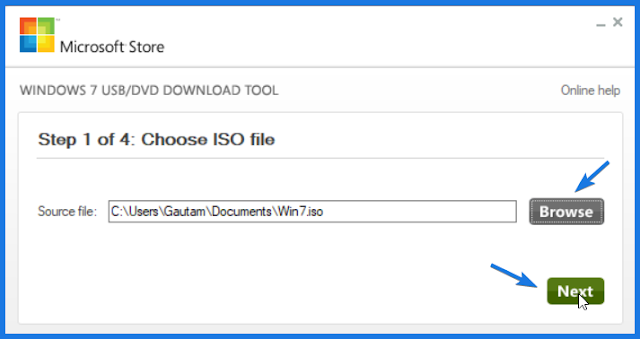
Choose Windows 7 ISO File

Windows USB/DVD Download Tool is one of my favorite tool which I personally use. This is the only tool that Microsoft has provided to convert ISO to USB/DVD easily. Whenever I want to create a bootable USB drive for Windows 7 or Windows 10 I always use this tool.

What I Like:

  • Basically a simple plug & play.
  • Faster as compared to other tools.
  • Official Microsoft Software.

What I Don’t Like:

  • No Advanced Features.
  • Only Support Windows OS.

2. UUByte ISO Editor (Windows & macOS)

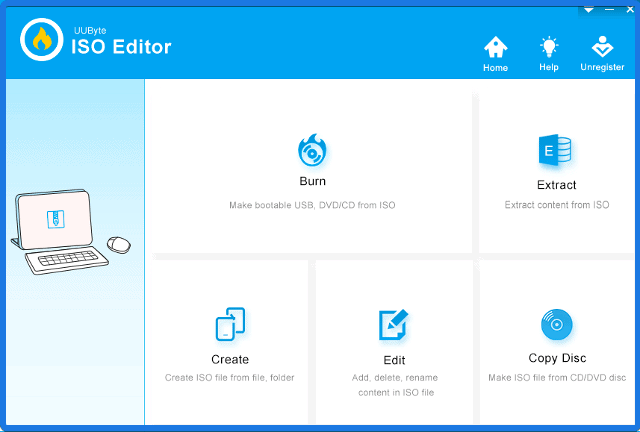
UUByte ISO Editor

UUByte ISO Editor is another great tool packed with lots of advanced features. One thing which I really like about this tool is its simplicity with good loading speed. Just you have to install the program, load the ISO file, and burn it. Using this tool you can easily edit your ISO file and can also make a bootable iso from files safely.

What I Like:

  • Modern UI with ISO Editor
  • Support both ISO & DMG files for Mac.
  • Smarter Engine for faster loading.
  • Support both UEFI & Legacy boot Mode.
  • Create Installation Disk from Linux Live CD.

What I Don’t Like:

  • Not Available for Linux / Ubuntu platform.

3. Rufus (Windows)

Rufus

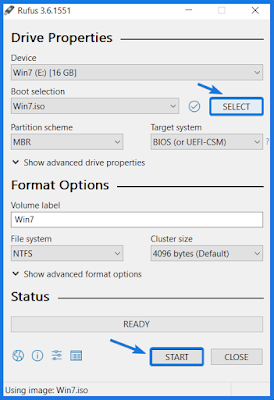
Rufus is one of the best bootable USB software with a tagline “Rufus – create bootable USB drives the easy way“. This tool comes with a clean user interface & lots of advanced features. And the best part of this tool is that automatically detects the feasible settings according to ISO file. This is the tool that everyone recommends & I also do.

What I Like:

  • Easy to use software & Portable.
  • Supports flashing BIOS & Firmware.
  • Advanced features: File system, cluster size & partition scheme.

What I Don’t Like:

  • Nothing like that: It is the best tool with all the advanced features.

Alternative Download Link.

4. YUMI-Multiboot USB Creator (Windows)

YUMI-Multiboot USB Creator

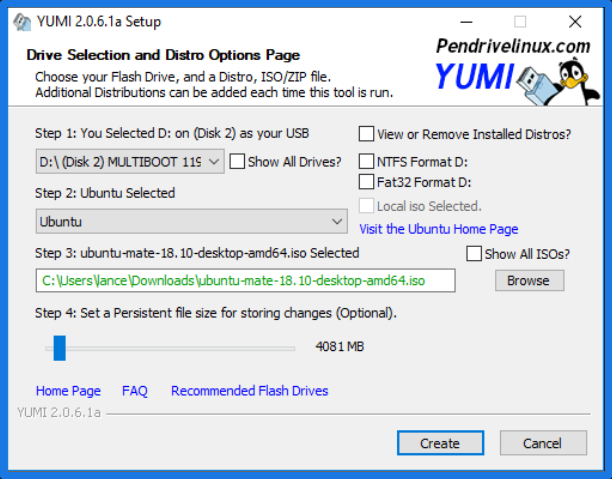
YUMI – Multiboot USB Creator is one of the best multiple OS tool among all these tools. YUMI is also known as “Your Universal Multiboot Installer” and is designed by the same creator of Universal USB Installer.

As the name suggests Multiboot it basically means that this tool has the ability to install multiple OS on a single USB drive. Basically, this is one of the best bootable USB software designed to create multiboot USB drives without formatting.

What I Like:

  • Support multiple Linux distributions.
  • Options to download ISO file directly.
  • Advanced features: Persistent storage, Legacy & UEFI support.

What I Don’t Like:

  • Not a quite good interface.

And if you are having multiple USB drives with multiple OS and want to install multiple bootable Operating systems on a single USB, then YUMI software utility can help you easily.

5. UNetBootin (Windows, Linux, macOS)

UNetBootin

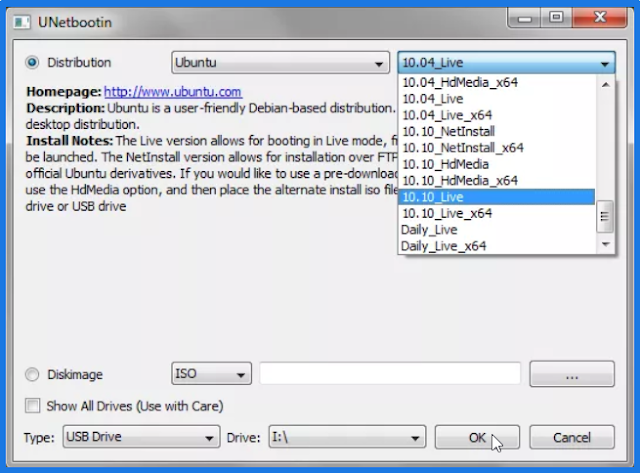
UNetBootin is another wonderful easy to use tool like Windows USB/DVD Download Tool. This tool is specially designed for Linux Users to create bootable Linux USB drives. In a nutshell, this is the only tool available here for Linux Ubuntu users.

What I Like:

  • Support different Operating systems.
  • In-App options to download ISO file directly.
  • Preserves space to install software on live bootable drives.

What I Don’t Like:

  • No advanced features.
  • Limited to Linux bootable USB drives Creations.

Also Read: How to Convert A Bootable USB to an ISO Image File.

6. Universal USB Installer

Universal USB Installer

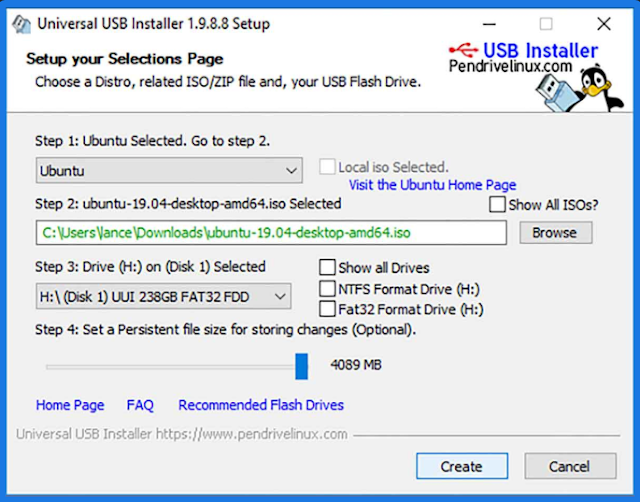
Universal USB Installer is another useful tool packed with all the essential features. As the name suggests “Universal” it means that using this tool you can create any type of bootable USB device. And the best part of this bootable USB software is that it has a dropdown menu with all the OS & selecting that it automatically detects the appropriate settings.

What I Like:

  • Support different bootable media types.
  • Creates boot partition automatically.

What I Don’t Like:

  • No Multiboot OS on single USB like YUMI.
  • Not so good user interface.
  • Fewer advanced features.

7. WinSetupFromUSB (Windows)

WinSetupFromUSB

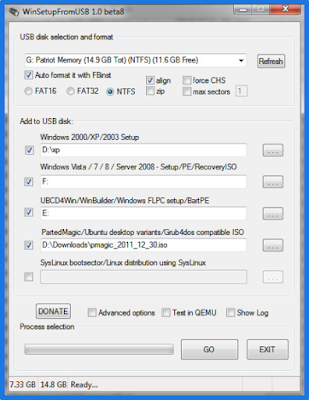
WinSetUpFromUSB is another popular bootable USB creator especially designed for Windows users. Using this tool you can easily create windows bootable flash drives and Linux USB drives (SysLinux or IsoLinux). You just have to select the advanced checkboxes as per your preference and OS.

What I Like:

  • Support multiboot OS on a single USB drive.
  • Capable of creating WinPE, WinBuilder, etc.
  • Support QEMU emulator for testing.

What I Don’t Like:

  • Not so good for non-expert users.

Also Read:  How to Create A Bootable ISO From Folder or Files.

8. DiskMaker X (macOS)

DiskMaker X

DiskMaker X is one of the best bootable USB creation tools for macOS users. Using this software utility a user can easily make bootable media devices within a few clicks. This is an easy to use tool with a good user interface and can help you in creating a bootable USB drive from ISO file or Dvd easily.

What I Like:

  • Easy to use & portable.
  • Quite a Beautiful user interface.
  • Most trusted software for macOS users.

What I Don’t Like:

  • Less advanced features.

9. balenaEtcher (Windows, Linux, macOS)

balenaEtcher

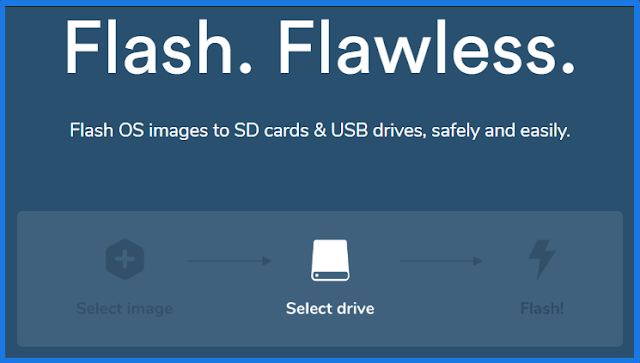
balenaEtcher is one of the best USB bootable software utility specially designed for macOS users. Using this flawless tool you can easily flash OS images to USB drives & SD cards easily. This tool allows you to create a bootable USB drive using a few clicks, just select image then select drive and flash!

What I Like:

  • Simple plug & play tool.
  • Best bootable creation tool for macOS users.

What I Don’t Like:

  • Less customizable features.

Some FAQs

Which software is best for bootable USB?

According to me, Windows USB/DVD Download Tool is the best bootable USB tool that is developed by Microsoft.

Which is the best booting software?

Rufus is one of the best booting software that you can use for Windows or Linux USB flash drives.

Is Rufus software good?

Yes, Rufus is a good software that you can use to make free bootable USBs of any operating system.

How do I create a Windows 10 boot USB?

It’s pretty easy to create a Windows 10 boot USB and if you don’t know how to do it, then follow the steps given in this guide.

That’s it for now…

Conclusion

All the above-listed USB software are best on their own terms and have their own pros and cons. But I also have one more bootable USB creator for you called RMPrepUSB. This is all in one tool with all advanced features but the only downside is that it is very complex and for expert users only.

Feel free to comment below and also tell us if you know any other best bootable USB Software and which software program is the best for bootable USB.

If you liked this post, Don’t forget to share this with your friends.

Because Sharing is Caring!

PowerHuntShares - Audit Script Designed In Inventory, Analyze, And Report Excessive Privileges Configured On Active Directory Domains

By: Unknown


PowerHuntShares is design to automatically inventory, analyze, and report excessive privilege assigned to SMB shares on Active Directory domain joined computers.
It is intented to help IAM and other blue teams gain a better understand of their SMB Share attack surface and provides data insights to help naturally group related share to help stream line remediation efforts at scale.


It supports functionality to:

  • Authenticate using the current user context, a credential, or clear text user/password.
  • Discover accessible systems associated with an Active Directory domain automatically. It will also filter Active Directory computers based on available open ports.
  • Target a single computer, list of computers, or discovered Active Directory computers (default).
  • Collect SMB share ACL information from target computers using PowerShell.
  • Analyze collected Share ACL data.
  • Report summary reports and excessive privilege details in HTML and CSV file formats.

Excessive SMB share ACLs are a systemic problem and an attack surface that all organizations struggle with. The goal of this project is to provide a proof concept that will work towards building a better share collection and data insight engine that can help inform and priorititize remediation efforts.

Bonus Features:

  • Generate directory listing dump for configurable depth
  • Search for file types across discovered shares

I've also put together a short presentation outlining some of the common misconfigurations and strategies for prioritizing remediation here: https://www.slideshare.net/nullbind/into-the-abyss-evaluating-active-directory-smb-shares-on-scale-secure360-251762721

Vocabulary

PowerHuntShares will inventory SMB share ACLs configured with "excessive privileges" and highlight "high risk" ACLs. Below is how those are defined in this context.

Excessive Privileges
Excessive read and write share permissions have been defined as any network share ACL containing an explicit ACE (Access Control Entry) for the "Everyone", "Authenticated Users", "BUILTIN\Users", "Domain Users", or "Domain Computers" groups. All provide domain users access to the affected shares due to privilege inheritance issues. Note there is a parameter that allow operators to add their own target groups.
Below is some additional background:

  • Everyone is a direct reference that applies to both unauthenticated and authenticated users. Typically only a null session is required to access those resources.
  • BUILTIN\Users contains Authenticated Users
  • Authenticated Users contains Domain Users on domain joined systems. That's why Domain Users can access a share when the share permissions have been assigned to "BUILTIN\Users".
  • Domain Users is a direct reference
  • Domain Users can also create up to 10 computer accounts by default that get placed in the Domain Computers group
  • Domain Users that have local administrative access to a domain joined computer can also impersonate the computer account.

Please Note: Share permissions can be overruled by NTFS permissions. Also, be aware that testing excluded share names containing the following keywords:

print$, prnproc$, printer, netlogon,and sysvol

High Risk Shares
In the context of this report, high risk shares have been defined as shares that provide unauthorized remote access to a system or application. By default, that includes the shares

 wwwroot, inetpub, c$, and admin$   
However, additional exposures may exist that are not called out beyond that.

Setup Commands

Below is a list of commands that can be used to load PowerHuntShares into your current PowerShell session. Please note that one of these will have to be run each time you run PowerShell is run. It is not persistent.

# Bypass execution policy restrictions
Set-ExecutionPolicy -Scope Process Bypass

# Import module that exists in the current directory
Import-Module .\PowerHuntShares.psm1

or

# Reduce SSL operating level to support connection to github
[System.Net.ServicePointManager]::ServerCertificateValidationCallback = {$true}
[Net.ServicePointManager]::SecurityProtocol =[Net.SecurityProtocolType]::Tls12

# Download and load PowerHuntShares.psm1 into memory
IEX(New-Object System.Net.WebClient).DownloadString("https://raw.githubusercontent.com/NetSPI/PowerHuntShares/main/PowerHuntShares.psm1")

Example Commands

Important Note: All commands should be run as an unprivileged domain user.

.EXAMPLE 1: Run from a domain computer. Performs Active Directory computer discovery by default.
PS C:\temp\test> Invoke-HuntSMBShares -Threads 100 -OutputDirectory c:\temp\test

.EXAMPLE 2: Run from a domain computer with alternative domain credentials. Performs Active Directory computer discovery by default.
PS C:\temp\test> Invoke-HuntSMBShares -Threads 100 -OutputDirectory c:\temp\test -Credentials domain\user

.EXAMPLE 3: Run from a domain computer as current user. Target hosts in a file. One per line.
PS C:\temp\test> Invoke-HuntSMBShares -Threads 100 -OutputDirectory c:\temp\test -HostList c:\temp\hosts.txt

.EXAMPLE 4: Run from a non-domain computer with credential. Performs Active Directory computer discovery by default.
C:\temp\test> runas /netonly /user:domain\user PowerShell.exe
PS C:\temp\test> Import-Module Invoke-HuntSMBShares.ps1
PS C:\temp\test> Invoke-HuntSMBShares -Threads 100 -Run SpaceTimeOut 10 -OutputDirectory c:\folder\ -DomainController 10.1.1.1 -Credential domain\user

===============================================================
PowerHuntShares
===============================================================
This function automates the following tasks:

o Determine current computer's domain
o Enumerate domain computers
o Filter for computers that respond to ping reqeusts
o Filter for computers that have TCP 445 open and accessible
o Enumerate SMB shares
o Enumerate SMB share permissions
o Identify shares with potentially excessive privielges
o Identify shares that provide reads & write access
o Identify shares thare are high risk
o Identify common share owners, names, & directory listings
o Generate creation, last written, & last accessed timelines
o Generate html summary report and detailed csv files

Note: This can take hours to run in large environments.
---------------------------------------------------------------
|||||||||||||||||||||||||||||||||||||||||||||||||||||||||||||||
---------------------------------------------------------------
SHARE DISCOVERY
---------------------------------------------------------------
[*][03/01/2021 09:35] Scan Start
[*][03/01/2021 09:35] Output Directory: c:\temp\smbshares\SmbShareHunt-03012021093504
[*][03/01/2021 09:35] Successful connection to domain controller: dc1.demo.local
[*][03/01/2021 09:35] Performing LDAP query for computers associated with the demo.local domain
[*][03/01/2021 09:35] - 245 computers found
[*][03/01/2021 09:35] Pinging 245 computers
[*][03/01/2021 09:35] - 55 computers responded to ping requests.
[*][03/01/2021 09:35] Checking if TCP Port 445 is open on 55 computers
[*][03/01/2021 09:36] - 49 computers have TCP port 445 open.
[*][03/01/2021 09:36] Getting a list of SMB shares from 49 computers
[*][03/01/2021 09:36] - 217 SMB shares were found.
[*][03/01/2021 09:36] Getting share permissions from 217 SMB shares
[*][03/01/2021 09:37] - 374 share permissions were enumerated.
[*][03/01/2021 09:37] Getting directory listings from 33 SMB shares
[*][03/01/2021 09:37] - Targeting up to 3 nested directory levels
[*][03/01/2021 09:37] - 563 files and folders were enumerated.
[*][03/01/2021 09:37] Identifying potentially excessive share permissions
[*][03/01/2021 09:37] - 33 potentially excessive privileges were found across 12 systems..
[*][03/01/2021 09:37] Scan Complete
---------------------------------------------------------------
SHARE ANALYSIS
---------------------------------------------------------------
[*][03/01/2021 09:37] Analysis Start
[*][03/01/2021 09:37] - 14 shares can be read across 12 systems.
[*][03/01/2021 09:37] - 1 shares can be written to across 1 systems.
[*][03/01/2021 09:37] - 46 shares are considered non-default across 32 systems.
[*][03/01/2021 09:37] - 0 shares are considered high risk across 0 systems
[*][03/01/2021 09:37] - Identified top 5 owners of excessive shares.
[*][03/01/2021 09:37] - Identified top 5 share groups.
[*][03/01/2021 09:37] - Identified top 5 share names.
[*][03/01/2021 09:37] - Identified shares created in last 90 days.
[*][03/01/2021 09:37] - Identified shares accessed in last 90 days.
[*][03/01/2021 09:37] - Identified shares modified in last 90 days.
[*][03/01/2021 09:37] Analysis Complete
---------------------------------------------------------------
SHARE REPORT SUMMARY
---------------------------------------------------------------
[*][03/01/2021 09:37] Domain: demo.local
[*][03/01/2021 09:37] Start time: 03/01/2021 09:35:04
[*][03/01/2021 09:37] End time: 03/01/2021 09:37:27
[*][03/01/2021 09:37] R un time: 00:02:23.2759086
[*][03/01/2021 09:37]
[*][03/01/2021 09:37] COMPUTER SUMMARY
[*][03/01/2021 09:37] - 245 domain computers found.
[*][03/01/2021 09:37] - 55 (22.45%) domain computers responded to ping.
[*][03/01/2021 09:37] - 49 (20.00%) domain computers had TCP port 445 accessible.
[*][03/01/2021 09:37] - 32 (13.06%) domain computers had shares that were non-default.
[*][03/01/2021 09:37] - 12 (4.90%) domain computers had shares with potentially excessive privileges.
[*][03/01/2021 09:37] - 12 (4.90%) domain computers had shares that allowed READ access.
[*][03/01/2021 09:37] - 1 (0.41%) domain computers had shares that allowed WRITE access.
[*][03/01/2021 09:37] - 0 (0.00%) domain computers had shares that are HIGH RISK.
[*][03/01/2021 09:37]
[*][03/01/2021 09:37] SHARE SUMMARY
[*][03/01/2021 09:37] - 217 shares were found. We expect a minimum of 98 shares
[*][03/01/2021 09:37] because 49 systems had open ports a nd there are typically two default shares.
[*][03/01/2021 09:37] - 46 (21.20%) shares across 32 systems were non-default.
[*][03/01/2021 09:37] - 14 (6.45%) shares across 12 systems are configured with 33 potentially excessive ACLs.
[*][03/01/2021 09:37] - 14 (6.45%) shares across 12 systems allowed READ access.
[*][03/01/2021 09:37] - 1 (0.46%) shares across 1 systems allowed WRITE access.
[*][03/01/2021 09:37] - 0 (0.00%) shares across 0 systems are considered HIGH RISK.
[*][03/01/2021 09:37]
[*][03/01/2021 09:37] SHARE ACL SUMMARY
[*][03/01/2021 09:37] - 374 ACLs were found.
[*][03/01/2021 09:37] - 374 (100.00%) ACLs were associated with non-default shares.
[*][03/01/2021 09:37] - 33 (8.82%) ACLs were found to be potentially excessive.
[*][03/01/2021 09:37] - 32 (8.56%) ACLs were found that allowed READ access.
[*][03/01/2021 09:37] - 1 (0.27%) ACLs were found that allowed WRITE access.
[*][03/01/2021 09:37] - 0 (0.00%) ACLs we re found that are associated with HIGH RISK share names.
[*][03/01/2021 09:37]
[*][03/01/2021 09:37] - The 5 most common share names are:
[*][03/01/2021 09:37] - 9 of 14 (64.29%) discovered shares are associated with the top 5 share names.
[*][03/01/2021 09:37] - 4 backup
[*][03/01/2021 09:37] - 2 ssms
[*][03/01/2021 09:37] - 1 test2
[*][03/01/2021 09:37] - 1 test1
[*][03/01/2021 09:37] - 1 users
[*] -----------------------------------------------

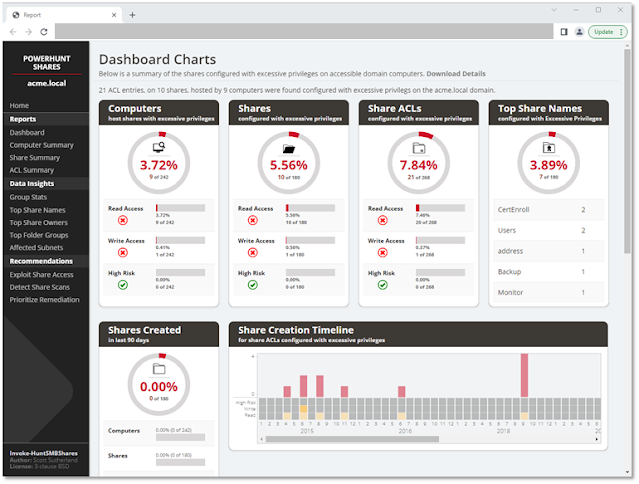
HTML Report Examples

Credits

Author
Scott Sutherland (@_nullbind)

Open-Source Code Used
These individuals wrote open source code that was used as part of this project. A big thank you goes out them and their work!

Name Site
Will Schroeder (@harmj0y) https://github.com/PowerShellMafia/PowerSploit/blob/master/Recon/PowerView.ps1
Warren F (@pscookiemonster) https://github.com/RamblingCookieMonster/Invoke-Parallel
Luben Kirov http://www.gi-architects.co.uk/2016/02/powershell-check-if-ip-or-subnet-matchesfits/

License
BSD 3-Clause

Todos

Pending Fixes/Bugs

  • Update code to avoid defender
  • Fix file listing formating on data insight pages
  • IPv6 addresses dont show up in subnets summary
  • ACLs associated with Builtin\Users sometimes shows up as LocalSystem under undefined conditions, and as a result, doesnt show up in the Excessive Privileges export. - Thanks Sam!

Pending Features

  • Add ability to specify additional groups to target
  • Add directory listing to insights page.
  • Add ability to grab system OS information for data insights.
  • Add visualization: Visual squares with coloring mapped to share volume density by subnet or ip?.
  • Add file type search. (half coded) + add to data insights. Don't forget things like *.aws, *.azure *.gcp directories that store cloud credentials.
  • Add file content search.
  • Add DontExcludePrintShares option
  • Add auto targeting of groups that contain a large % of the user population; over 70% (make configurable). Add as option.
  • Add configuration fid: netlogon and sysvol you may get access denied when using windows 10 unless the setting below is configured. Automat a check for this, and attempt to modify if privs are at correct level. gpedit.msc, go to Computer -> Administrative Templates -> Network -> Network Provider -> Hardened UNC Paths, enable the policy and click "Show" button. Enter your server name (* for all servers) into "Value name" and enter the folowing text "RequireMutualAuthentication=0,RequireIntegrity=0,RequirePrivacy=0" wihtout quotes into the "Value" field.
  • Add an interesting shares based on names to data insights. example: sql, backup, password, etc.
  • Add active sessions data to help identify potential owners/users of share.
  • Pull spns and computer description/spn account descriptions to help identify owner/business unit.
  • Create bloodhound import file / edge (highrisk share)
  • Research to identify additional high risk share names based on common technology
  • Add better support for IPv6
  • Dynamic identification of spikes in high risk share creation/common groupings, need to better summarize supporting detail beyond just the timeline. For each of the data insights, add average number of shares created for insight grouping by year/month (for folder hash / name etc), and the increase the month/year it spikes. (attempt to provide some historical context); maybe even list the most common non default directories being used by each of those. Potentially adding "first seen date" as well.
  • add showing share permissions (along with the already displayed NTFS permissions) and resultant access (most restrictive wins)


PowerHuntShares - Audit Script Designed In Inventory, Analyze, And Report Excessive Privileges Configured On Active Directory Domains

By: Unknown


PowerHuntShares is design to automatically inventory, analyze, and report excessive privilege assigned to SMB shares on Active Directory domain joined computers.
It is intented to help IAM and other blue teams gain a better understand of their SMB Share attack surface and provides data insights to help naturally group related share to help stream line remediation efforts at scale.


It supports functionality to:

  • Authenticate using the current user context, a credential, or clear text user/password.
  • Discover accessible systems associated with an Active Directory domain automatically. It will also filter Active Directory computers based on available open ports.
  • Target a single computer, list of computers, or discovered Active Directory computers (default).
  • Collect SMB share ACL information from target computers using PowerShell.
  • Analyze collected Share ACL data.
  • Report summary reports and excessive privilege details in HTML and CSV file formats.

Excessive SMB share ACLs are a systemic problem and an attack surface that all organizations struggle with. The goal of this project is to provide a proof concept that will work towards building a better share collection and data insight engine that can help inform and priorititize remediation efforts.

Bonus Features:

  • Generate directory listing dump for configurable depth
  • Search for file types across discovered shares

I've also put together a short presentation outlining some of the common misconfigurations and strategies for prioritizing remediation here: https://www.slideshare.net/nullbind/into-the-abyss-evaluating-active-directory-smb-shares-on-scale-secure360-251762721

Vocabulary

PowerHuntShares will inventory SMB share ACLs configured with "excessive privileges" and highlight "high risk" ACLs. Below is how those are defined in this context.

Excessive Privileges
Excessive read and write share permissions have been defined as any network share ACL containing an explicit ACE (Access Control Entry) for the "Everyone", "Authenticated Users", "BUILTIN\Users", "Domain Users", or "Domain Computers" groups. All provide domain users access to the affected shares due to privilege inheritance issues. Note there is a parameter that allow operators to add their own target groups.
Below is some additional background:

  • Everyone is a direct reference that applies to both unauthenticated and authenticated users. Typically only a null session is required to access those resources.
  • BUILTIN\Users contains Authenticated Users
  • Authenticated Users contains Domain Users on domain joined systems. That's why Domain Users can access a share when the share permissions have been assigned to "BUILTIN\Users".
  • Domain Users is a direct reference
  • Domain Users can also create up to 10 computer accounts by default that get placed in the Domain Computers group
  • Domain Users that have local administrative access to a domain joined computer can also impersonate the computer account.

Please Note: Share permissions can be overruled by NTFS permissions. Also, be aware that testing excluded share names containing the following keywords:

print$, prnproc$, printer, netlogon,and sysvol

High Risk Shares
In the context of this report, high risk shares have been defined as shares that provide unauthorized remote access to a system or application. By default, that includes the shares

 wwwroot, inetpub, c$, and admin$   
However, additional exposures may exist that are not called out beyond that.

Setup Commands

Below is a list of commands that can be used to load PowerHuntShares into your current PowerShell session. Please note that one of these will have to be run each time you run PowerShell is run. It is not persistent.

# Bypass execution policy restrictions
Set-ExecutionPolicy -Scope Process Bypass

# Import module that exists in the current directory
Import-Module .\PowerHuntShares.psm1

or

# Reduce SSL operating level to support connection to github
[System.Net.ServicePointManager]::ServerCertificateValidationCallback = {$true}
[Net.ServicePointManager]::SecurityProtocol =[Net.SecurityProtocolType]::Tls12

# Download and load PowerHuntShares.psm1 into memory
IEX(New-Object System.Net.WebClient).DownloadString("https://raw.githubusercontent.com/NetSPI/PowerHuntShares/main/PowerHuntShares.psm1")

Example Commands

Important Note: All commands should be run as an unprivileged domain user.

.EXAMPLE 1: Run from a domain computer. Performs Active Directory computer discovery by default.
PS C:\temp\test> Invoke-HuntSMBShares -Threads 100 -OutputDirectory c:\temp\test

.EXAMPLE 2: Run from a domain computer with alternative domain credentials. Performs Active Directory computer discovery by default.
PS C:\temp\test> Invoke-HuntSMBShares -Threads 100 -OutputDirectory c:\temp\test -Credentials domain\user

.EXAMPLE 3: Run from a domain computer as current user. Target hosts in a file. One per line.
PS C:\temp\test> Invoke-HuntSMBShares -Threads 100 -OutputDirectory c:\temp\test -HostList c:\temp\hosts.txt

.EXAMPLE 4: Run from a non-domain computer with credential. Performs Active Directory computer discovery by default.
C:\temp\test> runas /netonly /user:domain\user PowerShell.exe
PS C:\temp\test> Import-Module Invoke-HuntSMBShares.ps1
PS C:\temp\test> Invoke-HuntSMBShares -Threads 100 -Run SpaceTimeOut 10 -OutputDirectory c:\folder\ -DomainController 10.1.1.1 -Credential domain\user

===============================================================
PowerHuntShares
===============================================================
This function automates the following tasks:

o Determine current computer's domain
o Enumerate domain computers
o Filter for computers that respond to ping reqeusts
o Filter for computers that have TCP 445 open and accessible
o Enumerate SMB shares
o Enumerate SMB share permissions
o Identify shares with potentially excessive privielges
o Identify shares that provide reads & write access
o Identify shares thare are high risk
o Identify common share owners, names, & directory listings
o Generate creation, last written, & last accessed timelines
o Generate html summary report and detailed csv files

Note: This can take hours to run in large environments.
---------------------------------------------------------------
|||||||||||||||||||||||||||||||||||||||||||||||||||||||||||||||
---------------------------------------------------------------
SHARE DISCOVERY
---------------------------------------------------------------
[*][03/01/2021 09:35] Scan Start
[*][03/01/2021 09:35] Output Directory: c:\temp\smbshares\SmbShareHunt-03012021093504
[*][03/01/2021 09:35] Successful connection to domain controller: dc1.demo.local
[*][03/01/2021 09:35] Performing LDAP query for computers associated with the demo.local domain
[*][03/01/2021 09:35] - 245 computers found
[*][03/01/2021 09:35] Pinging 245 computers
[*][03/01/2021 09:35] - 55 computers responded to ping requests.
[*][03/01/2021 09:35] Checking if TCP Port 445 is open on 55 computers
[*][03/01/2021 09:36] - 49 computers have TCP port 445 open.
[*][03/01/2021 09:36] Getting a list of SMB shares from 49 computers
[*][03/01/2021 09:36] - 217 SMB shares were found.
[*][03/01/2021 09:36] Getting share permissions from 217 SMB shares
[*][03/01/2021 09:37] - 374 share permissions were enumerated.
[*][03/01/2021 09:37] Getting directory listings from 33 SMB shares
[*][03/01/2021 09:37] - Targeting up to 3 nested directory levels
[*][03/01/2021 09:37] - 563 files and folders were enumerated.
[*][03/01/2021 09:37] Identifying potentially excessive share permissions
[*][03/01/2021 09:37] - 33 potentially excessive privileges were found across 12 systems..
[*][03/01/2021 09:37] Scan Complete
---------------------------------------------------------------
SHARE ANALYSIS
---------------------------------------------------------------
[*][03/01/2021 09:37] Analysis Start
[*][03/01/2021 09:37] - 14 shares can be read across 12 systems.
[*][03/01/2021 09:37] - 1 shares can be written to across 1 systems.
[*][03/01/2021 09:37] - 46 shares are considered non-default across 32 systems.
[*][03/01/2021 09:37] - 0 shares are considered high risk across 0 systems
[*][03/01/2021 09:37] - Identified top 5 owners of excessive shares.
[*][03/01/2021 09:37] - Identified top 5 share groups.
[*][03/01/2021 09:37] - Identified top 5 share names.
[*][03/01/2021 09:37] - Identified shares created in last 90 days.
[*][03/01/2021 09:37] - Identified shares accessed in last 90 days.
[*][03/01/2021 09:37] - Identified shares modified in last 90 days.
[*][03/01/2021 09:37] Analysis Complete
---------------------------------------------------------------
SHARE REPORT SUMMARY
---------------------------------------------------------------
[*][03/01/2021 09:37] Domain: demo.local
[*][03/01/2021 09:37] Start time: 03/01/2021 09:35:04
[*][03/01/2021 09:37] End time: 03/01/2021 09:37:27
[*][03/01/2021 09:37] R un time: 00:02:23.2759086
[*][03/01/2021 09:37]
[*][03/01/2021 09:37] COMPUTER SUMMARY
[*][03/01/2021 09:37] - 245 domain computers found.
[*][03/01/2021 09:37] - 55 (22.45%) domain computers responded to ping.
[*][03/01/2021 09:37] - 49 (20.00%) domain computers had TCP port 445 accessible.
[*][03/01/2021 09:37] - 32 (13.06%) domain computers had shares that were non-default.
[*][03/01/2021 09:37] - 12 (4.90%) domain computers had shares with potentially excessive privileges.
[*][03/01/2021 09:37] - 12 (4.90%) domain computers had shares that allowed READ access.
[*][03/01/2021 09:37] - 1 (0.41%) domain computers had shares that allowed WRITE access.
[*][03/01/2021 09:37] - 0 (0.00%) domain computers had shares that are HIGH RISK.
[*][03/01/2021 09:37]
[*][03/01/2021 09:37] SHARE SUMMARY
[*][03/01/2021 09:37] - 217 shares were found. We expect a minimum of 98 shares
[*][03/01/2021 09:37] because 49 systems had open ports a nd there are typically two default shares.
[*][03/01/2021 09:37] - 46 (21.20%) shares across 32 systems were non-default.
[*][03/01/2021 09:37] - 14 (6.45%) shares across 12 systems are configured with 33 potentially excessive ACLs.
[*][03/01/2021 09:37] - 14 (6.45%) shares across 12 systems allowed READ access.
[*][03/01/2021 09:37] - 1 (0.46%) shares across 1 systems allowed WRITE access.
[*][03/01/2021 09:37] - 0 (0.00%) shares across 0 systems are considered HIGH RISK.
[*][03/01/2021 09:37]
[*][03/01/2021 09:37] SHARE ACL SUMMARY
[*][03/01/2021 09:37] - 374 ACLs were found.
[*][03/01/2021 09:37] - 374 (100.00%) ACLs were associated with non-default shares.
[*][03/01/2021 09:37] - 33 (8.82%) ACLs were found to be potentially excessive.
[*][03/01/2021 09:37] - 32 (8.56%) ACLs were found that allowed READ access.
[*][03/01/2021 09:37] - 1 (0.27%) ACLs were found that allowed WRITE access.
[*][03/01/2021 09:37] - 0 (0.00%) ACLs we re found that are associated with HIGH RISK share names.
[*][03/01/2021 09:37]
[*][03/01/2021 09:37] - The 5 most common share names are:
[*][03/01/2021 09:37] - 9 of 14 (64.29%) discovered shares are associated with the top 5 share names.
[*][03/01/2021 09:37] - 4 backup
[*][03/01/2021 09:37] - 2 ssms
[*][03/01/2021 09:37] - 1 test2
[*][03/01/2021 09:37] - 1 test1
[*][03/01/2021 09:37] - 1 users
[*] -----------------------------------------------

HTML Report Examples

Credits

Author
Scott Sutherland (@_nullbind)

Open-Source Code Used
These individuals wrote open source code that was used as part of this project. A big thank you goes out them and their work!

Name Site
Will Schroeder (@harmj0y) https://github.com/PowerShellMafia/PowerSploit/blob/master/Recon/PowerView.ps1
Warren F (@pscookiemonster) https://github.com/RamblingCookieMonster/Invoke-Parallel
Luben Kirov http://www.gi-architects.co.uk/2016/02/powershell-check-if-ip-or-subnet-matchesfits/

License
BSD 3-Clause

Todos

Pending Fixes/Bugs

  • Update code to avoid defender
  • Fix file listing formating on data insight pages
  • IPv6 addresses dont show up in subnets summary
  • ACLs associated with Builtin\Users sometimes shows up as LocalSystem under undefined conditions, and as a result, doesnt show up in the Excessive Privileges export. - Thanks Sam!

Pending Features

  • Add ability to specify additional groups to target
  • Add directory listing to insights page.
  • Add ability to grab system OS information for data insights.
  • Add visualization: Visual squares with coloring mapped to share volume density by subnet or ip?.
  • Add file type search. (half coded) + add to data insights. Don't forget things like *.aws, *.azure *.gcp directories that store cloud credentials.
  • Add file content search.
  • Add DontExcludePrintShares option
  • Add auto targeting of groups that contain a large % of the user population; over 70% (make configurable). Add as option.
  • Add configuration fid: netlogon and sysvol you may get access denied when using windows 10 unless the setting below is configured. Automat a check for this, and attempt to modify if privs are at correct level. gpedit.msc, go to Computer -> Administrative Templates -> Network -> Network Provider -> Hardened UNC Paths, enable the policy and click "Show" button. Enter your server name (* for all servers) into "Value name" and enter the folowing text "RequireMutualAuthentication=0,RequireIntegrity=0,RequirePrivacy=0" wihtout quotes into the "Value" field.
  • Add an interesting shares based on names to data insights. example: sql, backup, password, etc.
  • Add active sessions data to help identify potential owners/users of share.
  • Pull spns and computer description/spn account descriptions to help identify owner/business unit.
  • Create bloodhound import file / edge (highrisk share)
  • Research to identify additional high risk share names based on common technology
  • Add better support for IPv6
  • Dynamic identification of spikes in high risk share creation/common groupings, need to better summarize supporting detail beyond just the timeline. For each of the data insights, add average number of shares created for insight grouping by year/month (for folder hash / name etc), and the increase the month/year it spikes. (attempt to provide some historical context); maybe even list the most common non default directories being used by each of those. Potentially adding "first seen date" as well.
  • add showing share permissions (along with the already displayed NTFS permissions) and resultant access (most restrictive wins)


❌