
Reading view

There are new articles available, click to refresh the page.

Web App Hacking:Tearing Back the Cloudflare Veil to Reveal IP’s

Welcome back, aspiring cyberwarriors!

Cloudflare has built an $80 billion business protecting websites. This protection includes DDoS attacks and protecting IP addresses from disclosure. Now, we have a tool that can disclose those sites IP addresses despite Cloudflare’s protection.

As you know, many organizations deploy Cloudflare to protect their main web presence, but they often forget about subdomains. Development servers, staging environments, admin panels, and other subdomains frequently sit outside of Cloudflare’s protection, exposing the real origin IP addresses. CloudRip is a tool that is specifically designed to find these overlooked entry points by scanning subdomains and filtering out Cloudflare IPs to show you only the real server addresses.

In this article, we’ll install CloudRip, test it, and then summarize its benefits and potential drawbacks. Let’s get rolling!

Step #1: Download and Install CloudRip

First, let’s clone the repository from GitHub:

kali> git clone https://github.com/staxsum/CloudRip.git

kali> cd CloudRip
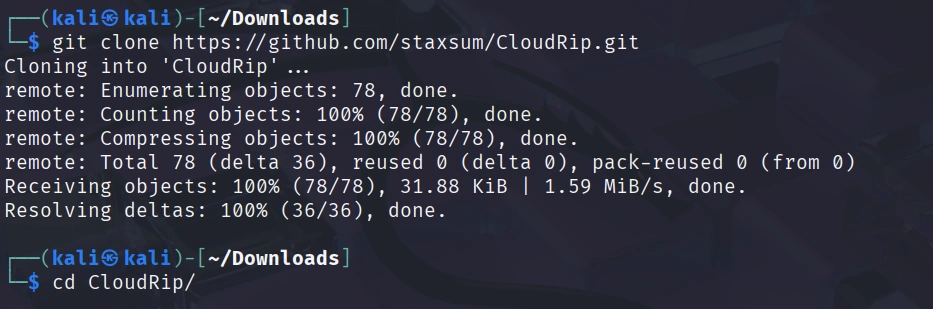
Now we need to install the dependencies. CloudRip requires only two Python libraries: colorama for colored terminal output and pyfiglet for the banner display.

kali> pip3 install colorama pyfiglet –break-system-packages
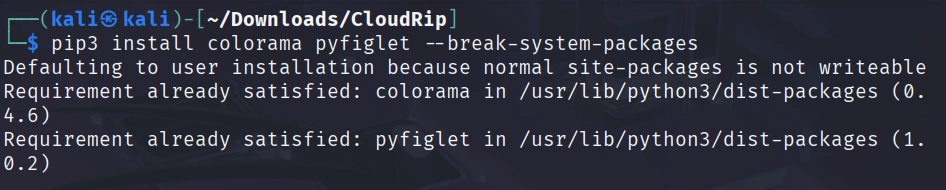
You’re ready to start finding real IP addresses behind Cloudflare protection. The tool comes with a default wordlist (dom.txt) so you can begin scanning immediately.

Step #2: Basic Usage of CloudRip

Let’s start with the simplest command to see CloudRip in action. For this example, I’ll use some Russian websites with CloudFlare provided by BuildWith.

Before scanning, let’s confirm the website is registered in Russia with the whois command:

kali> whois esetnod32.ru

NS servers are from CloudFlare, and the registrar is Russian. Use dig to check if CloudFlare proxying hides the real IP in the A record.

kali> dig esetnod32.ru

IPs belong to CloudFlare. We’re ready to test out the CloudRip on it.

kali> python3 cloudrip.py esetnod32.ru

The tool tests common subdomains (www, mail, dev, etc.) from its wordlist, resolves their IPs, and checks if they belong to Cloudflare.

In this case, we can see that the main website is hiding its IP via CloudFlare, but the subdomains’ IPs don’t belong to CloudFlare.

Step #3: Advanced Usage with Custom Options

CloudRip provides several command-line options that give you greater control over your reconnaissance.

Here’s the full syntax with all available options:

kali> python3 cloudrip.py example.com -w custom_wordlist.txt -t 20 -o results.txt

Let me break down what each option does:

-w (wordlist): This allows you to specify your own subdomain wordlist. While the default dom.txt is quite good, experienced hackers often maintain their own customized wordlists tailored to specific industries or target types.

-t (threads): This controls how many threads CloudRip uses for scanning. The default is 10, which works well for most situations. However, if you’re working with a large wordlist and need faster results, you can increase this to 20 or even higher. Just be mindful that too many threads might trigger rate limiting or appear suspicious.

-o (output file): This saves all discovered non-Cloudflare IP addresses to a text file.

Step #4: Practical Examples

Let me walk you through a scenario to show you how CloudRip fits into a real engagement.

Scenario 1: Custom Wordlist for Specific Target

After running subfinder, some unique subdomains were discovered:

kali> subfinder -d rp-wow.ru -o rp-wow.ru.txt

Let’s filter them for subdomains only.

kali> grep -v “^rp-wow.ru$” rp-wow.ru.txt | sed ‘s/.rp-wow.ru$//’ > subdomains_only.txt

Now, you run CloudRip with your custom wordlist:

kali> python3 cloudrip.py rp-wow.ru -w subdomains_only.txt -t 20 -o findings.txt

Benefits of CloudRip

CloudRip excels at its specific task. Rather than trying to be a Swiss Army knife, it focuses on one aspect of reconnaissance and does it well.

The multi-threaded architecture provides a good balance between speed and resource consumption. You can adjust the thread count based on your needs, but the defaults work well for most situations without requiring constant tweaking.

Potential Drawbacks

Like any tool, CloudRip has limitations that you should understand before relying on it heavily.

First, the tool’s effectiveness depends entirely on your wordlist. If the target organization uses unusual naming conventions for its subdomains, even the best wordlist might miss them.

Second, security-conscious organizations that properly configure Cloudflare for ALL their subdomains will leave little for CloudRip to discover.

Finally, CloudRip only checks DNS resolution. It doesn’t employ more sophisticated techniques like analyzing historical DNS records or examining SSL certificates for additional domains. It should be one tool in your reconnaissance toolkit, not your only tool.

Summary

CloudRip is a simple and effective tool that helps you find real origin servers hidden behind Cloudflare protection. It works by scanning many possible subdomains and checking which ones use Cloudflare’s IP addresses. Any IPs that do not belong to Cloudflare are shown as possible real server locations.

The tool is easy to use, requires very little setup, and automatically filters results to save you time. Both beginners and experienced cyberwarriors can benefit from it.

Test it out—it may become another tool in your hacker’s toolbox.

Web App Hacking: Finding Web App Vulnerabilities with Caido Scanner

Welcome back, my aspiring cyberwarriors!

Caido continues to grow in popularity in the tech community, and it’s well-deserved. Since the publication of our previous articles, developers have brought improvements to the Replay, Match & Replace tabs, updated the Plugin Store, and even more. There are dozens of different plugins that significantly improve the functionality of Caido. Today, I’d like to explore one of them: a vulnerability scanner.

Step #1: Installation

Kali Linux 2025.3 now includes Caido in its repositories. And to install it, it’s enough to update them:

kali> sudo apt update

And install it via APT:

kali> sudo apt install caido

Getting Started with a Scanner

To get started with the Caido scanner, we need to create a project and move on to the plugin tab. You’ll see a warning message similar to the one below.

After accepting the risk, we can install any plugin in one click. Installed plugins will appear in the sidebar.

By going through the websites, the scanner will already be in passive mode and analyze the traffic. You can see the results in the Findings tab.

You may also discover a potentially vulnerable endpoint and launch an active scan on it right away.

It will start a Scan Launcher first. You’ll see a configuration window with two tabs, like below.

Where you can set up aggressivity, scope, severities, and so on.

After starting, you can see what’s being checked right now and the successful findings.

Clicking Findings reveals additional details, such as the payload sent and the server’s response.

Next, we can check if it’s not a false positive.

In this example, it’s an old website, which is vulnerable to reflected XSS.

Summary

Plugins are boosting the efficiency of web‑app testing in Caido. Today, dozens of plugins cover a wide range of use cases. In this article, we take a closer look at the scanner plugin. Its combination of passive and active techniques helps you uncover vulnerabilities more quickly. Feel free to browse the Community Store for additional plugins—or create your own.

If you find web application testing interesting, consider checking out our Advanced Web Hacking course to take your expertise to the next level.

The post Web App Hacking: Finding Web App Vulnerabilities with Caido Scanner first appeared on Hackers Arise.

Web App Hacking: Automated Security Workflows in Caido

Welcome back, hacker novitiates!

In previous articles, we explored some of Caido’s basic features, which are generally similar to those found in Burp Suite and ZAP. In today’s article, I’d like to demonstrate how Caido enables you to automate the testing process through its intuitive visual interface.

Step #1: Fire up Kali and Caido

For this walkthrough, our web application target will be an online store. As usual, the first steps are to start Kali Linux and Caido, then enable the proxy and begin exploring the target.

In this case, we can see a relatively unusual folder prefix, “wa-”, which indicates that our store is built on Webasyst—a PHP framework and CMS/e-commerce platform. You can think of it as something between WordPress (a CMS) and Laravel (a PHP framework).

Checking the robots.txt file confirmed this assumption.

Step #2: Getting Started with Caido Workflows

First, we need to create a new Workflow. To do this, navigate to the Testing section.

After clicking, you’ll see a screen similar to the one shown below.

Here you can see two blocks: On Intercept Request and Passive End. In Caido, these are called nodes, and our workflow structure will be created between them. The first node receives the request, and then our defined scenario is executed.

For example, let’s create a workflow that looks in the HTTP history for /wa-config/ directories, which often contain configuration files such as database connection details. To make this more visible, we’ll also add a rule to highlight the request by changing its color.

Step #3: Add an HTTPQL Matcher

Click on Add Node and select Matches HTTPQL.

Once the node appears on the screen, we can connect our first node to this matcher. Next, by clicking on it, we’ll write a simple HTTPQL rule to look for the specified directory. This can be done with the following command:
req.path.cont:”wa-config”

Step #4: Change the Color

After that, we’re ready to add a line from this matcher to change the color of the request when the statement is true.

We should also remember to add the request itself and connect this block to the ending node.

Next, if we reload our target website, requests to the specified path in the HTTP history will be highlighted in the color configured in the workflow.

Summary

In this article, I’ve only shown the tip of the iceberg. You can create workflows for very specific scenarios to significantly improve the efficiency of your web application testing. For example, you can develop custom workflows tailored to the vulnerabilities you are targeting, and as you explore a website, Caido will automatically flag findings you configured for your needs.

It’s also worth mentioning that Caido supports plugins that can help you discover hidden parameters, bypass WAFs, and more. This makes it a powerful tool that could easily become your go-to solution for web application security testing.

If you find web application testing interesting, consider checking out our Advanced Web Hacking course to take your expertise to the next level.

The post Web App Hacking: Automated Security Workflows in Caido first appeared on Hackers Arise.

Web App Hacking: Online Password Cracking with Caido

Welcome back, hacker novitiates!

While tools like Burp Suite have dominated web hacking for years, today I’d like to show you how to conduct a password attack using Caido. Caido brings a fresh approach to web application penetration testing with its clean interface, powerful features, and developer-friendly design (an introduction to this tool can be found here).

Please note that password attacks will not work against all web forms. In many cases, the application will lock you out after a certain number of failed attempts. This type of attack also relies heavily on having a strong password list. Nevertheless, every web application hacker should be familiar with how to perform such an attack.

Step #1: Fire up Kali and Caido

First, we need to enable the proxy in the browser and start intercepting requests. After that, it’s good practice to add our target to the scope to avoid capturing unrelated traffic.

Step #2: Intercept the Login Request

Before submitting the login credentials, make sure that the Caido proxy intercept is enabled (the Forwarding button will change to Queuing) and that the proxy settings are correctly configured in your browser. Once you send the request, the proxy will capture it, as shown in the screenshot below.

Step #3: Send the Request to Caido Automate

You can send requests from other interfaces to the Automate interface simply by right-clicking on a request row in the traffic table or within a request pane.

Step #4: Set the Payloads

Before diving into payload types, it’s crucial to understand the four attack strategies that Caido offers. These strategies determine how your payloads are applied to the marked positions in your requests.

1. Sequential (Sniper)

This will replace markers one at a time. If you have multiple markers, only one will be replaced for any given request.

Use Cases:

  • Testing individual parameters for vulnerabilities
  • Focused brute-force attacks on single fields
  • Systematic testing of each input field independently

2. All (Battering Ram)

This will replace all the markers with the same value.

Use Cases:

  • Testing scenarios where the same value should be applied to multiple fields
  • SQL injection testing across multiple parameters simultaneously
  • Testing for consistent input validation across fields

3. Parallel (Pitchfork)

This will replace all the markers with different values from the different payloads. This requires payloads that each have the same number of elements.

Use Cases:

  • Credential brute-forcing with paired username/password lists
  • Testing related parameters that should work together
  • A/B testing scenarios with corresponding values

4. Matrix (Cluster Bomb)

This will replace all the markers with all the combinations of payloads. Payloads can have different number of elements, but beware that this can create a large number of requests.

Use Cases:

  • Comprehensive brute-force attacks
  • Testing all possible parameter combinations
  • Discovery of unexpected parameter interactions

In this example, I’ll be using a Sequential attack scenario.

Next, to use a wordlist of payload values, select the request element you want to replace by clicking, dragging, and holding over it, then click the + Add Placeholder button.

Once a placeholder has been marked, you will see options in the Payload tab. From the Type drop-down menu, you can choose:

  • Hosted File: Presents a Selected file drop-down menu, allowing you to choose a wordlist you have uploaded to your Caido instance.
  • Simple List: Provides an input field where you can manually enter a wordlist, with one payload per line. You can also load a wordlist file directly by clicking the Load from file… button.


By clicking on the Settings tab of an Automate session, you can control the request rate using the Delay (ms) between requests and # of workers input fields.


Once you’ve made your selection, click the Run button to launch the Automate session. A new tab will open containing a traffic table of the payload requests. To view the results of the session, simply click on this paired tab.

As a result, we have unrestricted access to automation capabilities, unlike the rate-limited Intruder feature in Burp Suite.

Summary

The key to successful web form testing lies in understanding the application’s behavior, systematically testing all input vectors, and carefully analyzing responses to identify vulnerabilities. Caido’s powerful features support this methodology while offering a more streamlined and enjoyable testing experience compared to traditional tools.

If you’re serious about becoming a web application hacker, consider exploring our Web App Hacking course. And if you’ve already mastered the basics and proven your skills, check out Advanced Web App Hacking—it’s designed to take your expertise to the next level.

The post Web App Hacking: Online Password Cracking with Caido first appeared on Hackers Arise.

Web App Hacking: Getting Started with Caido

Welcome back, hacker novitiates!

In this lesson, we’re diving into Caido, a modern and lightweight web security auditing toolkit designed to simplify your web application security testing.

Let’s walk through what Caido is, how to get started, and what powerful features it offers.

Step 1: What Is Caido?

Caido is a web security auditing toolkit that acts as an interception proxy between your browser (or other HTTP client) and your target web applications. It allows you to inspect, manipulate, and replay HTTP/S and WebSocket traffic in real-time, making it easier to discover and exploit security vulnerabilities. Sounds similarly like Burp Suite or ZAP, isn’t it?

Here is a brew overview of Caido, Burp Suite and ZAP:

ToolCaidoBurp SuiteZAP
PurposeWeb security testingWeb security testingWeb security testing
Intercept ProxyYesYesYes
Repeater/EditorYesYesYes
Scanner(Not built-in yet)(Pro version)Yes
Open SourceProprietaryProprietaryOpen-source
PlatformCross-platform (Docker/native)Cross-platformCross-platform

Why people choose Caido:

  • Modern and lightweight
  • Easier for beginners
  • Ideal for manual testing and request manipulation
  • Actively developed and responsive to community feedback

Step 2: Installing Caido

Getting Caido up and running is straightforward:

  1. Download the latest installer or package for your OS from Caido’s official website or GitHub releases.
  2. Install .deb file via terminal:

kali> sudo dpkg -i caido-desktop-v[version].deb

You can also get Caido from the Kali repository by entering:

kali > sudo apt install caido

Launch Caido and start the instance by clicking on the Start button .

kali > caido

Optionally, create an account or proceed in guest mode.

After that, you will be greeted by a screen like below.

Next, to intercept requests, we need to install a proxy in the browser. I’ve shown how to do this in my article about ZAP.

Step 3: Navigation

On the left-hand side of Caido is a navigation menu that contains the different feature interfaces. Clicking on a listed feature will present its own page.

Step 4: Using Caido

The Intercept, Replay, and Automate feature interfaces allow you to view, modify, and control web traffic.

Intercept

With Caido running and the proxy settings enabled, clicking the >> Forwarding button will switch Caido to || Queuing mode. In this mode, you can intercept requests before they are sent to the server or intercept responses before they are sent to your browser.

From the Intercept interface, you can choose to intercept requests, responses, or both by clicking the corresponding buttons. A pause icon will appear when intercept is enabled, and two right-facing carets will appear when it is disabled.

As web traffic accumulates, you can view all intercepted requests and responses in the Intercept traffic tables.

Replay

By clicking on a request, you can send it to Replay using the keyboard shortcut Ctrl + R, or by right-clicking and selecting Send to Replay from the context menu.

Here, we can manipulate our requests and view the responses from the server.

Step 5: Caido vs Burp Suite

Up to this point, we’ve covered the basic functionality of Caido, similar to what’s available in tools like Burp Suite. Now, let’s look at some features that make it unique.

Project Management

Caido’s built-in project management system helps keep your work organized and makes managing targets effortless. You can easily switch between different targets as needed.

Intuitive Filtering

With HTTPQL, you can easily search and filter requests using a simple, user-friendly query language.

Built for Speed

While Burp Suite struggles with resource efficiency, Caido is built from the ground up in Rust to deliver a fast experience with low memory usage and unparalleled performance.

Summary

At this point, you might think that Caido doesn’t offer anything significantly different from Burp Suite. However, I highly recommend installing Caido and trying it out for yourself—experiment with it. This article only scratches the surface of what Caido has to offer. It might just become your next go-to tool for web app hacking.

If you want to start learning web hacking, check out our Web App Hacking course — it covers everything you need to know to begin.

The post Web App Hacking: Getting Started with Caido first appeared on Hackers Arise.

❌