 Login
LoginThe Next Gaming Trend Is… Uh, Controllers for Your Feet?

So-called 'Foot keyboards' are cursed in more ways than one.


![[Piers] explains his code](https://hackaday.com/wp-content/uploads/2025/11/One-ROM-PIO-banner.jpg?w=800)
Here’s a fun rabbit hole to run down if you don’t already have the RP2040/RP2350 PIO feather in your cap: how to serve data without CPU intervention using PIO and DMA on the RP2350.
If you don’t know much about the RP2040 or RP2350 here’s the basic run down: the original Raspberry Pi Pico was released in 2021 with the RP2040 at its heart, with the RP2350 making its debut in 2024 with the Pico 2. Both microcontrollers include a feature known as Programmed I/O (PIO), which lets you configure tiny state machines and other facilities (shift registers, scratch registers, FIFO buffers, etc) to process simple I/O logic, freeing up the CPU to do other tasks.
The bottom line is that you can write very simple programs to do very fast and efficient I/O and these programs can run separately to the other code running on your micro. In the video below, [piers] explains how it works and how he’s used it in his One ROM project.
This is the latest installment from [piers rocks] whose One ROM project we’ve been tracking since July this year when we first heard about it. Since then we’ve been watching this project grow up and we were there when it was only implemented on the STM32F4, when it was renamed to One ROM, and when it got its USB stack. Along the way [piers rocks] was on FLOSS Weekly Episode 850: One ROM To Rule Them All too.
Have you seen PIO being put to good use in other projects? Let us know in the comments, or on the tips line!
I love organizing my workstation, and my PC gaming setup isn’t immune to getting 3D printed upgrades. From keeping my graphics card from sagging to organizing my USB drives and even holding my controller, here are my top four 3D prints that took my setup to the next level.

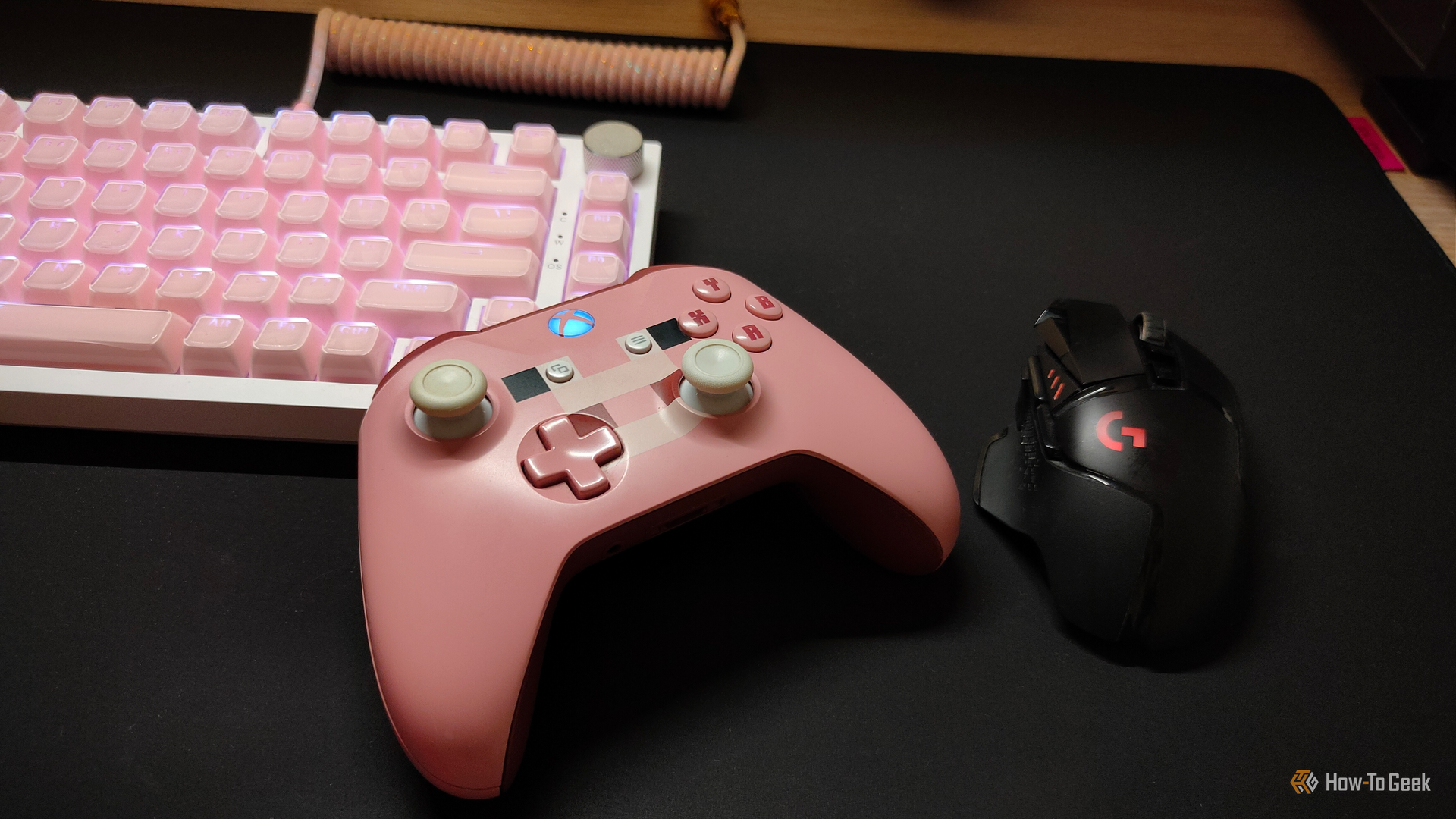
I’ve always wanted a Stream Deck to create custom buttons, speed up my workflow, and make functions more accessible while gaming, but I could never justify the price. That’s when I realized I could just turn my old controller, sitting on my desk gathering dust, into a macro pad instead.
Buying used is a great way to save money, whether it’s a car, a piece of furniture, or electronics. I’m constantly browsing Facebook Marketplace for used deals, but there are a few lines I refuse to cross.
The post 776 Air Traffic controllers and technicians to get $10,000 shutdown bonuses first appeared on Federal News Network.

© Federal News Network
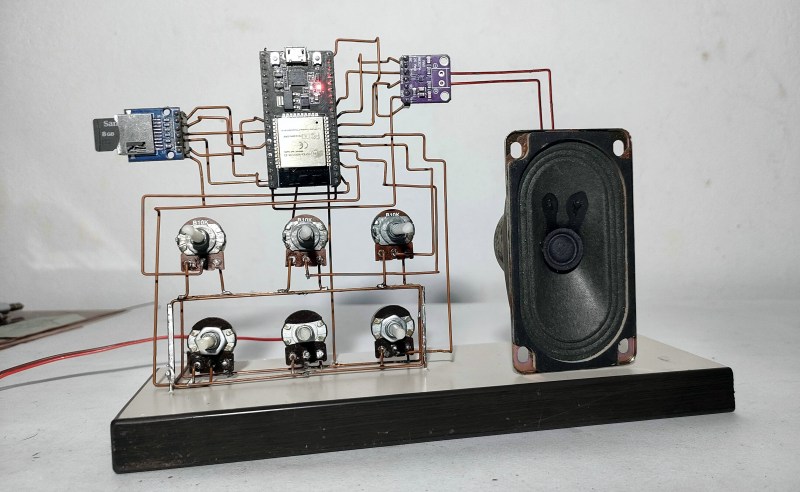
Have trouble sleeping, or getting to sleep in the first place? You’ve no doubt heard of white noise machines, but know it would be much cooler to make your own. Enter Noise Maker, a DIY sound sculpture by [optimus103733], who wanted to learn something in the process of creating.
The best thing about this sound sculpture aside from the looks is that you can not only play five different sounds (e.g. birds, traffic, water, frog, white noise), you can mix them together into a rich but relaxing cacophony.
As you can probably see from the picture, Noise Maker is based on the ESP32 and uses an SD card module, an amplifier, and five six pots. Be sure to check out the pictures, because there are three layers of copper connections and a lot of careful bending to make it all come together. In the video after the break, you can hear it in action.
It seems [optimus103733] isn’t completely satisfied and wants to make a few improvements in the future, such as a voltage regulator, a power switch, and a timer to automatically stop playback once (we assume) sleep has come. Evidently the ESP32 struggles a little with mixing six audio sources, but hey, lesson learned.
Wait, why do we sleep in the first place?
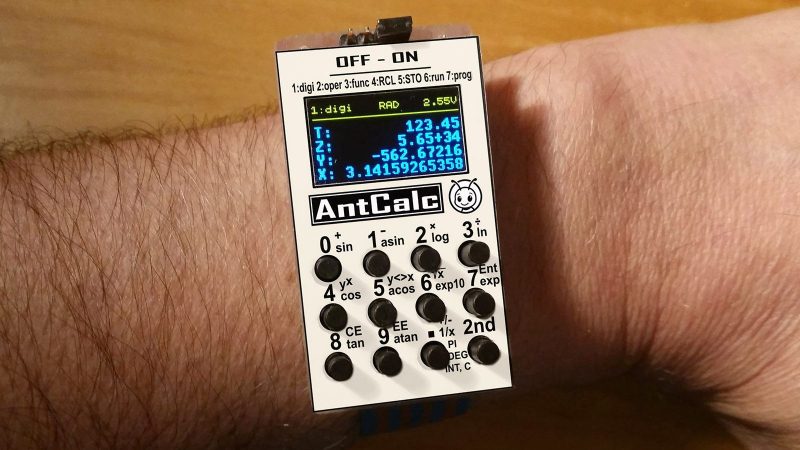
Once upon a time, owning a calculator watch was the epitome of cool. Well, for a very specific subset of the population with our own definition of “cool” anyway. The only thing cooler than wearing a calculator watch? Making a calculator watch, of course! If you do it as part of developing your own SDK for a popular RISC V microcontroller, all the better. That’s what [Miroslav Nemecek] did with his Antcalc watch, which is one of the demo projects for the CH32Lib SDK, which is currently under development at version 0.35 as this is written.
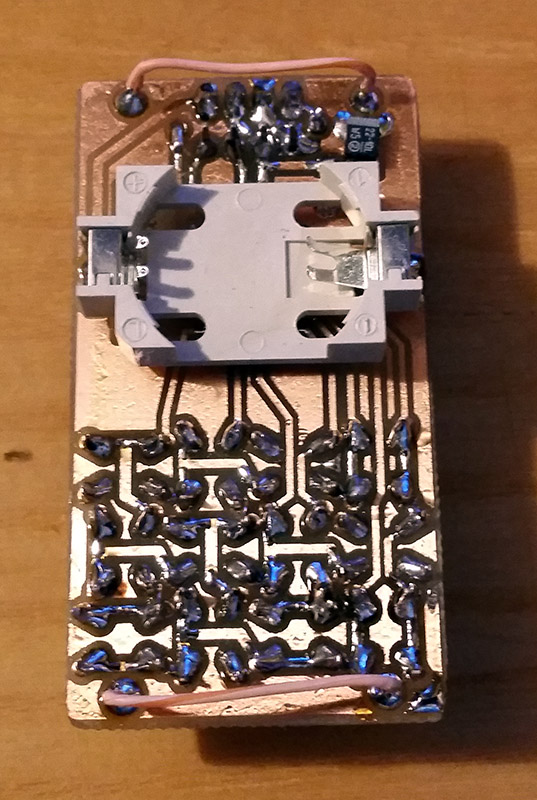
As you might guess, CH32LibSDK is targeting the super-cheap CH32 series of RISC V microcontrollers. Perhaps because the SDK is so early in development, there’s not much documentation outside of the example projects. The examples are all worth looking at, but our tipster wanted us to cover the Antcalc calculator watch specifically.
The Antcalc watch uses the SOP16-packaged CH32V002A4M6 to drive a small OLED display while taking input in Reverse Polish Notation from a dozen small buttons. We’re not sure how the cool kids feel about RPN these days, but that’s got to be worth extra nerd cred. Using a RISC V chip doesn’t hurt in that department, either.
For something so small– 30 mm x 55 mm–it’s looks like a decent little calculator, with 10 registers holding a mantissa of 21 digits and exponents up-to +/-99 in binary coded decimal. Seven layers on the dozen-key input pad mean most of the scientific functions you could ask for are available, along with the ability to record and replay upto 10 macros. There are also ten memory slots, all of which go into the chip’s onboard flash so are non-volatile during a battery swap. (Of which many will be necessary, since this appears to run on a single coin cell.)
If you get bored of wrist-mounted calculating, you could always repurpose this microcontroller to play MOD files on your wrist. Some people couldn’t imagine ever getting bored by a wrist-mounted calculator, and just for them we have this teardown of a beautiful 1975 model and a this article on the history of the calculator watch.
Thanks to [James Bowman] for the tip.
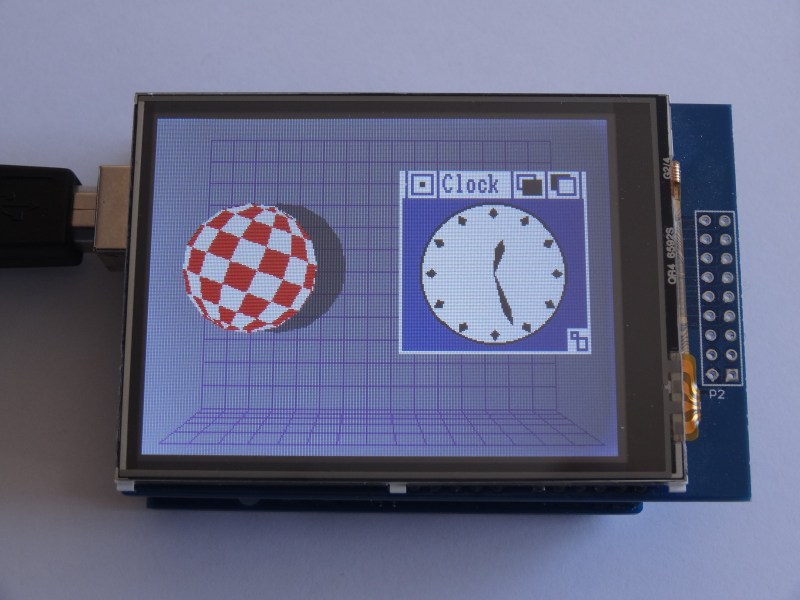
When the iconic “Boing Ball” first debuted 40 years ago, it was a wonder to behold. There was nothing like it in the home compuing world upto that time, and it showed that Commodore’s new “Amiga” was a powerhouse sure to last the test of time. Forty years later, the Amiga as we knew it then might not be with us anymore, but [Mark Wilson] is recreating its iconic demo on a microcontroller– but not just any microcontroller. “AMeagerBall” is an Arduino Uno exclusive, and it even tells the time.
Like the original “Boing Ball”, the demo is running at 320×240, though on a touch LCD shield instead of a CRT. Unlike some microcontrollers, the Uno doesn’t have the horsepower to just brute-force emulate a 1980s home computer, so [Mark] has had to recreate the boing ball from scratch. He’s not doing it with any graphics libraries, either. On the Uno that would be too slow, so [Mark] is driving the LCD directly to its appropriate registers, to stay close enough to the metal to make it work. That means if you’re going to try the code on his GitHub repository, you’ll need to be sure to use matching hardware or be prepared to port it.
One of the things about Amiga’s demo that was so impressive is that it hardly made use of the CPU, allowing the Workbench to be pulled up while the ball bounced. That’s not the case here, as the UNO doesn’t have any extra graphics chips. Still, [Mark] was able to squeeze enough horsepower out of everyone’s favourite ATmega to present us with an Amiga-styled clock– either analog, digital, or in the workbench title bar in that iconic blue-and-white. To keep the clock accurate, he’s squeezed an RTC module in, too. Lovely! The different clocks can be accessed via the touchscreen.
Oh, did we forget to mention that the touchscreen is implemented? This certainly stretches the hardware far enough to be considered a demo. If just a bouncing ball doesn’t work the UNO hard enough for you, try booting Linux.
This isn’t the first bouncing ball demo we’ve seen on a microcontroller: here are four of them bouncing in an ATtiny85.
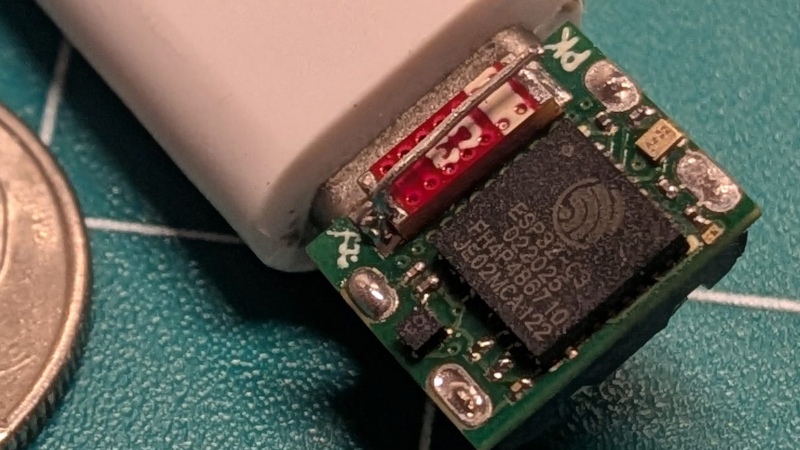
Whenever there’s a superlative involved, you know that degree of optimization has to leave something else on the table. In the case of [PegorK]’s f32, the smallest ESP32 dev board we’ve seen, the cost of miniaturization is GPIO.
There’s only one GPIO pin broken out, and it’s pre-wired to an LED. That’s the bad news, and depending on what you want an ESP32 for, it might not phase you at all. What is impressive here, if not the number of I/O pins, is the size of the board: at 9.85 mm x 8.45 mm barely overhangs the USB-C socket that takes up one side of the board.
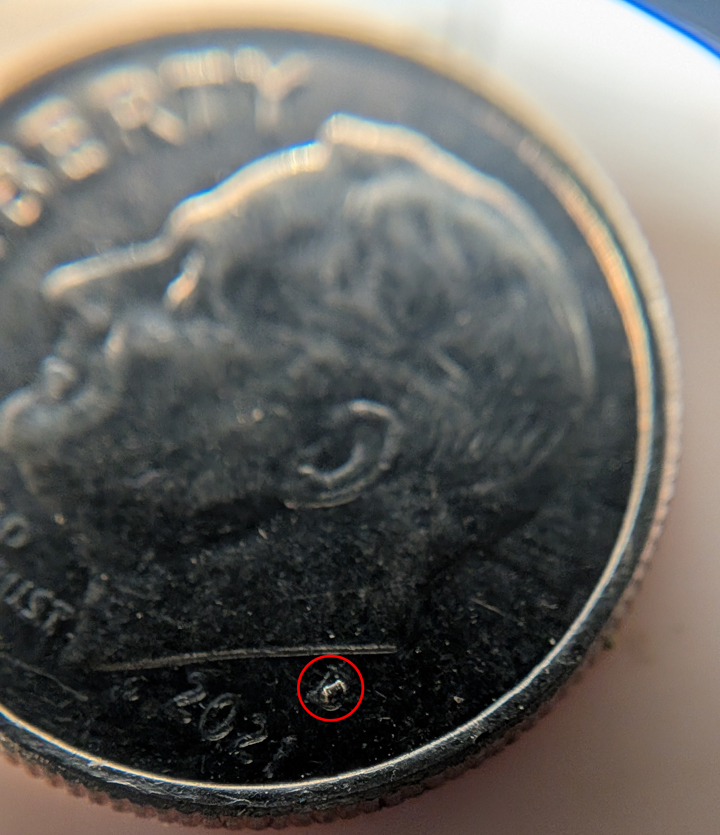
In order to get the ESP32-C3FH4 onto such a tiny board, all of the other support hardware had to be the smallest possible sizes– including resistors in 01005. If you don’t speak SMD, one could read that number code as “oh god too small” — at 0.4 mm x 0.2 mm it’s as minuscule as you’ll find– and [Pegor] hand soldered them.
OK, he did use a hot plate for the final step, but he did tin the pads manually with a soldering iron, which is still impressive. Most of us probably would have taken PCBWay up on their offer of assembly services, but not [Pegor]. Apparently part of the reason for this project was that he was looking for an excuse to use the really small footprint components.
Aside from leaving out GPIO and needing too-small SMD components, [Pegor] admits that pesky little details like antenna matching circuits and decoupling capacitors had to get cut to make the tiny footprint, so this board might be more of a stunt than anything practical. So what can you do with the smallest ESP32 board? Well, [Pegor] put up a basic web interface up to get you started blinking the built-in LED; after that, it’s up to you. Perhaps you might fancy a teeny-tiny minecraft server? If you can stand to increase the volume a little bit, we’ve seen how to hack a C3 for much better wifi performance.
Thanks to [Pegor] for the tip, and remember– submit your projects, big or small, we read ’em all!
Welcome back, aspiring hackers!
Today we’re continuing the survival sequence and taking a closer look at PowerShell as your main tool. The beauty of PowerShell is that you don’t need to memorize a massive list of commands, it’s both a toolbox and a guide. It’s designed to help you figure things out as you go, so instead of wasting time searching online you can experiment and learn directly in the shell. If you let PowerShell handle the heavy lifting, you’ll work faster and stay under the radar. The integrated survival kit that not only has the tools you need, but also shows you how to use them step by step.
We will also cover Active Directory modules and dsquery which are incredibly useful during pentests. You will learn what to run, why it matters, and what to watch for if your goal is to stay quiet and keep access.
Remember, recon comes first, actions later. If you map the terrain carefully, you minimize surprises and reduce the chance of getting kicked out. Let’s dive in!
dsquery is a classic Windows tool, which is simple, fast, and present on domain-managing machines or admin workstations. At a high level, dsquery talks LDAP to AD, applies filters, and returns object lists like users, computers, OUs, groups, and whatever you ask for.
On well-configured domains, dsquery runs quickly and gives structured output that’s easy to parse. It’s also convenient when you don’t want to load or rely on larger modules or tools.
It is a system binary in the sense that it’s part of the Windows AD tooling set so it is legitimate for endpoint monitoring. Defenders may not immediately flag a dsquery invocation, but broad or repetitive queries against AD can still generate logs and attract attention. Large domain enumerations, wildcard queries that return thousands of objects, or repeated use from an unusual host are all detectable. Since stealth is the goal, favor targeted queries and avoid blasting the directory with exhaustive requests. Also note, that not every machine has dsquery installed, but it’s often present on domain controllers and admin workstations. On locked-down hosts it may be absent.
This returns user accounts both active and inactive. Useful to get the initial scope of identities to investigate. Mainly we prioritize service and admin accounts first. Common name patterns like svc, adm, and others may give them away.
PS > dsquery user

Computer objects reveal server names, DEV hosts, backups, SQL, EXCH, etc. This variety gives you potential vectors of compromise. Well-managed environments place servers in OUs, which can tell you where critical infrastructure lives and help you refine your scope quickly.
PS > dsquery computer

Inspect groups like Domain Admins, Enterprise Admins, Backup Operators and other potentially valuable. They point you to high-value targets and to people who matter inside the organization.
PS > dsquery * "CN=Users,DC=DOMAIN,DC=LOCAL"

This searches for users with the PASSWORD_NOT_REQUIRED flag. It’s uncommon on privileged accounts, but every once in a while you’ll find legacy or misconfigured accounts that are worth investigating.
PS > dsquery * -filter "(&(objectCategory=person)(objectClass=user)(userAccountControl:1.2.840.113556.1.4.803:=32))" -attr distinguishedName userAccountControl

An account that looks unprivileged at first can still own or be granted rights that make it a pivot to more interesting objects. Low-profile privilege pathways that are laterally exploitable. Tools like BloodHound help visualize those relationships if you’re collecting data to analyze later.
Knowing DC names and their IPs is important. They’re the gatekeepers. LDAP, Kerberos, and replication insights come from them, and they host the crown jewels of domain authentication.
PS > dsquery * -filter "(userAccountControl:1.2.840.113556.1.4.804:=8192)" -limit 5 -attr sAMAccountName

We won’t rehash registry or user history investigations here, since that has been covered in PowerShell for Hackers: Basics. This chapter is focused on directory and module-based recon. If you need detailed user-artifact techniques, refer back to that article.
There are many ways to execute commands remotely. Some require installing third-party binaries, others use native capabilities. Malicious third-party tools are noisy and signatured, while native execution can be quieter. Here’s the canonical PowerShell remote execution pattern:
PS > Invoke-Command -ComputerName DC -ScriptBlock { hostname }

You can also run several commands at once. Here is how you would import a module and run an AD query:
PS > Invoke-Command -ComputerName DC -ScriptBlock { Import-Module ActiveDirectory; Get-ADUser -Filter * }

Now you can run modules on remote hosts and pull back results without leaving large traces.
Active Directory modules are incredibly convenient for both defenders and pentesters. They expose AD query and management commands in a readable, scriptable way. Importing the module is a legitimate action, which makes it less suspicious. Many teams don’t actively monitor every module load. That said, module use is logged, and the patterns of use matter. If you import ActiveDirectory and immediately run a large enumeration from a workstation that never runs those commands, defenders may notice.
Imagine you’re on a physical pentest and you find a machine with PowerShell but no internet access. Memorizing every command helps, but there are too many across different operating systems to rely on memory alone. In this case, PowerShell’s built-in help and a module’s own documentation have your back. Microsoft provided a solid help system that you can learn from.
List what’s on the system before importing anything:
PS > Get-Module -ListAvailable

Check whether the Active Directory module is present:
PS > Get-Module ActiveDirectory
If it’s available, import it:
PS > Import-Module ActiveDirectory

Once imported, list the commands available in the module. There are a lot. Don’t attempt to memorize them all, but focus on those that return identity, group, and computer information, and the ones that let you scope queries efficiently.
PS > Get-Command -Module ActiveDirectory

Get-Help is one of the useful survival tools you’ll have when offline. It shows command syntax, parameters, examples, and deeper usage notes, right in the session you’re running. Two flags we commonly use are -Examples and -Full:
See examples:
PS > Get-Help Enable-ADAccount -Example

See full documentation:
PS > Get-Help Enable-ADAccount -Full

Help can also be updated, when the computer is connected to the internet:
PS > Update-Help
Take some time to explore the other commands PowerShell has in the Active Directory module. Doing this will prepare you for the variety of environments you’ll encounter during your pentests.
PowerShell is both your tool and your guide. It lets you learn about the environment in the shell, as you can get information without relying on external resources. Tools like dsquery and the Active Directory module help you map users, computers, and groups. These built-in binaries let you work from the host itself, even without internet access, which is good for keeping a lower profile. Careful and targeted recon reduces the risk of detection. Although everything can be detected, it really depends where the defender is looking at. Normally, detecting every possible move a hacker can make is unreal. By using the tools the defenders and system administrators use for legitimate purposes, you blend in with the environment so well.
In the next chapter we’ll cover how defenders spot suspicious activity and offer high-level recommendations for maintaining operational security and minimizing unnecessary noise.
The post PowerShell for Hackers – Survival Edition, Part 2: Advanced Recon first appeared on Hackers Arise.
