 Login
LoginHello world!
Welcome to WordPress. This is your first post. Edit or delete it, then start writing!

Welcome to WordPress. This is your first post. Edit or delete it, then start writing!
Welcome to WordPress. This is your first post. Edit or delete it, then start writing!
Want to know about how big is Windows 11?
If yes then you are in the right place.
It has been almost a month and still, most of the users are thinking about whether to download or update this OS or not.
I don’t know the actual reason for this but I think they are confused about how much amount of space does this new OS would take.
Although, in the previous post I have already shared about How Long Does It Take to Install Windows 11?
But here we will specifically talk about whether there is recommended space on your computer to install and operate this Windows OS.
And I can assure you that after reading this article you will get all your answers like should I upgrade to Windows 11 or not.
So without further ado, let’s get started…
Although, Microsoft has tried very hard to reduce the file size of the Windows ISO image but they were unsuccessful in it. Also, if we look at the minimum system requirements for windows 11 then it shows that it requires 64 GB of free storage space. And that’s why most of the users are searching for how much data will be needed to download it and how much space it would occupy on your hard drive.
And here is a quick table for this:-
| Windows 11 | Space Size |
|---|---|
| Update or Upgrade | 3.5 GB |
| Download File | 5.1 GB |
Moreover, the exact partition size for installation of Windows 11 suggested by Microsoft is 64 GB but I would recommend you that 120 GB will be much better. And let’s see does it really matters and will affect it accordingly.
Is it significant to find out the correct size of the partition?
With the slightly smaller SSD, it is found that the hard disk space is limited. Due to this reason, an individual may ponder whether the space would be sufficient in the future on hard disk C: \ or partition.
If the size of the partition is very small, it might occur that you have to reinstall Windows 11 somewhere in the future.
Now let’s move further…
One feature of Windows 11 which I really like the most is that it will have fewer number of updates and will be lesser in size as compared to Windows 10. But the worst part is that due to new updates the file size of Windows images keeps on increasing.
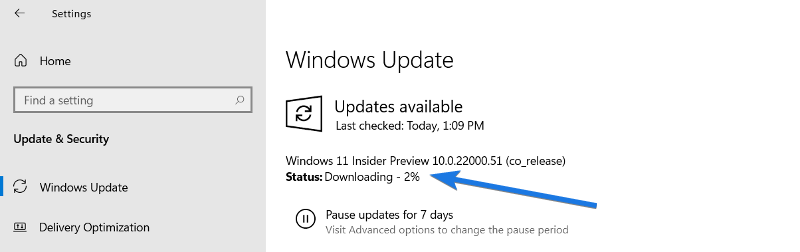
Basically, the actual size of Windows 11 update is 3.5 GB but it may be different for all users because of the different build upgrades and Insider Preview updates. Moreover, you may also find a significant difference between the Windows 11 Home and Pro edition updates because of additional features.
Now let’s move to the next part…
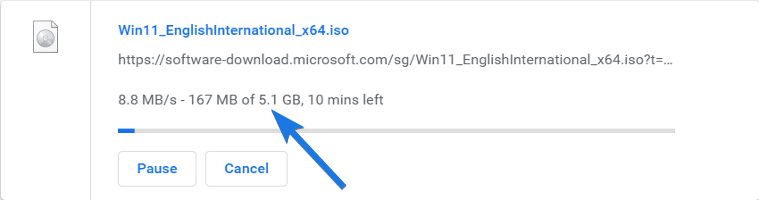
As per the latest information, the download size of Windows 11 64 bit ISO file is 5.1 GB ( for the English language ). If the scenario includes multiple architectures, ISO size can reach up to 6 GB. Keep in mind that if the ISO file size is 6 GB, you need a minimum of 8 GB of storage to correctly set up a bootable USB.
Since many devices will be accessible for Windows 11 ARM, it is highly improbable that somebody would put up a multi-arch ISO even though knowing that the 32-bit version is unsupported. But, for every edition, it is found that the ISO size increase by roughly 500 MB. However, considering different compression levels, the ISO size may be less for 12-Edition ISO as well.
Note:- All the ESD files are a perfectly packed archive that is transformed into ISO when ISO is being created through the Media Creator Program. Generally, ESD is less in size, and therefore, you could save up to 1.5 GB of download space.
Also Read:- Is Windows 11 Good for Gaming [ Performance ]
Now let’s move to the next part…

The 32-bit version is not available on Windows 11. And the 64-bit version on the DVD, the size of Windows 11 is roughly 4.5 GB. In that case, after installation over the hard drive, the size occupied is roughly 20 GB.
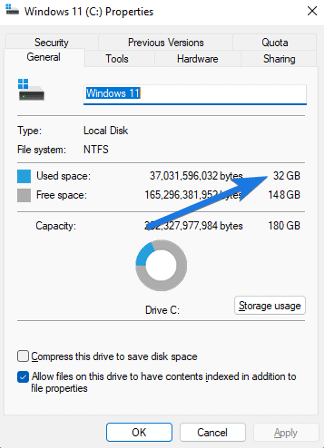
Through a clean offline installation, without pagefile.sys and hiberfil.sys on C:\, the size of Windows 11 is 12 GB. After passing through a few updates, Windows 11’s size may reach 30 GB on your hard drive. Keep in mind that 5 GB space is provided for hybrid standby and 3 GB space is provided for the Windows swap files.
Now let’s move to the next part…

On a laptop or computer with 250 GB Local Disk C, the Windows 11 OS may take around 24 GB of space, after installation. This space entails the primary drivers required to be installed for hardware to properly function. Keep in mind that such primary drivers were already installed when Windows 11 setup was carried out. This is because it needed an Internet connection so no option was available to avoid drivers from being installed. But there is a rare chance of Windows 11 not inquiring for Internet connection and Microsoft Account during setup if it fails to recognize an Ethernet connection.
Based on computer hardware like utilities and Graphics cards, additional storage space of 1-2 GB may be occupied. This additional space is because drivers of AMD and Nvidia are huge in size. Make sure to always keep a margin of 10-20 GB extra space for apps and drivers. Therefore, you can aim for a minimum of 30-40 GB of empty space on the installation partition. When you upgrade to Windows 11, the scenario may be different since Windows stores entire data in Windows.old folder and occasionally trims the folder to adjust consequently.
That’s it for now…
So, that’s all about the Windows 11 upgrade or update size in different scenarios and also when download for PC is required. Moreover, we have tried to cover each and every detail related to all possible sistuations.
Apart from this, I would suggest you to check out our recent post on Windows Subsystem for Android Download.
Stay tuned for the next posts…
Feel free to share your thoughts via comments and also tell us about this post on How Big is Windows 11? [ Update and Download Size ].
If you liked this post, don’t forget to share.
Want to download discord for your PC?
If yes, then this post is definitely going to help you.
Gamers, listen up! Discord is now integrated with PS5s, which is a big deal considering how popular it is with gamers and non-gamers alike.
And if this news has piqued your interest in getting Discord on your Windows 11 system, then you are in luck.
We know that installing new software can be a bit intimidating, so in this article, we have got you covered every step of the way to install discord on a Windows 11 PC to make the process super easy and stress-free.
So, without further delay, let’s get started…

Discord is an incredible platform that connects people and simplifies communication. It is primarily designed for gamers and can work seamlessly on multiple devices, such as Windows PC, macOS, Linux, Android, and iOS.
The core of discord lies in servers, where groups of people can connect, chat, and interact with each other. These servers are like virtual game boards, where gamers can come and share their unique ideas.
While these servers particularly lie in gaming, there are also public servers that focus on various interests, including cryptocurrency, self-improvement, digital marketing, and more. So, it’s a brilliant place to connect with people who have similar interests.
Here, I have shared two different methods for downloading & installing discord on your personal computer. And the best part is that you get it on any 64-bit operating system without any problem, whether it’s Windows 11/10/8 or 7.
While a web version exists, we suggest using the PC or mobile app for the best experience, free of any limitations.
With plenty of software and applications, Microsoft Store also provides a hassle-free way of getting discord on your Windows 11 device.
Follow these necessary steps to perform:-
1. Go to the start menu and click on the “Microsoft Store” icon.
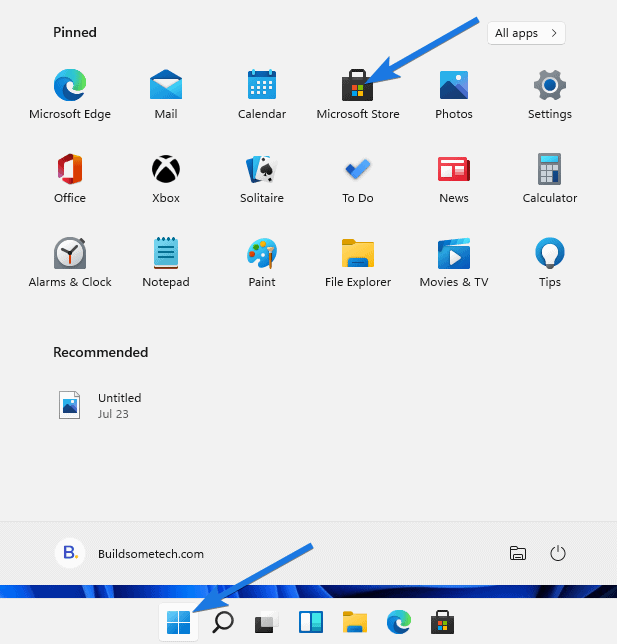
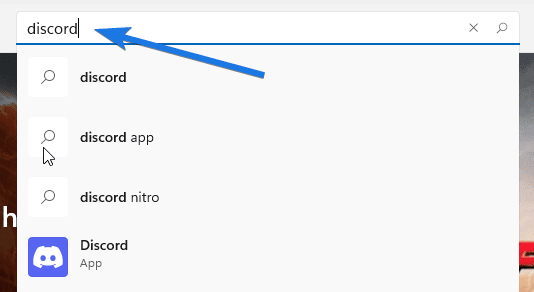
2. Now search for “Discord” in the bar located at the top right corner of the store.
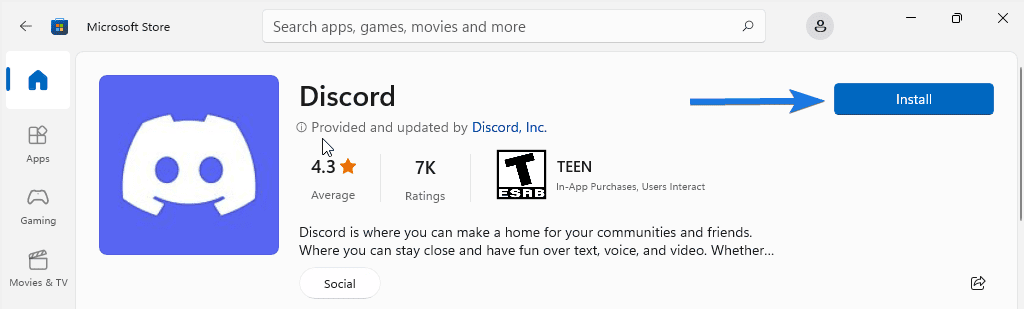
3. Select the discord application and click on the “Install” button.
4. Once the app is downloaded and installed successfully, click on the “Launch” button to open it on your laptop, computer, or PC.
5. Now create a new account or log in to start using it.
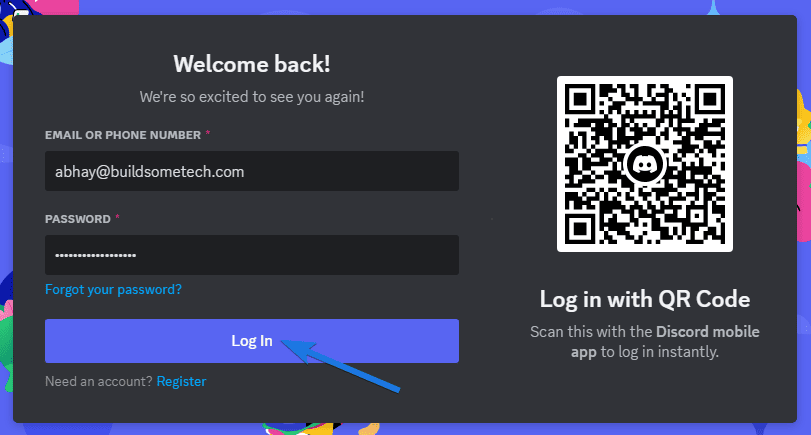
Alternatively, you can also get the discord app on your system running Windows 11 directly from its official website. This method allows you to have more control over the installation process and may be useful when the Microsoft Store is not working or encountering any issues.
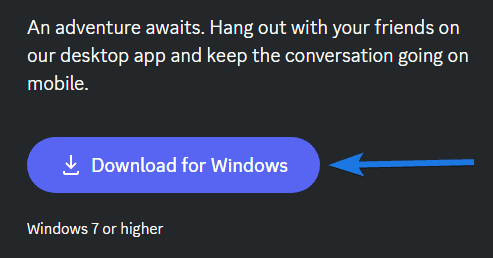
1. Open your preferred web browser and go to the discord website.
2. Now click on the “Download for Windows” button located on the left side of the given page.
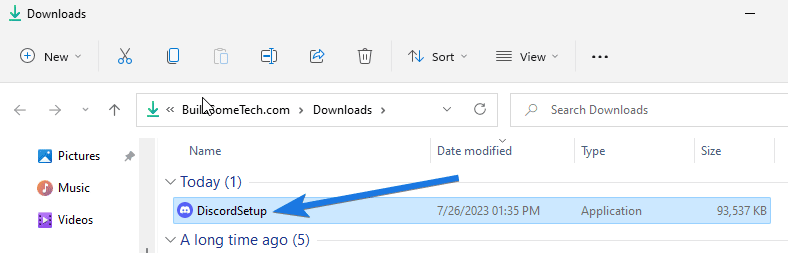
3. Once the file is downloaded, locate it in your saved folders and then double-click on the “DiscordSetup” installer to begin the process.
4. Now complete the installation by following the instructions.
5. Once done, open the “Discord App” and register or sign in using your account.
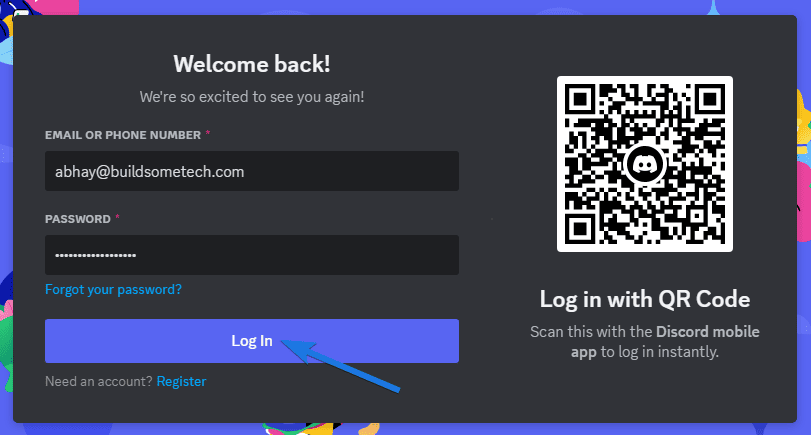
Installing the app is just the beginning. Once it’s installed, signing in or registering is all you need to do to get started.
Note:- When you sign in to Discord for the first time, you should see a guided tutorial through the features. If it still confuses you, here’s a quick guide for all major steps.
Creating a Server
To start a conversation or join a server, click on the large + button on the left-hand side of the screen. From here, you can easily create your server or you can join other servers which are open to all. Basically, they are like groups or chat rooms where you can send private or public messages. You can create new channels within your server and invite people to join by sharing an invite link.
Inviting People to Server
Similar to other online platforms, you can also invite people to connect with you as a friend on discord. Whereas you can also search for public servers to join or contact server members to request an invitation.
Customization and Settings
Customizing your discord account is also easy. You can adjust your microphone and headphone settings, and even choose when your mic is activated. The mobile app has all the core features of the platform, while the web app and desktop app have nearly identical layouts and features.
Here are we have listed some of the useful features:-
To use it on a computer, it is recommended to have the following system requirements:
Note that these are just the minimum requirements, and Discord may work better on more powerful systems, Additionally, if you plan to use this platform for voice or video calls, it is recommended to have a good mic and webcam.
That’s it for now…
That’s all. Whether you choose to download it directly from the official website or use the Microsoft Store, both methods work efficiently. So, if you haven’t tried Discord yet, consider giving it a go and experiencing its benefits for yourself.
Furthermore, it is a widely used and highly-effective communication platform that provides an array of services to its users. Doesn’t matter if you are using it on a PC, Computer, or Laptop.
Stay tuned for the latest posts…
Feel free to share your thoughts via comments and also tell us about this article on How to Download and Install Discord on Windows 11 PC?
If you liked this article, don’t forget to share it.
Want to Create a bootable USB from an ISO File. Here, I have listed 8 Best Free Bootable USB Software Tools For Windows 7/10, Linux & macOS.
A few years back, Whenever any user wants to install an operating system on their PC, what they do?
They usually did it with the help of bootable CD/Dvd drives.
But now things have changed everyone wants faster results & thus they have started using USB drives for installing OS.
And if you also want to install a new Operating System you need a bootable USB drive & to create that drive you need a bootable USB software.
In this case, simply copying/pasting the windows installation files from windows Dvd or ISO to USB won’t help you.
So to solve this problem we have listed the best free USB software for you.
Let’s see the list of the software.
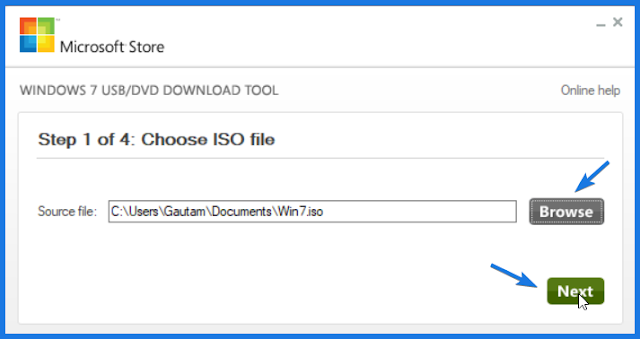
Windows USB/DVD Download Tool is one of my favorite tool which I personally use. This is the only tool that Microsoft has provided to convert ISO to USB/DVD easily. Whenever I want to create a bootable USB drive for Windows 7 or Windows 10 I always use this tool.
What I Like:
What I Don’t Like:
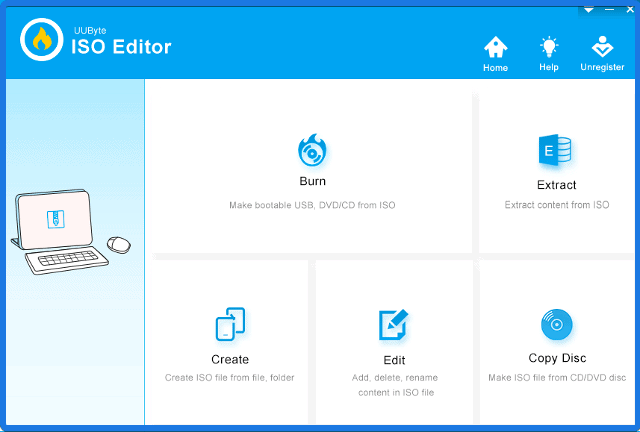
UUByte ISO Editor is another great tool packed with lots of advanced features. One thing which I really like about this tool is its simplicity with good loading speed. Just you have to install the program, load the ISO file, and burn it. Using this tool you can easily edit your ISO file and can also make a bootable iso from files safely.
What I Like:
What I Don’t Like:
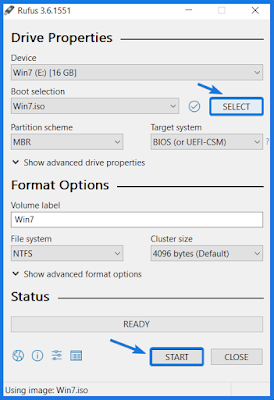
Rufus is one of the best bootable USB software with a tagline “Rufus – create bootable USB drives the easy way“. This tool comes with a clean user interface & lots of advanced features. And the best part of this tool is that automatically detects the feasible settings according to ISO file. This is the tool that everyone recommends & I also do.
What I Like:
What I Don’t Like:
Alternative Download Link.
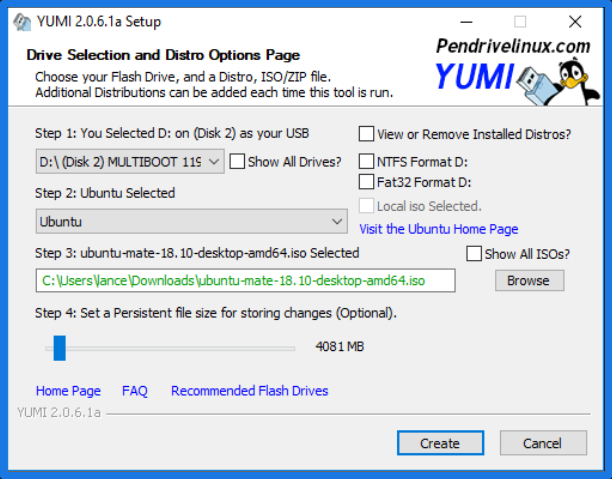
YUMI – Multiboot USB Creator is one of the best multiple OS tool among all these tools. YUMI is also known as “Your Universal Multiboot Installer” and is designed by the same creator of Universal USB Installer.
As the name suggests Multiboot it basically means that this tool has the ability to install multiple OS on a single USB drive. Basically, this is one of the best bootable USB software designed to create multiboot USB drives without formatting.
What I Like:
What I Don’t Like:
And if you are having multiple USB drives with multiple OS and want to install multiple bootable Operating systems on a single USB, then YUMI software utility can help you easily.
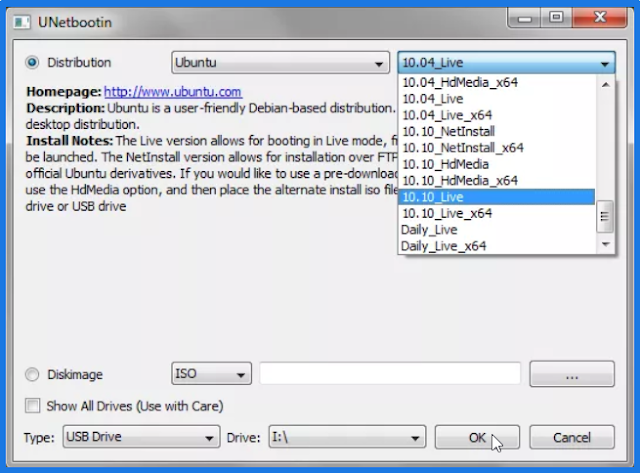
UNetBootin is another wonderful easy to use tool like Windows USB/DVD Download Tool. This tool is specially designed for Linux Users to create bootable Linux USB drives. In a nutshell, this is the only tool available here for Linux Ubuntu users.
What I Like:
What I Don’t Like:
Also Read: How to Convert A Bootable USB to an ISO Image File.
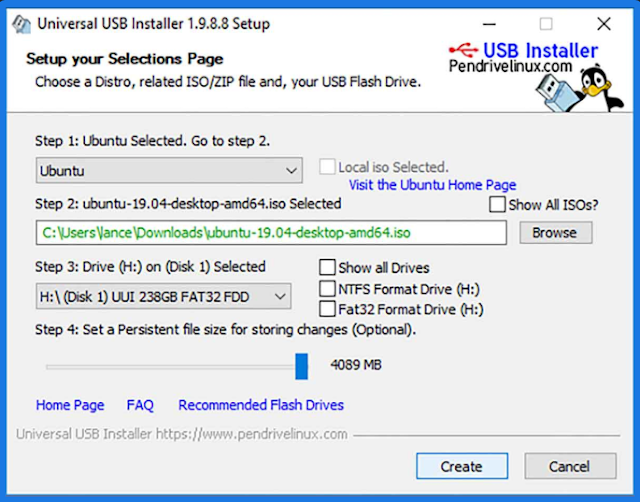
Universal USB Installer is another useful tool packed with all the essential features. As the name suggests “Universal” it means that using this tool you can create any type of bootable USB device. And the best part of this bootable USB software is that it has a dropdown menu with all the OS & selecting that it automatically detects the appropriate settings.
What I Like:
What I Don’t Like:
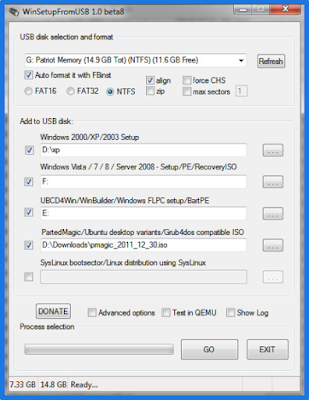
WinSetUpFromUSB is another popular bootable USB creator especially designed for Windows users. Using this tool you can easily create windows bootable flash drives and Linux USB drives (SysLinux or IsoLinux). You just have to select the advanced checkboxes as per your preference and OS.
What I Like:
What I Don’t Like:
Also Read: How to Create A Bootable ISO From Folder or Files.

DiskMaker X is one of the best bootable USB creation tools for macOS users. Using this software utility a user can easily make bootable media devices within a few clicks. This is an easy to use tool with a good user interface and can help you in creating a bootable USB drive from ISO file or Dvd easily.
What I Like:
What I Don’t Like:
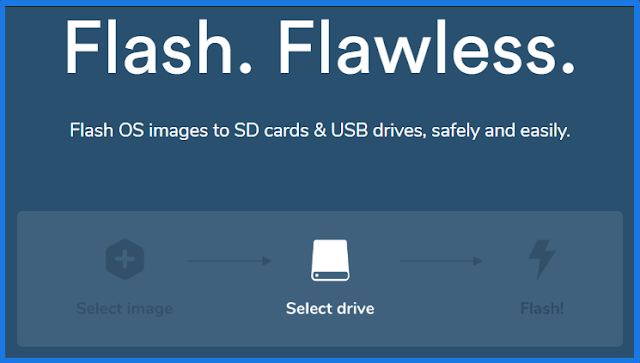
balenaEtcher is one of the best USB bootable software utility specially designed for macOS users. Using this flawless tool you can easily flash OS images to USB drives & SD cards easily. This tool allows you to create a bootable USB drive using a few clicks, just select image then select drive and flash!
What I Like:
What I Don’t Like:
According to me, Windows USB/DVD Download Tool is the best bootable USB tool that is developed by Microsoft.
Rufus is one of the best booting software that you can use for Windows or Linux USB flash drives.
Yes, Rufus is a good software that you can use to make free bootable USBs of any operating system.
It’s pretty easy to create a Windows 10 boot USB and if you don’t know how to do it, then follow the steps given in this guide.
That’s it for now…
All the above-listed USB software are best on their own terms and have their own pros and cons. But I also have one more bootable USB creator for you called RMPrepUSB. This is all in one tool with all advanced features but the only downside is that it is very complex and for expert users only.
Feel free to comment below and also tell us if you know any other best bootable USB Software and which software program is the best for bootable USB.
If you liked this post, Don’t forget to share this with your friends.
Because Sharing is Caring!
Want to get GT Auto Clicker on your PC?
If yes, then you are in the right place.
With over 5,000 downloads and a growing user base, this has become a popular choice in the world of auto-clicking tools.
Now it’s also important to admit that some people find the installation process easy, while others may face some challenges along the way.
However, the usage of GT Auto Clicker is pretty for any experienced gamer but we will still guide you in that specific part.
And the best part is that it’s absolutely free to download.
Furthermore, we have thoroughly tested this software and have put together this blog to guide you through the entire process, so that any PC user can install it easily.
So, buckle up and let’s begin.

GT Auto Clicker is an automation software that simulates human mouse clicks and using this app you can easily level up your gaming experience. With a wide range of features, it also offers users the ability to ease repetitive clicking actions and achieve higher click rates in games like Minecraft, Clicker Heroes, Runescape, and Roblox.
Apart from that, the tool has plenty of settings such as adjusting clicks at specific time intervals, allowing users to get rid of monotonous tasks. Not only this but you can also generate a sequence of clicks at a faster rate, which is generally required in data entry tasks and online games. Moreover, this software program available is for PC and Android but the Mac app is still in the development phase.
Although, we have already talked about how auto clickers can make your boring tasks efficient and easy to do. But in this section, we will specifically focus on the installation process of the PC version, which will work on all popular operating systems like Windows 10, 11, etc.
Note:- All the steps are easy to follow and will work on Roblox, Minecraft, and other desired games if your system meets the minimum criteria.
Now let’s get started:-
Tip:- If anytime you want automatic taps on your Android phone then you can easily get the APK file online from the Google Play Store.
However, this tool is pretty straightforward for using and playing any Roblox games but to use it effectively we need to set up it correctly. Because doing so, will not only save your efforts but will also allow you to get more out of it. Adding to it, plenty of gamers call it a hack but for us, these are simple tricks to play easily.
Being an open-source and malware-free app, there are 7 different features that make this software one of the best automation utilities as an overall package. Let’s break down each of them individually:-
Clean use interface: Having an intuitive layout and organized design, this app makes it easy to find any settings and configure clicks. And the best part, it’s completely free from advertisements which helps beginner users to navigate through various options easily.
Configurable click interval: Using this function, you can effortlessly adjust the timing of each click. Whether you need faster, slower, or more controlled clicks, this tool gives you all the necessary options ranging from hours, minutes to milliseconds.
Mouse button support: Most importantly, the GT auto clicker supports all mouse buttons – left, middle, and right to accurately mimic click actions. With this feature, you can easily configure your buttons to trigger the mouse-clicking actions.
Dynamic cursor or preset location: It gives you two different options for specifying the click location. You can either get a click at the current position of your cursor or you can select a preset location where the click action will always occur, regardless of the cursor’s position.
Click count control: With this option, you can set the exact number of clicks you want at any point. But the infinite clicks work better for click-based games like Cookie Clicker, Myst, and Day of the Tentacle.
Hotkey support: With them, you can easily access the quick setting menu of this app, and gives you full control over the functions like On/Off or pause button. You can trigger hotkeys by pressing F6 which is identified by a toggle icon that hovers on the screen.
Saved settings: Generally portable software doesn’t have many advanced options but here you can save all your settings like click intervals, button preferences, click locations, and other configurations. This way, you can quickly load your saved settings whenever you need them, without the need to reconfigure everything each time you use it.
Even after all these features, if feel that you need some alternatives then you can go for GS Auto Clicker and OP Auto Clicker.
However, it’s not a very big deal to fulfill these minimum system requirements but you must be aware of them so that it can run smoothly. As compared to other clickers this is a very low CPU usage application.
| Processor | 1GHz with 2 cores is enough |
| RAM | 1 gigabyte |
| OS | Windows 10 version 14393.0 or higher |
| Storage | 100MB |
| Available on | PC, Mobile, Surface Hub, HoloLens |
| Architecture | x86, x64, Arm, Arm64 |
That’s it for now…
So, that’s all about this free auto clicker which can be used on any Windows PC. We have covered all the important aspects, including the installation process, key features, and system requirements.
And that sums up everything you need to know about this app. Adding to it, you can also automate your daily repetitive tasks using the Android version on your mobile phone.
Stay tuned for the latest posts.
Feel free to share your thoughts via comments and also tell us about this post on How to Download and Install GT Auto Clicker on PC?
If you liked this post, don’t forget to share it.
Want to Download Snipping Tool for Windows 11?
If yes then you are in the right place.
Everyone knows that Microsoft released its latest Windows OS with lots of new features and upgrades.
One major upgrade that I really liked is changing the Classic Snipping Tool with the new updated Snip & Sketch app.
New updated interface with lots of new features like a ruler, annotate, protractor, crop, and screenshot to share are great.
But I have seen many users, reported that the new Snip and Sketch application is not working and also the shortcut is missing.
In that case, the easiest way to fix this issue is to manually reinstall the snipping tool on your Windows 11 PC.
In this article, I will provide you with free Snipping Tool download links from Microsoft Store and also tell you how to install it.
So without further ado, let’s get started…

Snipping Tool is a screenshot utility tool officially developed by Microsoft. It can take screenshots of any window of any shape, you can also take a screenshot of any particular area of a window. The screenshot is then saved as an image file and it also provides some basic editing tools for editing the shot. Microsoft introduced this tool in 2002 and after that, it has been getting regular updates with some new features. This year with the Windows 11 update, a new snipping tool is launched with amazing features known as Snip and Sketch.
Now let’s move to the next part…
If you haven’t got the update or want to use the snipping tool right now, then don’t worry we are here for you. You can easily download this tool for Windows 11 from the official Microsoft website. Moreover, we have also provided the external link of the Msixbundle file.
So here are the download links:-
Now when you open the above link, click on the Get button and after logging in, you will be able to download it. The above link is completely authentic and it’s available on the official website of Microsoft. This new screenshot tool is listed with the new name Snip & Sketch which is free to download.
Now let’s move to the next part…
However, there are some very easy steps for downloading and installing this new snipping tool on Windows 11. It comes pre-installed with the new update but I have also provided you the link for downloading this new tool, just open that link on your browser. Click on the Get button and once the download is finished, it will automatically get installed on your PC.
But if you have downloaded Microsoft.ScreenSketch_2021.2108.0.0_neutral___8wekyb3d8bbwe.Msixbundle file then you have to follow the given below steps:-
1. First, download the Snip & Sketch from the given link.
2. Once the file is downloaded, double-click on it.
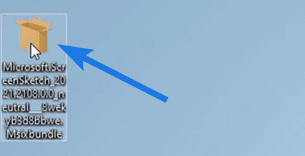
3. At last, follow the on-screen instruction to install.
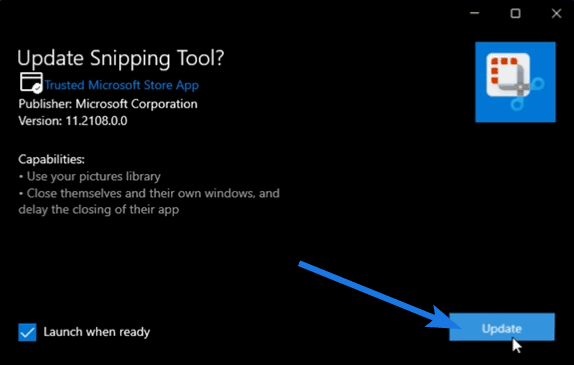
If the Snip and Sketch application is already installed on your Windows 11 then you will get an option to update it instead of installing it.
Note:- After installation if still Snipping tool is not working then I would suggest you to check our detailed guide on how to fix it.
Now let’s move to the next part…
This new updated Snipping Tool or Snip & Sketch is not at all hard to use. You can take rectangular snips by dragging the cursor around any rectangular object, window snips, and free-form snips (any shape). Once you have taken the snip, you will see the snipping tool window, and then you can make your changes accordingly.
Although, we have already published a detailed guide on how to use windows 11 snipping tool but here is a quick guide for you…
So, let’s get started with the steps:-
1. First, open the Snipping Tool by pressing the ‘Windows+Shift+S‘ shortcut keys or you can also open it from the Start Menu.
2. Now, you will see 4 options on your screen, Free form Snip, Windows Snip, Rectangular Snip, and Fullscreen Snip.
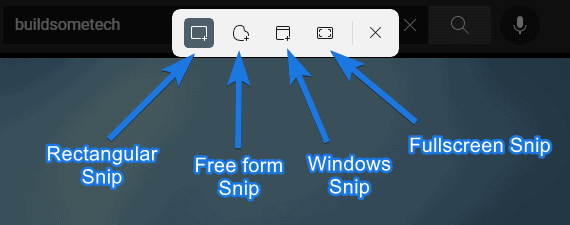
3. If you have opened it from Start Menu or Search then a window will open and you can choose the snip mode from the top left corner. Once you have selected the mode then click on the New button to click a new snip.
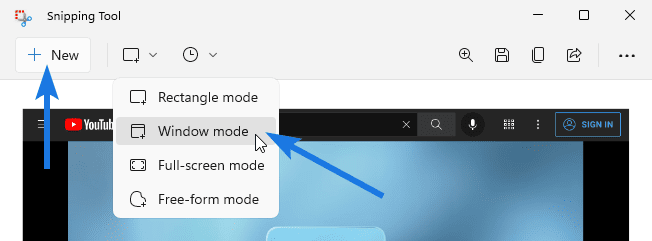
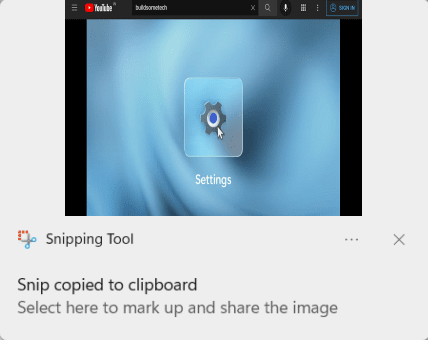
4. Once you have taken a screenshot, you will see a notification at the bottom-right of your screen. Now click on it and it will open the snipping editing tools, you can crop the image, highlight it or make some minor changes.
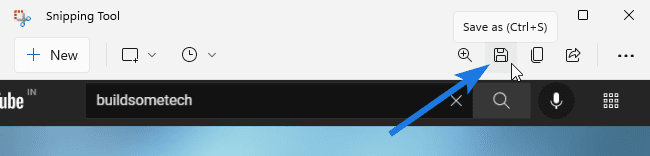
5. Now, click on the Save button for saving the snip or you can also directly press the Ctrl+S button. And you can also change file type while saving it.
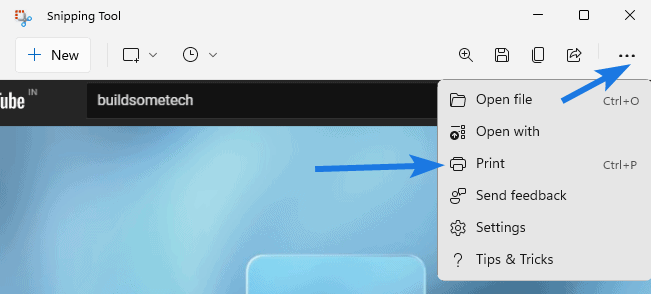
6. You also have a Print and Share option on this tool. You can also set the timer for taking a screenshot. Go to the Timer option and set it accordingly, the maximum delay is for 10 secs only.
Now you are good to go with this tool. There are some minimum system requirements that your system should fulfill if you want to use this tool on your computer.
Now let’s move to the last part…
Installing and using this updated snipping tool is very easy but there are some minimum system requirements your PC should fulfill. If you think that you have nice specs and are still unable to use this tool, I would suggest you check the requirements again given below.
If you think your system has all of the above requirements and you are still facing issues, then suggest you to check for updates.
That’s it for now…
So, that’s all about the Snipping Tool and how to download it and use it on your PC running on Windows 11. Moreover, you can this tool can also be downloaded and used on Windows 10 OS which is the older version.
Apart from that, if you are getting confused between these two tools then Snip & Sketch is the updated version with a new name.
Stay tuned for the next post…
Feel free to share your thoughts via comments and also tell us about this post on Snipping Tool Windows 11 Download [ Official Microsoft ].
If you liked this post, don’t forget to share it.
Searching for free Roblox accounts?
If yes, then you are definitely gonna love this post.
Do you know that Roblox corporation has over 52.2 million daily active users all over the world?
And if you consider yourself a die-hard fan of this game, then you will be shocked after knowing that from here you can easily get free accounts.
Yes, you heard it right! Here we will be sharing a list of premium accounts with Robux that are actually 100% working.
Apart from that, you can also use these accounts if you are facing any kind of issues and problems while logging into Roblox. In that case, you don’t need to create a secondary account and you can use them easily.
And the best part is that in some accounts, you also get 1000 Robux or maybe 10,000 which are not used by anyone.
So, without further delay, let’s get started…

Roblox platform is an online tool for playing and developing games. On this platform, players have the option of creating their own games or playing those that have been created by others. Roblox has a variety of games geared towards children ages 8-18, but anyone can join the site and play games. It is currently available for PCs, phones, tablets, and Xbox One S, which means that the app can be used anywhere.
Roblox is a free game to play and download. Additionally, there is the option for users to purchase Robux ( virtual currency ) if they wish to gain access to in-game upgrades and accessories for their avatars in order to enhance the experience in this game.

Basically, it refers to the free accounts of Roblox that are available to use by anybody without any restrictions. Those of you who have ever played this game before know quite well the benefits that come with its premium account. Moreover, all these are rich in features like Robux, which is a currency in this game that can be used to purchase lots of items.
And that’s why a large fraction of fans are always looking for some free roblox accounts on daily basis. Apart from that, there are multiple reasons to have these login IDs and passwords which we have mentioned here:-
Now, as you already know that there are multiple benefits of these premium accounts that you can get easily. Moreover, they are totally legal to use and there is no such restrictions on the usage of these logins. Here we have shared the new Roblox accounts for free which are regularly updated for the 2022 year.
| Roblox Account | Password |
|---|---|
| dessy9@hotmail.com | dessy@092 |
| Floswert254@hotmail.com | byppowerss@3 |
| Garizaf_bonves@gmail.com | lolifanbrefse@29 |
| veboha4341@yahoo.com | 4323@veboha |
| Mickey4478@hotmail.com | 112123@kris |
| michael2021@gmail.com | 023587@202 |
| mrchallenger9@yahoo.com | jackjones@933 |
| johnson@hotmail.com | johnson@92 |
| bananas54@yahoo.com | Georgekhan@05 |
| Profidragga@yahoo.com | Overclokcar@1 |
Although, there are notable features of this game but one thing which stands out from other games is the customization part and the creation of characters on their own. And to do all this, every user needs some virtual game currency and this is why a lot of people are searching for free Roblox accounts with robux that work for the current 2022 year.
Apart from that, most of the accounts also have the possibility to upgrade to a premium account which comes with a number of additional rewards like 10000 free Robux and skin without costing you anything. And you can right away use these accounts and enjoy their benefits:-
| Username | Password |
|---|---|
| cosanaj309 | 309@cosanaj |
| Noelmonn | Noelmontiel@132 |
| authene | vipcocacc@18 |
| venny144 | venny@1441 |
| rankpaul695 | paullov@E1 |
| freemailadress96 | 0965@smcık |
| yoboro5196 | 5196@yoboro |
| TThomasxD | dianna@123xd |
| privatehuman68 | iam@human8 |
| badbunny911 | 6843546@bad |
| commando219 | command@219 |
In order to secure your saved data from loss or theft, all these accounts are created using verified Gmail addresses, instead of using some other types so that creating your own gaming community is straightforward. And below you can find a list of all new Roblox free accounts with username and password that also has some pretty Robux available.
| Account Login | Password |
|---|---|
| fullbilgi67@gmail.com | full@67123 |
| tiger97@gmail.com | tiger@987 |
| mavimih74@gmail.com | mavimih@74 |
| bigganny07@gmail.com | fling@1230 |
| majorking55@gmail.com | major@5655 |
| gamerst86@gmail.com | gamerz@86 |
| ahlvaro34@gmail.com | ahlvar@4534 |
| bobbycharles@gmail.com | bobbyc@451 |
| liomly98@gmail.com | liomly@1998 |
| michael2019@gmail.com | michael@2019 |

Another highly effective method to access free accounts is using the generator. There are a huge number of tools available through which you can manage to login into the platforms. Basically, all these Roblox generator helps you to randomly generate accounts so that you can play the game. And the best part of these tools is that they also provide plenty of password free accounts that are not taken by anyone.
If by any chance the above-mentioned accounts don’t work for you, then you can use this as an alternative method. Furthermore, using this generator you can also get access to some free old roblox accounts that were not banned for a very long time.
If you are looking for some free games then check here.

However, all the above-listed accounts work perfectly fine but if you are facing any problems then I would suggest you to follow the given steps. So, let’s not waste any time and move further in this discussion.
As a user, you have to use the free username and password of the Roblox account in order to log in to the platform and make the most out of it. It is worth mentioning that each one of these accounts is new and fully functional so you can use them with no trouble. Additionally, some of them also include free membership which means that you will not have to pay a penny to take advantage of these accounts with all premium features.
Note:- If they are still not working, then as an alternative, you can choose to upgrade to the paid membership, which includes Robux stipends and trading options too.
That’s it for now…
So, that’s all about the list of Roblox free accounts with Robux and what are the different ways to obtain them easily. Some other benefits which we haven’t talked about yet are that it conceals your true identity by displaying a different username from your real one.
As well, you are not at risk of being banned from the site and now you can play this game without any limits since you don’t have much to lose.
Also if you want more accounts, then you can also opt for the generator and use it for getting more accounts.
Stay tuned for the latest posts…
Feel free to share your thoughts via comments and also tell us about this post on Free Roblox Accounts with 1000 Robux 2022 [ 100% Working ].
If you liked this post, don’t forget to share it.
Want to download Windows 11 Ghost Spectre ISO?
If yes, then you are definitely gonna love this post.
Microsoft has been popular for years and since its inception, it has garnered a lot of praise from buyers around the world.
However, Windows 11 has been a hit among the masses but due to new hardware requirements like TPM 2.0 and Secure Boot, it wasn’t liked by many old users.
And for those users, many developers are releasing the lite versions like Ghost Spectre, which don’t need any such requirements to be fulfilled.
And the best part is that plenty of users loved this version because now they can easily experience Win 11 without having a high-end PC.
If you are one of them, download the latest version 2H22 now.
So, without further delay, let’s get started…
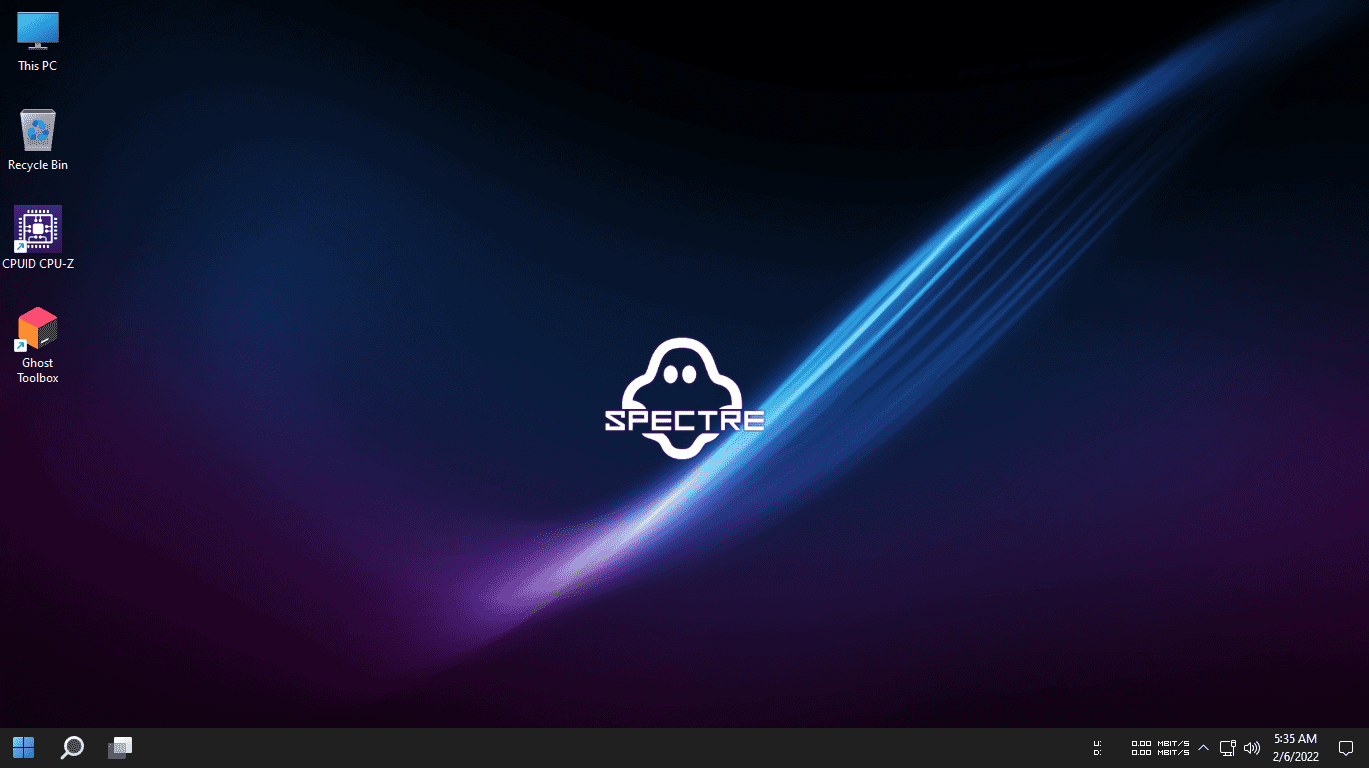
Ghost Spectre is another great modded version of the 2H22, which is also known as the Lite version. The developers of this build have removed so many features to make this operating system superlite and faster to use on low-end devices. And also from now onwards, users will not need to fulfill the mandatory system requirements for using Windows 11 and enjoy its features on any PC.
Furthermore, a lot of changes were made in this latest release of the “GhostSpectre” version, so that it can give the user the freedom to run this Windows OS without worrying about the RAM, Hard Disk, and also about the old generation of processors. Apart from that, you get a much smoother experience with the same user interface and it also gives you lots of options to customize it accordingly.
However, the officially released version of the Windows 11 is 22H2 SV2, which is useful for all computers having 64-bit configurations. But it’s neither less as compared to the official version which was released by Microsoft. Apart from that, the latest version is lite in size, compact, and can be bought in with defender and without defender options.
Moreover, its build version is 22621.819 with an architecture of x64 and the size of the en-US is about 3.1 GB, which was last updated in November month of 2022.
Note:- Although, all the editions like Compact and Superlite are perfectly safe but we don’t own any of them, we are just providing the links from the internet. Also, this post is just for educational purposes and BuildSomeTech should not be held responsible for any loss.
| Edition | Superlite, Compact, Without Defender, With Defender |
| Build | 22621.1265 |
| Language | en-US |
| Architecture | x64 |
| Size | 3.56 GB |
| ISO Link | Download |
| Password | 22h2u8 |
| Edition | Superlite, Compact, Without Defender, With Defender |
| Build | 22621.963 |
| Language | en-US |
| Architecture | x64 |
| Size | 3.46 GB |
| ISO Link | Download |
| Password | SV2GHOST1234U7 |
| Edition | Superlite, Compact, Without Defender, With Defender |
| Build | 22000.194 |
| Language | en-US |
| Architecture | x64 |
| Size | 3.00 GB |
| ISO Link | Download |
Now let’s see the installation process of this version.
Installing this Ghost Spectre edition is super easy because it also requires the similar steps that you take to install your regular windows, but with few changes. What are they?
Let’s find them out in these steps.
Note:- For the full installation process, you can also check here.
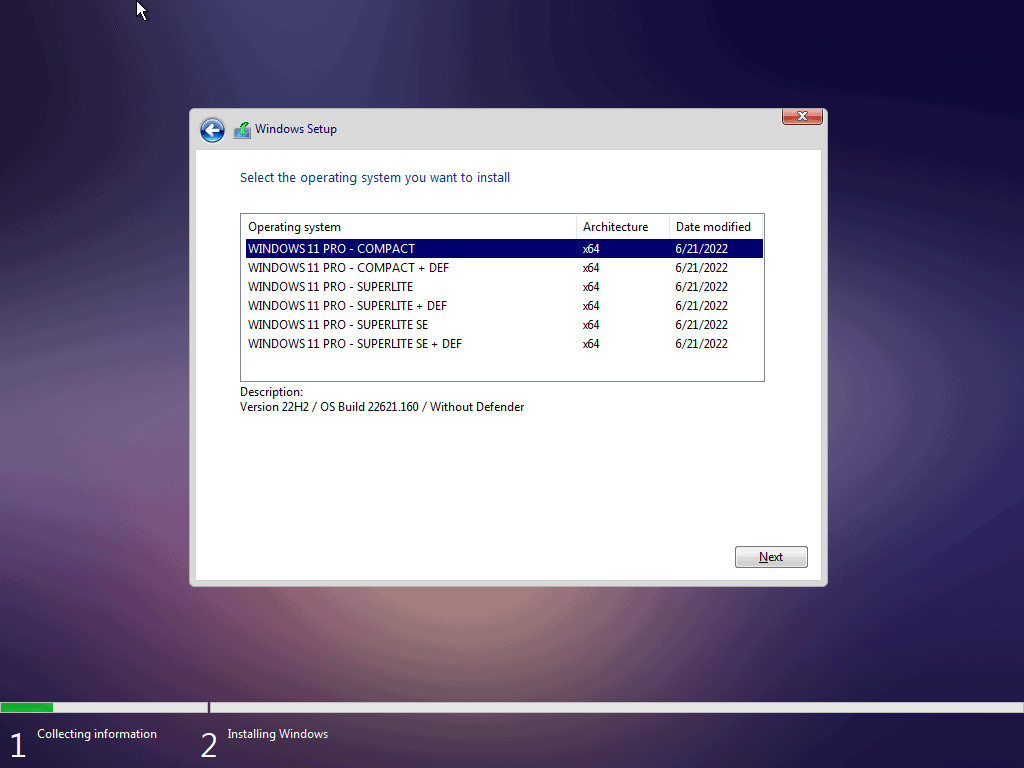
The super lite version of Ghost Spectre comes with some exciting features that are explained here. Let’s see what they are:-
Certain features were feasible in the Windows 11 version but they were not used by the consumers and that is why the developer of this Ghost Spectre OS has removed them and made a lite weight operating system.
Yes, you can easily update the Ghost Spectre version of Windows 1. You just have to go to Ghost Toolbox and then check for updates, if there are any updates available then it will start downloading them.
Yes, the Ghost Spectre is specially made for low-end PCs so that any user with fewer system requirements can smoothly run Windows 11 like the Tiny11 edition. You can easily bypass low RAM, storage, TPM 2.0, unsupported processors, and secure boot with this operating system.
Yes, Windows 11 is definitely better for gaming because it has dedicated features such as DirectStorage, Xbox support, etc. For more details, you can check here.
According to Microsoft, Windows 11 is slightly faster than Windows 10. However, the company claims that they have done major upgrades to this operating system to make it faster. You can check the full comparison here.
That’s it for now…
So, that’s all about the Win 11 ghost spectre superlite version and how you can download and install it on any PC, Computer, or Laptop. Doesn’t matter if you are having a high-end or low-end system, it works perfectly fine with all different devices without fulfilling the system requirements.
Apart from that, all the versions are custom builds of the Pro version and if you are looking for Home Basic or Premium, then you will not get them.
Stay tuned for the latest posts…
Feel free to share your thoughts via comments and also tell us about this post on Ghost Spectre Windows 11 Superlite ISO Download: 2H22 Build.
If you liked this post, don’t forget to share it.
Want to create a bootable USB from an android device?
If yes, then this post is definitely for you.
Creating a bootable USB flash drive using a PC is easy.
But what if your PC is not working & you don’t have another machine.
Then it sounds a little difficult to create it. But don’t worry I have a solution.
Last week, my windows 10 got crashed/corrupted.
And to do a clean install, I badly need a bootable USB stick.
But for that, I need to create it first without using my PC.
And then I realized that creating a bootable USB drive using an android phone can be a good option.
Let’s see how it works…
But before we begin.
Please make sure that you have all the things mentioned in the given below list.
And to download the Windows 10 ISO file you can click on the given link.
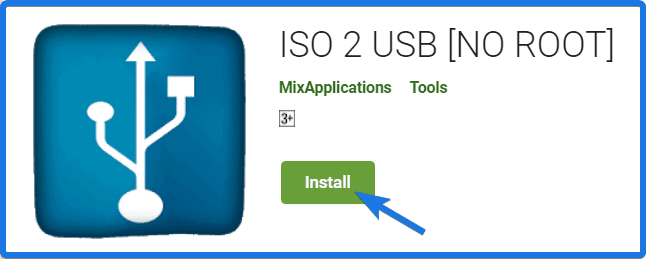
ISO 2 USB is an android app which allows you to convert ISO to USB using your android phone. It can also be called as Rufus for Android, using which you can easily create your bootable USB for Windows & Linux OS without using PC. And the best part of this app is that it also works with the No Root / Non-Rooted Android devices.
Now I hope you have all the above-mentioned things with you.
So, Let’s get started with this step by step guide.
Now open your Android phone, then Go to Play Store and search for ISO 2 USB [No Root]. Otherwise, you can simply click on this link and install it properly.
And after that…
Once the ISO 2 USB app is installed, then connect your USB flash drive to your Android phone using OTG Cable Connector.
Note:- Please make sure that your Android mobile phone or your Android Operating System supports OTG Cable Connection properly.
Now open ISO 2 USB application to make your bootable USB and check the USB is connected properly or not. For that, you can check your File manager where you can see your USB device connected.
Now comes the major part of creating a bootable USB from an android device.
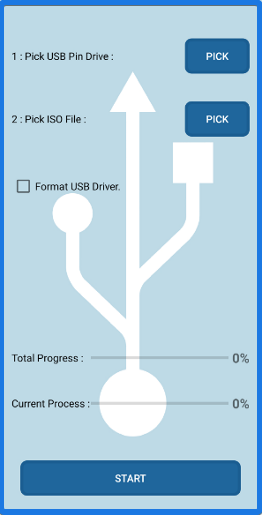
Now you can see that there are two options available there. The first one is “Pick USB Pin Drive” and the other one “Pick ISO File”. So first select the USB drive by clicking on the “Pick” button and then tap on the USB drive which you have connected earlier.
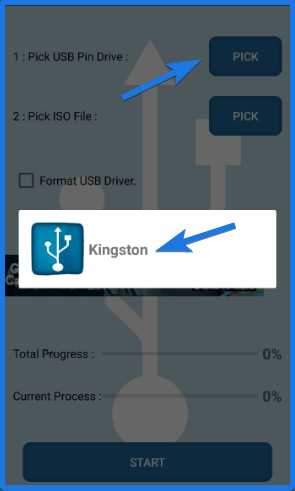
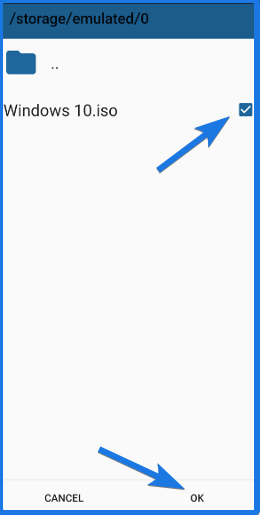
After selecting the USB drive, now select the Windows 10 ISO file by clicking on the “Pick” button in front of the “Pick ISO File” option. Then browse to the mobile storage where you have downloaded the ISO file earlier and then select or enable the checkbox & Click OK.
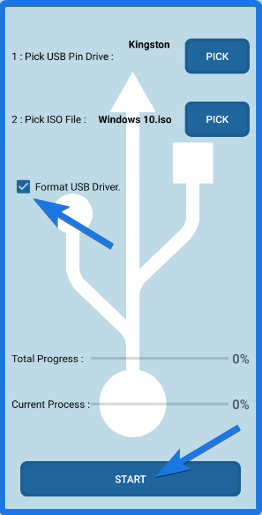
Now the ISO file and USB drive have been selected. But before converting ISO to bootable USB, you first need to create a clean partition and format the USB drive. So, Enable the USB “Format USB Driver” checkbox and then at last Click on the “START” button.
Once the bootable creation has started, now wait for 10-15 minutes and your bootable device will be ready. At this time of the process, you may see multiple ads on the screen which you have to close them and keep continuing the process.
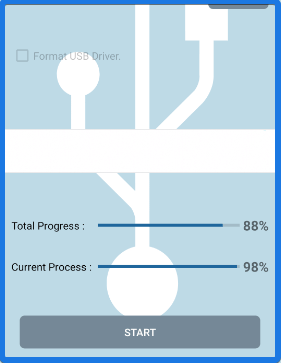
Finally, when the burning ISO file is done successfully, it will show a message 100% Done and the USB Device Removed. Which means you have successfully created a bootable USB drive.
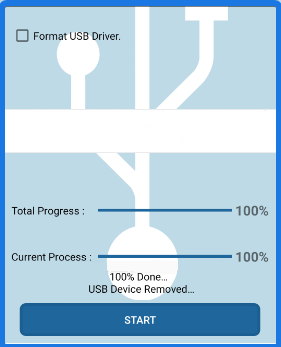
And your windows 10 installer is ready to install on your PC.
Note:- Before starting this process, please make sure your Phone is 70-80% is charged and you are connected to the internet till the end of the process.
And here one question arises “how to boot from this USB-stick?“. So let’s move to the next section of this post.
Booting from bootable USB drives is pretty easy if you know the correct steps to follow. The only thing you have to do is to, Go to the BIOS settings and then in the boot menu select the USB drive as 1st priority and DVD drive or the hard-drive as the 2nd priority.
After that save the settings and Reboot your PC. And Done!
For more info, you can also visit our post on Windows 7 USB where I have shown a more detailed guide on booting from USB.
Yes, you can easily make a bootable USB drive from an android device, just you need an app that can convert ISO files to USB.
It’s pretty easy to use any android phone as a bootable USB flash drive using the ISO 2 USB application which also works without rooting your device.
Yes, you can directly boot Windows OS from your phone using the DriveDroid application. It allows you to boot your computer or PC using an ISO image file stored on your phone storage.
Creating a bootable USB is pretty easy, just you need good bootable USB software and then follow the steps given by them or in this article.
That’s it for now…
So, that’s how you can easily create a bootable USB without PC by using your Android phone. And can use this bootable Pendrive to do a clean install on your computer machine. You can also follow the same method for windows 7, 8, XP, Ubuntu and Linux ISO files using balenaETCHER.
Stay tuned for the next post on how to use android as bootable USB.
Feel free to share your thoughts and also tell us if you know any better way to Create Bootable USB from Android without PC [No Root].
If you liked this post, Don’t forget to share this with your friends on your favorite social media platform.
Want to download Windows 11 ISO File?
If yes then you are in the right place.
Microsoft released Windows 11 on 5th Oct 2021 and after everyone is searching for how to download and install it.
But very few have successfully installed it on their PC or Laptop.
Although, the Windows 11 ISO was already leaked on the internet and most users were using it.
Moreover, it was not an official ISO release from Microsoft as it was a preview beta update.
And Microsoft has not confirmed yet about the final ISO release for downloading for the users on their website.
But still, you can use the consumer client ISO file to experience it.
So, let’s get started.
Also Read: How to Fix TPM 2.0 Errors on your PC
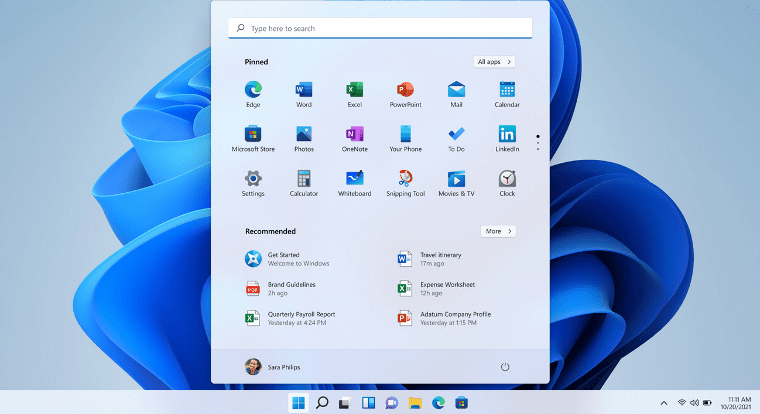
Although, Microsoft has not released any official ISO File on their website. But some users have started using it and it runs very smoothly and fast. And here one question arises how they are able to download it if no release from Microsoft. Actually, they are using the ISO File of the Window 11 Preview beta version which is in the development phase. This doesn’t mean that you won’t be able to use it but the only thing is that there will so many bugs and fixes.
And according to me the official release of Win 11 ISO File will be released in 2022 year. Till then you have to wait for it or if you really want to use it then you can easily download it from the given links. The given ISO File has both the version of 32 bit and 64 bit versions of Windows 11.
But before directly moving forward, I have seen many users still have some queries related to this operating system. And that’s why I would like to answer one query here only.
When is Windows 11 available?
Windows 11 is officially available now for all users and if you want to download it and try it out on your PC then check out the given links. Also, the stable version was released on 5th October 2021.
Now let’s move to the next part…
According to me, Windows 64 bit is much preferred as compared to the x86 version. And this not only because the architecture is bigger and it will be better in terms of working. I have seen that many users use 64 bit because of its performance and the capabilities it has for gaming and other stuff. So, if you are interested in all these on the new Windows 11 OS then check out below download links of the ISO File.
Also Read: How to Fix Windows 11 Secure Boot Error.
As I already told you that this is not the Official ISO file, it’s just a release for developers to test. But you never know that this ISO file is leaked by some of the developers and then tweaked to be reused by the users. Although, Microsoft was not going to release as early but due to the leaked rumors of Windows 11 they need to release it as soon as possible.
According to me, Windows 32 bit is a great built from Microsoft for low-end users. And I would say it is used by a very low number of users because of its fewer capabilities. There are so many to not to use a 32-bit version of Windows 11 because of unused RAM issues, not compatible with all apps, and other kinds of stuff. But one thing which I would like to mention here is that it is very much preferred by users like who have very less specification.
It is also considered as the Windows 11 Lite version because the architecture used in this Operating system is x86 which makes this more ignoring. But if you have low specs and running some old PC then you can grab this 32 bit version and install on it. And the best part is that the ISO file contains both the version including 64 bit and 32 bit.
I have seen many users searching for Windows 11 download links for ISO files but couldn’t find anything. Also, many users searched all the libraries and websites like Google Drive, Mega.nz, MediaFire, Zippyshare, and many more.
Apart from this, most of the users are also trying to download Windows 11 Media Creation Tool but I would tell it is not yet released officially. However, you may have seen many users using but it’s not that tool. Basically, it is set up of Windows 11 which is running on PC and looking like Media Creation Tool.
 )
)New Update:- Get the latest Tiny 11 Version or the 23H2 update.
Note:- We don’t support any piracy of material and we are only sharing the consumer client developer version of Windows 11.
Also, I would recommend you not to download it from any external source because some files that are modified may contain a virus.
As earlier promised, Mircosoft released Windows 11 Insider Preview on 29th June 2021. And at this time the developers and tech geeks are going to try their hands on it and Install the preview build on their PC. And the best part is that many of them already tried it and are pretty impressed with the user interface and visuals. This time not only Microsoft has worked on visuals but also improved the core performance of Windows 11 OS.
And this is the first preview release of Windows 11 and also known as Insider Preview Build 22000.51 ( 10.0.22000.51 ). And if you also want to download and install it on PC then you can signup for the Insider Preview using the given link.
Once you are in the Windows Insiders Preview Program, use the above link to download the SDK Insider Preview file and then install it. After that check for Windows Update and you are all set.
Now, at this time I hope you have already downloaded the Windows OS File from the above links. And if you are really interested in installing Windows 11 from ISO File then follow this step by step guide.
Here I would suggest you to first try to install Win 11 on Virtualbox and then use it on your main computer/PC.
Step 1. Download the ISO File of 32-bit or 64-bit.
Step 2. Now using Win 11 ISO file, create a bootable USB from it.
Step 3. Once the USB Drive is created successfully, then insert it into your PC or Laptop.
Step 4. Now boot from USB and it will start loading Windows 11 OS Files.
Step 5. At last, follow all instructions on the screen and select preferences according to you, and Install it.
Step 6. Now wait for 5-10 minutes and it will get installed.
You can also check out the detailed post on how to Download & Install Windows 11.
There are so many rumors and news about the Windows 11 ISO Leak but no one knows which are really true. Although, Microsoft released Win 11 OS on 24 June 2021 but you may find many videos on youtube which are available already available before the live event. Moreover, the development of Windows 11 is yet to be completed but due to leaked images, they need to prepone the Live event launch.
Although, the Microsoft live event went successful and they showed us some great Windows 11 features of this new operating system. Also, I have seen many users saying that there will be no upgrade for Windows 7, first they need to update to Windows 10, and then they will get the update of Windows 11. One thing which has been confirmed by Microsoft is that there will be a free Windows 11 upgrade for Windows 10 users.
Although, Microsoft tweeted on the official Windows Twitter handle on 16 Jun 2021 for the new start. But wasn’t the official Windows 11 release date from Microsoft to release the new version of Windows. But when they realized that all features are getting leaked online then they decided to do the live event earliest possible date. And then they tweeted “This Is Just the Start. Tune in on June 24th at 11 am ET to see what’s next.”
Although, there so many things which need to be fixed before the official release on the official website. Till then you can use the consumer client version from the above link.
This is just the Start. Tune in on June 24th at 11 am ET to see what's next. #MicrosoftEvent https://t.co/DM7SYVdc3j
— Windows (@Windows) June 15, 2021
I have seen many users searching for “how to upgrade or update Windows 10 to 11”. Although, it is a very easy task to do it but some users are still facing difficulties in this. Apart from there is no official update is based on Windows 11 is given by Microsoft. But you may find Windows 10 features update which will definitely give you some experience of Windows 11.
Also, checkout Windows 11 system requirements to upgrade.
Moreover, before upgrading win 10 to win 11 I would suggest you to run the Microsoft Windows 11 upgrade checker tool officially given by Microsoft for checking compatibility. This tool is also known as the PC Health Check app tool and is very helpful in determining whether you are eligible to upgrade it or not.
And to upgrade Windows 10 to 11, just follow the steps.
Step 1. Go to Control Panel and then click on the System and Security option.
Step 2. Now Go to the Windows Update section and then click on the check for new updates option.
Step 3. Now select the Windows 11 update file, download it and then click on install updates.
And Done! You can also check this detailed guide on how to upgrade from windows 10 to 11.
Microsoft officially released Windows 11 on 5 October 2021 at a Live Event Launch.
Windows 11 Insider Preview Build 22000.51 is the official latest version released by Microsoft.
By creating a bootable USB you can easily launch windows 11 from an ISO file or install it using Virtualbox.
Yes, Windows 11 will have updates for both 64 bit and 32 bit Windows OS versions.
If you are a Windows 10 user then first check for Windows 11 compatibility & then check for new updates.
That’s it for now…
So that’s all about downloading Win 11 ISO File and how to use it to install on PC. You can also upgrade your Windows 10 pc without using the ISO file, just you have to use the Windows Update feature and you are all set for the new version of Windows OS.
Also, check out the similar posts and tell us if you want more posts like this.
Stay tuned for the next post…
Feel free to share your thoughts via comments and also tell us if you liked this information on Windows 11 ISO Download 32 bit and 64 bit [ Official File ].
Don’t forget to share this post with your friends.
Want to try and download Tiny11?
If yes, then this post is definitely for you.
Everyone knows that Windows 11 is not that famous among the PC community because of its strict hardware requirements.
Although, there are plenty of ways to bypass them and install this operating system on old computers which don’t have compatible hardware.
Some of the popular ways are registry hacks, third-party tools, and using edited Windows 11 ISO files.
But the majority of users really don’t like them. And I think it’s only because of the limitation they get like no official updates, low performance, and some application lags.
But now we have got a new solution for this, it’s Tiny 11 OS.
Yes, a week ago NTdev developer released a very fine-tuned and super lightweight version of this operating system. ( which is really awesome )
So, without further ado, let’s dive in further.

Tiny11 is a compact or stripped version of the official Windows 11 Pro 22H2 edition, made by NTdev. Basically, this operating system is specially developed for users who have older PCs with less storage and RAM. It’s not like that only outdated machines can use this OS but a normal user can also use it to get a faster experience. And the best part is that the users who were not able to upgrade their system due to TPM 2.0 or some other requirements, can now do this.
Furthermore, this version has all the important utilities like Paint, Calculator, Windows Terminal, Notepad, and Microsoft Store but there is no Microsoft Edge. In short, this custom-made OS has everything that is required by a casual user without having any useless bloatware or pre-installed apps. And that’s why some of the users also call it a de-bloated or Windows 11 lite edition.
Here we will cover a quick question:-
Q. Is Tiny11 Safe?
Ans. Yes, this modified OS is pretty safe to use because it was tested by many tech enthusiasts from popular websites like Techradar, Tom’s Guide, WindowsReport, and many more. If you want to create your own lite version of ISO then try Tiny11 Builder, by NTDev.
To put it simply, I really liked this ultra-lite operating system but I suggest you to beware of viruses while downloading the ISO file. Because I have seen multiple websites sharing the modified files which may risk your PC. But here, we only provide the genuine version of Tiny 11 22h2 or 23h2 which only works with 64-bit because it doesn’t come in 32-bit architecture.
To make this version slim, the developer has removed lots of applications and this has drastically affected the size of the file. Where the original installer comes at 5.1GB, this little one just comes at 3GB.
)Quick Note:- It has no official support and you will not be receiving any automatic updates from Microsoft. But you can still manually install the security definition updates.
However, this operating system is specifically designed for users who have old CPUs or machines so that they can also experience Win 11. Adding to it, the Tiny11 doesn’t require a Microsoft account for completing the installation process and you can also run it with any local or online account. Some user says that “it is not serviceable” but you can easily update all your drivers, software, and applications.
Note:- Similar to the normal Windows, this tiny version also needs to be activated using the valid license keys.
Let’s see how does it work:-
Note:- According to the developer, tiny11 should not be installed on PCs which are fully compatible with the original version.
Talking about the requirements for this lightest operating system is extremely less as compared to the standard one. You can easily run this OS on any old computer or laptop having 1GB of RAM and a storage space of 8GB. I know it’s hard to believe because the actual size of Win 11 after installation is 20GB and 4GB of RAM is required to run it smoothly.
Here are some Tiny11 Requirements:-
Note:- Check this screenshot, how users are running this small operating system on just 384MB of RAM.
Here is tiny11 running on just 384MB of RAM! pic.twitter.com/suB9ytsQaM
— NTDEV (@NTDEV_) February 5, 2023
Although, there are plenty of features of this operating system but one thing which I really like is that users having low-end PC can also run this OS without fulfilling the hardware specifications. Apart from that, this smaller version has also solved problems related to UEFI Boot Mode and the generation of unsupported processors.
Here are some other features:-
You can easily download Tiny 11 ISO from BuildSomeTech or Archive.org. It’s totally free and supports almost all lower-end PCs without satisfying the minimum system requirements.
No, tiny11 is not made by Microsoft but it is developed by a Windows developer known as NTDEV. The main reason for creating this operating system is to have a lightweight system without compromising any important features to run apps properly.
Yes, the tiny Windows 11 is completely safe to use and legal. However, it is not officially distributed by Microsoft but we have used it and there is nothing to worry about. If you are still not sure then I would suggest you first install it on Virtualbox.
The main difference between both these versions is that Windows 11 is the official version provided by Microsoft and the Tiny11 is the debloated version that doesn’t have any bloatware so that it can run faster.
So, that’s how you can easily download the Win11 tiny version of 32-bit and 64-bit architecture. Also, this operating system has given a new life to outdated machines and now they can be easily used for doing basic work and also for running lightweight apps.
And since the developer has done some modifications to the ISO file it has become less secure or trusted. So I would recommend you to take some security measures from your end also.
Stay tuned for the latest posts…
Feel free to share your thoughts via comments and also tell us about this post on Tiny11 ISO Download 22h2 [ Windows 11 Tiny Edition File ]
If you liked this post, don’t forget to share it.
Do you need to quickly speed up a video on your iPhone? Whether you are trying to make a time-lapse, share an important moment with someone, or just have some fun editing videos, speeding up the playback of your clips can be done easily and quickly.
This guide shows you how to speed up a video on the iPhone using Apple’s iMovie and third-party platforms, which offer more advanced features like the ability to split a video online.
Are you ready to learn? If yes, then let’s get started!
A series of plates featuring a galloping horse and a rider was one of the most vital discoveries. When played successively, you will notice movement. Created in the 1870s, this became the precursor of motion in videos or, on a larger scale, movies.
Motion is key for engaging videos, not only from a creative standpoint but also in terms of marketing.
Motion is an incredibly powerful tool when it comes to videos, making them more attractive and compelling, irrespective of whether they are used for marketing purposes or general creative content.
Because motion creates more depth to visual storytelling, being able to manipulate speed is key. You want to do that for the following reasons:
Now that you know the importance of adding speed to a video, let us talk about how to do it. You do have several options.
Also Read:- Best iPhone Tips and Tricks For New Users.
iMovie is a revolutionary video editing software produced by Apple for Mac and iOS devices. It makes it easy for aspiring filmmakers to bring their ideas to life with powerful tools for capturing, editing, and sharing stunning movies with friends and family.
Its intuitive drag-and-drop interface simplifies complicated tasks, allowing users to create beautiful videos from start to finish in just minutes. iMovie provides plenty of features, including customizable transitions, titles, sound effects, and voiceovers, making it possible to shape any movie into something truly special.
You can speed up a video through this app with these steps:-
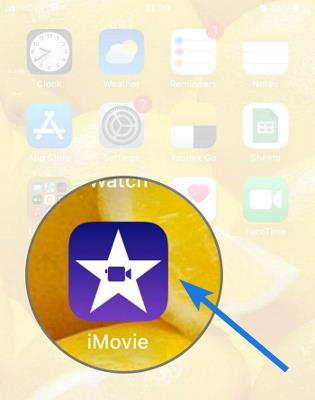
1. Open the iMovie app from your iPhone.
2. Click on the Add button to create a project.
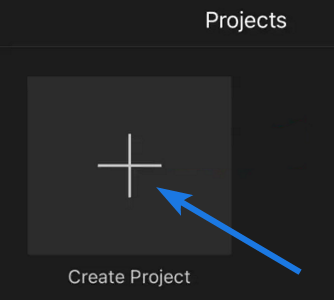
3. A window titled New Projects will appear and then choose the Movie option.
4. Pick a video from your gallery or camera roll on the next screen and then press Create Movie, which you will find below the screen.
5. Now tap the video clip in the timeline to display the video-editing tools and then Choose the Speedometer Icon.
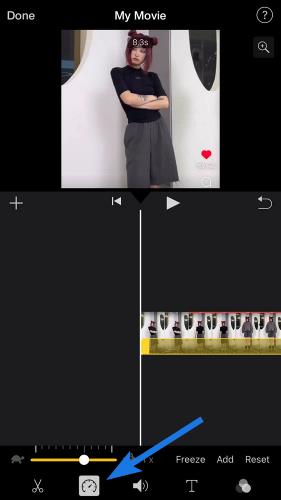
6. Drag the yellow slider to the right to speed up the video and tap Done.
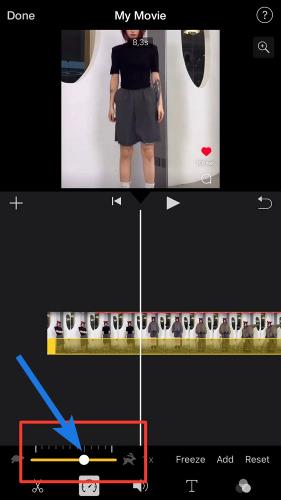
iMovie is a powerful video-editing tool, but it does come with certain limitations. Its range of editing functions is more limited than other professional video-editing applications, making it unsuitable for projects requiring complex edits.
For example:-
That is why it pays to look for alternatives. Some newer editing tools, for example, Inshot and, can already split videos. This ability can also help manipulate the sound by isolating background music and narration.
Further, they are already available in the cloud. This way, you can access your projects from any device, export them in various file formats for multiple platforms, and prevent them hogging your limited disk space.
The manner in which you can adjust the speed depends on the platform. Usually, it involves these steps:-
1. Launch the video editing software.
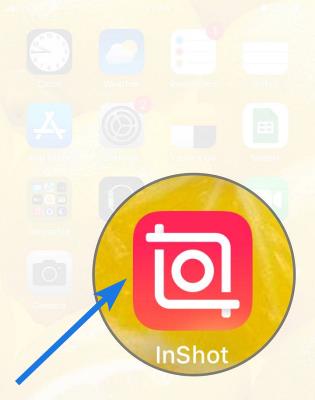
2. Open the video you want to speed up and then look for options like Speed, Time Stretch, or Accelerate.
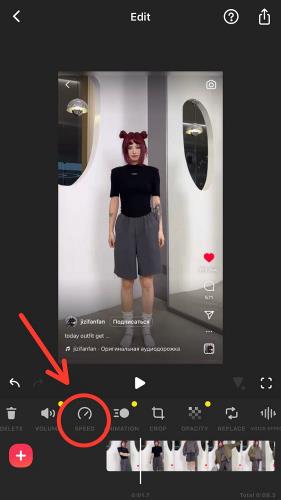
3. Now set the desired speed for your video clip and then save it.
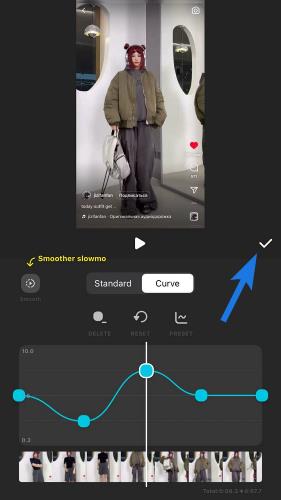
You can also splice the videos or break them into different segments and then choose different speeds for each. Moreover, unlike iMovie, which limits your maximum speed to only 2x, the best third-party video editing platform can get up to 10 or even 30x speed.
Speeding up a video can help you make it more engaging and cut down the length of your content. Apart from that, iMovie is a great tool for beginners, professional filmmakers may find its features limiting. In such cases, third-party software with advanced editing capabilities should be considered. These applications have many helpful options that you can use to speed up your video and give it the desired shape.
Is Intel Core i7-6560u not supported by Windows 11?
If you are looking for this question, then you are in the right place.
Microsoft did an excellent job by adding some new processors to the ones compatible with this operating system.
And this will definitely improve the compatibility for various devices.
But in order to use these devices on Windows 11, one must also have a PC that has Secure Boot, UEFI, and TPM 2.0, apart from the correct generation of processors like Intel i7-6560u and i7-5960x.
Furthermore, the easiest way to get up and running this OS is to enroll in the Insider’s program and do an in-place upgrade. But for that, you must follow the minimum system requirements or guidelines for the installation.
And if you have yet to check your PC is ready for Win 11, you can quickly head up to the PC Health Check app.
So, without further delay, let’s get started…
Basically, this CPU is an old model with Skylake architecture which was officially launched in September 2015. It doesn’t even have full Win 10 support, so it is not suitable for the latest operating system upgrade. In a nutshell, the Intel(R) Core(TM) i7-6560u CPU @ 2.20GHz is not supported by Windows 11 because of its processor limitations. Apart from that, this CPU is too old and other essential features are also restricted including Secure Boot or a Trusted Platform Module chip.
According to Microsoft, this operating system will mainly be compatible with Kaby Lake and the latest generation processors. And that’s why this makes it difficult for devices such as Lenovo ThinkPad X280 or HP Envy.
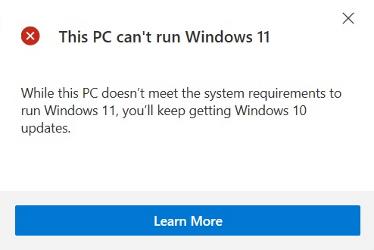
Unfortunately, the official list of processors doesn’t support the Intel core i7 6th generation with Windows 11. The only thing I could find regarding the DCH Design Principles is the architecture which is majorly present for the 7th Gen processors like i7-7920hq. However, through testing and research, it is hoped that at least a few of the CPUs will be added to the list.
And here are some of the machines such as Dell Inspiron 5559, Dell Latitude E7470, and HP Pavilion 15-AU009TX which may have these processors and comes to my mind. In short, if you are using any 6th gen CPUs we recommend you better sticking to Windows 10 or upgrade to later versions.
Yes, the Intel Core i7-6560u processor can easily run Windows 11 operating system but due to the older generation CPU, it is not fully supported. However, it is still possible to install this OS on an unsupported CPU of a 6th-generation processor but we don’t recommend it. There are plenty of good and bad reviews from users of running this operating system on old devices like slow applications, unable to perform heavy-duty tasks, taking more time to edit videos, etc. In that case, I suggest you to use an old Windows OS and use this processor effectively.
Yes, the Intel Core i7 is fully compatible with Windows 11 but according to Microsoft, it must be from the 8th generation processor. However, there are also some 7th gen CPUs that may work for special devices but mostly all the processors like Intel i7 4710hq and i7 4770 are not compatible. Moreover, as long as your system meets the minimum specs, you should be able to install and use this operating system without any problems. Essentially, all the listed i7 processor comes with DHC-compliant drivers, which is a very crucial feature for the compatibility of the system.
No, the Intel Core i7-6500U processor isn’t currently supported for Windows 11. In addition, from my experience, I was able to successfully install this operating system on my Lenovo IdeaPad 300 which has the same CPU. However, considering that TPM 2.0 doesn’t bring noticeable benefits for most users (except for protecting the privacy and integrity of your data), it is clear that the main reason for requiring it in is to force Secure Boot on and prevent users from trying out other operating systems.
That’s it for now…
So, that’s all about the i7-6560u chip or processor with the Win 11 and whether it is compatible or not. In general, it is always a good idea to use the 8-gen or newer processor that is fully supported by your device. This can help ensure the best performance and compatibility.
However, if you are currently running Windows 10, it may be a good idea to continue using it unless an update is issued by Microsoft.
Stay tuned for the latest posts…
Feel free to share your thoughts via comments and also tell us about this post on Why Intel Core i7-6560u is Not Supported by Windows 11?
If you liked this post, don’t forget to share it.
Can Intel Core i7-7600u Run Windows 11?
Searching for this specific question, then you are in the right place.
Although, the minimum system requirements suggested by Microsoft don’t make sense but due to privacy we are all accepting them.
Because there are plenty of users who don’t care for this single reason and still struggling with these compatibility issues.
And if we look at the basic specs which majority of users have TPM 1.2 but that’s not the only thing required for running this system.
Having the UEFI, Secure Boot, and most importantly, the 8th-generation processor is very important.
And because of this latest generation issue, chips like Intel i7-7600u are lagging behind and are unable to get the official updates.
But thankfully, there are some amazing ways to bypass it actually.
So, without further ado, let’s get started…
However, all these CPUs are perfectly capable of running this latest operating system but when all these generations were tested, the developer found that the 7th gen faced 52% more crashes as compared to the new generation. And that’s why the Intel(R) Core(TM) i7-7600u CPU @ 2.80GHz is not currently supported for Windows 11 or for the upcoming operating systems.
And this is not the only case with the 7th generation but the 6th gen processors like i7-6900k are also facing the same issue. I know that forcing such strict guidelines is not good but to make this operating system bug-free, reliable, secure, and faster they had to do that.
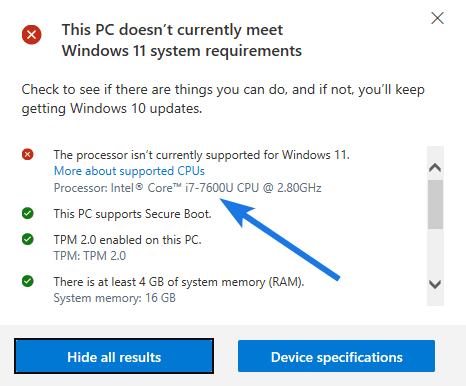
Yes, the Intel i7 is totally compatible with the latest Windows 11 and you can easily install it on any supported device. Just you have to make sure that it must belong to at least 8th generation and also follow the requirements recommended by Microsoft. Because there are plenty of chips like i7 5930k and i7-3770 which fulfills some requirements but not the generation part. Adding to it, there are many users who commented that their machine has 2 cores, 4GB RAM, 64-bit architecture but still it not compatible with latest operating system.
No, the Intel Core i7-7600u is not supported by Windows 11 but you can still install it on any system by tweaking the registry files which allows the machine to check the parameters are fulfilled or not. One user having a Dell Latitude 7380 machine also have used this method to avoid these system requirements because it was having correct TPM, Secure Boot and also the UEFI boot mode. However, you cannot get the official updates from the Microsoft but you can still get this OS running on your system.
No, the 7th generation i7 is not compatible with any version of Windows 11 because all this is a older generation and does not follow the DCH principle which is very important. Although, the company made these requirements compulsory to make sure the Reliability, Security, Compatibility of this system for their users. But it backfired them because there were lots of users who were using the older generation processors like i7-7820hk and i7-7y75 with the previous operating system and it was working pretty fine for them.
No according to the Microsoft official compatibility list, the Intel i7-7700 is not supported for Windows 11 and also for their automatic updates or upgrades. However, the series of this CPU is pretty popular which also include the processors like i7-7700k, i7-7700HQ and more. And the best part is that, we have already shown some methods in that guide which you can easily use to bypass all system requirements and get this OS running. But make sure to backup all your important files before performing the steps mentioned in that detailed guide.
That’s it for now…
So, that’s all about the i7-7600u processor and if your machine can run this unsupported Win 11 operating system or not. Also, if you check the reports of previous OS then you will find that there is no operating system built till date which is free from 100% security threats.
Moreover, if you are concerned about the security of data and files then I would suggest you to keep running Windows 10 till the year 2025.
Stay tuned for the latest posts…
Feel free to share your thoughts via comments and also tell us about this post on Can Intel Core i7-7600u Run Windows 11?
If you liked this post, don’t forget to share it.
Is Intel Core i7-5930K Compatible with Windows 11?
If you want to know about this query, this post is for you.
Microsoft has repeatedly shifted its stance on the minimum system requirements for Windows 11.
At first, they said that users had to meet all of them for a smooth installation and performance, but now the company hints that users might be able to bypass some of them, at least in later updates.
And with that, they recently added a few 7th gen CPUs like i7-7820HQ and some Xeon chips to the list of supported Intel processors and also the compatible chipsets.
Despite this uncertainty, it is still not clear to many users whether their Intel i7-5930K processor meets the minimum required specs in order to take full advantage of updates and features.
And to clear all your doubts. we have created this detailed article.
So, without further ado, let’s get started…
There are plenty of processors that may be incompatible with the latest Windows 11 operating system, due to their lack of necessary features such as Secure Boot, UEFI, and TPM chip. However, Microsoft is making efforts to support the old-generation processors, while the Intel(R) Core(TM) i7-5930K CPU @ 3.50GHz may be left out. However, there is a possibility that it will be supported in the future, but at the moment it has not been listed as one of the tested processors.
And to see if your computer meets the minimum requirements to run Windows 11, you can use the official compatibility checker known as the PC Health Check app. The app automatically scans the hardware on your device for compatibility issues and gives you the results of whether it is supported or not.
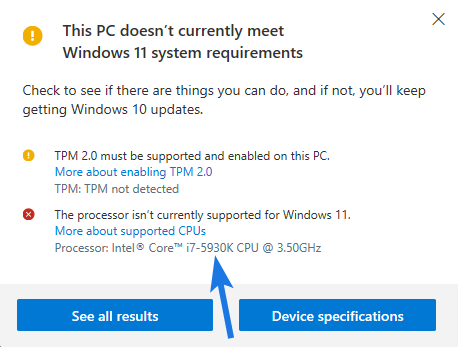
Yes, the Intel i7 can easily run Win 11 but the processors must belong to the 8th generation or higher and also follows other guidelines which are required for running it properly. However, the processors below the 8th generation may not be fully compatible due to issues with DCH compliance of their driver packages which is an essential requirement for Windows 11 installation.
Moreover, this is not the only processor but there are many popular chips like i7-5820k and i7-5600u. And in that case, you can do a few workarounds suggested by Microsoft for smooth installation but you might have to do some extra work before running it properly on your computer.
No according to Microsoft’s processor list, the Intel Core i7-5930K is not supported by Windows 11. Furthermore, this CPU is from the fifth generation of Intel’s “Haswell-E” line of processors, which was released in 2014. And being an older processor, it’s not designed to run Windows 11. And because of this, some users with ASUS X99-A machines have complained that they have TPM 2.0 and Secure Boot but still not working. Although it’s better to upgrade using the official update methods, some people prefer the unofficial way because of various reasons.
No, the Intel i7 7th generation is not supported for Windows 11 and that’s why you can’t update your PC through the official updates. As of this writing, Microsoft has only tested and validated CPUs from one or two years prior to the release, this is what you are seeing on their official supported list.
Moreover, the company is apparently looking into CPUs from the Zen 1 and Kaby Lake lines. However, if you are still downloading Windows 11 on 7th gen by other means you have to make sure that you use a new driver model called Windows Drivers, which Microsoft claims can reduce driver-related crashes by 99.8%.
Yes, you can easily install Win 11 on Intel i7 5th gen processors. But it is not officially supported by Microsoft and you can still get it on any unsupported PC by using this unique way. Some user says that there are risks involved in this process but according it’s totally fine. As all these older processors lack a crucial feature called a TPM 2.0 chip, which makes it difficult for Microsoft to support them. However, if you are willing to take a risk with an unsupported operating system, you can still use it.
That’s it for now…
So, that’s all about the i7-5930K processor and whether it will be compatible with Win 11 or not. However, your experience might be subpar if you do so, Microsoft recommends that you use newer hardware for official support from both the vendor and them.
Also, it is recommended to get a laptop with an 8th generation CPU or better for installing this OS.
Stay tuned for the latest posts…
Feel free to share your thoughts via comments and also tell us about this post on Is Intel Core i7-5930K Compatible with Windows 11?
If you liked this post, don’t forget to share it.
Is Intel Core i7-5960X Compatible with Windows 11?
If you are searching for this query, then this post is definitely for you.
On 5th October 2021, Microsoft released its latest operating system with lots of new features, better design, and most importantly faster.
But the worst part was that they also released some system requirements that need to be followed if you want to run Windows 11.
Basically, they were TPM 2.0, Secure Boot, UEFI and the most important was the generation of the CPU. However, to avoid confusion they also published a list of supported intel processors, which really helped.
But even after that, there were plenty of users who were facing compatibility issues with chips like Intel i7-5960X and many more.
And if you are one of them, then read this full article to know if your computer is capable of running this operating system or not.
So, without further ado, let’s get started…
Talking about this high-end desktop processor which was released in 2014 as part of the Haswell-E family. Yes, it’s the Intel(R) Core(TM) i7-5960X CPU @ 3.00GHz which is based on the Haswell microarchitecture and was manufactured using a 22nm process. Moreover, it is a Hexa-core processor with hyper-threading, meaning it can process up to 8 threads simultaneously.
But in short, the i7-5960X is not compatible with Windows 11, despite being well-suited to demanding tasks such as video editing, 3D rendering, and other multi-core processing tasks. The processor itself is discontinued so there may be little workarounds due to the lack of support by Intel.
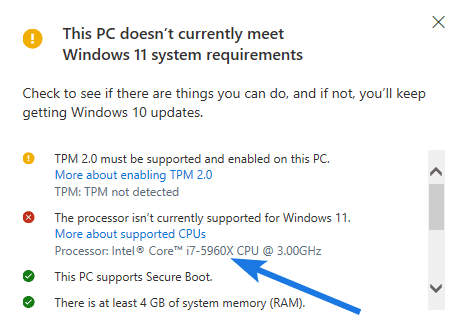
Yes, the core i7 is enough for running Win 11 and you can easily rely on them. However, there are some 7th-generation processors like i7 7820hk and i7-7660u which are not supported by this operating system. Furthermore, the problem with these processors is that they don’t comply with the DCH Compliance of their respective driver packages which is required now.
Basically, this DCH Design principle was started with the 8th-gen processors and that’s why the 7th-gen CPUs are lacking behind. I know that Microsoft has also made some exceptions but they were very few.
No, the Intel Core i7-5960X cannot run Windows 11 because it is a 5th Gen processor and also not listed in the official supported processors list. Due to some limitations, it was not included which clearly indicates a lack of optimizations and hardware upgrades over the previous version of Windows OS. And that’s why the older chips like i7 3630qm & i7 920 are lacking because even if the this latest operating system is installed, they are not going to perform very well with them.
Yes, you can install Windows 11 on an i7 5th generation processor but for that, you need to use the registry file hacks. All these tricks and hacks are used to bypass the requirements for CPUs like i7 5930k which actually doesn’t meet the minimum system requirements. And if you want to run this operating system without tweaking files then you definitely need an 8th gen processor and if possible your system must have Secure Boot, UEFI, and TPM 2.0. And in my opinion, that’s the best way to upgrade and run this operating system smoothly.
No, the Intel core i7 6th generation is not supported by Win 11 because it is not designed to qualify the criteria for running this latest OS. Furthermore, there is a fact that older processors do not have a feature called VBS or Windows Memory Integrity which means that it is not officially compatible with Windows 11. However, you can still install it by other ways which we used for i7 6900k but according to some users, it creates performance issues. And if you are really concerned about the performance then we recommend you’re better off sticking to Windows 10 until your PC complies with the new system requirements.
That’s it for now…
So, that’s all about the i7-5960X processor and if it is compatible enough to run this Win 11 OS or not. So if you are still considering installing an unsupported operating system on a device, it is important to carefully weigh the potential risks and benefits before proceeding.
In most cases, it is best to stick with the operating system that the device was designed to run in order to ensure the best performance and stability.
Stay tuned for the latest posts…
Feel free to share your thoughts via comments and also tell us about this post on Is Intel Core i7-5960X Compatible with Windows 11?
If you liked this post, don’t forget to share it.
Is Intel Core i7-7820HQ Supported for Windows 11?
If you want to know about this question, you are in the right place.
It has been almost 2 years since Microsoft released its latest operating system but still, only 1.5% of total users are using it.
And in my opinion, this is only happening because of the strict system requirements, especially for processors.
Yes, this is the 1 reason why plenty of users are facing issues and still searching on the internet for queries like “Is my computer compatible with Windows 11“.
Although, the company made these requirements mandatory for improving security but I think this is killing their business too.
And because of this, many popular chips like Intel i7-7820HQ are lacking behind and are unable to get the official update from Microsoft.
So, without further delay, let’s get started…
I know all this looks very frustrating and disappointing but for now, there are only very few processors which are compatible. Generally, they belong to the 8th, 9th, 10th, and 11th generation but there are exceptions like the Intel(R) Core(TM) i7-7820HQ CPU @ 2.90GHz which is supported only for only special devices that have modern drivers based on DCH Design Principles.
Due to this, plenty of other popular processors like i7-3770 and i7-5930k are not eligible, even if they are capable of running Windows 11. And that’s not all because when the compatibility checker tools are used, some say supported and some say not, even when all machines are using the same CPU or processor.
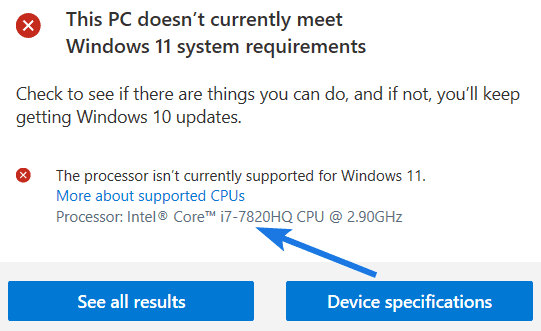
Yes, the Intel Core i7 processor supports Windows 11 but only those chips which belong to the 8th generation or later. Furthermore, this is one of the most powerful series of CPUs developed by Intel because using them you can easily perform any type of task which needs resources.
And that’s why it only comes with heavy machines like Dell Latitude 5480 but when you check it using the PC Health Check App, it clearly shows that it doesn’t meet the system requirements. Similarly, there are plenty of machines that are becoming useless because of the old generation chips like i7-6650u, i7-6560u, and many more.
Yes, the Intel i7-7820HQ is a very good CPU but it is not supported by Windows 11 because it belongs to the 7th Gen series. However, if look at the specs of this processor then they are pretty great such as 4 cores with 8 threads, 8MB cache, 8 GT/s Bus speed, and can operate at a Max Turbo Frequency of 3.90 GHz.
And you won’t believe that the whole series of this model is very popular including the i7-7820hk and i7-7820x which are pretty good and can easily run any operating system. But because only very few machines like Surface Studio 2 and Dell Precision 5520 are following DCH design principles, these chips are going to vanish soon.
Generally, all computer users who are having older processors on their system are facing this issue and this can be only solved by using these two methods. First, you can try to install Windows 11 on unsupported CPU or the second one is to bypass the system requirements. I have personally used these methods to run this operating system on Intel i7 920 and Intel Core 2 Quad Q6600 which are pretty old CPUs.
Sometimes, it’s not only about the processor but many times your machine is also incompatible. For example, the Lenovo Thinkpad P51 and P71 have the same i7-7820HQ CPU which is compatible with some machines but both of these laptops don’t follow the right hardware platform.
Yes, the Intel i7-11800H can easily run Win 11 because it is a very high-performance chip and also belongs to the latest 11th generation which was released last year on 30th March 2021. Moreover, if you go and browse through the supported processor’s list then you will also see that it is officially listed.

Apart from that, if you are having this chip on your system then you might have already received the official update from Microsoft. But if you haven’t received it yet then it’s better to visit the Windows 11 download page and install it manually using the ISO file.
That’s it for now…
So, that’s all about the i7-7820HQ chip and does it really supports the latest Win 11 operating system or not. Also, we have tried to cover everything which is related to this topic and hopefully, you have got all your answers.
Moreover, the company is also expanding the list of compatible processors because they have learned that this is going to be a big failure if the community users are not satisfied.
Stay tuned for the latest posts…
Feel free to share your thoughts via comments and also tell us about this post on Is Intel Core i7-7820HQ Supported for Windows 11?
Can Intel Core i7-5600u Run Windows 11?
If you want to know about this query, you are in the right place.
Microsoft’s all operating systems have been very user friendly but if we talk about their latest OS then it’s a big NO.
And that’s only because of the new strict requirements which are necessary to be fulfilled for installing Windows 11 on any machine.
Although, they have also provided a list of compatible hardware but if you have a PC that falls outside, then don’t just give up hope.
I know that this has left many users disappointed and frustrated, especially those who were still using the Intel i7-5600u chip.
But for now, you can only do two things, upgrade your machine with at least an 8th-generation processor with a TPM 2.0 or use some hacks which are mentioned below.
So, without further delay, let’s get started…
However, it’s pretty difficult to just abandon a high-performing chip like this but for running this operating system, it’s really important. And if we look at the Intel(R) Core(TM) i7-5600U CPU @ 3.20GHz specifications, then it has 4 MB of level 3 (L3) cache and supports up to 16 GB of DDR3 memory.
Furthermore, thanks to its new 14 nm circuit, lower power consumption, and a slightly higher boost clock which helps them to perform better in multi-thread applications as compared to its predecessor. Similar to this chip, the i7 7820hk is also not supported and because of this many popular Dell Inspiron & Hp Envy laptops are becoming worthless.
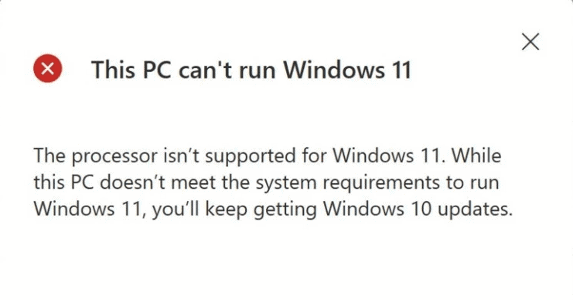
Certainly not! If you have an Intel i7 6th generation processor, you may not be able to run Windows 11. The system requirements for this operating system are relatively modest and are not capable of meeting those needs. In particular, many older 6th gen processors are affected by this compatibility issue, including the i7 6900k and more.
However, it’s worth noting that Microsoft does provide a registry hack that gets Win 11 up and running on PCs with older processors. The hack requires you to make changes to your registry settings, it isn’t entirely safe but it is reversible if things go wrong.
As I mentioned earlier that Windows 11 is not supported by the Intel Core i7-5600u processor. However, you can install this operating system by bypassing requirements or altering some settings. And if you have only one machine, then don’t worry because it is fully compatible with previous versions like Windows 10, 8, and 7 but not with the latest one.
Moreover, specific models and generations of CPU may affect the performance of your system. For example, a more recent or higher-end processor may provide better performance and more efficient operation than an older or lower-end processor.
Yes, anyone can easily install Win 11 on Intel i7 5th generation processors by using the registry file hacks. And since they are not on the official compatibility list like the i7 5930k and i7-5960x, there will be some crash issues or your system will be really slow.
Apart from that, your processor also needs to have some features like TPM 2.0, Secure Boot, and UEFI mode to be compatible with Windows 11. So If you’re thinking of upgrading to a better processor that supports VBS and Secure boot then go ahead and upgrade, otherwise keep using the older OS which is fully compatible.
Yes, the Intel Core i7 is fully supported by Windows 11 but the problem is with the 7th generation which is not compatible with this latest OS. Despite being the most widely used CPUs, there are only very few chips that are added to the supported processor’s list. And it’s not only about this generation, but there are also some 4th gen chips like i7-4800mq, i7-4770, i7 4710hq, and many more.
Moreover after looking at this condition, many users commented that Microsoft wants to push users toward its new operating system, Windows 11, which is an upgrade from Windows 10. The company has already said that it won’t be supporting any other operating systems with future updates and if you want to continue using it on your old device then there are ways you can make it work.
That’s it for now…
So, that’s all about the Intel i7-5600u chip and how you can run on your old hardware. As we mentioned, older computers and devices will only be supported through some tweaks in the registry or local files. And if you proceed to upgrade without that, you’ll see an error message.
However, be aware that Microsoft also warns about the performance issues which can be faced on an unsupported device.
Stay tuned for the latest posts…
Feel free to share your thoughts via comments and also tell us about this post on Can Intel Core i7-5600u Run Windows 11?
If you liked this post, don’t forget to share it.
Can Intel Core i7-4600U Run Windows 11?
If you are searching for this question, then this post is for you.
Microsoft has been continuously upgrading its operating system for a better experience and performance.
But this time, they have done a major upgrade which also needs some new hardware for running it properly.
Although, they have done it for extending the power and strength of Windows 11 but it resulted in some incompatibility issues with the processors like i7-6900k and many more.
And this means that you cannot run this operating system even if you have a good amount of storage and memory because you don’t have the correct generation of CPU.
Due to this, plenty of high-performing processors such as Intel i7-4600U are suffering and failing to experience this OS on their systems.
So, without further ado, let’s get started…
As we know, Windows 11 has been gaining popularity at a very larger scale and many companies are upgrading their operating system but users like us who still rely on old machines with Intel(R) Core(TM) i7-4600U CPU @ 2.10GHz are facing issues to update it properly. And if you are using HP EliteBook Revolve 810 then this chip is also present in it.
Furthermore, if we look at the release date of this processor then it’s September 2013 which is pretty old. But the specs it has are more than enough to run this OS but due to its old generation, it is not compatible for now. Basically, it has 2 Cores, 4 Threads, a Bus Speed of 5 GT/s, can uphold 16 GB of RAM memory, and is capable of having a maximum turbo frequency of 3.30 GHz.
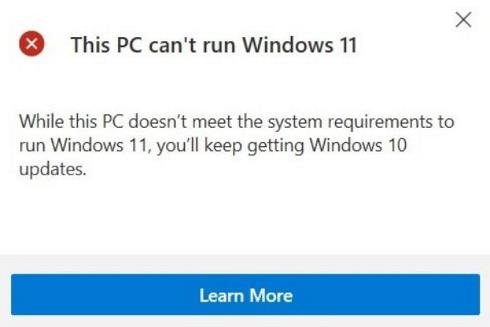
No, the i7 4th generation processor cannot run Win 11 because they are very processors and might not fulfill the other minimum requirements like TPM 2.0, Secure Boot, UEFI mode, etc. Apart from that, if you still try to install Windows 11 without TPM then it will run very slowly and you won’t be able to do tasks like video editing and gaming. Similarly, there are other chips like i7-2600 and i7-3770 which might work well but they also belong to the very old generation and are not recommended. So, it’s better to upgrade your PC’s hardware and fulfill the requirements of the specifications given by the company.
No according to the supported processors list published by Microsoft, the Intel Core i7 4600U is not supported by Windows 11. But if we look at the features which these chips provide are quite a match to each other. Having a total 2-core CPU, it can be regarded as eligible where any install can expect it to run on their system. And to be honest, this is not the only requirement that needs to be fulfilled, Secure Boot, TPM 2.0, and having an 8th generation processor is a must requirements to run this operating system smoothly.
Yes, the Intel Core i7 chip is absolutely compatible with Win 11 but it must belong to the 8th Gen CPU or later. Moreover, if your processor doesn’t fulfill this specific requirement then your PC or laptop won’t be able to get official updates from Microsoft corporation. And due to this many systems having chips like i7 920 and i7 5930k have suffered to get this update but have no use because even if the installation is done, you won’t be able to get the best performance since it is not fully compatible.
Yes, the i7 7th generation processor can easily run Windows 11 but it is not recommended by the company. And this was only done because when they tested this operating system with 7th gen chips then it was not performing well and was also facing some lags while using it. Here are the two popular chips which didn’t pass the test well, the first one is i7-7700k and the second one is i7 7820hk. However, you can still install this OS on an unsupported CPU and can bypass the requirement but to use it well you definitely need an 8th-generation processor.
That’s it for now…
So, that’s all about the i7-4600U CPU and if you can run Win 11 using this processor. In the future, it may support but currently, this problem has made the usage of this operating system an inevitable one.
Therefore, if you want to use this OS then it should be upgraded otherwise you might have to stick to the earlier versions like Windows 10.
Stay tuned for the latest posts…
Feel free to share your thoughts via comments and also tell us about this post on Can Intel Core i7-4600U Run Windows 11?
If you liked this post, don’t forget to share it.
