Normal view

There are new articles available, click to refresh the page.
Before yesterdayMain stream

Forensic journey: hunting evil within AmCache

1 October 2025 at 06:00

Introduction

When it comes to digital forensics, AmCache plays a vital role in identifying malicious activities in Windows systems. This artifact allows the identification of the execution of both benign and malicious software on a machine. It is managed by the operating system, and at the time of writing this article, there is no known way to modify or remove AmCache data. Thus, in an incident response scenario, it could be the key to identifying lost artifacts (e.g., ransomware that auto-deletes itself), allowing analysts to search for patterns left by the attacker, such as file names and paths. Furthermore, AmCache stores the SHA-1 hashes of executed files, which allows DFIR professionals to search public threat intelligence feeds — such as OpenTIP and VirusTotal — and generate rules for blocking this same file on other systems across the network.

This article presents a comprehensive analysis of the AmCache artifact, allowing readers to better understand its inner workings. In addition, we present a new tool named “AmCache-EvilHunter“, which can be used by any professional to easily parse the Amcache.hve file and extract IOCs. The tool is also able to query the aforementioned intelligence feeds to check for malicious file detections, this level of built-in automation reduces manual effort and speeds up threat detection, which is of significant value for analysts and responders.

The importance of evidence of execution

Evidence of execution is fundamentally important in digital forensics and incident response, since it helps investigators reconstruct how the system was used during an intrusion. Artifacts such as Prefetch, ShimCache, and UserAssist offer clues about what was executed. AmCache is also a robust artifact for evidencing execution, preserving metadata that indicates a file’s presence and execution, even if the file has been deleted or modified. An advantage of AmCache over other Windows artifacts is that unlike them, it stores the file hash, which is immensely useful for analysts, as it can be used to hunt malicious files across the network, increasing the likelihood of fully identifying, containing, and eradicating the threat.

Introduction to AmCache

Application Activity Cache (AmCache) was first introduced in Windows 7 and fully leveraged in Windows 8 and beyond. Its purpose is to replace the older RecentFileCache.bcf in newer systems. Unlike its predecessor, AmCache includes valuable forensic information about program execution, executed binaries and loaded drivers.

This artifact is stored as a registry hive file named Amcache.hve in the directory C:\Windows\AppCompat\Programs. The metadata stored in this file includes file paths, publisher data, compilation timestamps, file sizes, and SHA-1 hashes.

It is important to highlight that the AmCache format does not depend on the operating system version, but rather on the version of the libraries (DLLs) responsible for filling the cache. In this way, even Windows systems with different patch levels could have small differences in the structure of the AmCache files. The known libraries used for filling this cache are stored under %WinDir%\System32 with the following names:

  • aecache.dll
  • aeevts.dll
  • aeinv.dll
  • aelupsvc.dll
  • aepdu.dll
  • aepic.dll

It is worth noting that this artifact has its peculiarities and limitations. The AmCache computes the SHA-1 hash over only the first 31,457,280 bytes (≈31 MB) of each executable, so comparing its stored hash online can fail for files exceeding this size. Furthermore, Amcache.hve is not a true execution log: it records files in directories scanned by the Microsoft Compatibility Appraiser, executables and drivers copied during program execution, and GUI applications that required compatibility shimming. Only the last category reliably indicates actual execution. Items in the first two groups simply confirm file presence on the system, with no data on whether or when they ran.

In the same directory, we can find additional LOG files used to ensure Amcache.hve consistency and recovery operations:

  • C:\Windows\AppCompat\Programs\Amcache.hve.*LOG1
  • C:\Windows\AppCompat\Programs\Amcache.hve.*LOG2

The Amcache.hve file can be collected from a system for forensic analysis using tools like Aralez, Velociraptor, or Kape.

Amcache.hve structure

The Amcache.hve file is a Windows Registry hive in REGF format; it contains multiple subkeys that store distinct classes of data. A simple Python parser can be implemented to iterate through Amcache.hve and present its keys:

#!/usr/bin/env python3

import sys
from Registry.Registry import Registry

hive = Registry(str(sys.argv[1]))
root = hive.open("Root")

for rec in root.subkeys():
    print(rec.name())

The result of this parser when executed is:
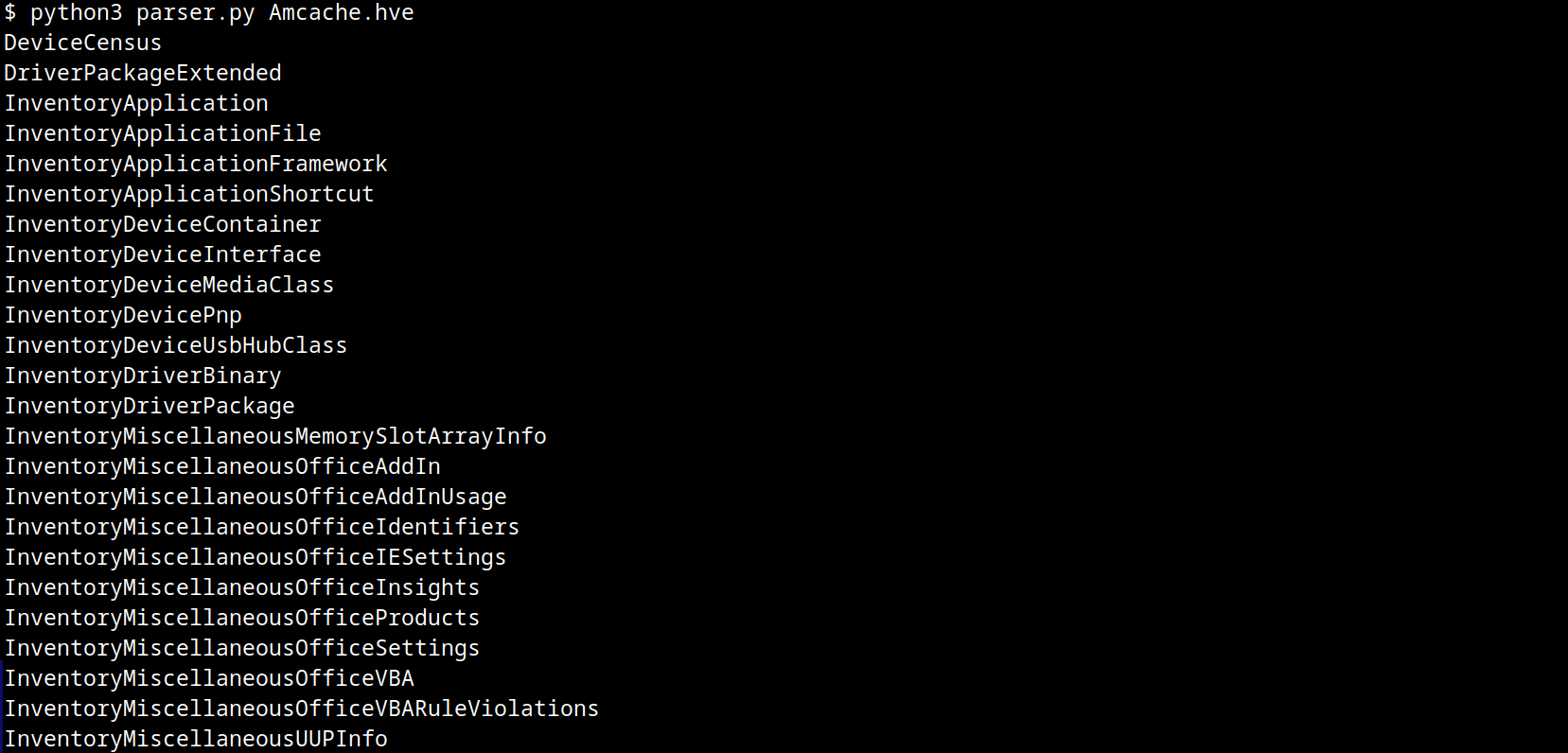
AmCache keys

AmCache keys

From a DFIR perspective, the keys that are of the most interest to us are InventoryApplicationFile, InventoryApplication, InventoryDriverBinary, and InventoryApplicationShortcut, which are described in detail in the following subsections.

InventoryApplicationFile

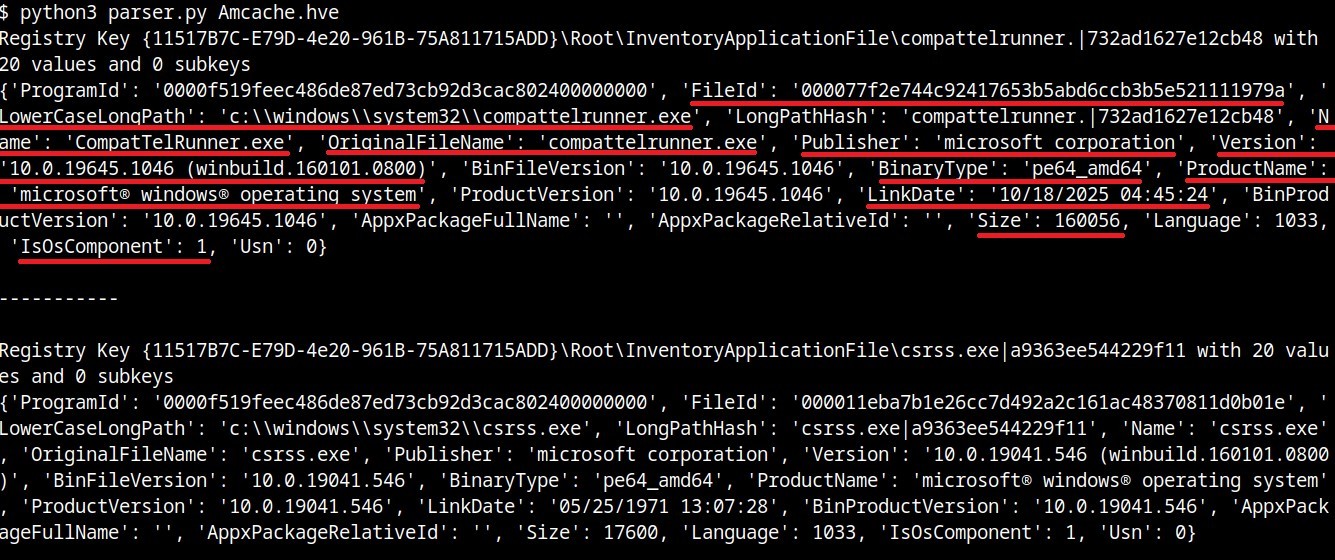
The InventoryApplicationFile key is essential for tracking every executable discovered on the system. Under this key, each executable is represented by its own uniquely named subkey, which stores the following main metadata:

  • ProgramId: a unique hash generated from the binary name, version, publisher, and language, with some zeroes appended to the beginning of the hash
  • FileID: the SHA-1 hash of the file, with four zeroes appended to the beginning of the hash
  • LowerCaseLongPath: the full lowercase path to the executable
  • Name: the file base name without the path information
  • OriginalFileName: the original filename as specified in the PE header’s version resource, indicating the name assigned by the developer at build time
  • Publisher: often used to verify if the source of the binary is legitimate. For malware, this subkey is usually empty
  • Version: the specific build or release version of the executable
  • BinaryType: indicates whether the executable is a 32-bit or 64-bit binary
  • ProductName: the ProductName field from the version resource, describing the broader software product or suite to which the executable belongs
  • LinkDate: the compilation timestamp extracted from the PE header
  • Size: the file size in bytes
  • IsOsComponent: a boolean flag that specifies whether the executable is a built-in OS component or a third-party application/library

With some tweaks to our original Python parser, we can read the information stored within this key:

#!/usr/bin/env python3

import sys
from Registry.Registry import Registry

hive = Registry(sys.argv[1])
root = hive.open("Root")

subs = {k.name(): k for k in root.subkeys()}
parent = subs.get("InventoryApplicationFile")

for rec in parent.subkeys():
   vals = {v.name(): v.value() for v in rec.values()}
   print("{}\n{}\n\n-----------\n".format(rec, vals))
InventoryApplicationFile subkeys

InventoryApplicationFile subkeys

We can also use tools like Registry Explorer to see the same data in a graphical way:
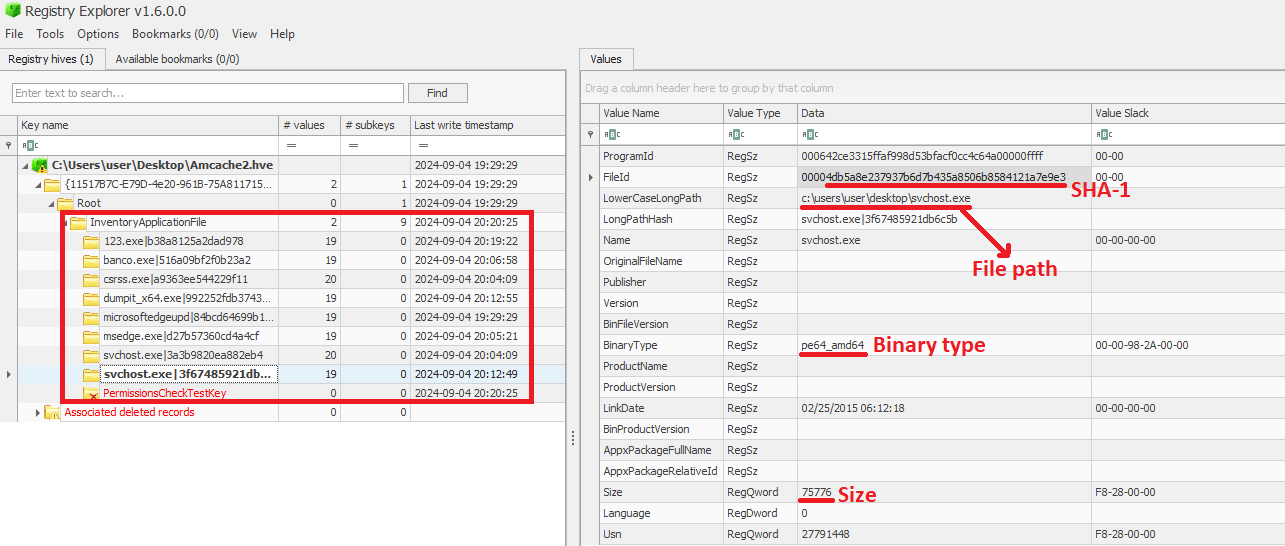
InventoryApplicationFile inspected through Registry Explorer

InventoryApplicationFile inspected through Registry Explorer

As mentioned before, AmCache computes the SHA-1 hash over only the first 31,457,280 bytes (≈31 MB). To prove this, we did a small experiment, during which we got a binary smaller than 31 MB (Aralez) and one larger than this value (a custom version of Velociraptor). For the first case, the SHA-1 hash of the entire binary was stored in AmCache.
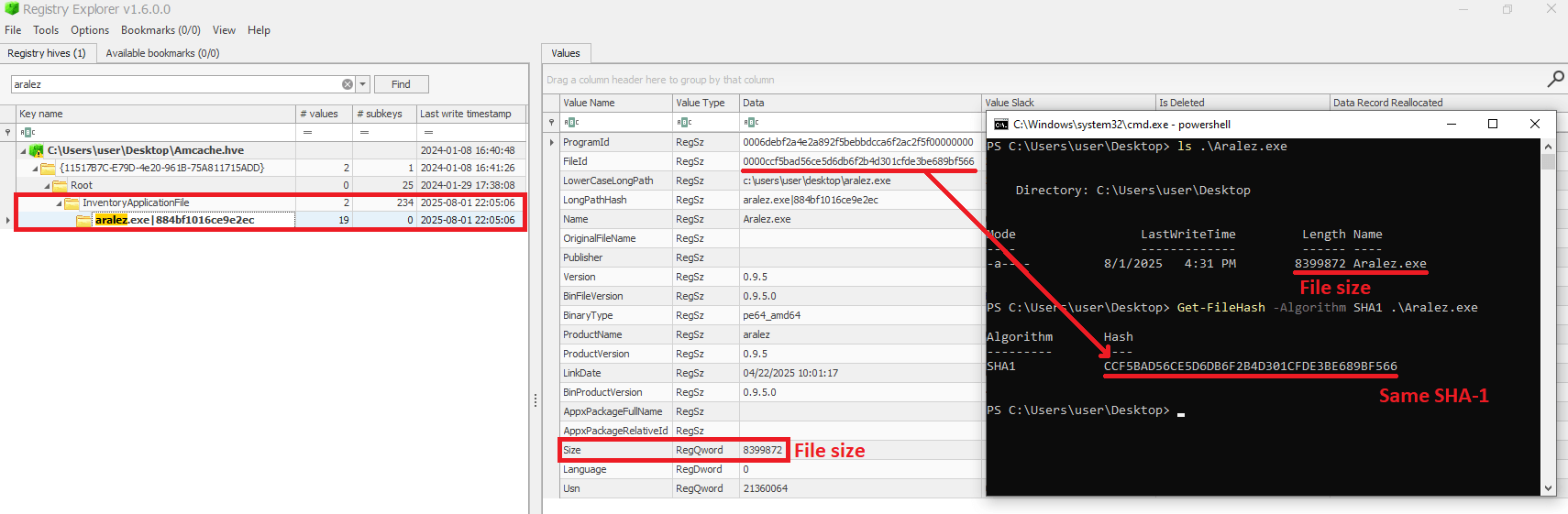
First AmCache SHA-1 storage scenario

First AmCache SHA-1 storage scenario

For the second scenario, we used the dd utility to extract the first 31 MB of the Velociraptor binary:
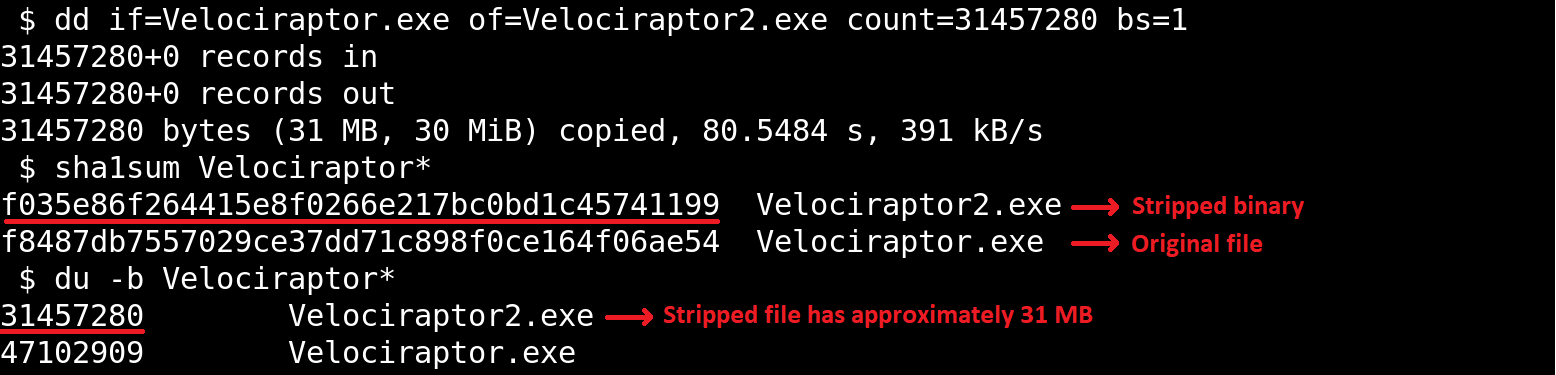
Stripped binary

Stripped binary

When checking the Velociraptor entry on AmCache, we found that it indeed stored the SHA-1 hash calculated only for the first 31,457,280 bytes of the binary. Interestingly enough, the Size value represented the actual size of the original file. Thus, relying only on the file hash stored on AmCache for querying threat intelligence portals may be not enough when dealing with large files. So, we need to check if the file size in the record is bigger than 31,457,280 bytes before searching threat intelligence portals.
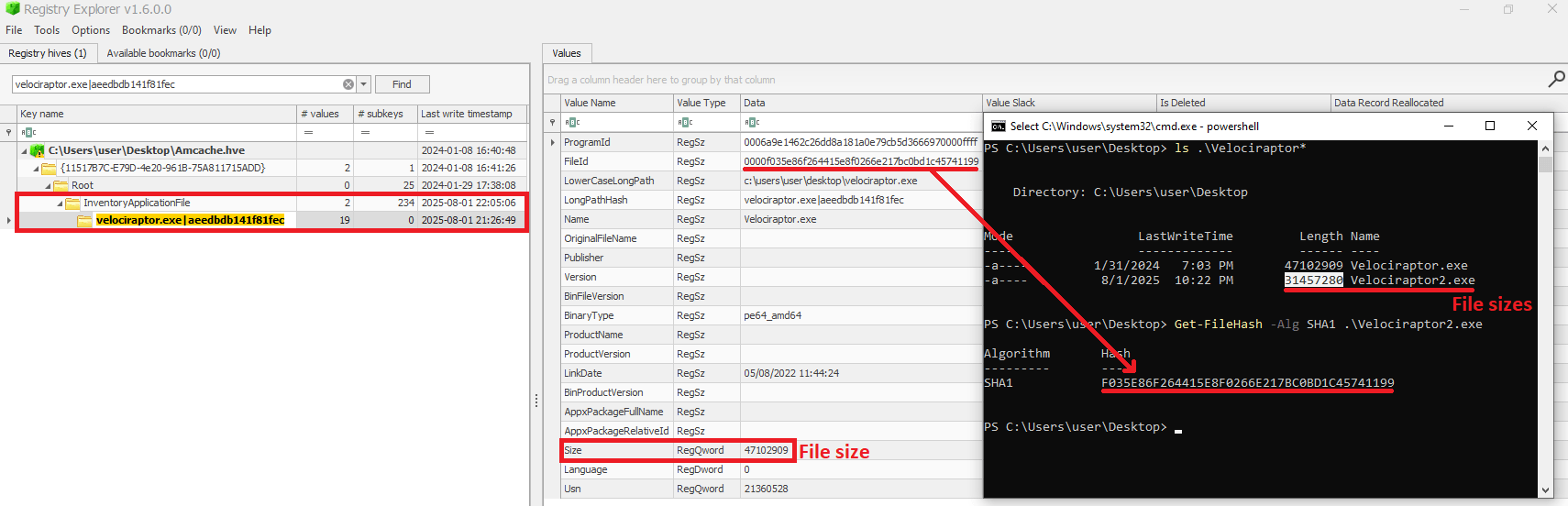
Second AmCache SHA-1 storage scenario

Second AmCache SHA-1 storage scenario

Additionally, attackers may take advantage of this characteristic to purposely generate large malicious binaries. In this way, even if investigators find that a malware was executed/present on a Windows system, the actual SHA-1 hash of the binary will still be unknown, making it difficult to track it across the network and gathering it from public databases like VirusTotal.

InventoryApplicationFile – use case example: finding a deleted tool that was used

Let’s suppose you are searching for a possible insider threat. The user denies having run any suspicious programs, and any suspicious software was securely erased from disk. But in the InventoryApplicationFile, you find a record of winscp.exe being present in the user’s Downloads folder. Even though the file is gone, this tells you the tool was on the machine and it was likely used to transfer files before being deleted. In our incident response practice, we have seen similar cases, where this key proved useful.

InventoryApplication

The InventoryApplication key records details about applications that were previously installed on the system. Unlike InventoryApplicationFile, which logs every executable encountered, InventoryApplication focuses on those with installation records. Each entry is named by its unique ProgramId, allowing straightforward linkage back to the corresponding InventoryApplicationFile key. Additionally, InventoryApplication has the following subkeys of interest:

  • InstallDate: a date‑time string indicating when the OS first recorded or recognized the application
  • MsiInstallDate: present only if installed via Windows Installer (MSI); shows the exact time the MSI package was applied, sourced directly from the MSI metadata
  • UninstallString: the exact command line used to remove the application
  • Language: numeric locale identifier set by the developer (LCID)
  • Publisher: the name of the software publisher or vendor
  • ManifestPath: the file path to the installation manifest used by UWP or AppX/MSIX apps

With a simple change to our parser, we can check the data contained in this key:

<...>
parent = subs.get("InventoryApplication")
<...>
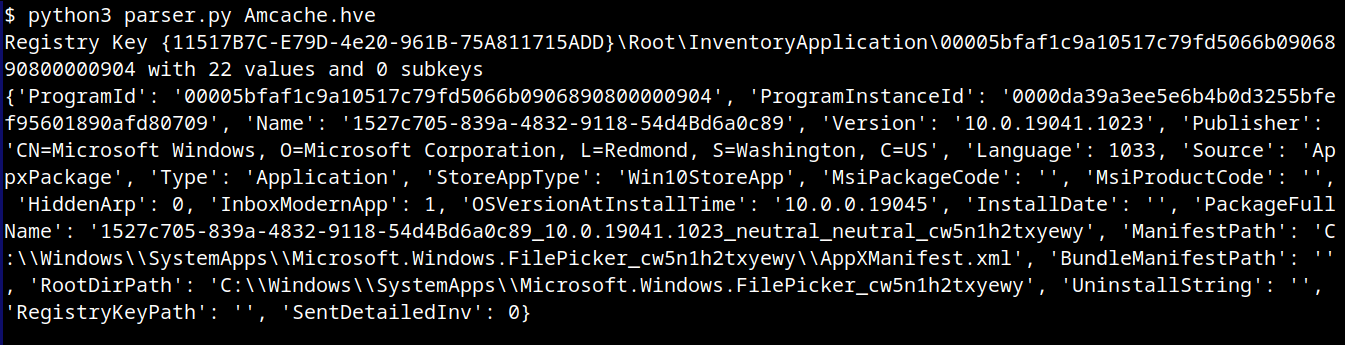
InventoryApplication subkeys

InventoryApplication subkeys

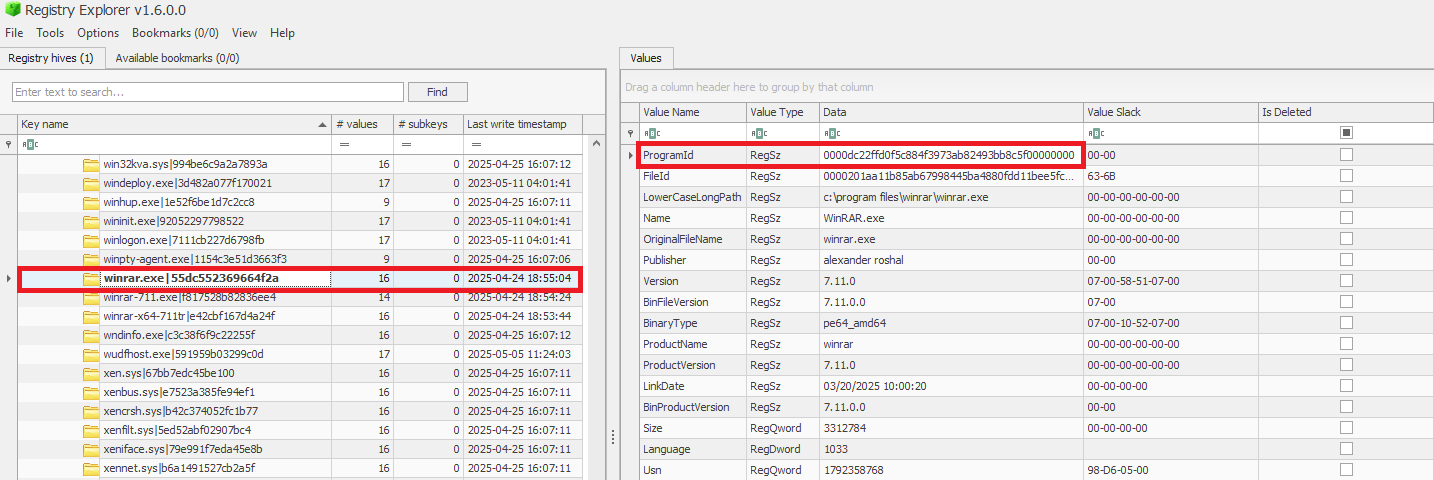
When a ProgramId appears both here and under InventoryApplicationFile, it confirms that the executable is not merely present or executed, but was formally installed. This distinction helps us separate ad-hoc copies or transient executions from installed software. The following figure shows the ProgramId of the WinRAR software under InventoryApplicationFile.
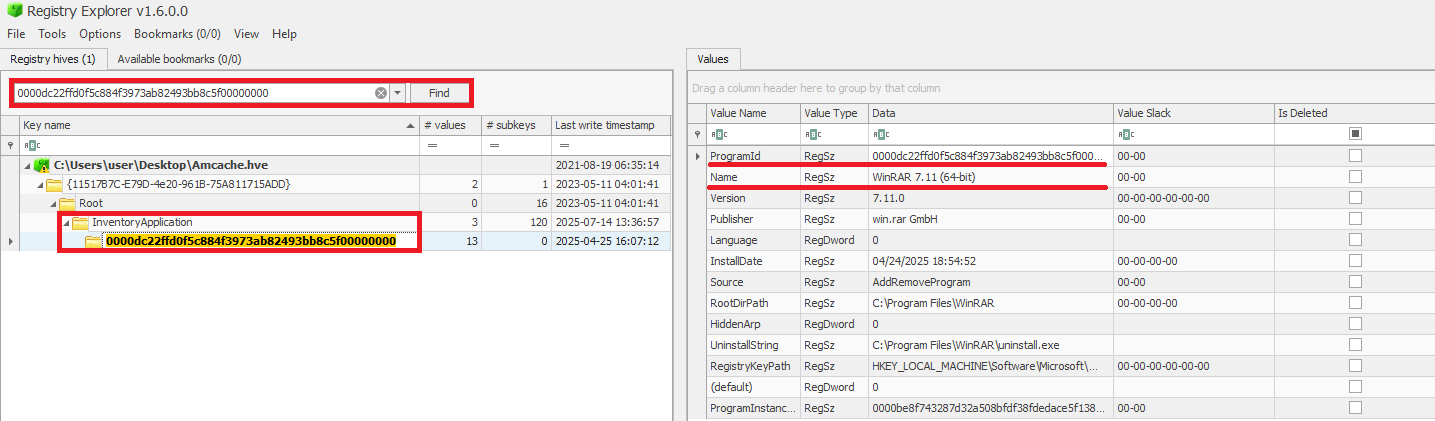
When searching for the ProgramId, we find an exact match under InventoryApplication. This confirms that WinRAR was indeed installed on the system.
Another interesting detail about InventoryApplication is that it contains a subkey named LastScanTime, which is stored separately from ProgramIds and holds a value representing the last time the Microsoft Compatibility Appraiser ran. This is a scheduled task that launches the compattelrunner.exe binary, and the information in this key should only be updated when that task executes. As a result, software installed since the last run of the Appraiser may not appear here. The LastScanTime value is stored in Windows FileTime format.

InventoryApplication LastScanTime information

InventoryApplication LastScanTime information

InventoryApplication – use case example: spotting remote access software

Suppose that during an incident response engagement, you find an entry for AnyDesk in the InventoryApplication key (although the application is not installed anymore). This means that the attacker likely used it for remote access and then removed it to cover their tracks. Even if wiped from disk, this key proves it was present. We have seen this scenario in real-world cases more than once.

InventoryDriverBinary

The InventoryDriverBinary key records every kernel-mode driver that the system has loaded, providing the essential metadata needed to spot suspicious or malicious drivers. Under this key, each driver is captured in its own uniquely named subkey and includes:

  • FileID: the SHA-1 hash of the driver binary, with four zeroes appended to the beginning of the hash
  • LowerCaseLongPath: the full lowercase file path to the driver on disk
  • DigitalSignature: the code-signing certificate details. A valid, trusted signature helps confirm the driver’s authenticity
  • LastModified: the file’s last modification timestamp from the filesystem metadata, revealing when the driver binary was most recently altered on disk

Because Windows drivers run at the highest privilege level, they are frequently exploited by malware. For example, a previous study conducted by Kaspersky shows that attackers are exploiting vulnerable drivers for killing EDR processes. When dealing with a cybersecurity incident, investigators correlate each driver’s cryptographic hash, file path, signature status, and modification timestamp. That can help in verifying if the binary matches a known, signed version, detecting any tampering by spotting unexpected modification dates, and flagging unsigned or anomalously named drivers for deeper analysis. Projects like LOLDrivers help identify vulnerable drivers in use by attackers in the wild.
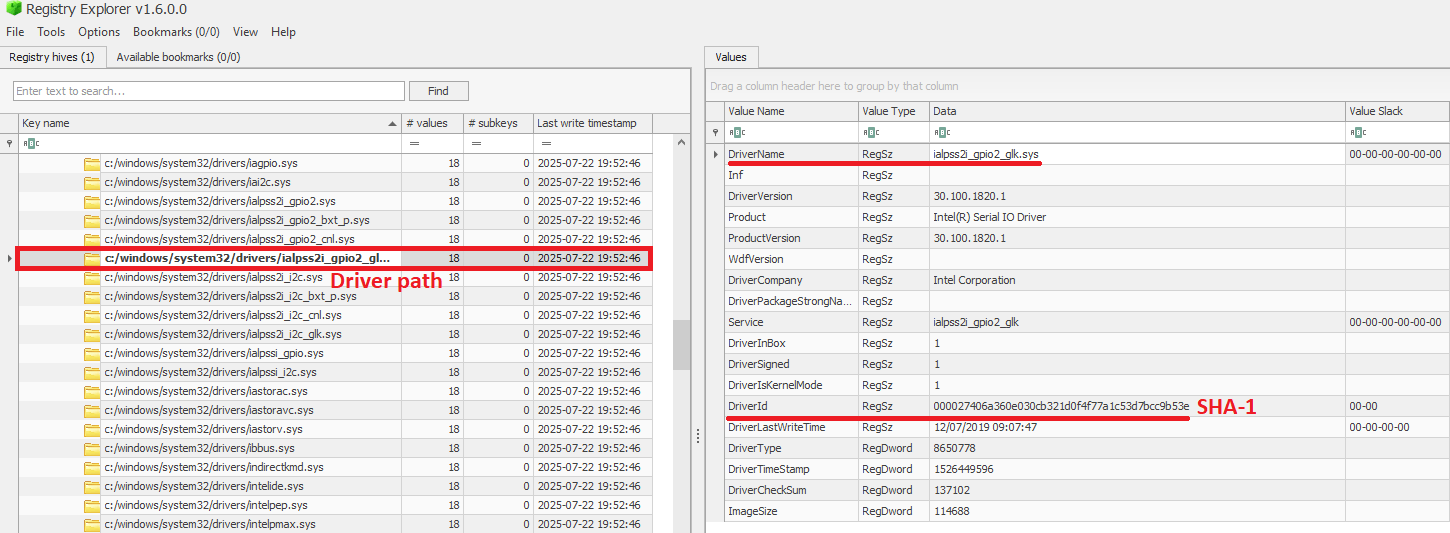
InventoryDriverBinary inspection

InventoryDriverBinary inspection

In addition to the InventoryDriverBinary, AmCache also provides the InventoryApplicationDriver key, which keeps track of all drivers that have been installed by specific applications. It includes two entries:

  • DriverServiceName, which identifies the name of the service linked to the installed driver; and
  • ProgramIds, which lists the program identifiers (corresponding to the key names under InventoryApplication) that were responsible for installing the driver.

As shown in the figure below, the ProgramIds key can be used to track the associated program that uses this driver:
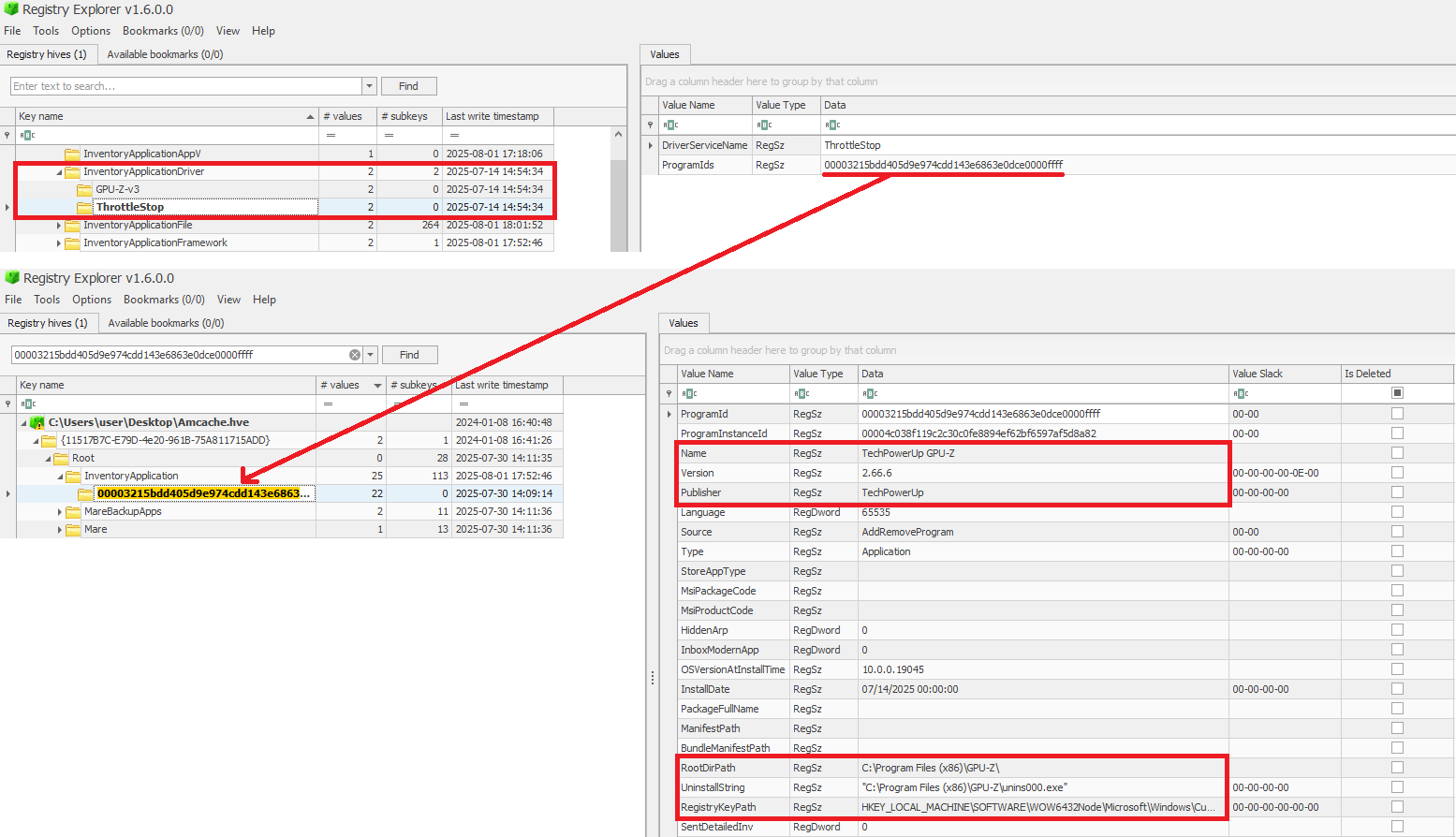
Checking program information by ProgramIds

Checking program information by ProgramIds

InventoryDriverBinary – use case example: catching a bad driver

If the system was compromised through the abuse of a known vulnerable or malicious driver, you can use the InventoryDriverBinary registry key to confirm its presence. Even if the driver has been removed or hidden, remnants in this key can reveal that it was once loaded, which helps identify kernel-level compromises and supporting timeline reconstruction during the investigation. This is exactly how the AV Killer malware was discovered.

InventoryApplicationShortcut

This key contains entries for .lnk (shortcut) files that were present in folders like each user’s Start Menu or Desktop. Within each shortcut key, the ShortcutPath provides the absolute path to the LNK file at the moment of discovery. The ShortcutTargetPath shows where the shortcut pointed. We can also search for the ProgramId entry within the InventoryApplication key using the ShortcutProgramId (similar to what we did for drivers).

InventoryApplicationShortcut key

InventoryApplicationShortcut key

InventoryApplicationShortcut – use case example: confirming use of a removed app

You find that a suspicious program was deleted from the computer, but the user claims they never ran it. The InventoryApplicationShortcut key shows a shortcut to that program was on their desktop and was accessed recently. With supplementary evidence, such as that from Prefetch analysis, you can confirm the execution of the software.

AmCache key comparison

The table below summarizes the information presented in the previous subsections, highlighting the main information about each AmCache key.

Key Contains Indicates execution?
InventoryApplicationFile Metadata for all executables seen on the system. Possibly (presence = likely executed)
InventoryApplication Metadata about formally installed software. No (indicates installation, not necessarily execution)
InventoryDriverBinary Metadata about loaded kernel-mode drivers. Yes (driver was loaded into memory)
InventoryApplicationShortcut Information about .lnk files. Possibly (combine with other data for confirmation)

AmCache-EvilHunter

Undoubtedly Amcache.hve is a very important forensic artifact. However, we could not find any tool that effectively parses its contents while providing threat intelligence for the analyst. With this in mind, we developed AmCache-EvilHunter a command-line tool to parse and analyze Windows Amcache.hve registry hives, identify evidence of execution, suspicious executables, and integrate Kaspersky OpenTIP and VirusTotal lookups for enhanced threat intelligence.

AmCache-EvilHunter is capable of processing the Amcache.hve file and filter records by date range (with the options --start and --end). It is also possible to search records using keywords (--search), which is useful for searching for known naming conventions adopted by attackers. The results can be saved in CSV (--csv) or JSON (--json) formats.

The image below shows an example of execution of AmCache-EvilHunter with these basic options, by using the following command:

amcache-evilhunter -i Amcache.hve --start 2025-06-19 --end 2025-06-19 --csv output.csv

The output contains all applications that were present on the machine on June 19, 2025. The last column contains information whether the file is an operating system component, or not.
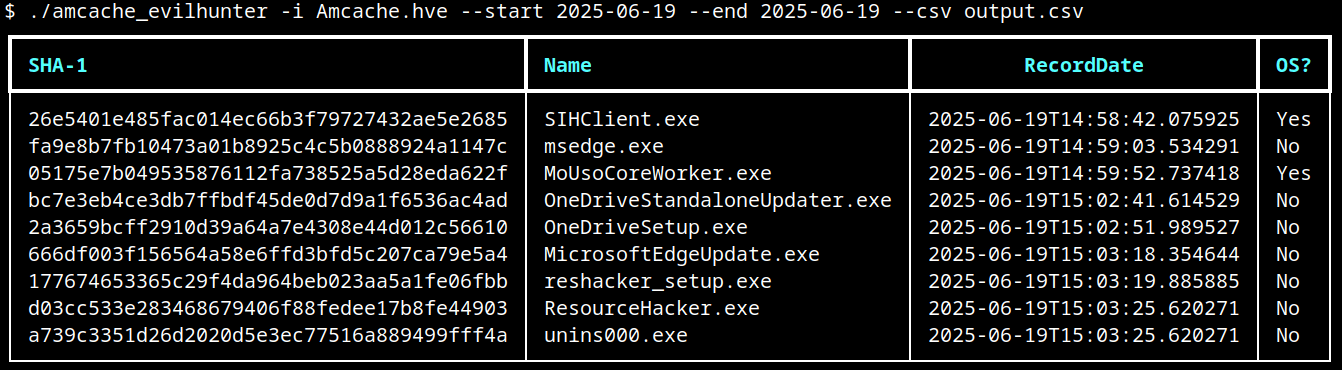
Basic usage of AmCache-EvilHunter
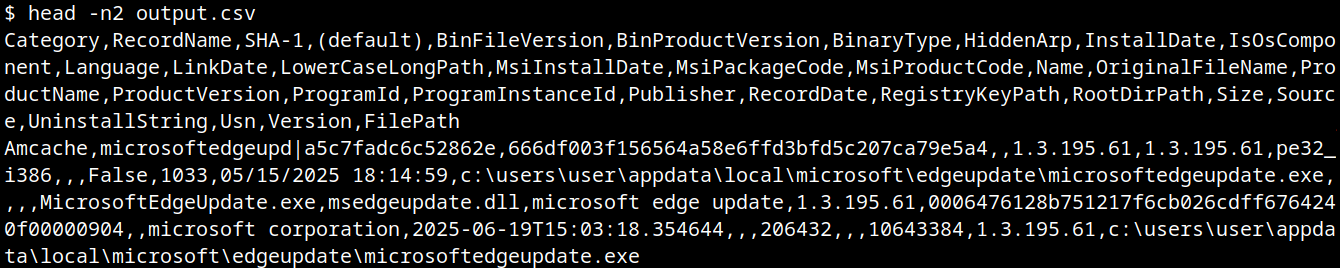
Basic usage of AmCache-EvilHunter

CSV result

CSV result

Analysts are often faced with a large volume of executables and artifacts. To narrow down the scope and reduce noise, the tool is able to search for known suspicious binaries with the --find-suspicious option. The patterns used by the tool include common malware names, Windows processes containing small typos (e.g., scvhost.exe), legitimate executables usually found in use during incidents, one-letter/one-digit file names (such as 1.exe, a.exe), or random hex strings. The figure below shows the results obtained by using this option; as highlighted, one svchost.exe file is part of the operating system and the other is not, making it a good candidate for collection and analysis if not deleted.

Suspicious files identification

Suspicious files identification

Malicious files usually do not include any publisher information and are definitely not part of the default operating system. For this reason, AmCache-EvilHunter also ships with the --missing-publisher and --exclude-os options. These parameters allow for easy filtering of suspicious binaries and also allow fast threat intelligence gathering, which is crucial during an incident.

Another important feature that distinguishes our tool from other proposed approaches is that AmCache-EvilHunter can query Kaspersky OpenTIP (--opentip ) and VirusTotal (--vt) for hashes it identifies. In this way, analysts can rapidly gain insights into samples to decide whether they are going to proceed with a full analysis of the artifact or not.

Threat intel lookup

Threat intel lookup

Binaries of the tool are available on our GitHub page for both Linux and Windows systems.

Conclusion

Amcache.hve is a cornerstone of Windows forensics, capturing rich metadata, such as full paths, SHA-1 hashes, compilation timestamps, publisher and version details, for every executable that appears on a system. While it does not serve as a definitive execution log, its strength lies in documenting file presence and paths, making it invaluable for spotting anomalous binaries, verifying trustworthiness via hash lookups against threat‐intelligence feeds, and correlating LinkDate values with known attack campaigns.

To extract its full investigative potential, analysts should merge AmCache data with other artifacts (e.g., Prefetch, ShimCache, and Windows event logs) to confirm actual execution and build accurate timelines. Comparing InventoryApplicationFile entries against InventoryApplication reveals whether a file was merely dropped or formally installed, and identifying unexpected driver records can expose stealthy rootkits and persistence mechanisms. Leveraging parsers like AmCache-EvilHunter and cross-referencing against VirusTotal or proprietary threat databases allows IOC generation and robust incident response, making AmCache analysis a fundamental DFIR skill.
Forensic journey: Breaking down the UserAssist artifact structure

14 July 2025 at 06:00

Introduction

As members of the Global Emergency Response Team (GERT), we work with forensic artifacts on a daily basis to conduct investigations, and one of the most valuable artifacts is UserAssist. It contains useful execution information that helps us determine and track adversarial activities, and reveal malware samples. However, UserAssist has not been extensively examined, leaving knowledge gaps regarding its data interpretation, logging conditions and triggers, among other things. This article provides an in-depth analysis of the UserAssist artifact, clarifying any ambiguity in its data representation. We’ll discuss the creation and updating of artifact workflow, the UEME_CTLSESSION value structure and its role in logging the UserAssist data. We’ll also introduce the UserAssist data structure that was previously unknown.

UserAssist artifact recap

In the forensics community, UserAssist is a well-known Windows artifact used to register the execution of GUI programs. This artifact stores various data about every GUI application that’s run on a machine:

  • Program name: full program path.
  • Run count: number of times the program was executed.
  • Focus count: number of times the program was set in focus, either by switching to it from other applications, or by otherwise making it active in the foreground.
  • Focus time: total time the program was in focus.
  • Last execution time: date and time of the last program execution.

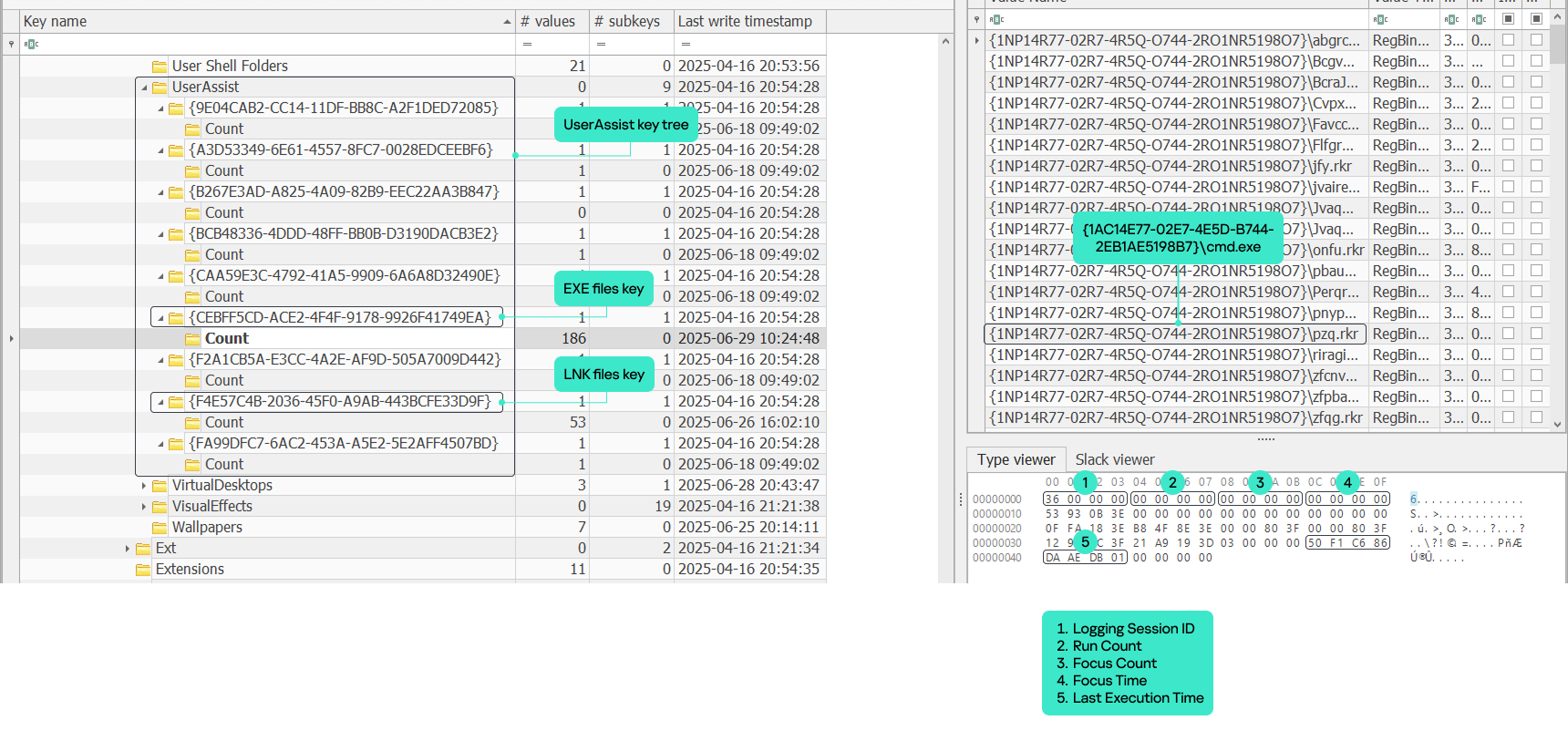
The UserAssist artifact is a registry key under each NTUSER.DAT hive located at Software\Microsoft\Windows‌\CurrentVersion\Explorer\UserAssist\. The key consists of subkeys named with GUIDs. The two most important GUID subkeys are:

  • {CEBFF5CD-ACE2-4F4F-9178-9926F41749EA}: registers executed EXE files.
  • {F4E57C4B-2036-45F0-A9AB-443BCFE33D9F}: registers executed LNK files.

Each subkey has its own subkey named “Count”. It contains values that represent the executed programs. The value names are the program paths encrypted using the ROT-13 cipher.

The values contain structured binary data that includes the run count, focus count, focus time and last execution time of the respective application. This structure is well-known and represents the CUACount object. The bytes between focus time and last execution time have never been described or analyzed publicly, but we managed to determine what they are and will explain this later in the article. The last four bytes are unknown and contained a zero in all the datasets we analyzed.

UserAssist artifact

UserAssist artifact

Data inconsistency

Over the course of many investigations, the UserAssist data was found to be inconsistent. Some values included all of the parameters described above, while others, for instance, included only run count and last execution time. Overall, we observed five combinations of UserAssist data inconsistency.

Cases Run Count Focus Count Focus Time Last Execution Time
1
2
3
4
5

Workflow analysis

Deep dive into Shell32 functions

To understand the reasons behind the inconsistency, we must examine the component responsible for registering and updating the UserAssist data. Our analysis revealed that the component in question is shell32.dll, more specifically, a function called FireEvent that belongs to the CUserAssist class.

virtual long CUserAssist::FireEvent(struct _GUID const *, enum  tagUAEVENT, unsigned short const *, unsigned long)

The FireEvent arguments are as follows:

  • Argument 1: GUID that is a subkey of the UserAssist registry key containing the registered data. This argument most often takes the value {CEBFF5CD-ACE2-4F4F-9178-9926F41749EA} because executed programs are mostly EXE files.
  • Argument 2: integer enumeration value that defines which counters and data should be updated.
    • Value 0: updates the run count and last execution time
    • Value 1: updates the focus count
    • Value 2: updates the focus time
    • Value 3: unknown
    • Value 4: unknown (we assume it is used to delete the entry).
  • Argument 3: full executable path that has been executed, focused on, or closed.
  • Argument 4: focus time spent on the executable in milliseconds. This argument only contains a value if argument 2 has a value of 2; otherwise, it equals zero.

Furthermore, the FireEvent function relies heavily on two other shell32.dll functions: s_Read and s_Write. These functions are responsible for reading and writing the binary value data of UserAssist from and to the registry whenever a particular application is updated:

static long CUADBLog::s_Read(void *, unsigned long, struct NRWINFO *)
static long CUADBLog::s_Write(void *, unsigned long, struct NRWINFO *)

The s_Read function reads the binary value of the UserAssist data from the registry to memory, whereas s_Write writes the binary value of the UserAssist data to the registry from the memory. Both functions have the same arguments, which are as follows:

  • Argument 1: pointer to the memory buffer (the CUACount struct) that receives or contains the UserAssist binary data.
  • Argument 2: size of the UserAssist binary data in bytes to be read from or written to registry.
  • Argument 3: undocumented structure containing two pointers.
    • The CUADBLog instance pointer at the 0x0 offset
    • Full executable path in plain text that the associated UserAssist binary data needs to be read from or written to the registry.

When a program is executed for the first time and there is no respective entry for it in the UserAssist records, the s_Read function reads the UEME_CTLCUACount:ctor value, which serves as a template for the UserAssist binary data structure (CUACount). We’ll describe this value later in the article.

It should be noted that the s_Read and s_Write functions are also responsible for encrypting the value names with the ROT-13 cipher.

UserAssist data update workflow

Any interaction with a program that displays a GUI is a triggering event that results in a call to the CUserAssist::FireEvent function. There are four types of triggering events:

  • Program executed.
  • Program set in focus.
  • Program set out of focus.
  • Program closed.

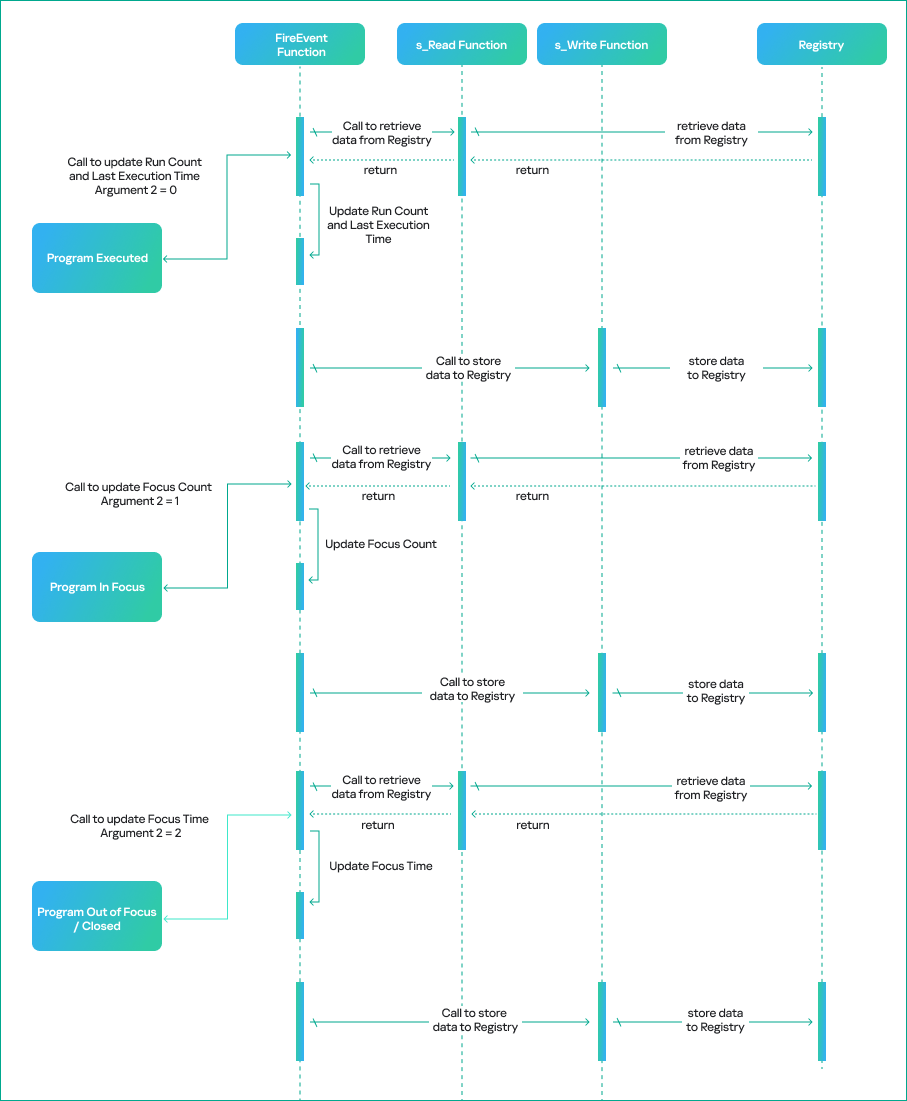
The triggering event determines the execution workflow of the CUserAssist::FireEvent function. The workflow is based on the enumeration value that is passed as the second argument to FireEvent and defines which counters and data should be updated in the UserAssist binary data.

The CUserAssist::FireEvent function calls the CUADBLog::s_Read function to read the binary data from registry to memory. The CUserAssist::FireEvent function then updates the respective counters and data before calling CUADBLog::s_Write to store the data back to the registry.

The diagram below illustrates the workflow of the UserAssist data update process depending on the interaction with a program.

UserAssist data update workflow

UserAssist data update workflow

The functions that call the FireEvent function vary depending on the specific triggering event caused by interaction with a program. The table below shows the call stack for each triggering event, along with the modules of the functions.

Triggering event Module Call Stack Functions Details
Program executed (double click) SHELL32 CUserAssist::FireEvent This call chain updates the run count and last execution time. It is only triggered when the executable is double-clicked, whether it is a CLI or GUI in File Explorer.
Windows.storage UAFireEvent
Windows.storage NotifyUserAssistOfLaunch
Windows.storage CInvokeCreateProcessVerb::
_OnCreatedProcess
Program in focus SHELL32 CUserAssist::FireEvent This call chain updates the focus count and only applies to GUI executables.
Explorer UAFireEvent
Explorer CApplicationUsageTracker::
_FireDelayedSwitch
Explorer CApplicationUsageTracker::
_FireDelayedSwitchCallback
Program out of focus SHELL32 CUserAssist::FireEvent This call chain updates the focus time and only applies to GUI executables.
Explorer UAFireEvent
Explorer <lambda_2fe02393908a23e7
ac47d9dd501738f1>::operator()
Explorer shell::TaskScheduler::
CSimpleRunnableTaskParam
<<‌lambda_2fe02393908a23e7
ac47‌d9dd501738f1>‌,
CMemString<CMemString‌
_PolicyCoTaskMem>
>::InternalResumeRT
Program closed SHELL32 CUserAssist::FireEvent This call chain updates the focus time and applies to GUI and CLI executables. However, CLI executables are only updated if the program was executed via a double click or if conhost was spawned as a child process.
Explorer UAFireEvent
Explorer shell::TaskScheduler::
CSimpleRunnableTaskParam<<‌
lambda_5b4995a8d0f55408566e‌10
b459ba2cbe>‌,CMemString<
CMemString‌_PolicyCoTaskMem> >
::InternalResumeRT

Inconsistency breakdown

As previously mentioned, we observed five combinations of UserAssist data. Our thorough analysis shows that these inconsistencies arise from interactions with a program and various functions that call the FireEvent function. Now, let’s examine the triggering events that cause these inconsistencies in more detail.

1.   All data

The first combination is all four parameters registered in the UserAssist record: run count, focus count, focus time, and last execution time. In this scenario, the program usually follows the normal execution flow, has a GUI and is executed by double-clicking in Windows Explorer.

  • When the program is executed, the FireEvent function is called to update the run count and last execution time.
  • When it is set in focus, the FireEvent function is called to update the focus count.
  • When it is set out of focus or closed, the FireEvent function is called to update focus time.

2.   Run count and last execution time

The second combination occurs when the record only contains run count and last execution time. In this scenario, the program is run by double-clicking in Windows Explorer, but the GUI that appears belongs to another program. Examples of this scenario include launching an application with an LNK shortcut or using an installer that runs a different GUI program, which switches the focus to the other program file.

During our test, a copy of calc.exe was executed in Windows Explorer using the double-click method. However, the GUI program that popped up was the UWP app for the calculator Microsoft.WindowsCalculator_8wekyb3d8bbwe!App.

There is a record of the calc.exe desktop copy in UserAssist, but it contains only the run count and last execution time. However, both focus count and focus time are recorded under the UWP calculator Microsoft.WindowsCalculator_8wekyb3d8bbwe!App UserAssist entry.

3.   Focus count and focus time

The third combination is a record that only includes focus count and focus time. In this scenario, the program has a GUI, but is executed by means other than a double click in Windows Explorer, for example, via a command line interface.

During our test, a copy of Process Explorer from the Sysinternals Suite was executed through cmd and recorded in UserAssist with focus count and focus time only.

4.   Run count, last execution time and focus time

The fourth combination is when the record contains run count, last execution time and focus time. This scenario only applies to CLI programs that are run by double-clicking and then immediately closed. The double-click execution leads to the run count and last execution time being registered. Next, the program close event will call the FireEvent function to update the focus time, which is triggered by the lambda function (5b4995a8d0f55408566e10b459ba2cbe).

During our test, a copy of whoami.exe was executed by a double click, which opened a console GUI for a split second before closing.

5.   Focus time

The fifth combination is a record with only focus time registered. This scenario only applies to CLI programs executed by means other than a double click, which opens a console GUI for a split second before it is immediately closed.

During our test, a copy of whoami.exe was executed using PsExec instead of cmd. PsExec executed whoami as its own child process, resulting in whoami spawning a conhost.exe process. This condition must be met for the CLI program to be registered in UserAssist in this scenario.

We summed up all five combinations with their respective interpretations in the table below.

Inconsistency combination Interpretation Triggering events
All Data GUI program executed by double
click and closed normally.
·        Program Executed
·        Program In Focus
·        Program Out of Focus
·        Program Closed
Run Count and Last Execution Time GUI program executed by double
click but focus switched to another
program.
·        Program Executed
Focus Count and Focus Time GUI program executed by other means. ·        Program In Focus
·        Program Out of Focus
·        Program Closed
Run Count, Last Execution Time and Focus Time CLI program executed by double
click and then closed.
·        Program Executed
·        Program Closed
Focus Time CLI program executed by other
means than double click, spawned
conhost process and then closed.
·        Program Closed

CUASession and UEME_CTLSESSION

Now that we have addressed the inconsistency of the UserAssist artifact, the second part of this research will explain another aspect of UserAssist: the CUASession class and the UEME_CTLSESSION value.

The UserAssist database contains value names for every executed program, but there is an unknown value: UEME_CTLSESSION. Unlike the binary data that is recorded for every program, this value contains larger binary data: 1612 bytes, whereas the regular size of values for executed programs is 72 bytes.

CUASession is a class within shell32.dll that is responsible for maintaining statistics of the entire UserAssist logging session for all programs. These statistics include total run count, total focus count, total focus time and the three top program entries, known as NMax entries, which we will describe below. The UEME_CTLSESSION value contains the properties of the CUASession object. Below are some functions of the CUASession class:

CUASession::AddLaunches(uint) CUASession::GetTotalLaunches(void)
CUASession::AddSwitches(uint) CUASession::GetTotalSwitches(void)
CUASession::AddUserTime(ulong) CUASession::GetTotalUserTime(void)
CUASession::GetNMaxCandidate(enum _tagNMAXCOLS, struct SNMaxEntry *) CUASession::SetNMaxCandidate(enum _tagNMAXCOLS, struct SNMaxEntry const *)

In the context of CUASession and UEME_CTLSESSION, we will refer to run count as launches, focus count as switches, and focus time as user time when discussing the parameters of all executed programs in a logging session as opposed to the data of a single program.

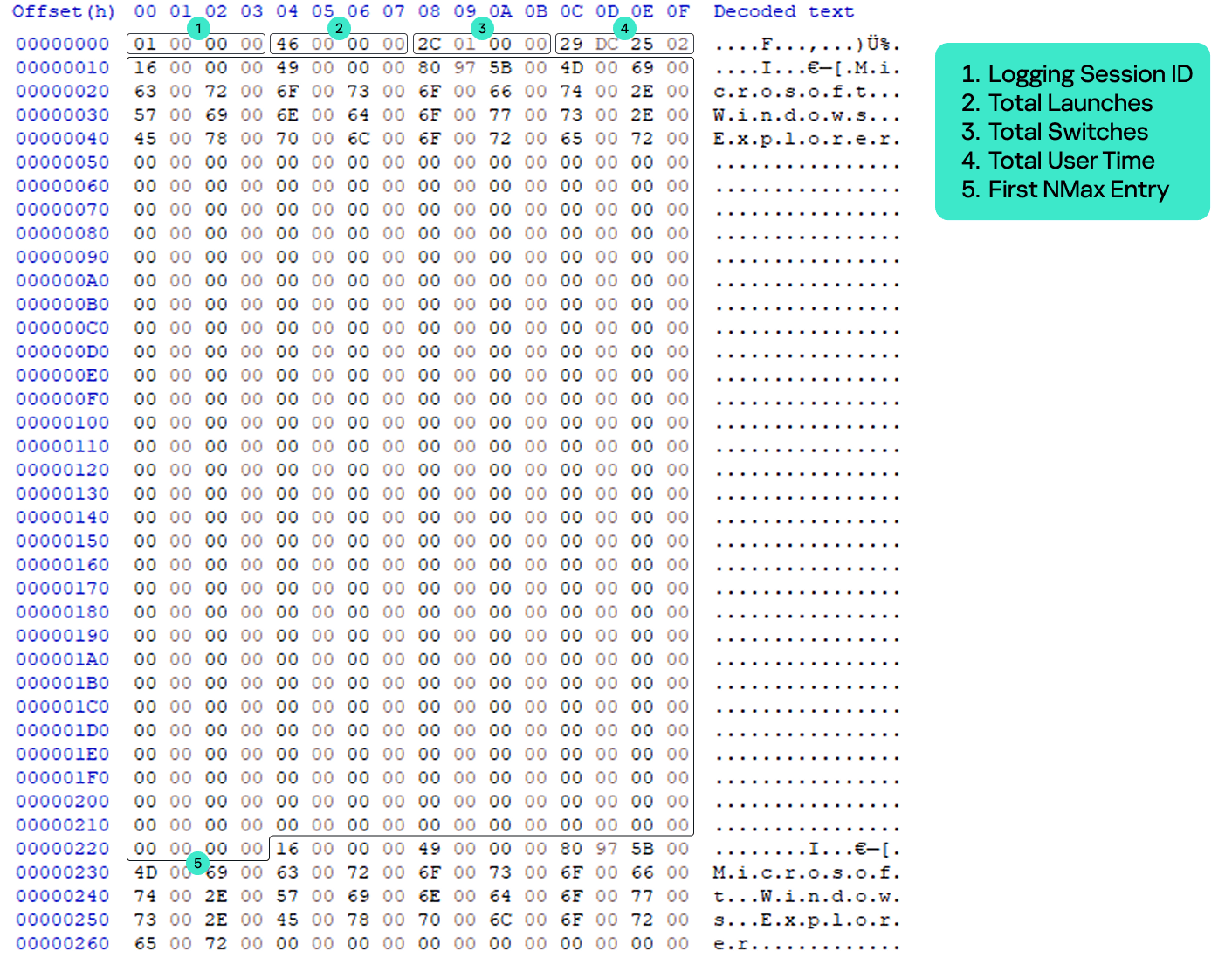
The UEME_CTLSESSION value has the following specific data structure:

  • 0x0 offset: general total statistics (16 bytes)
    • 0x0: logging session ID (4 bytes)
    • 0x4: total launches (4 bytes)
    • 0x8: total switches (4 bytes)
    • 0xC: total user time in milliseconds (4 bytes)
  • 0x10 offset: three NMax entries (1596 bytes)
    • 0x10: first NMax entry (532 bytes)
    • 0x224: second NMax entry (532 bytes)
    • 0x438: third NMax entry (532 bytes)
UEME_CTLSESSION structure

UEME_CTLSESSION structure

Every time the FireEvent function is called to update program data, CUASession updates its own properties and saves them to UEME_CTLSESSION.

  • When FireEvent is called to update the program’s run count, CUASession increments Total Launches in UEME_CTLSESSION.
  • When FireEvent is called to update the program’s focus count, CUASession increments Total Switches.
  • When FireEvent is called to update the program’s focus time, CUASession updates Total User Time.

NMax entries

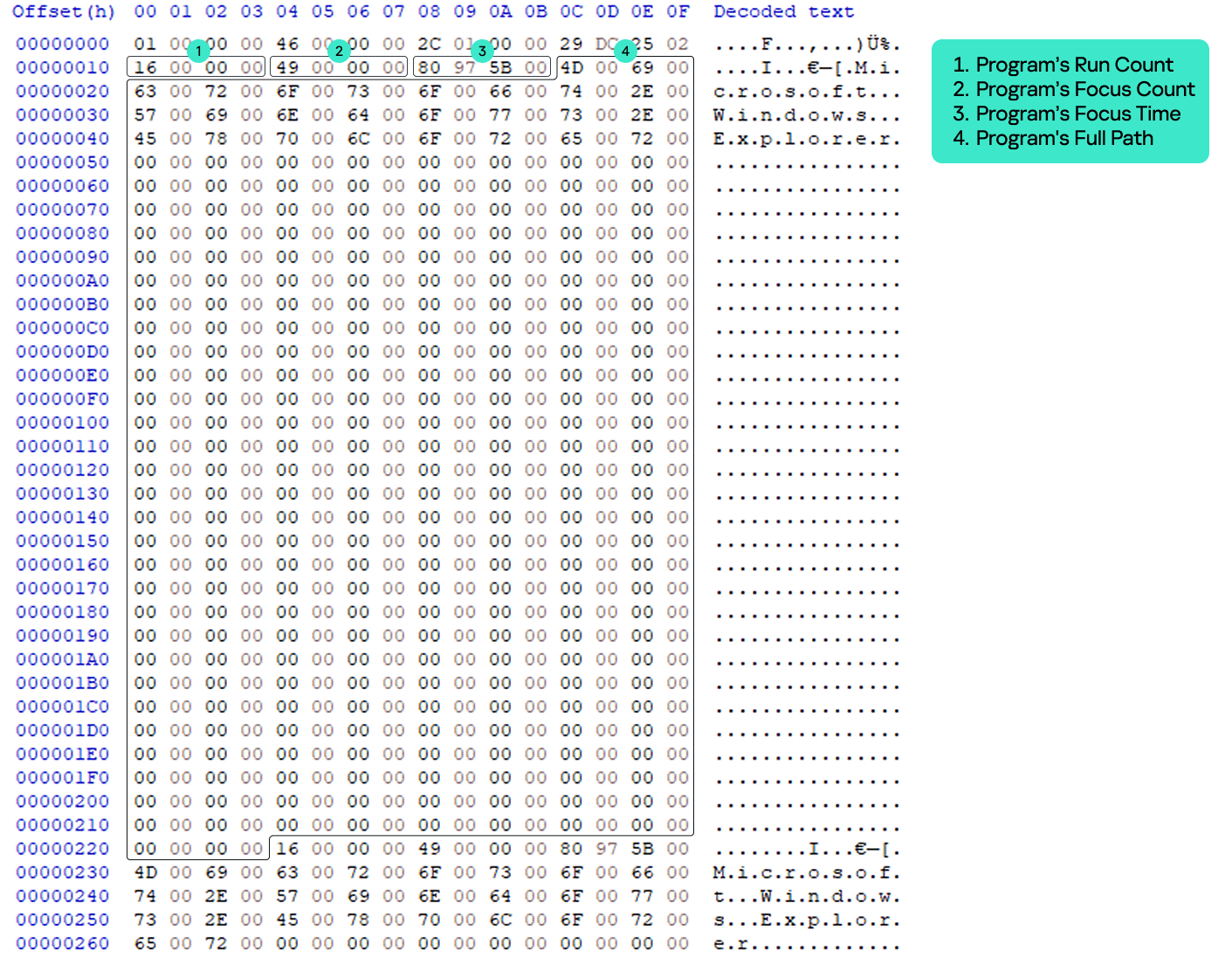
The NMax entry is a portion of the UserAssist data for the specific program that contains the program’s run count, focus count, focus time, and full path. NMax entries are part of the UEME_CTLSESSION value. Each NMax entry has the following data structure:

  • 0x0 offset: program’s run count (4 bytes)
  • 0x4 offset: program’s focus count (4 bytes)
  • 0x8 offset: program’s focus time in milliseconds (4 bytes)
  • 0xc offset: program’s name/full path in Unicode (520 bytes, the maximum Windows path length multiplied by two)
NMax entry structure

NMax entry structure

The NMax entries track the programs that are executed, switched, and used most frequently. Whenever the FireEvent function is called to update a program, the CUADBLog::_CheckUpdateNMax function is called to check and update the NMax entries accordingly.

The first NMax entry stores the data of the most frequently executed program based on run count. If two programs (the program whose data was previously saved in the NMax entry and the program that triggered the FireEvent for update) have an equal run count, the entry is updated based on the higher calculated value between the two programs, which is called the N value. The N value equation is as follows:

N value = Program’s Run Count*(Total User Time/Total Launches) + Program’s Focus Time + Program’s Focus Count*(Total User Time/Total Switches)

The second NMax entry stores the data of the program with the most switches, based on its focus count. If two programs have an equal focus count, the entry is updated based on the highest calculated N value.

The third NMax entry stores the data of the program that has been used the most, based on the highest N value.

The parsed UEME_CTLSESSION structure with NMax entries is shown below.

{
        "stats": {
            "Session ID": 40,
            "Total Launches": 118,
            "Total Switches": 1972,
            "Total User Time": 154055403
        },
        "NMax": [
            {
                "Run Count": 20,
                "Focus Count": 122,
                "Focus Time": 4148483,
                "Executable Path": "Microsoft.Windows.Explorer"
            },
            {
                "Run Count": 9,
                "Focus Count": 318,
                "Focus Time": 34684910,
                "Executable Path": "Chrome"
            },
            {
                "Run Count": 9,
                "Focus Count": 318,
                "Focus Time": 34684910,
                "Executable Path": "Chrome"
            }
        ]
    }

UEME_CTLSESSION data

UserAssist reset

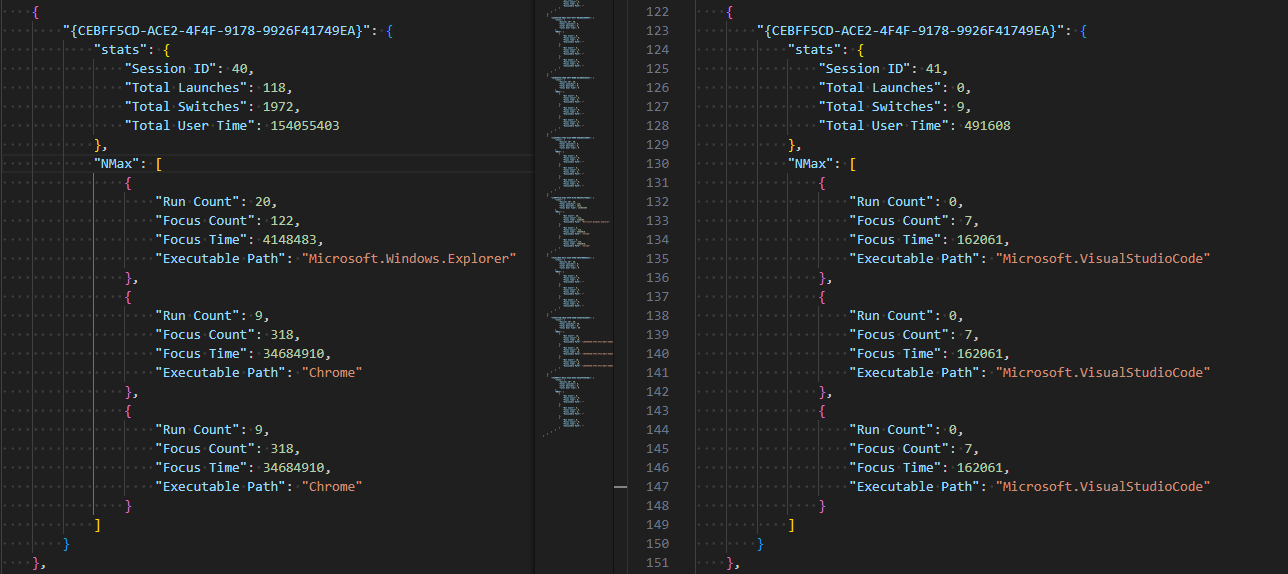
UEME_CTLSESSION will persist even after logging off or restarting. However, when it reaches the threshold of two days in its total user time, i.e., when the total focus time of all executed programs of the current user equals two days, the logging session is terminated and almost all UserAssist data, including the UEME_CTLSESSION value, is reset.

The UEME_CTLSESSION value is reset with almost all its data, including total launches, total switches, total user time, and NMax entries. However, the session ID is incremented and a new logging session begins.

UEME_CTLSESSION comparison before and after reset

UEME_CTLSESSION comparison before and after reset

The newly incremented session ID is copied to offset 0x0 of each program’s UserAssist data. Besides UEME_CTLSESSION, other UserAssist data for each program is also reset including run count, focus count, focus time, and the last four bytes, which are still unknown and always contain zero. The only parameter that is not reset is the last execution time. However, all this data is saved in the form of a usage percentage before resetting.

Usage percentage and counters

We analyzed the UserAssist data of various programs to determine the unknown bytes between the focus time and last execution time sections. We found that they represent a list of a program’s usage percentage relative to the most used program at that session, as well as the rewrite counter (the index of the usage percentage last written to the list) for the last 10 sessions. Given our findings, we can now revise the structure of the program’s UserAssist binary data and fully describe all of its components.

UserAssist revised structure

UserAssist revised structure

  • 0x0: logging session ID (4 bytes).
  • 0x4: run count (4 bytes).
  • 0x8: focus count (4 bytes).
  • 0xc: focus time (4 bytes).
  • 0x10: element in usage percentage list [0] (4 bytes).
  • 0x14: element in usage percentage list [1] (4 bytes).
  • 0x18: element in usage percentage list [2] (4 bytes).
  • 0x1c: element in usage percentage list [3] (4 bytes).
  • 0x20: element in usage percentage list [4] (4 bytes).
  • 0x24: element in usage percentage list [5] (4 bytes).
  • 0x28: element in usage percentage list [6] (4 bytes).
  • 0x2c: element in usage percentage list [7] (4 bytes).
  • 0x30: element in usage percentage list [8] (4 bytes).
  • 0x34: element in usage percentage list [9] (4 bytes).
  • 0x38: index of last element written in the usage percentage list (4 bytes).
  • 0x3c: last execution time (Windows FILETIME structure) (8 bytes).
  • 0x44: unknown value (4 bytes).

The values from 0x10 to 0x37 are the usage percentage values that are called r0 values and calculated based on the following equation.

r0 value [Index] = N Value of the Program / N Value of the Most Used Program in the session (NMax entry 3)

If the program is run for the first time within an ongoing logging session, its r0 values equal -1, which is not a calculated value, but a placeholder.

The offset 0x38 is the index of the last element written to the list, and is incremented whenever UEME_CTLSESSION is reset. The index is bounded between zero and nine because the list only contains the r0 values of the last 10 sessions.

The last four bytes equal zero, but their purpose remains unknown. We have not observed them being used other than being reset after the session expires.

The table below shows a sample of the UserAssist data broken down by component after parsing.

UserAssist revised data structure parsed

UserAssist revised data structure parsed

Forensic value

The r0 values are a goldmine of valuable information about a specific user’s application and program usage. These values provide useful information for incident investigations, such as the following:

  • Programs with many 1 values in the r0 values list are the programs most frequently used by the user.
  • Programs with many 0 values in the r0 values list are the programs that are least used or abandoned by the user, which could be useful for threat hunting and lead to the discovery of malware or legitimate software used by adversaries.
  • Programs with many -1 values in the r0 values list are relatively new programs with data that has not been reset within two days of the user interactive session.

UserAssist data template

As mentioned above, when the program is first executed and doesn’t yet have its own UserAssist record (CUACount object), a new entry is created with the UEME_CTLCUACount:ctor value. This value serves as a template for the program’s UserAssist binary data with the following values:

  • Logging session ID = -1 (0xffffffff). However, this value is copied to the UserAssist entry from the current UEME_CTLSESSION session.
  • Run count = 0.
  • Focus count = 0.
  • Focus time = 0.
  • Usage percentage list [0-9] = -1 (0xbf800000) because these values are float numbers.
  • Usage percentage index (counter) = -1 (0xffffffff).
  • Last execution time = 0.
  • Last four bytes = 0.
UEME_CTLCUACount:ctor data

UEME_CTLCUACount:ctor data

New parser

Based on the findings of this research, we created a new parser built on an open source parser. Our new tool parses and saves all UEME_CTLSESSION values as a JSON file. It also parses UserAssist data with the newly discovered r0 value structure and saves it as a CSV file.

Conclusion

We closely examined the UserAssist artifact and how its data is structured. Our thorough analysis helped identify data inconsistencies. The FireEvent function in shell32.dll is primarily responsible for updating the UserAssist data. Various interactions with programs trigger calls to the FireEvent function and they are the main reason for the inconsistencies in the UserAssist data.

We also studied the UEME_CTLSESSION value. It is mainly responsible for coordinating the UserAssist logging session that expires once the accumulated focus time of all programs reaches two days. Further investigation of UEME_CTLSESSION revealed the purpose of previously undocumented UserAssist binary data values, which turned out to be the usage percentage list of programs and the value rewrite counter.

The UserAssist artifact is a valuable tool for incident response activities, and our research can help make the most of the data it contains.

❌
❌