Termux Commands list 2022
Termux is an Android terminal emulator and Linux environment Android app that works directly with root and without root. A Terminal base ...
The post Termux Commands list 2022 appeared first on HackNos.
Termux is an Android terminal emulator and Linux environment Android app that works directly with root and without root. A Terminal base ...
The post Termux Commands list 2022 appeared first on HackNos.
In this article, we are going to Install Shellphish in Termux, ShellPhish is a Phishing page-making tool, Using this Shellphish tool we ...
The post Shellphish Install in Termux appeared first on HackNos.
In this article, We are going Hiddeneye Install in Termux, Hidden eye is the Most advanced tool For Phishing Pages, Hidden eye ...
The post Hiddeneye Install in Termux appeared first on HackNos.
NMAP (Network Mapper) is a free and open-source network scanning tool widely used by network administrators and cybersecurity professionals to discover and map devices on a network. It can scan a range of IP addresses or a single host to identify the services and operating systems running on it. In this article, we will discuss how to install and use NMAP in Termux.
1. Open Termux on your Android device and update the package repository by running the following command:
pkg update && pkg upgrade -y
2. Install the Nmap package by running the following command:
pkg install nmap
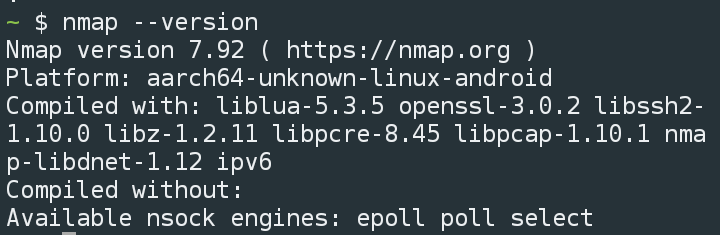
3. To verify the installation, you can run the nmap command with the --version option
nmap --version
NMAP provides a wide range of options for scanning networks and hosts. Here are a few examples of how to use NMAP in Termux:
To scan a range of IP addresses, you can use the -sL option followed by the range of IP addresses you want to scan. For example, to scan the range 192.168.1.1-255, you can use the following command:
nmap -sL 192.168.1.1-255
This will list all the IP addresses within the specified range.
To scan a single host, you can use the -sV option followed by the hostname or IP address of the host you want to scan. For example, to scan the host www.example.com, you can use the following command:
nmap -sV http://scanme.nmap.org/
nmap -p 1-1000 www.example.com
nmap -O www.example.com
This will scan the specified host and attempt to detect the operating system running on it.
Also Read:
In this article, we have discussed how to install and use NMAP in Termux. NMAP is a powerful and versatile tool that can be used to scan networks and hosts to identify the services and operating systems running on them. By following the steps outlined in this article, you can easily install and use NMAP in Termux on your Android device. We have a comprehensive nmap tutorial
GNU nano is a simple terminal-based text editor, used in command line to edit, create small text files, its similar to VIM but not that powerful and it can be good for making small changes in text files through the command line
Today in this post, you will learn how to install and use nano text editor in termux
Follow these steps to get started
1. Download and install Termux from Fdroid
2. Open Termux and type the below commands
apt update && apt upgrade
3. Now install the nano package by typing
pkg install nano
4. After that you can check its version by typing
nano --version
5. Now you are ready to use nano
Creating a file with nano
Type below command to create a new text file
nano test.txt
it will create a new file test.txt if not exists
Now write there and to save and exit the nano press CTRL + X and Y then hit enter
This is the way you can use nano in termux and edit files
Goland or Go language is a popular open-source programming language developed by Google engineers, and it is one of the faster languages,
In this tutorial, you will learn how to install glang in Termux step by step.
Before we begin, ensure that you have Termux installed on your Android device. You can download it from Fdroid. You should have some basic knowledge of termux commands
To install Golang in Termux, follow these steps:
1. Open Termux and update the package repository by running the following command:
pkg update && pkg upgrade -y
2. Install the Golang package by running the following command:
pkg install golang
3. Once the installation is complete, verify that Golang is installed correctly by running the following command:
go version
You should see the version number of Golang displayed in the output.
4. To set the environment variables required for Golang to work properly, run the following commands:
export GOPATH=$HOME/go
export PATH=$PATH:$GOPATH/bin
These commands will set the GOPATH variable to the go directory in your home directory and add the bin directory to the PATH variable.
5. You can now create a new Golang project by creating a directory for your project and running the following command:
go mod init <project name>
This will create a new Go module in the directory you specified.
6. You can start writing your Golang code in the project directory.
That's it! You have successfully installed Golang in Termux and can start building your applications.
Conclusion
Installing Golang in Termux is a simple and straightforward process. By following the steps outlined in this article, you can easily set up a development environment and start writing your Golang code on your Android device. Happy coding!
Git is a popular version control system that allows developers to track changes and collaborate on their code. This article will show you how to install Git in Termux So that you can use git on Android with a Linux-like terminal.
Before we begin, ensure that you have Termux installed on your Android device.
To install Git in Termux, follow these steps:
1. Open Termux and update the package repository by running the following command:
pkg update && apk upgrade -y
2. Install the Git package by running the following command:
pkg install git
3. Once the installation is complete, verify that Git is installed correctly by running the following command:
git --version
You should see the version number of Git displayed in the output.
4. To configure Git with your name and email address, run the following commands:
git config --global user.name "<Your Name>"
git config --global user.email "<Your Email>"
This will ensure that your commits are correctly attributed to you.
5. You can now create a new Git repository by running the following commands:
mkdir <repository name>
cd <repository name>
git init
This will create a new directory for your repository and initialize it as a Git repository.
6. You can add files to the repository and commit changes using the usual Git commands.
That's it! You have successfully installed Git in Termux and can now use it to manage your code repositories.
Installing Git in Termux is not that hard. You can configure your remote repository according to your git platform
Php is a popular scripting language for web development; Php is easy to use and has a simple syntax. In this article, we will show you how to install PHP in termux
To install PHP in termux, follow the below steps carefully
1. Install Termux from F-Droid
2. Type the Below command to update the termux packages
pkg update && apk upgrade -y
3. type the below command to install PHP
pkg install php
4. After successful installation, you can check the PHP version by typing
php --version
5. Install nano, a text editor for terminal
pkg install nano
6. Now Create a file test.php using nano and execute
nano test.php
Save the file by CTRL +X , Then execute it,
php test.php
You will see the output.
hope you guys learnt how to install and use PHP in termux. Also, read termux commands
Node.js is a powerful JavaScript runtime built on Chrome's V8 JavaScript engine. It allows you to run JavaScript on the server side, which can be used to create many applications, from simple command-line tools to complex web applications. This blog post will show you how to install Node.js on your Android device using Termux.
You can install nodejs and npm in termux and build javascript applications. You can install express js, build web applications, build telegram bots and so on.
To install Node.js on Termux, follow these steps:
1. First, open the Termux app on your Android device and update the package manager with the following command:
pkg update && pkg upgrade -y
2. Type the below command to install nodejs
pkg install nodejs
node -v
4. To run Node.js files/scripts, you can follow
node script.js
where the script is the starting point of the app or a js file
npm will be automatically installed with node.js, you can use the node package manager by typing npm in termux
In this tutorial, you will learn how to install python in termux and use python files on your android
Hello there, In this tutorial, we will be discussing how to install and use Sqlmap in termux
apt update
then
apt upgrade
then
pkg install python
then
pkg install git
git clone https://github.com/sqlmapproject/sqlmap.git
cd sqlmap
python sqlmap.py -u "htttp://127.0.0.1/page.php?id=1" --batch
| Command | Purpose, Usage |
|---|---|
| termux-setup-storage | Will setup the storage system |
| apt update | will update the available packages |
| apt upgrade | will upgrade the available packages |
| pkg install | will install new packages, eg: pkg install php |
| pkg uninstall | will uninstall packages, eg: pkg uninstall php |
| pkg list | will show installed packages |
| pkg search | will search packages, eg: pkg search php |
| pkg-list-installed | will show the list of installed packages |
| Command | Purpose, Usage |
|---|---|
| uname -a | Will Display the system information |
| whoami | Will Display the current user information |
| history | Will Display the list of perviously typed commands |
| clear | Will clear the teminal |
| pwd | Will print the present working directory |
| ls | will list the directories, files in that directory |
| cd | you can open a folder/directory using cd command, usage cd test |
| mv | mv command is used to rename a file, folder, also used to move a file from one directory to another |
| cp | cp is used to copy files from directory to another |
| rm | will remove the file, folder, usage rm test.txt |
| touch | will create a new file, touch test.txt |
| mkdir | will create a new directories, usage mkdir test |
pkg install cmatrixAfter that type
cmatrix
pkg install sl
Top
pkg install coreutils
pkg install figlet
pkg install toilet
cal
apt update
apt upgradeThis command is used to upgrade the packages to the latest
termux-setup-storage
ping websiteEg: ping google.com
pkg install w3mAfter that, type the below command to access any website
w3m websiteeg: w3m google.com
Hello guys. In this tutorial, we will be discussing how to use the L3MON Rat. If you are entirely new to this RAT, then follow this tutorial carefully so that you should not face any issues while using the L3MON Rat.
Before getting into the tutorial, here are a few things you have to know
What is L3MON?
L3MON vs Xploitspy?
Why not XploitSpy?
L3MON mod by Techncyber
https://github.com/Basudev1/L3MON-MOD
npm install
It will take a few minutes to install the required node modules. After that, type the below command to start the server.
npm start
.
or
node index.js
Now your server is ready, open http://127.0.0.1 in your browser, and you will see the login panel of L3MON.
The default username and password is
username: admin
password: password
sudo apt install git
Install nodejs if not installed
sudo apt install nodejs
Now clone the repo
git clone https://github.com/Basudev1/L3MON-MOD.git
After that got the repo
cd L3MON-MOD
Now install node modules.
npm install
now start the server by typing
npm start
or
node index.js
Now open http://127.0.0.1 in your browser, and you will see the login interface.
Most of you guys ask for termux spy tools, here is one for you, to use this l3mon-mod
You need Git, Nodejs
Install git if not installed
pkg install git
Install nodejs
pkg install nodejs
Now clone the repo
git clone https://github.com/Basudev1/L3MON-MOD.git
, then go to the L3MON-MOD directory, then node index.js
cd L3MON-MOD
then
node index.js
Now open http://127.0.0.1 in any browser, and you will see the login panel.
ifconfig
ipconfig
“SECURE PHONE”
“HACK PHONE”
Testing router security via Smartphone;
Setting up and optimizing Termux to work with root rights and pentester frameworks for “underhand” testing